Embedding a YouTube video on a website sounds like one of those tasks that should require a developer, three browser tabs, and at least one dramatic sigh. Fortunately, it is much easier than that. YouTube provides ready-made embed code, and most modern website builders can handle a YouTube URL without asking you to touch HTML at all.
Whether you want to add a single tutorial, a product demonstration, a music playlist, a webinar, or an entire series of videos, this guide explains how to embed YouTube videos and playlists correctly. We will also cover responsive design, privacy-enhanced mode, useful player parameters, page-speed optimization, SEO, accessibility, and the annoying little problems that occasionally make an innocent iframe behave like it has personal grievances.
YouTube’s official instructions confirm that both individual videos and playlists can be embedded by copying the HTML supplied through the Share menu. Major website platforms including WordPress, Squarespace, Wix, Webflow, Weebly, Google Sites, and others also provide built-in ways to insert YouTube content.
What Does It Mean to Embed a YouTube Video?
Embedding means displaying content hosted somewhere else inside your webpage. The video still lives on YouTube’s servers, but visitors can watch it through a player displayed directly on your site.
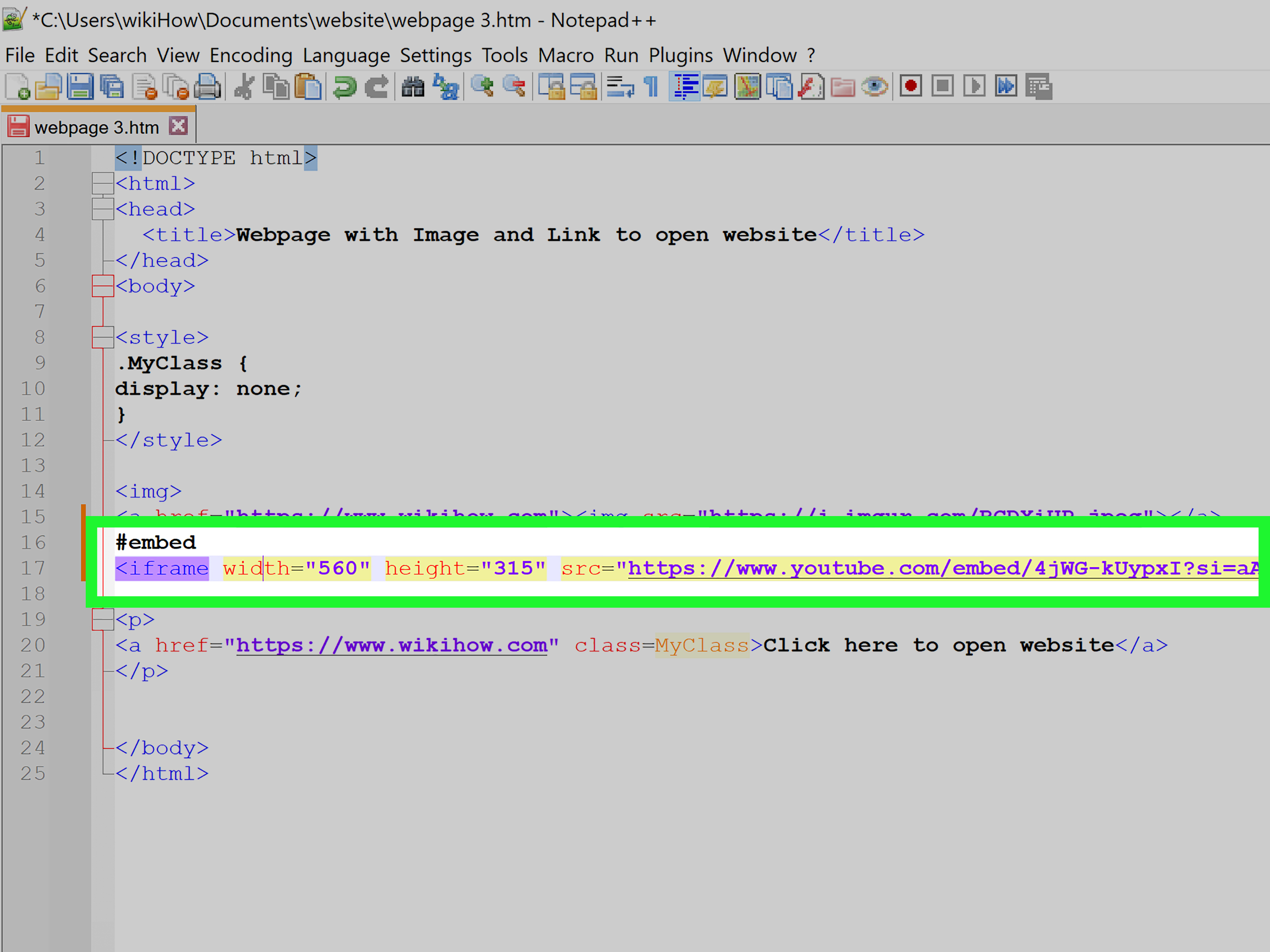
The most common method uses an HTML <iframe>. Think of an iframe as a small browser window placed inside your page. The browser loads YouTube’s player inside that window while the rest of your article, product page, landing page, or tutorial remains yours.
This is different from uploading a large video file directly to your hosting account. YouTube handles video storage, streaming, bandwidth, playback quality, and much of the player functionality. That can be especially useful for blogs and small-business websites where hosting a library of large video files would be unnecessarily expensive or complicated.
How to Embed a Single YouTube Video
Method 1: Use YouTube’s Share and Embed Buttons
This is the easiest method if your website accepts custom HTML.
- Open YouTube on a desktop computer.
- Navigate to the video you want to add.
- Click Share below the video.
- Select Embed.
- Copy the HTML iframe code YouTube provides.
- Open your website editor.
- Switch to an HTML, code, or embed block.
- Paste the iframe code.
- Preview the page and publish it.
Those steps follow YouTube’s current official embedding process. Videos whose owners have disabled embedding will not work normally on third-party websites, and age-restricted videos may redirect viewers back to YouTube instead.
A simplified embed looks like this:
Replace VIDEO_ID with the ID of the video you want to display.
Method 2: Paste the YouTube URL Into Your Website Builder
You may not need iframe code at all. Modern content-management systems often recognize YouTube URLs automatically.
For example, WordPress provides a dedicated YouTube Embed block and can transform supported YouTube links into embedded players. Squarespace supports YouTube URLs in video and embed blocks. Webflow provides a YouTube video element with options such as start time and player controls. Wix and Weebly also let site owners paste video URLs into their video tools.
Google Sites is similarly straightforward: choose Insert, select YouTube, find the video, and insert it. In other words, if your website builder has a button labeled “Video,” try that before wrestling with raw HTML.
How to Embed a YouTube Playlist
A playlist embed is useful when several videos belong together. Instead of scattering five or ten separate players around a page like digital lawn furniture, you can provide one player through which visitors can move through the series.
The simplest method is nearly identical to embedding one video:
- Open the desired playlist on YouTube.
- Choose Share.
- Select the embedding option when available.
- Copy the supplied HTML.
- Paste it into your site’s HTML or embed block.
YouTube’s embedded-player documentation also supports loading playlists through the listType and list parameters.
A playlist iframe can be structured like this:
Replace PLAYLIST_ID with the playlist’s actual identifier.
For a course, recipe series, product-training library, podcast archive, or multi-part tutorial, this is usually cleaner than inserting each episode individually.
Make Your YouTube Embed Responsive
A fixed 560-by-315-pixel iframe may look fine on a laptop but awkward on a narrow phone. Responsive video embedding allows the player to shrink and expand with its container while retaining a widescreen aspect ratio.
A modern approach is to use CSS’s aspect-ratio property:
The result is a player that fits desktop, tablet, and mobile layouts without requiring you to calculate dimensions every time someone rotates an iPhone.
Use Lazy Loading to Improve Page Speed
YouTube embeds can load numerous external resources. If a page contains several players, loading every iframe immediately can add unnecessary work during the initial page load.
The HTML loading="lazy" attribute tells compatible browsers that an offscreen iframe can wait until the visitor approaches it. MDN documents lazy loading for iframes as broadly available, while web.dev notes that lazy loading third-party iframe embeds can save significant initial data transfer and reduce competition for critical page resources.
Simply add:
For example:
For videos far below the fold, this tiny addition is often worth making.
How to Use YouTube Privacy-Enhanced Mode
YouTube offers a privacy-enhanced embedding mode. Instead of using the standard youtube.com domain, the iframe uses youtube-nocookie.com.
YouTube explains that views through its Privacy Enhanced Mode are not used to personalize the viewer’s subsequent YouTube browsing experience, and ads shown in that mode are non-personalized.
Change this:
to this:
Your complete iframe might therefore look like:
Privacy-enhanced mode can be a useful component of a broader privacy strategy, although website owners still need to evaluate their own consent, analytics, advertising, and legal requirements.
Useful YouTube Embed Parameters
YouTube’s player supports URL parameters that customize playback behavior. However, avoid relying on old tutorials from 2014 that promise magical branding tricks. Some historical parameters have been deprecated.
Start at a Specific Time
To begin playback at 90 seconds:
YouTube officially supports the start parameter using seconds.
Show Captions by Default
You can also specify a preferred caption language when suitable. Captions are particularly valuable for accessibility, users watching without sound, and international audiences.
Autoplay
Autoplay should be used cautiously. Browser restrictions, mobile behavior, audio policies, and user expectations can affect whether autoplay actually occurs. A video suddenly yelling at someone who opened your article during a quiet meeting is also rarely an unforgettable user experience for the right reasons.
Loop a Video
YouTube’s current player documentation explains that looping a single video requires both loop=1 and the same video ID supplied through the playlist parameter:
Related Videos
One outdated tip deserves special attention. Setting rel=0 no longer completely eliminates related videos. Under YouTube’s current documented behavior, it limits related recommendations to the same channel rather than removing them entirely. The old modestbranding parameter is also deprecated and no longer has an effect.
Accessibility: Give Every Iframe a Useful Title
An embedded video should not become a mystery box for people using assistive technology. Add a meaningful title attribute to the iframe.
The W3C’s Web Accessibility Initiative specifically documents using the iframe title attribute to identify the frame’s contents so users can understand what they are entering.
Avoid meaningless titles such as title="iframe". Technically, yes, it is an iframe. Technically, a refrigerator is “large cold box.” We can do better.
YouTube Embeds and Video SEO
Embedding a video does not automatically launch your webpage to position one in Google, but video can strengthen a page when it genuinely supports the search intent.
Google Search Central says Google can locate videos referenced through common HTML elements including <iframe>. Google also recommends making videos discoverable in rendered HTML and providing useful video metadata where appropriate.
For stronger video SEO:
- Place the video near relevant written content.
- Use a descriptive H1 and H2 structure.
- Explain what the video demonstrates.
- Add an iframe title.
- Consider a transcript or detailed summary.
- Use relevant VideoObject structured data when appropriate.
- Avoid embedding ten unrelated videos merely because you can.
- Keep the page fast and mobile-friendly.
The surrounding written content matters because search engines and users need context. A 12-minute embedded video floating beneath a heading that simply says “Watch This” does not provide much information about why anybody should watch it.
Embedding YouTube Videos in Popular Website Builders
WordPress
Paste a supported YouTube URL into the YouTube block or an Embed block. WordPress supports standard videos and playlists, while custom iframe HTML can be placed in a Custom HTML block when greater control is required.
Squarespace
Use a video URL for straightforward YouTube content or an embed block when you need advanced playback options. Squarespace’s current documentation supports YouTube URLs and playlists in appropriate video areas.
Wix and Weebly
Both platforms provide visual video tools that allow users to paste YouTube URLs without manually writing iframe code. This is usually the preferable approach unless you specifically need custom behavior.
Webflow and Elementor
Webflow’s YouTube element includes controls for features such as start time. Elementor’s Video widget similarly supports YouTube and provides options including start and end times, autoplay, mute, looping, captions, privacy mode, and lazy loading.
Why Is My YouTube Video Not Embedding?
Embedding Has Been Disabled
The video’s owner can turn off external embedding. When that happens, changing your CSS, refreshing WordPress, clearing your cache, and staring suspiciously at the router will not solve the underlying problem.
The Video Is Private or Restricted
Private and certain restricted videos may not play through ordinary public embeds. YouTube also notes that age-restricted videos generally cannot be watched on most third-party sites.
Your Website Editor Removes Iframes
Some CMS platforms sanitize custom HTML for security reasons. Use the platform’s dedicated video or embed component instead.
The Player Is Too Small or Broken on Mobile
Make the container responsive and preserve a 16:9 ratio. YouTube’s developer documentation also specifies minimum dimensions for embedded players.
You See YouTube Error 153
YouTube currently documents error 153 as a potential consequence when the embed request lacks the required HTTP Referer information. This can occur in unusual embedding environments or when privacy/security configurations strip information YouTube expects.
Should You Embed YouTube Videos in Email?
Usually not as a normal iframe. Email clients operate under much stricter limitations than web browsers.
Mailchimp, for example, explains that most email clients do not support embedded video playback. Its video blocks therefore commonly display a thumbnail linked to the hosted video instead.
A reliable email strategy is to use an attractive video thumbnail with a play-button graphic and link it to your website or YouTube.
Conclusion
Learning how to embed a YouTube video or playlist is one of the easiest ways to add useful multimedia to a website without hosting massive video files yourself. For a basic embed, YouTube’s Share > Embed workflow provides everything you need. For WordPress, Squarespace, Wix, Webflow, Google Sites, and similar platforms, simply pasting the video URL may be enough.
The best implementation goes a little further: make the player responsive, add a descriptive iframe title, lazy-load videos that sit below the fold, consider privacy-enhanced mode, and place each video alongside meaningful written content. Those small improvements can make the difference between a helpful video section and a sluggish rectangle that eats half the mobile screen.
Practical Experience: What Usually Happens When YouTube Embeds Meet Real Websites
The mechanics of embedding a YouTube video take about a minute. The interesting part begins after the video reaches a real website with responsive layouts, caching plugins, cookie-consent software, performance optimization, page builders, ad scripts, and visitors carrying phones manufactured during several different presidential administrations.
One of the most common lessons from practical website implementation is that the simplest embed usually causes the fewest problems. If WordPress, Wix, Squarespace, Webflow, or another CMS already provides an official video component, using that component is generally easier to maintain than building a complicated custom iframe. Page builders can manage responsive sizing automatically, and future editors can change the video without digging through HTML.
Custom HTML becomes worthwhile when the project requires something specific: privacy-enhanced mode, an exact start time, captions enabled by default, playlist behavior, custom loading rules, or JavaScript control through the YouTube IFrame Player API.
Another recurring issue is mobile sizing. A video may look perfect during editing on a 27-inch monitor and then become wider than the entire page on a phone. This usually happens because somebody copied a fixed-width iframe and assumed the browser would politely figure things out. Sometimes it does. Sometimes the video leaves the screen like it suddenly remembered an appointment.
Using a responsive 16:9 container eliminates most of those headaches.
Page speed is the next surprise. One embedded YouTube player may be perfectly reasonable. Eight players on one article can be another story because each iframe may trigger additional network requests and scripts. Lazy loading becomes particularly valuable on long tutorial pages where videos appear farther down. For a gallery containing many videos, an even lighter approach is to initially display thumbnails and load each player only after interaction.
Placement also affects usefulness. Embedding a video merely because a page “needs multimedia” rarely adds much. The most effective embeds answer a question the surrounding text raises. A repair article might explain the procedure in text and then provide a demonstration. A recipe could show the tricky folding technique. A software tutorial could embed a walkthrough immediately after the relevant steps. Video works best as evidence or instruction, not decoration.
Privacy settings deserve testing as well. Privacy-enhanced mode is easy to implement by switching to the youtube-nocookie.com embed domain, but it should still be evaluated within the website’s complete consent and analytics setup. A privacy-friendly iframe cannot magically fix unrelated trackers elsewhere on the page.
Finally, always preview the finished embed outside the editor. Test desktop and mobile widths, click full screen, verify captions, try the playlist controls, and test in a private browser window. Website administrators are often logged into YouTube, WordPress, and half the internet simultaneously, which can produce a viewing experience different from that of a first-time visitor.
The most reliable formula is pleasantly boring: use a supported embed method, keep the player responsive, load it efficiently, label it accessibly, surround it with useful content, and test the published page. Boring, in web development, is frequently another word for “it works.”
Note: YouTube and website-builder features can change over time. When advanced player behavior is important, verify current parameters against YouTube’s official embedded-player documentation before deployment.