Accessing a shared folder on Android sounds like something only a network engineer should enjoy while sipping black coffee in a server room. Good news: it is much easier than that. Whether your files are sitting on a Windows PC, a NAS device, Google Drive, OneDrive, Dropbox, or another cloud service, your Android phone can become a handy little file explorer instead of a digital island.
The main keyword here is simple: access a shared folder on Android. But the real goal is even simpler: open the files you need without emailing yourself attachments, digging through USB cables, or muttering “where did I save that thing?” for the seventh time today.
In this guide, we will walk through three practical ways to open shared folders from an Android phone or tablet. You will learn how to connect to a Windows shared folder over your local Wi-Fi network, use cloud shared folders, and reach files stored on a NAS or private server. Each method has strengths, limits, and a few tiny traps hiding in the grass. Let’s step around them.
What Is a Shared Folder on Android?
A shared folder is a folder made available to other devices or users. On Android, you usually access shared folders in one of three ways:
- Through a local network folder, such as a Windows SMB share
- Through a cloud service, such as Google Drive, OneDrive, or Dropbox
- Through a NAS, FTP, SFTP, WebDAV, or private file server
Android does not work exactly like Windows File Explorer or macOS Finder. Many Android phones include a basic file manager, but not all built-in file managers can browse Windows shared folders or network drives. That is why third-party Android file manager apps are often used for SMB, FTP, SFTP, and WebDAV access.
Before You Start: What You Need
Before trying to connect, gather a few details. Think of this as packing snacks before a road trip. Technically optional, but you will regret skipping it.
For a Windows or SMB Shared Folder
- The computer name or local IP address
- The shared folder name
- The username and password for the computer or shared folder
- Both devices connected to the same Wi-Fi network
- Network discovery and file sharing enabled on the Windows PC
For a Cloud Shared Folder
- The correct app installed, such as Google Drive, OneDrive, or Dropbox
- The same account that received access to the folder
- Internet access
- Permission to view, comment, or edit the folder
For a NAS or Private Server
- The NAS app or a file manager that supports SMB, FTP, SFTP, or WebDAV
- The server address, username, and password
- Remote access settings if connecting outside your home network
- A secure connection method, especially when accessing files over the internet
Way 1: Access a Windows Shared Folder on Android Using SMB
The most direct way to access a shared folder on Android is through SMB, which stands for Server Message Block. SMB is the file-sharing protocol commonly used by Windows PCs, Samba servers, and many NAS devices. In everyday language, it is the thing that lets one computer say, “Here, you may look inside this folder, but please do not delete my tax documents.”
Step 1: Share the Folder on Your Windows PC
On your Windows computer, right-click the folder you want to share. Choose Properties, open the Sharing tab, and select the sharing option. You can share the folder with a specific user or with selected people on your network.
For better security, avoid giving access to “Everyone” unless you are on a trusted private network and truly understand what that means. A better option is to create or use a Windows account with a password and give that account permission to access the folder.
Step 2: Check Your PC Name or IP Address
Your Android app needs to know where the shared folder lives. You can use either the computer name or the local IP address. On Windows, you can open Command Prompt and type:
Look for the IPv4 address, which may look something like:
You may also need the share name. For example, if the shared folder is called “Projects,” the network path may look like:
On Android, many file managers ask for the server address separately from the folder name, so do not worry if the format looks slightly different.
Step 3: Install an Android File Manager with SMB Support
Many Android users choose apps such as Solid Explorer, Cx File Explorer, X-plore File Manager, MiXplorer, or AndSMB because they support network storage. Look for features like SMB, LAN, FTP, SFTP, WebDAV, or cloud storage support.
After installing the app, open its network or storage section. Choose SMB, LAN, or Network, depending on the app. Then enter the PC’s IP address, shared folder name, username, and password.
Step 4: Open, Copy, Upload, or Download Files
Once connected, you should see the shared folder on your Android device. You can open documents, view photos, play videos, copy files to your phone, or upload files from Android to the shared folder if your permissions allow it.
This method is excellent when you want local network speed and do not want to upload private files to the cloud. It is especially useful for home offices, media collections, scanned documents, and shared work folders.
Best Use Cases for SMB on Android
- Opening files stored on a Windows PC from your phone
- Moving photos from Android to a desktop without USB cables
- Watching videos stored on a local server
- Managing documents on a home network
- Accessing Samba shares from Linux or NAS devices
Common SMB Problems and Fixes
If your Android phone cannot connect, first check whether both devices are on the same Wi-Fi network. Guest Wi-Fi networks often block device-to-device communication, which is wonderful for security and terrible for your patience.
Next, confirm that file sharing and network discovery are enabled on the Windows PC. Also check the folder permissions. If you can connect but cannot edit files, your account may only have read access. Finally, make sure your firewall is not blocking local file sharing.
Way 2: Access a Cloud Shared Folder on Android
If SMB is the local-network route, cloud shared folders are the “anywhere with internet” route. Services like Google Drive, Microsoft OneDrive, and Dropbox make it easy to share folders with specific people, assign permissions, and access files from Android without touching router settings.
How Google Drive Shared Folders Work on Android
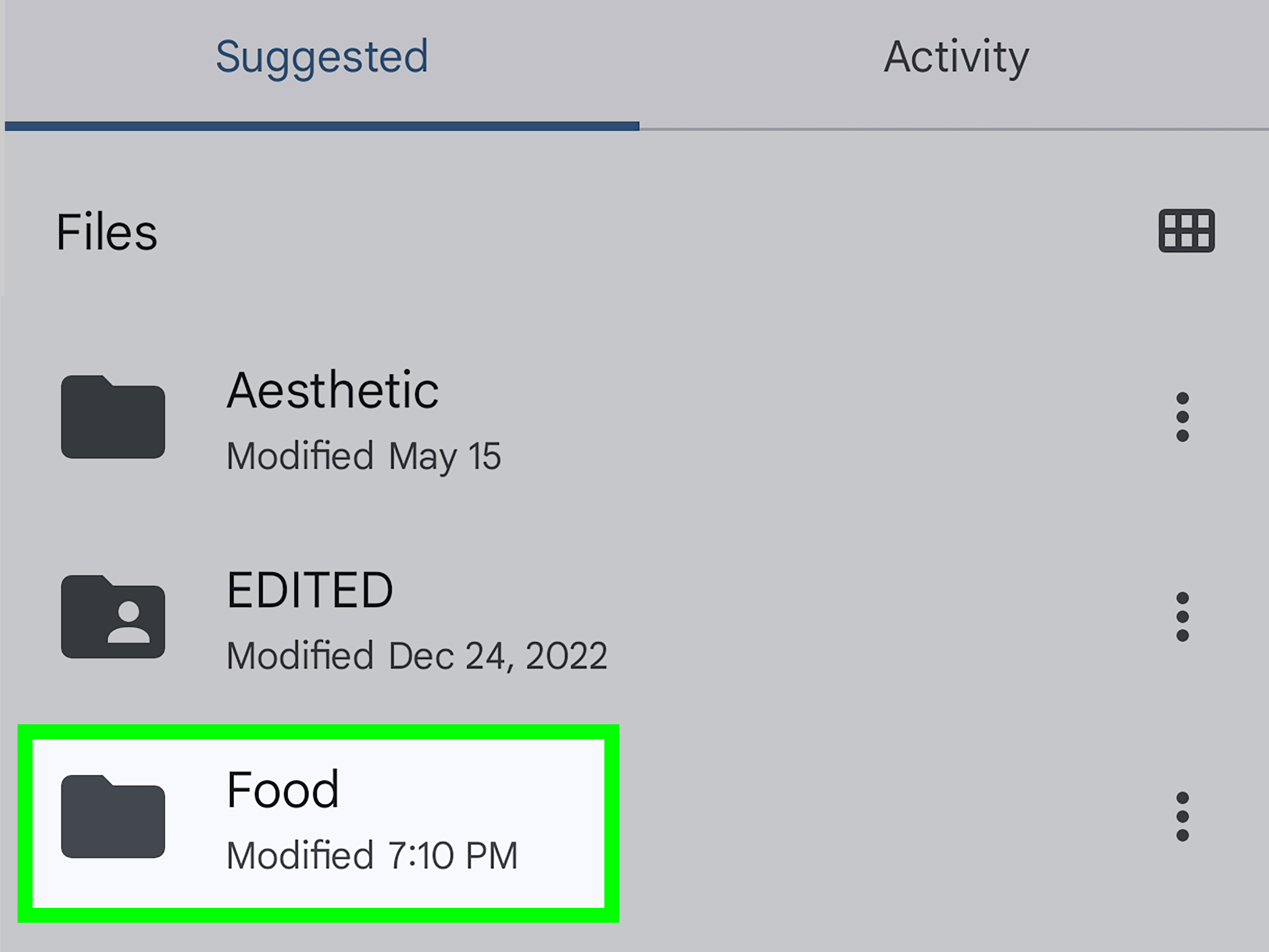
Google Drive is one of the simplest ways to access a shared folder on Android because many Android users already have a Google account. If someone shares a folder with you, open the Google Drive app, go to the shared section, and tap the folder.
Depending on your permission level, you may be able to view, comment, organize, upload, or edit files. If you need fast access later, you can add the folder to your starred items or create a shortcut in your Drive.
How OneDrive Shared Folders Work on Android
OneDrive is especially useful for people who use Windows, Microsoft 365, Word, Excel, or Teams. When a folder is shared with your Microsoft account, open the OneDrive app on Android and check the shared area. You can preview files, open Office documents, save files for offline access, and collaborate with others.
If a folder was shared with edit permissions, you may be able to add files, modify documents, or sync work across devices. For business users, permissions may depend on organization policies, so do not be surprised if your company account behaves differently from your personal account.
How Dropbox Shared Folders Work on Android
Dropbox shared folders are popular for creative teams, freelancers, photographers, and people who like their files organized without wrestling an octopus. In the Dropbox Android app, shared folders appear in your file list or shared section. You can view files, upload content, comment, and collaborate depending on the permission level.
Dropbox also lets users share folders with view-only or edit access. That makes it useful when you want someone to see the files but not accidentally turn “Final_Final_ReallyFinal.pdf” into “oops.pdf.”
Benefits of Cloud Shared Folders
- Works from almost anywhere with internet access
- No need to configure Windows network sharing
- Easy collaboration with permission controls
- Good for documents, photos, team folders, and school projects
- Offline access is available in many apps
Limitations of Cloud Shared Folders
Cloud folders depend on internet speed and storage limits. Large videos, raw photo libraries, and huge project folders can take time to upload or download. Privacy is another consideration. Reputable cloud providers offer strong security features, but not every file belongs in the cloud. For sensitive business records, financial documents, or private archives, review your security settings carefully.
Another common issue is account confusion. If someone shares a folder with your work email but you open the app using your personal account, the folder may appear to be missing. The folder is not haunted. You are just in the wrong account.
Way 3: Access a Shared Folder on Android Through a NAS, FTP, SFTP, or WebDAV
A NAS, or network-attached storage device, is like a private cloud that lives in your home or office. Brands such as Synology and QNAP provide Android apps that let users browse, upload, download, and share files from their NAS devices. This is a strong option for people who want more control than public cloud storage but more convenience than leaving a desktop PC on all day.
Using a NAS App on Android
If you have a Synology NAS, you can use apps such as Synology Drive or DS file to manage files from Android. If you use QNAP, Qfile is designed for mobile access to files stored on a QNAP NAS. These apps typically allow browsing folders, uploading phone photos, downloading documents, and sharing NAS files with others.
NAS apps are often the easiest option because they are built for the hardware. You enter your NAS address or sign in through the vendor’s remote access system, then browse folders from your phone. It feels similar to using a cloud app, except the storage is under your control.
Using FTP, SFTP, or WebDAV
Some Android file managers support FTP, SFTP, and WebDAV. FTP is older and common, but SFTP is usually preferred because it is encrypted. WebDAV can be useful for certain servers, hosting accounts, and private cloud setups.
To connect, open your Android file manager, add a new remote location, and choose the correct protocol. Then enter the server address, port, username, and password. For SFTP, the port is often 22. For FTP, it is often 21. For WebDAV, the port may be 80 or 443, depending on whether the connection uses HTTPS.
Accessing Shared Folders Outside Your Home Network
Remote access is where things get serious. If you want to access a home shared folder while away from home, do not simply expose SMB directly to the internet. That is not a shortcut; that is putting a “free snacks” sign on your router for the entire internet.
Safer options include using a VPN, a NAS vendor’s secure remote access service, SFTP, or a trusted private cloud solution. A VPN lets your Android phone connect to your home network as if you were there. Once connected, you can access local shared folders more safely.
Best Use Cases for NAS and Private Server Access
- Managing a large home media library
- Backing up Android photos to private storage
- Accessing business documents from a secure server
- Working with files too large for cloud storage limits
- Keeping ownership and control over sensitive data
Which Method Should You Choose?
The best method depends on where your files live and how often you need them. Here is the simple version.
Choose SMB If…
Use SMB if the shared folder is on a Windows PC, Linux Samba server, or NAS on the same Wi-Fi network. It is fast, direct, and does not require uploading files to a third-party cloud service. It is ideal for home networks and office networks.
Choose Cloud Shared Folders If…
Use Google Drive, OneDrive, Dropbox, or another cloud service if you want easy access from anywhere. This method is best for collaboration, remote work, school folders, and files that several people need to view or edit.
Choose NAS, SFTP, or WebDAV If…
Use a NAS app, SFTP, or WebDAV if you want private storage, remote access, and more control. This is a strong choice for advanced users, small businesses, creators, and anyone with a growing pile of files that refuses to stay organized by magic.
Security Tips for Accessing Shared Folders on Android
Convenience is great, but security keeps your files from becoming internet confetti. Follow these practical tips:
- Use strong passwords for Windows, NAS, and cloud accounts.
- Avoid sharing folders with “Everyone” unless absolutely necessary.
- Use read-only access when editing is not required.
- Enable two-factor authentication on cloud and NAS accounts.
- Use SFTP or HTTPS instead of plain FTP whenever possible.
- Do not expose SMB directly to the public internet.
- Remove access for people who no longer need the folder.
Also, keep your Android apps updated. File managers, cloud apps, and NAS apps often receive security and compatibility improvements. Updates may not be glamorous, but neither is losing access to an important folder five minutes before a meeting.
Troubleshooting: Why Can’t Android Access the Shared Folder?
The Folder Does Not Appear
Check that your Android device and computer are on the same network. If your phone is using mobile data while your PC is on Wi-Fi, local SMB access will not work. Also check whether the computer is awake. Sleeping PCs are not famous for their hospitality.
The Username or Password Fails
Make sure you are using the correct account for the shared folder. On Windows, this is often your Microsoft account email or a local Windows username. If the PC uses a PIN to sign in, remember that the network share may still require the actual account password.
You Can View Files but Cannot Edit Them
This usually means your account has read-only permission. Adjust the folder permissions on the host computer, NAS, or cloud service. Be careful with edit access because it may allow users to change, delete, or upload files.
Transfers Are Slow
Slow transfers can be caused by weak Wi-Fi, large files, older routers, VPN overhead, or cloud upload limits. For local transfers, connect both devices to a strong Wi-Fi network. For cloud folders, check your internet speed and whether the app is syncing in the background.
Real-World Experiences: What It Is Like to Access Shared Folders on Android
In real use, accessing a shared folder on Android can feel surprisingly smooth once it is set up. The first connection is usually the hardest part because you must collect the IP address, folder name, username, password, and permission settings. After that, most Android file managers let you save the connection, so returning to the folder takes only a few taps.
For example, imagine you keep work files on a Windows desktop in a folder called “Client Reports.” You share the folder on your home network, install a file manager with SMB support on your Android phone, and connect to the desktop using its local IP address. Now you can open a PDF report from the couch, upload a photo from your phone, or copy a spreadsheet before leaving for a meeting. No cable. No email attachment gymnastics. No “I’ll send it when I get back to my computer” excuse.
Cloud shared folders are even more beginner-friendly. If someone sends you access to a Google Drive or OneDrive folder, you usually just open the app and tap the shared folder. This is perfect for group projects, family photo folders, and teams that need quick collaboration. The trade-off is that cloud access depends on internet speed and account permissions. When something does not appear, the problem is often not the phone; it is usually the wrong account or missing permission.
NAS access feels like the power-user version. It is excellent for people with lots of videos, photos, design files, backups, or business documents. A NAS app can make the experience simple, while SMB or SFTP gives more flexibility. The biggest lesson is to plan security before remote access. Local NAS access over Wi-Fi is fairly straightforward. Remote access from outside the home requires more care, ideally with a VPN, HTTPS-based service, or secure vendor-supported connection.
One practical experience: file previews vary by app. Some file managers open images and documents directly, while others download the file first or hand it off to another app. If you often open Word documents, PDFs, videos, or ZIP files, test a few common file types before relying on one setup. Nothing ruins productivity like discovering your phone can see the file but refuses to open it gracefully.
Another useful habit is creating separate folders for mobile uploads. Instead of giving your Android phone full edit access to an entire archive, create a folder called “Phone Uploads” or “Mobile Drop.” This keeps transfers organized and reduces the risk of accidentally moving or deleting important files. Your future self will appreciate this small act of digital kindness.
Finally, remember that Android shared folder access is not one-size-fits-all. SMB is best for fast local network access. Cloud folders are best for convenience and collaboration. NAS or SFTP access is best for privacy, storage control, and advanced workflows. Once you match the method to your situation, Android becomes a very capable file-access tool instead of just the device you use to check messages and lose track of time.
Conclusion
Learning how to access a shared folder on Android gives your phone a serious productivity upgrade. For local files, SMB lets you connect to Windows shared folders, Samba servers, and many NAS devices over Wi-Fi. For simple collaboration, cloud shared folders in Google Drive, OneDrive, and Dropbox are easy to use and work almost anywhere. For more control, NAS apps, SFTP, and WebDAV offer flexible ways to reach private storage.
The easiest path for beginners is usually a cloud shared folder. The fastest local option is usually SMB. The most powerful setup is usually a NAS or private server with secure remote access. Choose the method that fits your files, your privacy needs, and your patience level. Your Android phone is ready. Your folders are waiting. The USB cable can finally take a nap.
Note: This article is written for general educational use and reflects commonly used Android file-sharing methods, including SMB network folders, cloud shared folders, NAS apps, FTP, SFTP, and WebDAV. Exact menu names may vary by Android version, device brand, app, and network configuration.