Note: In this article, “Javascript” is written in the title for search intent, but the standard technical spelling is “JavaScript.” Tiny detail, big developer energy.
Printing from a web page sounds like a small feature until someone needs an invoice, receipt, report, shipping label, classroom worksheet, or “please prove I paid for this” confirmation page. Suddenly, one innocent button labeled “Print” becomes the hero of the entire user experience. The good news? Learning how to print in JavaScript is not as scary as it looks. In many cases, the browser already does the heavy lifting. JavaScript simply taps the browser on the shoulder and says, “Excuse me, please open the print dialog.”
The most common way to print in JavaScript is the built-in window.print() method. It opens the browser’s print dialog for the current document, allowing the user to print the page or save it as a PDF. However, professional web printing usually needs more than one button. You may want to print only one section, hide navigation menus, remove buttons, apply print-friendly CSS, generate a temporary printable layout, or restore the page after printing.
This guide explains four easy, step-by-step methods: printing the whole page, printing a specific section with CSS, printing generated content in a new window, and using print events for a cleaner experience. We will keep things practical, readable, and friendlybecause nobody should need three cups of coffee and a motivational poster just to print a div.
Why Printing in JavaScript Works Differently Than Console Logging
Before jumping into the methods, let’s clear up a common beginner confusion. JavaScript has several “output” options: console.log() for developers, alert() for pop-up messages, changing the DOM for page content, and window.print() for printing. The word “print” in JavaScript does not mean printing text to a terminal like Python’s print(). In browser-based JavaScript, printing usually means opening the browser’s print dialog for the current web page.
Also, JavaScript cannot silently send a document to a user’s printer without permission. That would be chaos. Imagine visiting a website and your printer suddenly starts producing 47 pages of coupon ads. Browsers protect users by requiring a print dialog or print preview interaction. Your code can request printing, but the user stays in control.
Method 1: Print the Entire Page with window.print()
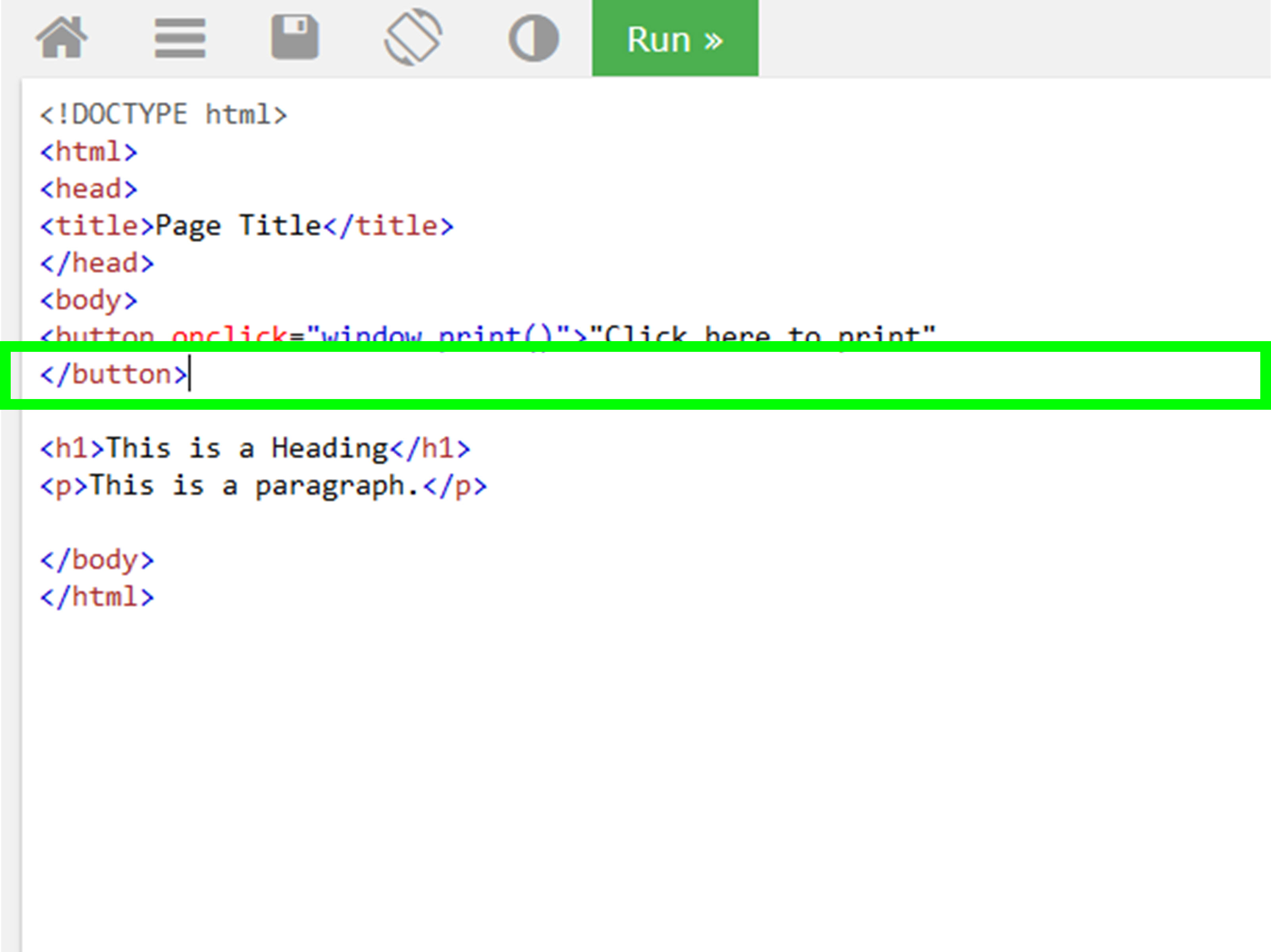
This is the simplest and most beginner-friendly method. If you want to print the current page exactly as the browser sees itor as your print CSS styles define ituse window.print().
Step 1: Create a Print Button
Add a button where users can easily find it. Good examples include invoice pages, order confirmation pages, reports, dashboards, or article pages.
Step 2: Test the Button in the Browser
Open the page in Chrome, Edge, Firefox, or Safari. Click the button. The browser print dialog should appear. From there, users can choose a printer, change page orientation, adjust scale, or save the page as a PDF.
Step 3: Keep the Button Out of the Printed Page
Here is the funny problem: if you print the whole page, the print button may print too. That is like taking a selfie and accidentally including the selfie stick. Use CSS to hide the button when printing.
Step 4: Use It for Simple Pages
This method is perfect for articles, confirmation pages, documentation, basic receipts, and pages already designed for printing. It is fast, native, and easy to maintain. The limitation is that it prints the whole current document unless you control visibility with CSS.
Method 2: Print Only a Specific Section Using CSS
Sometimes users do not want the entire page. They want the invoice, not the sidebar. The recipe, not the author bio, pop-up banner, and “subscribe to our newsletter” box that follows them like a very determined puppy. CSS print media rules are the cleanest way to handle this.
Step 1: Wrap the Printable Area
Place the content you want to print inside a container. Give it a clear ID or class.
Step 2: Hide Everything Except the Printable Area
Use @media print to change the layout only during printing. This means your regular website stays beautiful on screen, while the printed version becomes clean and focused.
Step 3: Add Print-Friendly Design
Printed pages do not behave exactly like screens. Large shadows, bright backgrounds, sticky headers, animations, and complex grid layouts can look strange on paper. A good print stylesheet uses simple spacing, readable fonts, dark text, and predictable widths.
Step 4: Print with the Same Button
You still call window.print(). The difference is that CSS controls what appears in the printed output.
This method is great for invoices, certificates, reports, order details, recipes, tickets, and any page where only one part deserves paper fame.
Method 3: Print Generated Content in a New Window
Another popular approach is to create a temporary print window, write custom HTML into it, print it, and close it afterward. This is useful when the printable version should be different from the visible page. For example, your dashboard may show filters, buttons, tabs, charts, and tooltips, but the printed report may need only a title, summary table, and signature line.
Step 1: Create the Content You Want to Print
You can get content from an existing element or build it dynamically from data.
Step 2: Open a New Window
Use window.open() to create a temporary document. Then write a complete printable layout into that window.
Step 3: Close the Window After Printing
Some browsers allow the temporary window to close after printing. Others may treat closing behavior differently depending on browser settings and user actions. Still, you can add an afterprint event for a cleaner flow.
Step 4: Use This Method Carefully
This method gives you strong control over the printed content, but it requires careful handling. Make sure styles are included, images are fully loaded, and user-generated content is sanitized before inserting it into a new document. If you are printing sensitive data, such as payment details or private records, keep the printable layout minimal and secure.
Method 4: Use beforeprint and afterprint for a Better Print Experience
The browser provides print-related events that help you prepare the page before printing and restore it afterward. The two most useful events are beforeprint and afterprint. They are excellent for temporary changes, such as expanding collapsed sections, pausing animations, showing hidden legal text, or returning the user to the same scroll position after printing.
Step 1: Save the User’s Current Scroll Position
If the page is long, a user may click print while halfway down. In some layouts, scrolling can affect what appears in print preview. A practical trick is to save the current scroll position, move to the top before printing, and restore the position afterward.
Step 2: Prepare the Page Before Printing
Use beforeprint to make temporary changes. For example, add a class to the body, expand hidden content, or adjust layout details.
Step 3: Restore the Page After Printing
Use afterprint to clean up. This keeps your website from staying in “print mode” like it just got back from an office supply store and cannot emotionally move on.
Step 4: Combine Events with CSS
You can combine JavaScript events with CSS classes for a polished result.
This method works well when the page has interactive elements, accordions, tabs, dashboards, or content that should appear differently on paper than it does on screen.
Best Practices for JavaScript Printing
Use CSS for Layout, JavaScript for Triggering
A common mistake is trying to control every print detail with JavaScript. In most cases, JavaScript should trigger the print dialog, while CSS should control print presentation. Think of JavaScript as the doorbell and CSS as the person who actually cleaned the house before guests arrived.
Always Create Print Styles
A page that looks great on screen may look terrible on paper. Use @media print to remove navigation, hide buttons, simplify backgrounds, adjust font sizes, and prevent awkward page breaks.
Use @page for Margins and Paper Size
The @page rule can help define margins and page size for print output. Browser support and user printer settings may influence final results, but it is still useful for making printable pages more predictable.
Test in Multiple Browsers
Printing is one of those web features where browsers may behave slightly differently. Test in Chrome, Edge, Firefox, and Safari when possible. Also test “Save as PDF,” because many users use browser printing to create PDFs rather than physical paper. Your printer may be asleep, but your PDF button is always wide awake.
Wait for Images Before Printing
If your printable content includes logos, QR codes, product photos, or charts, make sure they load before calling window.print(). Otherwise, the print preview may show missing or incomplete assets.
Common Mistakes When Printing with JavaScript
Mistake 1: Expecting JavaScript to Bypass the Print Dialog
Browsers do not allow normal websites to print silently without user interaction. This is a security and usability protection. Your code can open the print dialog, but the user chooses what happens next.
Mistake 2: Forgetting to Hide Buttons
If the print button appears in the printed page, add a .no-print class and hide it inside @media print.
Mistake 3: Printing Complex Screen Layouts Without Adjustment
Sticky headers, fixed sidebars, animations, modals, and background-heavy designs can create messy print results. Simplify the printed version.
Mistake 4: Using innerHTML Carelessly
When printing a selected section in a new window, developers often copy innerHTML. That can work, but be careful with user-generated content. If the content is not trusted, sanitize it before writing it into a new document.
Which JavaScript Print Method Should You Use?
If you need the fastest solution, use window.print(). If you need a clean printable section, use CSS print media. If you need a custom printable document, generate content in a new window. If your page has interactive content, use beforeprint and afterprint to prepare and restore the layout.
For most websites, the best solution is a combination: a simple print button, a strong print stylesheet, and a few event listeners only when needed. This keeps your code maintainable and avoids turning a print feature into a full-blown drama series with unexpected season finales.
Real-World Experience: What Developers Learn After Building Print Features
In real projects, JavaScript printing often begins as a “quick task” and then slowly reveals tiny details nobody mentioned in the ticket. A client may ask for a print button on an invoice page. Easy, right? Add window.print(), sip coffee, celebrate. Then the invoice prints with the sidebar, the footer, the cookie banner, the chat widget, and a button that says “Print Invoice” right in the middle of the invoice. Suddenly, the “simple” task has entered boss-level mode.
The first practical lesson is that print design is separate from screen design. A web page is built for scrolling, clicking, hovering, expanding, filtering, and navigating. A printed page is static. It needs hierarchy, spacing, contrast, and predictable page breaks. Developers who treat print as a second layoutnot just a screenshot of the websiteusually get better results. The best print pages often look boring in the right way: clean text, clear headings, simple tables, no unnecessary decoration, and no surprise elements.
The second lesson is that CSS solves more print problems than JavaScript does. JavaScript can trigger printing, but CSS decides what paper sees. Classes like .no-print, .print-only, and containers like #print-area are small habits that save hours later. It is also wise to create a print checklist: hide navigation, hide ads, remove buttons, set readable font sizes, avoid dark backgrounds, check tables, test page breaks, and verify the PDF output.
The third lesson is to test with real content. A receipt with three items may print beautifully. A receipt with 85 items, long product names, discounts, notes, and a barcode may behave like a raccoon in a filing cabinet. Long tables, images, QR codes, and dynamic charts all need testing. If the printed document matters legally, financially, or operationally, do not test only the happy path.
The fourth lesson is that users often print to PDF. Many developers think “printer,” but users think “downloadable record.” That means the printed layout should look good as a PDF attachment, not just on paper. File-friendly titles, clear dates, invoice numbers, and business details make the result more useful.
The final lesson is to keep the feature understandable. A simple print button with a reliable print stylesheet is better than a clever but fragile script. When printing works smoothly, users barely notice it. That is the compliment. The page prints, the invoice looks right, the boss smiles, and nobody has to whisper, “Why is the navigation menu on page two?”
Conclusion
Learning how to print in JavaScript is mostly about knowing when to use the browser’s built-in tools and when to add your own polish. The window.print() method is the foundation. CSS print media makes the output professional. A temporary print window gives you custom control. Print events help you prepare and restore interactive pages. Together, these techniques cover most real-world printing needs, from simple article pages to invoices, receipts, reports, labels, and printable dashboards.
The smartest approach is not always the most complicated one. Start with window.print(), add @media print, test the result, and only reach for advanced methods when the project truly needs them. Your future self will thank you, your users will get clean documents, and your printerassuming it has paper, ink, and a will to livemight even cooperate.