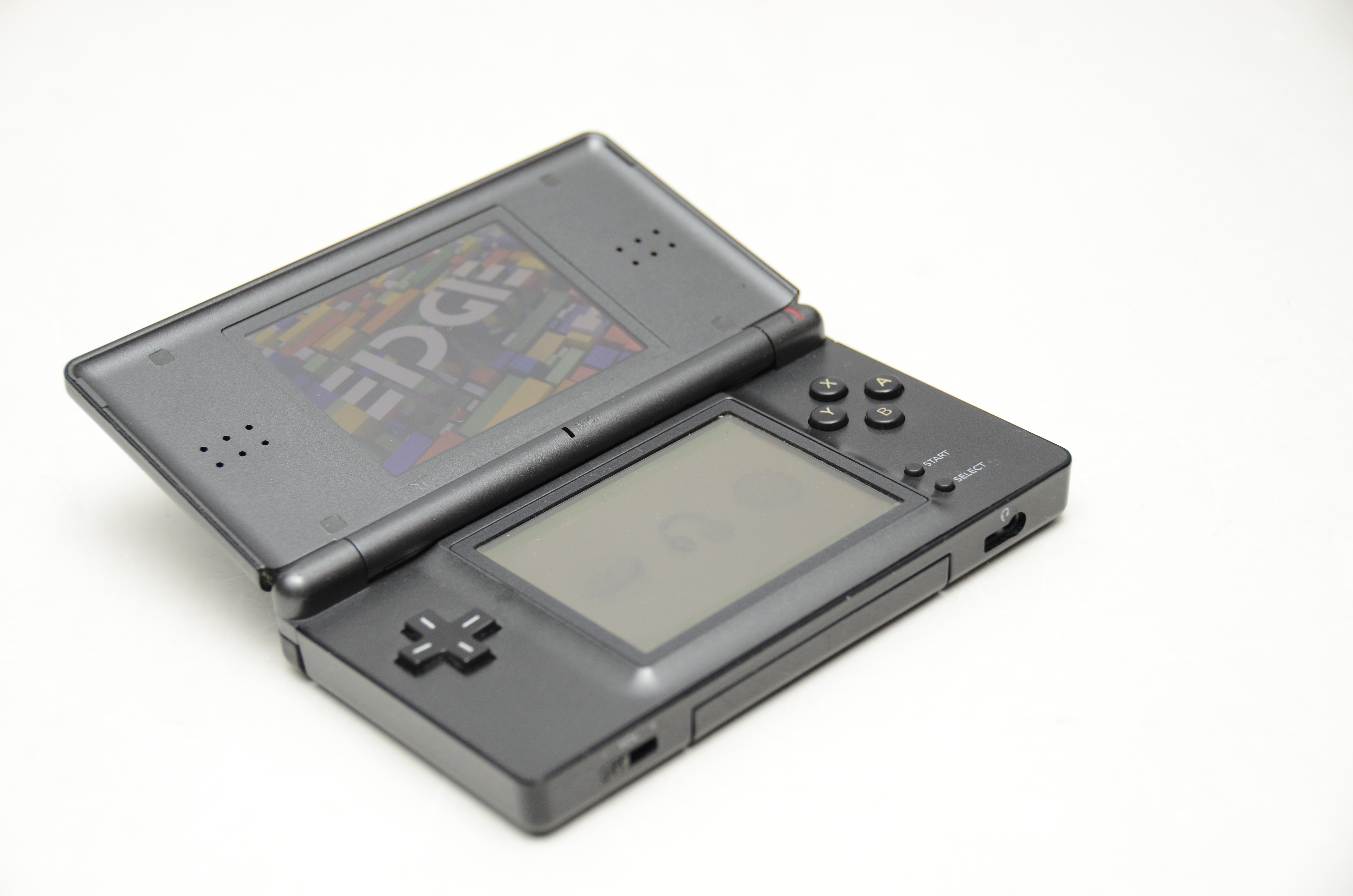
If you still have a Nintendo DS sitting in a drawer somewhere, congratulations: you own a tiny folding time machine. And if you want to breathe new life into it, an R4 flashcart is one of the simplest ways to do it. For many people, “modding” a Nintendo DS with an R4 does not mean breaking out a soldering iron, whispering dark magic, or turning the handheld into a science project. It usually means preparing a compatible flashcart, loading the correct system files onto a microSD card, and using it to run legal homebrew apps and other software you are allowed to use.
Important: This guide is for legal homebrew use, personal projects, and software you own the rights to use. It is not a guide for downloading pirated games. Think of it as teaching your DS a few new tricks, not sending it to the dark side.
The good news is that the process is beginner-friendly. The less-good news is that R4 cards are a little messy. The “R4” name has been reused on many different cards over the years, and the right setup depends on the exact cart you have. That is why the real trick is not “put files on a card and pray.” The real trick is matching the right kernel, using the right file system, and setting up the microSD card correctly.
Below, you will find seven easy steps to mod a Nintendo DS with an R4 flashcart, plus troubleshooting tips and a longer section on what the experience is actually like once the setup is done.
What You Need Before You Start
- A Nintendo DS, DS Lite, DSi, or DSi XL
- An R4 flashcart or compatible R4-style clone
- A microSD or microSDHC card
- A computer with an SD or USB card reader
- The correct kernel or menu files for your specific flashcart
- A little patience and a slightly suspicious attitude toward random download links
If you have an original old-school R4 card, note that some early models only work with smaller microSD cards, while newer clones often support larger SDHC cards. In plain English: just because a card says “R4” does not mean it behaves like every other R4.
Step 1: Identify Your Exact R4 Flashcart Model
This is the step people skip right before they spend an hour asking why the DS shows a blank screen, “Menu?” error, or absolutely nothing at all.
Look carefully at the sticker on your flashcart. Check for the full branding, version number, web address printed on the label, and any keywords such as R4i, Gold, RTS, Dual-Core, or SDHC. These details matter because different R4 carts use different kernels. Install the wrong one, and your flashcart may boot like a brick with ambition.
Why this matters
The flashcart itself is only part of the setup. The menu software, often called the kernel or firmware files, tells the cart how to start, browse files, and load homebrew apps. Matching the correct files to the correct cart is the foundation of the whole project.
Step 2: Back Up and Format the microSD Card
Before you copy anything, format the microSD card properly. This is the digital version of cleaning your kitchen counter before making a sandwich. Could you skip it? Sure. Will you regret it later? Also sure.
Back up anything already on the card first, because formatting wipes the contents. Then format the microSD card to FAT32 when possible. That file system is still the most reliable choice for DS flashcart compatibility. A lot of weird boot issues come down to bad formatting, corrupted cards, or using the wrong file system.
If your card has been acting strange, it is also smart to test it for errors. Cheap or counterfeit microSD cards are surprisingly good at pretending everything is fine right up until they eat your files.
Quick formatting advice
- Use a reputable microSD card if possible
- Back up your data before formatting
- Use FAT32 for the broadest compatibility
- Start fresh instead of dumping files onto a mystery card with three years of digital lint
Step 3: Download the Correct Kernel for Your R4 Card
Once the microSD card is ready, download the correct kernel or menu files for your exact flashcart model. This is the software that the R4 card expects to see when the DS powers on.
Some carts use Wood R4-based files. Others use YSMenu or alternate loaders. Newer or clone carts may have their own menu package. The biggest setup mistake is grabbing the first “R4 kernel download” result you see online and assuming all carts are interchangeable. They are not. The R4 ecosystem is more like a family reunion where half the cousins have the same name and none of them brought ID.
When you download the package, it will usually come as a ZIP or 7Z archive. Do not drag the zipped file straight onto the card and call it a day. The DS is many things, but it is not a mind reader.
Step 4: Extract the Files and Copy Them to the Root of the microSD Card
Now unzip or extract the download. You want the actual folders and files, not the compressed archive.
Most flashcart setups require you to copy specific system files to the root of the microSD card. The root just means the top level of the card, not buried inside another folder called something unhelpful like New Folder (7).
A typical setup might include files and folders with names like these:
_DS_MENU.DAT__rpgTTMenuBOOT.NDS_nds
The exact names depend on your cart and chosen menu. Copy them exactly where the guide for your cart says they should go. If the guide says “copy the contents of the folder,” do that. If it says “copy the folder itself,” do that instead. This is not the moment for creative interpretation.
Pro tip
After copying the system files, create clearly named folders such as Homebrew, Apps, Media, or Saves. Even if your menu does not require them, neat organization makes the whole setup easier to use later.
Step 5: Add Legal Homebrew Apps and Optional Extras
With the core menu files in place, you can start adding legal homebrew software. On the DS, homebrew apps usually use the .nds file format, so you will place those files onto the microSD card in the folders you created.
What can you add? Quite a lot, actually. Popular homebrew categories include:
- File managers
- Media players
- Retro emulators where lawful
- Fan-made games
- Utilities and test apps
- Alternative menus like TWiLight Menu++ in supported setups
Many people stop at the basic flashcart kernel, while others build a cleaner front-end with extra customization. If your goal is simply to run homebrew on a DS or DS Lite, the standard menu may be enough. If you like polished menus and more features, you can explore supported alternative loaders after the basic setup works.
Step 6: Insert the Card and Boot the DS
Now comes the fun part. Safely eject the microSD card from your computer, place it into the R4 flashcart, and insert the flashcart into your Nintendo DS.
Power on the system and launch the card just as you would a normal DS game. On a DS or DS Lite, the process is usually very straightforward. On a DSi or DSi XL, some carts may be blocked depending on the cart and system state, so compatibility can vary more.
If everything is set up correctly, you should see the flashcart menu load. If you do, congratulations: your DS has officially entered its “still useful, still charming, and somehow even cooler now” phase.
If it does not boot
Do not panic. Most first-boot failures come from one of five things:
- The wrong kernel for the cart
- Files copied to the wrong folder instead of the root
- The microSD card formatted incorrectly
- Dirty or weak cartridge contacts
- A fake, damaged, or failing microSD card
Step 7: Test, Tidy, and Troubleshoot
Once the menu appears, test a few homebrew apps. Make sure the flashcart reads the card consistently, saves settings normally, and loads files without freezing. Then clean up your folder structure so the setup stays easy to use.
If you run into issues, here are the most common fixes:
Problem: “Menu?” screen or black screen
This usually means the kernel files are missing, wrong, or placed incorrectly. Recheck the cart model and recopy the files to the root of the microSD card.
Problem: DS does not detect the card
Remove and reinsert the flashcart. Inspect the contacts. Try the cart again. If the DS still does not recognize it, test the card in another system if you can. Sometimes the issue is the cart, not the console.
Problem: Random crashes or missing files
This often points to a bad microSD card or corrupted format. Reformat the card, copy the files again, and test with a known-good card if possible.
Problem: Everything works, then stops later
Some clone carts are infamous for quirks such as date-related issues, unstable menus, or inconsistent compatibility. In those cases, an alternate loader or better-supported kernel may help.
Common Mistakes to Avoid
- Using the first random “R4 download” result you find
- Leaving the kernel inside a ZIP file instead of extracting it
- Formatting the card in the wrong file system
- Ignoring the exact model printed on the label
- Using a bargain-bin microSD card that behaves like a gremlin
- Assuming a DSi setup is identical to a DS Lite setup
Is an R4 Flashcart the Best Way to Mod a Nintendo DS?
For a classic DS or DS Lite, an R4 flashcart is still one of the easiest and least intimidating ways to get started with homebrew. You are not opening the system, permanently changing internal hardware, or turning a relaxed weekend into a repair documentary.
For a DSi, things get more interesting. Some users prefer native homebrew and custom firmware methods because they offer broader system-level features. But if your goal is simple access to homebrew apps on DS-family hardware, an R4 flashcart remains popular because it is fast to set up, easy to remove, and beginner-friendly when matched with the correct files.
What the Real Experience Feels Like After You Set It Up
Once your Nintendo DS boots into an R4 menu for the first time, the feeling is oddly satisfying. It is not flashy in the modern gaming sense. There is no giant 4K animation, no dramatic orchestral sting, and no neon dashboard trying to convince you it is the future. It is just a tiny menu on a tiny screen saying, in its own humble way, “Yep, I still got it.” That first moment is a strange mix of nostalgia and victory.
For many people, the best part is not even the technical achievement. It is the fact that the DS starts feeling useful again. A handheld that used to live in a drawer now has a second life. You can organize homebrew apps, test fan-made games, load up utilities, and build a little all-in-one portable setup that feels personal. It is less like buying a new console and more like restoring an old bicycle until it rides better than you remembered.
There is also a very specific emotional arc that tends to happen during setup. First comes confidence: “This looks easy.” Then comes mild confusion: “Why are there six folders with almost the same name?” Then comes irrational suspicion: “Did I just download the wrong kernel from a website that looks like it was built in 2009?” Then, finally, the menu appears and you instantly become the kind of person who wants to explain microSD root directories to innocent bystanders.
The everyday experience after setup is usually simple. You turn on the DS, tap into the flashcart, and browse what you added. Because the DS interface is so lightweight, the whole process feels quick and direct. It is refreshingly free of pop-ups, account syncing, giant updates, and the sort of modern digital drama that makes people sigh before they even start playing. The DS boots, the menu appears, and you get on with your life. Frankly, that level of cooperation is rare enough to deserve applause.
There is also a collector’s joy to it. You start noticing the details of the hardware again: the click of the cartridge slot, the clamshell snap, the oddly comforting brightness of those dual screens. Modding with an R4 flashcart does not erase the original DS personality; it highlights it. The handheld still feels like a DS. It just becomes a more flexible version of itself.
Of course, the experience is not always perfectly smooth. Some carts are picky. Some menus are ugly. Some microSD cards behave like they were manufactured in a haunted warehouse. And every now and then you will spend ten minutes fixing a problem that turns out to be “I copied the folder instead of the contents of the folder.” That is normal. It is basically a rite of passage.
Still, once everything is working, the payoff is real. A properly set up R4 flashcart makes the Nintendo DS feel less like outdated hardware and more like a customizable handheld toolkit. For retro fans, tinkerers, and homebrew enthusiasts, that is the magic. You are not just playing with old tech. You are giving it one more very good chapter.
Final Thoughts
If you want to mod a Nintendo DS with an R4 flashcart, the process is much easier than it first sounds. The key is not speed; it is accuracy. Identify the exact cart, format the microSD card correctly, use the right kernel, copy the files to the proper location, and test everything before adding more apps.
Do that, and your DS can become a clean, flexible homebrew machine without opening the shell or wrestling with complicated hardware mods. It is a small project, but a satisfying one. And once you see that menu boot successfully, you may find yourself looking at every old gadget in your house and thinking, “All right, who’s next?”