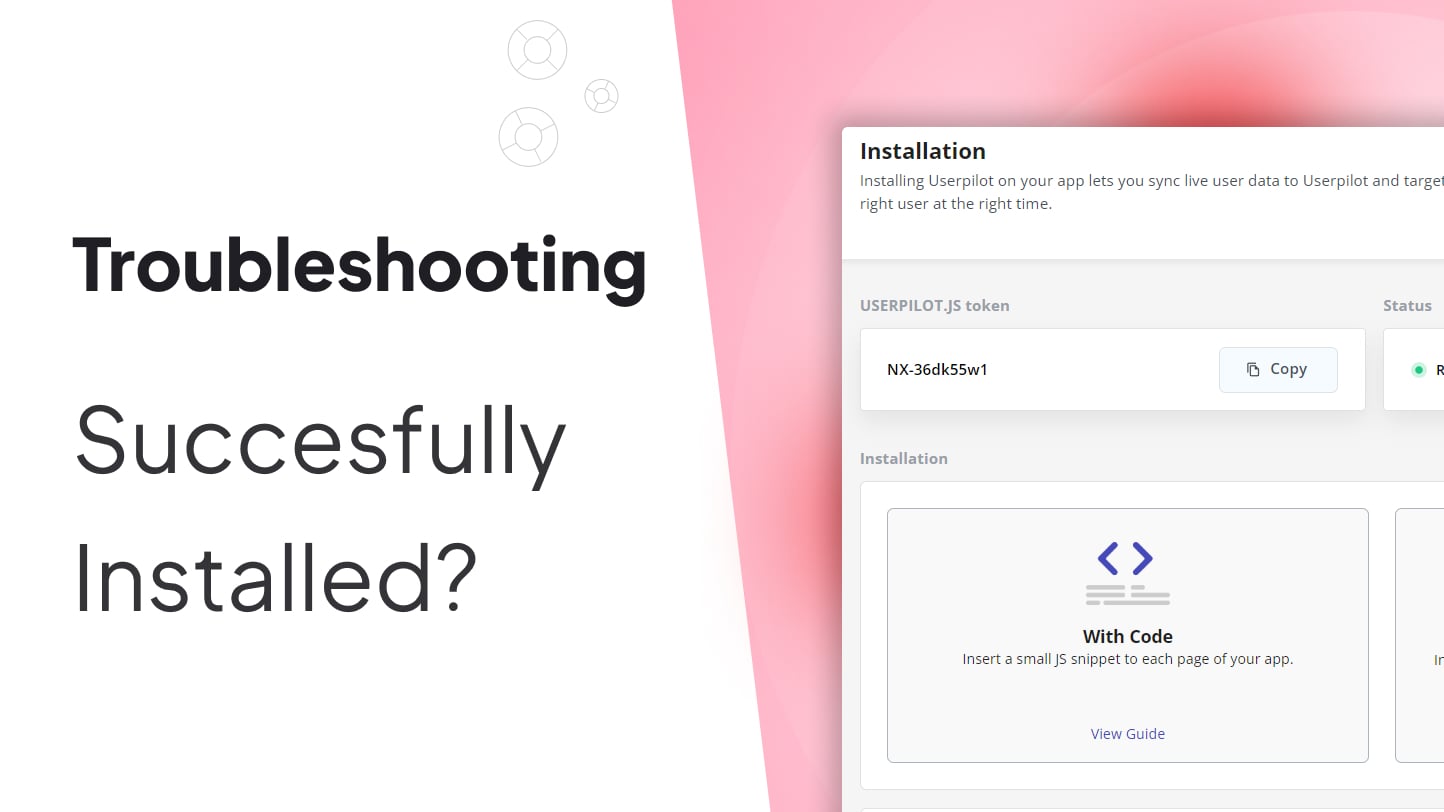
Installing Userpilot should feel like plugging in a smart product-growth assistant, not like summoning a mysterious JavaScript goblin. Still, when a flow refuses to appear, a checklist stays invisible, or the builder acts like it has never met your app before, the first question is usually the same: Is Userpilot successfully installed?
The short answer is: Userpilot is successfully installed when its script loads on the right pages, the correct app token is used, users are identified, route changes are handled correctly, events are tracked, and your Userpilot dashboard begins receiving live user activity. The longer answer is more useful, because installation success is not just about seeing one script in your page source. A technically loaded script can still fail to deliver in-app experiences if identity, targeting, Content Security Policy, environment tokens, or single-page app behavior is misconfigured.
This guide explains how to confirm that Userpilot is installed correctly, how to troubleshoot common setup issues, and how to avoid the classic “it worked on staging but vanished in production” panic. Grab coffee. Maybe two. We are going in.
What “Successfully Installed” Really Means
A successful Userpilot installation has several moving parts working together. First, your web application must load the Userpilot JavaScript SDK. Second, the SDK must receive the correct application token. Third, logged-in users must be identified with stable user IDs and useful properties. Fourth, for single-page applications, Userpilot must re-check page targeting when the route changes. Finally, your flows, tooltips, checklists, surveys, and other in-app experiences must match the user, page, and audience conditions you configured.
In plain English: if Userpilot is the stage crew for your in-app onboarding, installation is not complete just because someone carried the props into the theater. The lights must work, the actors must know their cues, and the audience must actually be in the room.
The Fast Verification Checklist
1. Confirm the Userpilot script is present
For a direct JavaScript installation, the Userpilot snippet should be added near the beginning of the <head> section on every page where you want Userpilot to run. A typical setup includes a window.userpilotSettings object with your app token, followed by the Userpilot SDK script loaded from js.userpilot.io.
If the script is missing from the page, Userpilot cannot load. If it is present only on your marketing site but not inside the authenticated product, your onboarding flows will wait politely forever. Check the actual app page where the experience should appear, not only the homepage.
2. Verify the app token
The app token connects your application to the correct Userpilot environment. Production and staging should not share the same assumptions. If you accidentally use a staging token in production, your production users may never trigger the content you expect. If you use the production token in staging, your test data may wander into the live environment like a raccoon in a conference room.
Use the token from the correct Userpilot environment and confirm that your deployment pipeline is not replacing it with an old value. Environment variables, build-time configs, and cached containers are common hiding places for token mistakes.
3. Check whether users are identified
Userpilot relies on user identity to personalize onboarding, segment audiences, trigger flows, and connect behavior to analytics. For multi-page applications, identify users on each page load. For single-page applications, identify the user after authentication and maintain that identity during the session.
A strong identify call should include a stable user ID and useful metadata such as name, email, signup date, role, plan, company ID, and company name when relevant. Avoid temporary IDs that change from session to session. A user who becomes a new person every time they refresh the page is not a user; they are a haunted browser cookie.
4. Reload Userpilot on route changes in SPAs
Single-page applications do not always perform full browser reloads when users move from one section to another. That is wonderful for speed, but it can confuse tools that evaluate page targeting. If your app uses React, Vue, Angular, Next.js, or another SPA-style framework, call userpilot.reload() after route changes so Userpilot can re-evaluate the current page and show relevant experiences.
For example, if a flow is targeted to /settings/billing, but your app moves there without a full page refresh, Userpilot may still think the user is on the previous page unless you reload its state. This is one of the most common reasons flows appear “broken” when the installation is actually only half-finished.
5. Track at least one meaningful event
Once Userpilot is installed and users are identified, track a simple event such as “Clicked upgrade button,” “Created project,” or “Visited billing page.” Event tracking confirms that Userpilot is not only loaded but receiving behavior data. It also gives your product team better segmentation and goal tracking later.
Do not track everything just because you can. Start with events that support onboarding, activation, adoption, retention, and expansion. Your future analytics dashboard will thank you for not turning it into a junk drawer.
How to Check Installation in the Browser
Use Chrome DevTools
Open your application in Chrome, sign in as a test user, then open Developer Tools. Go to the Network tab and reload the page. Search for Userpilot-related requests, especially the SDK request from js.userpilot.io. If the request loads successfully, the script is reaching the browser.
Next, open the Console tab. Type window.userpilot or userpilot. If the object exists, the SDK is available in the page context. If you see undefined, the script may not be loading, may be blocked, or may be placed in the wrong part of your app.
Look for blocked requests
If the script request fails, check the status code and error message. A blocked request may point to a Content Security Policy issue, an ad blocker, a browser extension, a firewall, or an incorrect domain allowlist. Network errors are not glamorous, but they are honest. They usually tell you where the problem lives.
How to Check Installation in Userpilot
After the script loads and a user is identified, go to your Userpilot dashboard and look for live user activity. If users appear in the Users or Companies area, that is a strong sign that data is reaching Userpilot. Review the user profile and confirm that the expected properties are present.
If the user appears but a flow does not trigger, the installation may be fine while targeting is not. Check the audience segment, page targeting, frequency settings, display conditions, and whether the user has already dismissed the experience. Many “installation problems” are really “targeting conditions are doing exactly what we told them to do” problems. Computers are annoyingly literal like that.
Installing Userpilot Through Segment
If your product already uses Segment, you can connect Userpilot as a destination. Segment’s identify calls can trigger Userpilot identification, while page calls can help Userpilot reload and evaluate experiences on the current page. This approach is useful for teams that already centralize customer data in Segment and want a cleaner implementation path.
However, Segment does not magically fix weak identity planning. You still need a consistent user ID, reliable traits, and page calls that fire at the right time. If Segment receives incomplete data, Userpilot will receive incomplete data too. In other words, the pipe may be shiny, but the water still matters.
Installing Userpilot Through Google Tag Manager
Google Tag Manager can be a practical option when your team already manages third-party scripts through GTM. It can help non-engineering teams deploy Userpilot faster, especially when engineering bandwidth is limited. But GTM installations must be handled carefully.
Make sure the tag fires only after the required user data is available. If Userpilot loads before your application knows who the user is, experiences may not trigger properly. Also, avoid scattering duplicate Userpilot snippets across multiple tags, pages, or deployment systems. Duplicate loading can create confusing behavior and make troubleshooting harder than it needs to be.
Use a clean naming convention for tags, triggers, and variables. For example: Userpilot - Load SDK, Userpilot - Identify User, and Userpilot - Reload on Virtual Pageview. Future you will appreciate this. Future you has enough problems.
Common Reasons Userpilot Appears Not to Be Installed
The SDK is not included on the target page
This is the simplest issue and one of the easiest to overlook. Your app may have multiple layouts, shells, subdomains, or authenticated areas. Confirm that the snippet exists on the exact page where the flow should display.
The wrong token is being used
Production and staging tokens should match their respective environments. If your staging tests work but production does not, verify the production token and deployment configuration first.
The user is not identified
Userpilot needs to know who the current user is. If identification is missing, delayed, or inconsistent, targeted content may not show. Always identify after login and before expecting personalized experiences to appear.
The page URL does not match the targeting rule
A flow targeted to one URL pattern will not appear on a different URL pattern. Watch out for trailing slashes, query strings, dynamic IDs, hash routes, localized paths, and environment-specific domains.
The flow has already been dismissed
If a test user dismissed a flow earlier, frequency settings may prevent it from appearing again. Use a fresh test user, reset the user state if available, or adjust the flow settings for testing.
The element cannot be detected
Tooltips, driven actions, and feature tags often need a stable page element. If the target element changes, loads late, uses unstable classes, or appears only after user interaction, Userpilot may not attach correctly. Use reliable selectors and test the flow under real loading conditions.
Content Security Policy is blocking Userpilot
Applications with strict CSP settings may block external scripts, styles, images, or web socket connections. Work with engineering and security teams to allow the required Userpilot domains while keeping your security posture intact. Do not simply loosen your entire CSP because one script complained. That is like removing your front door because the pizza delivery person could not find the bell.
Ad blockers or privacy tools are interfering
Some browser extensions can block analytics or engagement scripts. Test in an incognito window with extensions disabled, and test in more than one browser. If Userpilot works in a clean session but not your regular browser, the issue may be local rather than installation-wide.
A Practical Example: SaaS Onboarding Flow
Imagine a SaaS company wants to show a welcome flow after a new user creates an account. The team installs the Userpilot SDK in the app head, identifies the user after authentication, passes properties such as role and plan, and tracks the event Created workspace. The flow is targeted to users whose signup date is within the last seven days and whose workspace has not completed setup.
If the flow does not appear, the team should check the installation in this order: script loaded, token correct, user identified, properties present, event tracked, page URL matched, frequency settings valid, and target element available. This sequence prevents random guessing and turns troubleshooting into a repeatable process.
Best Practices for a Clean Userpilot Installation
Plan properties before implementation
Before adding code, decide which user properties, company properties, and events your team actually needs. Good properties make segmentation useful. Bad properties make dashboards look busy while saying very little.
Use stable IDs
The user ID should come from your application database or authentication system. Avoid emails as primary IDs if your app allows users to change them. Avoid anonymous IDs for logged-in product experiences unless you have a specific reason.
Separate staging and production
Use staging for experiments, QA, and internal reviews. Use production for real users. Keep tokens, content, and analytics separated so your team can test safely without polluting live reports.
Document the setup
Create a short internal note showing where the Userpilot snippet lives, which token is used, where identify calls happen, which events are tracked, and who owns the implementation. Documentation is not glamorous, but neither is spending four hours asking, “Who added this script?”
Test with real user journeys
Do not test installation only by refreshing one page. Create a test account, sign in, navigate through key routes, trigger events, view flows, dismiss content, and check analytics. Userpilot is built for product journeys, so test it like a journey.
Experience Notes: What Real Teams Learn After Installing Userpilot
The most valuable lesson from Userpilot installation projects is that success rarely depends on the snippet alone. The snippet is the doorway, but user data is the map. Teams that rush the technical install and postpone identity planning usually end up with flows that are too broad, analytics that are too vague, and segments that feel like soup. The better approach is to pause before implementation and ask: Who are our users? Which properties define their journey? What events prove activation? What should a new customer see first?
In practice, the smoothest installations happen when product managers, developers, and customer success teams agree on a small first version. One product team might start with five properties: user ID, email, role, plan, and signup date. Then they add company ID, company name, and lifecycle stage. Next, they track three activation events: created project, invited teammate, and completed setup. That is enough to build useful onboarding without turning the first sprint into a data warehouse migration.
Another common experience is discovering that single-page apps need extra attention. A flow may work perfectly after a hard refresh but fail during normal navigation. This usually means route changes are not being communicated to Userpilot. Once the team adds a reload call after route changes, the experience behaves as expected. It feels like magic, but it is really just telling the tool, “Hey, we moved pages without reloading the browser.”
Teams also learn that test users matter. If three people on the team share one test account, that account may dismiss flows, complete checklists, trigger events, and enter segments in ways nobody remembers. Then everyone stares at the screen wondering why the welcome tour refuses to show. Use separate test users for separate scenarios: brand-new user, activated user, admin user, free-plan user, enterprise user, and returning user. Clean testing prevents false alarms.
Security reviews can be another real-world speed bump. Companies with strict Content Security Policies may need engineering approval before Userpilot can load scripts, styles, images, or connections. The best experience is to bring security into the conversation early, explain what Userpilot needs, and avoid last-minute emergency changes. A careful allowlist is better than a rushed policy exception.
Finally, successful teams treat installation as the beginning, not the finish line. After confirming that Userpilot is installed, they monitor live users, review flow engagement, check completion rates, and adjust targeting. The first version of an onboarding flow is rarely perfect. It is a draft with better lighting. The real win comes from using Userpilot data to improve the product experience week by week.
Conclusion
So, is Userpilot successfully installed? It is when the SDK loads on the right pages, the correct token connects your app to the right environment, users are identified with reliable data, route changes are handled properly, events are tracked, and Userpilot shows live activity in the dashboard. If a flow still does not trigger, do not immediately blame the installation. Check targeting, frequency rules, dismissed states, page matching, element detection, CSP settings, and browser blockers.
A successful Userpilot setup gives product teams the foundation to build onboarding flows, feature announcements, tooltips, checklists, surveys, and behavior-based experiences without constantly asking engineering for small UI changes. The better your implementation, the more confidently your team can guide users toward activation, adoption, and long-term retention.