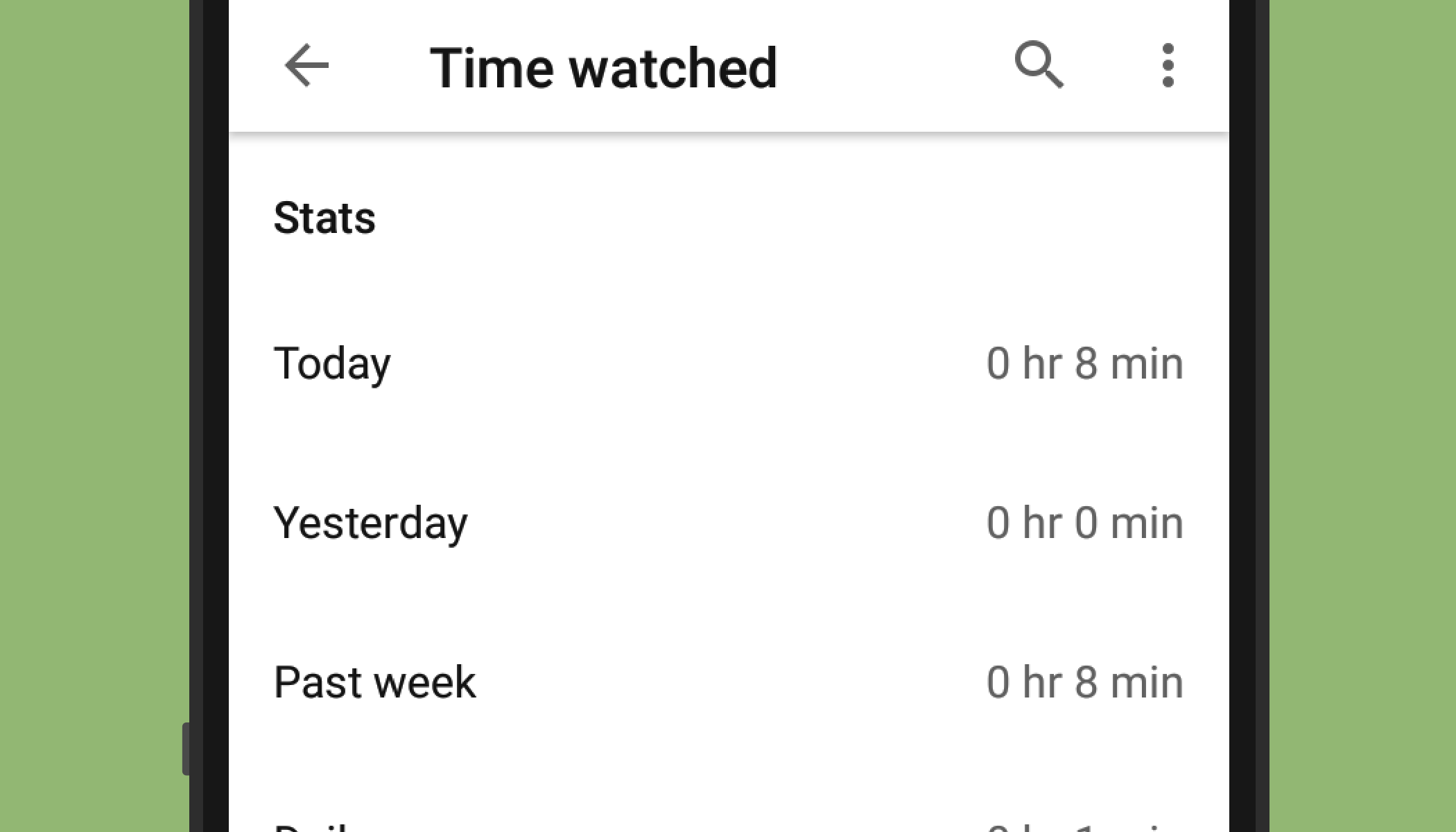
Wondering how many minutes of your life have gone into “just one more video”? YouTube has a built-in Time watched profile that shows your daily average watch time, today’s total, yesterday’s total, and your viewing time over the past seven days. It is a small feature with a big personality: part productivity mirror, part reality check, part “wow, I really did watch 47 minutes of raccoon rescue videos after midnight.”
The good news is that checking your YouTube time watched is quick. The slightly sneaky news is that the feature is easiest to find in the YouTube mobile app, and the menu name may look a little different depending on your device, app version, and region. On Android, it usually appears under Time management, then Time watched. On iPhone and iPad, YouTube may show it directly inside the Time management tab. Either way, the path is short, painless, and does not require a spreadsheet, a stopwatch, or a lifestyle influencer telling you to wake up at 4:30 a.m.
In this guide, you will learn how to view your time watched on YouTube in 3 quick steps, what the numbers actually mean, why your stats might be missing or inaccurate, and how to use the information to build healthier viewing habits without deleting the app and moving to a cabin with suspiciously weak Wi-Fi.
What Is YouTube Time Watched?
YouTube Time watched is a viewing dashboard that estimates how much time you spend watching videos on YouTube. It shows your watch time for today, yesterday, and the past seven days, plus a daily average. Think of it as YouTube holding up a tiny digital mirror and saying, “Here is what happened after you clicked that cooking tutorial and somehow ended up watching a man restore antique vending machines.”
The feature is based on your YouTube watch history. That matters because Time watched is not a magical all-seeing clock. It depends on the videos connected to your signed-in account. If your watch history is paused, deleted, or unavailable, YouTube may not have enough information to calculate your watch time. Videos watched in a private window, removed from your watch history, or watched while signed out may not appear in the total.
Another important detail: Time watched is designed for regular YouTube viewing. YouTube states that the stats are based on watch history across YouTube, but they do not include YouTube Music or YouTube TV. So if you listened to three hours of lo-fi beats on YouTube Music while pretending to answer emails, that may not appear in this particular YouTube watch time profile.
How to View Your Time Watched on YouTube: 3 Quick Steps
Here is the fastest way to check your Time watched profile in the YouTube app. These steps work best on mobile devices, including Android phones, iPhones, and iPads.
Step 1: Open the YouTube App and Sign In
Open the YouTube app on your phone or tablet. Make sure you are signed in to the Google account you actually use for watching videos. This sounds obvious, but it is very easy to check the wrong account if you manage multiple profiles, share a device, or have one account for work and another for your “I need to know how deep the ocean really is” evenings.
If you are not signed in, tap the profile icon and log in. YouTube needs your watch history to calculate Time watched, so being signed in is essential. Without watch history, the app cannot reliably show your daily average or seven-day viewing total.
Step 2: Tap Your Profile Picture
Once you are in the YouTube app, tap your profile picture, usually located in the top-right corner of the screen. This opens your account menu, where YouTube keeps a surprising number of useful settings tucked away like snacks in a desk drawer.
From this menu, look for Time management or a similar option. In older versions of YouTube, you may see Time watched directly in the account menu. In newer versions, YouTube often places Time watched inside the Time management section.
Step 3: Tap Time Management, Then Time Watched
Tap Time management. On Android, you may then need to tap Time watched. On iPhone and iPad, the Time management tab may display your Time watched details right away.
You should now see your YouTube viewing summary, including your time watched today, yesterday, the past seven days, and your daily average. Congratulations: you have found the digital trail of your video adventures. Whether the number makes you proud, concerned, or weirdly impressed, it is useful information.
What You Can See in the Time Watched Dashboard
The YouTube Time watched dashboard is simple, but it gives you enough information to understand your recent viewing pattern. You can usually see:
- Your watch time for today
- Your watch time for yesterday
- Your total watch time over the past seven days
- Your daily average watch time
- Time management tools such as break reminders or autoplay settings
The daily average is especially helpful because one unusually long viewing session can make you feel as if your entire life has become a playlist. A seven-day average gives better context. Maybe you watched a two-hour documentary on Saturday, but your usual weekday viewing is only 20 minutes. Or maybe your “quick lunch video” has quietly evolved into a daily three-part saga. The average helps you see the pattern without overreacting to one day.
Why Your YouTube Time Watched May Look Wrong
Sometimes the number in your Time watched profile may not match what you expected. That does not always mean YouTube is broken. It often means the watch history behind the dashboard is incomplete.
Your Watch History Is Paused
If your YouTube watch history is paused, Time watched statistics may not be available. This is one of the most common reasons people cannot see their viewing time. To check, open YouTube, tap your profile picture, go to Settings, choose Manage all history, and review the controls for YouTube History. If “Include the YouTube videos you watch” is turned off, YouTube is not collecting the watch history needed for Time watched.
You Deleted Videos From Watch History
When you remove videos from your watch history, those videos may no longer count toward your Time watched profile. This is useful for privacy and recommendation cleanup, but it can also make your stats look lower than your actual viewing time. In other words, if you deleted your entire late-night rabbit hole, the dashboard may politely pretend it never happened. We support emotional recovery, but math has consequences.
You Watched in a Private Window or Incognito Session
Videos watched in a private browser window or YouTube Incognito mode may not be included in your Time watched profile. Private viewing is designed to keep activity from being saved to your account history, so the time may not show up later. This is helpful when you do not want a one-time search to influence recommendations, but it also means your Time watched profile will not be a perfect total of every minute you spent watching YouTube.
You Watched on Desktop
YouTube notes that time watched on computers may be reported incorrectly because of a known issue. For the most reliable view, check your Time watched profile in the mobile app. If you mainly watch YouTube on a laptop or desktop browser, treat the dashboard as a helpful estimate rather than a court-certified record of your snack-and-video habits.
You Used YouTube Music or YouTube TV
YouTube Music and YouTube TV are separate experiences, and their viewing or listening time may not be included in the regular YouTube Time watched profile. If your number seems lower than expected, consider whether some of your activity happened in those apps instead.
How to Manage Your YouTube Watch Time After You Find It
Finding your Time watched number is step one. Doing something useful with it is step two. The goal is not to shame yourself for watching videos. YouTube can be educational, entertaining, relaxing, and genuinely helpful. The goal is to make sure your viewing time matches your actual priorities instead of letting autoplay quietly drive the bus.
Turn On Take a Break Reminders
YouTube offers a Take a break reminder that pauses your video after a chosen amount of viewing time. You can dismiss it or resume watching, but the reminder creates a helpful interruption. That tiny pause gives your brain a chance to ask, “Am I still watching because I want to, or because the algorithm handed me another shiny object?”
To set it up, open YouTube, tap your profile picture, go to Settings, then General, and turn on Remind me to take a break. You can choose your reminder frequency. Some users prefer 30 minutes, while others choose an hour. Pick a limit that feels realistic, not heroic. A perfect system you ignore is less useful than a simple system you actually follow.
Use a Bedtime Reminder
If YouTube is stealing your sleep, use a bedtime reminder. This tool lets you set a time when YouTube reminds you to stop watching and go to bed. You can choose whether the reminder interrupts the video or waits until the video ends. That is useful because nobody wants to be emotionally abandoned in the middle of a recipe, repair tutorial, or dramatic documentary cliffhanger.
A bedtime reminder works best when paired with a real evening routine. For example, set the reminder for 10:15 p.m., then charge your phone across the room, brush your teeth, and leave tomorrow’s self a chance to wake up without feeling like a half-charged robot.
Turn Off Autoplay
Autoplay is convenient, but it is also the feature most likely to turn “one video” into “why is the sun coming up?” When Autoplay is on, YouTube automatically starts another video after the current one ends. If you want more intentional viewing, turn it off.
On mobile, open any video and use the Autoplay switch at the top of the player. You can also go to Settings, then Autoplay, and switch it off. On desktop, the Autoplay switch appears on the watch page. Turning it off does not ruin YouTube. It simply gives you back the final decision after each video.
Review and Clean Up Watch History
Your watch history affects more than Time watched. It also shapes your recommendations. If your homepage has become a haunted attic of videos you watched once in 2019, cleaning up your history can help. You can delete individual videos, search your watch history, or clear history by time range through YouTube’s history controls.
Be careful, though: deleting history can change both recommendations and Time watched stats. If your main goal is accurate tracking, do not constantly erase watch history. If your main goal is privacy or recommendation cleanup, deletion may be worth it.
Using Android Digital Wellbeing or iPhone Screen Time
YouTube’s Time watched profile shows viewing activity connected to YouTube watch history, but your phone’s built-in screen-time tools can give a broader picture. On Android, Digital Wellbeing can show how long apps were on screen, how often you opened them, and how many notifications they sent. On iPhone, Screen Time can show app activity and help you set app limits.
This matters because YouTube Time watched and phone screen time are not always the same thing. YouTube may measure video watch history, while your device measures app usage. If you leave the YouTube app open while paused, browse comments, or switch between Shorts and regular videos, the numbers may differ. That does not mean either tool is useless. It means they answer slightly different questions.
Use YouTube Time watched when you want to know how much video watching is tied to your YouTube account. Use Digital Wellbeing or Screen Time when you want to understand total app usage on your device. Together, they give you a more complete picture.
Best Practices for Healthier YouTube Viewing
You do not need to become anti-YouTube to manage your time better. The platform has excellent tutorials, lectures, music performances, product reviews, comedy, news analysis, and hobby content. The trick is to watch on purpose instead of drifting into an endless scroll like a leaf in a very entertaining river.
Decide What You Came For
Before opening YouTube, say what you are there to do. Maybe you want to watch one workout video, find a recipe, learn a guitar chord, or relax with a 20-minute creator upload. Naming the goal makes it easier to notice when you have wandered away from it.
Create a Watch Later Parking Lot
When a tempting video appears, save it to Watch Later instead of clicking immediately. This turns impulse viewing into planned viewing. Later, you can choose what still looks worthwhile. Many videos that felt urgent at 11:42 p.m. look much less important in the morning, like emotional emails and online shopping carts.
Set a Personal Viewing Window
A simple time window works better than vague promises. Try “YouTube after dinner for 30 minutes” or “tutorials only during my study break.” Boundaries are easier to keep when they are specific. “Watch less YouTube” is a wish. “Stop at 9:30 p.m.” is a plan.
Separate Learning From Scrolling
Not all YouTube time is equal. Watching a focused tutorial for a school project is different from drifting through 19 unrelated Shorts. If your Time watched number is high, look at the type of content behind it. A long study lecture may be productive. A marathon of “things you did not know about celebrity houses” may be less essential, unless your exam is extremely unusual.
Common Questions About YouTube Time Watched
Can I See My Total Lifetime YouTube Watch Time?
YouTube’s Time watched profile focuses on recent activity, such as today, yesterday, the past seven days, and your daily average. It is not designed as a lifetime counter. For most users, it is better as a short-term habit tracker than an all-time viewing archive.
Can I Check YouTube Time Watched on Desktop?
You may be able to view related history and activity on desktop, but the dedicated Time watched profile is most reliable in the YouTube mobile app. YouTube has noted that computer watch time can be reported incorrectly, so mobile is the better place to check this feature.
Does YouTube Shorts Count Toward Time Watched?
Shorts activity may be part of your YouTube viewing behavior, but availability and reporting can vary by app version and account settings. If you spend a lot of time in Shorts and your Time watched number seems unusual, compare it with your device’s Screen Time or Digital Wellbeing report for a broader usage view.
Why Is My Time Watched Missing?
The most likely reason is that watch history is paused, unavailable, or not connected to the account you are checking. Make sure you are signed in, confirm that watch history is turned on, and update the YouTube app. If the feature still does not appear, menu names may have changed in your version of the app.
Real-Life Experience: What Checking YouTube Time Watched Actually Feels Like
The first time many people check their YouTube Time watched profile, the reaction is not calm scientific curiosity. It is usually something closer to, “That cannot be right,” followed by immediate mental accounting. You remember the tutorial you watched, the news clip, the cooking video, the podcast interview, the guitar lesson, the comedy sketch, the five Shorts that became 50 Shorts, and suddenly the number starts making uncomfortable sense.
In my experience, the most useful part of Time watched is not the number itself. It is the moment of awareness. Most people do not choose to watch YouTube for two hours in one sitting. They choose one video, then one more, then one that looks useful, then one that is “only eight minutes,” then a Short because it is right there, then a recommended video that appears with the confidence of a waiter suggesting dessert. By the time you look up, your evening has been quietly rearranged.
Checking Time watched can turn that invisible pattern into something you can actually work with. For example, suppose your dashboard shows an average of one hour and 45 minutes per day. That number may feel high, but it is also specific. Now you can experiment. Turn off Autoplay for a week. Set a Take a break reminder for 30 minutes. Move the YouTube app off your home screen. Save interesting videos to Watch Later instead of opening them immediately. Then check your Time watched again. If your average drops to 55 minutes and you do not feel deprived, you have found a better balance.
The best approach is not guilt. Guilt is a terrible productivity system; it has the user experience of a broken printer. A better approach is curiosity. Ask what your YouTube time is doing for you. Is it helping you learn? Relax? Avoid a difficult task? Fall asleep? Stay awake too late? Different answers require different solutions. If YouTube helps you learn, create playlists for focused topics. If it is replacing sleep, use bedtime reminders. If it is background noise, try podcasts, music, or silence for certain tasks. If it is procrastination, set a timer before opening the app.
One practical habit is to check Time watched every Sunday evening. Not every hour, not obsessively, not like a detective investigating your own couch habits. Just once a week. Look at the seven-day total and ask whether it matches the week you wanted to have. If it does, great. If it does not, adjust one thing. Not seven things. One thing. Maybe you turn off Autoplay. Maybe you set a phone limit. Maybe you stop watching in bed. Small changes are easier to keep, and they often reveal which habits matter most.
The surprising thing is that seeing your Time watched can make YouTube more enjoyable. When viewing is intentional, you stop feeling as if the app stole your afternoon. You choose the videos that are worth your attention, ignore the ones that are digital cotton candy, and close the app before your brain turns into buffering soup. YouTube is a fantastic tool when you are holding the remote. Time watched simply helps you notice when the remote has quietly wandered off with the algorithm.
Conclusion
Learning how to view your time watched on YouTube takes less than a minute: open the YouTube app, tap your profile picture, and go to Time management or Time watched. The dashboard shows your recent viewing habits, including today, yesterday, the past seven days, and your daily average. It is not perfect, especially if watch history is paused, videos were deleted, or you watch mostly on desktop, but it is a useful starting point for more intentional viewing.
Use the number as information, not a personal attack. YouTube can be useful, relaxing, educational, and fun. The goal is not to eliminate it from your life; the goal is to keep it from quietly eating time you meant to spend elsewhere. Check your Time watched, turn on reminders if needed, consider disabling Autoplay, and build a viewing routine that works for you. Your future self may thank you, preferably after a full night of sleep.
Note: YouTube menu labels and feature locations may vary slightly by device, country, app version, and account type. For the most accurate results, update the YouTube app and check the Time watched profile while signed in on a mobile device.