Trying to access a Motorola modem should not feel like cracking a secret government vault. Yet the first time you type an IP address into a browser and stare at a blank page, it can absolutely feel like your modem is judging you from the corner of the room. The good news is that logging in to a Motorola modem or Motorola modem-router combo is usually simple once you know which model you have, which local IP address to use, and which password applies to your device.
This guide explains how to access a Motorola modem, how to find the correct Motorola modem login IP, what default credentials are commonly used, and what to do when the admin page refuses to load. Whether you own a Motorola MB8611, MB8600, MB7621, MG7550, MG7700, MG8725, MT7711, or MT8733, the basic idea is the same: connect to the device, open the local configuration page, log in, and make only the changes you actually understand. Your modem is powerful, but it is not a toy. Treat it less like a toaster and more like the tiny traffic controller for your entire home internet life.
Before You Begin: Make Sure You Are Accessing Your Own Network
This guide is for homeowners, renters, students, and small-office users who need to access a Motorola modem or gateway they own, rent, or are authorized to manage. Do not attempt to log in to a network that is not yours. Besides being rude, it can be illegal. The goal here is practical troubleshooting: checking signal levels, changing Wi-Fi settings, updating admin credentials, viewing firmware information, or confirming whether your modem is online.
Before touching any settings, gather three things: the Motorola model number, the device label on the bottom or back of the unit, and a computer or phone connected to the same network. The model number matters because Motorola standalone cable modems and Motorola modem-router gateways often use different login addresses.
Motorola Modem vs. Motorola Gateway: Why the Difference Matters
Many people use the word “modem” for every internet box with blinking lights. That is understandable. The lights blink, the internet appears, and everyone hopes the magic continues. Technically, though, Motorola sells different types of home networking devices.
Standalone Motorola cable modems
Standalone cable modems usually have model names beginning with MB, such as Motorola MB7621, MB8600, or MB8611. These devices connect your home to the cable internet provider. They do not usually provide Wi-Fi by themselves. You typically connect a separate router or mesh system to the modem.
For many Motorola MB cable modems, the local status or configuration page is commonly accessed at:
http://192.168.100.1
Motorola modem-router gateways
Motorola modem-router combo units, often called gateways, usually have model names beginning with MG or MT, such as MG7550, MG7700, MG8725, MT7711, or MT8733. These devices combine a cable modem and Wi-Fi router in one box. That means the login panel may include internet status, Wi-Fi network settings, guest network options, security settings, and advanced routing features.
For many Motorola MG and MT gateways, the local configuration manager is commonly accessed at:
http://192.168.0.1
Some Motorola routers may use 192.168.1.1, and a few older or special models may differ. The device label and user manual are always the final authority. When in doubt, look at the sticker before blaming the internet, your browser, or Mercury being in retrograde.
Quick Motorola Modem Login Cheat Sheet
Use this quick reference before diving into the full steps:
- Motorola MB cable modem: try 192.168.100.1
- Motorola MG modem-router gateway: try 192.168.0.1
- Motorola MT voice gateway: often uses 192.168.0.1
- Common username: admin
- Common older default password: motorola
- Newer gateway password: often a unique password printed on the device label
Important reminder: default login credentials may change by model, hardware version, firmware, or internet provider requirements. If admin and motorola do not work, check the label under the device. Many newer Motorola gateways use a unique password printed directly on the unit.
How to Access a Motorola Modem: Step-by-Step
Step 1: Connect to the Motorola modem or gateway
First, connect your computer, phone, or tablet to the Motorola device. If you are using a Motorola gateway with Wi-Fi, connect to its Wi-Fi network. If you are using a standalone Motorola cable modem connected to a separate router, you can often access the modem through your existing home network. However, if the page does not load, connect a computer directly to the modem using an Ethernet cable.
For troubleshooting, Ethernet is the grown-up choice. Wi-Fi is convenient, but an Ethernet cable removes several possible problems at once. It is not glamorous, but neither is yelling at a router at midnight.
Step 2: Open a web browser
Open Chrome, Edge, Firefox, Safari, or another modern browser. Use the address bar at the top of the browser, not the search box on a search engine page. This detail matters. If you type 192.168.0.1 into Google search instead of the address bar, you will get search results about the login page instead of the login page itself. That is like asking for your house keys and receiving a documentary about doors.
Step 3: Enter the correct Motorola modem IP address
Type the address that matches your model:
- For many Motorola MB cable modems, enter http://192.168.100.1
- For many Motorola MG or MT gateways, enter http://192.168.0.1
- For some Motorola routers, enter http://192.168.1.1
Use http:// rather than https:// if the page fails to load. Some modem admin pages are local HTTP pages and may not support HTTPS. Your browser may complain that the page is not secure. Since you are connecting to a local device inside your home network, that message is not automatically a disaster. Still, you should never enter modem credentials on a suspicious website or a page that is not a local private IP address.
Step 4: Enter the Motorola modem username and password
When the login screen appears, try the credentials listed for your device. For many older Motorola gateways and modems, the username is:
admin
The password may be:
motorola
For newer models such as some MG8702, MG8725, and MT8733 units, the password may be a unique phrase printed on the label under the device. Look carefully. The label may include the Wi-Fi network name, Wi-Fi password, admin login password, serial number, MAC address, and other information. Do not post a photo of that label online unless you enjoy giving strangers a guided tour of your network identity.
Step 5: Review the basic status page
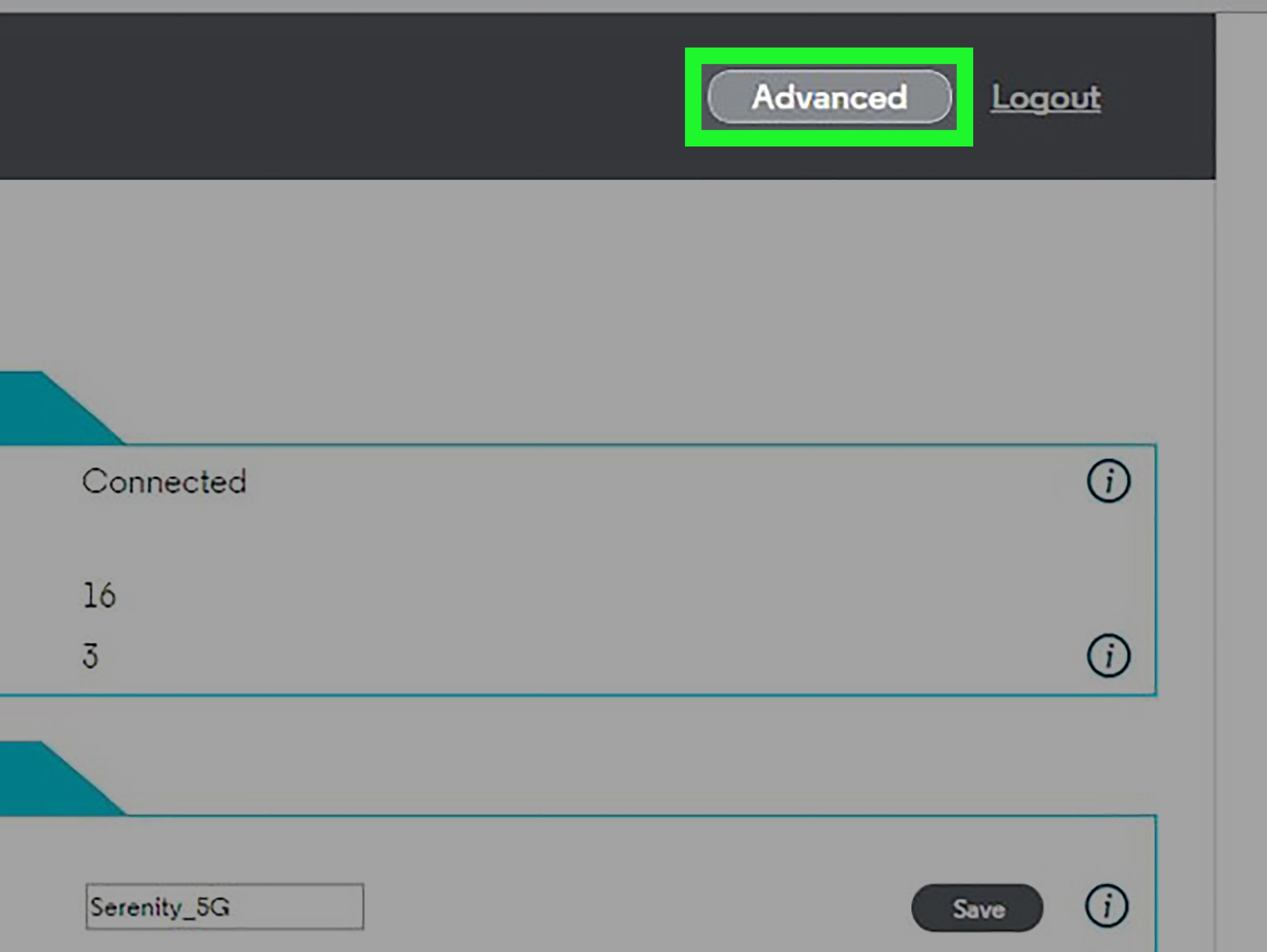
Once you log in, you will usually land on a status page or basic settings page. On a standalone modem, this area may show downstream channels, upstream channels, signal power, signal-to-noise ratio, event logs, firmware version, uptime, and connection status. On a gateway, you may also see Wi-Fi names, security mode, connected devices, firewall options, and advanced router settings.
If your internet is slow or unstable, the status page can help you decide whether the problem is your device, your Wi-Fi, your coax cable, or your internet provider. For example, if the modem is not locking onto channels correctly, restarting your laptop will not fix the cable signal. Your laptop is innocent. Let it rest.
How to Find Your Motorola Modem IP Address
If the usual Motorola modem login IP does not work, find your device’s default gateway. This tells you the local address your computer is using to reach the router or gateway.
Find the gateway IP on Windows
- Press Windows + R.
- Type cmd and press Enter.
- Type ipconfig and press Enter.
- Look for Default Gateway under your active Wi-Fi or Ethernet adapter.
- Type that address into your browser’s address bar.
If you see 192.168.0.1, that is likely your Motorola gateway or router. If you see something like 10.0.0.1, you may be connected to an ISP gateway or another router in front of the Motorola device. If you are trying to reach a standalone Motorola cable modem behind a separate router, you may still need to use 192.168.100.1.
Find the gateway IP on macOS
- Open System Settings.
- Go to Wi-Fi or Network.
- Select your active connection.
- Open the details for that connection.
- Look for the router or gateway address under TCP/IP details.
Once you find the router address, enter it in the browser. Again, remember that a standalone cable modem may use a separate management IP from your router’s default gateway.
What You Can Do Inside the Motorola Modem Admin Page
The available options depend heavily on whether you have a modem-only device or a gateway. A standalone modem gives you fewer settings because routing and Wi-Fi are handled by another device. A gateway gives you more options because it manages both your internet connection and local Wi-Fi network.
Check modem status and signal levels
Motorola cable modem status pages often show downstream and upstream channel information. These values can help diagnose internet issues. You do not need to become a cable engineer overnight, but you can use the page to see whether the modem is connected, bonded to channels, and reporting errors.
Change the Wi-Fi network name
On Motorola gateways, you can usually change the Wi-Fi network name, also called the SSID. Choose a name that is recognizable but not too personal. “FBI Surveillance Van” was funny in 2009. Today, it mostly tells your neighbors you still enjoy old router jokes.
Change the Wi-Fi password
Changing the Wi-Fi password is one of the most common reasons to access a Motorola modem-router combo. Use a strong password that is long, unique, and not reused from another account. Avoid obvious choices like your phone number, pet name, birthday, or “password123,” which is less a password and more a welcome mat.
Change the admin password
The admin password controls access to the modem or gateway settings. This is different from your Wi-Fi password. Your Wi-Fi password lets devices join the network. Your admin password lets someone change the network. Keep both strong, and do not make them the same.
Set up guest Wi-Fi
Some Motorola gateways support guest networks. A guest network lets visitors use internet access without giving them the main Wi-Fi password. This is especially useful if your home contains smart TVs, cameras, printers, game consoles, or other devices you do not want guests casually discovering.
View firmware information
The admin page may show the firmware version. On many cable modems, firmware updates are controlled by the internet service provider, not manually installed by the user. If you suspect outdated firmware, contact your ISP or Motorola support instead of downloading random firmware files from the internet. Random firmware files are how a “quick fix” turns into a weekend of regret.
Troubleshooting: Motorola Modem Login Page Not Loading
If the Motorola modem login page does not open, do not panic. This is common, especially when a separate router sits between your computer and the modem.
Try the correct address again
Check for typos. The address is usually 192.168.100.1 for Motorola MB cable modems or 192.168.0.1 for Motorola MG and MT gateways. Do not type commas, spaces, or “www.” before the IP address.
Use HTTP instead of HTTPS
Some browsers try to force HTTPS. If https://192.168.100.1 fails, try http://192.168.100.1. The same applies to 192.168.0.1. You are opening a local device page, not visiting a public website.
Disconnect VPN software
A VPN can interfere with local network access. Temporarily disconnect the VPN, then try the modem IP again. If the page opens after turning off the VPN, you have found the culprit. Give the VPN a stern look and adjust its local network settings if available.
Connect directly by Ethernet
If you are using a standalone Motorola modem behind a router, connect a computer directly to the modem with an Ethernet cable. Power cycle the modem after changing connections. Wait for the modem lights to stabilize, then try 192.168.100.1 again.
Power cycle the modem and router
Unplug the modem and router from power. Wait about 30 seconds. Plug the modem back in first and let it fully reconnect. Then plug in the router. This simple ritual fixes a surprising number of network problems. It is the networking equivalent of “Have you tried turning it off and on again?” because, annoyingly, that often works.
Check for IP conflicts
If your router uses a subnet that conflicts with the modem management address, the modem page may not load properly. Some Motorola support guidance suggests changing router DHCP settings or connecting directly when routing prevents access to the modem interface. If you are not comfortable changing DHCP or subnet settings, write down your current settings first or ask your ISP or a qualified technician for help.
Factory reset only as a last resort
If you cannot log in because the admin password was changed and nobody remembers it, a factory reset may restore default credentials. However, a reset can erase custom Wi-Fi names, passwords, port forwarding rules, bridge mode settings, and other configuration changes. Do not press the reset button just because you are mildly annoyed. Save it for true lockout situations.
Security Tips After Logging In
Once you access the Motorola modem admin panel, make your network safer before you leave. A modem or gateway is not something you configure once and ignore forever, like a decorative bowl nobody is allowed to touch.
Change default admin credentials
If your device still uses a default admin password, change it. Default passwords are widely known. A strong admin password helps prevent unwanted changes to your network settings.
Use WPA2 or WPA3 Wi-Fi security
For Wi-Fi, use WPA2-AES or WPA3-Personal when available. Avoid outdated security modes such as WEP. WEP belongs in a museum next to floppy disks and the belief that “free ringtone” websites were a good idea.
Disable features you do not use
If your gateway has features such as WPS, remote administration, or guest networking, only keep them enabled if you actually need them. Convenience is nice, but every extra feature can become another door into your network.
Keep a private record of your settings
Store your modem admin password, Wi-Fi name, Wi-Fi password, and ISP account information in a secure password manager or another safe place. Do not tape the admin password to the modem unless you also enjoy hiding spare house keys under a doormat labeled “definitely not a key.”
Common Motorola Modem Login Problems and Fixes
The login says the password is wrong
Check capitalization. The older default password motorola is typically lowercase. Also check whether your model uses a unique password printed on the label. If someone changed the admin password, you will need the updated password or a factory reset.
The browser shows search results instead of the modem page
You typed the IP address into a search box. Type it into the browser address bar instead. The address bar is usually at the very top of the browser window.
The page loads but looks basic
That may be normal for a standalone cable modem. Many Motorola MB models show status and diagnostic information but do not include full router features. If you want to change Wi-Fi settings, log in to your separate router or mesh system instead.
The modem works, but 192.168.100.1 does not open
Your router may not be routing traffic to the modem’s management address. Try a direct Ethernet connection, power cycle the modem, disable VPN software, or check the router’s subnet and DHCP configuration.
The page asks for a unique password
Look at the label on the bottom of the Motorola gateway. Newer units often use a unique device password instead of the older shared default password. This is better for security, even if it makes the first login slightly less convenient.
Specific Example: Logging In to a Motorola MB8611
The Motorola MB8611 is a popular DOCSIS 3.1 cable modem. Since it is a standalone modem, it does not manage your Wi-Fi network by itself. To access the MB8611 admin page, connect to the network or connect a computer directly to the modem, open a browser, and enter http://192.168.100.1. The common default username is admin, and the common default password is motorola, unless it has been changed.
Inside the interface, you can view connection information and, depending on the firmware interface, change the administrator login. If you are trying to change your Wi-Fi name, remember that the MB8611 is not your Wi-Fi router. You need to log in to the separate router connected to it.
Specific Example: Logging In to a Motorola MG7700
The Motorola MG7700 is a modem-router combo, so it handles both cable internet and Wi-Fi. To access its configuration manager, connect to the gateway by Wi-Fi or Ethernet, open a browser, and enter http://192.168.0.1. The common username is admin, and the common password is motorola, unless it has been changed.
After logging in, you can adjust Wi-Fi names, Wi-Fi passwords, wireless channels, security settings, and other router features. If you make changes, save them carefully and reconnect your devices using the new Wi-Fi credentials.
Specific Example: Logging In to a Motorola MG8725 or MT8733
Newer Motorola gateways such as the MG8725 or MT8733 may use 192.168.0.1 for the configuration manager, but the password is often a unique value printed on the device label. The username is commonly admin. This unique password system improves security because every unit does not ship with the exact same admin password.
If your gateway label includes several passwords, read carefully. The Wi-Fi password and admin password may not be the same thing. One lets devices connect to the internet. The other lets someone change the gateway’s settings. Mixing them up is common, but now you know better, which means your modem has one less opportunity to embarrass you.
Extra Experience Section: Lessons From Real-World Motorola Modem Logins
After helping many people troubleshoot modem login problems, one pattern becomes obvious: the problem is rarely the modem alone. It is usually the combination of modem, router, browser behavior, VPN software, old saved passwords, and human confidence that turns a two-minute login into a dramatic household event.
The first useful lesson is to identify the device before doing anything else. People often say, “I have a Motorola modem,” but the model number tells the real story. A Motorola MB8611 behaves differently from an MG7700 because one is a modem and the other is a gateway. If someone tries to change Wi-Fi settings on a standalone MB modem, frustration is guaranteed. The Wi-Fi settings live in the router, not the modem. That one detail can save an hour.
The second lesson is that direct Ethernet connections are underrated. Many users try to access 192.168.100.1 through a separate router and get nowhere. The internet may work perfectly, but the modem page will not load because the router does not pass traffic to the modem management interface cleanly. Connecting a laptop directly to the modem feels old-fashioned, but it often solves the mystery immediately. Keep one Ethernet cable in a drawer. It is cheaper than stress.
The third lesson is to respect the device label. Newer Motorola gateways often print unique login information on the bottom label. People sometimes ignore the label because they found “admin/motorola” online. That older default may still apply to several models, but it is not universal. The sticker is not decoration. It is the modem whispering, “Please read me before you reset everything.”
The fourth lesson is to avoid unnecessary factory resets. A reset can be helpful when the admin password is truly lost, but it can also wipe out carefully configured settings. Families discover this the hard way when every phone, smart TV, thermostat, printer, camera, and game console suddenly needs to be reconnected. Resetting a gateway can turn one login problem into a full smart-home reunion tour.
The fifth lesson is that browser behavior matters. Modern browsers sometimes push users toward HTTPS, block local pages, or search for the IP address instead of opening it. When a modem page fails, try typing the full address with http://, use a different browser, and make sure the address is in the browser bar. This sounds basic, but basic things fix advanced headaches all the time.
The sixth lesson is to separate the admin password from the Wi-Fi password. Many households use one password everywhere because it feels simpler. It is also risky. The admin password protects the control panel. The Wi-Fi password protects network access. They should both be strong, but they should not be identical. If a guest learns your Wi-Fi password, that should not automatically give them the keys to your router settings.
The final lesson is to make changes slowly. Change one setting, save it, test it, and then move on. Do not click through every advanced menu just because it is there. Your modem is not hiding bonus levels. A careful login session should end with a more secure, better-understood networknot a household meeting about why the internet disappeared during dinner.
Conclusion
Accessing a Motorola modem is straightforward once you know the right path. For many Motorola MB cable modems, start with 192.168.100.1. For many Motorola MG and MT gateways, start with 192.168.0.1. Use admin as the common username, check whether your password is motorola or a unique label password, and always confirm details against your specific model.
After logging in, focus on the essentials: review the connection status, change weak default credentials, update Wi-Fi settings if your model supports them, and keep a private record of your configuration. If the login page does not load, try HTTP, disable VPN software, connect directly by Ethernet, power cycle the equipment, and avoid factory resets unless truly necessary.
Your Motorola modem is the quiet gatekeeper of your home internet. Learn how to access it, treat its settings with respect, and it will reward you with fewer mysteries, fewer support calls, and fewer dramatic conversations that begin with, “Who broke the Wi-Fi?”