An SD card can look perfectly innocent until a camera, game console, car stereo, or older gadget suddenly refuses to read it. Often, the tiny culprit is not the card itself but its file system. Many older devices still expect FAT32, a format that has been around long enough to remember flip phones and dial-up internet.
This guide explains how to format an SD card to FAT32 on Windows and Mac, when FAT32 is the right choice, how to avoid deleting the wrong drive, and what to do when FAT32 does not appear in the formatting menu. No wizard hat required, although a backup is strongly recommended.
What Is FAT32 and Why Would You Use It?
FAT32 is a widely compatible file system used by many SD cards, USB drives, cameras, handheld consoles, car audio systems, drones, older televisions, and firmware-update tools. It is popular because both Windows and macOS can usually read and write to it without extra software.
The main reason to format an SD card as FAT32 is compatibility. A device built years ago may not understand newer formats such as exFAT, NTFS, APFS, or whatever futuristic acronym your laptop prefers this week. FAT32 is often the “speak slowly and clearly” option for older hardware.
When FAT32 Is Usually a Good Choice
- You are using a 4 GB to 32 GB SD or microSD card.
- An older camera, stereo, retro console, dashcam, printer, or media player specifically requires FAT32.
- You need broad compatibility between Windows, macOS, and simple embedded devices.
- You are preparing a card for certain firmware updates or bootable-device projects.
FAT32 Limitations You Should Know Before Formatting
FAT32 is useful, but it is not magical. Its largest limitation is the maximum size of one individual file: just under 4 GB. That means a 6 GB video file cannot be copied to a FAT32 SD card, even if the card has 100 GB of free space. The card is not being dramatic; the file system simply cannot hold that single file.
FAT32 is also commonly associated with cards up to 32 GB. Standard SDHC cards from 4 GB through 32 GB typically use FAT32, while SDXC cards of 64 GB and above commonly use exFAT. Some newer computers can create larger FAT32 volumes through command-line tools, but forcing FAT32 onto a large SDXC card does not guarantee that an older device will recognize the card.
Before formatting a 64 GB, 128 GB, or larger card, check your device manual. A camera that supports only SDHC cards may still reject a 128 GB SDXC card even when the card has been formatted as FAT32. Formatting changes the filing cabinet, not the physical size of the building.
Before You Format Your SD Card
Take a minute to prepare. This is much faster than spending an afternoon wondering where your vacation photos went.
1. Back Up Everything You Need
Copy important files to your computer, an external drive, or a cloud storage service. Formatting removes the visible file structure and makes the card ready for new data. Recovery tools may sometimes help after an accidental format, but they are not time machines.
2. Check the Card and Reader
Make sure the SD card is fully inserted into the card reader. If you are using a microSD card with a full-size SD adapter, inspect the adapter for damage. A loose adapter can make a healthy microSD card behave like it has decided to retire early.
3. Check the Physical Lock Switch
Full-size SD cards and many SD adapters have a small lock switch on the side. If the switch is in the locked position, Windows or macOS may show a “write-protected” error and refuse to format the card. Slide it to the unlocked position, reconnect the card, and try again.
4. Confirm the Correct Drive
Look at the card capacity before formatting. A 32 GB SD card should not look like your 1 TB internal drive. Always confirm the drive name, capacity, and location before clicking Format or Erase. One wrong click can turn a peaceful afternoon into an unplanned data-recovery adventure.
How to Format an SD Card to FAT32 on Windows
Windows offers a few ways to format an SD card. The easiest method is File Explorer, while Disk Management and Command Prompt are useful when the card does not appear normally.
Method 1: Format the SD Card in File Explorer
- Insert the SD card into your computer or card reader.
- Open File Explorer by pressing Windows + E.
- Find the SD card under This PC.
- Confirm the capacity so you know it is the correct card.
- Right-click the SD card and choose Format.
- Open the File system menu and select FAT32, if available.
- Leave Allocation unit size set to Default unless your device manual gives a specific requirement.
- Enter a simple volume label, such as CAMERA, MUSIC, or UPDATE.
- Keep Quick Format selected for a normal reformat.
- Click Start, confirm the warning, and wait for Windows to finish.
After formatting, right-click the SD card, choose Properties, and look for “FAT32” next to File system. That confirms Windows created the format you wanted.
Why FAT32 May Not Appear in Windows
If FAT32 is missing from the File Explorer format menu, the SD card may be larger than 32 GB. Windows commonly presents exFAT or NTFS for larger removable drives in its graphical formatter. This does not necessarily mean anything is wrong with the card.
First, check whether your device truly requires FAT32. Many newer cameras, Android devices, game systems, and media players support exFAT, which is often better for large cards and large video files. If the device manual clearly requires FAT32, continue with one of the methods below.
Method 2: Use Disk Management in Windows
Disk Management is useful when the SD card has no drive letter, has an odd partition, or does not show correctly in File Explorer.
- Right-click the Start button and choose Disk Management.
- Find the SD card by checking its size carefully.
- Right-click the card’s volume or partition.
- Select Format.
- Choose FAT32 if it is available.
- Enter a volume label, keep the default allocation size, and choose Quick Format.
- Click OK to begin.
Do not format any drive marked as System, Boot, Recovery, or your main internal drive. Disk Management is powerful, which is another way of saying it deserves your full attention.
Method 3: Format a Smaller FAT32 Partition with DiskPart
When a large SD card must be used with a device that only supports FAT32, one practical option is to create a smaller FAT32 partition. This leaves the remaining card space unused unless you later create another partition, so it is best for specialized devices rather than everyday storage.
Open Command Prompt as Administrator, then enter the following commands one at a time:
Replace N with the number of your SD card shown in the list disk results. For example, if the card is shown as Disk 3, use select disk 3.
The clean command removes all partitions from the selected disk. Read the disk size twice before pressing Enter. This method creates a 32 GB FAT32 partition, which is commonly useful for legacy devices that refuse larger or exFAT-formatted cards.
Windows Command Prompt Shortcut for Supported Cards
For a card that already has a drive letter and is supported by your Windows version, you can use the Format command:
Replace E: with the actual SD card drive letter. The /Q option performs a quick format, while /V:SDCARD assigns the volume label. If Windows rejects FAT32 because of card capacity, do not keep guessing at commands. Confirm your device requirements first, then use a smaller compatible card or create a smaller FAT32 partition.
How to Format an SD Card to FAT32 on Mac
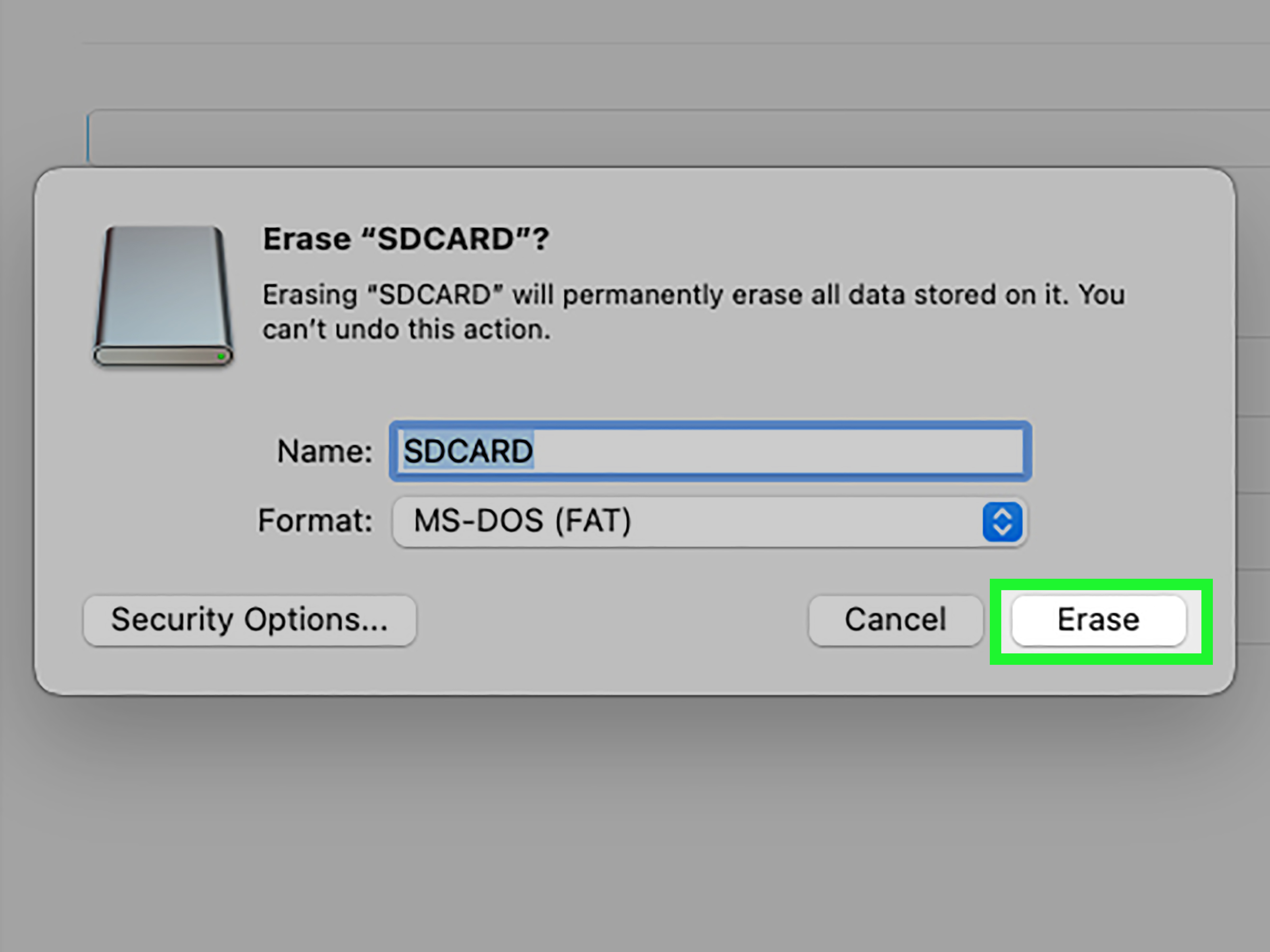
On macOS, FAT32 is usually shown as MS-DOS (FAT) in Disk Utility. Apple uses that broader label for the FAT family, but it is the format choice commonly used for FAT-compatible Windows and legacy devices.
Method 1: Use Disk Utility
- Insert the SD card into your Mac or a compatible card reader.
- Open Disk Utility from Applications > Utilities, or search for it with Spotlight.
- In the menu bar, choose View > Show All Devices.
- Select the physical SD card in the sidebar, not only the volume listed beneath it.
- Click Erase.
- Enter a simple name, such as CAMERA or SDCARD.
- Choose MS-DOS (FAT) from the Format menu.
- Choose Master Boot Record from the Scheme menu.
- Click Erase and wait for the process to complete.
- Click Done when macOS confirms the format.
Master Boot Record, often called MBR, is a useful partition scheme for compatibility with many Windows computers and older devices. Some modern devices can also read GUID Partition Map, but MBR remains the safer choice when the device manual simply says “FAT32 required.”
Mac Terminal Method for a Specific FAT32 Format
Disk Utility is usually enough for ordinary cards. If you need a more direct method, Terminal can format the entire physical SD card as FAT32 with an MBR partition map.
- Open Terminal from Applications > Utilities.
- Enter the following command to list connected drives:
Find the SD card by checking its capacity and external-device label. It may appear as something like /dev/disk4. Do not choose your internal Mac drive.
Then run this command, replacing disk4 with your actual SD card identifier:
Enter your Mac password if prompted. This command erases the entire selected disk, creates an MBR partition map, and formats it as FAT32. Use a simple name without spaces or special characters for the volume label.
When it finishes, eject the card properly in Finder before removing it. Pulling out storage while it is still being used is like leaving a restaurant before the waiter has put the plate down: technically possible, but not ideal.
Format the Card Again in Your Camera or Device When Possible
After formatting an SD card on a computer, it is often wise to format it once more inside the device that will use it. Many cameras, dashcams, drones, and game systems create their own folder structure, database files, or recording directories during the formatting process.
For example, a camera may create folders such as DCIM and add internal metadata that helps it organize images correctly. A dashcam may create folders for event recordings, parking recordings, and normal driving footage. Letting the device prepare the card can prevent annoying “card not recognized” messages later.
The best workflow is simple: back up your files, format the card on your computer only when necessary, then use the device’s own Format command before recording or saving new data.
Troubleshooting FAT32 SD Card Formatting Problems
The SD Card Does Not Appear on the Computer
Try a different USB port, another card reader, or another adapter. If you are using a microSD adapter, test the microSD card with another adapter if possible. Windows users can check Disk Management, while Mac users can check Disk Utility with “Show All Devices” enabled.
If the card appears on one computer but not another, the problem may be the card reader rather than the SD card. Readers are small, inexpensive, and somehow capable of causing disproportionately large amounts of confusion.
Windows Says the Disk Is Write-Protected
Check the physical lock switch on the side of the full-size SD card or SD adapter. Move it to the unlocked position, remove the card, reconnect it, and try again. If the switch is loose or damaged, use another adapter.
If the card remains permanently read-only across multiple devices and adapters, it may be failing. Some flash memory cards switch themselves into read-only mode when they detect a serious storage problem. Copy any readable files immediately and replace the card.
FAT32 Is Missing from the Format Menu
This usually happens with cards larger than 32 GB. Consider whether exFAT is acceptable for your target device. If exFAT is not supported, use a smaller SDHC card, create a smaller FAT32 partition, or confirm whether the device can safely use a large card formatted in FAT32.
The Device Still Does Not Recognize the Card
Check three things: the file system, the partition scheme, and the card standard. A device may require FAT32 with MBR, but it may also have a hard limit on card type or capacity. An older device designed for SDHC may not support SDXC cards at all, regardless of how carefully they are formatted.
The Card Formats but Errors Keep Returning
Repeated corruption, random missing files, slow writes, and failed formatting attempts can indicate a worn-out or counterfeit card. Stop using the card for important photos, videos, or backups. A successful format does not always mean the memory is healthy; it may simply mean the card managed to smile politely for five minutes.
FAT32 vs. exFAT: Which One Should You Choose?
| Feature | FAT32 | exFAT |
|---|---|---|
| Best for | Older devices and broad legacy compatibility | Modern devices and large SD cards |
| Single file size limit | Just under 4 GB | Supports much larger files |
| Common card type | SDHC and microSDHC | SDXC and microSDXC |
| Windows and macOS compatibility | Read and write support | Read and write support |
| Older hardware support | Excellent | May be limited |
Choose FAT32 when compatibility is your main goal. Choose exFAT when you use a 64 GB or larger card, record long 4K videos, transfer files larger than 4 GB, and know that your devices support exFAT.
Best Practices for SD Card Formatting
- Back up important files before every format.
- Use the device’s own formatting tool whenever possible.
- Use a reliable card reader and avoid loose, damaged adapters.
- Safely eject the SD card before removing it.
- Do not fill the card completely; leave a little free space for smoother operation.
- Replace cards that repeatedly show errors, corruption, or read-only behavior.
- Buy memory cards from reputable retailers to reduce the risk of counterfeit storage.
Frequently Asked Questions About Formatting SD Cards to FAT32
Can I format a 64 GB SD card to FAT32?
It may be technically possible with certain operating-system tools or by creating a smaller FAT32 partition, but it is not always the best choice. Most 64 GB and larger SDXC cards are designed for exFAT. Always check whether your camera, console, stereo, or other device supports both the card capacity and the FAT32 format.
Does formatting an SD card make it faster?
Formatting does not upgrade the physical speed rating of the card. However, it can restore a clean file structure and remove clutter from deleted or damaged files, which may help a device use the card more reliably.
Should I use Quick Format or Full Format?
Quick Format is suitable for most normal SD card reformatting tasks. A full format takes much longer and may be useful when troubleshooting, but repeated full formatting is not necessary for routine use.
Can I format an SD card without deleting files?
No. Formatting prepares the card for new storage and deletes the current file structure. Back up files first if you want to keep them.
Why does my camera say “Card Cannot Be Accessed” after formatting?
The card may use an unsupported file system, the wrong partition scheme, an unsupported capacity, or a failing memory chip. Format the card in the camera if the camera can see it. If the message continues, test another compatible card.
Final Thoughts: FAT32 Is Old, but It Still Gets Invited Everywhere
Formatting an SD card to FAT32 is usually straightforward once you know what your device needs. On Windows, File Explorer and Disk Management can handle most cards up to 32 GB. On a Mac, Disk Utility lets you choose MS-DOS (FAT) and Master Boot Record for broad compatibility.
The most important step is not clicking Format. It is choosing the correct card, backing up your files, and confirming that FAT32 is actually required. For older devices, FAT32 remains a dependable translator between modern computers and hardware that still thinks a 2 GB MP3 player is cutting-edge technology.
Real-World Experiences With Formatting SD Cards to FAT32
In real-world use, formatting an SD card to FAT32 is rarely difficult because of the button-clicking part. The tricky part is understanding why one device accepts a card while another one acts as though the card arrived from another planet. A user may plug a perfectly good 128 GB microSD card into an older car stereo, see “No Media,” and assume the card is broken. In many cases, the stereo simply expects FAT32, a Master Boot Record partition layout, or a smaller SDHC-style card.
One of the most common situations involves cameras and dashcams. Someone copies footage to a computer, deletes the files manually, and puts the card back into the device. Then the camera starts showing errors, stops recording, or creates strange folders. The card may still be physically healthy, but the device can become confused by an altered file structure. Formatting the card in the camera often solves the problem because the camera rebuilds the folders and internal data it expects. This is why “format in the device” is more than a catchy support phrase. It is usually the cleanest way to start fresh.
Another frequent lesson comes from large video files. FAT32 works beautifully for music, photos, small documents, and short clips. But the first time someone tries to copy a 7 GB 4K video file to a FAT32 card, Windows may report that the file is too large even though the card has plenty of unused storage. This feels unfair until you remember that FAT32 has a per-file limit of just under 4 GB. The total capacity can be large, but one oversized file still cannot fit. In that situation, exFAT is usually the better format if the target device supports it.
Card readers also deserve more suspicion than they usually receive. A card that refuses to appear in Windows or macOS may be completely fine, while a worn adapter or unreliable USB reader is the actual problem. Testing the card in another reader, another computer, or directly in the device can save a lot of unnecessary formatting attempts. It is especially important with microSD cards, because the tiny card itself may be healthy while the full-size adapter has a loose contact or damaged lock switch.
The biggest real-world mistake is formatting the wrong drive. This happens most often when multiple USB drives, external SSDs, or memory cards are connected at the same time. The safest habit is to disconnect storage devices you do not need, check the capacity of the target SD card, and pause before confirming a format command. Five extra seconds of caution beats five hours of searching for recovery software.
Finally, persistent formatting errors are often a warning rather than a puzzle to solve forever. If an SD card repeatedly becomes read-only, loses files, corrupts photos, or fails in multiple devices, retire it from important work. A new memory card costs far less than lost travel photos, client videos, or an entire weekend of dashcam footage. FAT32 can help with compatibility, but it cannot turn failing flash memory into a trustworthy storage device.