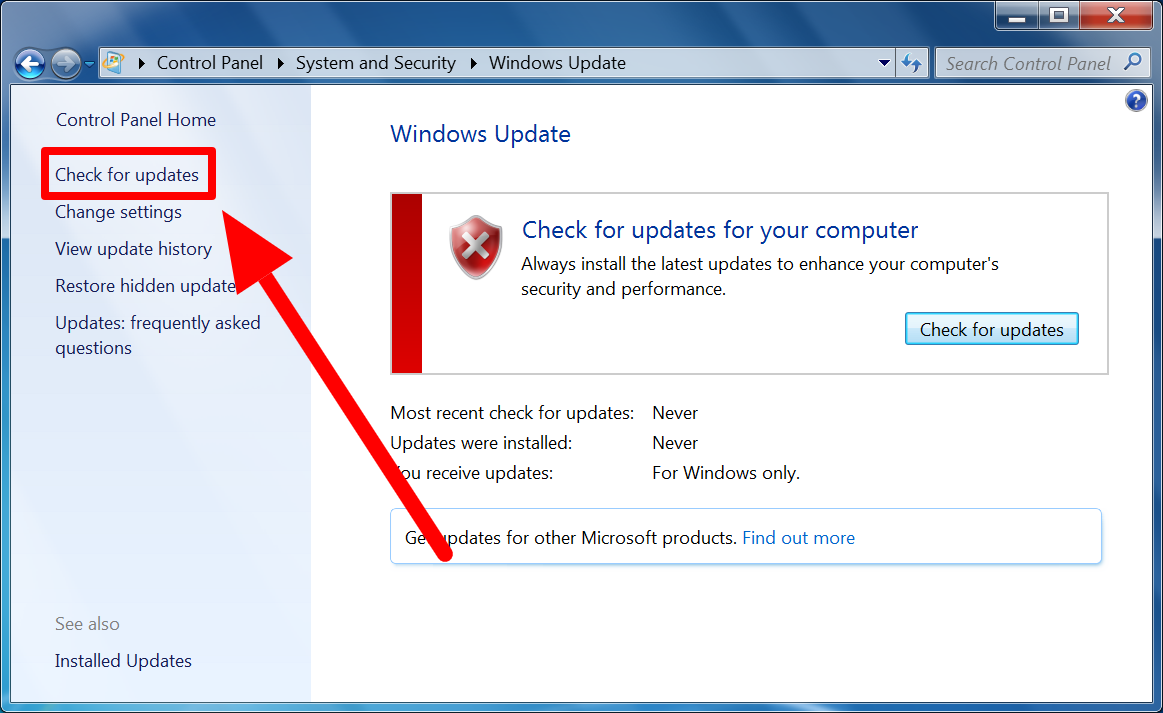
If you are still using Windows 7 in the year of our very advanced computers, first of all: bold choice. Second: you are not alone. Plenty of people still keep an old Windows 7 PC around for legacy software, a favorite printer that refuses to evolve, or a family laptop that somehow keeps surviving on pure stubbornness. The good news is that checking for updates in Windows 7 is still a simple process. The less-good news is that Windows 7 is an older operating system, so the update experience can be slower, patchier, and a little more dramatic than modern Windows versions.
That said, knowing how to check for updates on Windows 7 is still useful. It can help you install leftover patches, improve stability, fix bugs, and make an aging system a little less fragile. In this guide, you will learn the exact five steps to check for updates, what to expect during the process, how to handle common problems, and why some Windows 7 machines behave like they are personally offended by the idea of updating.
Why Windows 7 Updates Still Matter
Even on an older system, updates can serve a purpose. They may include security fixes that were released before support ended, reliability improvements, compatibility updates, and patches that help core Windows features run more smoothly. If you are restoring an older machine, reinstalling Windows 7, or trying to get legacy software working, updating is often one of the first tasks worth doing.
Updates can also reduce some everyday annoyances. A sluggish system, weird shutdown behavior, failed installations, or random error messages may all improve after the right patches are installed. No, updates will not magically turn your Windows 7 PC into a sleek modern rocket ship. But they can stop it from acting like a soap opera character who faints at every inconvenience.
Before You Start
Before checking for updates, make sure your computer is connected to the internet and plugged into power if it is a laptop. Windows 7 updates can take a while, especially on older hardware. You should also save your work and close unnecessary programs, because some updates require a restart.
It also helps to keep expectations realistic. Windows 7 is a legacy operating system. Depending on your machine, the update service may find only older patches, or it may take a long time to search. In some cases, Windows Update may appear stuck even when it is technically working. In other cases, it really is stuck and is just being theatrical.
The 5 Steps to Check for Updates for Windows 7
Step 1: Open the Start Menu and Go to Control Panel
Click the Start button in the lower-left corner of your screen. From there, select Control Panel. If your Start menu is feeling unhelpful, you can also type Control Panel into the search box and open it from the results.
This is the main hub for many Windows 7 settings, including system maintenance tools. Think of it as mission control, except with more beige and fewer dramatic countdowns.
Step 2: Click System and Security, Then Open Windows Update
Inside Control Panel, click System and Security. On the next screen, look for Windows Update and click it. This opens the Windows Update panel, where Windows 7 handles checking, downloading, and installing available updates.
If you have used Windows 10 or Windows 11, this area will look older and more straightforward. That is not a bad thing. Windows 7 liked to keep its buttons where humans could find them.
Step 3: Click “Check for Updates”
In the Windows Update window, click Check for updates in the left sidebar or main panel, depending on your layout. Windows 7 will begin searching Microsoft’s update servers for available patches.
This part may take anywhere from a few minutes to much longer on an older machine. Be patient. The computer may look like it is doing nothing, but behind the scenes it is comparing your system against a long list of update packages. If you hear your hard drive thinking very hard, that is normal.
If updates are found, Windows 7 will display a list of important and optional updates. Important updates usually include security and stability patches, while optional updates may include driver-related items, language packs, or nonessential features.
Step 4: Review the Available Updates
Once the search is complete, review what Windows 7 found. Do not just click buttons like you are speed-running a game menu. Take a second to look at the categories.
Important updates are usually the priority. These are the patches most users should install first. Optional updates can be helpful, but they deserve a little more caution, especially if they involve hardware drivers. Sometimes a manufacturer-specific tool from Dell, HP, or Lenovo is better for driver updates than Windows Update alone.
You can click the update count to see details. This lets you inspect the names of the patches and uncheck anything you do not want to install right away. For example, if your system is stable and you are updating only to improve security and reliability, you may want to focus on the important items first.
Step 5: Install Updates and Restart if Prompted
After reviewing the list, click Install updates. Windows 7 will download and install the selected items. During installation, your computer may slow down temporarily, and you may be asked to restart.
Go ahead and restart when prompted. After the system comes back on, return to Windows Update and check again. Yes, again. Windows 7 updates often arrive in layers, like an onion with a grudge. Installing one batch may unlock another batch, so it is common to repeat the process until no more important updates appear.
How Long Does It Take?
That depends on the condition of the machine. A Windows 7 computer that has been updated regularly in the past may finish the process relatively quickly. A freshly reinstalled or long-neglected system may need multiple rounds of searching, downloading, installing, and restarting. That can take a while.
The age of the hard drive, the amount of RAM, and the quality of your internet connection also matter. On an old laptop with a mechanical hard drive, “checking for updates” can feel like waiting for bread to rise in real time.
Common Problems When Checking for Windows 7 Updates
Windows Update Keeps Searching Forever
This is one of the most common complaints on older Windows 7 systems. If Windows Update never seems to finish checking, restart your computer first and try again. If the problem continues, restart the Windows Update service through the Services panel, then try another search.
In tougher cases, clearing the SoftwareDistribution folder can help reset the update cache. This gives Windows Update a cleaner starting point and often fixes corrupted update data.
You Get an Error Message Instead of Updates
Error messages can happen for several reasons: missing update components, corrupted files, connection issues, or services that are not running properly. Start with the basics: confirm your internet connection, check your system date and time, restart the PC, and run the update check again.
If that does not help, restart the Windows Update service and try once more. Some users also have better luck after manually installing certain servicing updates first, but that is a more advanced path and should be done carefully.
The PC Installs Some Updates but Not Others
This is not unusual. Some updates depend on earlier patches, and some fail on the first attempt but work after a restart. Install what you can, reboot, and run the update process again. Windows 7 sometimes needs several passes before it settles down and cooperates.
Tips for a Smoother Update Experience
Use a Wired Connection If Possible
If your wireless connection is unstable, plug in with Ethernet during the update process. A solid connection can reduce failed downloads and save you from watching a progress bar go nowhere with absolute confidence.
Back Up Important Files First
Even routine updates carry some risk on older systems. Back up your important documents, photos, and project files before making major changes. This is especially smart if your PC already shows signs of instability.
Be Careful With Optional Driver Updates
Windows Update may offer drivers, but they are not always the best choice for every machine. If you use a Dell, HP, or Lenovo computer, check the manufacturer’s support tools for hardware-specific drivers. That can be a safer route than letting Windows 7 guess what your aging graphics adapter wants today.
Repeat the Process Until the System Is Fully Patched
One scan is rarely the end of the story on an older Windows 7 installation. Check, install, restart, and check again until no more important updates remain. Repetition is not glamorous, but neither is troubleshooting a half-updated system at 11:47 p.m.
Should You Still Use Windows 7?
If you have to use Windows 7 for legacy software or a specific offline task, keeping it updated as much as possible still makes sense. But if the computer is used for regular web browsing, online banking, shopping, or work involving sensitive data, you should seriously consider moving to a newer operating system. Windows 7 is old, unsupported, and much harder to defend against modern threats.
That does not mean your PC instantly bursts into flames the moment it boots. It does mean you should treat it like an older machine with limited protection. Use caution, avoid risky downloads, keep important data backed up, and consider reducing its internet exposure if possible.
Final Thoughts
Checking for updates on Windows 7 is still a useful skill if you are maintaining an older computer, restoring a legacy system, or trying to squeeze a little more reliable life out of a longtime machine. The process itself is simple: open Control Panel, go to Windows Update, check for updates, review the results, and install what is available. The real challenge is patience. Windows 7 is from another era, and sometimes it behaves like it knows it.
Still, with the right steps and a little persistence, you can usually find and install the updates your system still recognizes. Just remember that updates on Windows 7 are now about maintenance, not modern protection. Think of them less as a fountain of youth and more as a polite tune-up for a retired workhorse.
Experience Section: What It Is Really Like to Update a Windows 7 PC
Anyone who has ever tried to update an old Windows 7 computer knows the experience is half maintenance task, half trust exercise. You click Check for updates, the little progress animation appears, and then time loses all meaning. At first you are confident. Five minutes later, you are cautious. Twenty minutes later, you are staring at the screen like it owes you money.
A common real-world scenario goes like this: someone pulls an older laptop out of a closet because they need a specific program that only runs well on Windows 7. The machine powers on, makes a fan noise that sounds vaguely historical, and eventually reaches the desktop. Everything seems fine until a browser refuses to load a modern website properly, or a printer utility demands a missing update. That is when Windows Update becomes the main character.
For many users, the first surprise is that the process is easy to start. The second surprise is that it may not be easy to finish. You open Control Panel, click into Windows Update, start the scan, and wait. Then you wait some more. Some computers find updates quickly. Others act like they need to consult ancient scrolls before making a decision.
There is also the emotional roller coaster of restarts. You install a batch of updates, restart the PC, sign back in, and feel victorious for about six seconds. Then Windows Update calmly informs you that there are more updates available. This is the Windows 7 version of being told the meeting could have been an email, except now the email also wants administrative privileges.
People who maintain older family computers often describe the same pattern: the machine becomes a little more stable after updating, but the process requires patience and a sense of humor. Maybe the shutdowns become cleaner. Maybe an application finally launches correctly. Maybe the computer stops displaying mysterious warnings that sounded serious but explained absolutely nothing. Small wins count.
Another shared experience is learning not to trust every optional update equally. Plenty of users have discovered that a hardware maker’s support page is sometimes a better place for drivers than Windows Update itself. After one or two odd driver mishaps, you start reading optional updates with the cautious energy of someone checking expiration dates in the refrigerator.
And yet, for all the delays and quirks, there is something satisfying about getting an old Windows 7 system running properly again. It feels less like using a computer and more like restoring an old tool that still has a job to do. No, it is not cutting-edge. No, it is not the safest platform for modern internet life. But when it boots cleanly, installs the updates it can still find, and handles the one legacy program you truly need, there is a strange kind of victory in that.
That is probably the most honest experience of all: updating Windows 7 is rarely glamorous, occasionally annoying, and surprisingly rewarding when it works. It is a little bit of digital archaeology, a little bit of system care, and a reminder that even older machines can still be useful when you know how to maintain them properly.