Landing on a webpage in a language you do not understand can feel like opening a beautifully designed door and finding a raccoon wearing a lab coat on the other side. You know something useful is probably happening, but good luck decoding it without help. Fortunately, Google Translate can turn that language wall into a speed bump.
Whether you are reading an international news article, browsing a foreign online store, checking travel details, researching homework, or trying to understand a recipe that keeps mentioning “a pinch” with suspicious confidence, learning how to activate Google Translate on a page is a simple skill that saves time and frustration.
This guide walks through three easy methods: using Chrome’s built-in page translation, translating a website URL through Google Translate, and turning on automatic translation settings for smoother browsing. You will also learn what to do when translation does not appear, why some pages translate better than others, and how to avoid common mistakes that make translated pages look like they were assembled by a sleep-deprived robot.
Why Use Google Translate on a Webpage?
Google Translate is useful because it helps you understand web content quickly without copying every sentence into a separate translation box. Instead of translating one paragraph at a time, you can translate an entire webpage and continue browsing in your preferred language.
For everyday users, this is helpful in situations like:
- Reading foreign-language articles, blogs, or support pages
- Shopping on international websites
- Following travel guides, restaurant menus, or local event pages
- Understanding school or research materials in another language
- Checking product manuals or troubleshooting pages
The translation may not always be perfect, especially with slang, jokes, technical terms, poetry, or very local expressions. Still, for general understanding, Google Translate is often good enough to help you move forward without staring at the screen like it owes you money.
Method 1: Activate Google Translate Using Chrome’s Built-In Page Translation
The easiest way to activate Google Translate on a page is through Google Chrome. Chrome has built-in translation tools, so you usually do not need to install anything extra. When Chrome detects that a webpage is written in a language different from your preferred browser language, it may automatically offer to translate the page.
How to Translate a Page in Chrome on Desktop
- Open Google Chrome.
- Go to the webpage you want to translate.
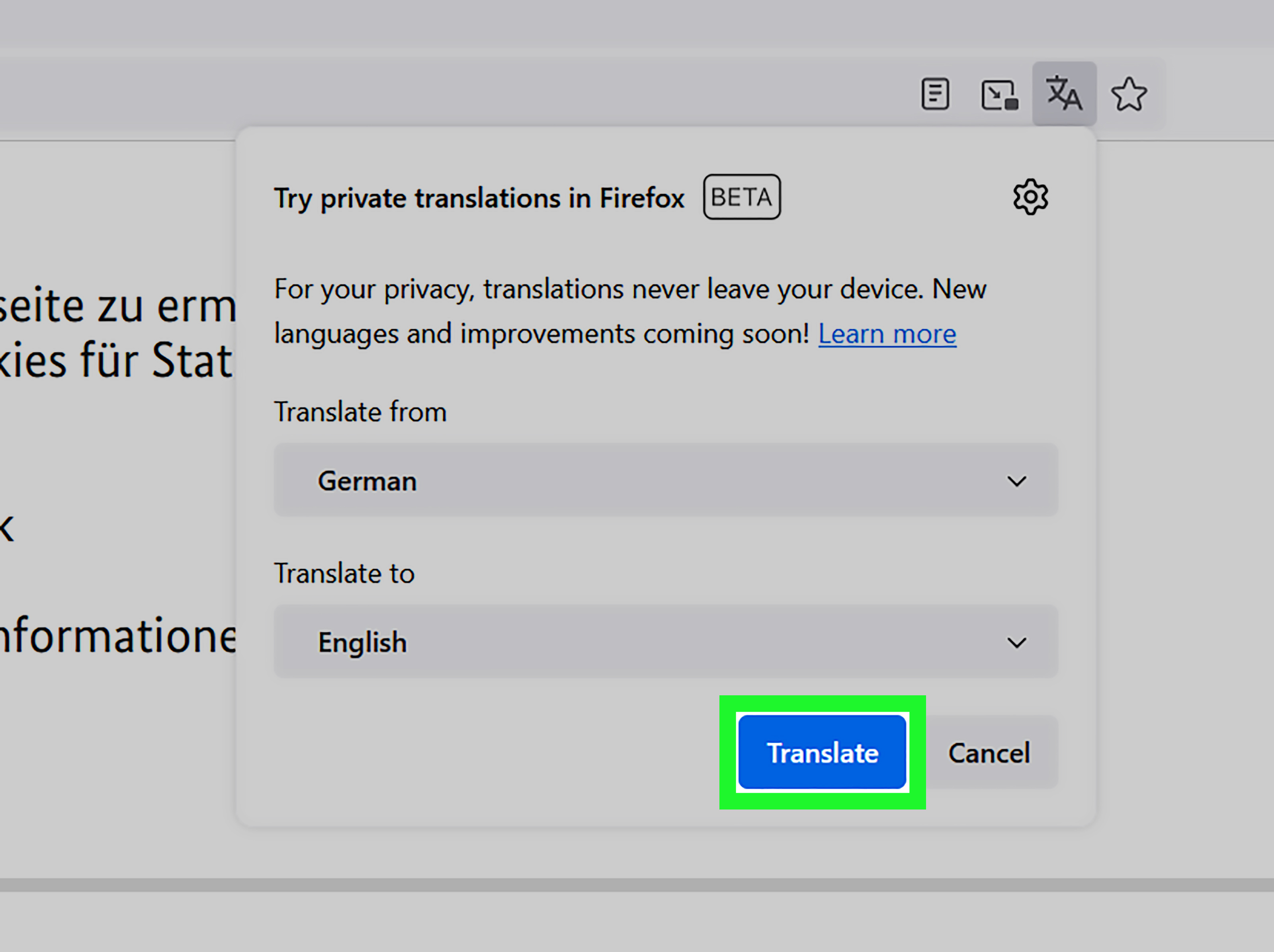
- Look for the translate icon in the address bar.
- Click the icon and choose the language you want.
- If no pop-up appears, right-click on the page and select “Translate to English” or another available language.
For example, if you open a Spanish travel blog and your browser language is English, Chrome may offer to translate the page automatically. If it does not, the right-click method usually works. It is the digital equivalent of tapping Chrome on the shoulder and saying, “Hey buddy, do the language thing.”
How to Translate a Page in Chrome on Android
- Open the Chrome app on your Android device.
- Visit a webpage written in another language.
- Look for the translation bar near the bottom of the screen.
- Tap the language you want to translate into.
- Use the menu in the translation bar to choose more options if needed.
On Android, Chrome can also offer translation settings for pages in languages you read often. This is helpful if you regularly visit websites in Japanese, Korean, French, Spanish, German, Vietnamese, or another language.
How to Translate a Page in Chrome on iPhone or iPad
- Open Chrome on your iPhone or iPad.
- Go to the page you want to translate.
- Tap the menu icon if the translation option does not appear automatically.
- Select the Google Translate option when available.
- Choose the target language.
The mobile process may look slightly different depending on app updates, device settings, and language preferences. The basic idea is the same: open the page, find the translate option, choose your language, and let Google handle the heavy lifting.
Method 2: Use the Google Translate Website to Translate a Page URL
If you are not using Chrome, or if Chrome’s translation option is being shy, you can use the Google Translate website directly. This method is especially useful when you want to translate a webpage from a browser that does not automatically offer Google Translate.
How to Translate a Website URL with Google Translate
- Open Google Translate in your browser.
- Choose the “Websites” option.
- Paste the webpage URL into the website field.
- Select the language you want to translate from and the language you want to translate into.
- Click the button to open the translated page.
This method is simple because you do not have to install a browser extension or change browser settings. Copy the page address, paste it into Google Translate, and open the translated version. It is basically a language car wash for URLs: page goes in, understandable page comes out, hopefully without losing a side mirror.
When This Method Works Best
Using Google Translate’s website translation tool is best for public webpages, articles, guides, basic product pages, and informational websites. It may not work as smoothly on pages that require logins, banking portals, checkout pages, private dashboards, or websites that load most of their content dynamically after the page opens.
For example, translating a public recipe page should be straightforward. Translating a private account page after signing in may not work well because Google Translate may not have access to the protected content. That is not a bug; that is the website doing its job by keeping private areas private.
Method 3: Turn On Automatic Page Translation in Chrome
If you frequently visit pages in another language, manually clicking “Translate” every time can get old fast. It is like opening a door with a key, then being asked to reintroduce yourself to the doorknob every five minutes. Chrome’s automatic translation settings can make the process smoother.
How to Enable Translation Offers in Chrome
- Open Chrome.
- Click the three-dot menu in the top-right corner.
- Go to “Settings.”
- Open the “Languages” section.
- Find the Google Translate or translation settings area.
- Turn on the option to offer translation for pages in languages you do not read.
Once this option is enabled, Chrome should offer to translate pages written in unfamiliar languages. You can also set preferences for specific languages, such as always translating French pages into English or never translating pages in a language you already understand.
How to Always Translate a Specific Language
When Chrome translates a page, open the translation menu and look for an option such as “Always translate” for that language. This is useful if you regularly read content from the same country or region. For instance, if you often read German tech forums but do not speak German, Chrome can automatically translate German pages into English when possible.
How to Stop Translating a Language or Website
Sometimes Chrome gets a little too enthusiastic. If you speak Spanish and Chrome keeps trying to translate Spanish pages into English, you can tell it not to translate that language. Open the translation menu and choose an option like “Never translate this language” or adjust your language preferences in Chrome settings.
You can also stop translation for a specific website. This is useful for bilingual websites, language-learning platforms, or pages where translation breaks the layout.
What About the Google Translate Chrome Extension?
The official Google Translate extension is still useful, but it is important to understand what it is best for. In modern Chrome, full-page translation is handled natively by the browser. The extension is more helpful when you want to highlight or right-click selected text and translate a smaller section.
That means if your goal is to translate an entire webpage, start with Chrome’s built-in translate feature. If your goal is to translate one phrase, paragraph, button label, or confusing sentence, the extension can be a handy sidekick.
Think of Chrome’s built-in translation as the moving truck and the extension as the backpack. Both carry things, but you probably should not use the backpack to move a sofa.
Troubleshooting: Why Is Google Translate Not Showing on the Page?
Sometimes the translate option does not appear. Before blaming the internet goblins, check a few common causes.
1. The Page Is Already in a Preferred Language
If Chrome thinks you already understand the page language, it may not offer translation. Check your Chrome language settings and remove languages you do not actually read fluently.
2. Translation Offers Are Turned Off
Go to Chrome settings and make sure the option to offer translation for pages in other languages is enabled. If this setting is off, Chrome may politely do absolutely nothing.
3. The Website Blocks or Limits Translation
Some websites use scripts, frames, or protected content that make translation difficult. Pages behind logins, interactive tools, and checkout screens may not translate correctly.
4. The Page Uses Images Instead of Text
If the words on the page are inside images, banners, scanned PDFs, or screenshots, page translation may not detect them as normal text. In that case, you may need image translation tools or manual text input.
5. Browser Extensions Are Interfering
Privacy tools, script blockers, or other extensions can sometimes interfere with translation. Try disabling extensions temporarily or opening the page in an incognito window to test.
6. Chrome Needs an Update
An outdated browser can cause features to behave strangely. Update Chrome, restart the browser, and try again. Yes, “turn it off and on again” remains undefeated in the technology Olympics.
Best Practices for Using Google Translate on Webpages
Google Translate is powerful, but it is not magic. To get better results, use it with a little common sense.
Check Important Details Twice
For casual reading, machine translation is usually fine. For legal, medical, financial, academic, or official information, double-check important details with a trusted source or a human translator. A translated sentence can be understandable and still miss nuance.
Watch Out for Buttons and Forms
Translated buttons can sometimes sound odd. A checkout button, login button, or form label may be translated literally. Before submitting information, make sure you understand what the page is asking for.
Use Original and Translated Views
When available, switch between the original and translated versions. This helps you verify names, numbers, addresses, product models, dates, and technical terms.
Be Careful with Idioms
Idioms rarely travel well. A phrase that makes perfect sense in one language may become comedy soup in another. If a translated sentence sounds strange, search the phrase separately or translate smaller sections.
Specific Examples: When Each Method Makes Sense
Example 1: Reading a Foreign News Article
Use Chrome’s built-in translation. Open the article, click the translate icon, and read the translated page. This is the fastest method for public text-heavy pages.
Example 2: Translating a Website in Another Browser
Use the Google Translate website. Copy the URL, paste it into the Websites tool, and open the translated version. This works well when you are using a browser that does not offer Google Translate automatically.
Example 3: Researching the Same Language Every Day
Turn on automatic translation in Chrome. If you read French blogs every morning, set Chrome to always translate French. Your future self will thank you and may even make coffee in your honor.
Example 4: Understanding One Sentence on a Mostly English Page
Use selected-text translation with the Google Translate extension or copy the text into Google Translate. Translating the entire page may be unnecessary if only one paragraph is confusing.
Is Google Translate Accurate for Full Webpages?
Google Translate is generally good for understanding the main idea of a webpage. It can handle common sentences, product descriptions, travel information, general instructions, and many everyday topics. However, it may struggle with humor, cultural references, technical jargon, legal language, and highly creative writing.
For example, a restaurant menu may translate “house special” correctly, but a regional dish name may remain confusing. A tech tutorial may translate the steps well, but a software-specific term may need extra checking. A joke may translate into something that sounds like a toaster wrote it during a thunderstorm.
The best approach is to treat Google Translate as a helpful guide, not an official interpreter. It gives you access, speed, and understanding. For high-stakes content, verify before acting.
Extra Experience Notes: What It Is Really Like to Use Google Translate on a Page
After using page translation across news sites, shopping pages, documentation, forums, travel blogs, recipes, and support articles, one lesson becomes clear: the best method depends on the page. Chrome’s built-in translation is the most convenient for everyday browsing. It is quick, visible, and usually appears exactly when needed. When it works, the experience feels almost invisible. You open a page, click translate, and continue reading as if the internet suddenly learned manners.
The Google Translate website method is better when you want more control or when Chrome is not available. It is especially useful on shared computers, school devices, public workstations, or browsers where you cannot change settings. Copying and pasting a URL may feel like an extra step, but it is reliable enough for many public webpages. It also helps when you want to test how a page reads in another language without changing your browser preferences.
Automatic translation is the best long-term setup for repeated use. If you regularly read websites in the same foreign language, setting Chrome to always translate that language saves clicks and keeps your browsing flow smooth. This is particularly useful for students reading international sources, travelers planning trips, online shoppers comparing overseas products, and professionals checking global documentation.
Still, translated pages are not always perfect. Layouts can shift. Buttons may become longer after translation and wrap onto awkward lines. Product names may be translated when they should stay unchanged. Sometimes a page title becomes unintentionally hilarious, which is not helpful but does provide free entertainment. Dynamic websites can also be tricky because new content may load after the translation has already happened. In that case, refreshing the page or translating again can help.
Another practical experience: Google Translate works best when the original page uses clear, standard text. Pages with clean paragraphs, simple navigation, and normal HTML text translate much better than pages filled with images, pop-ups, scripts, or unusual formatting. If a website hides important text inside images, the browser may not translate it because it does not see it as text. That is why a plain article often translates beautifully, while a fancy interactive menu may behave like it has stage fright.
For serious reading, the smartest habit is to compare the translated page with the original when something looks important. Names, prices, measurements, warnings, dates, and instructions deserve extra attention. If a translated sentence affects your money, health, travel plans, schoolwork, or account security, do not rely on one machine translation alone. Use it to understand the content, then verify the key details.
Overall, activating Google Translate on a page is one of those small browser skills that feels simple but opens a much larger internet. You can read more sources, compare more ideas, understand more cultures, and solve more problems without being stopped by language. It will not make every translation perfect, but it will make the web far more usable. And frankly, any tool that helps decode a foreign recipe before you accidentally add salt instead of sugar deserves a place in your browsing toolbox.
Conclusion
Learning how to activate Google Translate on a page gives you three practical options. For most people, Chrome’s built-in page translation is the fastest and easiest method. If you are using another browser or need a direct webpage translation tool, Google Translate’s Websites option is a strong alternative. If you visit foreign-language pages often, Chrome’s automatic translation settings can make the process smoother every time.
The key is knowing which method fits the situation. Use built-in Chrome translation for quick reading, Google Translate website translation for URL-based access, and automatic translation for repeated browsing. Add a little caution for important details, and you have a simple, effective way to make the web more understandable.