Need to turn off McAfee temporarily without turning your computer into a digital buffet for malware? This complete guide explains how to disable McAfee on Windows or Mac safely, when you should do it, when you should absolutely not do it, and how to turn protection back on before the internet starts acting like a raccoon in your kitchen.
Before You Disable McAfee: Read This First
McAfee is designed to protect your device from viruses, suspicious downloads, risky websites, unwanted network traffic, and other unpleasant surprises. Disabling it can be useful for troubleshooting, installing trusted software, testing a blocked app, or fixing a temporary performance issue. But turning it off also reduces your protection, especially if you download files, open email attachments, plug in USB drives, or browse unfamiliar websites while protection is paused.
The safest approach is simple: disable only the feature causing the problem, keep it off for the shortest possible time, and turn it back on immediately afterward. In other words, do not hit every “off” switch like you are defusing a bomb in an action movie. Most users only need to pause Real-Time Scanning or adjust Advanced Firewall settings.
Common reasons to disable McAfee temporarily
- A trusted app or game will not install correctly.
- McAfee blocks a program you know is safe.
- You are troubleshooting internet or network connection issues.
- You need to test whether antivirus scanning is slowing a specific task.
- You are removing McAfee and switching to another security product.
If your computer belongs to a school, company, or organization, check with the administrator first. Managed devices may have policies that prevent disabling antivirus protection, and trying to bypass those controls can cause security or compliance problems.
Disable vs. Uninstall McAfee: What Is the Difference?
To disable McAfee means to pause one or more protection features while the software remains installed. To uninstall McAfee means to remove the program from your computer. These are very different choices.
Disabling is best when you need a temporary fix. For example, if a printer driver refuses to install, you might turn off Real-Time Scanning for 15 minutes, install the driver, and then turn protection back on. Uninstalling is best when you no longer want McAfee, your subscription ended, you are switching to another antivirus, or the software is damaged and needs a clean reinstall.
For most people, temporary disabling is the better first step. It is reversible, quick, and less dramatic than removing the entire security suite. Think of it as putting McAfee in “coffee break mode,” not firing it from the company.
How to Disable McAfee Real-Time Scanning on Windows
Real-Time Scanning is one of McAfee’s most important features. It checks files and apps as you open, download, copy, or run them. If McAfee is blocking something you trust, this is usually the first feature people pause.
Steps for Windows 10 or Windows 11
- Open the McAfee app from the Start menu, desktop shortcut, or system tray icon near the clock.
- Click the My Protection icon or protection menu on the left side.
- Under Device, choose Real-Time Scanning.
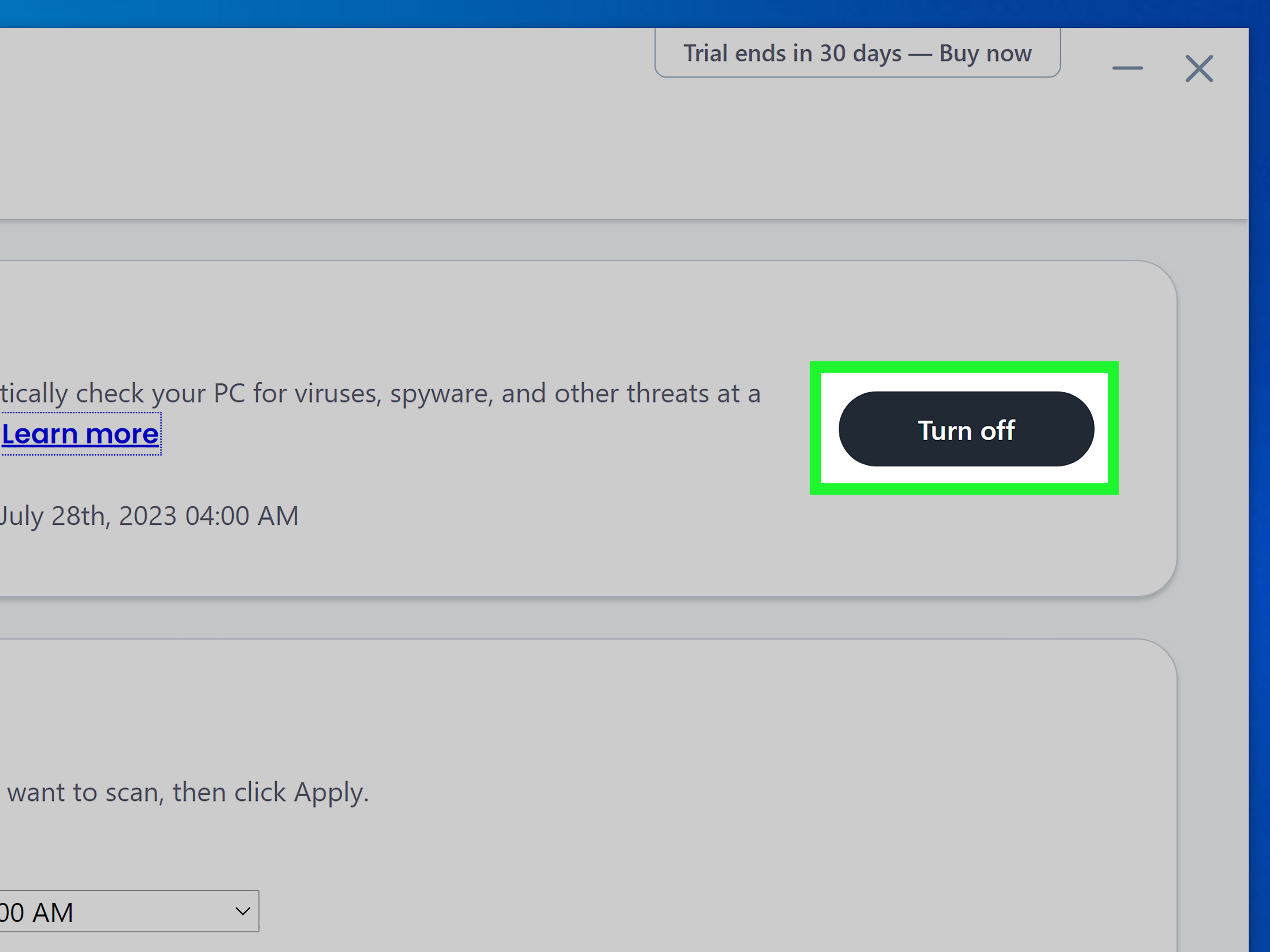
- Click Turn off.
- Choose when you want McAfee to resume scanning. Select the shortest practical time, such as 15 minutes or until the next restart.
- Confirm by clicking Turn off again if prompted.
After completing your task, return to the same Real-Time Scanning screen and click Turn on. Do not leave real-time protection off longer than necessary. A computer without real-time scanning is like a house with the front door open and a sign that says, “Snacks inside.”
Safer alternative: Exclude a trusted file instead
If McAfee repeatedly flags a file or folder you know is safe, consider adding an exclusion instead of disabling all scanning. This tells McAfee to ignore a specific file or folder while keeping protection active everywhere else. Only use exclusions for files you truly trust, preferably from official developers or verified sources.
How to Disable McAfee Advanced Firewall on Windows
McAfee Advanced Firewall monitors network activity and helps control which apps can send or receive internet traffic. If a game, remote desktop app, printer, VPN, or business tool cannot connect, the firewall may be involved.
Steps to turn off McAfee Firewall temporarily
- Open the McAfee app.
- Select the My Protection icon or menu.
- Under Device, click Advanced Firewall.
- Use the firewall toggle or Turn off option.
- If asked, choose when the firewall should turn back on.
- Confirm your choice.
Only disable the firewall briefly. A better fix is often to allow a specific trusted app through the firewall rather than turning the whole firewall off. If one program is the problem, make an app rule for that program. Do not shut down the entire neighborhood because one delivery driver cannot find your porch.
What if Windows Security is also running?
Windows includes built-in security tools, including Microsoft Defender Antivirus and Microsoft Defender Firewall. However, do not assume everything is protected automatically after you disable McAfee. Open Windows Security and check Virus & threat protection and Firewall & network protection. If you are uninstalling McAfee completely, verify that Windows protection is active afterward.
How to Disable McAfee on a Mac
McAfee for Mac may include real-time scanning, firewall protection, scheduled scanning, WebAdvisor, and other privacy tools depending on your plan. The exact wording can vary by product version, but the general path is similar.
Turn off Real-Time Scanning on Mac
- Open the McAfee app from the Applications folder, Launchpad, or menu bar icon.
- Choose Mac Security.
- Select Real-Time Scanning.
- If a lock icon appears, click it and enter your macOS administrator password.
- Switch Real-Time Scanning off.
- Complete your troubleshooting task, then return and switch it back on.
Turn off McAfee Firewall on Mac
- Open the McAfee app.
- Go to Mac Security or the settings gear.
- Find the Firewall option.
- Unlock settings with your macOS password if prompted.
- Move the firewall slider or toggle to the off position.
macOS also has its own privacy and security permission system. Some antivirus features require permissions such as Full Disk Access. If McAfee is not working correctly, the problem may not require disabling anything. Instead, you may need to review System Settings > Privacy & Security and confirm that McAfee has the permissions it needs.
How to Disable McAfee WebAdvisor in Your Browser
McAfee WebAdvisor is a browser-related tool that helps warn about risky sites, suspicious downloads, and unsafe search results. It can be helpful, but some users disable it because of browser performance, duplicate warnings, or extension conflicts.
Disable WebAdvisor in Chrome, Edge, or Firefox
- Open your browser.
- Go to the browser’s Extensions or Add-ons page.
- Find McAfee WebAdvisor or WebAdvisor by McAfee.
- Toggle it off to disable it temporarily.
- Choose Remove only if you want to uninstall the extension.
Disable WebAdvisor in Safari on Mac
- Open Safari.
- Choose Safari > Settings from the menu bar.
- Click Extensions.
- Uncheck the McAfee extension to turn it off.
- Select it and click Uninstall if you want to remove it completely.
If your main problem is annoying pop-ups that appear to be from McAfee, pause before blaming the real McAfee app. Many “McAfee virus alert” pop-ups are actually browser notification scams from websites you accidentally allowed. In Chrome, review Settings > Privacy and security > Site settings > Notifications and block suspicious sites. In Safari, check extensions and website settings. Real security software is not supposed to scream at you like a haunted vending machine.
How to Stop McAfee from Opening at Startup
If your goal is performance rather than security troubleshooting, you may be tempted to stop McAfee from launching when your computer starts. Be careful: preventing security software from starting can leave your device unprotected after every reboot.
Windows startup settings
- Right-click the Start button and choose Task Manager.
- Select Startup apps.
- Look for McAfee-related startup items.
- Disable only nonessential companion tools if you understand what they do.
Do not disable core antivirus services unless you are uninstalling McAfee or replacing it with another trusted security product.
Mac login items
- Open System Settings.
- Go to General > Login Items & Extensions.
- Review McAfee-related items.
- Remove only items you are sure are not required for protection.
If McAfee is slowing down your startup, check for updates, restart your device, and review scheduled scan settings before disabling protection. Sometimes the fix is simply telling scans to run when the computer is idle, not during your dramatic Monday morning login ritual.
How to Uninstall McAfee on Windows
If you want to remove McAfee completely, Windows gives you a standard uninstall path. This is usually the cleanest method to try first.
Uninstall through Windows Settings
- Click Start.
- Open Settings.
- Go to Apps > Installed apps.
- Find your McAfee product.
- Click the three-dot menu or uninstall option.
- Select Uninstall and follow the prompts.
- Restart your PC when finished.
Use Control Panel if needed
- Search for Control Panel from the taskbar.
- Choose Programs > Programs and Features.
- Select the McAfee product.
- Click Uninstall/Change.
- Follow the on-screen instructions.
If the standard uninstall fails, McAfee provides a Consumer Product Removal tool for Windows. Use it only from McAfee’s official website. After removing McAfee, restart your PC and open Windows Security to confirm that Microsoft Defender Antivirus and firewall protection are active, or install another reputable security product.
How to Uninstall McAfee on Mac
On macOS, security apps often include uninstallers because they install background services and system components. Dragging the app to the Trash may not remove everything properly.
Recommended Mac uninstall method
- Open Finder.
- Click Go > Applications.
- Look for the McAfee Uninstaller.
- Double-click the uninstaller.
- Click Continue if prompted.
- Enter your macOS administrator password.
- Follow the instructions until removal is complete.
- Restart your Mac.
If you remove browser extensions separately, check Safari, Chrome, Edge, or Firefox extension settings afterward. Also review System Settings > General > Login Items & Extensions for leftover startup items. If you are freeing up storage, empty the Trash only after you are certain you no longer need the removed files.
What to Do After Disabling McAfee
Once McAfee is disabled, act quickly and carefully. Install your trusted software, test your connection, or complete your troubleshooting task. Avoid unrelated browsing, torrents, unknown downloads, cracked software, suspicious email attachments, and “free movie” websites that look like they were designed during a thunderstorm.
Post-disable checklist
- Turn Real-Time Scanning back on.
- Turn Advanced Firewall back on.
- Enable WebAdvisor again if you still want browser protection.
- Run a quick scan if you downloaded or installed files while protection was off.
- Check Windows Security or macOS security settings for built-in protection.
- Restart your computer if McAfee does not show the correct status.
If McAfee refuses to turn back on, update the app, restart the device, and check for conflicting antivirus software. Running two full antivirus suites at the same time can cause slowdowns, errors, or protection conflicts. Security software is useful; security software arguing with other security software is just two bouncers blocking the same door.
Troubleshooting: McAfee Will Not Turn Off
Sometimes McAfee will not disable because settings are locked, the app is managed by an organization, files are corrupted, or macOS permissions are incomplete. Start with the basics before attempting advanced fixes.
Try these fixes
- Restart your computer and try again.
- Open McAfee as an administrator on Windows.
- Unlock settings with your macOS administrator password on Mac.
- Update McAfee to the latest version.
- Check whether your device is managed by work, school, or family controls.
- Review macOS Full Disk Access and security permissions.
- Uninstall and reinstall McAfee if the app appears broken.
If you are seeing constant warnings even after disabling McAfee, investigate browser notifications and fake pop-up scams. Scammers often imitate antivirus brands to make people panic, click, call, or pay. A real antivirus warning usually appears through the installed app, not from a random website tab demanding immediate payment in gift cards. The gift-card clue is especially helpful because no legitimate antivirus company fixes malware with a stack of supermarket gift cards.
Real-World Experience: What Usually Happens When People Disable McAfee
In everyday troubleshooting, disabling McAfee is rarely the first move an expert makes. It is more like the screwdriver you grab after you have already checked whether the door is actually locked. The most common situation is software installation. A user downloads a printer driver, accounting tool, game launcher, VPN client, or development utility, and McAfee interrupts the process because it sees behavior that resembles a threat. Sometimes McAfee is correct. Sometimes the installer is safe but uses compressed files, scripts, or network behavior that security software naturally treats with suspicion.
The best experience in that case is to slow down. Confirm the file came from the official vendor website. Check the filename. Avoid “download” buttons from ads. If the file is legitimate, temporarily turn off Real-Time Scanning for a short window, install the program, and turn scanning back on. This takes a little discipline, but it prevents the classic mistake: disabling protection, getting distracted, opening eleven browser tabs, downloading something questionable, and then wondering why the computer now behaves like it joined a secret society.
Another common experience involves firewall blocks. Someone installs a multiplayer game, local media server, remote access tool, or network printer, and the program cannot connect. The quick reaction is to disable the firewall. That works sometimes, but it is not the cleanest solution. A smarter path is to create a firewall rule for the specific trusted app. If the app works only when the entire firewall is off, that tells you where the problem lives. Once you know that, turn the firewall back on and adjust the rule. The goal is not to live without a firewall; the goal is to teach the firewall that your printer is not an international cybercriminal.
Mac users often run into a different experience: permissions. A McAfee feature may appear broken because macOS is protecting sensitive areas of the system. In that case, disabling McAfee does not solve the real issue. The better fix may be granting the correct permission in Privacy & Security, such as Full Disk Access, then restarting the app. This is especially common after macOS updates, security changes, or reinstalling antivirus software. Apple’s permission model can feel strict, but it exists to stop apps from wandering through your files without approval.
Then there are fake McAfee pop-ups. Many users think they need to disable McAfee because “McAfee keeps popping up,” but the alerts are not from McAfee at all. They are browser notifications from shady websites. The fix is not to uninstall your antivirus in frustration. The fix is to block suspicious browser notifications, remove strange extensions, reset browser settings if needed, and scan the system. This is one of those moments where the villain is wearing a fake mustache and a McAfee name tag.
The most important lesson from real-world experience is this: temporary disabling is fine when it is deliberate, brief, and followed by re-enabling protection. Permanent disabling without another security plan is risky. If McAfee annoys you, remove it properly and use another trusted security setup. If you like McAfee but it blocks too much, tune its settings. The worst option is leaving security half-disabled forever because you meant to “fix it later.” Computers remember that kind of thing. Malware does too.
Conclusion
Knowing how to disable McAfee on Windows or Mac is useful, but the safest method is to be precise. Turn off only the feature you need to troubleshoot, choose a short resume time, and turn protection back on as soon as your task is done. On Windows, start with Real-Time Scanning or Advanced Firewall inside the McAfee app. On Mac, use the Mac Security area and unlock settings with your administrator password when required. For browser issues, check WebAdvisor and notification permissions before assuming the main McAfee app is the problem.
If you are done with McAfee entirely, uninstall it using Windows Settings, Control Panel, or the official McAfee removal method on Windows. On Mac, use the McAfee Uninstaller from the Applications folder. After removal, confirm that another security solution is active. Good cybersecurity is not about pressing every “off” button; it is about staying in control without inviting chaos to bring a casserole.