Note: Google Play Music has officially been discontinued and replaced by YouTube Music. This guide explains the original Google Play Music playlist process for Android users who are looking for legacy instructions, while also showing the closest modern alternative in YouTube Music so readers do not end up tapping around their phone like it owes them money.
Introduction: Why Playlists Still Matter
A good playlist is more than a pile of songs. It is a tiny personal radio station, a mood switch, a workout coach, a road-trip passenger, and sometimes the only thing standing between you and awkward silence during dinner. For years, Google Play Music gave Android users a simple way to organize favorite tracks, albums, uploads, and streaming songs into custom playlists.
Although Google Play Music is no longer active, many people still search for how to create a Google Play Music playlist on Android because older phones, archived tutorials, transferred music libraries, and muscle memory from the Play Music era still exist. If you once used the orange headphone icon and now wonder where everything went, you are not alone. Google moved its music ecosystem to YouTube Music, but the playlist logic remains familiar: find a song, open the menu, save it to a playlist, name the playlist, and keep building.
This in-depth guide covers the classic 14-step method for creating a playlist in Google Play Music on Android, explains what changed after the service shut down, and provides practical tips for making better playlists today. Think of it as part tutorial, part time capsule, and part friendly intervention for anyone whose “Workout Mix” somehow includes three sad ballads and a podcast episode.
What Was Google Play Music?
Google Play Music was Google’s former music streaming and cloud locker service. Android users could stream songs, purchase music, upload personal audio files, and organize everything into playlists. For many users, its biggest strength was convenience. It was already connected to a Google account, worked naturally on Android, and allowed people to manage both streaming tracks and uploaded music in one place.
Eventually, Google replaced Google Play Music with YouTube Music. That means the original Google Play Music app no longer functions as a normal streaming service. However, understanding its playlist steps is still useful for readers who are working from old screenshots, restoring old devices, reading archived guides, or trying to recreate a former library inside YouTube Music.
Can You Still Create a Google Play Music Playlist on Android?
In the original Google Play Music app, yes, users could create playlists directly from songs, albums, artists, or the now-playing screen. In today’s practical sense, no, you cannot create a new working Google Play Music streaming playlist because the service has been shut down.
The best modern replacement is YouTube Music. The steps are similar enough that longtime Google Play Music users will recognize the rhythm: tap the three-dot menu beside a song, choose the playlist option, create a new playlist, and add more music as desired.
How to Create a Google Play Music Playlist on Android: 14 Steps
The following 14 steps describe the classic Google Play Music Android workflow. If you are using YouTube Music now, read the section after this one for the updated method.
Step 1: Open the Google Play Music App
On an Android phone, users originally opened the app drawer and tapped the Google Play Music icon. The icon was usually orange with a white play button and headphones. If the app was installed, it appeared as “Play Music.” Today, opening it may show a message that the service is no longer available.
Step 2: Sign In With Your Google Account
Google Play Music playlists were connected to a Google account. Signing in allowed the app to sync playlists, uploaded songs, recommendations, purchases, and listening history. This was especially useful when switching phones because your playlists could follow you without needing to be rebuilt song by song.
Step 3: Go to Your Music Library
After opening the app, users could access their library from the main navigation menu. The library included songs, albums, artists, genres, and playlists. If you had uploaded personal music, those tracks could also appear here. This made Google Play Music helpful for people with a mix of streaming favorites and old MP3 files from the “definitely legal” folder on their laptop.
Step 4: Choose a Song, Album, or Artist
A playlist usually starts with one song. In Google Play Music, users could browse by song title, album, artist, or genre. For example, if you wanted a morning playlist, you might begin with one upbeat track. If you wanted a focus playlist, you might start with instrumental music or low-distraction songs.
Step 5: Tap the Three-Dot Menu
Next to songs, albums, and artists, Google Play Music displayed a menu icon, usually three vertical dots. This menu was the little doorway to playlist magic. Tap it, and the app displayed actions such as starting radio, adding to queue, sharing, or adding to a playlist.
Step 6: Select “Add to Playlist”
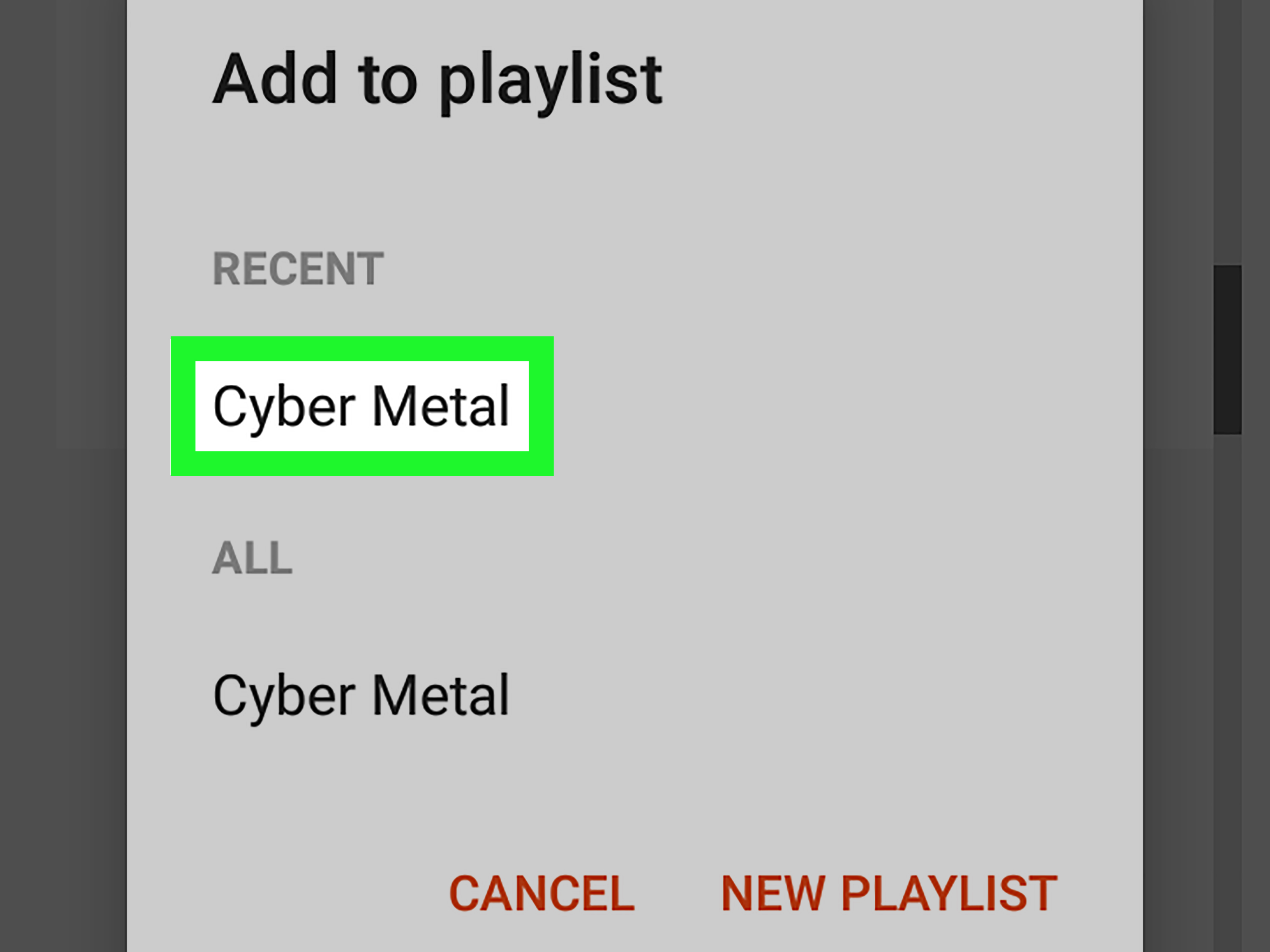
From the menu, users selected “Add to playlist.” This action opened a list of existing playlists and gave the option to create a new one. This was the key step in the process. Without it, you were just admiring your music library like someone browsing a fridge without making dinner.
Step 7: Tap “New Playlist”
If you did not already have a playlist that fit the song, you could tap “New playlist.” This created a fresh playlist container. A playlist could be built around almost anything: mood, genre, season, activity, relationship status, cleaning motivation, or the mysterious emotional category known as “songs I only listen to after 11 p.m.”
Step 8: Enter a Playlist Name
The playlist name mattered more than many users realized. A clear name made it easier to find later. Examples include “Morning Energy,” “Road Trip Rock,” “Dinner Jazz,” “Gym Motivation,” “Rainy Day Acoustic,” or “Focus Music for Work.” Avoid names like “New Playlist 7” unless you enjoy future confusion.
Step 9: Add a Playlist Description
Google Play Music allowed users to add a description in some playlist views. A short description could explain the theme: “Upbeat pop and indie tracks for weekday mornings” or “Calm background music for writing and studying.” Descriptions were especially useful when managing multiple playlists with similar names.
Step 10: Choose Privacy Settings When Available
Depending on the version and account settings, playlist visibility could vary. Some playlists were private by default, while shared playlists could be visible to others. For personal playlists, private visibility was usually best. For playlists meant to be shared with friends, a public or shareable option made sense.
Step 11: Save the Playlist
After naming the playlist and adjusting available details, users saved it. The first selected song was added immediately. Congratulations: the playlist existed. It might only contain one track, but every great playlist has to begin somewhere. Even legendary mixtapes started with Track 1.
Step 12: Add More Songs
To keep building the playlist, users repeated the process with more songs. Tap the three-dot menu next to another track, choose “Add to playlist,” and select the playlist name. Google Play Music also allowed users to add music from albums, search results, and the now-playing screen.
Step 13: Reorder or Remove Songs
Inside the playlist view, users could edit the list, remove tracks, and in many versions reorder songs. Good ordering improves the listening experience. Start strong, avoid sudden mood crashes, and place slower songs where they feel intentional. Nobody wants a high-energy workout playlist that suddenly turns into a candlelit breakup scene.
Step 14: Play, Shuffle, Download, or Share
Once the playlist was ready, users could play it in order, shuffle it, download it for offline listening if eligible, or share it. Offline playback was especially helpful for travel, commuting, or places with weak mobile data. A saved playlist could turn a signal-free subway ride into a private concert instead of a silent stare at the floor.
How to Create a Playlist in YouTube Music on Android Today
Because Google Play Music is no longer available, most readers should use YouTube Music instead. The modern process is simple and closely related to the old Google Play Music method.
Create a Playlist From a Song
Open the YouTube Music app on Android. Find a song using the Home tab, Search tab, Library tab, or recommendations. Tap the three-dot menu next to the song. Choose “Save to playlist.” Tap “New playlist,” enter a playlist name, choose the privacy setting, and confirm.
Add Songs to an Existing Playlist
To add more songs, tap the three-dot menu beside another track, select “Save to playlist,” and choose the playlist you created. You can also open one of your playlists and add songs from inside the playlist page.
Edit Your Playlist
Open the Library tab, choose the playlist, and use the edit options to rename it, change the description, adjust privacy, remove songs, or reorder tracks. YouTube Music also supports playlist management from multiple places in the app, which makes it easier to build a list while browsing.
Tips for Making a Better Android Music Playlist
Start With a Clear Purpose
The best playlists have a job. A driving playlist should keep energy steady. A sleep playlist should avoid sudden loud intros. A dinner playlist should make people feel relaxed, not like they accidentally walked into a nightclub at 7:15 p.m. Before adding songs, decide what the playlist is for.
Use a Strong Opening Track
The first song sets expectations. Choose something that announces the mood immediately. For a workout playlist, start with a song that builds energy. For a study playlist, begin with something smooth and low-distraction. For a party playlist, pick a track that makes people nod before they realize they are dancing.
Balance Familiar Songs and Discoveries
A playlist full of familiar favorites is comforting, but too predictable. A playlist full of unknown songs may feel like homework. The sweet spot is a blend: mostly recognizable tracks with a few discoveries sprinkled in. This keeps the playlist fresh without making listeners reach for the skip button every 30 seconds.
Watch the Energy Flow
Playlist order matters. Try grouping songs by tempo, genre, or mood. Avoid sudden jumps unless they are intentional. A calm acoustic track followed by a bass-heavy dance song can work, but only if you want your listener’s soul to briefly leave their body.
Keep Playlists Focused
One giant playlist with 900 songs sounds convenient until you try to find anything. Smaller, focused playlists are easier to enjoy. Instead of one playlist called “Favorites,” create specific lists such as “Weekend Favorites,” “Late Night Drive,” “Old School R&B,” “Sunday Cleaning,” or “Songs That Make Email Less Painful.”
Common Playlist Problems and How to Fix Them
The Playlist Feels Too Random
If your playlist feels messy, remove songs that do not match the purpose. Then reorder the remaining tracks by energy level. Start with the mood you want, build naturally, and avoid huge emotional turns unless the playlist is designed for drama.
You Cannot Find Google Play Music
If you search your Android phone and cannot use Google Play Music, that is expected. The service has been discontinued. Use YouTube Music as the replacement and rebuild or organize your playlists there.
Your Old Playlists Are Missing
Google previously offered tools to transfer Google Play Music libraries to YouTube Music, including playlists and uploads. If you did not transfer during the official window, the original Google Play Music library may no longer be available. The best path now is to recreate important playlists manually in YouTube Music or another music app.
The Playlist Name Is Not Helpful
Rename it with a purpose-based title. “Chill Mix” is fine, but “Chill Acoustic for Reading” is better. “Workout” works, but “Fast Gym Tracks for Cardio” is more useful. A specific name helps both humans and app search features.
Google Play Music vs. YouTube Music Playlists
Google Play Music playlists were loved for their simple library structure, uploaded music support, and Android-friendly design. YouTube Music continues the playlist idea but connects it with YouTube’s wider music ecosystem, recommendations, videos, and modern discovery tools.
The biggest difference is that Google Play Music was built around a more traditional music-library experience, while YouTube Music blends official songs, music videos, live performances, covers, and recommendations. That can be powerful, but it also means users should pay attention to what they add. A playlist meant for clean studio recordings may not need five live versions, a fan remix, and a 12-minute interview clip hiding in the middle.
Best Playlist Ideas for Android Users
Morning Routine Playlist
Create a playlist with bright, upbeat tracks that help you start the day. Keep it positive but not chaotic. You want “ready for the day,” not “accidentally joined a parade before coffee.”
Focus and Study Playlist
Use instrumental music, soft electronic tracks, lo-fi beats, piano, ambient sounds, or gentle acoustic songs. Avoid lyrics if they distract you while reading or writing.
Workout Playlist
Choose songs with strong rhythm and steady energy. Put the most powerful tracks near the middle, when motivation usually begins negotiating with your couch.
Road Trip Playlist
Mix classics, sing-along songs, and relaxed driving tracks. Add variety so the playlist does not feel repetitive after two hours. Bonus points if passengers know the chorus.
Sleep Playlist
Keep volume, tempo, and mood gentle. Avoid songs with sudden loud sections. A sleep playlist should not surprise you awake like a musical alarm clock with bad intentions.
Extra Experience: Lessons From Creating Android Music Playlists
Creating playlists on Android sounds simple, but after you build a few, you begin to notice that playlist-making is part organization, part storytelling, and part self-discovery. The first lesson is that mood matters more than genre. Many beginners create playlists like “Rock,” “Pop,” or “Country,” which is fine, but real-life listening is usually more specific. You may not want “rock” in general; you may want “rock songs that make cleaning the kitchen feel heroic.” You may not want “pop”; you may want “pop songs for walking through the city pretending you are in the opening scene of a movie.”
The second lesson is that fewer songs can be better. A playlist with 40 carefully chosen tracks often works better than a 300-song collection that includes every song you have ever mildly enjoyed. When playlists become too large, they lose personality. They turn into musical junk drawers. You know something good is in there, but you have to dig past three songs you no longer like and one track you added by accident in 2018.
The third lesson is that playlist names shape how often you use them. A vague title gets ignored. A useful title gets played. For example, “Relax” is ordinary, but “Soft Music After a Long Workday” tells you exactly when to use it. “Gym” is okay, but “Cardio Songs That Refuse to Quit” sounds like it might bully you into finishing the last five minutes on the treadmill, which is sometimes exactly what you need.
The fourth lesson is to edit playlists regularly. Your taste changes. Songs that felt perfect six months ago may now feel overplayed. Removing a song does not mean you hate it; it simply means it no longer serves that playlist. A good playlist is like a garden. It needs pruning. If you never remove anything, the weeds take over, except in this case the weeds are random novelty songs and remixes you added during a strange Tuesday.
The fifth lesson is to create playlists for situations, not just preferences. Android phones travel with us everywhere, so playlists should match real moments: cooking, commuting, working, studying, relaxing, exercising, hosting friends, or taking a walk. The more practical the playlist, the more often you will use it. A playlist called “Three-Hour Train Ride” may sound oddly specific, but when that train ride happens, you will feel like a genius.
The sixth lesson is that the first and last songs matter. The opening track invites you in. The closing track leaves the aftertaste. If a playlist ends abruptly with a song that feels unfinished, the whole experience can feel messy. Choose a final track that gives the playlist a sense of landing. This is especially helpful for sleep, meditation, dinner, and focus playlists.
Finally, playlist-making is personal. Whether you used Google Play Music years ago or use YouTube Music today, the goal is not to create the “perfect” playlist according to some mysterious internet council. The goal is to create something that works for your life. If your cleaning playlist includes disco, classic rock, and one dramatic movie soundtrack, that is your business. If it gets the laundry folded, it deserves respect.
Conclusion
Learning how to create a Google Play Music playlist on Android is partly a look back at a beloved Android music app and partly a practical bridge to YouTube Music. The original process was straightforward: open the app, choose a song, tap the menu, add it to a new playlist, name it, save it, and continue building. Today, YouTube Music uses a similar approach, making it easy for former Google Play Music users to create fresh playlists on Android.
The real secret is not just knowing which button to tap. It is knowing what kind of listening experience you want to create. A great playlist has a purpose, a mood, a beginning, a flow, and just enough personality to feel human. Whether you are building a workout mix, a focus playlist, a road-trip soundtrack, or a cozy Sunday morning collection, your Android phone can still be the remote control for your personal soundtrack.