The iPhone Home button is tiny, polite, and usually ignoreduntil it stops working. Then suddenly it becomes the most important circle in your life. Whether you use an older iPhone with a physical Home button or an iPhone SE model with a solid-state Touch ID button, a broken or unresponsive Home button can make simple tasks feel like opening a bank vault with oven mitts.
The good news? An iPhone Home button not working does not always mean your phone is ready for the junk drawer. Sometimes the cause is dirt, a case pressing in the wrong place, a software hiccup, an accessibility setting, or a Touch ID glitch. Other times, yes, the button or internal cable may need professional service. This guide breaks down the eight most common causes and the quickest fixes you can try safely before booking a repair.
Before you start: do not poke the button with metal tools, soak it in alcohol, blow compressed air into it, or press it like you are trying to win a carnival strength test. Your iPhone is a phone, not a stubborn elevator button.
First: Turn On AssistiveTouch So You Can Keep Using Your iPhone
If your iPhone Home button is not responding, the first practical move is to create a temporary on-screen Home button. Apple’s built-in AssistiveTouch feature lets you access Home, App Switcher, Control Center, Siri, and other gestures from a floating button on the screen.
How to enable AssistiveTouch
- Open Settings.
- Tap Accessibility.
- Tap Touch.
- Tap AssistiveTouch.
- Turn AssistiveTouch on.
A small floating button will appear. Tap it, then choose Home whenever you need the Home button function. If your Home button is completely dead and you are stuck, ask Siri to open Settings, or use the search function from the Home Screen if you can still navigate there.
AssistiveTouch is not a repair, but it is a lifesaver. It gives you breathing room while you test the fixes below.
1. Dirt, Dust, or Pocket Lint Is Blocking the Button
One of the most common reasons an iPhone Home button stops working is also the least dramatic: grime. Your phone lives in pockets, bags, cup holders, kitchen counters, gym lockers, and occasionally the mysterious land between couch cushions. Over time, dust, oil, lotion, food residue, and lint can build up around the Home button.
On older iPhones with a physical clicking button, debris can make the button feel sticky, mushy, or inconsistent. On models with a Touch ID sensor, a dirty surface can also interfere with fingerprint recognition.
Quick fix: clean it safely
- Unplug all cables from your iPhone.
- Turn the phone off.
- Remove the case and screen protector if they crowd the Home button area.
- Use a soft, slightly damp, lint-free cloth to wipe the button and surrounding ring.
- Use a dry part of the cloth to remove remaining moisture.
- Let the phone sit for a few minutes before turning it back on.
Avoid household cleaners, window spray, abrasive pads, and compressed air. Do not drip liquid around the button. The goal is “gentle cleaning,” not “tiny car wash.”
2. Your Case or Screen Protector Is Getting in the Way
Sometimes the Home button itself is fine, but an accessory is causing the problem. A thick case, poorly aligned screen protector, cracked tempered glass edge, or adhesive film can press against the Home button or make your finger land at a bad angle.
This is especially common after installing a new case or screen protector. If the button worked yesterday and stopped working after your phone got a new outfit, suspect the outfit.
Quick fix: test without accessories
- Remove the case.
- Remove or loosen any screen protector that overlaps the Home button area.
- Clean the button gently.
- Restart the iPhone.
- Test the Home button again.
If the button works normally without the case, replace the accessory with one designed for your exact iPhone model. “Close enough” is fine for socks. It is not fine for precision-cut phone cases.
3. A Temporary iOS Glitch Froze the Home Button Function
Software can occasionally act like it forgot what buttons are. If the Home button stopped working suddenly, especially after an app froze, the screen lagged, or the phone became unusually slow, you may be dealing with a temporary iOS issue rather than hardware failure.
In this situation, the button may work sometimes but not always. You might press it once and nothing happens, then press it again and it wakes up like it just remembered its job description.
Quick fix: restart your iPhone
For many Home button issues, a normal restart is the easiest first step.
- Open Settings.
- Tap General.
- Scroll down and tap Shut Down.
- Drag the power-off slider.
- Wait about 30 seconds.
- Turn your iPhone back on.
If your device is frozen and you cannot use the screen normally, try a force restart. The button combination depends on the iPhone model. For iPhone 8, iPhone SE 2nd generation or later, quickly press and release Volume Up, quickly press and release Volume Down, then hold the Side button until the Apple logo appears. For iPhone 7 and 7 Plus, hold the Side button and Volume Down button. For iPhone 6s or earlier, hold the Home button and Side or Top button together.
4. Touch ID Settings Are Misconfigured
Sometimes people say “my Home button is broken” when what they really mean is “Touch ID is not unlocking my phone.” These are related, but not identical. The Home button can still click while Touch ID fails. Or Touch ID can recognize a finger while the Home action behaves strangely.
Touch ID may stop working if your finger is wet, the sensor is dirty, your fingerprint changed slightly, or the setting is turned off for iPhone Unlock, Apple Pay, or App Store purchases.
Quick fix: check Touch ID
- Go to Settings.
- Tap Touch ID & Passcode.
- Enter your passcode.
- Make sure iPhone Unlock is turned on.
- Delete old fingerprints that rarely work.
- Add a fresh fingerprint, using the finger you naturally use most.
Clean and dry both your finger and the Home button before testing. Touch ID is impressive, but it is not a magician. It cannot read through water, cookie grease, hand lotion, or the emotional residue of dropping your phone in panic.
5. The Home Button Click Speed Is Too Fast for You
If double-clicking the Home button for the App Switcher or triple-clicking for Accessibility shortcuts feels unreliable, the button may not be broken. The click-speed setting may simply be too fast.
Apple lets you adjust how quickly the iPhone expects double-clicks and triple-clicks. This is helpful if your button is aging, your timing is inconsistent, or your fingers are not interested in becoming Olympic sprinters.
Quick fix: slow down Home button click speed
- Open Settings.
- Tap Accessibility.
- Tap Home Button.
- Under Click Speed, choose Slow or Slowest.
After changing the setting, test single-click, double-click, and triple-click actions. If single-click works but double-click fails, this setting may solve the problem instantly.
6. Your iPhone Needs a Software Update
Outdated iOS software can cause odd behavior: lag, freezing, touch problems, app crashes, and accessibility features that misbehave. While a software update cannot repair a physically damaged Home button, it can fix bugs that make the button seem unreliable.
This is especially worth trying if the Home button problem appeared after an app update, system update, failed restore, or a period of low storage and general sluggishness.
Quick fix: update iOS
- Back up your iPhone first.
- Connect to Wi-Fi.
- Plug the iPhone into power.
- Open Settings.
- Tap General.
- Tap Software Update.
- Install any available update.
If your iPhone does not have enough space, delete unused apps, old videos, or downloaded files. A phone with almost no storage can behave like a person trying to think in a crowded elevator.
7. Liquid Exposure or Physical Damage Affected the Button
If your iPhone was dropped, bent, repaired, soaked, splashed, or introduced to a swimming pool against its will, the Home button issue may be hardware-related. Liquid can corrode internal contacts. A drop can damage the Home button flex cable. A screen repair can disturb the cable or button assembly. Even if the phone looks fine outside, internal parts may not be feeling fine.
Signs of possible hardware damage include a Home button that feels loose, stuck, sunken, crunchy, unusually soft, or completely lifeless. On iPhone 7, iPhone 8, and some iPhone SE models, the Home button is solid-state and depends on internal hardware and haptic feedback. If that system fails, the button may stop giving the familiar “click” sensation.
Quick fix: inspect and protect the phone
- Turn off the iPhone if liquid exposure is suspected.
- Remove the case.
- Wipe the exterior with a soft, lint-free cloth.
- Do not charge the phone until it is fully dry.
- Use AssistiveTouch as a temporary workaround.
- Back up your data as soon as possible.
Do not put the iPhone in rice. Rice is great with stir-fry, not with precision electronics. If liquid damage is possible, professional inspection is safer than home experiments.
8. The Home Button or Touch ID Hardware Needs Repair
If cleaning, restarting, settings checks, software updates, and accessory removal do not help, the Home button hardware may need service. This is where you should be careful. On Touch ID iPhones, the Home button is connected to security features. Replacing it incorrectly can disable Touch ID permanently. On some models, third-party replacements may restore basic button function but not fingerprint recognition.
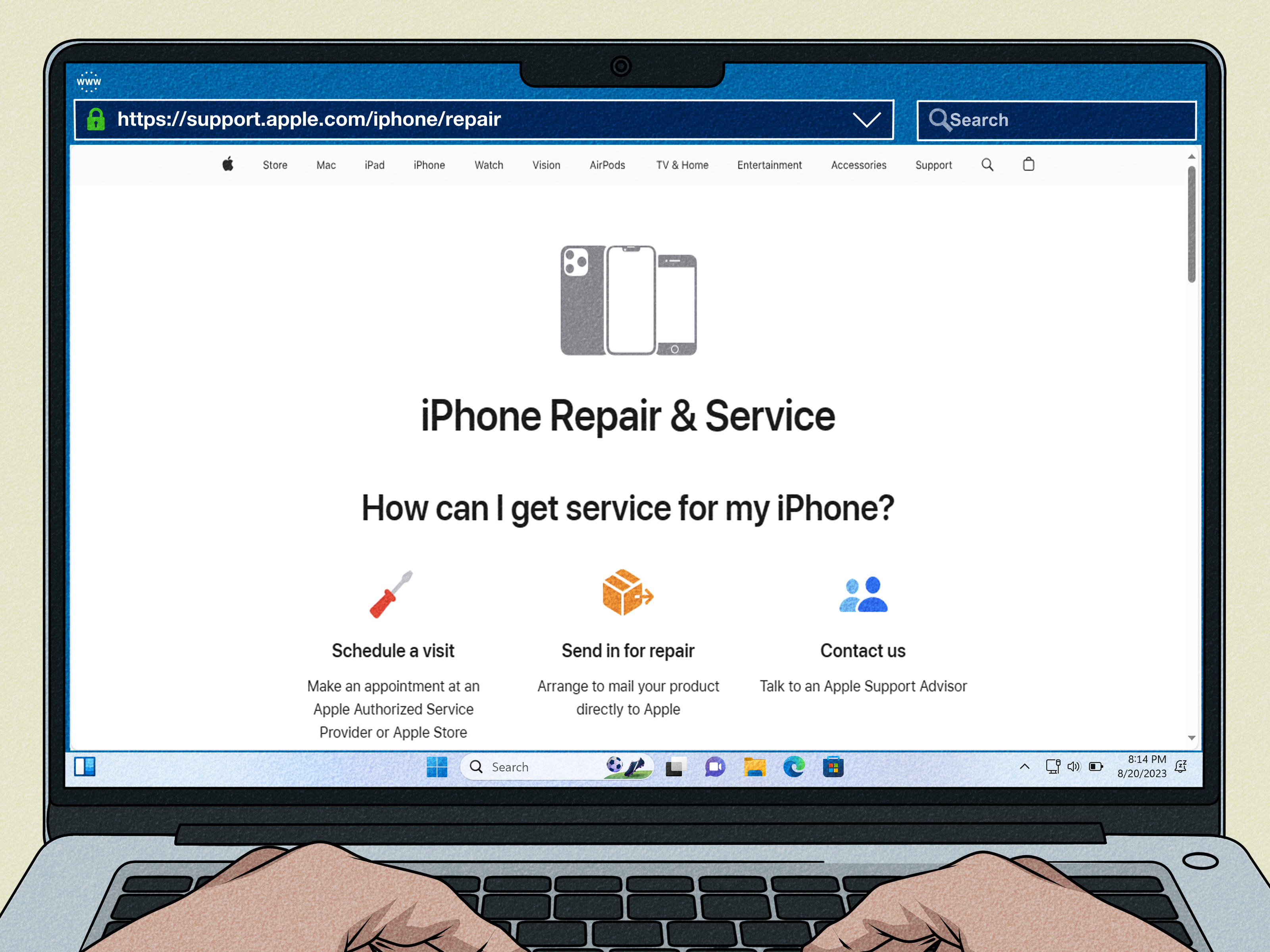
That does not mean every repair must be terrifying. It means you should choose repair options wisely. Apple or an Apple Authorized Service Provider can diagnose the issue, preserve security functions when possible, and explain whether the repair involves the display assembly, button assembly, or device replacement.
Quick fix: prepare for service
- Back up your iPhone using iCloud or a computer.
- Turn on AssistiveTouch so the phone remains usable.
- Write down what you already tried.
- Check whether the phone is covered by AppleCare or warranty.
- Book service with Apple or an authorized repair provider.
Never give your Apple Account password, device passcode, or account security details to a repair shop. A legitimate technician should not need your private account credentials to replace hardware.
Quick Diagnostic Checklist
Use this short checklist to identify the likely cause of your iPhone Home button problem:
- Button feels sticky: Clean around the button and remove the case.
- Touch ID fails but button clicks: Re-add fingerprints and clean the sensor.
- Double-click is unreliable: Adjust Home Button click speed.
- Button stopped after a drop: Suspect hardware damage.
- Button stopped after screen repair: Suspect cable or pairing issues.
- Phone is laggy everywhere: Restart, free storage, and update iOS.
- Button is completely dead: Use AssistiveTouch and schedule repair.
- Liquid was involved: Power down, dry the exterior, avoid charging, and seek service.
What Not to Do When Your iPhone Home Button Stops Working
In the grand tradition of internet fixes, you may find suggestions involving alcohol, hair dryers, needles, aggressive tapping, or “just press harder.” Please do not turn your iPhone into a science fair project.
- Do not spray cleaner directly on the Home button.
- Do not use compressed air around openings.
- Do not insert sharp objects around the button ring.
- Do not keep charging a phone that may have liquid damage.
- Do not replace a Touch ID Home button casually if fingerprint unlock matters to you.
- Do not erase your iPhone before backing it up unless you are prepared to lose local data.
The safest repair strategy is simple: try software and cleaning fixes first, protect your data, then get professional help if hardware is likely.
FAQ: iPhone Home Button Not Working
Can I use my iPhone without the Home button?
Yes. Turn on AssistiveTouch to add an on-screen Home button. It can help you return to the Home Screen, open the App Switcher, access Siri, and perform other actions while you troubleshoot or wait for repair.
Why does Touch ID work but the Home button does not?
Touch ID and the Home button function can fail in different ways. The fingerprint sensor may still read your finger while the click or haptic function is affected by software, settings, cable issues, or button hardware.
Will a factory reset fix the Home button?
A factory reset may help if the cause is deep software corruption, but it will not fix physical damage, liquid corrosion, or a broken button cable. Back up your iPhone before restoring it.
Can a repair shop replace my iPhone Home button?
Some repair shops can replace button parts, but Touch ID is security-sensitive. Depending on the model and repair method, fingerprint recognition may not work after an unofficial replacement. Ask clearly before approving the repair.
Is it worth repairing an older iPhone Home button?
It depends on the model, repair cost, battery health, storage, and how long you plan to keep the phone. If the device is otherwise reliable, repair may make sense. If it also has poor battery life, cracked glass, and limited storage, replacement may be more practical.
Real-World Experience: What Usually Works and What Usually Does Not
In real life, iPhone Home button problems tend to fall into three groups: the easy fixes, the annoying mysteries, and the “sorry, that needs repair” situations. The easy fixes are more common than people expect. A sticky button after months of pocket use often improves after removing the case and cleaning around the button with a soft cloth. Users who carry their iPhone while exercising, cooking, commuting, or working outdoors are especially likely to collect residue around the button. A tiny amount of grime can make the button feel like it has lost its crisp response.
The second common experience is the “it works only when it feels like it” problem. One day the Home button works perfectly. The next day it ignores every third press. Then it behaves normally after a restart. This pattern often points to software lag, low storage, or a temporary iOS hiccup. The best approach is boring but effective: restart the phone, update iOS, close misbehaving apps, and make sure there is enough free storage. Not glamorous, but neither is arguing with a button for twenty minutes.
Touch ID issues are another frequent source of confusion. Many people assume the Home button is broken when the real problem is fingerprint recognition. A wet thumb, dry winter skin, hand lotion, a small cut, or a dirty sensor can make Touch ID fail. Adding a new fingerprint often helps, especially if the original fingerprint was enrolled years ago. For best results, register the same finger at natural anglesthe way you actually unlock the phone, not the way a fingerprint detective in a movie would carefully place evidence under glass.
Then there are the post-repair stories. Someone replaces a cracked screen, and suddenly the Home button behaves strangely. This can happen if the button cable is damaged, not seated correctly, or affected during the repair. On Touch ID models, the Home button is not just a button; it is part of the phone’s security system. That is why casual part swapping can create new problems. If your Home button stopped working immediately after a screen replacement, contact the repair provider and explain the timeline clearly.
Liquid exposure is the wildcard. Some phones survive a splash and act normal for weeks before corrosion causes odd failures. Others fail immediately. If the Home button stops responding after rain, sweat, pool water, or a spill, do not keep pressing it, heating it, or charging it. Back up the phone if it still works, use AssistiveTouch, and get it inspected. The earlier you act, the better your chances of avoiding a bigger repair.
The most practical lesson is this: do not panic, and do not start with the most extreme fix. Begin with AssistiveTouch so the phone remains usable. Clean the button. Remove the case. Restart. Update. Check Touch ID and Home Button settings. Back up your data. If nothing changes, treat it as a hardware issue and get a professional diagnosis. That order saves time, protects your data, and keeps you from paying for a repair that a two-minute setting change might have solved.
Conclusion
An iPhone Home button not working can be irritating, but it is not automatically a disaster. In many cases, the fix is simple: clean the button, remove a bad case, restart the phone, adjust click speed, update iOS, or reconfigure Touch ID. If the problem started after a drop, liquid exposure, or repair, hardware damage becomes more likely, and professional service is the smarter path.
Start with the safest quick fixes, use AssistiveTouch as your backup Home button, and make a fresh backup before attempting anything major. Your iPhone may be small, but your data is not. Protect it first; troubleshoot second; panic never.