Using a voice changer used to sound like something only a radio prankster, sci-fi villain, or suspiciously confident gamer with too many soundboards could pull off. Today, tools like Voxal Voice Changer make it surprisingly simple to transform your microphone audio for games, video calls, podcasts, character voices, and recorded projects. The key is knowing how to set it up correctly, choose the right effect, and avoid sounding like a robot trapped inside a coffee can.
Voxal Voice Changer by NCH Software is designed to modify your voice in real time through a microphone and also apply voice effects to existing audio files. That means you can use it while chatting in apps, recording voiceovers, creating content, role-playing in games, or experimenting with character voices for fun. It includes preset voices such as robot, alien, boy, girl, atmospheric, echo-based effects, and many other combinations. You can also build custom voices by stacking effects into what Voxal calls “voice” effect chains.
This guide walks through three easy ways to use a Voxal Voice Changer: live voice changing, custom voice creation, and recording or editing audio files. Along the way, you will find practical setup tips, examples, troubleshooting advice, and real-world experience notes so your voice sounds intentionalnot like your laptop fell down a staircase.
What Is Voxal Voice Changer?
Voxal Voice Changer is voice changing software that works with a microphone or audio input device. Once installed, it can process your microphone signal before that sound reaches supported apps. In everyday language, you speak normally, Voxal adds the effect, and your chat, game, meeting, or recording software hears the changed version.
The software is available for Windows and Mac, with a free version for non-commercial home use. Many people use Voxal for gaming, Discord chats, online roleplay, podcast sketches, YouTube narration, Twitch streams, audiobooks, and creative voice experiments. It is especially useful when you want a fast voice effect without learning a full digital audio workstation.
Still, the best results come from a clean setup. A voice changer does not magically fix bad microphone technique. If your mic is too far away, too loud, muted, blocked by privacy settings, or pointed at a mechanical keyboard that sounds like a tiny woodpecker convention, Voxal will process those problems too.
Before You Start: Set Up Your Microphone Properly
Before changing your voice, confirm that your microphone works normally. On Windows, check Settings > System > Sound and make sure the correct input device is selected. Also check microphone permissions under Privacy & security so desktop apps can access the mic. On Mac, open System Settings > Sound > Input and choose the microphone you want to use. Then check Privacy & Security > Microphone if an app cannot hear you.
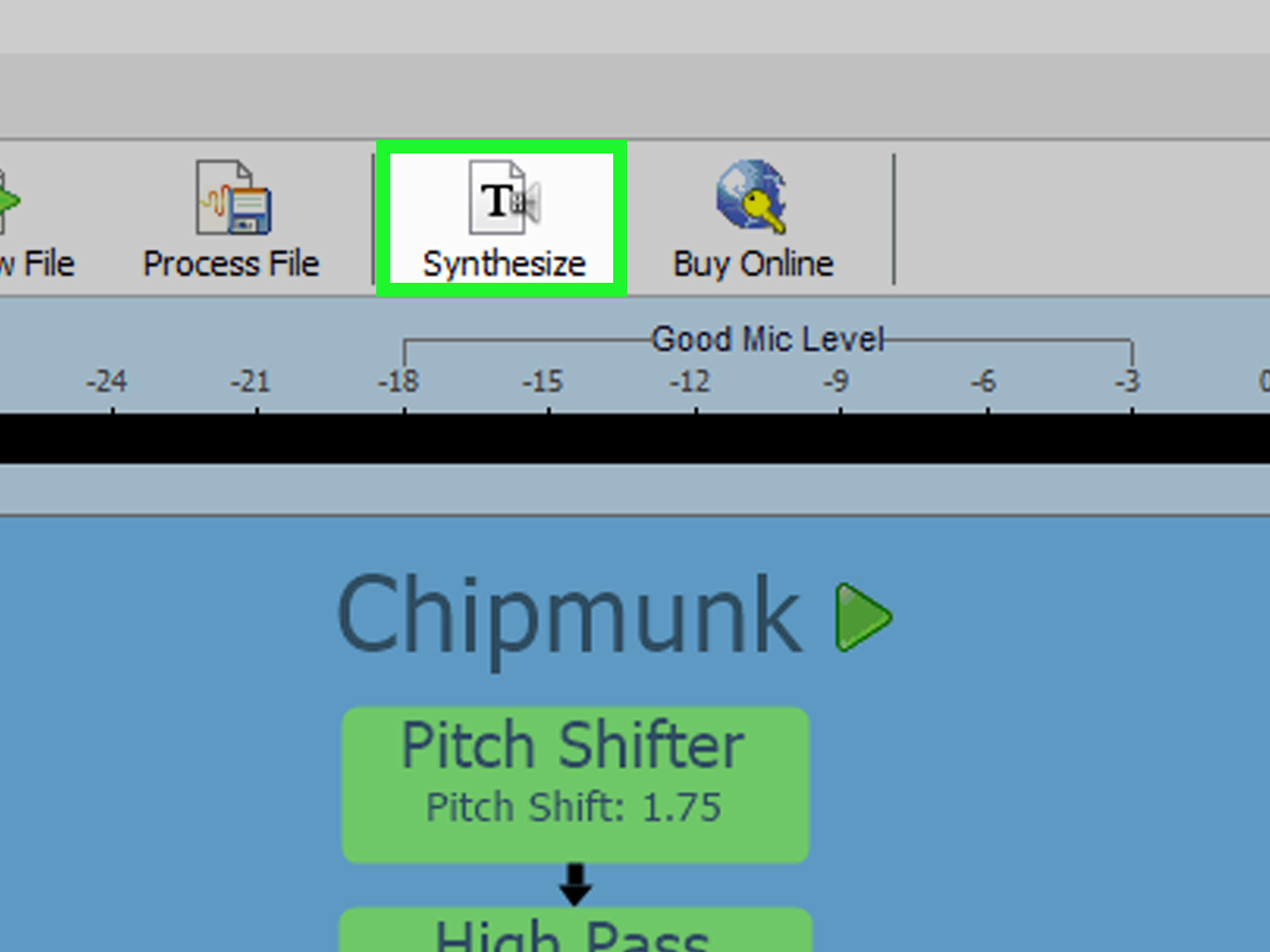
In Voxal, use the Preview feature before joining a call or launching a game. Speak into your mic and watch the microphone level meter. If the meter moves and you hear the effect, you are on the right track. If nothing moves, the wrong input device may be selected, your app may lack microphone permission, or the mic may be physically muted.
A headset mic or USB microphone usually works better than a laptop microphone because it captures your voice more directly. Keep the mic a few inches from your mouth, slightly off to the side to reduce breath pops, and avoid maxing out the input volume. Distortion before the voice changer becomes extra-distorted after the voice changer. Nobody wins, except maybe the robot preset.
Way 1: Use Voxal for Live Voice Changing in Games and Chat Apps
The most popular way to use Voxal Voice Changer is live voice changing. This is the method for Discord, Steam games, TeamSpeak, online roleplay, Zoom calls, Teams meetings, Google Meet sessions, or any other app that uses your microphone.
Step 1: Open Voxal Before Your Voice App
For the smoothest setup, open Voxal first, select your voice effect, and then open the app where you want to use the changed voice. Voxal’s help documentation recommends launching Voxal before the program that will receive the microphone audio, especially when using Safe Mode or certain audio setups.
Step 2: Select a Voice Effect
In Voxal, browse the voice list on the left panel. Click a preset such as alien, robot, echo, deep voice, atmospheric, or another effect that matches your purpose. Use Preview to test how it sounds. A good rule: if you cannot understand your own words during preview, other people will not magically understand them either. Reduce heavy effects until your speech is still clear.
Step 3: Choose the Correct Microphone in Your App
Most chat and meeting apps allow you to choose an input device. In Discord, go to User Settings > Voice & Video and select the correct input device. In Zoom, open Settings > Audio and use Test Microphone. In Microsoft Teams, go to Settings > Devices and choose the microphone from the dropdown. In Google Meet, use the audio settings panel or the microphone dropdown during a meeting.
If Voxal is processing correctly, the app should receive the changed voice. If not, restart both Voxal and the target app. In some cases, you may need to close the chat app, reopen Voxal, select the effect again, and then relaunch the chat app.
Best Live Voice Examples
For gaming, use a subtle voice changer preset so teammates can still understand callouts. A deep villain voice is funny until someone needs to know where the enemy is. For roleplay, use character-specific voices: a light echo for ghosts, a pitch-shifted voice for fantasy creatures, or a gritty tone for sci-fi commanders. For casual chats, keep it playful and tell people you are using a voice effect. Surprise is funny once; confusion is a meeting agenda item.
Live Voice Changing Tips
- Test before going live: Record a short clip or use the app’s mic test.
- Use headphones: They reduce echo and feedback.
- Avoid stacking too many effects: Heavy chains can cause stuttering or glitches.
- Use mute and bypass: Voxal includes mute and bypass options so you can stop or temporarily remove effects.
- Respect platform rules: Do not use voice changing to impersonate, harass, scam, or mislead people.
Way 2: Create Custom Voice Effects in Voxal
Presets are fun, but custom voices are where Voxal becomes more flexible. Voxal lets you create, save, and load effect chains. A chain is a group of audio effects applied together to produce a specific sound. Think of it as a sandwich, except instead of bread, cheese, and questionable lunch meat, you have pitch, echo, distortion, equalization, and amplification.
Step 1: Start a New Voice
Click the New button in Voxal. Give your voice a clear name, such as “Podcast Warm Voice,” “Alien Commander,” “Cartoon Goblin,” or “Normal Backup.” Clear names matter because after making ten effects, “Voice 7 Final Final Really Final” becomes a digital junk drawer.
Step 2: Add Effects Carefully
Add one effect at a time and preview after each change. Start with pitch or tone, then add echo or modulation if needed. If the voice becomes too loud or too soft, use an amplify effect or adjust output volume. Voxal’s own guidance notes that too many effects can cause performance issues or audio breakups, so keep the chain efficient.
For a natural voice enhancement, use light equalization and small pitch adjustments. For a monster voice, lower the pitch, add a little distortion, and use a short echo. For a robotic voice, use modulation and tone shaping. For an announcer-style voice, avoid extreme effects and focus on clarity, warmth, and volume balance.
Step 3: Save and Assign Hotkeys
After creating a custom voice, save it so it appears in the left panel. Voxal also supports hotkeys for switching voices, which is useful during gaming, roleplay, or live content creation. For example, you might assign one hotkey to your normal voice, one to a robot voice, one to a villain voice, and one to a narrator voice.
A clever trick is to create a “Normal Voice” preset with minimal processing. Then you can switch back quickly without closing Voxal. This is helpful when a joke ends and a real conversation begins, which, according to the laws of the internet, can happen without warning.
Custom Voice Recipes
Clean Podcast Voice
Use mild amplification, gentle equalization, and no dramatic pitch shift. The goal is not to sound fake; the goal is to sound polished. This works well for intros, narration, tutorials, and voiceovers.
Gaming Character Voice
Use a moderate pitch shift, a touch of echo, and perhaps background ambience if it fits the character. Keep speech clear so teammates and viewers understand you.
Comedy Robot Voice
Use a robotic or modulation-style effect, but reduce intensity if consonants become muddy. The best robot voice still communicates words; otherwise, it becomes a toaster reading legal terms.
Way 3: Record, Edit, or Apply Voxal Effects to Audio Files
Voxal is not only for live voice changing. You can also record with a selected voice effect or apply effects to existing audio files. This makes it useful for creators who want to produce reusable clips, character dialogue, podcast segments, social media bits, or sound design drafts.
Step 1: Choose the Voice Before Recording
Select the voice effect you want, then record a short sample. Listen back before recording a long script. A ten-second test can save you from discovering, twenty minutes later, that your dramatic dragon monologue sounds like a sleepy vacuum cleaner.
Step 2: Apply Effects to Existing Audio
If you already have a voice recording, Voxal can process files with selected effects. This is helpful when you recorded clean audio first and want to experiment afterward. Many creators prefer this workflow because clean original audio gives you a backup. If the effect is too intense, you can try again without re-recording the whole piece.
Step 3: Export and Organize Your Recordings
After recording or processing, save your files with descriptive names. Use names like “alien_intro_take1.wav” or “podcast_ad_voice_soft.mp3.” Good file naming is not glamorous, but neither is hunting through twenty mystery clips called “audio_new_new2.”
Best Uses for Recorded Voxal Audio
Recorded voice effects work well for YouTube intros, TikTok skits, Twitch alerts, Halloween audio, tabletop role-playing sessions, audiobook character drafts, game mods, and podcast comedy segments. You can also use Voxal to test character ideas before hiring a voice actor or committing to a final production style.
Troubleshooting Common Voxal Voice Changer Problems
Problem: Voxal Does Not Detect My Microphone
Check your microphone permissions first. Windows and macOS both require apps to have microphone access. Then confirm that your mic is selected in Voxal options and in your target app. If you use a USB mic, unplug it and reconnect it. Try another USB port if necessary.
Problem: My Voice Sounds Distorted
Your microphone input may be too loud. Lower the mic level in Voxal or your operating system. Avoid speaking too close to the mic. If your custom voice includes several loud effects, add an amplify effect set lower rather than higher.
Problem: The Audio Stutters or Breaks Up
Reduce the number of effects in your chain. Complex voice effects require processing power. Close unnecessary apps, especially games or browsers using heavy CPU resources. If you are streaming, test your setup in OBS or your streaming software before going live.
Problem: Discord, Zoom, Teams, or Meet Still Uses My Normal Voice
Restart the voice app after opening Voxal. Then check the app’s microphone settings. Discord, Zoom, Teams, and Google Meet all have places where you can select or test the microphone. Make sure the app is not locked to a different input device.
Problem: People Hear an Echo
Use headphones instead of speakers. Echo often happens when your microphone picks up audio from your speakers. In Google Meet and other meeting apps, mismatched external speakers and microphones can also create echo issues. Keep monitoring volume low when previewing effects.
Safety, Privacy, and Etiquette When Using a Voice Changer
A voice changer is a creative tool, not a permission slip to behave badly. Use Voxal for entertainment, content creation, anonymity in appropriate situations, or accessibility-friendly experimentation. Do not use it to impersonate real people, trick someone into believing you are someone else, bypass moderation, scam, bully, or harass.
For public content, disclosure is often the smarter path. Viewers usually enjoy knowing that a character voice is part of the performance. In meetings, classes, and professional calls, ask before using altered audio. A surprise alien voice during a quarterly budget review may be memorable, but not necessarily career-enhancing.
Extra Experience Section: What It Feels Like to Use Voxal in Real Life
The first experience most people have with Voxal is pure experimentation. You install it, open the preset list, click something dramatic, and immediately say, “Hello?” into the microphone like you are contacting mission control from a basement. This is normal. In fact, it is probably required by the unofficial constitution of voice changer software.
The fun begins quickly, but so does the learning curve. Some effects sound hilarious alone but become hard to understand in an actual conversation. A giant monster voice may be perfect for a two-second joke, yet exhausting during a full gaming session. A high-pitched cartoon voice may work for a skit, but if the pitch is too extreme, every “s” sound can feel like it is trying to escape through a balloon. The best experience comes from adjusting effects until the voice has personality without destroying clarity.
For gaming, Voxal works best when used as a character layer rather than a constant gimmick. In a role-playing game, a subtle effect can help separate your character from your everyday voice. In a multiplayer shooter, however, communication matters more than comedy. If teammates cannot understand callouts, the dragon voice needs to retire early. A good compromise is to use hotkeys: one voice for joking, one cleaner voice for actual team communication.
For content creation, Voxal is especially useful during brainstorming. You can test five character voices in a few minutes and decide which tone fits your script. For example, a tutorial intro might need a warm, clear voice, while a comedy sketch might benefit from a robotic assistant or spooky narrator. Recording clean audio first and applying effects afterward often feels safer because you can always return to the original file.
One practical lesson is that microphone quality still matters. Voxal can transform your voice, but it cannot fully rescue audio recorded from across the room beside a fan, keyboard, and barking dog. A basic headset mic close to your mouth usually beats a distant built-in laptop mic. Also, always do a test recording. Your ears in preview mode may hear something different from what the final app captures.
Another experience-based tip is to build a small “voice kit.” Save three or four reliable presets: a normal clean voice, a funny voice, a character voice, and a dramatic voice. This prevents you from scrolling through effects while everyone waits. Nothing ruins the mystery of a villain entrance like saying, “Hold on, I clicked goblin instead of demon.”
The most satisfying part of Voxal is how quickly it turns ordinary audio into something playful. It is not only for pranks or gaming. It can help shy creators experiment with narration, help podcasters make recurring characters, help streamers add flavor to scenes, and help hobbyists explore sound design without buying complicated production software. Used thoughtfully, Voxal Voice Changer becomes less of a toy and more of a small creative studio hiding behind your microphone.
Conclusion
Voxal Voice Changer is easy to use once you understand the three main workflows: live voice changing, custom voice creation, and recording or processing audio files. Start by setting up your microphone correctly, preview every effect, keep your custom chains simple, and test your audio inside the app where you plan to use it. Whether you are gaming, streaming, recording a podcast, making character voices, or just having fun, Voxal gives you a simple way to change your voice without needing an audio engineering degree or a suspiciously expensive studio chair.
Note: Use voice changing responsibly. Creative effects are fun, but honesty, consent, and platform rules still matter.