Adding stickers to photos on a Samsung Galaxy phone is one of those tiny edits that can turn an ordinary picture into something instantly more fun, useful, or shareable. A plain coffee photo becomes a cozy morning post. A pet picture becomes a masterpiece of ridiculous ears, hearts, and “don’t talk to me before breakfast” energy. A screenshot becomes easier to understand when you slap an arrow, label, or emoji on it. Stickers are not just decoration; they are visual shortcuts.
The good news is that Samsung Galaxy phones already give you several easy ways to do this. You do not need to be a designer, download a complicated editing suite, or learn Photoshop while emotionally recovering from one confusing toolbar. Depending on your phone model, One UI version, and installed apps, you can add stickers using Samsung Gallery, create custom stickers from your own photos, or use social and design apps for more creative styles.
This guide walks through three simple ways to add stickers to photos on Samsung Galaxy devices. You will learn how to use the built-in Gallery editor, how to make custom stickers from your own images, and how to use apps like Instagram, Snapchat, Canva, or Picsart when you want extra sticker choices. Let’s make your photos a little less “camera roll storage” and a little more “I actually meant to post this.”
Why Add Stickers to Photos on Samsung Galaxy?
Stickers are popular because they are fast, expressive, and surprisingly practical. On Samsung Galaxy phones, stickers can help you personalize selfies, hide sensitive information, highlight details, create memes, decorate birthday photos, brand social media posts, or make family pictures more playful. A sticker can say “party,” “sale,” “vacation,” “oops,” or “this dog is the CEO now” faster than a long caption ever could.
For casual users, stickers are a fun way to add personality. For content creators, they can improve engagement by making images more eye-catching. For small businesses, stickers can help add callouts like “new,” “limited offer,” or “before and after.” For parents, they can cover a child’s school name or location tag before sharing a photo. In other words, stickers are the glitter glue of the smartphone world, except thankfully they do not get stuck in the carpet until 2047.
Before You Start: Check Your Samsung Galaxy Setup
Most recent Samsung Galaxy phones include the Samsung Gallery app and a built-in photo editor. However, exact menus can vary depending on your device, region, app updates, and One UI version. A Galaxy S24 Ultra, Galaxy Z Flip, Galaxy A-series phone, and older Galaxy model may show slightly different icons or labels.
Before editing, open the Galaxy Store and Google Play Store to check for updates to Samsung Gallery, Photo Editor, AR Zone, and any third-party apps you plan to use. Also make sure your photo is saved locally or accessible in Gallery. If your image is only backed up in the cloud, open it first so the phone can load the full version. Editing a blurry preview is like decorating a cake that is still inside the boxnot ideal.
Way 1: Add Stickers with the Samsung Gallery Photo Editor
The easiest way to add stickers to photos on Samsung Galaxy is through the built-in Samsung Gallery app. This method is perfect when you want a quick edit without installing anything new. It works well for selfies, food photos, travel shots, screenshots, and casual social media images.
How to Add Stickers in Samsung Gallery
- Open the Gallery app on your Samsung Galaxy phone.
- Select the photo you want to edit.
- Tap the Edit icon, usually shown as a pencil.
- Look for the Decorations icon, often shown as a smiley face.
- Tap Stickers.
- Choose a sticker from the available options.
- Drag the sticker to position it on the photo.
- Use two fingers or the corner handles to resize, rotate, or adjust it.
- Tap Save or choose Save as copy if available.
This method is simple and fast. You can usually add multiple stickers to the same photo, move them around, resize them, and combine them with text or doodles. If your edit starts looking like a digital scrapbook had too much coffee, you can always undo or start over.
Best Uses for Samsung Gallery Stickers
Samsung Gallery stickers are great for everyday photo edits. Use them to add hearts to a couple photo, stars to a graduation picture, speech bubbles to a funny pet photo, or arrows to a screenshot. The built-in editor is especially useful because it keeps everything inside your phone’s default photo workflow. You open, edit, save, and shareno account login, no project dashboard, no dramatic “premium upgrade” pop-up interrupting your creative genius.
For clean edits, try using only one to three stickers per image. Place stickers near empty space rather than directly over faces or important details. If you are adding a sticker to a product photo, keep it away from the product itself unless the sticker is meant to act as a label. A small “new” sticker in the corner looks polished; a giant dancing banana over the product name looks like the marketing department lost a bet.
Way 2: Create Custom Stickers from Your Own Photos
One of the most useful Samsung Galaxy sticker features is the ability to create custom stickers from images in your Gallery. Instead of using only built-in emojis and decorative graphics, you can turn a person, pet, object, food item, flower, car, or random household masterpiece into a reusable sticker.
This is especially fun when your phone can detect the subject of a photo and separate it from the background. For example, you can turn your dog’s face into a sticker, save a birthday cake cutout, or make a sticker from your own product photo. Suddenly, your camera roll becomes a sticker factory. Please use this power responsibly, especially if your friends have expressive faces.
How to Make a Custom Sticker in Samsung Gallery
- Open the Gallery app.
- Select the photo you want to use as the source for your sticker.
- Press and hold the main subject if your phone supports image clipping.
- When the subject lifts from the background, look for an option such as Save as sticker, Copy, or a similar action.
- If you are inside the photo editor, tap Edit, then go to Decorations and Stickers.
- Tap the Gallery or custom sticker option, then choose Create sticker if shown.
- Select the image, adjust the cutout if the editor allows it, and save the sticker.
- Open the photo you want to decorate and insert your new custom sticker.
Because Samsung updates its Gallery tools over time, the exact path may differ. Some devices show a direct “save as sticker” option after long-pressing a subject. Others require you to enter the photo editor first, tap the sticker menu, and create a sticker from there. If you do not see the feature, update Samsung Gallery and Photo Editor, then check again.
Tips for Better Custom Stickers
Custom stickers work best when the subject is clear, well-lit, and separated from the background. A dog sitting against a plain wall will usually become a cleaner sticker than a dog sitting in a pile of laundry, toys, shadows, blankets, and one mysterious sock. High contrast matters. Good lighting matters. Simple backgrounds matter.
For people stickers, choose photos where hair, hands, and clothing edges are visible. For product stickers, use a photo taken on a clean table or solid background. For food stickers, avoid messy plates unless the mess is the joke. If the automatic cutout misses part of the subject, try a different photo or crop the image first.
Once saved, custom stickers can be placed on other photos inside Gallery. You can use them to create reaction images, family collages, birthday cards, thumbnails, or playful social media graphics. This is where Samsung Galaxy photo editing starts to feel more personal. Built-in stickers are cute, but a sticker of your cat looking deeply disappointed in your life choices? That is art.
Way 3: Use Social or Design Apps for More Sticker Options
The Samsung Gallery editor is convenient, but sometimes you want more variety. Maybe you need trendy social stickers, animated-looking graphics, branded elements, seasonal icons, or a polished layout for Instagram, Facebook, TikTok, Pinterest, or a business page. In that case, third-party apps can give you a much bigger sticker toolbox.
Popular options include Instagram, Snapchat, Canva, Picsart, and Adobe Express. These apps offer different sticker styles, from playful emojis to design elements, labels, frames, GIF-style graphics, and custom cutouts. The best app depends on whether you want a quick social post or a more finished design.
Option A: Add Stickers in Instagram Stories
Instagram is one of the quickest ways to add stickers to a photo on a Samsung Galaxy phone, especially if the final image is meant for social media. Open Instagram, go to Stories, choose a photo from your Gallery, then tap the sticker icon at the top. From there, you can add location stickers, polls, music, GIFs, captions, frames, emojis, and interactive stickers.
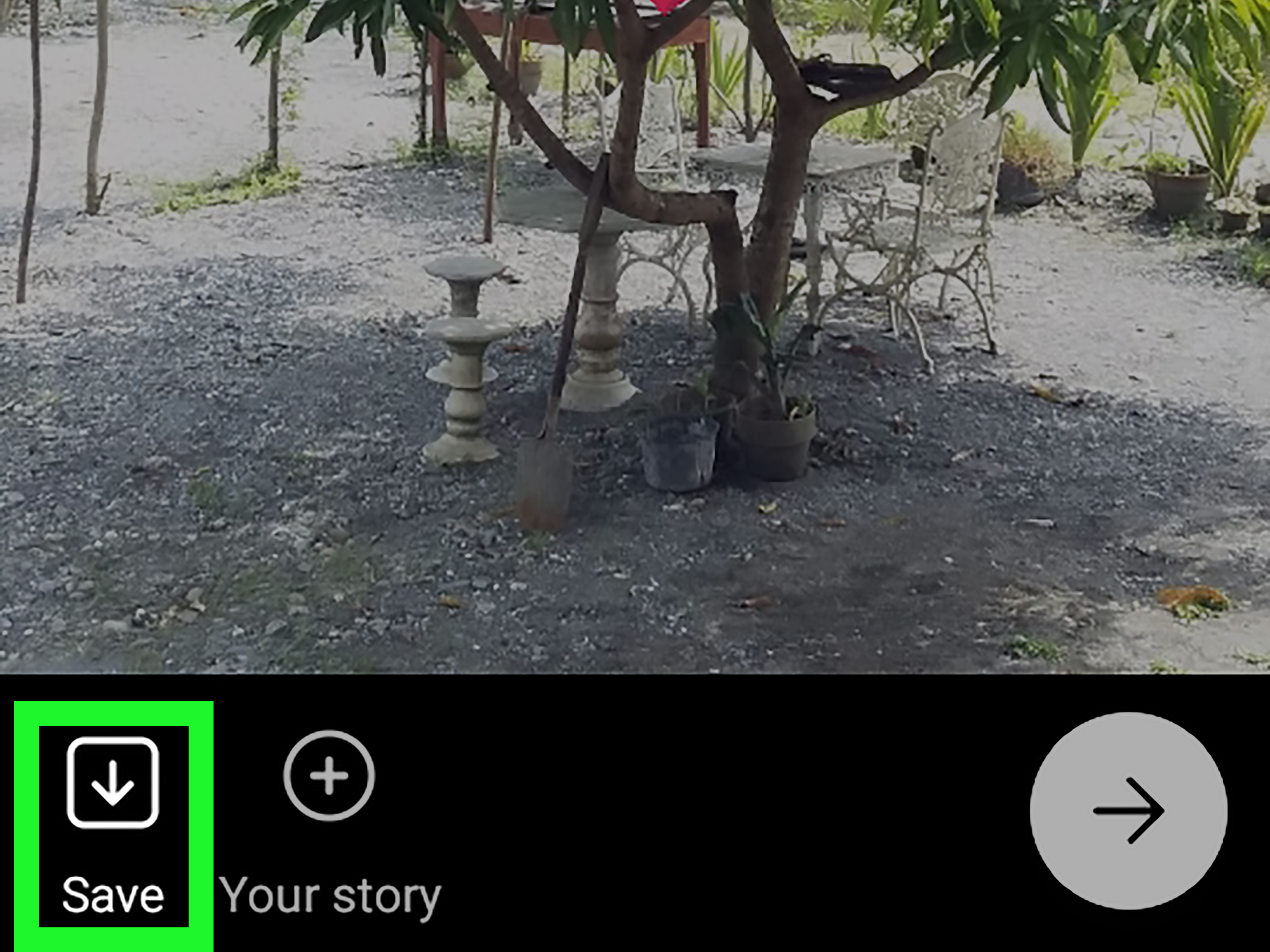
If you want to save the edited image without posting it, use the download or save option before publishing. This is useful when you want Instagram-style stickers but plan to share the image somewhere else. Just remember that some interactive stickers may not work once saved as a regular image. A poll sticker saved to your camera roll is no longer a poll; it is just a very confident rectangle.
Option B: Add Stickers in Snapchat
Snapchat is another fast option for sticker-heavy edits. You can take a new photo or choose one from Memories or your camera roll, tap the sticker icon, and decorate the image. Snapchat also includes custom sticker tools, which can be handy if you like making reusable cutouts from your own photos.
This method is great for casual, funny, and highly expressive edits. If your goal is polished branding, Snapchat may feel too playful. If your goal is to put sunglasses on your friend’s forehead for absolutely no reason, Snapchat understands the assignment.
Option C: Add Stickers in Canva or Picsart
Canva and Picsart are better choices when you want more control over design. Both apps offer large libraries of stickers, graphics, text styles, frames, and templates. You can upload a photo from your Samsung Galaxy, search for stickers by keyword, resize and layer elements, then export the finished image.
Use Canva for cleaner social posts, announcements, invitations, business graphics, and thumbnails. Use Picsart when you want more playful edits, creative effects, cutouts, and bold sticker styles. Both are useful when the Samsung Gallery editor feels too basic for your idea.
Which Method Should You Choose?
If you want the fastest option, use Samsung Gallery. It is already on most Galaxy phones, it is easy to access, and it works well for simple edits. If you want something personal, use custom stickers from your own photos. This method is ideal for pets, people, products, and reaction-style graphics. If you want more creative choices, use Instagram, Snapchat, Canva, Picsart, or Adobe Express.
Here is a simple way to decide:
- For quick edits: Use Samsung Gallery stickers.
- For personal cutouts: Create custom stickers in Gallery.
- For social media style: Use Instagram or Snapchat.
- For polished designs: Use Canva, Picsart, or Adobe Express.
- For business graphics: Use Canva or Adobe Express for cleaner layouts.
Common Problems and Quick Fixes
I Do Not See the Sticker Option in Samsung Gallery
First, update Samsung Gallery and Photo Editor through the Galaxy Store. Then open a photo, tap the pencil icon, and check for Decorations, a smiley face icon, or a sticker tab. If the feature still does not appear, your device or software version may not support the same sticker tools.
The Sticker Looks Blurry
Use a higher-resolution sticker or source image. Enlarging a tiny sticker too much can make it look fuzzy. It is the same problem as stretching a small pizza to feed twelve people: technically possible, emotionally disappointing.
The Custom Sticker Cutout Looks Weird
Try a photo with better lighting and a simpler background. Automatic subject detection works best when the phone can clearly tell where the subject ends and the background begins. Busy patterns, shadows, and low contrast can confuse the cutout tool.
I Accidentally Saved Over the Original Photo
Check whether Gallery lets you revert the image or restore the original. In the future, choose “Save as copy” when available. This keeps the original untouched, which is helpful when an edit starts as “cute birthday sticker” and somehow ends as “twelve emojis and a cowboy hat.”
Best Practices for Natural-Looking Sticker Edits
Good sticker edits feel intentional. Before adding a sticker, think about the purpose of the photo. Is it funny? Informational? Promotional? Personal? A sticker should support the image, not wrestle it for attention.
Match the sticker style to the photo. Soft pastel stickers work nicely with lifestyle images. Bold arrows and labels work well for tutorials or screenshots. Cute emojis fit selfies and casual posts. Clean badges are better for product images. If your photo has warm lighting, choose stickers that do not clash harshly. If the background is busy, use fewer stickers and place them in open areas.
Also watch your spacing. Do not crowd the main subject. Leave breathing room around faces, products, food, and important text. Use stickers to guide the eye, not trap it in a visual traffic jam. When in doubt, remove one sticker. The “less is more” rule exists because “more is more” often looks like a group chat exploded.
Privacy Tips When Adding Stickers to Photos
Stickers can be useful for privacy, but they are not always the safest way to hide sensitive information. If you need to cover a phone number, address, license plate, school name, ID card, child’s face, or private document, use a solid block, blur tool, or crop the information out completely. A cute sticker placed over sensitive text may be removable in some editing situations or may not fully cover the details.
Before sharing, zoom in and check the final image. Make sure the sticker fully covers anything private. If you are posting to social media, also check the caption, location settings, and background details. A sticker can hide one thing while a street sign in the background gives away another. Your phone is smart, but your privacy still deserves a final human inspection.
Real-World Examples
For a birthday photo, use Samsung Gallery to add balloons, hearts, and a short text label. Keep the stickers near the edges so the person remains the focus. For a product launch image, use Canva to add a “New Arrival” sticker and a clean border. For a pet meme, create a custom sticker from your pet’s face and place it over a reaction background. For a tutorial screenshot, use arrows or circles to highlight exactly where someone should tap.
These examples show why stickers are more than decoration. They help communicate mood, direction, identity, and context. A good sticker can make a photo easier to understand and more enjoyable to view. A bad sticker can make people ask, “Why is there a flamingo on this tax document?” Use your judgment.
Experience Notes: What It Is Actually Like Adding Stickers on Samsung Galaxy
After using Samsung Galaxy photo tools for everyday edits, the biggest advantage is convenience. Samsung Gallery is already part of the phone’s natural workflow. You take a photo, open Gallery, tap edit, add a sticker, and save. There is no need to export the image through three apps or create an account just to place a smiley face on your lunch. For quick personal edits, that speed matters.
The built-in sticker tool feels best when you are making simple changes. For example, adding a heart to a selfie, a label to a screenshot, or a small decorative sticker to a travel photo takes only a few taps. The editor is not trying to be a full design studio, and that is part of its charm. It is more like a handy kitchen knife than a restaurant-grade culinary workstation. It does the job without making you watch a tutorial called “Beginner Basics Part 1 of 42.”
Custom stickers are where the experience gets more fun. Turning a pet, friend, object, or product into a sticker makes the phone feel surprisingly creative. A clean cutout can be reused in different photos, which is great for reaction images, birthday edits, family jokes, or small business content. The feature is especially satisfying when the subject has a clear outline. A dog against a plain wall? Excellent. A dog hiding behind a plant next to a patterned blanket? The phone may politely panic.
The main limitation is consistency. Some Samsung Galaxy models and One UI versions show sticker options differently. A feature that appears immediately on one phone might be tucked inside another menu on a different device. That does not mean you are doing it wrong. It usually means the app layout, region, or software version is slightly different. Updating Samsung Gallery and Photo Editor often helps, but older devices may still have fewer options.
Third-party apps offer more variety, but they also add extra steps. Instagram and Snapchat are great for playful, social edits. Canva and Picsart are stronger for designed graphics, thumbnails, announcements, and posts that need a more polished look. However, these apps can feel heavier if all you want is one sticker on one photo. Sometimes opening a design app for a tiny edit feels like renting a moving truck to carry one sandwich.
The best experience comes from matching the tool to the task. For fast edits, Samsung Gallery wins. For personal cutouts, custom stickers are the most enjoyable. For social media posts, Instagram or Snapchat adds personality quickly. For branded or professional-looking images, Canva or Picsart gives more control. Once you understand those differences, adding stickers to photos on a Samsung Galaxy becomes easy, flexible, and genuinely fun.
Conclusion
Adding stickers to photos on Samsung Galaxy is simple once you know where to look. The Samsung Gallery app gives you a fast built-in method for everyday edits. Custom stickers let you turn your own photos into reusable graphics. Social and design apps expand your options when you want trendy, polished, or highly creative results.
The best approach depends on your goal. Use Gallery when speed matters, custom stickers when personality matters, and apps like Canva, Picsart, Instagram, or Snapchat when style variety matters. Start simple, avoid overcrowding the photo, and always save a copy if you want to protect the original image. Your photos do not need stickers to be goodbut sometimes a tiny cartoon crown is exactly what the moment deserves.
Note: Sticker menus and editing options may vary by Samsung Galaxy model, One UI version, region, and app updates. If a step looks different on your phone, update Samsung Gallery and Photo Editor, then check the Edit, Decorations, Stickers, or AR-related menus again.