If your Outlook contact list is starting to feel like the digital equivalent of a junk drawer, you are not alone. One minute it is a tidy little address book. The next, it is packed with coworkers, clients, cousins, three plumbers, two former landlords, and somebody named “Mike New Mike.” Exporting your contacts from Outlook is how you regain control before the chaos earns its own zip code.
The good news is that exporting Outlook contacts is not especially hard. The mildly annoying news is that the best method depends on what you are trying to do. Need a portable list for Gmail, Excel, or a CRM? Use a CSV file. Need a fuller Outlook-style backup? A PST file is usually the better move on Windows. Working on a Mac? Outlook’s archive-style export uses OLM. Same mission, different suitcase.
In this guide, you will learn 3 ways to export contacts from Outlook, when each option makes sense, what mistakes to avoid, and how to keep your contact data from turning into a formatting horror show. Think of this as spring cleaning for your address book, minus the sneezing.
Why export contacts from Outlook in the first place?
People usually search for how to export contacts from Outlook when one of four things is happening:
- They are switching to another email platform such as Gmail or Yahoo.
- They want a backup before changing devices, reinstalling Outlook, or moving accounts.
- They need a clean contact list in Excel for reporting, list management, or a CRM import.
- They are trying to rescue important contact details before a migration gets weird.
That last one deserves respect. Email migrations have a special talent for looking calm right before they become a mess. Exporting your contacts ahead of time is one of the simplest ways to protect names, numbers, companies, and email addresses before you make a major change.
Way 1: Export Contacts from Classic Outlook to a CSV File
This is the most popular method, and for good reason. A CSV export from Outlook is flexible, easy to store, and accepted by many platforms. If you plan to import contacts into another email service, upload them to a marketing tool, or open them in Excel, this is usually the best option.
Best for
- Moving contacts to Gmail, Yahoo, iCloud, or another mail provider
- Opening contacts in Excel or Google Sheets
- Importing data into a CRM or email platform
- Creating a simple, portable backup of contact details
How to do it
- Open classic Outlook on your Windows computer.
- Click File.
- Select Open & Export.
- Choose Import/Export.
- Select Export to a file.
- Choose Comma Separated Values (CSV).
- Select the Contacts folder for the account you want to export.
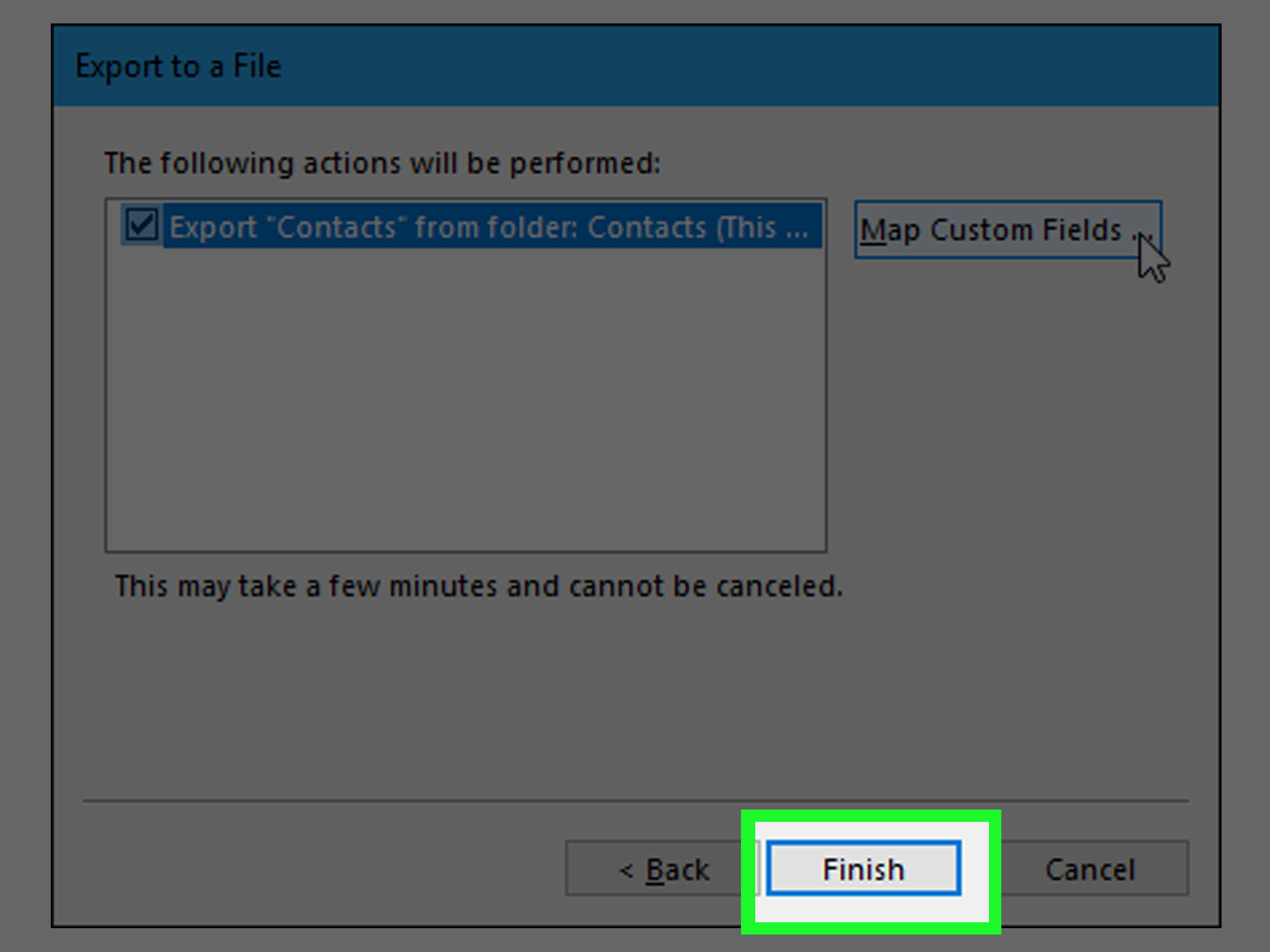
- Choose where to save the file, name it, and finish the export.
Why this method works so well
A CSV file is the universal adapter of contact exports. It is not glamorous, but it gets invited everywhere. You can open it in spreadsheet software, edit columns, remove duplicates, and import it into other services without much drama. For users who want control, CSV is a beautiful little nerd tool.
What to watch out for
CSV files are practical, but they are not magic. They usually export the contact fields themselves, not the full Outlook environment around them. That means if you want a richer Outlook-to-Outlook backup with more of the surrounding structure, CSV may feel a bit thin. Also, if you plan to import the file into another platform, review the columns first. “Business Phone,” “Mobile Phone,” and “Company” only help if the destination system maps them correctly.
Another important note: if your contacts include accented characters or non-English alphabets, save or convert the file in UTF-8 when needed. Otherwise, names can come out looking like they lost a fight with a keyboard.
Way 2: Export Contacts from Outlook on the Web
If you use Outlook on the web or Outlook.com, you do not have to fire up the desktop app just to get your contacts out. You can export them directly from the People area in your browser. This is handy if you live in the web version of Outlook or simply want the fastest route to a CSV file.
Best for
- Users who primarily work in Outlook on the web
- Quick exports without opening desktop Outlook
- Saving all contacts or exporting contacts from a specific folder
- Moving contact data into another service
How to do it
- Open Outlook on the web or Outlook.com.
- Go to People.
- Click Manage contacts.
- Select Export contacts.
- Choose All contacts or a specific contact folder.
- Download the CSV file.
Why people like this option
Because it is quick. No wizard, no wandering through desktop menus like you are on a scavenger hunt from 2009. If your contacts already live in Outlook.com or a Microsoft 365 mailbox, the web route is often the simplest path. It is especially useful when you are on a borrowed computer or a machine where the full Outlook desktop app is not set up.
Where it can get tricky
The web method is excellent for contact portability, but it is still mainly a CSV-style export. In other words, it is ideal for moving contact data, not for creating a deeper Outlook archive. If you are trying to preserve a broader Outlook setup or create a more traditional backup, a desktop export may be more appropriate.
Also, do not confuse your saved contacts with Outlook’s auto-complete suggestions. Those suggested names that appear when you type in the To field are not always the same thing as your properly saved contact records. If you want a reliable export, make sure the people you care about actually exist in your contact list and are not just floating around in suggestion limbo like digital ghosts.
Way 3: Export Contacts as a Backup File Using PST or OLM
If CSV is the lightweight travel bag, PST and OLM are the heavier luggage. These formats are better for backup and migration scenarios where you want a more Outlook-centered export, not just a list of contact fields.
For Windows users: PST export
On Windows, Outlook can export data to a PST file, also known as an Outlook Data File. This is useful when you want a backup copy of Outlook items or need to move data between Outlook environments.
- Open Outlook on your Windows computer.
- Click File.
- Select Open & Export, then Import/Export.
- Choose Export to a file.
- Select Outlook Data File (.pst).
- Choose the account or folder to export.
- If needed, include subfolders.
- Pick a save location and complete the export.
This method is useful because it creates an Outlook-friendly copy of your data. If your goal is backup, archiving, or later importing back into Outlook, PST is often more useful than CSV.
For Mac users: OLM export
On Mac, Outlook uses an OLM archive file for export. This route is especially relevant for users who want to preserve Outlook items in a format Outlook for Mac understands. If you only see OLM during export, that is normal for the archive-style Mac workflow.
Generally, the path looks like this:
- Open Outlook for Mac.
- Use the Export option from the Outlook menu area.
- Select the items you want to export, including contacts.
- Save the resulting .olm file.
If you need a universal spreadsheet-style file for another platform, OLM is usually not the end goal. It is more useful as a backup or Outlook-to-Outlook transfer format.
When this third method is the smartest choice
Choose PST or OLM when you are thinking like a backup person, not just a list-export person. If you want a safety copy before a major migration, before changing devices, or before cleaning up a cluttered mailbox, this is the grown-up option. Slightly less flashy, much more sensible.
CSV vs. PST vs. OLM: Which export format should you choose?
| Format | Best Use | Main Advantage | Main Limitation |
|---|---|---|---|
| CSV | Importing into Excel, Gmail, CRMs, and other apps | Portable and widely supported | Less Outlook-specific detail |
| PST | Windows backup, archive, or Outlook-to-Outlook migration | Better for Outlook-centered backup | Not as universally readable outside Outlook |
| OLM | Mac backup and Outlook for Mac transfer | Useful for Outlook for Mac archives | Not ideal for non-Outlook platforms |
Here is the simplest rule: Choose CSV for flexibility. Choose PST or OLM for backup. If you remember only that, you are already ahead of half the internet.
Mistakes to Avoid When Exporting Outlook Contacts
1. Exporting the wrong folder
Outlook can hold more than one account and more than one Contacts folder. Double-check that you are exporting the correct one. Otherwise, you may proudly save a beautifully useless file containing exactly six people and one dentist.
2. Assuming auto-complete equals contacts
It does not. Suggested recipients and saved contacts are cousins, not twins. If someone matters, confirm they are stored in Contacts before exporting.
3. Skipping a quick cleanup first
Before exporting, scan for duplicate entries, outdated addresses, or obviously messy records. A sloppy export just moves the mess to a new location with extra confidence.
4. Ignoring format compatibility
CSV is best for broad compatibility. PST and OLM are better for Outlook-focused use. Choose the format based on the destination, not your mood.
5. Saving the only backup in a risky place
If you create a backup file, store a copy somewhere safe. Better yet, keep a second copy. Nothing says “character building” like discovering your backup lived on the same dying laptop as the original.
Real-World Experiences and Lessons from Exporting Outlook Contacts
In real life, exporting contacts from Outlook is rarely about the export button itself. The button works. The story around it is where the excitement begins. Usually, someone is switching companies, consolidating inboxes, changing laptops, moving from Outlook to Gmail, or trying to import contacts into a CRM five minutes before a meeting. That is when contact export stops being a tiny admin task and starts feeling surprisingly important.
One common experience is the “I thought everything was synced” moment. Plenty of people assume that because a name appears when they type in the To field, that person must be safely stored in their contacts. Then they export the contact list and realize several important people are missing. Why? Because Outlook’s suggestion system remembered previous recipients, but they were never saved as full contacts. It is a classic misunderstanding, and it tends to appear at exactly the worst possible time.
Another very normal experience is the duplicate dilemma. Someone exports contacts, opens the CSV, and suddenly discovers four versions of the same person: one with a work email, one with a personal email, one with a phone number, and one with a mysterious all-caps company name that looks like it was typed during turbulence. This is why a quick review in Excel or another spreadsheet app is so valuable. Exporting is not just about getting data out. It is also a chance to make your contact list behave like a professional tool instead of a digital junk pile.
Teams and small businesses often run into a different problem: field mismatch. A CSV file can look perfectly fine inside Outlook, but when imported into another platform, job titles end up in the wrong column, business phones become generic phones, and mailing addresses split into unexpected pieces. The export succeeded, technically. The cleanup afterward is where the real work begins. Smart users leave a few extra minutes for reviewing columns, checking encoding, and testing a small sample import before moving the entire list.
Mac users have their own adventure. They expect a friendly CSV export and instead meet OLM, which is useful for Outlook backup but not always ideal for a move into another system. That often leads to a second round of problem-solving: how to preserve Outlook data in one format while also creating a cleaner list for a different destination. It is not impossible, but it does remind people that “export contacts” is simple only until platform differences show up wearing fake mustaches.
The biggest practical lesson is this: the best export method depends on what happens next. If the next step is spreadsheets, CRMs, or another email service, CSV is usually the winner. If the next step is backup or Outlook migration, PST or OLM makes more sense. People who choose the format based on the destination usually have a smooth experience. People who click the first available option and hope for the best often end up enjoying an unexpected bonus activity called troubleshooting.
Conclusion
Once you understand the formats, exporting contacts from Outlook becomes much less mysterious. The three main methods are straightforward:
- Use CSV from classic Outlook for flexibility and cross-platform imports.
- Use CSV from Outlook on the web for a quick browser-based export.
- Use PST on Windows or OLM on Mac when backup or Outlook-specific migration is the real goal.
The trick is not just exporting contacts. The trick is exporting them in the right format for what comes next. Do that, and your contact list becomes portable, safer, and much easier to manage. Do not do that, and you may spend your afternoon explaining to a CRM why your uncle somehow became a vice president of sales.