If you have ever colored a headline in Adobe InDesign, then later changed your mind and had to hunt down that exact shade across twelve text boxes, three callouts, and one suspiciously orange rectangle, congratulations: you have met the reason swatches exist. Swatches are not just tiny colored squares sitting around looking decorative. They are one of the smartest ways to keep your layouts consistent, editable, and much less likely to make you yell at your monitor.
InDesign’s Swatches panel lets you save colors, gradients, and tints so you can reuse them throughout a document. That matters for branding, print production, teamwork, and plain old sanity. Instead of re-mixing colors every time, you create them once and apply them anywhere. Then, when the client says, “Can we make the blue a little less… blue?” you update the swatch and the whole document follows along like a well-trained puppy.
In this guide, you will learn four practical ways to add swatches in InDesign, plus a few real-world tips for avoiding color chaos. Whether you are building a brochure, magazine, ebook, flyer, or a very ambitious school project, these methods will help you create a smoother workflow and cleaner results.
Why Swatches Matter in InDesign
Before jumping into the methods, it helps to understand why swatches are such a big deal. InDesign is built for layout, not random acts of color improvisation. Swatches allow you to:
- Keep brand colors consistent across pages and elements
- Update colors globally without manual rework
- Separate process and spot colors more cleanly for print jobs
- Reuse palettes across multiple documents
- Build faster, more organized design systems
In short, if you use the same color more than once, it probably deserves to become a swatch.
Way 1: Create a New Color Swatch from the Swatches Panel
This is the most direct and most “official” method. If you already know the color values you want, creating a new swatch from the panel is the cleanest option.
How to do it
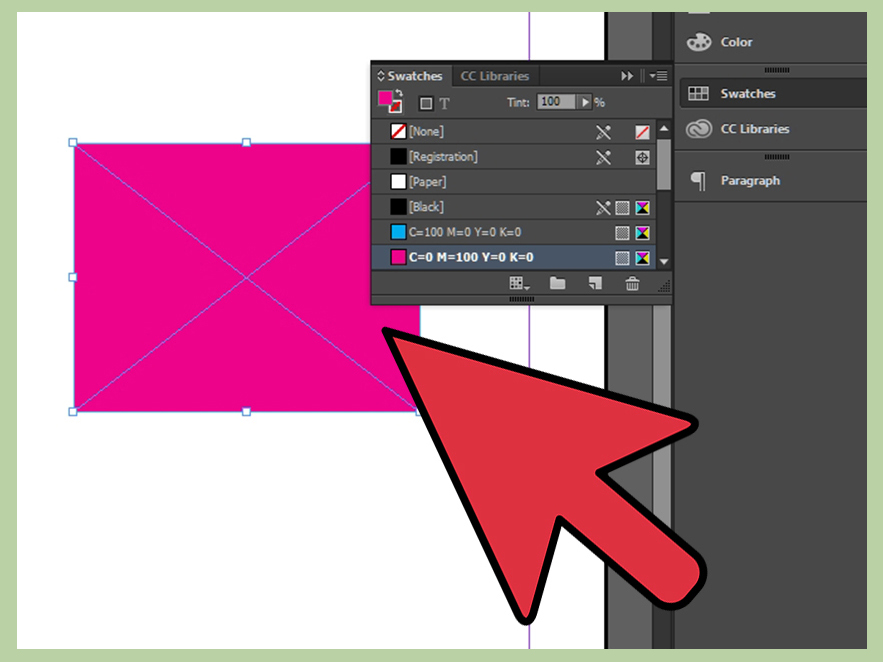
- Open the Swatches panel by going to Window > Color > Swatches.
- Open the panel menu and choose New Color Swatch.
- Select the color type you need, such as Process or Spot.
- Choose the color mode, such as CMYK, RGB, or another supported mode.
- Enter your color values.
- Give the swatch a useful name, then click OK or Add.
When this method works best
Use this option when you already have exact brand values from a style guide, printer specs, or a web team. For example, if a company’s official navy is CMYK 100, 70, 20, 5, do not eyeball it and hope for the best. Build a named swatch and use that everywhere.
This method also works well when you want neat naming conventions. Instead of a vague label like “Blue 2 Final Final Really Final,” use something meaningful like Brand Navy, CTA Orange, or Quote Box Gray. Future-you will be deeply grateful.
Pro tip
If you work for print, always double-check whether a color should be process or spot. That one detail can affect output, pricing, and conversations with printers that are much less fun than they sound.
Way 2: Turn an Existing Color into a Swatch
Sometimes the color is already in your layout. Maybe you mixed it in the Color panel. Maybe you sampled it by accident and then realized, “Wait, that actually looks good.” In those cases, you do not need to rebuild the color from scratch. You can convert what is already in use into a reusable swatch.
Option A: Add a selected object’s color to Swatches
If an object already has the fill or stroke color you want, select it and add that color to the Swatches panel. This is a fast way to formalize a color that started as a one-off experiment.
It is especially handy when you are cleaning up an inherited file. Someone else may have used custom colors all over the document without saving them as swatches. That is the design equivalent of leaving socks on the stairs. You can fix it, but you should not have had to.
Option B: Use Add Unnamed Colors
InDesign also has a smart command called Add Unnamed Colors. It scans the document for colors applied directly to objects that are not yet saved as swatches, then adds them to the Swatches panel automatically.
This is one of the most underrated cleanup tools in InDesign. If you open a file and see a million objects colored manually, this feature helps turn that mess into something structured and editable.
When this method works best
- You already used a custom color in the document
- You inherited a messy file from another designer
- You want to standardize colors before final production
- You are building a palette from colors you discovered while designing
Example
Imagine you created a sidebar with a soft green fill by dragging sliders until it “felt right.” Good instinct. Better workflow: turn that green into a swatch immediately. Once it is saved, you can use it for icons, pull quotes, rules, and buttons without remixing it from memory like a design wizard with a short-term memory problem.
Way 3: Load Swatches from Another InDesign File or ASE Library
This is the method that saves teams from reinventing the same palette every Monday morning. InDesign lets you load swatches from another document, template, Illustrator file, EPS file, or an Adobe Swatch Exchange (ASE) file.
How to do it
- Open the Swatches panel.
- Open the panel menu and choose Load Swatches.
- Select the source file you want to use.
- Import the swatches into your current document.
You can also import selected swatches through New Color Swatch and choose Other Library, which is helpful when you do not want every color from the source file.
Why this method is so useful
Let’s say your team already has a brochure with approved brand colors. Instead of manually rebuilding every swatch in a new project, just load them. Same palette, same names, same consistency, zero guessing.
This approach is also great for cross-application workflows. If your Illustrator teammate built a color library and saved it as an ASE file, you can bring those colors into InDesign without playing the glamorous game of “read me the hex code over chat.”
Best use cases
- Brand kits and marketing templates
- Multi-document campaigns
- Magazine issues with recurring design systems
- Working between Illustrator, Photoshop, and InDesign
Watch out for duplicates
Loading swatches from multiple files can create duplicates with slightly different names or values. If that happens, clean them up before the project grows. Tiny color inconsistencies have a way of multiplying when nobody is looking.
Way 4: Extract Swatches from Images or Use CC Libraries
This is the fun method. It is also the one that makes you feel slightly magical.
InDesign can generate color themes from images, objects, or selected artwork. If you place a photo that has a beautiful palette, you can pull colors directly from it and turn those into swatches. You can also save themes to Creative Cloud Libraries and reuse them later.
How to extract swatches from an image
- Select a placed image.
- Right-click and choose Extract from Image > Color Themes, or use the related command from the Object menu.
- Adjust the sample points if needed.
- Save or add the theme so the colors become reusable in your workflow.
Why designers love this method
Because it helps your layout feel connected to the images on the page. If your hero photo has dusty blues, warm sand, and muted terracotta, those same tones can guide your headings, pull quotes, dividers, or call-to-action boxes. The result feels coordinated instead of random.
CC Libraries also make this method more powerful. Once a palette lives in a library, you can share it across projects and even across Adobe apps. That is excellent for teams, freelancers juggling multiple clients, and anyone who likes not doing the same task twice.
Best use cases
- Editorial layouts inspired by photography
- Mood boards and style development
- Brand exploration projects
- Building shared color libraries for teams
Common Mistakes to Avoid
Adding swatches in InDesign is easy. Using them well is where the real grown-up design behavior begins. Here are a few mistakes that cause trouble:
- Leaving colors unnamed: Great for mystery novels, terrible for production files.
- Mixing manual colors and swatches: Pick a system and stick with it.
- Ignoring print requirements: Spot and process colors are not interchangeable in every workflow.
- Saving too many near-identical swatches: Five almost-the-same blues are not a color system. They are a cry for help.
- Skipping cleanup before handoff: Production files should look intentional, not archaeological.
Quick Workflow Tips for Better Swatch Management
- Create swatches early instead of after the layout is half finished.
- Use descriptive names tied to purpose, not just color values.
- Group related colors logically when possible.
- Save reusable palettes as ASE files for future jobs.
- Audit old documents with Add Unnamed Colors before finalizing them.
- When starting lots of similar projects, build a clean source file with your standard swatches.
Real-World Experiences Designers Often Have with InDesign Swatches
One of the most common real-world experiences with InDesign swatches is discovering their value only after doing things the hard way. Many designers start by coloring text and shapes manually because it feels faster in the moment. It is faster for about seven minutes. Then the client asks for a color revision, and suddenly every manually colored box becomes a tiny time bomb. That is usually the moment swatches stop feeling optional and start feeling essential.
Another common experience happens in team environments. One designer names a color Brand Blue. Another creates the exact same color and names it Primary Blue. A third makes a slightly different version and calls it Blue New. Nobody is technically trying to cause chaos, but chaos shows up anyway. Shared swatches, consistent naming, and occasional cleanup make a huge difference when multiple people touch the same file.
Freelancers often run into a different version of the problem. A client sends a logo, a website screenshot, and maybe a half-finished PDF from last year, then says, “Use our usual colors.” That sounds simple until you realize there are three different blues in those files. In practice, many designers use swatches to build a clean, approved palette at the start of the project. Once those colors are named and saved, the rest of the layout becomes much easier to manage.
Print work adds another layer of experience. On screen, two colors can look nearly identical and still behave very differently in output. Designers who work with printers quickly learn that a properly defined swatch is not just about convenience. It is also about reliability. Using a saved process color or spot color intentionally is much safer than hoping a random manually mixed color behaves the way you expect once the file leaves your laptop.
There is also the experience of inheriting old files. This is where swatches go from useful to heroic. Open an old InDesign document and you may find direct formatting everywhere, unnamed colors, duplicate shades, and mysterious color choices that seem to have been chosen during a power outage. Features like Add Unnamed Colors and loading swatches from a better file can rescue those documents faster than rebuilding everything from scratch.
Then there is the fun side. Designers often discover that extracting palettes from images changes how they think about color. Instead of grabbing generic colors from memory, they build palettes that feel connected to the actual content on the page. A travel layout can echo the tones of a sunset photo. A food magazine spread can borrow colors from ingredients. A fashion feature can lift subtle tones from fabrics. That creates a more intentional design, and it usually looks better than grabbing random swatches because they were nearby.
Over time, experienced InDesign users usually arrive at the same conclusion: swatches are not just a panel feature. They are part of professional discipline. They help with consistency, speed, collaboration, revisions, and output. They reduce mistakes, support brand accuracy, and make documents easier to hand off. In other words, they do a lot of quiet work behind the scenes, which is exactly what the best workflow tools are supposed to do.
Conclusion
If you want a cleaner, faster, and more professional color workflow, learning how to add swatches in InDesign is absolutely worth your time. The four best methods are simple: create a new swatch manually, turn existing colors into swatches, load swatches from other files or ASE libraries, and extract palettes from images or Creative Cloud Libraries.
Each method solves a different design problem. Manual swatches are perfect for exact brand colors. Added object colors help clean up documents. Loaded swatches save time across files and teams. Extracted image palettes help you build richer, more unified layouts. Learn all four, and you will spend less time chasing color inconsistencies and more time actually designing.
And that, frankly, is a much better use of your day.