Updating a Samsung Smart TV sounds about as exciting as reading the back of a router box, but it is one of the easiest ways to keep your TV running smoothly, safely, and happily. Think of it like giving your television a cup of coffee, a fresh haircut, and a tiny software pep talk. A Samsung TV software update can fix bugs, improve performance, refresh apps, add features, strengthen security, and sometimes rescue you from that mysterious moment when Netflix opens like it is walking through peanut butter.
The good news is that Samsung makes the process fairly simple. Most modern Samsung Smart TVs can update over the internet, install updates automatically, or receive firmware through a USB drive when Wi-Fi is not cooperating. Whether you own a Crystal UHD, QLED, Neo QLED, OLED, The Frame, The Serif, The Terrace, or another Samsung smart model, the basic idea is the same: check the software update menu, let the TV install the newest version, and avoid turning it off mid-update unless you enjoy creating expensive wall art.
This guide explains how to update a Samsung Smart TV step by step, how to update Samsung TV apps, how to use a USB firmware update, what to do if the update option is grayed out, and how to troubleshoot common problems. No tech wizard robe required.
Why You Should Update a Samsung Smart TV
A smart TV is no longer just a screen. It is a streaming device, gaming hub, app platform, smart home dashboard, voice assistant, and occasional remote-control hide-and-seek champion. Because it depends on software, updates matter.
A Samsung TV firmware update may improve system stability, fix app compatibility issues, patch security vulnerabilities, smooth out menu navigation, improve HDMI behavior, enhance picture or audio features, and add support for newer services. In some cases, updates also bring larger operating system improvements, especially on newer Samsung TVs that support One UI Tizen upgrades.
If your TV is freezing, apps are crashing, Wi-Fi keeps dropping, the Smart Hub feels sluggish, or a streaming service refuses to behave, checking for a software update should be one of your first moves. It is not magic, but it is often the closest thing your TV has to a “stop being dramatic” button.
Before You Start: A Quick Pre-Update Checklist
Before updating your Samsung Smart TV, take one minute to prepare. This helps avoid failed downloads, interrupted installations, and unnecessary frustration.
1. Make sure your TV has a stable internet connection
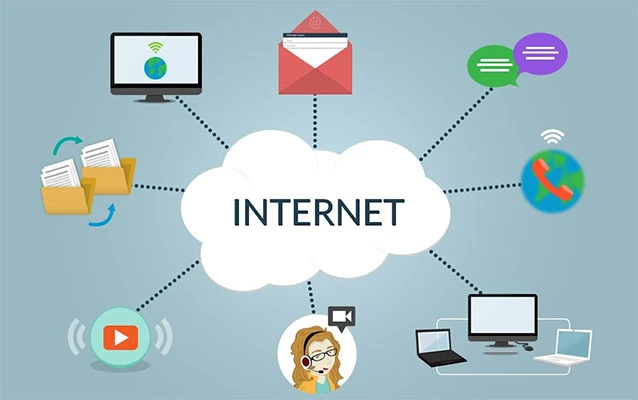
For an online update, your Samsung TV needs internet access. A wired Ethernet connection is usually the most stable, but Wi-Fi works well if the signal is strong. If your TV is far from the router, consider moving the router closer, using a Wi-Fi extender, or updating via USB instead.
2. Do not unplug the TV during the update
When the update starts, let it finish. Your TV may restart automatically. That is normal. Do not panic, do not pull the plug, and do not start pressing every button on the remote like you are defusing a movie bomb.
3. Know that menus may vary by model
Samsung TV menus can vary depending on the year, region, model, and current software version. Most newer models use a path similar to Settings > All Settings > Support > Software Update, but older TVs may show slightly different labels.
4. Check your model number if using USB
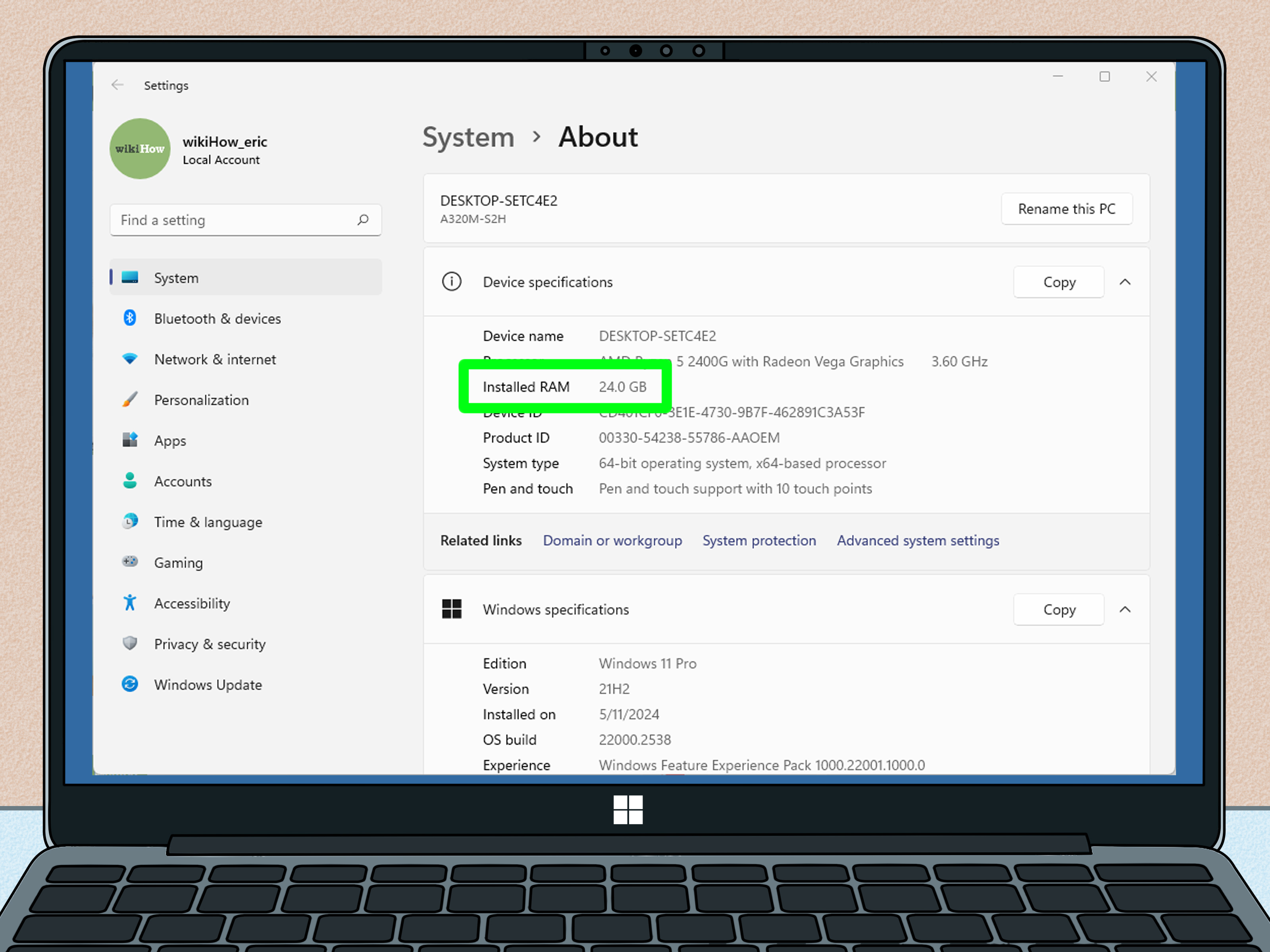
For a USB update, the model number matters. Downloading firmware for the wrong TV model will not help, and your TV may refuse to install it. You can usually find the model number under Settings > Support > About This TV or on the sticker on the back of the television.
How to Update a Samsung Smart TV Over the Internet
This is the easiest method for most people. If your Samsung TV is connected to the internet, you can check for updates directly from the TV menu.
Step-by-step instructions
- Turn on your Samsung Smart TV.
- Press the Home button on your remote.
- Go to Settings.
- Select All Settings, if your model shows that option.
- Choose Support.
- Select Software Update.
- Choose Update Now.
- Wait while the TV checks for available updates.
- If an update is found, allow it to download and install.
- Let the TV restart when the update is complete.
If no update is available, your TV may display a message saying that you already have the latest version. That is good news. Your television is not ignoring you; it is simply up to date.
How to Turn On Auto Update on a Samsung Smart TV
If you would rather not check manually every few weeks, enable Auto Update. This allows your Samsung Smart TV to install available software updates automatically when connected to the internet. It is the “future you will thank present you” option.
How to enable Samsung TV Auto Update
- Press Home on the Samsung remote.
- Open Settings.
- Go to All Settings.
- Select Support.
- Choose Software Update.
- Select Auto Update and turn it on.
Once Auto Update is enabled, your TV can download updates when available and apply them after restart. On many models, Auto Update may also be enabled during the initial Smart Hub setup after you agree to the terms and conditions.
How to Update a Samsung Smart TV with USB
If your TV is not connected to the internet, the online update fails, or your Wi-Fi is acting like it has joined a witness protection program, you can update Samsung TV firmware using a USB flash drive.
This method takes a little more effort because you need a computer, a USB drive, and your exact TV model number. Still, it is a reliable option when the TV cannot download the update itself.
What you need
- A computer with internet access
- An empty USB flash drive formatted as FAT32
- Your Samsung TV model number
- The correct firmware file from Samsung’s official Download Center
USB update steps
- On your computer, go to Samsung’s official support Download Center.
- Search for your TV using the exact model code.
- Open the support page for your model.
- Find the firmware or upgrade file under downloads.
- Download the newest available firmware version.
- Unzip the downloaded file.
- Copy the extracted update files to the root of the USB drive. Do not bury them inside an extra folder.
- Insert the USB drive into a USB port on your Samsung TV.
- On the TV, go to Settings > All Settings > Support > Software Update > Update Now.
- If prompted, choose Yes to search the USB drive.
- Follow the on-screen instructions and wait until the update finishes.
The “root of the USB drive” simply means the main area you see when you open the drive, not a folder inside a folder inside another folder named “TV update final final really final.” Samsung TVs need to find the update files easily.
How to Find Your Samsung TV Model Number and Software Version
Knowing your model number is useful for support, USB updates, warranty questions, and confirming whether your TV is eligible for certain features. You can usually find it from the TV menu.
Using the TV menu
- Open Settings.
- Select Support.
- Choose About This TV.
- Look for the model code, serial number, and software version.
Using the sticker on the TV
If you cannot access the menu, check the sticker on the back of the TV. This may require moving the TV slightly, so be careful, especially with large wall-mounted models. Nobody wants a firmware update to turn into an accidental living-room remodeling project.
How to Update Apps on a Samsung Smart TV
Updating the TV operating system is not the same as updating individual apps. Apps such as YouTube, Netflix, Hulu, Disney+, Prime Video, Apple TV, Max, and Spotify may receive their own updates through Samsung’s Smart Hub or app store system.
Turn on automatic app updates
- Press Home on your remote.
- Open Apps.
- Select the Settings gear icon.
- Turn Auto Update on.
When automatic app updates are enabled, your Samsung TV can keep apps current without you manually chasing every tiny update. This is especially helpful if a streaming app suddenly refuses to load, crashes after opening, or complains that the version is no longer supported.
What if an app still does not work?
If an app is still broken after updating the TV and enabling app updates, try restarting the TV, checking your internet connection, clearing app data if your model supports it, reinstalling the app, or resetting Smart Hub. Sometimes the problem is not your TV at all; the app service may be down. Yes, occasionally the cloud also spills coffee on itself.
What to Do If Samsung TV Software Update Is Grayed Out
If the Software Update option is grayed out, unavailable, or impossible to select, do not assume your TV has developed a personal grudge. Several common causes can block the update menu.
Try these fixes
- Exit any currently running app and return to live TV or the home screen.
- Restart the TV by holding the power button on the remote until the Samsung logo appears.
- Unplug the TV for about one minute, then plug it back in.
- Check that the TV is connected to the internet.
- Try again from Settings > Support > Software Update.
- If online updating still fails, use the USB update method.
On some models, certain menu options are unavailable while an app is open, while external devices are active, or while the TV is in a special mode. Returning to the main TV interface often helps.
Common Samsung Smart TV Update Problems and Fixes
Problem: The TV says no update is available
If your Samsung TV says no update is available, it may already be running the latest software for your specific model and region. Samsung updates do not arrive for every model at the same time. Rollouts can be gradual, and older TVs may stop receiving major feature updates even though they continue to function normally.
Problem: The update download is stuck
Check your internet connection, restart your router, and try again. If possible, use Ethernet instead of Wi-Fi. A slow or unstable connection can make the update crawl like a sleepy turtle carrying groceries.
Problem: The TV cannot find the USB update file
Make sure the USB drive is formatted as FAT32, the firmware is for the exact TV model, the file has been unzipped, and the extracted files are placed directly on the USB drive rather than hidden inside extra folders.
Problem: Apps still crash after updating
Try updating apps, reinstalling the affected app, restarting the TV, checking for service outages, clearing storage, or resetting Smart Hub. Firmware updates can fix many issues, but they cannot force a third-party streaming service to have a perfect day.
Problem: The TV is slower after an update
Give it a little time after the first restart. Some TVs may re-index apps, refresh services, or complete background tasks. If performance remains poor, restart the TV, remove unused apps, check storage, and run Device Care if your model includes it.
How Often Should You Update a Samsung Smart TV?
There is no need to check every morning like your TV is a stock portfolio. For most users, enabling Auto Update is enough. If you prefer manual control, check once a month or whenever something starts acting strange.
You should also check for updates when a major app stops working, after buying a used Samsung TV, before troubleshooting HDMI or audio problems, after moving the TV to a new network, or when Samsung announces a major Tizen or One UI update for your model range.
Do Older Samsung Smart TVs Still Get Updates?
Older Samsung Smart TVs may still receive some updates, but support depends on the model, year, region, and hardware capability. Not every TV can receive every new feature. A 2016 model, for example, may not get the same interface or app support as a newer 2024 or 2025 model.
Samsung has expanded its One UI Tizen upgrade support for many newer TVs, with eligible models receiving operating system upgrades for several years from the product launch year. However, availability can vary, and hardware limits still matter. In plain English: software can do a lot, but it cannot turn an older TV into a brand-new flagship with a motivational speech.
Samsung TV Update Safety Tips
- Download firmware only from Samsung’s official support site.
- Do not install files from random forums or suspicious download pages.
- Use the exact model code when downloading USB firmware.
- Keep the TV plugged in during installation.
- Do not remove the USB drive until the TV confirms the update is complete.
- Write down your current software version before updating if you like keeping records.
Using official firmware matters because smart TVs are connected devices. They access your accounts, apps, Wi-Fi network, and sometimes smart home controls. Keeping the software current and using trusted update files is part of basic digital hygiene, right next to strong passwords and not naming your Wi-Fi “Definitely Not My Router.”
Real-World Experience: What Updating a Samsung Smart TV Is Actually Like
In everyday use, updating a Samsung Smart TV is usually simple, but the experience can feel different depending on the TV’s age, internet connection, and how many apps are installed. On a newer model with strong Wi-Fi, the process is almost boring in the best possible way. You open Settings, choose Support, select Software Update, click Update Now, and let the TV handle the rest. The screen may go dark, the Samsung logo may appear, and after a restart, everything comes back looking familiar but slightly fresher.
The most common mistake people make is impatience. A TV update may sit at a percentage for a while, especially during download or installation. That does not always mean it is frozen. It may simply be processing. Give it time before restarting anything. Turning the TV off too early is like yanking a cake out of the oven after five minutes and wondering why it tastes like regret.
Another real-world issue is weak Wi-Fi. A Samsung Smart TV sitting across the house from the router may stream video well enough most days, but firmware downloads can still fail if the connection drops. If an update keeps failing, try moving the router, restarting the router, connecting with Ethernet, or using USB. The USB method feels old-school, but it is often the hero when Wi-Fi decides to take a personal day.
App problems are also a big reason people look for software updates. A streaming app may freeze, show a black screen, or refuse to log in. Updating the TV software is smart, but do not forget app updates. On Samsung TVs, system updates and app updates are related but not identical. If Disney+, YouTube, Netflix, or another app is misbehaving, enable app Auto Update, reinstall the app, and restart the TV. Sometimes the fix is not dramatic; sometimes the app just needed a fresh copy of itself.
USB updates require the most attention. The model number must match, the firmware file must be extracted, and the files must be placed correctly on the flash drive. Many failed USB updates happen because the update folder is nested too deeply. If the TV cannot find the file, do not immediately blame the television. Check the folder structure first. Your TV is smart, but it is not a detective with a tiny magnifying glass.
After an update, spend a few minutes testing the TV. Open your main streaming apps, check Wi-Fi, test HDMI devices, confirm sound output, and make sure picture settings still look right. Most updates preserve settings, but it is wise to check. If the TV feels slower right after updating, restart it once more and give it time to settle. Like humans after long software meetings, TVs sometimes need a moment.
The best long-term habit is simple: keep Auto Update on, keep apps updated, and check manually whenever something feels off. You do not need to become a firmware hobbyist. You just need to treat your Samsung Smart TV like the connected device it is. A few minutes of updating can save hours of troubleshooting, and that means more time watching movies and less time arguing with a rectangle.
Conclusion
Learning how to update a Samsung Smart TV is one of the most useful maintenance skills for any Samsung TV owner. The fastest method is updating over the internet through Settings > Support > Software Update > Update Now. For convenience, turn on Auto Update. If your TV is offline or the online update fails, use Samsung’s official Download Center and install the correct firmware with a FAT32 USB drive.
Regular updates can improve performance, fix bugs, support newer apps, strengthen security, and unlock features on eligible models. They also help reduce those annoying moments when an app crashes right as the movie villain begins explaining the plot. Keep your TV updated, keep your apps current, and your Samsung Smart TV will have a much better chance of behaving like the premium entertainment machine it was designed to be.
Note: Samsung menu names and update availability can vary by model year, region, and software version. Always use the exact model code when downloading firmware manually.