Your Android camera is ready for action, you tap the icon, and instead of a viewfinder you get the wonderfully vague message: “Security policy prevents use of Camera.” It sounds as though your phone has joined a secret government agency. Usually, however, the cause is much less dramatic: a privacy switch is off, an app lacks permission, a device administrator is blocking the sensor, or a work profile has applied a rule you cannot change yourself.
This guide explains how to fix the “security policy prevents use of camera” error on Android without randomly deleting apps or immediately erasing the phone. Start with the quick checks, then move into device-admin, work-profile, Safe Mode, update, and reset steps only when needed.
What Does “Security Policy Prevents Use of Camera” Mean?
The message means Android has received a rule that denies camera access. That rule may operate at the app level, the device level, or inside a managed work profile. Android allows users to control individual camera permissions and a systemwide Camera access switch, while enterprise-management tools can disable cameras for managed apps or an entire fully managed device.
In other words, the camera hardware may be perfectly healthy. The operating system is simply refusing to hand over the keys. That is why cleaning the lenswhile admirabledoes not fix this particular error.
Common causes
- The systemwide Camera access privacy control is turned off.
- The Camera app, browser, video-calling app, or scanner app does not have camera permission.
- A Sensors Off Quick Settings tile has disabled access to hardware sensors.
- A security, parental-control, antivirus, kiosk, or device-management app has administrator privileges.
- A company or school work profile has an IT policy that blocks camera use.
- A recently installed app is conflicting with the camera service.
- The Camera app cache, settings, or system components became corrupted after an update.
- The phone has a hardware problem, especially if every camera app fails after a reset.
Start With the Fastest Android Camera Fixes
1. Restart the Phone and Close Camera-Using Apps
Restart your Android phone before changing anything complicated. A restart releases the camera if another process is holding it, reloads Android’s camera service, and clears temporary software hiccups. Before restarting, close apps such as Zoom, Google Meet, WhatsApp, Instagram, Snapchat, barcode scanners, banking apps, and browsers that may have recently used the camera.
After the phone turns back on, open the built-in Camera app first. If it works there but fails in one particular app, the problem is probably that app’s permission or settings rather than a devicewide security policy. Samsung and Motorola both include restarting among their first recommended camera troubleshooting steps.
2. Turn On the Systemwide Camera Access Switch
On recent Android versions, a master privacy control can block ordinary apps from using the camera. Swipe down twice to fully expand Quick Settings and look for Camera access. Make sure it is enabled.
You can also check through Settings. The exact wording varies, but the usual path is:
Settings > Security & privacy > Privacy > Privacy controls > Camera access
Turn Camera access on, then test the Camera app again. This setting is easy to switch off accidentally while rearranging Quick Settings tiles, which makes it a prime suspect. Android’s official permission guidance confirms that this privacy control can disable camera access across the device.
3. Make Sure “Sensors Off” Is Disabled
Some Android phones expose a developer tile called Sensors Off. When activated, it can shut down access to sensors such as the camera and microphone. Expand Quick Settings and look for a highlighted Sensors Off tile. Tap it to turn the restriction off.
If you do not see the tile, do not worry; most users never enable it. This check matters mainly when Developer options were previously turned on or a troubleshooting guide instructed you to add the tile. Samsung’s guidance for this exact security-policy message specifically recommends checking whether sensors have been disabled.
4. Restore Camera Permission for the Affected App
If only one app shows the security-policy error, review its permission:
- Open Settings.
- Tap Apps or Apps & notifications.
- Select the affected app.
- Tap Permissions.
- Choose Camera, then select Allow only while using the app or the equivalent option.
You can also open Permission manager, select Camera, and review every app with allowed or denied access. Remove camera permission from unfamiliar apps while you are there. Android’s Privacy Dashboard can show which apps recently accessed the camera, which is useful when an app seems to be grabbing it in the background.
5. Check Browser Camera Permissions Separately
A website used for identity verification, telehealth, online exams, or video chat needs permission at two levels: Android must allow the browser to use the camera, and the browser must allow that specific site.
In Chrome, open More > Settings > Site settings > Camera. Confirm camera access is enabled and move the affected website from Blocked to Allowed. Then reload the page. Granting Android permission to Chrome does not automatically overrule a site you previously blocked.
Remove Device Administrator or Work-Profile Restrictions
6. Inspect Device Administrator Apps
On Samsung Galaxy phones, a recommended path for this exact message is:
Settings > Security and privacyor Biometrics and security> Other security settings > Device admin apps
Menu names differ on other Android brands, so search Settings for device admin, device administrators, or device management. Review the enabled apps carefully. Legitimate entries may include Find My Device, workplace management, parental controls, or security software.
Disable administrator access only for an app you recognize and are authorized to remove. Then uninstall or reconfigure that app. Do not deactivate a corporate-management app on a company-owned phone merely to defeat policy; the restriction may be intentional and required by your organization.
7. Check for a Work Profile or Fully Managed Device
A briefcase badge on apps usually indicates a work profile. Android Enterprise policies can disable the camera only inside the work profile on a personal device, or across the whole phone when the device is fully managed. If personal apps can use the camera but work apps cannot, an IT policy is the likely explanation.
Open the Android Device Policy app, your employer’s management app, or Settings > Security & privacy > Work policy info when available. Look for a message explaining that the setting is controlled by your organization.
In this situation, the correct fix is to contact the administrator and explain which work task requires camera access. A user-side factory reset may not help because the restriction can return as soon as the device reenrolls. Enterprise-management platforms can explicitly restrict camera functions on managed Android devices.
8. Temporarily Pause the Work Profile
If the phone is personally owned and the error appears only in work apps, pause the work profile from Quick Settings or the Work tab in the app drawer, then test the personal Camera app. This does not remove company policy, but it helps confirm whether the managed profile is involved.
Find Conflicting Apps With Safe Mode
9. Test the Camera in Android Safe Mode
Safe Mode starts Android with downloaded apps disabled. If the camera works normally in Safe Mode, a third-party app is probably creating the block or conflict.
On many phones, open the power menu, then touch and hold Power off until the Safe Mode prompt appears. Some models use a different button combination, so follow the manufacturer’s instructions if that method does not work.
Once in Safe Mode, open the built-in Camera app. If it works, restart normally and uninstall recently added or recently updated apps one at a time. Both Samsung and Motorola recommend Safe Mode for determining whether a downloaded app is causing camera trouble.
Pay special attention to:
- Parental-control and screen-time apps
- Antivirus, privacy, and app-lock tools
- Workplace, kiosk, or mobile-device-management apps
- Camera overlays, flashlight apps, QR scanners, and screen recorders
- Automation apps that change privacy or Quick Settings controls
Test after each removal. It is slower than deleting half your phone in one dramatic sweep, but it identifies the culprit without collateral damage.
Repair the Camera App and Android Software
10. Force Stop the Camera App and Clear Its Cache
- Go to Settings > Apps > Camera.
- Tap Force stop.
- Open Storage & cache.
- Tap Clear cache.
- Reopen the Camera app.
Clearing cache removes temporary files, not your photos. Motorola’s official troubleshooting guidance recommends clearing the Camera cache and, when necessary, its data.
If the error remains, you can use Clear storage or Clear data for the Camera app. This resets camera preferences, modes, and custom settings, but it normally does not erase photos stored in your gallery. Still, verify your backups before clearing data on any unfamiliar camera app.
11. Reset Camera Settings on Samsung Galaxy
Samsung provides a reset option inside the Camera app. Open Camera, enter Camera settings, and tap Reset settings. On newer One UI versions, you may first need to tap the four-dot Quick settings icon and then the gear. This restores camera defaults and can fix a broken configuration without resetting the entire phone.
12. Update the Camera App, Android, and Google Play System
Install pending app and system updates. Check the Play Store for Camera-related updates, then go to Settings > System > Software updates or the equivalent manufacturer menu. Also check the Google Play system update under Security and privacy or Android version details.
Updates can repair permission-handling bugs, camera-service crashes, and incompatibilities introduced by older software. Restart after installing updates, even when the phone does not insist; some components do not fully reload until reboot. Google and Samsung both recommend checking for software and camera updates during troubleshooting.
13. Reset App Preferences
If permissions and default app behavior seem scrambled, open Settings > Apps, tap the three-dot menu, and choose Reset app preferences. This may re-enable disabled apps, reset notification restrictions, clear default-app choices, and restore permission behavior without deleting personal files.
The wording and effects vary by manufacturer, so read the confirmation screen before proceeding. Afterward, reopen Camera and grant requested permissions again.
Determine Whether the Problem Is Software or Hardware
14. Test the Front and Rear Cameras in Multiple Apps
Try the stock Camera app, a trusted video-calling app, and a trusted document scanner. Switch between front and rear lenses. These results provide useful clues:
- Only one app fails: Focus on that app’s permissions, cache, and site settings.
- Work apps fail, personal apps work: Suspect a work-profile policy.
- Every app fails with the same policy message: Check Camera access, Sensors Off, device administrators, and management policies.
- One lens fails but another works: A camera-module or hardware issue becomes more likely.
- The camera fails even in Safe Mode: System corruption, firmware trouble, or hardware failure is more likely.
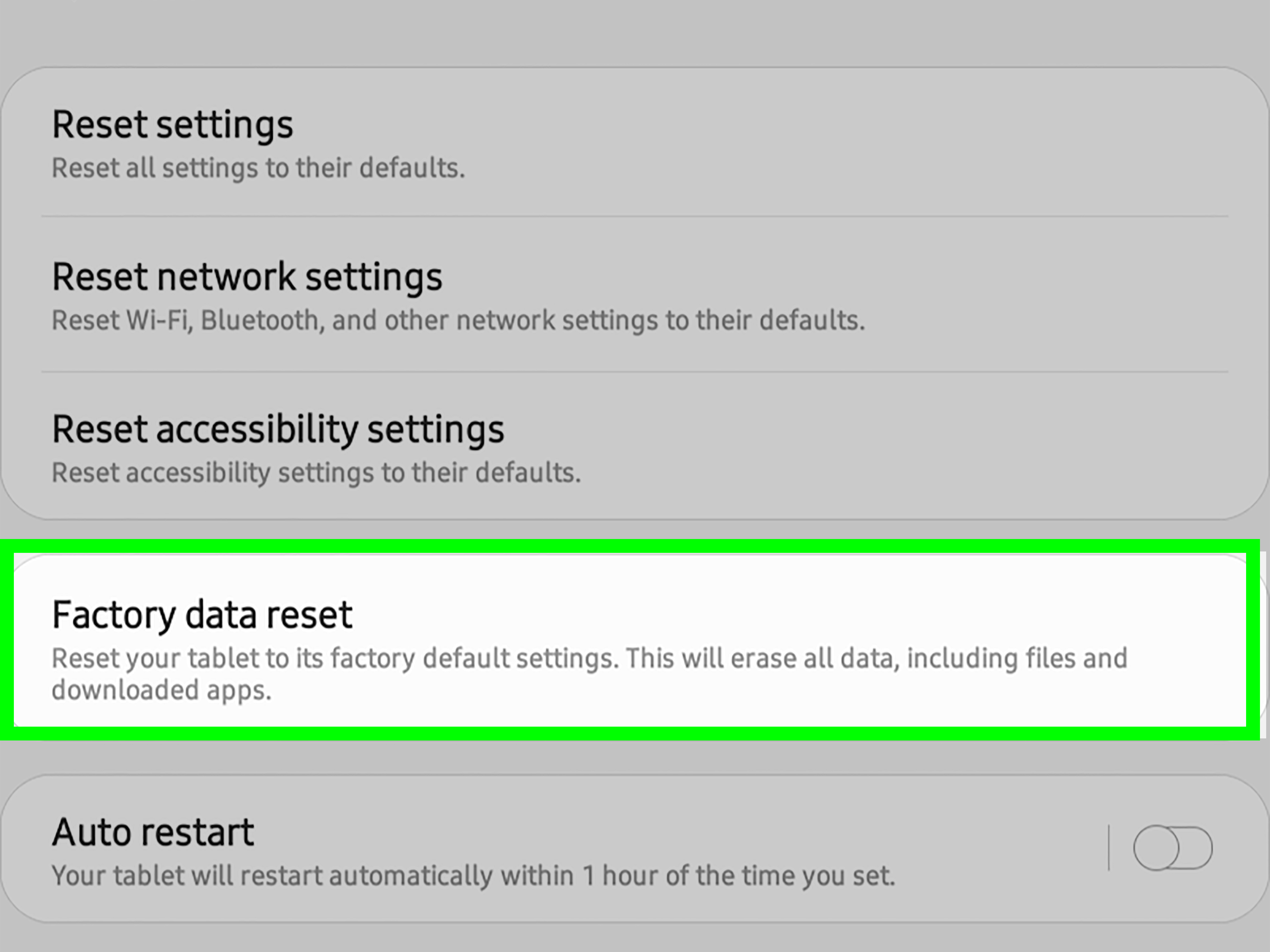
15. Back Up and Perform a Factory Reset Only as a Last Resort
A factory reset erases apps, accounts, local files, messages that were not backed up, and device settings. Before resetting, back up photos and videos, verify Google backup, record important authenticator or banking-app recovery details, and confirm that you know the Google Account credentials previously used on the phone.
Google recommends backing up data before a reset and warns that a factory reset removes apps and locally stored information.
On many devices, the reset option appears under Settings > System > Reset options > Erase all data, although Samsung and other brands use different paths. Charge the phone, connect it to a network, and follow your manufacturer’s official instructions.
After the reset, test the Camera app before reinstalling every app. If the security-policy error returns only after restoring a particular management, security, or parental-control app, you have found the source. If it appears on a clean setup with no work enrollment, contact the manufacturer or an authorized repair center.
Brand-Specific Menu Paths to Try
| Device family | Useful paths |
|---|---|
| Samsung Galaxy | Settings > Security and privacy > Other security settings > Device admin apps; Camera > Settings > Reset settings; Settings > Software update |
| Google Pixel | Settings > Security & privacy > Privacy > Privacy controls; Settings > Apps > Camera > Permissions; Settings > System > Software updates |
| Motorola | Settings > Privacy > Permission manager > Camera; Settings > Apps > Camera > Storage & cache; use Safe Mode to identify downloaded-app conflicts |
| Other Android brands | Use the Settings search box for Camera access, Permission manager, Device admin apps, Work profile, Sensors Off, Software update, and Reset app preferences |
Manufacturers reorganize menus between Android and interface versions. Searching within Settings is often faster and more accurate than following an old path character for character.
What Not to Do
- Do not install a random “camera policy unlocker” APK. An unknown app asking for administrator or accessibility access can create a much bigger security problem.
- Do not remove corporate management without permission. You may break work access, violate policy, or trigger automatic reenrollment.
- Do not factory-reset before backing up. The reset is destructive and may not remove an organization-enforced rule.
- Do not assume the camera is physically broken. A policy message points first toward software controls, although hardware can still be involved if all troubleshooting fails.
- Do not grant camera access to every app. Give permission only to apps that genuinely need it.
Real-World Troubleshooting Experiences: What Usually Fixes It
The following scenarios are illustrative composites based on common Android troubleshooting patterns, not claims about one specific person or device.
Experience 1: The Invisible Master Switch
A Galaxy owner opens Camera after rearranging Quick Settings and sees the security-policy warning. App permissions look correct, the Camera app has been restarted, and clearing cache changes nothing. The actual cause is the systemwide Camera access tile, which was turned off during the rearrangement. Enabling it restores the camera instantly.
This experience is common because users naturally inspect the Camera app first. The master privacy switch sits above individual permissions, so an app can appear fully authorized while Android still blocks the hardware. The useful lesson is to check devicewide privacy controls before diving into resets.
Experience 2: Personal Camera Works, Work Camera Does Not
An employee can take photos with the personal Camera app but cannot scan receipts inside a work expense app. Reinstalling the expense app does not help. The app carries a briefcase badge, and the work profile reports that camera access is managed by the organization. IT later confirms that a security policy was applied too broadly and updates the profile.
The key clue is the split behavior between personal and work apps. A work-profile restriction is not the same as a broken camera, and the user cannot reliably override it from ordinary Settings. Contacting the administrator is fasterand saferthan repeatedly clearing data or attempting a factory reset.
Experience 3: A Security App Becomes Overprotective
Another phone begins showing the error soon after a parental-control or privacy app receives device-administrator privileges. The camera works in Safe Mode, proving that the hardware and core Android camera service are functional. Back in normal mode, disabling the app’s administrator access and uninstalling it resolves the problem.
This is why Safe Mode is so valuable. It changes the question from “Which of my 120 apps is guilty?” to “Is a downloaded app involved at all?” Once Safe Mode produces a working camera, recent security, automation, scanner, and management apps should move to the top of the suspect list.
Experience 4: The Update That Needs a Cleanup
A phone develops the warning after a system update. Camera access is on, no work profile exists, and no suspicious administrator app appears. Clearing the Camera app cache, resetting Camera settings, installing the latest Google Play system update, and restarting finally restores normal operation.
The important lesson is to escalate gradually. Start with a restart and privacy controls, move to permissions and administrator checks, test Safe Mode, then repair app data and update the system. A factory reset belongs near the end, not at the beginning. Most people would rather spend ten careful minutes checking settings than spend an afternoon signing back into every app they have ever downloaded.
Experience 5: When Repair Is the Honest Answer
In the final pattern, both front and rear cameras fail in every app, Safe Mode makes no difference, and a clean factory reset does not help. The device may show a policy warning, a black preview, repeated camera-service crashes, or a “camera failed” message. At that point, continuing to toggle permissions becomes ritual rather than diagnosis.
An authorized technician can test camera modules, connectors, board-level faults, and firmware using manufacturer tools. Seeking repair is especially sensible after a drop, liquid exposure, overheating event, or recent screen or battery replacement. Software troubleshooting is powerful, but it cannot reconnect a damaged camera cable through sheer optimism.
Conclusion
To fix “Security policy prevents use of Camera” on Android, begin with the systemwide Camera access switch, Sensors Off tile, and app permissions. If those settings are correct, inspect device administrator apps and determine whether a work profile or fully managed device is enforcing the restriction.
Safe Mode can expose third-party conflicts, while clearing the Camera cache, resetting Camera settings, and installing Android and Google Play system updates can repair software problems.
Use a factory reset only after backing up and only after less destructive steps fail. When the phone is organization-managed, ask the administrator to change the policy. When every camera app still fails on a clean device, professional hardware service is the sensible next move.
Note: Android menu names vary by phone brand, carrier, Android version, and manufacturer interface. Use the Settings search box when a path in this guide does not exactly match your device.