Note: Body-only HTML, ready for web publishing. Unnecessary source-code artifacts have been removed.
If Windows Command Prompt feels a little like a black box with a blinking cursor and mild judgment issues, don’t worry. Running a batch file from CMD is much simpler than it looks. In most cases, you only need the right path, the right command, and enough patience to avoid typing C:\Stuff\Thing\Final\Final2\ActuallyFinal wrong three times.
A batch file is one of the oldest and handiest automation tools in Windows. Whether you want to launch apps, clean up folders, back up files, or run a string of commands without typing them one by one, a .bat or .cmd file can save time and spare your keyboard from dramatic overuse. The trick is knowing the best way to launch it from Command Prompt.
In this guide, you’ll learn three practical ways to run a batch file from Windows Command Prompt, when to use each one, what common errors mean, and how to avoid the classic “it worked yesterday” situation. You’ll also get examples, troubleshooting tips, and a longer real-world experience section at the end so the article is useful for beginners and still worth skimming for people who already speak a little CMD.
What Is a Batch File in Windows?
A batch file is a plain-text file that contains a list of Command Prompt instructions. When you run it, Windows executes those commands in order. Think of it as a tiny to-do list for CMD: open this folder, run this program, copy these files, pause, display a message, and exit.
Most batch files use the .bat extension, though .cmd files are also common. In everyday use, both are used to automate repetitive tasks in Windows. If you can type a command into Command Prompt, there’s a good chance you can place it inside a batch file and make Windows do the boring part for you.
People use batch files for all kinds of everyday jobs, including:
- Launching several programs at once
- Backing up folders
- Cleaning temporary files
- Running maintenance commands
- Starting scripts for work, school, or home projects
- Opening tools with a specific working directory
Before You Run a Batch File from CMD
Before jumping into the three methods, it helps to set the stage correctly. The good news: this stage is not dramatic.
1. Open Command Prompt
You can open Command Prompt by pressing Win + R, typing cmd, and pressing Enter. You can also search for Command Prompt from the Start menu.
2. Know Where Your Batch File Is Saved
Find the exact folder where the file lives. If your script is on the Desktop, in Downloads, or buried in a project folder, you’ll need that location. Windows is helpful in many ways, but it will not read your mind and guess that “the script is probably in that folder with the blue icon.”
3. Watch Out for Spaces in File Paths
If the folder or file name includes spaces, place the path in quotation marks. For example:
Without quotation marks, CMD may treat each word as a separate piece, which is the command-line equivalent of tripping on a shoelace.
4. Use an Administrator Command Prompt When Needed
Some batch files change system settings, work with protected folders, or call commands that require elevated permissions. In those cases, open Command Prompt as an administrator first. If not, the file may run halfway, fail silently, or throw an “Access is denied” error that feels personal.
Method 1: Change to the Batch File’s Folder, Then Run It
This is the most beginner-friendly method and usually the easiest to understand. You first move Command Prompt into the folder where the batch file is stored, and then you run the file by name.
How It Works
CMD always has a current working directory. If you change to the folder that contains your batch file, you can run the file directly without typing the full path every time.
Example
Let’s say your batch file is named cleanup.bat and it’s stored in:
In Command Prompt, type:
Why Use /d?
The /d switch changes both the drive and the directory. That matters if your Command Prompt is currently on a different drive. Without it, CMD might switch folders incorrectly or stay on the wrong drive like a tourist who got off at the wrong train stop and is pretending everything is fine.
When This Method Is Best
- You’re working with one script repeatedly
- You want to run several files from the same folder
- You prefer simple commands over long paths
- You’re testing a script and want to keep things easy to edit and rerun
Common Mistakes
- Forgetting quotation marks around a path with spaces
- Using the wrong folder
- Typing the file name incorrectly
- Using
cdwithout/dwhen changing drives
If you see a message saying the file is not recognized, double-check the folder and file name. Windows is very literal. “Cleanup.bat” and “cleanup.bat” usually work the same in CMD, but “cleanup-final.bat” and “cleanup.bat” are absolutely not the same thing.
Method 2: Run the Batch File by Typing the Full Path
This method is perfect when you don’t want to change folders first. Instead, you tell Command Prompt exactly where the batch file is located and run it from wherever you are.
Example
If your script is stored here:
Type this directly into Command Prompt:
That’s it. No cd required.
Why This Method Is Useful
Running a batch file by full path is convenient when:
- You’re launching a script from another folder
- You only need to run it once
- You don’t want to lose your current working directory
- You’re documenting instructions for someone else and want them to paste one line
Example with a Different File Name
Notice the quotation marks again. They matter when spaces appear in folder names like Nightly Jobs.
Best Practice
If you plan to reuse the command, copy the file path directly from File Explorer to avoid typos. A single missing character can break the command, and CMD will not pull you aside and gently explain what you meant to type.
Method 3: Use cmd /c or cmd /k for More Control
This is the power-user-friendly method. Instead of simply running the batch file, you tell CMD how to behave after it launches the script.
Use cmd /c to Run It and Close
The /c switch tells Command Prompt to run the command and then stop.
This is useful when you want the command to execute and then exit cleanly. It’s handy in shortcuts, scheduled tasks, or situations where you don’t want an extra command window hanging around like an uninvited party guest.
Use cmd /k to Run It and Keep the Window Open
The /k switch tells CMD to run the command and remain open afterward.
This is especially useful for troubleshooting. If your batch file flashes and disappears too fast, /k lets you read the output and spot errors after the script finishes.
Bonus Variation: Start It in a Separate Window
If you want a separate Command Prompt window, you can also use:
The empty quotation marks after start are a title placeholder. Without them, paths in quotes can be interpreted incorrectly. It’s one of those CMD quirks that makes sense only after it annoys you once.
When This Method Is Best
- You want the window to close automatically after running
- You want the window to stay open so you can read results
- You need a little more control over how the script launches
- You’re debugging a batch file
A Quick Note About call
If one batch file launches another batch file, use call inside the script. That keeps the parent script from stopping early. However, for normal interactive use from a plain Command Prompt window, call is not usually the main method people need. For most readers, cd, a full path, or cmd /c and /k will cover the real-world cases.
Which Method Should You Use?
Here’s the simple version:
- Use Method 1 if you work in the same folder often.
- Use Method 2 if you want the fastest one-line command from anywhere.
- Use Method 3 if you need the window to close or stay open on purpose.
There isn’t one universally “best” way. The best method depends on whether you want speed, convenience, or control.
Troubleshooting: Why Your Batch File Might Not Run
“The system cannot find the path specified”
The folder path is wrong, the drive letter is wrong, or quotation marks are missing around a path with spaces.
“Is not recognized as an internal or external command”
You’re probably not in the correct folder, or you typed the file name incorrectly. Use the full path if needed.
The window opens and closes instantly
Use cmd /k instead of double-clicking the file. You can also add a pause line at the end of the batch file during testing so you can read any messages before the window closes.
Nothing happens
Check whether the script requires administrator rights, references missing files, or depends on another command or program not installed on your computer.
The batch file works when double-clicked but not in CMD
That usually points to a path issue, the wrong current directory, or a command typed without quotation marks. In other words, the script is fine, but the launch method needs cleanup.
Smart Tips for Running Batch Files Safely
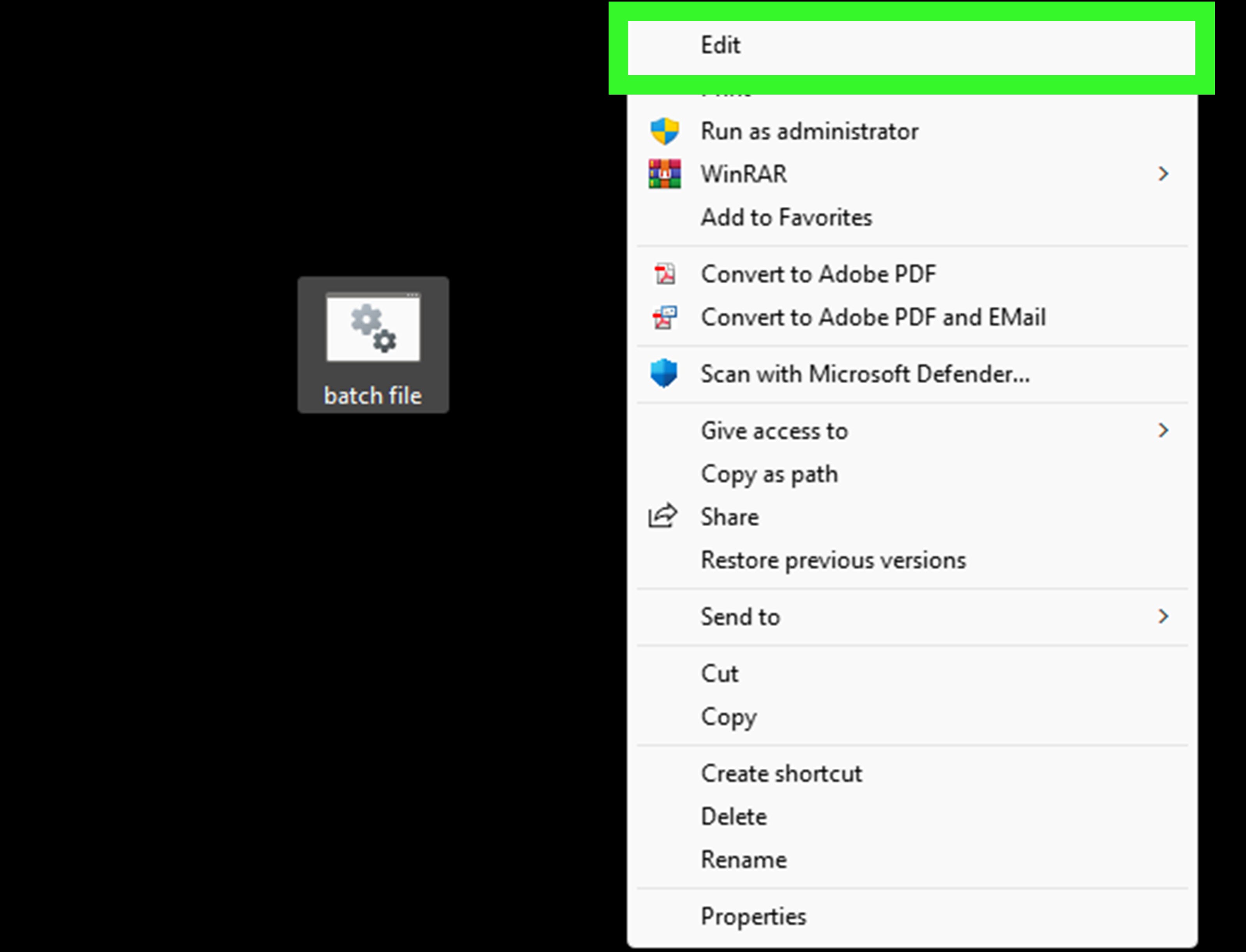
- Open unknown batch files in a text editor before running them.
- Do not run scripts from untrusted downloads just because the file name sounds helpful.
- Test new scripts on noncritical folders first.
- Use
echomessages inside the script so you know what it is doing. - Keep file names clear and simple when possible.
- Use quotation marks around file paths with spaces every single time.
This last one deserves repeating in spirit, even if not word-for-word: when Windows sees a space in a path, it can get confused fast. Quotation marks are cheap insurance.
Real-World Experience: What Running Batch Files from CMD Actually Feels Like
In real use, learning to run a batch file from Command Prompt usually starts with confidence, takes a sharp detour into confusion, and ends with a small personal victory. Most people begin with a simple script like opening Notepad, creating a folder, or copying a file. The first run feels almost magical. You type one command, press Enter, and Windows suddenly behaves like it has accepted your delegation. That moment is oddly satisfying.
Then come the tiny problems. The most common experience is the path problem. You know the file exists. You can literally see it sitting in File Explorer. But CMD says it cannot find it, and for a brief moment you start questioning reality. Usually the culprit is simple: you forgot quotation marks, you typed the wrong folder, or you changed directories without switching drives. It’s not glamorous, but that’s how most people discover why cd /d is so useful.
Another common experience is the disappearing window. You run the batch file, a black box flashes for half a second, and then vanishes like it never owed you an explanation. That’s the moment many users realize that the script probably ran, failed, or both. Using cmd /k is often the turning point, because it keeps the window open long enough to read the output. Suddenly the mystery is gone. Maybe a file path is wrong. Maybe a command needs admin rights. Maybe the script is looking for a tool that isn’t installed. Either way, now you can actually see the problem instead of guessing at it.
There’s also a learning phase where people discover that “running a batch file” is not always one single thing. Sometimes you want to move into the script’s folder and work from there. Sometimes you want to launch it from anywhere with a full path. Sometimes you want CMD to close when the script is done, and sometimes you want it to stay open so you can inspect the results like a detective in a very low-budget tech drama. The more you use Command Prompt, the more these differences matter.
One especially useful experience comes from testing. When people start editing batch files in Notepad and rerunning them from CMD, they quickly learn the value of small changes. Run the file. See what happens. Fix one line. Run it again. That feedback loop is where most users go from “I copied a script from somewhere” to “I actually understand what this does.” It’s also where batch files become genuinely practical for backups, repetitive folder tasks, software launches, and basic automation.
Over time, the process stops feeling technical and starts feeling efficient. You no longer think of Command Prompt as a scary black window. It becomes a fast launcher, a debugger, and a surprisingly reliable helper. And while batch files may not be flashy, they are still one of the easiest ways to automate Windows tasks without installing extra software. That’s a pretty good deal for a tool that has been quietly getting work done for years.
Final Thoughts
If you want to run a batch file from Windows Command Prompt, you really only need three solid techniques: change to the script’s folder and run it, run it by full path, or use cmd /c or /k when you want more control. Once you understand those options, CMD becomes much less intimidating and a lot more useful.
The best part is that batch files scale well. Today you might use one to open a program. Tomorrow you might use one to automate backups, launch a full work setup, or run a maintenance checklist in seconds. Not bad for a plain-text file with no flashy interface and absolutely no interest in winning design awards.