Once upon a time, installing a printer meant opening a cardboard box, finding a shiny little disc, sliding it into your computer, and praying the software wizard did not ask you to restart three times before breakfast. Today, many laptops do not even have disc drives. The good news? You can absolutely install a printer without the disc on both Windows PC and Mac. In fact, skipping the old CD is usually the smarter route because you can get newer drivers, better compatibility, and fewer mystery pop-ups from 2009.
Whether you lost the installation CD, bought a used printer, upgraded to a modern laptop, or simply stared at the disc and wondered where exactly you were supposed to insert it, this guide will walk you through the process. We will cover USB printers, Wi-Fi printers, network printers, AirPrint on Mac, Windows built-in drivers, manufacturer downloads, and the practical troubleshooting steps that save people from yelling at innocent office equipment.
The main idea is simple: your computer does not need the original disc. It needs the right printer driver, a clean connection, and a printer that is awake, powered on, and not hiding on a different Wi-Fi network like a tiny plastic fugitive.
Why You No Longer Need the Printer Installation Disc
Printer discs were useful when internet connections were slower and operating systems did not include as many built-in drivers. Now, Windows and macOS can often detect printers automatically. Modern printers also support Wi-Fi setup tools, USB plug-and-play installation, cloud printing apps, and driverless standards such as AirPrint for Apple devices.
Using the old disc can actually cause trouble. The software may be outdated, incompatible with Windows 11 or the latest macOS version, or bundled with extra utilities you do not need. Downloading the latest printer software from the official manufacturer website is usually safer and more reliable. For many printers, you may not need to download anything at all because Windows or macOS can use a basic built-in driver.
Before You Start: Find Your Printer Model
Before installing any printer without the CD, look for the exact model number. You will usually find it on the front, top, back, or inside the cartridge door. Examples include names like HP OfficeJet Pro 9015e, Canon PIXMA TR4720, Epson EcoTank ET-2800, or Brother HL-L2350DW.
The model number matters because printer families often look similar, but their drivers are not always interchangeable. Downloading a driver for the wrong model is like buying shoes in the wrong size: technically related to feet, but not useful.
Quick Setup Checklist
- Turn on the printer.
- Connect it to power and load paper.
- Install ink or toner if needed.
- Know whether you want USB, Wi-Fi, Ethernet, or Bluetooth setup.
- Make sure your computer is connected to the internet.
- Write down the exact printer model number.
- Use only official printer-brand support pages for downloads.
Method 1: Install a Printer Without the Disc on Windows
Windows can install many printers automatically. This is the easiest method for a modern USB or wireless printer. The process is slightly different depending on your version of Windows, but the basic route is similar.
Install a Wireless Printer on Windows
- Turn on your printer.
- Connect the printer to the same Wi-Fi network as your PC.
- On your PC, open Start.
- Go to Settings.
- Select Bluetooth & devices.
- Choose Printers & scanners.
- Click Add device.
- Wait for Windows to detect the printer.
- Select your printer and follow the setup prompts.
If Windows finds the printer, you may be done in a few minutes. Print a test page to confirm everything works. If the printer appears but does not print, restart both the computer and printer. Yes, the classic “turn it off and on again” still has a suspiciously high success rate.
Install a USB Printer on Windows
For a USB printer, the process may be even easier. Connect the printer directly to a USB port on your computer, not through a hub if possible. Windows should detect the device and attempt to install a driver automatically.
- Turn on the printer.
- Connect the USB cable to the printer and PC.
- Wait for Windows to detect the printer.
- Open Settings > Bluetooth & devices > Printers & scanners.
- Confirm that the printer appears in the list.
- Print a test page.
If Windows installs only a basic driver, you may be able to print but not scan, check ink levels, clean printheads, or use advanced duplex settings. In that case, download the full software package from the official printer manufacturer.
Method 2: Install a Printer Without the Disc on Mac
Mac users often have an advantage because many modern printers support AirPrint. AirPrint lets Apple devices print without installing extra drivers. It works over the network, so your Mac and printer usually need to be on the same Wi-Fi network.
Add a Wireless Printer on macOS
- Turn on the printer and connect it to Wi-Fi.
- On your Mac, open the Apple menu.
- Go to System Settings.
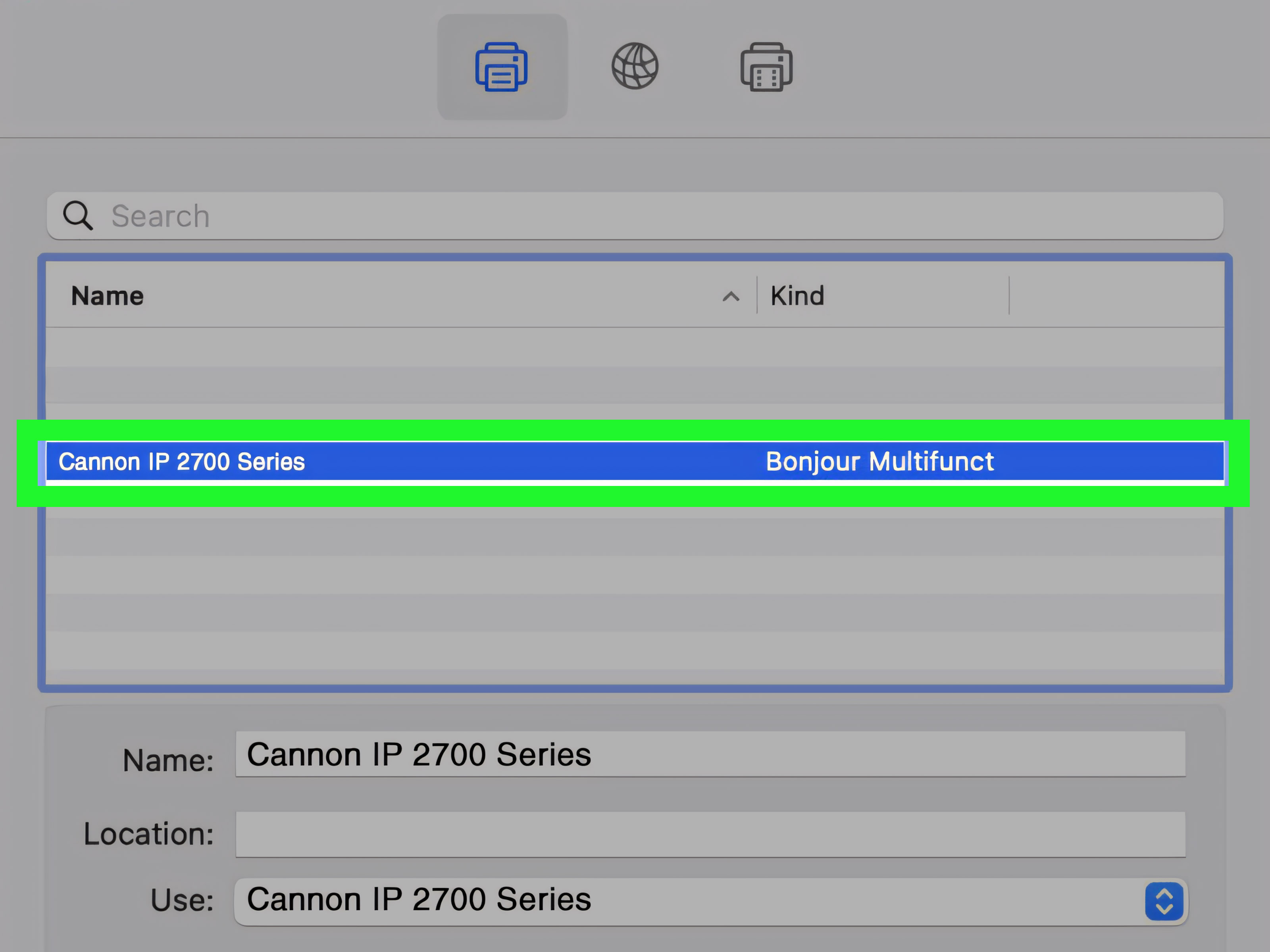
- Select Printers & Scanners.
- Click Add Printer, Scanner, or Fax.
- Choose your printer from the list.
- For Use, choose AirPrint if available.
- Click Add.
Once added, open a document and try printing. If the printer supports AirPrint, the setup is usually smooth. If your printer does not support AirPrint, macOS may still offer a compatible driver or ask you to install software from the printer maker.
Add a USB Printer on Mac
For USB printers, connect the printer directly to your Mac. If your Mac has only USB-C ports and your printer uses USB-A, you may need a reliable adapter. After connecting the printer, macOS may detect it automatically.
- Connect the printer to your Mac with a USB cable.
- Turn on the printer.
- Open System Settings.
- Go to Printers & Scanners.
- Click Add Printer, Scanner, or Fax.
- Select the printer and click Add.
If the printer does not appear, try a different USB cable, restart your Mac, or download the latest Mac driver from the manufacturer’s official support page.
Method 3: Download Drivers From the Official Manufacturer
If Windows or macOS cannot install the printer automatically, the next best method is to download the latest driver. Go directly to the official website for your printer brand. Avoid random “driver download” websites. Some are harmless, some are outdated, and some have all the charm of a raccoon in your kitchen.
HP Printers
For HP printers, you can often use the Windows built-in driver for basic printing. For full features, HP usually recommends using its official setup software or driver download tools. Search by printer model and choose the correct operating system. HP also provides built-in driver setup guidance for both Windows and Mac.
Canon Printers
Canon provides software and drivers through its official Canon U.S.A. support pages. Search for your printer model, select your operating system, and download the recommended driver or printer/scanner utility. This is especially useful for PIXMA, imageCLASS, and multifunction printers that need scanning support.
Epson Printers
Epson’s support pages let you search by product name and download drivers, utilities, manuals, and firmware tools. For Epson EcoTank, WorkForce, Expression, and photo printers, the full driver package may unlock scanning, maintenance tools, ink monitoring, and advanced print settings.
Brother Printers
Brother offers driver and software downloads for printers and all-in-ones. Its full driver and software package is usually the best choice when you want full functionality, especially for scanning, wireless setup, and device management.
Method 4: Install a Network Printer by IP Address
Sometimes your printer is connected to the network but refuses to appear automatically. This is common in offices, dorms, shared houses, and home networks with multiple routers. In that case, you can add the printer manually using its IP address.
Find the Printer IP Address
You can usually find the printer’s IP address by printing a network configuration page from the printer menu. On many printers, this is under Network, Wireless, Reports, or Settings. The IP address usually looks like this: 192.168.1.45.
Add a Printer by IP Address on Windows
- Open Settings.
- Go to Bluetooth & devices.
- Select Printers & scanners.
- Click Add device.
- If Windows does not find it, choose the option for adding manually.
- Select Add a printer using a TCP/IP address or hostname.
- Enter the printer IP address.
- Follow the prompts and choose the correct driver if asked.
Add a Printer by IP Address on Mac
- Open System Settings.
- Go to Printers & Scanners.
- Click Add Printer, Scanner, or Fax.
- Choose the IP tab.
- Enter the printer IP address.
- Select a protocol such as AirPrint, IPP, or Line Printer Daemon if appropriate.
- Choose the driver in the Use field.
- Click Add.
This method is excellent for network printers that are stubborn but technically connected. Think of it as knocking on the printer’s digital front door instead of waiting for it to introduce itself at the party.
What If the Printer Has No Wi-Fi?
If your printer has no Wi-Fi, you still have options. The simplest choice is USB. Connect it directly to your computer and let Windows or macOS detect it. If you want to share the printer with multiple devices, you may be able to connect it to a router with a USB print-server feature, use Ethernet if the printer has a network port, or share it from another computer on the same network.
Older printers may need brand-specific drivers. If the manufacturer no longer provides updated drivers for your operating system, basic printing may still work through built-in drivers, but advanced features may be limited. For very old printers, compatibility becomes the villain of the story, wearing a tiny cape made of expired software.
How to Install a Printer Without Internet
Installing a printer without the disc is much easier with internet access, but it is not impossible without it. If your computer is offline, use another device to download the correct driver from the official manufacturer website. Save the installer to a USB flash drive, then move it to the offline computer.
- Use a connected computer or phone to visit the manufacturer’s support page.
- Search for the exact printer model.
- Choose the correct operating system.
- Download the driver or full software package.
- Copy the file to a USB drive.
- Run the installer on the offline computer.
Make sure the downloaded file matches your operating system version. A Windows driver will not work on macOS, and a macOS driver will not magically become a Windows driver because you asked nicely.
Common Printer Installation Problems and Fixes
The Computer Cannot Find the Printer
First, confirm that the printer is powered on and not in sleep mode. Then check that the printer and computer are on the same Wi-Fi network. A common mistake is having the computer on one network and the printer on a guest network. Guest networks often block device discovery, which is great for privacy and terrible for printing your homework, shipping label, or tax form.
The Printer Appears Offline
An offline printer may be asleep, disconnected from Wi-Fi, stuck with an old print job, or assigned a changed IP address. Restart the printer, restart the router, and remove old print jobs from the queue. On Windows, check the printer queue and make sure “Use Printer Offline” is not selected. On Mac, remove and re-add the printer if necessary.
The Printer Prints but the Scanner Does Not Work
This usually means the basic print driver is installed, but the full feature software is missing. Download the complete driver and scanner package from HP, Canon, Epson, Brother, or your printer’s manufacturer. Multifunction printers often need extra software for scanning buttons, scan-to-computer features, and document management.
The Installer Says the Driver Is Unavailable
Driver unavailable errors can happen when the operating system is too new, too old, or missing updates. Run Windows Update or update macOS, then try again. If the printer is older, check whether the manufacturer still supports your operating system. You may also try a universal print driver if your printer brand offers one.
The Printer Prints Blank Pages
Blank pages are usually not a driver issue. Check ink or toner levels, remove protective tape from cartridges, run a cleaning cycle, and verify that the correct paper size is selected. Printers are very talented at blaming the computer when the real problem is a cartridge still wearing its little factory sticker.
USB vs. Wi-Fi: Which Setup Is Better?
USB is usually the most stable option for one computer. It is simple, direct, and less likely to suffer from network problems. Wi-Fi is better when multiple devices need to print from different rooms. It is more convenient, but it depends on your router, signal strength, and whether the printer remains connected.
For a home office, Wi-Fi is usually worth setting up. For a student desk or single workstation, USB may be faster and less dramatic. For a small business, Ethernet is often the most dependable option if the printer supports it.
Safety Tip: Avoid Fake Driver Websites
When installing a printer without the disc, always download drivers from official sources. Search results may show third-party driver sites that promise quick fixes. Some may bundle unnecessary software, outdated files, or risky installers. The safest route is the manufacturer’s own support page.
Look for the official brand domain, confirm the model number, and avoid downloading anything that asks for unrelated permissions, suspicious browser extensions, or payment for a standard printer driver. Printer drivers from major manufacturers are normally available for free.
Best Practices After Installation
- Print a test page after setup.
- Set the printer as default if you use it often.
- Install scanner software for multifunction printers.
- Update printer firmware only from the official brand utility.
- Keep the printer on the same Wi-Fi network as your computer.
- Save the downloaded installer in a folder for future use.
- Remove duplicate printer entries to avoid confusion.
Real-World Experience: What Actually Works When the Disc Is Missing
In real life, installing a printer without the disc is rarely one perfect click. It is more like a tiny detective mission where the suspects are Wi-Fi, drivers, USB cables, and the printer queue. The fastest success usually comes from starting simple. If the printer has USB, connect it directly first. This helps confirm the printer itself works before you spend twenty minutes accusing your router of betrayal.
One common experience is that Windows detects the printer instantly but gives only basic printing. That is fine if you only need to print documents. However, if you need scanning, double-sided printing controls, borderless photo printing, or ink-level tools, the basic driver may feel like buying a car and discovering it only turns left. In that situation, the official full driver package is the better answer.
Mac users often have a smoother first setup with AirPrint. The printer appears, you click Add, and the first page prints before you can even prepare your victory speech. But AirPrint can also be limited. Some advanced color controls, photo paper settings, maintenance options, or scanner features may require the manufacturer’s own software. If you are printing regular documents, AirPrint is excellent. If you are doing photo printing, scanning stacks of forms, or managing a business printer, install the brand’s recommended package.
Another practical lesson: the same Wi-Fi network matters more than people think. If your laptop is on “HomeWiFi-5G” and the printer is on “HomeWiFi-Guest,” they may not see each other. Some routers also isolate devices on guest networks. If setup fails, check the network name on both devices before trying anything complicated. Many printer problems are not printer problems at all; they are network problems wearing a printer costume.
USB cables also deserve suspicion. A cable can charge or power a device but still fail at data transfer. If the printer does not appear when connected by USB, try another cable and plug directly into the computer. Avoid USB hubs during setup. Hubs are helpful later, but during installation they sometimes add confusion, and printers already bring enough personality to the room.
For older printers, expectations matter. A ten-year-old printer may still print beautifully, but the newest operating system may not support every original feature. In many cases, a universal driver or built-in driver will handle basic printing. That can be enough for schoolwork, forms, recipes, labels, and everyday documents. If the printer is mission-critical for work, check driver support before upgrading your computer or operating system.
The best habit is to create a small “Printer Setup” folder after everything works. Save the official installer, write down the printer model, note whether it uses USB, Wi-Fi, or IP address setup, and keep the printer’s IP address if you added it manually. Future-you will be grateful. Future-you may even say something nice about present-you, which is rare and should be encouraged.
Finally, do not install every extra utility unless you need it. Some printer packages include photo tools, cloud tools, shopping reminders, update managers, and scanning apps. Choose the essentials first: print driver, scan driver, and official setup utility. You can always add extras later. The goal is a printer that prints, not a printer that moves into your computer and starts redecorating.
Conclusion
You do not need the original installation disc to install a printer on a PC or Mac. In most cases, Windows can add the printer through Settings, and macOS can add many printers through Printers & Scanners or AirPrint. If automatic setup does not work, download the latest driver from the official HP, Canon, Epson, Brother, or other manufacturer support page. For network printers that refuse to appear, adding the printer by IP address can solve the problem.
The winning formula is straightforward: identify the printer model, connect it properly, use built-in tools first, download official drivers when needed, and troubleshoot with patience. Printers may be famous for causing chaos, but with the right steps, you can install one without a disc and without sacrificing your afternoon to the technology goblin.