If Spotify keeps launching the second your computer wakes up, you are not imagining things, and you are definitely not alone. One minute you are trying to open your laptop for a calm, productive morning. The next minute Spotify barges in like an uninvited DJ, ready to soundtrack your spreadsheet. Charming? Sometimes. Helpful? Not always.
The good news is that stopping Spotify from opening on startup is usually quick. The better news is that you can do it on both Windows and Mac without needing a computer science degree, a ritual sacrifice to the settings menu, or a full-blown tech support spiral. In most cases, the fix is simply turning off Spotify’s own startup option. If that does not work, Windows and macOS both have backup controls that let you block startup apps at the operating system level.
In this guide, you will learn exactly how to stop Spotify from opening on startup on Windows and Mac, what to do if it keeps coming back, and which settings are actually worth checking. We will also cover some real-world experiences so you know what usually causes the issue and how people actually solve it without losing their minds.
Why Spotify Keeps Opening on Startup in the First Place
Spotify is designed to be convenient. Its developers assume many users want instant access the moment they sign in. So the desktop app often enables some kind of automatic launch behavior, either directly inside the app or through your computer’s startup settings.
That means there are usually two layers at work:
- Spotify’s own setting that tells the app whether it should open after login
- Your operating system’s startup controls, which can also allow or block apps from launching automatically
On Windows, there can be a sneaky third layer too: Spotify can still wake up if a browser or web link is allowed to open the desktop app. That is why some people swear they already turned startup off, yet Spotify still appears like it pays rent.
How to Stop Spotify from Opening on Startup Inside Spotify
Start here first. If you only change your operating system settings but leave Spotify’s internal startup option enabled, the app may keep trying to return.
On Windows
- Open the Spotify desktop app.
- Click your profile picture or account menu in the top-right corner.
- Open Settings.
- Scroll to the Startup and window behavior section.
- Find Open Spotify automatically after you log into the computer.
- Set it to No.
If your version of Spotify hides the advanced options farther down the page, keep scrolling until you find them. Spotify loves making you earn the last few settings with cardio.
On Mac
- Open the Spotify desktop app.
- Go to Settings.
- Scroll until you reach Startup and window behavior.
- Set Open Spotify automatically after you log into the computer to No.
That alone solves the problem for a lot of people. But if Spotify still launches after a restart, move on to the system-level fixes below.
How to Stop Spotify from Opening on Startup in Windows
Windows gives you two reliable ways to shut down startup apps: the Settings app and Task Manager. You do not have to use both, but if Spotify is being stubborn, checking both is a smart move.
Method 1: Turn Spotify Off in Windows Settings
- Open the Start menu.
- Click Settings.
- Go to Apps.
- Select Startup.
- Find Spotify in the list.
- Toggle it Off.
This is the cleanest method if Spotify appears in the Startup list. Once it is off, Windows should stop launching it when you sign in.
Method 2: Disable Spotify in Task Manager
- Right-click the Start button.
- Choose Task Manager.
- Open the Startup apps tab.
- Select Spotify.
- Click Disable.
Task Manager is especially useful when you want to see how much startup impact an app has. If your computer already boots like it needs a pep talk, trimming unnecessary startup apps can help more than you think.
Windows-Specific Fix: Turn Off “Allow Spotify to Be Opened From the Web”
If Spotify still opens on Windows after you already set startup to No, this is the setting most people miss.
- Open Spotify.
- Go to Settings.
- Scroll down until you find Startup and window behavior or the advanced options area.
- Turn off Allow Spotify to be opened from the web.
This option can cause Spotify to launch when the app is triggered from web links or browser actions. In plain English, your browser and Spotify may still be flirting behind your back. Turning this off often fixes the “I disabled startup, but it still opens” problem on Windows.
How to Stop Spotify from Opening on Startup on Mac
Mac users usually need to check two places: Spotify’s own setting and the Mac login items list.
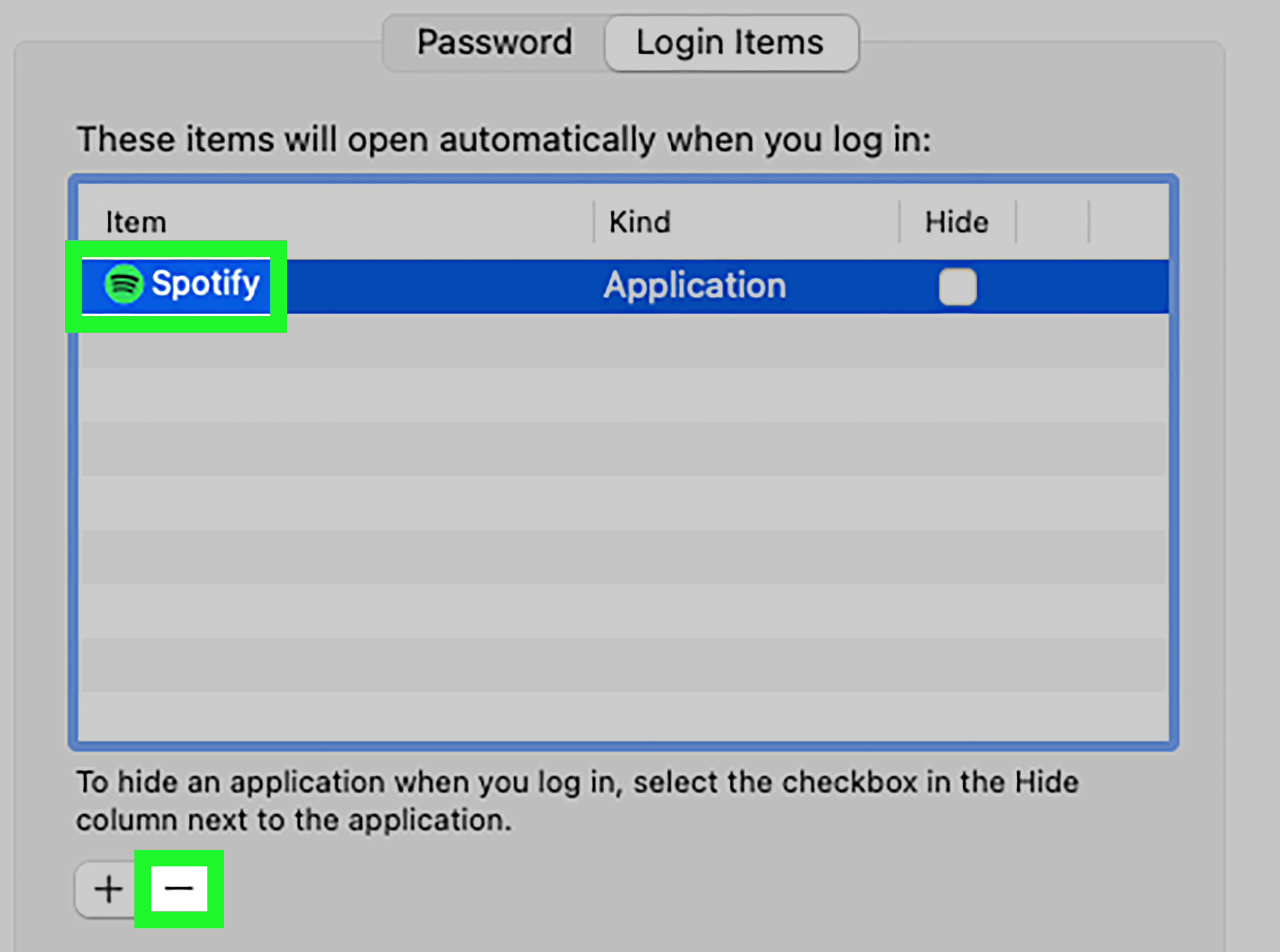
Method 1: Remove Spotify from Login Items
- Click the Apple menu.
- Open System Settings.
- Click General.
- Select Login Items & Extensions.
- Look under Open at Login.
- Select Spotify and remove it.
On older versions of macOS, the wording may be different. You may see System Preferences > Users & Groups > Login Items. Same mission, slightly older outfit.
Method 2: Check Background Permissions
While you are in Login Items & Extensions, also look at apps allowed to run in the background. Spotify is mainly the concern here, but this is a good time to make sure your Mac is not babysitting a bunch of apps you barely use.
Be careful, though. Some apps actually should run in the background, like cloud storage or security software. This is a settings cleanup, not a scorched-earth campaign.
Temporary Test: Prevent Login Items from Opening Once
If you just want to test whether login items are the problem, macOS lets you temporarily prevent them from opening when you sign in. This is useful for troubleshooting, but it is not a permanent fix. If Spotify stays closed during that test, you have confirmed the issue is tied to login items or startup behavior.
What If Spotify Still Opens Anyway?
If Spotify keeps popping up even after you turned off the obvious settings, do not panic. This usually means one of the following is happening:
1. The setting did not save properly
Open Spotify again and confirm the startup option is still set to No. Then quit the app fully and restart your computer.
2. Windows is allowing the app at startup
Even if Spotify says it should not launch, Windows may still have it enabled in Startup. Check both Settings and Task Manager.
3. The browser handoff is waking Spotify up
On Windows, turn off Allow Spotify to be opened from the web. This one catches a surprising number of people.
4. Your Mac still lists Spotify as a login item
Remove it manually from Login Items, then restart.
5. The app install is acting weird
Update Spotify. If the problem continues, uninstall and reinstall it. Sometimes the simplest fix is to stop negotiating with a glitchy app and just replace it.
Should You Disable Spotify at Startup?
For most people, yes. Unless you use Spotify every single time you turn on your computer, there is little benefit in letting it launch automatically. Disabling startup can make sign-in cleaner, reduce clutter, and free a bit of memory and attention. And attention is precious, especially before coffee.
There are a few cases where leaving Spotify on startup makes sense:
- You use your computer mainly for music and want instant playback
- You rely on Spotify every morning and do not mind the extra background process
- You use a dedicated home office or studio setup where Spotify is part of the default workflow
But for typical users, turning it off is a reasonable quality-of-life upgrade.
Common Mistakes to Avoid
Changing only one setting
If Spotify keeps opening, do not assume one toggle is enough. Check the app and the operating system.
Confusing login items with background apps
On a Mac, an app can be removed from Open at Login while other background permissions still exist. Review both carefully.
Disabling everything in startup
Yes, startup cleanup can improve boot time. No, you should not blindly disable every app you see. Security tools, sync utilities, and some accessibility apps may need to stay enabled.
Forgetting to restart
Many startup changes do not fully show their effect until you sign out, reboot, or relaunch the app. If you change three settings and then never restart, Spotify may still get one last dramatic entrance.
Real-World Experiences With This Problem
One of the most common real-life scenarios is the work laptop problem. You open your Windows computer at 8:59 a.m. for a serious meeting, and before your calendar loads, Spotify jumps on screen with last night’s playlist. Not ideal when the room is quiet and your laptop suddenly announces your taste in early-2000s pop-punk. In these cases, the fix is usually a combination of disabling Spotify inside the app and switching it off in Windows Startup apps.
Another common experience happens on older Windows machines. Users often notice Spotify is not just annoying on startup, it is also slowing down the login process. When a computer already takes its sweet time getting to the desktop, every extra app matters. Cutting Spotify from startup does not magically turn an old laptop into a race car, but it can make booting feel less crowded and more responsive.
Mac users tend to describe a slightly different annoyance. The complaint is often less about performance and more about routine. You open a MacBook to answer email, review documents, or hop into a browser, and Spotify appears every single time as if it thinks it is the main character. On Macs, the fix is often hiding in plain sight: people disable the setting inside Spotify but forget that the app is still listed under Login Items. Once they remove it there, the mystery usually disappears.
There is also the shared-computer scenario. In households where multiple people use the same desktop or laptop, Spotify opening automatically can create confusion fast. One person signs in to work, another person’s account may still be active in the app, and suddenly the wrong playlists, recommendations, or devices are showing. Turning off startup avoids that awkward “Why is your breakup playlist on my screen?” conversation.
Creative professionals and students mention another version of the problem: distraction. They may genuinely like Spotify, but they do not want it opening during focused work sessions. Startup apps shape the tone of your first few minutes on a computer. If you are trying to write, edit, code, or study, fewer automatic pop-ups usually means less mental clutter. Disabling Spotify becomes less of a technical fix and more of a productivity boundary.
Then there are the users who think they fixed everything, only to see Spotify return after clicking a music link in a browser. This is where the Windows web-launch setting becomes the sneaky villain. It creates the feeling that Spotify has ignored every instruction you gave it, when really another permission is still handing it the keys. Once that web-launch behavior is disabled, the app usually stops making surprise appearances.
In practical terms, most people feel immediate relief after making these changes. Their computer starts cleaner, their desktop feels calmer, and Spotify only opens when they actually choose to launch it. Which, frankly, is how apps should behave in the first place.
Final Thoughts
If you want to stop Spotify from opening on startup, the simplest path is this: first turn the feature off inside Spotify, then double-check your operating system’s startup controls. On Windows, that means checking Settings, Task Manager, and, if needed, the web-launch toggle. On Mac, it means checking Spotify’s setting and removing the app from Login Items.
Once you do that, Spotify should stop barging in every time your computer wakes up. You will still have your playlists, your podcasts, and your guilty-pleasure sing-along sessions. The only difference is that Spotify will wait politely until invited. As all good guests should.