Note: Menu names can vary slightly by iOS or iPadOS version, but the settings paths below are the ones Apple currently uses.
Time Sensitive notifications sound important because, well, they literally introduce themselves that way. Your iPhone or iPad sees the phrase, your brain sees the phrase, and suddenly a grocery app feels like it has the same authority as a hospital, your calendar, and your front-door camera. That gets old fast.
If you are tired of certain alerts barging past Focus modes, jumping ahead of Scheduled Summary, or acting like every package update deserves a drumroll, the good news is this: you can turn off Time Sensitive notifications without shutting down every alert from the app. Even better, you can do it in a few taps.
In this guide, you will learn what Time Sensitive notifications actually are, how to turn them off on both iPhone and iPad, how to stop them from slipping through Focus, and what to do if the setting seems to be hiding like it owes you money.
What Are Time Sensitive Notifications?
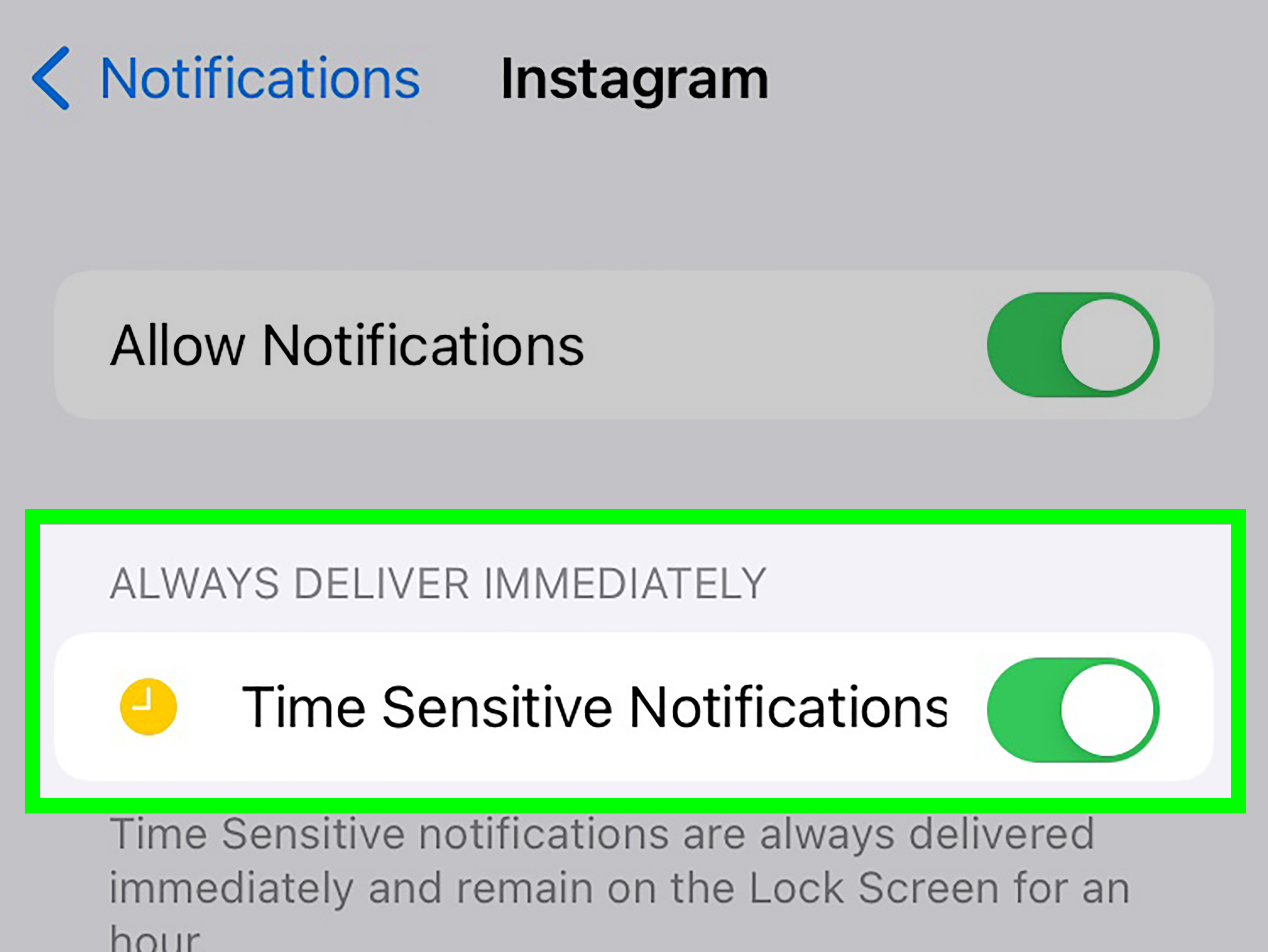
Time Sensitive notifications are a higher-priority class of alerts Apple introduced to help certain notifications arrive right away. In plain English, they are meant for things that matter now, not “whenever you finish scrolling.” Think medication reminders, ride pickup alerts, fraud warnings, security notices, or a delivery arriving at the door in thirty seconds.
That priority matters because Time Sensitive alerts can break through settings that would normally delay ordinary notifications. A regular notification might wait quietly inside a Scheduled Summary or stay muted during a Focus mode. A Time Sensitive one can skip the line and show up immediately instead. That is helpful when the alert is truly urgent. It is less charming when an app gets a little too excited about a flash sale.
The key thing to know is that not every app uses this feature, and not every app that sends notifications deserves the privilege. That is exactly why Apple gives you control over it.
Why Turn Them Off?
Most people do not go hunting for this setting because they hate all notifications. They go looking because they want better notifications. There is a difference.
You may want to turn off Time Sensitive notifications if:
- apps are interrupting Work, Sleep, or Personal Focus for things that are not actually urgent
- you use Scheduled Summary and want less important alerts bundled instead of delivered immediately
- you are getting too many “important” alerts from shopping, food, travel, or social apps
- your iPad keeps pinging at the worst possible time, usually while you are finally concentrating
- you want notifications to feel like helpful assistants, not overcaffeinated interns
Turning off Time Sensitive notifications does not always mean turning off the app completely. In many cases, it simply demotes the app back to normal behavior. That is usually the sweet spot.
How to Turn Off Time Sensitive Notifications for a Specific App
The most direct fix is to disable Time Sensitive notifications for the one app causing the problem. This is the best option if you still want regular banners, sounds, or badges, but you do not want that app bypassing your normal notification rules.
On iPhone
- Open Settings.
- Tap Notifications.
- Scroll to the app that is annoying you and tap it.
- Make sure Allow Notifications is turned on.
- Find Time Sensitive Notifications and switch it off.
Once this is off, that app can still send ordinary notifications if you allow them, but it should stop using the Time Sensitive fast pass.
On iPad
- Open Settings.
- Tap Notifications in the sidebar.
- Select the app you want to adjust.
- Leave Allow Notifications on if you still want normal alerts.
- Turn Time Sensitive Notifications off.
The steps are nearly identical on iPad. The only real difference is the layout. iPad likes to spread out, like it just bought a larger desk and wants everyone to notice.
How to Stop Time Sensitive Notifications During Focus
If you use Focus modes like Do Not Disturb, Work, Personal, Sleep, or Driving, there is a second place to check. Even if an app still has Time Sensitive notifications enabled, you can decide whether a Focus allows those alerts to break through.
Turn Off Time Sensitive Alerts Inside a Focus
- Open Settings.
- Tap Focus.
- Select the Focus you want to edit, such as Work or Sleep.
- Tap Apps or Choose Apps.
- Find the Time Sensitive Notifications toggle and turn it off.
This tells that Focus mode not to let all apps send Time Sensitive alerts immediately. It is one of the best settings for people who want a true do-not-bother-me moment.
For example, if you use a Sleep Focus, disabling Time Sensitive notifications there can stop random overnight interruptions from apps that believe a discount code is a matter of national concern. In a Work Focus, it can help you stop bouncing between tasks every time a delivery app decides to narrate your lunch order like a sporting event.
What If You Do Not See the Time Sensitive Toggle?
If the switch is missing, do not assume you are losing your mind. A few common reasons can explain it.
1. The app does not support Time Sensitive notifications
Not every app gets this option. Some apps only send regular notifications, so there is nothing extra to turn off.
2. Notifications for the app are already off
If Allow Notifications is disabled, you may not see additional notification controls because the app is already effectively silenced.
3. The app is not using the feature on your current device or software version
Developers decide how their apps use Apple’s notification categories. Sometimes the feature exists in theory but not in practice, or it appears differently after an app update.
4. You are looking in the wrong menu
For individual apps, go through Settings > Notifications. For Focus-level control, go through Settings > Focus. These are related but not interchangeable.
Other Ways to Reduce Notification Chaos
Sometimes turning off Time Sensitive notifications is the right move. Sometimes it is only part of the cleanup. If your device still feels like a tiny casino of flashing alerts, try these extra settings too.
Use Scheduled Summary
Scheduled Summary lets you bundle less urgent notifications into batches that appear at times you choose. This works well for retail apps, news alerts, game updates, or anything you want to see eventually but not instantly.
Go to Settings > Notifications > Scheduled Summary, turn it on, and select which apps belong there. If your goal is fewer interruptions instead of total silence, this is one of the smartest settings on both iPhone and iPad.
Mute an App Temporarily
If you need fast relief but do not want to dig through menus, swipe left on a live notification, tap Options, and mute that app for an hour or the rest of the day. It is a handy emergency brake when your phone starts acting like it has a personal grudge against your concentration.
Turn Off Sounds, Badges, or Lock Screen Alerts
You can also keep notifications enabled but make them less dramatic. Inside an app’s notification settings, you can adjust sounds, badges, banners, previews, and where alerts appear. Sometimes the issue is not the alert itself. It is the full Broadway production around it.
Time Sensitive vs. Priority Notifications vs. Critical Alerts
This is where people understandably get confused, because Apple now has several notification layers with very official-sounding names.
Time Sensitive Notifications
These are app notifications flagged as needing immediate attention. They can break through Focus and bypass Scheduled Summary if allowed.
Priority Notifications
These are part of Apple Intelligence on supported devices. They do not replace Time Sensitive settings. Instead, Apple Intelligence tries to surface the most important alerts near the top of the stack. In other words, Priority Notifications are about ranking what you already receive.
Reduce Interruptions
This is another Apple Intelligence-related Focus option on supported devices. It uses AI-based filtering to decide what can break through. It is broader than the older Time Sensitive setting and behaves more like a smarter gatekeeper.
Critical Alerts
Critical Alerts are in their own category. They are intended for serious health and safety cases and can even bypass mute settings. Most apps do not get this privilege. So if you turned off Time Sensitive notifications and still get something truly urgent from a medical or safety app, you may be dealing with a different alert type entirely.
Best Real-World Setups
If you are not sure how aggressively to customize things, here are a few practical setups that work well for everyday life.
The “I Need to Focus at Work” Setup
- Turn off Time Sensitive notifications for shopping, social, food delivery, and entertainment apps.
- Keep them on for calendar, rideshare, banking, and family communication apps if needed.
- Use a Work Focus with Time Sensitive allowed only if your job genuinely requires immediate alerts.
The “Please Let Me Sleep” Setup
- Turn off Time Sensitive notifications inside Sleep Focus.
- Keep emergency contacts and true essentials allowed if necessary.
- Move non-urgent apps into Scheduled Summary.
The “My iPad Is Basically a Second Office” Setup
- Review app notifications separately on the iPad instead of assuming they mirror your iPhone preferences.
- Disable Time Sensitive notifications on apps that feel harmless on a phone but obnoxious on a larger screen.
- Use previews carefully if your iPad lives on your desk around other people.
Common Mistakes to Avoid
The biggest mistake is going nuclear too quickly. People sometimes turn off all notifications for an app when they really only wanted to stop the urgent-style interruptions. That can lead to missed reminders, missed messages, or the awkward realization that you actually did want your pharmacy alerts after all.
Another mistake is only changing the app setting and forgetting Focus. If Work Focus or Sleep Focus still allows Time Sensitive alerts, you may think the app setting “did not work” when the real issue is sitting in a different menu.
And finally, many people forget that notification control is not a one-time project. Apps update. New apps get installed. A quiet phone in April can turn into a tap-dancing chaos machine by July if you never revisit your settings.
Experiences From Real Life: What It Feels Like After You Turn Them Off
For a lot of people, turning off Time Sensitive notifications is one of those tiny digital changes that ends up feeling surprisingly big. It is not dramatic in the cinematic sense. There is no slow-motion scene where your iPhone floats into the ocean while a string quartet plays. It is more subtle than that. It feels like your brain gets a little breathing room back.
A common experience is that your device suddenly stops feeling like it is in charge. Before the change, every buzz, banner, and lock-screen interruption seems to arrive with the emotional energy of “drop everything immediately.” After the change, your phone starts acting more like a tool and less like a needy coworker who keeps saying, “Got a sec?” every four minutes.
People who work from their phones or tablets often notice the biggest improvement during Focus sessions. Reading becomes easier. Writing becomes easier. Video calls become less awkward because your iPad is no longer trying to announce a coupon while you are discussing quarterly goals. The device fades into the background, which is honestly the highest compliment you can pay a piece of technology.
There is also a bedtime effect. Once Sleep Focus stops letting borderline-urgent alerts sneak through, many users realize how many interruptions were never truly necessary. Suddenly the house is quiet, the room is dark, and the only thing lighting up at 11:47 p.m. is your own bad decision to watch “just one more” episode.
Parents, caregivers, and busy professionals often land on a middle-ground setup after some trial and error. They turn Time Sensitive notifications off for retail apps, restaurant apps, games, and random services, but keep them on for school communication, banking, calendars, transportation, and health-related tools. That balance usually feels better than a total shutdown because it respects reality. Some alerts really do matter. Most do not need to crash through your attention like a marching band.
Another common experience is realizing that iPhone and iPad should not always behave the same way. On an iPhone, immediate notifications can be useful when you are out and about. On an iPad, especially one used at home or on a desk, the same alerts can feel louder and more intrusive. Many people end up keeping slightly stricter notification settings on the iPad for exactly that reason.
And yes, there is usually a tiny adjustment period. The first few days after changing settings, some people check their devices more often because they are worried they might miss something. Then the new pattern settles in. You stop reacting to every ping because there are fewer pings to react to. Your attention stretches out. Your screen time may even drop a little, mostly because your phone is no longer constantly baiting you into “quick checks” that somehow become 18-minute detours.
In other words, turning off Time Sensitive notifications is not about becoming unreachable. It is about deciding that not everything deserves front-row access to your mind. That is a pretty good policy for technology, and honestly, not a terrible policy for life.
Conclusion
If Time Sensitive notifications on your iPhone or iPad are starting to feel less “helpful” and more “dramatic,” you do not have to live with them. You can turn them off for individual apps, block them inside Focus modes, and use tools like Scheduled Summary to keep your day from getting sliced into tiny interruptions.
The smartest setup is usually not total silence. It is selective control. Keep the alerts that genuinely matter. Demote the ones that only think they matter. Your phone will still work, your iPad will still be useful, and your attention span may send you a thank-you card.