Every Pinterest account eventually reaches that awkward closet-cleaning moment. One day, your boards are full of inspiration: dream kitchens, capsule wardrobes, weekend recipes, clever storage ideas, and one suspiciously specific board called “Tiny Homes I Will Buy When I Become Mysterious.” Then, months or years later, half of those boards no longer fit your taste, your brand, your business, or your life. That is when learning how to delete a board on Pinterest becomes very useful.
The good news: deleting a Pinterest board is easy on both mobile and desktop. The slightly more serious news: deleting a board also removes the Pins saved inside it. Pinterest gives you a short restore window, but you should still treat the delete button like a tiny red trapdoor. Before you tap it, make sure you know what you are deleting, whether you should archive instead, and how to save any Pins you still want.
This guide explains how to delete a Pinterest board on iPhone, Android, and desktop, plus what happens after deletion, how to restore a deleted board, how to delete Pins instead of the whole board, and when archiving is the smarter choice. Think of it as a digital decluttering session, minus the dust bunnies.
What Is a Pinterest Board?
A Pinterest board is a collection where you save Pins around a topic. You might have boards for recipes, home decor, fashion, travel, wedding planning, workouts, classroom ideas, client inspiration, or blog content. Boards help Pinterest understand your interests and help other users understand what your profile is about.
For personal users, boards are a way to organize ideas. For creators, bloggers, shops, and brands, boards can also support Pinterest SEO. A clear board title like “Easy Weeknight Dinner Recipes” is more useful than “Yummy Stuff,” both for humans and search engines. But when a board becomes outdated, irrelevant, empty, off-brand, or just plain embarrassing, deleting it may be the cleanest option.
Before You Delete: Important Things to Know
Before you remove a Pinterest board, pause for a moment. Deleting is simple, but the consequences matter.
Deleting a Board Deletes the Pins Inside It
When you delete a Pinterest board, the Pins saved to that board are removed from that board as well. If those Pins were saved only there, you may lose easy access to them. If you still care about some of the Pins, move them to another board first.
You May Have a Short Restore Window
Pinterest currently provides a limited restore window for recently deleted boards. If you change your mind soon enough, you may be able to restore the board from the “Recently deleted” section. However, do not rely on this as your main safety plan. It is better to move important Pins before deleting.
Archiving May Be Better Than Deleting
If you do not want a board on your public profile but might want it later, archive it instead. Archived boards are removed from the public profile area and are no longer active for saving new Pins, but they can be unarchived. This is perfect for seasonal boards, completed projects, old wedding ideas, retired campaigns, or that board full of Halloween porch decor you only need once a year.
Group Boards Work Differently
If you own a group board, you can delete it like a normal board. If you are only a collaborator, you usually need to leave the group board instead of deleting it. In other words, if it is not your party, you cannot bulldoze the venue.
How to Delete a Board on Pinterest Mobile
The Pinterest app experience is similar on iPhone and Android, although wording can vary slightly depending on your app version and account type. Make sure your Pinterest app is updated before you start, because old app versions can hide buttons in strange places like they are playing digital hide-and-seek.
How to Delete a Pinterest Board on iPhone
- Open the Pinterest app on your iPhone.
- Log in to your Pinterest account.
- Tap your profile picture in the bottom-right corner.
- Tap Boards. If you use a business account, you may need to tap Saved.
- Tap the board you want to delete.
- Tap the three-dot menu in the top-right corner.
- Select Edit board.
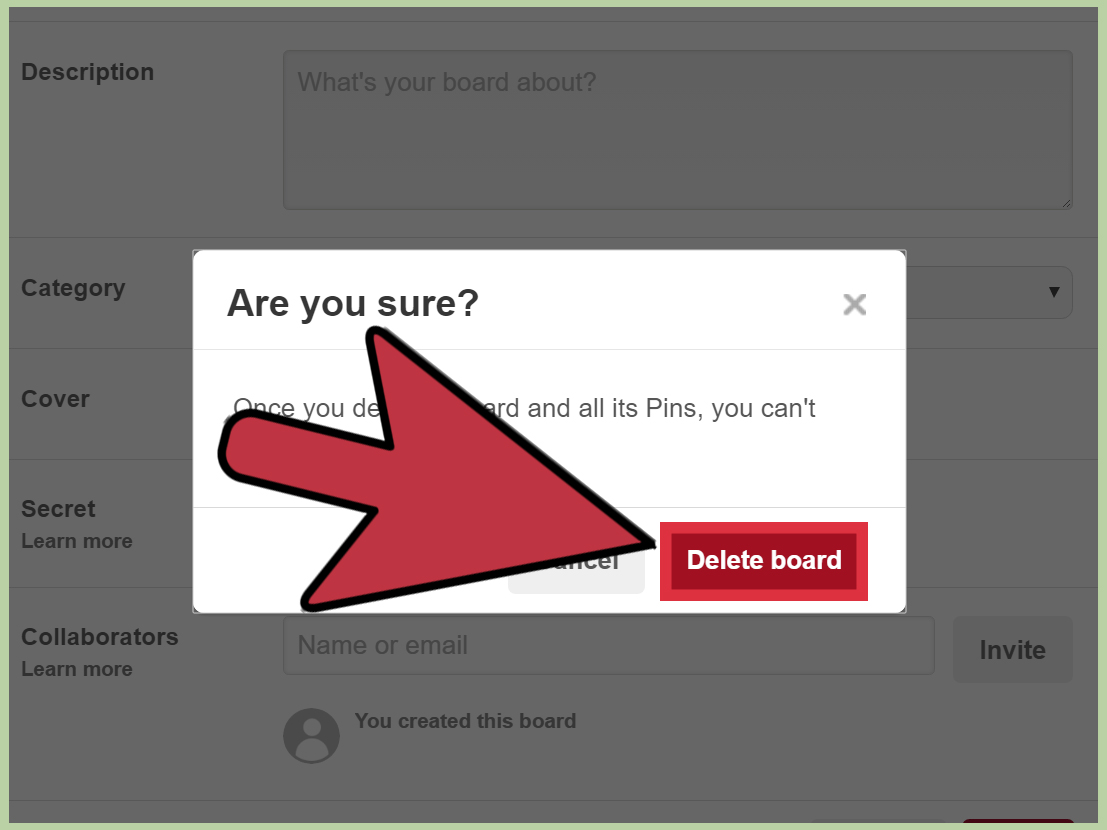
- Scroll down and tap Delete or Delete board.
- Confirm by tapping Delete or Delete forever.
Once confirmed, the board is removed from your profile. If you accidentally delete the wrong board, check the “Recently deleted” section quickly to see whether restore is available for your account and device.
How to Delete a Pinterest Board on Android
- Open the Pinterest app on your Android phone or tablet.
- Sign in to the correct Pinterest account.
- Tap your profile picture at the bottom-right of the screen.
- Tap Boards, or tap Saved if you are using a Pinterest business account.
- Open the board you want to remove.
- Tap the three-dot menu at the top-right.
- Choose Edit board.
- Scroll to the bottom and tap Delete board.
- Tap Delete forever to confirm.
Android users may also be able to restore recently deleted boards from the app during the restore period. Still, treat deletion as permanent for practical purposes. The safest rule is simple: if you would be sad to lose it, move it first.
How to Delete a Pinterest Board on Desktop
If you prefer a bigger screen, deleting a Pinterest board on desktop is straightforward. Desktop is also handy when you want to review a board carefully before deleting it, especially if it has dozens or hundreds of Pins.
Delete a Board from Pinterest.com
- Go to Pinterest.com in your browser.
- Log in to your account.
- Click your profile picture or profile menu in the top-right corner.
- Open your profile and go to your saved boards.
- Click the board you want to delete.
- Click the three-dot menu near the board name.
- Select Edit board.
- Click Delete near the bottom-left of the edit window.
- Click Delete forever to confirm.
Desktop is often the best option when cleaning up a business Pinterest account because you can open multiple tabs, compare board topics, review titles, and decide whether deleting, archiving, merging, or renaming makes more sense.
How to Restore a Deleted Pinterest Board
If you deleted a board and immediately felt your soul leave your body, breathe. Pinterest may let you restore a recently deleted board within a limited time. The available restore options can vary by device and account type, but the general process is simple.
Restore on Desktop
- Log in to Pinterest on your computer.
- Open your profile.
- Go to the Saved tab.
- Scroll to the Recently deleted boards section.
- Select the board you want back.
- Click Restore.
Restore on Android
- Open the Pinterest app.
- Tap your profile picture.
- Go to Boards.
- Scroll to Recently deleted.
- Tap Restore.
- Select the board and confirm restoration.
If you do not see the board, the restore window may have passed, the feature may not be available on your device, or you may be logged in to the wrong account. Yes, that last one happens more often than people admit.
Should You Delete, Archive, Rename, or Merge?
Deleting is not always the best answer. Pinterest gives you several ways to clean up your profile without losing useful content.
Delete the Board If It Is Truly Useless
Delete a board when it is empty, irrelevant, duplicated, off-brand, or filled with Pins you no longer want. For example, if you once saved 200 Pins about “DIY Neon Dorm Room Ideas” and you now run a minimalist architecture account, that board may be doing nothing except confusing your audience.
Archive the Board If You Might Need It Later
Archiving is ideal for temporary or seasonal boards. A board for “Christmas Cookie Ideas,” “Bathroom Remodel Inspiration,” or “Summer Camp Activities” may not need to sit on your public profile all year. Archive it, keep the Pins, and unarchive it later if needed.
Rename the Board If the Topic Is Still Useful
Sometimes the problem is not the board; it is the name. A board called “Stuff I Like” can become “Modern Living Room Decor Ideas.” A board called “Food” can become “Healthy Meal Prep Recipes.” Better names improve clarity, usability, and Pinterest SEO.
Move Pins If Only Some Content Is Worth Saving
If a board is messy but contains a few gems, move those Pins to another board first. Open the board, choose Organize, select the Pins you want, and move them to a more relevant board. This is the Pinterest version of rescuing the good socks before throwing out the drawer.
How to Move Pins Before Deleting a Board
Moving Pins is a smart step before deleting a board. It prevents the classic “Wait, where did that recipe go?” panic.
Move Pins on Desktop
- Open Pinterest and go to your profile.
- Click the board that contains Pins you want to save.
- Click Organize at the top of the board.
- Select the Pins you want to move.
- Click Move.
- Choose the destination board or section.
- Save the changes.
Move Pins on Mobile
- Open the Pinterest app.
- Tap your profile picture.
- Open the board you want to clean up.
- Tap Organize.
- Select the Pins you want to keep.
- Tap the move icon.
- Choose the new board or section.
After moving the Pins you care about, return to the original board and delete it with confidence. Or at least with less dramatic background music.
How to Delete a Pinterest Board Section
A board section is a smaller category inside a board. For example, inside a “Home Office Ideas” board, you might have sections for desks, lighting, shelves, and cable management. If one section becomes unnecessary, you may not need to delete the entire board.
To remove a section, open the board, go into the section, use the edit or menu option, and look for the delete option. Before deleting, check whether Pinterest gives you the option to move Pins out of the section. If you delete the wrong section without moving Pins, you may create extra work for yourself.
Why You Might Want to Delete a Pinterest Board
There are plenty of good reasons to delete a board. Here are the most common ones.
Your Interests Changed
Pinterest often captures who we were at a specific moment. Maybe you used to love farmhouse kitchens, but now you prefer sleek modern design. Maybe you planned a wedding five years ago and no longer need 600 centerpiece ideas. Life changes; your boards can change too.
Your Profile Looks Cluttered
Too many boards can make a profile hard to browse. If users cannot quickly understand what your account is about, they may leave. A clean profile helps visitors find your best content faster.
You Have Duplicate Boards
It is easy to create similar boards over time. “Dinner Ideas,” “Easy Dinners,” “Weeknight Meals,” and “Food to Make” may all overlap. Keeping one strong board and removing duplicates can improve organization.
You Run a Business Account
For business users, irrelevant boards can dilute your brand. If you sell handmade candles, a public board about random celebrity haircuts might not support your marketing goals. Unless, of course, your candle line is called “Random Celebrity Haircuts,” in which case, carry on.
Common Problems When Deleting a Pinterest Board
I Do Not See the Delete Button
Make sure you are inside the board and not just viewing it from your profile grid. Open the board, tap or click the three-dot menu, and choose Edit board. The delete option is usually near the bottom.
I Cannot Delete a Group Board
If you are not the owner, you cannot delete the board for everyone. Instead, leave the group board. Open the group board, tap or click the collaborator area, find your name, and choose the option to leave.
The App Looks Different From This Guide
Pinterest updates its interface regularly. If the wording is slightly different, look for similar labels such as Edit board, Delete, Delete board, Archive, or Organize. Also try updating the app or using desktop.
I Deleted the Wrong Board
Go to your profile and look for “Recently deleted.” If the board is still inside the restore period and restoration is available for your device, restore it immediately. If not, you may need to rebuild the board manually.
Best Practices for Pinterest Board Cleanup
Deleting boards should be part of a thoughtful cleanup process, not a late-night rage-clicking session after drinking too much coffee. Use these tips to tidy your account safely.
Review Boards Quarterly
Every few months, review your boards. Ask whether each board still matches your interests, niche, audience, or business goals. If it does not, rename it, archive it, merge it, or delete it.
Use Clear Board Names
Choose names that explain the topic. “Small Bathroom Storage Ideas” is stronger than “Bathroom Maybe.” Clear names help both Pinterest users and search engines understand your content.
Keep Strong Pins Before Deleting
Before deleting a board, scan it for Pins worth keeping. Move those Pins to a better board. This is especially important if you use Pinterest for blogging, affiliate marketing, ecommerce, or content planning.
Archive Seasonal Boards
If a board is useful only part of the year, archive it instead of deleting it. Holiday decor, school-year planning, garden inspiration, and event boards often belong in the archive pile, not the digital shredder.
Personal Experience: What Deleting Pinterest Boards Actually Feels Like
Deleting a Pinterest board sounds simple, but in real life, it can feel weirdly emotional. A board is not just a folder. It is a tiny time capsule of who you were when you saved those ideas. One board might remind you of the apartment you wanted to decorate. Another might hold recipes from a fitness phase that lasted exactly nine days. Another might contain travel ideas from a trip you never took but still mentally packed for.
The first time I cleaned up a Pinterest profile seriously, I expected it to be a five-minute job. Instead, I found boards with vague names, duplicate ideas, abandoned projects, and Pins that made me wonder if I had been replaced by a raccoon with Wi-Fi. There were three separate boards for home office inspiration, two boards for recipes I had never cooked, and one board full of “future backyard” ideas despite not having a backyard. Pinterest has a way of making optimism look organized.
The biggest lesson was not to delete too quickly. At first, it was tempting to remove every board that looked messy. But some boards only needed better names. Others needed archiving. A few had valuable Pins hidden inside, like a great storage idea or a useful article. Moving those Pins before deleting saved a lot of regret. It also made the final profile cleaner without feeling like I had thrown away useful inspiration.
For personal accounts, the best approach is emotional but practical. If a board still makes you happy or might help later, archive it. If it feels outdated but contains good Pins, move them. If it is empty, duplicated, irrelevant, or connected to a project you have fully abandoned, delete it. You do not need to keep a board forever just because it once felt important. Digital clutter is still clutter, even when it has pretty pictures.
For business accounts, the decision is more strategic. A Pinterest profile should communicate a clear topic. If someone lands on your profile and sees boards about recipes, luxury handbags, dog training, tax planning, and bathroom tile, they may not know what you actually do. Removing or archiving off-topic boards can make the profile feel more professional. It also helps you focus your content planning around boards that support your niche.
One useful habit is to create a “parking lot” board before deleting anything. Make it secret, then move questionable Pins there while you decide what to keep. After a week or two, review that board. If you have not missed the old content, delete the original board. This adds one extra step, but it prevents accidental loss and gives you time to think clearly.
Another helpful trick is to sort boards before cleanup. Use alphabetical sorting, recent activity sorting, or manual ordering to see what feels out of place. Boards that have not been used in years often become obvious when you look at the full profile. It is like opening a closet and immediately spotting the jacket you bought for a version of yourself who apparently attended yacht parties.
In the end, deleting a Pinterest board is less about removing ideas and more about making room for better ones. A clean Pinterest account is easier to browse, easier to maintain, and more useful. Whether you are planning meals, designing a home, building a brand, or organizing blog content, fewer stronger boards usually beat dozens of chaotic ones. Delete with care, archive with wisdom, and never underestimate the power of a good board title.
Conclusion
Learning how to delete a board on Pinterest is simple once you know where the setting lives. On mobile, open your profile, tap the board, use the three-dot menu, choose Edit board, and select Delete or Delete board. On desktop, open the board from your profile, click the three-dot menu near the board name, choose Edit board, then click Delete and confirm.
The smarter question is whether you should delete the board at all. If the board is outdated but still useful, archive it. If the Pins matter, move them first. If it is a group board you do not own, leave it instead. And if the board truly has no purpose anymore, delete it confidently and enjoy the clean profile. Your Pinterest account deserves breathing room, too.