Calling a business, hospital, school office, bank, customer support desk, or that one coworker who somehow has a seven-digit extension can feel like entering a secret code in a spy movie. You dial the main number, wait through the greeting, listen to the menu, miss the extension prompt, panic-tap random numbers, and suddenly you are learning about office holiday hours from 2019. Good news: your iPhone can make this much easier.
Whether you want to dial an extension once or save it forever in your Contacts app, iPhone has built-in tools that let you add a pause or a wait directly into the phone number. The main trick is understanding two tiny symbols: the comma and the semicolon. A comma tells your iPhone to pause briefly before dialing the extension. A semicolon tells your iPhone to wait until you manually tap again. Small punctuation, big productivity energy.
This guide explains how to dial extensions on iPhone, how to add extensions to contacts, when to use Pause versus Wait, and how to troubleshoot common issues when the extension does not dial correctly. By the end, you will be able to call direct lines like a calm, organized adulteven if your coffee has not kicked in yet.
What Is a Phone Extension?
A phone extension is a short number added after a main phone number to reach a specific person, department, desk, room, or menu option. For example, a company may have one public phone number for everyone, but individual employees may have extensions such as 203, 4217, or 1009.
Instead of giving every staff member a separate public number, businesses use a phone system that routes callers after they enter the correct extension. You have probably heard prompts like, “If you know your party’s extension, you may dial it at any time.” That is your cue. Your iPhone can store that cue for you.
The Two iPhone Extension Tools: Pause and Wait
Before you start saving extensions, it helps to know the difference between Pause and Wait. These two options are built into the iPhone Phone and Contacts apps, and they are the secret sauce behind automatic extension dialing.
Pause: Best for Simple Extensions
A pause inserts a comma into the phone number. On iPhone, each comma creates a short delay before the next digits are dialed. The saved number may look like this:
555-123-4567,204
In this example, the iPhone dials the main number, pauses briefly, and then automatically dials extension 204. This is ideal for phone systems that answer quickly and allow you to enter the extension right away.
Wait: Best for Complicated Phone Menus
A wait inserts a semicolon into the phone number. The saved number may look like this:
555-123-4567;204
With Wait, your iPhone dials the main number but does not automatically send the extension. Instead, it waits for you to tap a button on the call screen when the phone system is ready. This is helpful when a business has a long greeting, a menu that changes, or a system that refuses to accept numbers until the robotic voice finishes its speech.
How to Dial an Extension on iPhone One Time
If you only need to call an extension once, you do not have to create a contact. You can dial the number directly from the Phone app.
Method 1: Dial an Extension Using Pause
Use this method when the phone system accepts the extension shortly after answering.
- Open the Phone app on your iPhone.
- Tap Keypad.
- Enter the main phone number.
- Touch and hold the * key until a comma appears.
- Enter the extension number.
- Tap the green Call button.
Example:
5551234567,204
Your iPhone will call the main number, pause, and then dial 204 automatically. If the extension fires too early, add another comma before the extension. Think of each comma as asking your iPhone to take a tiny breath before continuing.
Method 2: Dial an Extension Using Wait
Use Wait when the phone system needs you to listen first, choose a language, or survive a long automated greeting.
- Open the Phone app.
- Tap Keypad.
- Enter the main phone number.
- Touch and hold the # key until a semicolon appears.
- Enter the extension number.
- Tap the green Call button.
- When the call connects and the system is ready, tap the extension prompt on your iPhone screen to send the digits.
Example:
5551234567;204
This method gives you more control. It is less automatic, but it is often more reliable for old-school office phone systems that behave like they were assembled during the era of fax machines and mysterious beige computers.
How to Add an Extension to an Existing iPhone Contact
If you call the same extension often, save it in your Contacts app. This turns a mildly annoying weekly task into a one-tap call.
Add an Extension with Pause
- Open the Contacts app, or open the Phone app and tap Contacts.
- Select the contact you want to edit.
- Tap Edit in the upper-right corner.
- Tap the phone number field.
- Move the cursor to the end of the main phone number.
- Tap the +*# button on the keypad.
- Tap Pause. A comma will appear.
- Enter the extension number.
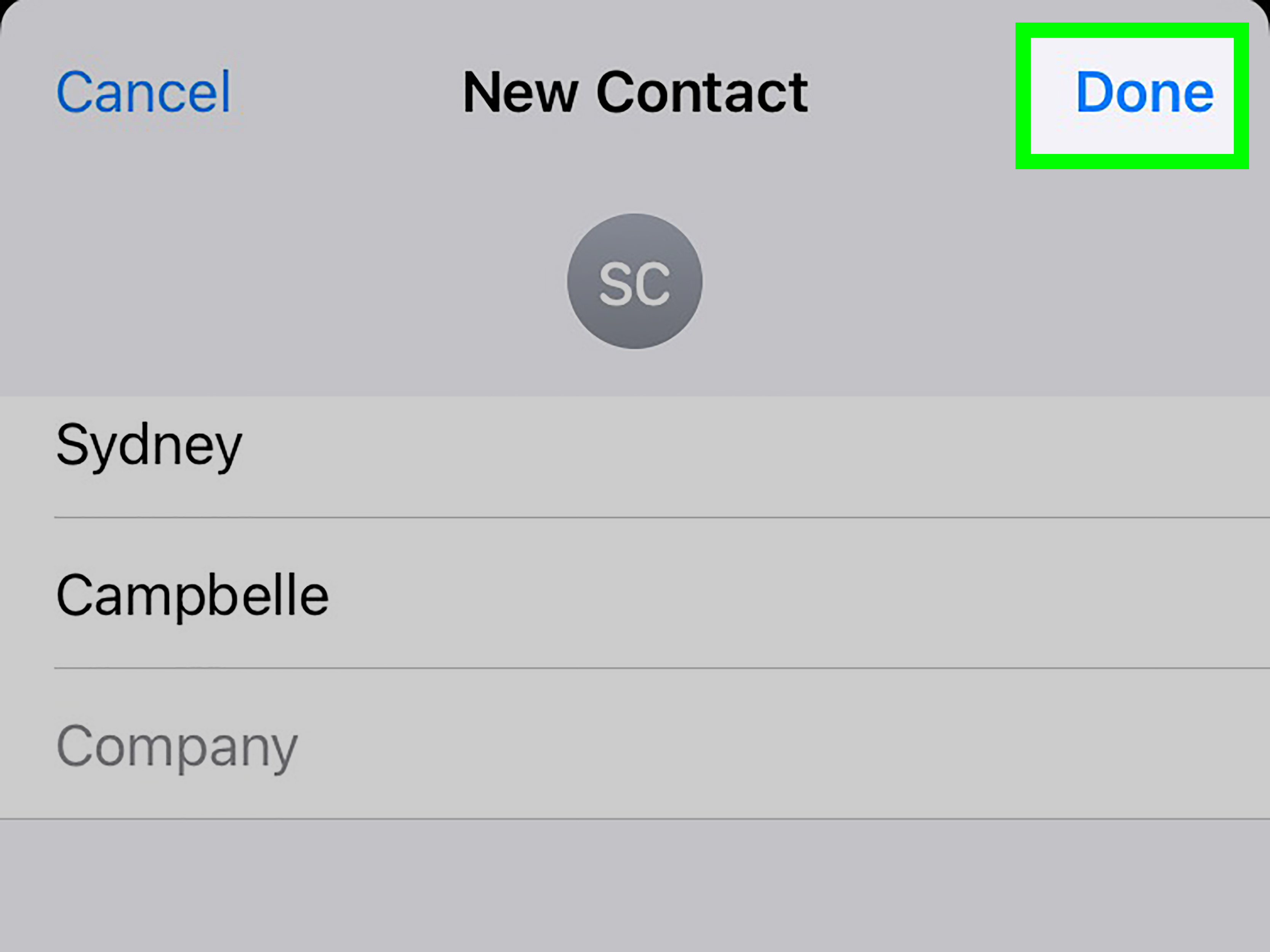
- Tap Done.
For example, if the office number is 555-123-4567 and the extension is 204, the saved number becomes:
555-123-4567,204
The next time you call that contact, your iPhone will dial the main number, pause, and then dial the extension for you.
Add an Extension with Wait
Use this option when the extension should not be sent until you manually choose to send it.
- Open Contacts.
- Choose the contact.
- Tap Edit.
- Tap the phone number field.
- Place the cursor at the end of the main number.
- Tap +*#.
- Tap Wait. A semicolon will appear.
- Enter the extension.
- Tap Done.
Example:
555-123-4567;204
When you call this contact, your iPhone will connect to the main number first. Then, when the system asks for the extension, you can tap the on-screen option to send it.
How to Create a New Contact with an Extension
Adding an extension to a new iPhone contact works almost the same way as editing an existing one.
- Open Contacts.
- Tap the + button.
- Enter the contact’s name, company, or department.
- Tap Add Phone.
- Enter the main phone number.
- Tap +*#.
- Choose Pause or Wait.
- Enter the extension number.
- Tap Done.
A practical example might be:
Dr. Martin Office: 555-222-8899,315
Or, if the office phone system takes forever to get to the extension prompt:
Dr. Martin Office: 555-222-8899;315
Saving extensions this way is especially useful for doctors, school offices, insurance agents, apartment managers, technical support lines, HR departments, and anyone else whose phone number comes with a tiny numerical treasure map.
Pause vs. Wait: Which One Should You Use?
The best choice depends on how the phone system behaves after it answers.
Use Pause When:
- The system accepts the extension immediately.
- The greeting is short.
- You call the number often and want the fastest option.
- The extension works reliably after one or two pauses.
Use Wait When:
- The automated greeting is long.
- The system says, “Please listen carefully, as our menu options have changed.”
- The extension fails when dialed too early.
- You need to choose when the extension is sent.
As a rule of thumb, start with Pause for simple office extensions. If the call does not connect correctly, switch to Wait. If you are dealing with a phone tree that seems personally committed to wasting your lunch break, Wait is usually the safer move.
How to Add Multiple Pauses for Slower Phone Systems
Some phone systems need more time before they accept an extension. In that case, you can add more than one comma.
Example:
555-123-4567,,204
That second comma adds another short pause before the extension is dialed. You can use multiple commas if needed:
555-123-4567,,,204
This is useful for offices where the greeting starts with a long intro such as, “Thank you for calling. Your call is important to us. Please note that our website contains answers to many common questions…” By the time the system gets to the extension prompt, your iPhone will finally be ready to send the digits.
How to Save Menu Options, Not Just Extensions
Extensions are not the only numbers you can save. You can also save menu choices. For example, maybe your pharmacy requires you to call the main number, press 2 for prescriptions, then press 1 for refills.
You could save the number like this:
555-333-7777,2,1
Or, if the menu system requires more time:
555-333-7777;2;1
For many people, a mix of Pause and Wait works best:
555-333-7777,2;1
That format tells your iPhone to dial the main number, pause, send 2, then wait for you before sending 1. It may look like a secret launch code, but it can save a lot of repetitive tapping.
Common Problems When Dialing Extensions on iPhone
Even though the feature is simple, extension dialing can be a little picky. If your saved number does not work correctly, one of these fixes usually solves the problem.
The Extension Dials Too Early
If the extension dials before the phone system is ready, add another comma. If that still fails, replace the comma with a semicolon and use Wait instead.
The Extension Does Not Dial at All
Check that the extension was entered after the comma or semicolon. Also make sure you did not accidentally add a space, extra symbol, or wrong digit. Phone systems are not known for being forgiving.
The Call Goes to the Wrong Department
The menu may have changed. Businesses update phone trees more often than anyone wants. Call manually once, confirm the current extension or menu path, then update the saved contact.
The Contact Syncs Incorrectly
If you sync contacts through iCloud, Google, Outlook, or another service, check that the comma or semicolon remains in the number after syncing. Most modern contact systems handle these characters well, but formatting can occasionally get cleaned up in ways that are not helpful.
The Extension Works on Speaker but Not Normally
This is often a timing issue, not a speaker issue. Add more pauses or use Wait so you can send the extension at the correct moment.
Best Practices for Saving Extensions on iPhone
Once you start saving extensions, a little organization goes a long way. Use clear labels so you know what each number does. For example, instead of saving three identical “work” numbers, label them as “Main Office,” “Billing,” “Support,” or “Front Desk.”
You can also add notes in the contact record. For example:
Use extension 315 for scheduling. Press 2 first after hours.
This is especially handy for medical offices, school departments, or companies where different times of day route calls differently.
If you call several extensions at the same organization, consider creating separate contacts. For example:
- ABC Company – Reception
- ABC Company – Payroll
- ABC Company – Tech Support
- ABC Company – Manager Extension 204
This makes Spotlight search, Siri, and the Phone app easier to use. Saying “Call ABC Company Payroll” is much easier than remembering whether payroll was extension 214, 241, or the one you accidentally saved under “Bob maybe accounting.”
Can Siri Dial Extensions?
Yes, Siri can call a contact that already has an extension saved in the phone number. For example, if you saved a contact as 555-123-4567,204, you can say, “Hey Siri, call Office Manager,” and the iPhone should dial the saved number with the extension behavior included.
However, asking Siri to dial a brand-new extension verbally may not always work the way you expect. For the most reliable results, save the full number with Pause or Wait in Contacts first. Siri is helpful, but she is not always excited about interpreting a spoken phone tree while you are walking through a parking lot with wind attacking the microphone.
Can You Use Extensions with FaceTime Audio?
Traditional phone extensions are designed for standard phone calls, not FaceTime Audio. If you are calling a business line with an extension, use the regular Phone app. FaceTime Audio works through Apple’s internet-based calling system and does not interact with company phone trees in the same way.
Can You Add Extensions to Favorites?
Yes. Once a contact has a phone number saved with an extension, you can add that contact to your Favorites. Open the contact, tap Add to Favorites, and choose the correct phone number. This is perfect for numbers you call frequently, such as a workplace desk, family doctor, apartment office, or customer support line.
Privacy and Safety Tips When Saving Extensions
Saving extensions is convenient, but be thoughtful about what you store. Avoid saving sensitive passcodes, account PINs, voicemail passwords, or private access codes directly in a contact unless you are sure it is safe. Anyone with access to your unlocked iPhone could potentially see or use those saved numbers.
For ordinary office extensions, department menus, and public business phone trees, saving the number is usually fine. For anything related to financial accounts, medical portals, or secure systems, it is better to enter private codes manually or store them in a secure password manager.
Real-Life Examples of iPhone Extension Dialing
Example 1: Calling a Doctor’s Office
You call your doctor’s main office at 555-444-1200, and scheduling is extension 3. If the system accepts numbers quickly, save:
555-444-1200,3
Example 2: Calling a Coworker
Your coworker’s company number is 555-900-3000, and their extension is 2288. Save:
555-900-3000,2288
Example 3: Calling a Support Line with a Long Greeting
The support line is 555-700-1111, but the system takes a long time before it accepts extension 45. Save:
555-700-1111;45
Example 4: Calling a Multi-Step Menu
You call your pharmacy at 555-818-9090, press 2 for prescriptions, then 1 for refills. Try:
555-818-9090,2,1
If that moves too quickly, use:
555-818-9090;2;1
Extra Experience: What I’ve Learned from Using iPhone Extensions in Daily Life
After using extension dialing on iPhone for everyday calls, the biggest lesson is simple: timing matters more than anything. The correct extension can still fail if the phone system is not ready to receive it. That is why Pause works beautifully for some numbers and fails dramatically for others. A fast office system may accept a comma and extension immediately. A slower customer service line may need two commas, three commas, or a semicolon because it insists on finishing its grand speech first.
One practical habit is to test a saved extension right after creating it. Do not wait until you are standing outside in the rain trying to call an office before it closes in four minutes. Save the number, call it once, and see whether the extension lands where it should. If it goes to the wrong department, add another pause or change Pause to Wait. This tiny test can save future-you from making the same call three times while questioning all your life choices.
Another useful experience is labeling contacts clearly. A saved extension is only helpful if you remember what it does. For example, a contact named “Insurance” is less useful than “Insurance – Claims Extension 402.” When you have multiple contacts at the same company, clear naming prevents confusion. It also makes search easier. You can open Contacts or Spotlight, type “claims,” and get the exact number instead of scrolling through a list of nearly identical company names.
For businesses with rotating menus, Wait is often the better long-term choice. Menus change. Departments move. A company might decide that “Press 2 for billing” is now “Press 4 for billing,” because apparently everyone needed a little chaos. When you use Wait, you can listen first and send the saved digits only when they still make sense. It is slightly less automatic, but much more flexible.
For family use, saving extensions can help older relatives or less tech-comfortable users. Instead of explaining, “Call the main number, wait for the greeting, then press 3, then enter 104,” you can set up the contact once. Add the extension with a pause or wait, label it clearly, and place it in Favorites. That turns a confusing phone tree into a simple tap. It is a small setup task, but it can make routine calls much easier.
It is also smart to keep extensions updated. If you call a number and discover that the extension changed, edit the contact immediately. Otherwise, the outdated version sits there like a tiny digital prank waiting to annoy you later. The same goes for businesses that add new menu options. A contact that worked last year may need a new pause, a new wait, or a completely different menu path today.
Finally, do not over-automate sensitive calls. Saving a department extension is fine. Saving a private PIN or secure account code directly into a phone number is usually not worth the risk. Convenience is great, but security deserves a seat at the table too. Use iPhone extension dialing for public routing numbers, business extensions, and menu shortcuts. Keep private codes somewhere safer.
The best part of this feature is that it is quiet. It does not require a special app, subscription, shortcut, or complicated setup. It is already built into your iPhone. Once you know that commas mean Pause and semicolons mean Wait, you can turn messy phone trees into neat, one-tap contacts. That may not make automated menus lovable, but it does make them a lot less annoying.
Conclusion
Learning how to dial extensions on iPhone is one of those small skills that feels surprisingly powerful once you use it. Instead of manually typing the same extension over and over, you can add a pause or wait directly into the number. Use a comma when the extension can be dialed automatically after a short delay. Use a semicolon when you want to control exactly when the extension is sent.
For contacts you call often, saving the extension is the real upgrade. Open the contact, edit the phone number, tap +*#, choose Pause or Wait, enter the extension, and save. That is it. Your iPhone can now handle the boring part of the call while you focus on the actual conversationor at least on finding a quiet place where the hold music sounds less like a haunted elevator.
Note: iPhone menus and labels may vary slightly depending on iOS version, region, carrier, and contact sync provider. The core method remains the same: use Pause for automatic dialing and Wait for manual control.