Note: This article is written from current, real installation information from official WhatsApp, Microsoft, Apple, and app-store guidance. It is fully rewritten for publication and contains no source-code explanations or citation placeholders.
Introduction: Put WhatsApp on the Big Screen Without Making It Weird
Installing WhatsApp on a Mac or PC is one of those small upgrades that makes daily messaging feel dramatically easier. Instead of pecking at your phone like a very focused pigeon, you can type on a full keyboard, drag files from your desktop, manage group chats faster, and keep conversations open while you work, study, plan a trip, or pretend you are definitely not ignoring that one family group chat.
The good news is that WhatsApp Desktop is simple to install on Windows and macOS. The slightly important news is that you still need WhatsApp on your phone first, because your desktop app is linked to your main WhatsApp account. Once linked, your Mac or PC becomes a companion device, meaning you can send messages, receive media, make calls where supported, and keep chats synced across devices.
This guide walks you through how to install WhatsApp on Mac or PC in 15 steps, including Windows installation, Mac installation, QR code linking, phone-number linking, setup tips, safety checks, and troubleshooting advice. No tech wizard hat required. A normal hat is fine.
Before You Install WhatsApp Desktop
What You Need
Before downloading WhatsApp for desktop, make sure you have a few basics ready. You need an active WhatsApp account on your smartphone, a stable internet connection, access to your phone camera or phone verification options, and a supported version of Windows or macOS. If your computer is older than your favorite hoodie and updates give it emotional damage, check the operating system first.
For Windows users, the official WhatsApp Desktop app is available through the Microsoft Store and WhatsApp’s download page. For Mac users, WhatsApp can be downloaded from the WhatsApp download page or the Apple App Store. If your operating system is not supported, you can still use WhatsApp Web in a browser, which is the “I don’t want to install anything today” option.
Desktop App vs. WhatsApp Web
WhatsApp Desktop is a dedicated app installed on your computer. It usually feels smoother, supports system notifications more naturally, and is better if you use WhatsApp often. WhatsApp Web runs inside your browser at web.whatsapp.com and is great for quick use, school computers, temporary devices, or situations where installing software is not allowed.
Think of the desktop app as having WhatsApp move into your computer with a little suitcase. WhatsApp Web is more like WhatsApp visiting for coffee.
How to Install WhatsApp on Mac or PC: 15 Steps
-
Step 1: Confirm WhatsApp Is Working on Your Phone
Open WhatsApp on your iPhone or Android phone and make sure your account is active. Send a test message if needed. Your desktop setup depends on your primary phone account, so do not start on the computer if your phone version is not working yet.
-
Step 2: Update WhatsApp on Your Phone
Go to the Apple App Store or Google Play Store and check whether WhatsApp needs an update. Updating first reduces linking errors, missing features, and random “why is technology like this?” moments.
-
Step 3: Check Your Computer’s Operating System
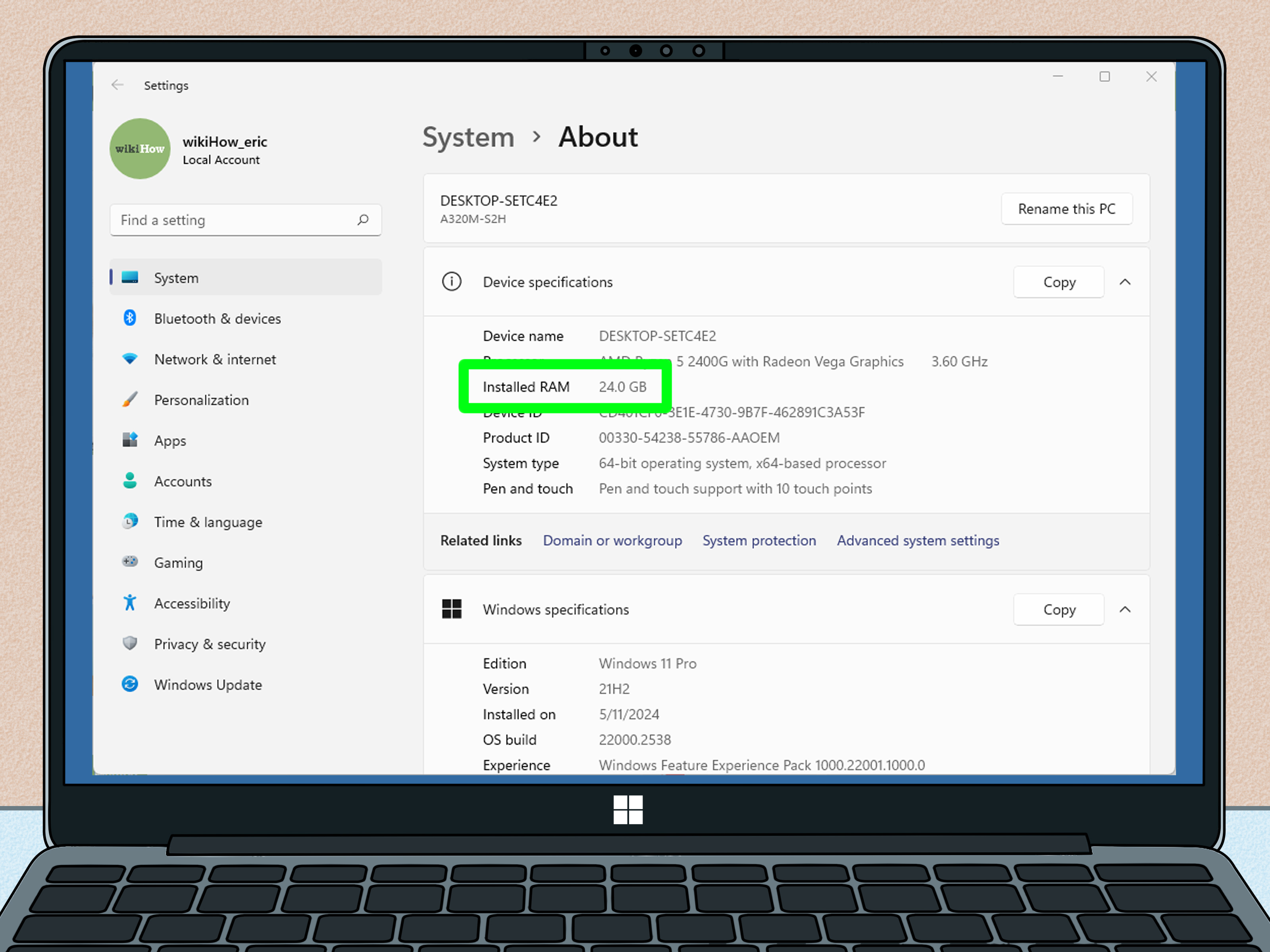
On Windows, open Settings and look for system information to confirm your Windows version. On Mac, click the Apple menu and choose “About This Mac” to see your macOS version. If your system is too old, update it if possible or use WhatsApp Web instead.
-
Step 4: Open the Official Download Source
For the safest installation, use WhatsApp’s official download page, the Microsoft Store on Windows, or the Apple App Store on Mac. Avoid random download websites promising “WhatsApp Pro Ultra Deluxe 9000.” That is how computers get sad.
-
Step 5: Install WhatsApp on Windows
On a Windows PC, open the Microsoft Store and search for “WhatsApp.” Choose the app published by WhatsApp or Meta, then click “Get” or “Install.” Wait for the download to complete, then open the app from the Start menu or the Store page.
-
Step 6: Install WhatsApp on Mac
On a Mac, open the Apple App Store and search for “WhatsApp,” or download the Mac version from WhatsApp’s official site. If you use the App Store, click “Get” and then “Install.” If you download a file from WhatsApp’s website, open the downloaded file and follow the on-screen prompts.
-
Step 7: Launch WhatsApp Desktop
After installation, open WhatsApp on your Mac or PC. You should see a screen asking you to link your account. Most users will see a QR code. Keep this screen open because your phone needs to scan it.
-
Step 8: Open Linked Devices on Android
On Android, open WhatsApp, tap the three-dot menu, choose “Linked devices,” and tap “Link a device.” Your phone may ask you to unlock with your PIN, fingerprint, face unlock, or other security method.
-
Step 9: Open Linked Devices on iPhone
On iPhone, open WhatsApp, go to Settings, tap “Linked Devices,” and choose “Link a Device.” Confirm your identity if your phone asks. This protects your account from being linked by someone who should absolutely not be reading your group chat about pizza plans.
-
Step 10: Scan the QR Code
Point your phone camera at the QR code displayed in WhatsApp Desktop. Keep the camera steady until the code scans. Once successful, your chats will begin syncing to your computer.
-
Step 11: Use Phone Number Linking if Needed
If QR scanning does not work, some versions of WhatsApp allow linking with your phone number instead. In the desktop app, choose the option to link with a phone number, then follow the prompts on your phone. This is useful if your camera is not cooperating or your screen brightness is acting dramatic.
-
Step 12: Allow Notifications
When your Mac or PC asks whether WhatsApp can send notifications, choose the setting that fits your life. If you rely on WhatsApp for work or family messages, allow notifications. If your group chats behave like caffeinated squirrels, consider muting selected chats later.
-
Step 13: Test a Message
Send a short message from WhatsApp Desktop to a trusted contact or to yourself if you have a personal test chat. Confirm that messages send, receive, and sync properly. Also test emojis, file attachments, and voice messages if you plan to use them often.
-
Step 14: Adjust Privacy and Startup Settings
Open WhatsApp Desktop settings and review options such as startup behavior, notifications, theme, media downloads, and privacy controls. On a shared computer, avoid enabling automatic startup and always log out when finished.
-
Step 15: Keep WhatsApp Updated
Updates bring bug fixes, performance improvements, and security enhancements. Windows users can update through the Microsoft Store. Mac users can update through the App Store or by downloading the newest version from WhatsApp. A fresh app is a happy app.
Installing WhatsApp on Windows: Detailed PC Guide
If you are using a Windows laptop or desktop, the Microsoft Store is the cleanest route. Open the Store, search for WhatsApp, verify the publisher, and install it. The app should appear in your Start menu once installed. If the Store is missing, blocked by school or work policy, or refusing to behave, try using WhatsApp Web in a browser.
Windows users should also check that the Microsoft Store is updated. If downloads freeze, open the Store library and look for updates. Restarting the PC can also help after Windows updates, because Windows occasionally needs a nap before acting normal again.
Once the app opens, link it through your phone using the QR code. After syncing, you can send messages, share documents, drag images into chats, and use your computer keyboard. For long messages, this is a blessing. For typing “ok,” it is admittedly overpowered, but still nice.
Installing WhatsApp on Mac: Detailed macOS Guide
On macOS, the App Store method is straightforward. Open the App Store, search for WhatsApp, check that the developer is WhatsApp Inc., and install the app. You can also download the Mac desktop version from WhatsApp’s official website. If macOS blocks an app downloaded from the web, review your Mac security settings and only proceed if the file came from the official WhatsApp site.
After installation, open WhatsApp from Launchpad or the Applications folder. When the QR code appears, open WhatsApp on your phone, go to Linked Devices, and scan it. Your chats should begin loading. The first sync may take a little time depending on your connection and message history, so do not panic if everything does not appear instantly.
Mac users should also review notification permissions in System Settings. If WhatsApp messages arrive silently, the issue may not be WhatsApp at all. It may simply be macOS politely refusing to interrupt you.
Common Problems and Quick Fixes
QR Code Will Not Scan
Increase your computer screen brightness, clean your phone camera lens, move closer to the screen, and make sure the QR code is fully visible. If the code expires, refresh it. If scanning still fails, try the phone-number linking option if available.
WhatsApp Desktop Will Not Open
Restart your computer, update your operating system, and reinstall the app from the official store. On Windows, check Microsoft Store updates. On Mac, confirm that your macOS version supports the current WhatsApp app.
Messages Are Not Syncing
Check the internet connection on both your phone and computer. Open WhatsApp on your phone to confirm your main account is active. If syncing still fails, log out of the desktop app and link it again.
Notifications Are Missing
Check WhatsApp Desktop notification settings, then check system notification permissions on Windows or macOS. Also confirm that the chat is not muted. The most common notification problem is not technical. It is usually a setting hiding in plain sight, wearing a tiny fake mustache.
Safety Tips for Using WhatsApp on a Computer
Only link devices you own or fully trust. Never scan a QR code shown by someone else, and never link WhatsApp on a public computer unless you plan to log out immediately afterward. A linked desktop can access your messages, so treat it like your phone, not like a disposable browser tab.
To review linked devices, open WhatsApp on your phone and go to Linked Devices. If you see a device you do not recognize, log it out. This is a simple habit that can protect your privacy. It takes about ten seconds and gives you the satisfaction of feeling like a tiny cybersecurity expert.
Also be careful with suspicious downloads. WhatsApp is free, and the real desktop app does not require strange browser extensions, unofficial installers, or “activation keys.” If a website asks you to install something unrelated before downloading WhatsApp, close the tab and back away slowly.
Why Install WhatsApp Desktop Instead of Just Using Your Phone?
The biggest advantage is speed. Typing on a full keyboard is faster than typing on a phone, especially for long messages, customer replies, school projects, team updates, or travel planning. You can also copy and paste text more easily, attach files from your computer, and manage conversations while working in other apps.
WhatsApp Desktop is also useful for video and voice communication where supported. A laptop screen gives you more room, and a headset or computer microphone can make calls more comfortable. For people who use WhatsApp for business, family coordination, community groups, or remote work, desktop access quickly becomes one of those tools you did not know you needed until you use it for a week.
The desktop app is not perfect. It can occasionally need updates, sync slowly, or demand relinking at awkward times. But overall, installing WhatsApp on Mac or PC is one of the simplest ways to make messaging more productive without changing the app you already use every day.
Conclusion
Learning how to install WhatsApp on Mac or PC is easy once you understand the basic idea: install the official desktop app, open Linked Devices on your phone, scan the QR code or use phone-number linking, then adjust notifications and privacy settings. Whether you are on Windows or macOS, the process usually takes only a few minutes.
The most important rule is to use official sources. Download from WhatsApp, Microsoft Store, or Apple App Store, and avoid unofficial installers. Once installed, keep the app updated and regularly review your linked devices. That way, your desktop messaging setup stays fast, convenient, and private.
In short, WhatsApp Desktop gives your thumbs a vacation and lets your keyboard do the heavy lifting. Your phone has worked hard. Let it rest.
Extra Experience Notes: Real-World Lessons From Installing WhatsApp on Mac or PC
After helping many people set up messaging apps on computers, one thing becomes obvious: the installation is rarely the hard part. The real challenge is usually the small detail nobody thinks about until it gets in the way. For example, many users download WhatsApp Desktop correctly, open the app, see the QR code, and then freeze because they start looking for a “login” button. WhatsApp does not work like a traditional email account where you type a username and password. Your phone is the key. Once people understand that the desktop app is linked through the phone, the whole process suddenly makes sense.
Another common experience is the “camera won’t scan the QR code” problem. Most of the time, nothing is broken. The computer screen is too dim, the phone camera is too close, or the QR code has expired while the user was reading instructions. A simple refresh, brighter screen, and steady hand usually solve it. I have seen people reinstall the entire app three times when all they needed was to wipe a fingerprint off the phone camera. Technology is powerful, but occasionally defeated by snack dust.
On Windows PCs, Microsoft Store issues can slow people down. If the Store refuses to download WhatsApp, restarting the computer, updating Windows, or checking Store updates often helps. On school or office computers, installation may be blocked by an administrator. In that case, WhatsApp Web is the practical workaround, assuming the organization allows it. It is not always as polished as the desktop app, but it gets the job done.
Mac users often run into a different kind of confusion: App Store version, website version, permissions, and notifications. The safest rule is simple: use the official App Store listing or WhatsApp’s own website. After installation, check macOS notification settings if alerts do not appear. Many people blame WhatsApp when the Mac is quietly blocking notifications like a tiny digital bouncer.
The best habit after installation is reviewing linked devices. This matters especially if you use shared laptops, family computers, public workstations, or borrowed machines. Open WhatsApp on your phone, check Linked Devices, and log out of anything unfamiliar. It is quick, easy, and much better than wondering why your private messages feel less private than expected.
For everyday use, WhatsApp Desktop shines when you type long replies, send files, manage group chats, or work across multiple windows. It feels especially useful for students, freelancers, small business owners, remote workers, and anyone whose phone battery regularly looks like it is begging for retirement. Install it once, set it up properly, and it becomes a quiet productivity upgrade that saves time every day.