Note: Bumble is designed for adults who meet the platform’s minimum age requirement. This guide is written for eligible users who want to understand how Bumble’s distance filter, location settings, and Travel Mode work.
Changing your distance on Bumble sounds like it should be as easy as moving a tiny slider and watching your dating universe expand like a romantic weather radar. In most cases, that is exactly what happens. But because Bumble uses your phone’s real-time location, app permissions, filters, subscription features, and country availability, the process can feel a little more mysterious than it needs to be.
The good news: you do not need to be a tech wizard, a GPS engineer, or someone who reads every app update note for fun. You just need to know where Bumble hides the distance filter, what the slider actually controls, and what to do when the option does not appear. This in-depth guide explains how to change distance on Bumble in 8 practical steps, how Bumble location works, why you may still see people outside your selected range, and when Travel Mode is the better tool.
Whether you want to keep your search close to home, widen your match radius before a weekend trip, or stop seeing profiles from what feels like another time zone, this guide will walk you through it clearly.
What Does “Distance” Mean on Bumble?
On Bumble, distance refers to the search radius used to show profiles near your current location. In simple terms, Bumble looks at where your phone says you are, then shows you people within the distance range you choose in your filters.
For example, if your distance filter is set to 10 miles, Bumble will generally prioritize profiles within about 10 miles of your current location. If you raise it to 50 miles, your People tab can include a much wider area. If you max it out, Bumble may show profiles from even farther away, depending on availability, activity, and the platform’s matching system.
One important thing to understand: changing your distance is not the same as changing your actual location. Your real location is determined automatically by your phone’s GPS and location services. You can edit your hometown or the city shown in parts of your profile, but that does not manually move your active Bumble search location. If you want to appear in another city, Bumble’s Travel Mode is the proper feature for that, and it usually requires Bumble Premium or Premium+.
How to Change Distance on Bumble: 8 Steps
Step 1: Open the Bumble App
Start by opening the Bumble app on your iPhone or Android device. Make sure you are signed in to the correct account. This sounds obvious, but many people switch devices, reinstall apps, or accidentally log in with a different method, then wonder why their settings look strange. Apps love keeping life spicy that way.
For the smoothest experience, update Bumble from the App Store or Google Play before adjusting your filters. Bumble changes its interface from time to time, so an outdated version may show different menus or missing options.
Step 2: Go to the People Tab
Once Bumble opens, go to the area where you view profiles. This is commonly called the People tab or swipe screen. It is the part of the app where profiles appear one at a time and you can decide whether to like or pass.
The distance filter usually affects who appears in this browsing area. If you are in another Bumble mode, such as BFF or Bizz where available, filter options may look slightly different. Make sure you are adjusting the correct mode for the type of connection you want.
Step 3: Tap the Filter Icon
Look for the filter icon, usually displayed as sliders or a control-style button near the top corner of the screen. Tap it to open your search preferences.
This is where Bumble keeps basic filters such as distance, age range, languages, interests, and sometimes profile verification. Some filters are available to all users, while Advanced Filters are usually tied to paid Bumble plans. The distance filter is considered a basic location-based setting in many regions, but its availability can depend on your country and app version.
Step 4: Find the Distance Filter
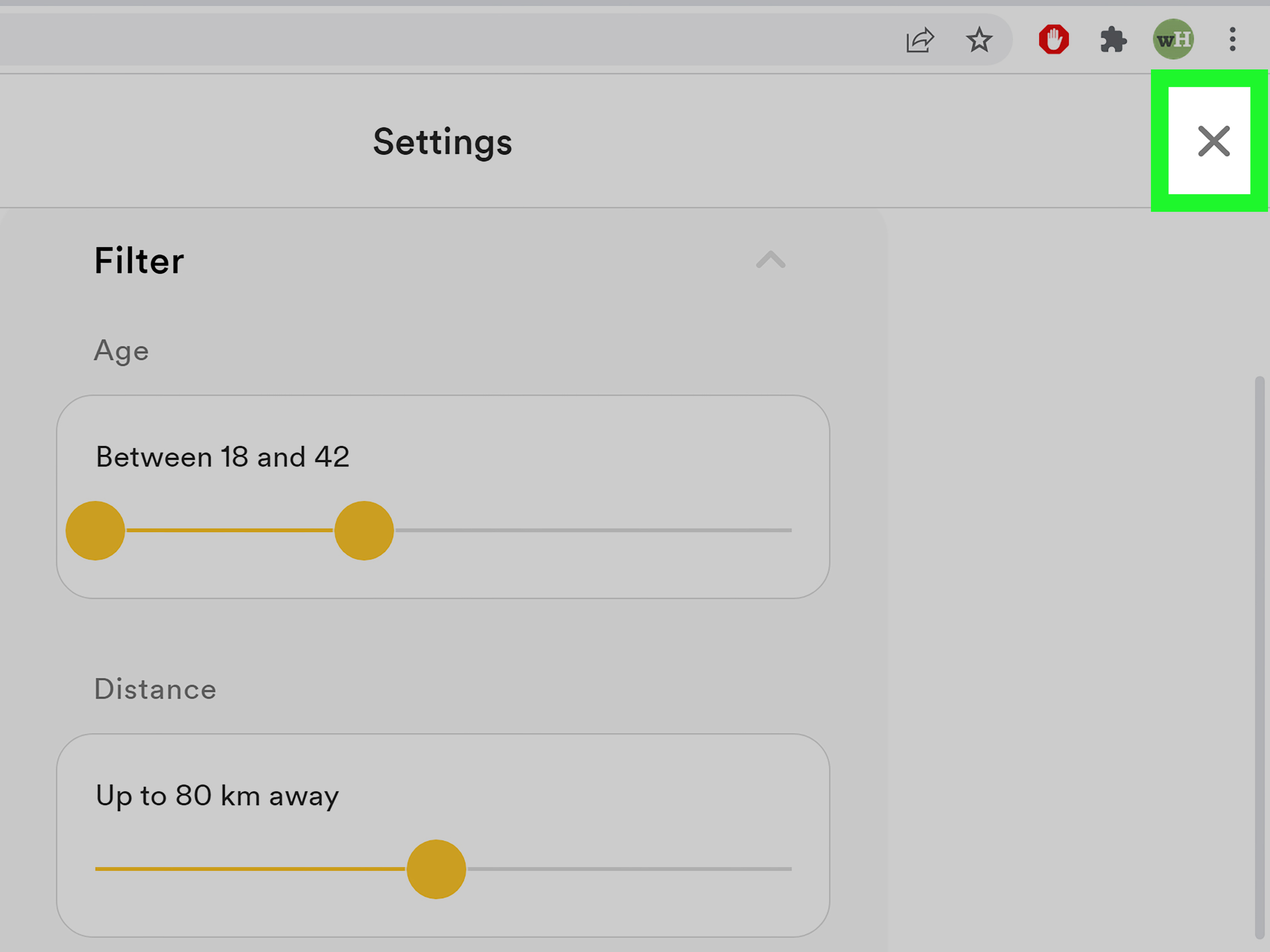
Inside the filters menu, scroll until you find the distance option. Depending on your location, Bumble may display distance in miles or kilometers. In the United States, users typically see miles. In other countries, kilometers may appear instead.
Bumble’s distance range can commonly go from a very close radius, such as 1 mile, up to a much wider range such as 100+ miles or 161+ kilometers. The exact display may vary by region. If you do not see the distance filter at all, do not panic. Your app is not necessarily broken. The feature may be unavailable in your country, temporarily changed, hidden due to app testing, or affected by outdated app software.
Step 5: Move the Distance Slider
Now comes the satisfying part: move the distance slider. Drag it left to see people closer to you. Drag it right to expand your search area.
If you live in a large city, a smaller radius may still show plenty of profiles. A 5- to 15-mile range can be enough in dense areas. If you live in a suburban or rural area, you may need to increase the radius to 30, 50, or even 100+ miles to see more active users. Bumble cannot invent nearby people out of thin air, although honestly, some users wish it came with a “summon charming local singles” button.
Choose a range that fits your real-life comfort level. If you know you would not realistically travel 70 miles to meet someone, setting your distance to 70 miles may create more matches but less practical conversations. A wider net is useful, but only if you are willing to row the boat.
Step 6: Apply or Save Your Filter
After adjusting the slider, look for a button such as “Apply,” “Save,” “Done,” or a similar confirmation option. Tap it to update your preferences.
Some versions of Bumble apply filter changes automatically when you exit the filter screen, while others require confirmation. To be safe, always look for a final button before leaving. If you change the distance but immediately close the app without saving, your settings may not update.
Once saved, return to the People tab. You should begin seeing profiles that better match your selected distance range. If the deck does not refresh immediately, close and reopen the app or pull down to refresh if the interface allows it.
Step 7: Check Your Phone’s Location Permission
If changing the distance does not seem to work, check your phone’s location permissions. Bumble relies on your device’s GPS and location services to determine where you are. Without location access, Bumble may not be able to show new profiles correctly.
On iPhone, open Settings, scroll to Bumble, tap Location, and choose an option such as “While Using the App.” On Android, open Settings, go to Apps, choose Bumble, open Permissions, and make sure Location is allowed. Menu names can vary slightly depending on your device, but the idea is the same: Bumble needs permission to know where you are while you are using it.
If your location is wrong, try turning off VPN apps, switching between Wi-Fi and mobile data, updating Bumble, restarting your phone, or reinstalling the app. VPNs and certain Wi-Fi networks can sometimes confuse location detection. Your phone may think it is sipping coffee in one city while you are physically standing in another. Technology: brilliant, but occasionally dramatic.
Step 8: Use Travel Mode If You Want a Different City
If your goal is not simply to widen your distance but to appear in another city, use Bumble Travel Mode instead. Travel Mode allows eligible Bumble Premium or Premium+ users to select a different city and browse profiles in that area before or during a trip.
To use Travel Mode, open your profile settings, find the Travel option under location-related settings, search for the city you want, and activate it. Bumble typically shows your profile in that selected city for a set period, commonly seven days, and your profile may display a Travel Mode indicator so other users know you are not currently local.
Travel Mode does not change your phone’s actual GPS. It virtually places your Bumble profile in another city. You usually cannot select an exact street or pinpoint location, only the city. This is useful if you are moving, traveling for work, planning a vacation, or want to explore a new area before arriving.
Why You May Still See People Outside Your Bumble Distance Range
Many users change the Bumble distance filter and then wonder why someone appears farther away than expected. This can happen for several reasons.
First, if your distance filter is set to the maximum range, Bumble may include people beyond that range. The app may do this to give you more profile options, especially if there are not many active users nearby.
Second, location can change as people move. A profile might have been nearby when Bumble loaded it, then later appear farther away because that person traveled. Dating apps are not frozen maps; they are more like social weather systems with people commuting, flying, road-tripping, and accidentally leaving location services on.
Third, your own location may not have updated yet. If you recently moved across town, traveled, or changed networks, Bumble may need you to reopen the app or refresh permissions before it detects your new location accurately.
Fourth, Travel Mode can make someone appear in a selected city even if they are not physically there. Bumble usually indicates this, but users may still notice profiles that seem farther away than expected.
Distance Filter vs. Location: What Is the Difference?
The distance filter controls how far Bumble looks from your current location. Your location is where Bumble believes you are based on your phone’s GPS and settings.
Here is a simple example. Suppose you are in Austin, Texas. If your distance is set to 20 miles, Bumble looks around Austin within that radius. If you change the distance to 80 miles, Bumble may include users in nearby towns or cities. But your starting point remains Austin unless your actual location changes or you activate Travel Mode.
Editing your hometown or “lives in” city on your profile is different. That information can help describe you, but it does not necessarily control where Bumble shows your profile or which profiles appear in your People tab. Think of hometown as profile information and GPS location as the app’s navigation system.
Best Bumble Distance Settings for Different Situations
For Big Cities
If you live in a major city, start with 5 to 15 miles. This keeps matches practical and reduces the chance of connecting with someone who technically lives nearby but requires two trains, one rideshare, and the emotional stamina of a marathon runner to meet.
For Suburbs
In suburban areas, try 15 to 35 miles. This range often balances variety with convenience. You may include nearby towns without turning every potential meetup into a regional expedition.
For Rural Areas
In rural areas, a wider distance may be necessary. Try 40 to 100+ miles if your local pool is small. Just be honest with yourself about travel time. More profiles can be helpful, but only if the distance makes sense for your lifestyle.
Before Moving
If you are moving soon, Travel Mode is often better than simply increasing distance. It lets you explore your future city directly rather than stretching your current location radius and hoping the map behaves like a magic carpet.
While Traveling
For short trips, Travel Mode can help you connect with people in advance. For local exploring after arrival, your regular GPS location should update once you open Bumble with location permissions enabled.
What to Do If the Bumble Distance Filter Is Missing
If you cannot find the distance filter, try these fixes:
- Update Bumble to the latest version.
- Close and reopen the app.
- Check whether location permissions are enabled.
- Restart your phone.
- Switch between Wi-Fi and mobile data.
- Turn off any VPN service.
- Check whether the distance filter is available in your country.
- Contact Bumble Support if the issue continues.
Sometimes Bumble tests features in different markets, so two users may not always see identical settings. This can be frustrating, especially when your friend says, “Just tap the distance slider,” and your app replies, “What slider?” In that case, updating the app and checking support information are the best first moves.
Can You Hide Your Distance on Bumble?
Bumble uses location to connect users with nearby profiles, so hiding location completely while actively using the app is generally not how the platform works. If location permissions are off, you may lose the ability to swipe on new people or appear correctly in nearby searches.
However, Bumble does offer privacy-related features such as Incognito Mode in certain plans and regions. Incognito Mode can limit who sees your profile, but it is different from changing your distance. If privacy is your goal, review Bumble’s privacy and visibility settings rather than relying only on the distance slider.
Common Mistakes When Changing Distance on Bumble
Mistake 1: Confusing Distance With Travel Mode
Distance expands or shrinks the radius around your real location. Travel Mode lets you appear in another city. They are related, but they are not the same tool.
Mistake 2: Setting the Range Too Wide
A huge search radius can create more options, but it can also lead to conversations that fizzle when someone realizes the meetup would require snacks, gas money, and possibly a playlist for the road.
Mistake 3: Forgetting to Save Changes
Always tap Apply, Save, or Done if the app shows that option. Otherwise, your filter change may not stick.
Mistake 4: Ignoring Location Permissions
If Bumble cannot access your location, changing distance may not work properly. The slider needs a starting point, and that starting point comes from your device location.
Mistake 5: Using a VPN While Expecting Accurate Local Results
A VPN can interfere with location accuracy. If Bumble shows the wrong city or strange distances, turn off the VPN and reopen the app.
Helpful Examples of Bumble Distance Settings
Example 1: You live in Chicago and only want practical matches. A 10-mile distance range may work well because the city has a large user base and plenty of nearby profiles.
Example 2: You live outside Nashville and your profile deck feels empty. Increasing the range from 15 miles to 40 miles may show more people from surrounding towns.
Example 3: You are visiting Denver next week. Instead of setting your current distance to the maximum and hoping Denver appears by miracle, use Travel Mode if available. That places your profile in Denver virtually.
Example 4: You recently moved from Los Angeles to San Diego, but Bumble still shows your old area. Check location permissions, turn off VPN, restart the app, and make sure Bumble has refreshed your current GPS position.
Experience-Based Tips for Changing Distance on Bumble
After working through many Bumble distance situations, one thing becomes clear: the “best” distance setting is less about the app and more about your actual life. A 100-mile radius may look exciting for five minutes, but if you are not willing to drive two hours for coffee, the setting can create more digital clutter than real opportunity.
A smart approach is to start smaller than you think you need. In a city, try 10 miles first. Use the app for a day or two and see whether your People tab feels active. If it feels too limited, increase the distance gradually. Jumping straight to the maximum range can make Bumble feel busy, but not necessarily better. More profiles do not always mean better matches; sometimes it just means more people with impressive hiking photos who live inconveniently far away.
In suburban areas, the sweet spot is often somewhere between convenience and possibility. A 25-mile range might include nearby communities without making every conversation feel like long-distance logistics. If the app feels too quiet, increase the range in small steps. This gives you more control and helps you notice where quality starts to drop.
For rural users, distance settings require extra patience. Bumble’s nearby user base may be smaller, so expanding the range can be necessary. Still, it helps to mention realistic availability in your profile or early conversations. You do not need to write a transportation contract, but being honest about distance can prevent awkward surprises later.
Travel Mode is especially useful when distance alone is not enough. If you are moving to a new city, visiting family, attending a conference, or planning a vacation, Travel Mode gives you a cleaner way to browse that area. It is more direct than stretching your local radius and hoping the algorithm throws you a geographic bone.
Another practical lesson: refresh your location before assuming Bumble is broken. Open the app with location permissions enabled, turn off your VPN, and give it a moment. If you recently traveled, Bumble may need a fresh GPS signal. Restarting the app solves more location weirdness than people expect. It is not glamorous, but neither is unplugging a router, and somehow that remains humanity’s most reliable tech ritual.
Finally, choose distance settings that support real conversations. If you match with people nearby, it is easier to suggest casual plans, compare local spots, and keep momentum. If everyone is far away, conversations may become more theoretical. That is fine if you are open to distance, but less useful if you want something local. Bumble’s distance filter is a tool, not a magic wand. Use it with intention, adjust it when your situation changes, and remember that a practical radius often beats a massive one.
Conclusion
Learning how to change distance on Bumble is simple once you know where the filter lives and what it actually does. Open Bumble, go to the People tab, tap the filter icon, find the distance slider, adjust your range, save your settings, and make sure your phone’s location permissions are working properly. If you want to browse another city, use Travel Mode instead of confusing distance with location.
The best Bumble distance setting depends on where you live, how far you are realistically willing to travel, and whether your goal is local matching or exploring another city. Start with a reasonable range, test it, and adjust as needed. Dating apps already have enough mystery; your distance setting does not need to be one of them.