Sometimes a Google account is not a helpful contact. Sometimes it is a relentless newsletter, a suspicious Drive share, a Chat message that arrives at 2:13 a.m., or a YouTube commenter who believes every video needs a 14-paragraph manifesto about aliens. Whatever the reason, Google gives you several ways to block people, senders, and accounts across its ecosystem.
But here is the important wrinkle: blocking someone in Gmail is not always the same as blocking their entire Google Account. Gmail blocks future emails from a sender by sending them to Spam, while other Google tools can place a person on a broader blocked-users list that may affect multiple Google services. Think of it less like one giant red “banish forever” button and more like a drawer full of specialized tools.
This complete guide explains nine practical ways to block a Google account or limit unwanted contact through Gmail, Google Chat, Drive, Photos, Maps, Meet, and YouTube. It also covers what blocking actually does, what it does not do, and when reporting or tightening your security settings makes more sense.
Before You Block Someone: Know What You Are Blocking
Google has different blocking systems because its products do different jobs. Gmail handles email. Google Chat handles messages. Google Drive handles file sharing. Google Maps manages public profiles and location requests. YouTube lets creators hide disruptive viewers from their channels.
That means there is no single universal action that guarantees a person can never interact with you anywhere on Google. A Gmail block may stop their messages from reaching your inbox, but it does not automatically prevent them from sharing a public link, leaving a YouTube comment on another channel, or contacting you through a completely different account.
Still, several Google services can add a person to a broader blocked-account list. Google says account-level blocks created through products such as Drive, Chat, Photos, Maps, Meet, and Find Hub can affect certain other Google services. Gmail-only blocked email addresses and YouTube channel hides are handled separately.
1. Block a Sender in Gmail on a Computer
The fastest way to block a person who keeps emailing you is through Gmail on a desktop browser. Open one of their messages, click the three-dot menu near the Reply button, and choose Block “Sender Name.”
After you block a sender, future emails from that address are sent to your Spam folder. Gmail does not usually delete the messages entirely, which is useful if you later need evidence of harassment, impersonation, or a suspicious transaction.
Best use case
Use Gmail blocking when the problem is primarily email: spammy newsletters, aggressive sales pitches, unwanted personal messages, or repeated contact from the same address.
Example
Imagine a former vendor keeps sending “final opportunity” emails every Thursday. They have apparently discovered the secret to eternal final opportunities. Blocking the sender sends future messages to Spam, so your inbox can return to its natural state: slightly chaotic, but no longer haunted.
2. Block a Sender in the Gmail Mobile App
You can also block senders from the Gmail app on Android or iPhone. Open the message, tap the three-dot menu, and choose the option to block the sender. The exact placement may vary slightly by device and app version, but the result is the same: future messages from that email address go to Spam.
This method is especially helpful when unwanted messages show up while you are away from your computer. It is the digital equivalent of closing the front door without putting on real pants.
Important limitation
Blocking an email address in Gmail is generally not a full Google Account block. It mainly affects Gmail delivery from that sender. Google specifically notes that Gmail-blocked email addresses do not appear in the broader blocked-users section of your Google Account.
3. Create a Gmail Filter for Persistent Spam or Multiple Addresses
Sometimes blocking a single sender is not enough. Spammers often use several addresses, slightly different names, or rotating domains. In that case, a Gmail filter may work better than repeatedly playing digital whack-a-mole.
In Gmail, use the search options beside the search bar. You can create a rule based on an email address, a domain, specific words, or other patterns. Then choose an action such as Delete it, Skip the Inbox, or Apply a label.
For example, if unwanted messages come from several addresses ending in @examplepromo.com, you can create a filter that catches messages from that domain and sends them directly to Trash. Google supports filters through the “Filters and Blocked Addresses” section of Gmail settings.
When filters beat blocking
- Messages come from multiple addresses under one domain.
- You want messages deleted or labeled automatically.
- You receive repeated calendar invitations, promotions, or automated notices.
- You want a more targeted rule without blocking an entire person everywhere.
4. Block Someone in Google Chat
If the unwanted contact happens in Google Chat, blocking in Gmail will not necessarily solve the problem. Instead, open Google Chat or the Chat section inside Gmail, locate the conversation, click the options menu beside the person’s name, and choose Block & Report or Block.
Google Chat lets you block a person, block a direct-message conversation, or block someone inside a group conversation or space. In many cases, you can also choose to report abusive or spammy activity at the same time.
Blocking someone in Chat prevents normal direct contact through that service, but old messages and attachments may still exist. Google notes that links and files sent before the block can remain active, so you may also need to review shared files or revoke permissions separately.
Best use case
Use Google Chat blocking for unwanted DMs, workplace spam, suspicious messages, or someone repeatedly trying to pull you into a group conversation where nobody has used the phrase “quick question” in a quick way.
5. Block a Google Account in Google Drive
Google Drive is one of the more powerful places to block an account because it can place the person on your Google blocked-users list. If someone shares unwanted files with you, right-click the file in Drive, choose Report or block, and then select Block.
You can also block a file sharer through the Drive-sharing email that arrives in Gmail. Google’s instructions allow you to choose “Block the sender” from the sharing notification, then confirm the block through your Google Account.
Why this is useful
Drive blocking is valuable when someone sends unwanted documents, suspicious files, fake invoices, strange PDFs, or endless folders with names like “URGENT BUSINESS PROPOSAL FINAL FINAL 2.” Blocking the account can help stop future interaction in supported Google services.
Do not forget permissions
If the person already has access to files you own, blocking them may not be your only job. Review your shared folders, remove their access, and change public links to restricted access when appropriate.
6. Block Someone in Google Photos
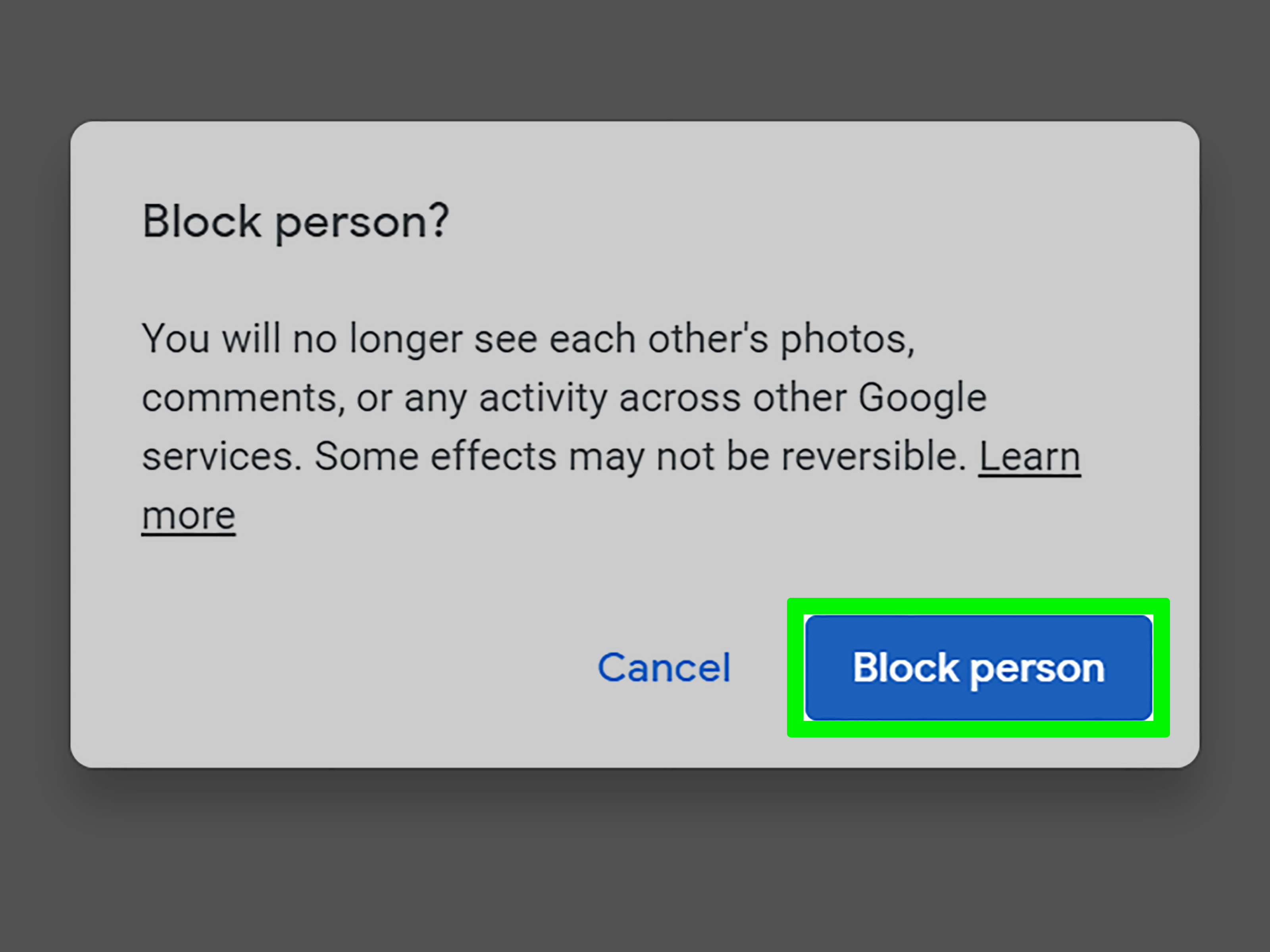
Google Photos allows you to block people in shared albums and conversations. On a computer, open the shared album or conversation, find the person’s name, open the options menu, and choose Block person.
When you block someone in Google Photos, they are not notified. You and the blocked person cannot find each other’s photos, videos, or comments in Google Photos. If you own a shared album and block a contributor, their content is removed from that album.
A realistic example
Maybe a former roommate keeps adding questionable party photos to a shared album from 2018. You do not need to relive the era of neon sunglasses and questionable haircuts every time Google Photos creates a memory. Blocking that person and reviewing album sharing can help clean up the situation.
7. Block a User Profile or Location Request in Google Maps
Google Maps includes a way to block user profiles on mobile devices. Open the person’s Maps profile, tap the options menu beside their name, and select Block user.
This can prevent the blocked person from finding your profile on Google Maps. However, Google notes an important limitation: a blocked person may still find your public Maps contributions outside your profile, especially if they are not signed into the account you blocked.
Google Maps can also block location requests. This is particularly important when someone asks to see your real-time location and you no longer want that connection.
Stop sharing location first
On Android, go to your device settings, open Location, select Location Services, then Google Location Sharing. Find the person and choose Stop. This ends your location sharing with that individual.
8. Block Someone From Calling You in Google Meet
Google Meet now supports blocking people from contacting you directly through Meet calling. On a computer, go to the Meet calling area, select the person from recent activity, open their options, and choose Block user or Report abuse & block.
Blocking a person in Google Meet stops direct Meet calls from that contact. However, Google warns that the person may still appear in a shared group call or join a meeting if they have a shared meeting link. In other words, blocking is not an invisibility cloak for every meeting on the internet.
When to use Meet blocking
Use this option for unwanted Meet calls, repeated call spam, suspicious contact attempts, or a person who treats video calling like ringing a doorbell until somebody answers.
9. Hide a User From Your YouTube Channel
YouTube creators can hide a user from their channel. This is not exactly the same as blocking a Google Account across all Google services, but it is the right tool when the problem is comments, live chat, or community posts on your channel.
To hide a person, find one of their comments, open the menu beside it, and choose Hide user from channel. You can also add a channel URL to the Hidden Users section in YouTube Studio under Community moderation settings.
Hidden users are not notified. Their future comments, live-chat messages, and community-post activity are not visible on your channel, and they cannot create clips from your videos or live streams. However, their old activity may not automatically vanish from every corner of YouTube.
How to Review or Unblock Accounts Later
People make mistakes. Maybe you blocked a friend after receiving five consecutive “Did you see this?” messages about a celebrity breakup. Maybe a vendor changed its support address. Maybe you are simply feeling merciful after coffee.
For account-level blocks, open your Google Account, select People & sharing, then choose Blocked. You can review accounts blocked across supported Google products and remove someone from the list when needed.
Remember that Gmail blocked senders are managed separately. In Gmail on a computer, go to Settings, select See all settings, then open Filters and Blocked Addresses. There, you can review and unblock email addresses.
When Blocking Is Not Enough
Blocking is excellent for reducing unwanted contact, but it is not a complete response to threats, scams, stalking, identity theft, impersonation, or serious harassment.
Report spam, phishing, and abuse
If a message is fraudulent or dangerous, report it rather than only blocking it. Gmail and other Google services include reporting tools for spam, phishing, abuse, and policy violations. Google may review reports and take action such as restricting content, removing it, or limiting access to Google products.
Preserve evidence before deleting
For threats, extortion attempts, impersonation, or repeated harassment, save screenshots, message headers, file names, dates, and relevant account details. Do not respond emotionally or send money because a stranger claims they have hacked your webcam, stolen your photos, or know where your cat sleeps. The FTC advises people receiving blackmail-style scam emails not to pay and to delete the message after taking appropriate reporting steps.
Secure your own Google Account
If someone may know your password or have accessed your account, change your password immediately, review recent security activity, remove unfamiliar devices, check recovery options, and enable two-step verification. Blocking a suspicious person does not repair a compromised account. It is like putting a “No Trespassing” sign on a house after leaving the spare key under the welcome mat.
Common Mistakes People Make When Blocking Google Accounts
- Assuming Gmail blocking stops everything: It mainly affects email delivery from that sender.
- Ignoring shared links: A blocked person may still access files or albums if a public link remains active.
- Forgetting old permissions: Remove former collaborators from Drive folders, calendars, Photos albums, and channel access lists.
- Confusing unsubscribe with block: Unsubscribe is ideal for legitimate newsletters; blocking is better for unwanted or abusive contact.
- Only blocking instead of reporting: For phishing, fraud, threats, or harassment, report the content as well.
- Blocking one address while ignoring new accounts: Persistent abusers may use alternate accounts, so tighten privacy and sharing settings too.
Real-World Experiences: What Blocking a Google Account Feels Like in Practice
The following examples are composite scenarios based on common situations people encounter when managing unwanted contact across Google services.
One of the most common experiences starts with email. A person may receive messages from an old acquaintance, a pushy recruiter, or a company that has somehow confused “unsubscribe” with “please send more promotions.” Blocking the sender in Gmail feels immediate because the messages disappear from the inbox. But many people are surprised when they later discover the blocked messages sitting in Spam. That is not Gmail being dramatic; it is actually useful. If the messages become threatening or prove part of a fraud attempt, the record is still available.
Another frequent situation involves Google Drive. Someone receives a shared document with a suspicious title, such as “Invoice Payment Needed” or “Your Private Photos.” Curiosity can be dangerous here. Opening unfamiliar files is not always necessary, especially if the file came from an unknown account. Blocking the file owner in Drive can feel more decisive than blocking an email address because it may affect the account across several Google services. The bigger lesson is that strange files should be treated like leftovers from the back of the refrigerator: do not poke them unless you are absolutely sure what they are.
Google Chat creates a different kind of problem. Email is easy to ignore for a few hours. Direct messages are harder because they create a sense of urgency, even when the message is simply “hey” followed by another “hey?” followed by “???” and then a suspiciously cheerful thumbs-up emoji. Blocking the person in Chat removes that pressure. For workplace users, it can also create a clearer boundary between normal collaboration and unwanted contact.
People dealing with former partners or difficult acquaintances often discover that blocking requires more than one action. They may block the person in Gmail, then notice that the person still appears in a shared Google Photos album or can see location information through Maps. In those cases, the best experience comes from doing a full account cleanup: remove photo-sharing access, stop location sharing, review Drive folders, check Calendar sharing, and change passwords if there is any chance the person has access.
YouTube creators often describe a different kind of relief. Hiding a user from a channel does not create a public confrontation. The person is not notified, but their future comments and live-chat activity no longer clutter the creator’s space. That is useful because many disruptive commenters are looking for attention. Hiding them quietly avoids feeding the performance.
The most important real-world lesson is that blocking is not about winning an argument. It is about reducing access, protecting attention, and creating space to think clearly. You do not owe every sender a reply, every caller an explanation, or every stranger a debate. Sometimes the healthiest response is not a clever comeback. Sometimes it is one calm click on “Block,” followed by a cup of coffee and a much quieter inbox.
Final Thoughts
Learning how to block a Google account is less about mastering one button and more about choosing the right privacy tool for the right problem. Gmail is best for unwanted emails. Google Chat handles unwanted messages. Drive and Photos help manage unwanted sharing. Maps and Find Hub protect location privacy. Meet stops unwanted direct calls. YouTube gives creators a way to quietly manage disruptive viewers.
Start with the service where the unwanted contact happens, then review your broader Google Account settings if the issue involves repeated harassment, unwanted sharing, or privacy concerns. And remember: blocking is not rude. It is a boundary with a settings menu.
Note: Google regularly updates product menus and privacy features. Button names and screen locations may vary slightly by device, account type, region, and app version.