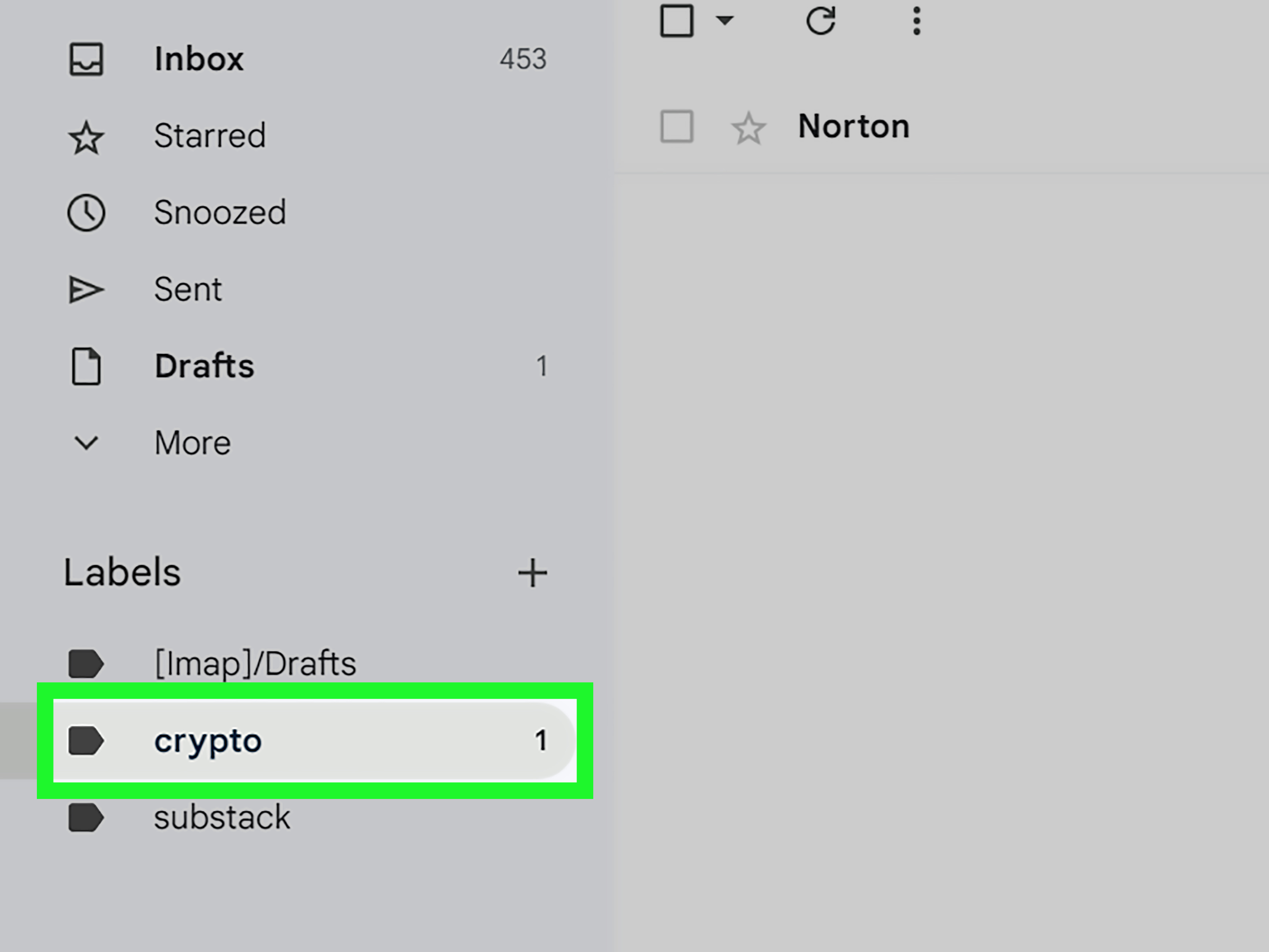
If your Gmail inbox looks like a laundry basket full of receipts, work updates, newsletters, travel confirmations, and that one email you swear you replied to last week, you are not alone. The good news is that Gmail gives you a powerful way to organize messages. The slightly confusing news is that Gmail does not technically call them “folders.” Gmail uses labels.
In everyday language, many people say “create a folder in Gmail” because they want the same result: a clean place to group related emails. In Gmail, a label works like a folder, but with one major advantage: one email can have more than one label. That means a message from your accountant about a home office deduction can live under both “Taxes” and “Work,” without needing two copies. Very tidy. Very Gmail.
This guide explains how to create a new Gmail folder, also known as a label, on desktop, Android, iPhone, and iPad. You will also learn how to move emails into labels, create nested folders, use filters, avoid common mistakes, and build an inbox system that does not collapse like a cheap folding chair.
What Is a Gmail Folder?
A Gmail folder is actually called a label. Labels help you categorize emails by topic, client, project, bill, trip, family member, newsletter, or any other system that makes sense to your brain. Gmail’s label system is more flexible than traditional email folders because labels act like tags.
With a traditional folder, an email usually lives in one place. With Gmail labels, the same email can appear in multiple labeled views. For example, an email about a hotel booking for a business conference could have these labels:
- Travel
- Work
- Receipts
- Conference 2026
The email is still one message. Gmail is not making extra copies. It is simply showing that same message under each label. This is useful when an email belongs to more than one category, which happens constantly in real life because real life refuses to be organized into neat little boxes.
Gmail Labels vs. Folders: What Is the Difference?
The difference between Gmail labels and folders comes down to flexibility. A folder is like a drawer. You put one item inside one drawer. A label is like a sticky note. You can put several sticky notes on the same item.
Here is the simple version:
- Folders usually store emails in one location.
- Gmail labels can be applied to one email or many emails.
- One email can have multiple labels at the same time.
- Deleting a label does not delete the emails inside it.
- Archiving an email removes it from the inbox but keeps it available under labels and search.
Once you understand this, Gmail becomes much easier to manage. You are not creating storage boxes. You are creating smart categories.
How to Create a New Folder in Gmail on Desktop
The desktop version of Gmail gives you the most control over labels. It is the best place to create, edit, color-code, nest, and manage your Gmail folders.
Method 1: Create a Label From the Left Sidebar
- Open Gmail in your web browser.
- Look at the left sidebar where Inbox, Starred, Snoozed, Sent, and Drafts appear.
- Scroll down and click More if you do not see the label section.
- Find Labels and click Create new label.
- Type the label name, such as “Bills,” “Clients,” “School,” or “Receipts.”
- Optional: Check Nest label under if you want to create a subfolder.
- Click Create.
Your new Gmail folder will now appear in the left sidebar. If you do not see it right away, click More to expand hidden labels.
Method 2: Create a Label While Labeling an Email
You can also create a folder while organizing a message. This is helpful when you are reading an email and suddenly realize, “Ah yes, I need a category for this chaos.”
- Open Gmail on desktop.
- Select one or more emails by checking the box beside each message.
- Click the Label icon in the top toolbar.
- Choose Create new.
- Enter the label name.
- Click Create.
The selected email will now have that label. You can click the label name in the left sidebar anytime to view all messages with that label.
How to Create a New Folder in Gmail on Android
Creating Gmail labels on Android has become easier in the Gmail app. The exact wording may vary slightly depending on your Gmail app version, account type, and rollout status, so keep your app updated if you do not see the option.
Create a Gmail Label in the Android App
- Open the Gmail app on your Android phone or tablet.
- Tap the Menu icon, which looks like three horizontal lines.
- Scroll down to the labels area.
- Tap Create label or a similar create-label option.
- Enter the name of your new label.
- Tap Save.
After saving, the label should appear in your Gmail label list. You can then apply it to messages, move messages into it, or use it as part of your inbox organization system.
How to Add Emails to a Label on Android
- Open the Gmail app.
- Touch and hold an email to select it.
- Select more emails if needed.
- Tap the More icon, usually shown as three dots.
- Tap Label as.
- Choose the label you want to apply.
- Tap OK or the confirmation option.
If you want the email to disappear from your inbox but remain under the label, use Archive after labeling it. This is one of the best ways to keep your inbox clean without deleting anything important.
How to Create a New Folder in Gmail on iPhone or iPad
The Gmail app for iPhone and iPad also allows you to create labels directly from the app. This is handy if you are organizing email while waiting for coffee, sitting in a parked car, or pretending not to check your inbox during a family gathering.
Create a Gmail Label on iPhone or iPad
- Open the Gmail app on your iPhone or iPad.
- Tap the Menu icon in the upper-left corner.
- Scroll to the Labels section.
- Tap Create new.
- Type your label name.
- Tap Save.
Your new label will now be available in the Gmail app and on desktop. Gmail syncs labels across devices, so a folder you create on your phone will also appear when you open Gmail on your computer.
How to Add Emails to a Label on iPhone or iPad
- Open the Gmail app.
- Touch and hold a message to select it.
- Tap the More icon.
- Tap Labels or Change labels.
- Select the label you want to apply.
- Tap Done.
This process is useful for organizing messages on the go. For example, if you receive a digital receipt while shopping, you can label it “Receipts” immediately instead of letting it drift into the inbox swamp.
How to Create Nested Folders in Gmail
Nested labels are Gmail’s version of subfolders. They help you build a more detailed structure. For example, you might create a main label called “Work” and then add nested labels such as “Work/Invoices,” “Work/Clients,” and “Work/Reports.”
Create a Nested Label on Desktop
- Open Gmail on desktop.
- Go to the left sidebar.
- Click Create new label.
- Enter the subfolder name.
- Check Nest label under.
- Choose the parent label.
- Click Create.
Nested labels are excellent for larger projects. A freelancer might use “Clients” as a parent label, then create nested labels for each client. A parent might use “School” as a parent label, then create nested labels for each child, class, or activity.
How to Move Emails Into a Gmail Folder
There are two common ways to organize emails with labels: labeling and moving.
When you apply a label, the email keeps its current location and gains a category. When you move an email to a label, Gmail removes it from the inbox and places it under that label view. In practice, “Move to” feels more like using a traditional folder.
Move Emails on Desktop
- Select one or more emails.
- Click the Move to icon in the toolbar.
- Choose the label where you want the emails to go.
Move Emails on Mobile
- Open the Gmail app.
- Touch and hold an email.
- Tap the More icon.
- Tap Move to.
- Select the label.
If you are trying to clean your inbox, moving emails to labels is usually faster than labeling them and then archiving them separately.
How to Automatically Send Emails to a Gmail Folder
If you want Gmail to organize messages for you, create a filter. Filters are rules that tell Gmail what to do when emails match certain conditions. For example, you can automatically label all emails from your bank as “Finance” or all newsletters as “Reading Later.”
Create a Gmail Filter on Desktop
- Open Gmail on desktop.
- Click the search options icon in the Gmail search bar.
- Enter your filter criteria, such as sender, subject, keywords, or recipient.
- Click Create filter.
- Check Apply the label.
- Choose an existing label or create a new one.
- Optional: Check Skip the Inbox if you want matching emails to go straight to the label.
- Click Create filter.
Filters are especially useful for receipts, bills, work updates, shipping notifications, newsletters, client messages, and automated reports. They turn Gmail from a noisy room into a helpful assistant that quietly files things before you even ask.
Best Gmail Folder Ideas for a Cleaner Inbox
You do not need 87 labels to be organized. In fact, too many labels can become another kind of clutter. Start simple and add more only when needed.
Useful Gmail Label Examples
- Action Needed: Emails that require a reply or task.
- Waiting On: Emails where someone else needs to respond.
- Receipts: Online purchases, invoices, and payment confirmations.
- Travel: Flights, hotels, car rentals, itineraries, and maps.
- Work: Job-related emails, reports, meeting notes, and HR updates.
- Clients: Client conversations, contracts, and project details.
- Finance: Bank alerts, tax documents, insurance, and statements.
- Family: School emails, medical appointments, events, and schedules.
- Read Later: Newsletters, articles, and non-urgent updates.
A practical setup might include only five main labels: Work, Personal, Finance, Receipts, and Action Needed. That is enough for many people. The goal is not to build a museum of labels. The goal is to find emails faster.
Common Problems When Creating Gmail Folders
I Do Not See “Create Label” on Mobile
Make sure your Gmail app is updated. Some features may appear differently depending on your device, app version, and account settings. If the mobile option is not visible, use Gmail on desktop or open Gmail in a mobile browser and request the desktop site.
My Label Does Not Show in the Sidebar
Click More in the left sidebar. Gmail may hide some labels to keep the sidebar short. You can also go into label settings on desktop and choose whether labels show or hide in the label list.
Emails Still Appear in My Inbox After Labeling
That is normal. Applying a label does not automatically remove a message from the inbox. To clear it from the inbox, use Archive or Move to. The email will still be available under the label and through Gmail search.
Will Deleting a Label Delete My Emails?
No. Deleting a Gmail label removes the label itself, not the emails. Your messages remain in Gmail unless you delete the actual emails. This is a relief, especially if you click things with the nervous energy of someone defusing a tiny digital bomb.
Tips for Using Gmail Folders Like a Pro
Once you know how to create folders in Gmail, the next step is using them wisely. A good system should be easy to maintain. If organizing email takes more time than reading email, the system has become the problem.
Use Clear Label Names
Choose names you will understand later. “Taxes 2026” is better than “Important Stuff.” “Client – Johnson Project” is better than “Things.” Future you deserves kindness.
Archive After Labeling
If an email does not need to stay in your inbox, archive it after applying a label. This keeps your inbox focused on current decisions instead of turning it into a historical archive with anxiety attached.
Use Filters for Repetitive Emails
If emails from the same sender always belong in the same place, create a filter. This is perfect for bank alerts, project management notifications, newsletters, delivery updates, and recurring reports.
Review Labels Once a Month
Delete labels you no longer use, rename unclear labels, and combine categories that overlap. A clean label list makes Gmail easier to navigate.
Do Not Over-Organize
Labels should save time, not create a second job. If you have a label that contains only one email and no realistic future use, it probably does not need to exist. Gmail search is excellent, so you do not need a folder for every microscopic category.
Practical Example: A Simple Gmail Organization System
Imagine you run a small online business. Your inbox includes customer messages, supplier invoices, shipping updates, tax receipts, marketing newsletters, and collaboration offers. Without labels, everything lands in one giant pile. With labels, you can build a simple system:
- Customers: Questions, complaints, testimonials, and support requests.
- Orders: Order confirmations and fulfillment updates.
- Suppliers: Vendor emails and product availability.
- Finance: Invoices, receipts, tax records, and payment alerts.
- Marketing: Campaign ideas, newsletters, and partnership pitches.
- Urgent: Messages that need same-day action.
Then you can create filters. Emails from your payment processor go to “Finance.” Emails from your shipping platform go to “Orders.” Emails from your supplier go to “Suppliers.” Suddenly, your inbox is less like a tornado and more like a filing cabinet with coffee.
Experience Notes: What It Is Actually Like to Organize Gmail With Folders
The first time many people try to create a folder in Gmail, they run into the same moment of confusion: “Where is the folder button?” That is because Gmail’s label system uses different language from many other email platforms. Once you accept that a Gmail folder equals a Gmail label, the whole process becomes much easier.
In real use, the most helpful approach is to start with a small number of labels. People often get excited and create labels for everything: Bills, Bills Paid, Bills Unpaid, Bills Maybe, Bills That Made Me Sigh, and so on. Within a week, the label list becomes longer than the inbox. A better system is to begin with broad labels, then create nested labels only when a category becomes too crowded.
For example, a “Receipts” label may be enough at first. If you later collect hundreds of receipts for business, home, travel, and subscriptions, then you can create nested labels like “Receipts/Business,” “Receipts/Travel,” and “Receipts/Home.” This lets your system grow naturally instead of forcing you to maintain a complicated structure from day one.
Another useful lesson is that labels work best when combined with archiving. Many Gmail users apply labels but leave every message in the inbox. Then they wonder why the inbox still feels overwhelming. Labeling is for categorizing. Archiving is for clearing. When you label an email and archive it, you are saying, “I know where this belongs, and I do not need to stare at it every morning.” That is a small but powerful act of digital peace.
Filters are where Gmail labels become genuinely powerful. If you receive regular invoices from a vendor, do not label every message manually forever. Create a filter once and let Gmail handle the filing. The same works for newsletters, statements, school announcements, job alerts, project updates, and shopping confirmations. A few well-built filters can save hours over the course of a year.
Mobile organization is useful, but desktop still feels better for major cleanup sessions. On a phone, labels are perfect for quick actions: tagging a receipt, moving a travel confirmation, or filing a message while standing in line. On desktop, you have more room to select multiple emails, create filters, rename labels, and reorganize your system. The best workflow is to use mobile for maintenance and desktop for deeper organization.
One practical habit is to create an “Action Needed” label and use it sparingly. Not every email is important just because it exists. Put only messages that truly require a reply, decision, payment, upload, appointment, or follow-up into that label. Check it daily. This label can become a lightweight task list without requiring another productivity app that will later send you guilt-inducing notifications.
Another helpful label is “Waiting On.” Use it for emails where you have already replied and now need someone else to respond. This prevents important threads from disappearing into the fog. Once a week, open “Waiting On” and follow up where needed. It is a simple system, but it can make you look impressively organized, which is half the battle in modern life.
The biggest takeaway from using Gmail folders is this: your labels should match how you search for information. If you usually think, “Where is that tax document?” create a Taxes label. If you think, “Where is that email from the plumber?” maybe a Home label makes sense. The best Gmail organization system is not the fanciest one. It is the one you will actually use when you are tired, busy, and one notification away from declaring email bankruptcy.
Conclusion
Creating a new folder in Gmail is simple once you know Gmail’s secret handshake: folders are called labels. On desktop, you can create labels from the sidebar or while organizing selected emails. On Android, iPhone, and iPad, you can create and apply labels from the Gmail app, although the exact menu wording may vary by device and app version. For even better organization, use nested labels, filters, and archiving to keep your inbox clean without losing important messages.
The smartest Gmail folder system is not complicated. It is clear, consistent, and easy to maintain. Start with a few useful labels, apply them to important emails, automate repetitive sorting with filters, and review your system occasionally. Your inbox may never become a peaceful mountain lake, but it can stop feeling like a raccoon got into your paperwork.