Connecting your accounts on Pinterest sounds simple, right? Click a button, smile confidently, and pretend you knew exactly where the settings were hiding. In reality, Pinterest has several different kinds of “connections,” and each one does something slightly different. You can link multiple Pinterest profiles so you can switch between them, connect login options like Google or Apple, claim your website for better attribution and analytics, and connect Instagram so your social content can travel further than your phone’s camera roll.
The trick is knowing which connection you actually need. A blogger who wants traffic should care about claiming a website. A creator who posts often on Instagram may want auto-publishing. A small business owner juggling a personal profile and a brand profile needs account switching. Someone who keeps forgetting passwordsno judgment, we have all fought the “incorrect password” dragonmay want an extra login method.
This guide explains the four most useful ways to connect your accounts on Pinterest, why each method matters, and how to avoid common mistakes that can make your profile look messy, confusing, or accidentally disconnected from your brand.
Why Connecting Accounts on Pinterest Matters
Pinterest is not just a place to save recipes you swear you will cook someday. It is also a discovery engine where users search for ideas, products, tutorials, fashion inspiration, home projects, travel plans, and buying decisions. When your Pinterest account is connected properly, your content has clearer ownership signals, better branding, and cleaner management.
For creators, connected accounts can help turn scattered content into an organized ecosystem. Your Instagram posts can become Pins. Your website can show up as a verified source. Your business account can collect performance data. Your login options can make access less stressful. That is a lot of practical value from a few settings pages.
However, account connections are not magic. Connecting everything does not automatically make Pins go viral, double your traffic, or convince the algorithm to deliver you a crown and a tiny trumpet fanfare. The goal is more realistic: make your Pinterest presence easier to manage, easier to trust, and easier to measure.
Way 1: Link Multiple Pinterest Accounts for Easy Switching
The first way to connect accounts on Pinterest is by linking more than one Pinterest account together. This is useful if you have a personal Pinterest account and a business Pinterest account, or if you manage more than one brand. Instead of logging out, typing another email, finding the password, failing once, checking your notes app, and sighing dramatically, you can switch between linked accounts inside Pinterest.
When This Method Makes Sense
Linking multiple Pinterest accounts is ideal when you want to keep personal and professional activity separate. For example, your personal account may have boards for birthday cakes, dorm room ideas, or “future apartment that totally has natural light.” Your business account, on the other hand, should focus on brand content, blog posts, products, tutorials, or portfolio work.
Keeping these accounts separate helps your analytics stay cleaner. If you are using Pinterest for business, you do not want personal saves mixed with brand strategy. A linked account setup lets you switch quickly without blending identities.
How to Connect Another Pinterest Account
On desktop, log in to the Pinterest account you want to start from. Open the account menu, choose the option to add another Pinterest account, then select the option to connect an existing account. Pinterest will ask you to log in to the other account. Once you complete the sign-in process, the accounts are linked for easier switching.
On mobile, open the Pinterest app, go to your profile area, and look for the option to add or switch accounts. Choose to connect an existing account, then log in with the email, password, or available sign-in option for that second account.
After the accounts are linked, you can switch between them from the account menu. This is especially handy for social media managers, small shop owners, bloggers, teachers, designers, and creators who need to jump between personal inspiration and business publishing without turning account management into a mini obstacle course.
Best Practices for Linked Pinterest Accounts
Use a clear profile photo and name for each account. If your personal profile and business profile both use the same image, you may accidentally post a business Pin to your personal account or save a personal Pin to a client board. That is not the end of the world, but it is the digital equivalent of walking into the wrong classroom and pretending you meant to be there.
Also, make sure each account has its own correct email address and recovery information. Linked switching is convenient, but it should not replace good account security. If you lose access to the original email for a business account, fixing ownership later can be annoying.
Way 2: Connect Login Options Like Google, Apple, or Facebook
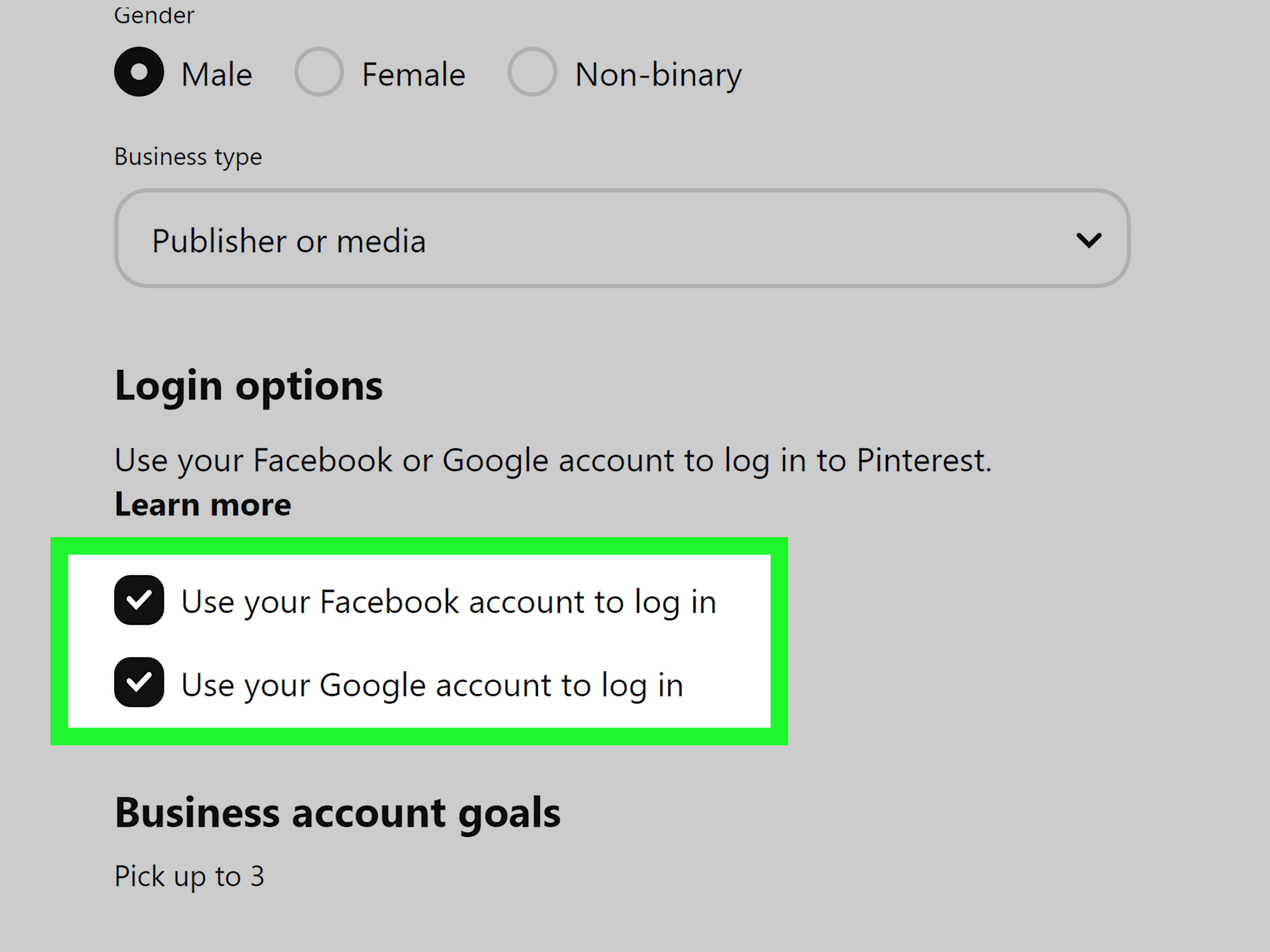
The second way to connect your accounts on Pinterest is by adding external login options. Pinterest has supported login connections such as Google, Apple, and Facebook, although Facebook login has been changing and should not be treated as the most reliable long-term option. The safer move is to keep a working email and password on your Pinterest account and use Google or Apple as convenient backup login methods where available.
Why Login Connections Are Useful
Connecting a login option can make it easier to access Pinterest across devices. If you use Google sign-in, for example, you may be able to log in faster without typing your Pinterest password every time. Apple sign-in may be helpful for iPhone and iPad users who prefer using their Apple Account for supported apps and websites.
This setup can also help if you forget which email address you used for Pinterest. Connected login options can act like a bridge back into the account. Of course, that bridge only works if the connected account itself is secure. If your Google or Apple account is messy, outdated, or shared with someone else, connecting it to Pinterest is like putting a fancy lock on a door and leaving the key under a glowing neon sign.
How to Connect a Login Option on Pinterest
To connect a login option, go to Pinterest settings and open the security or login options area. On desktop, this is usually found through Settings, then Security. On mobile, go to your profile, open settings, and look for Security or Login options. From there, select the available login method you want to use and follow the prompts.
Google sign-in may ask you to choose a Google account and approve the connection. Apple sign-in may use your Apple Account and device settings. Facebook may appear in some settings or older help flows, but because Pinterest has warned about Facebook login support changing, it is smart to avoid relying on Facebook as your only way into Pinterest.
Security Tips Before You Connect Login Accounts
Before connecting an external login account to Pinterest, update your password and enable two-factor authentication where possible. Review which apps and services already have access to your Google or Apple account. Remove old connections you no longer use. A clean login setup is easier to manage and less likely to surprise you later.
If you use Sign in with Apple, remember that Apple lets you manage apps connected through Apple Account settings. If you use Sign in with Google, Google lets you review and remove third-party connections from your Google Account. These controls are helpful if you ever want to disconnect Pinterest or audit your account access.
One practical rule: never depend on just one login path. Keep your Pinterest email current, keep your password saved securely, and use connected login options as conveniencenot as your entire emergency plan.
Way 3: Add and Claim Your Website on Pinterest
The third way to connect your account on Pinterest is to add and claim your website. This is one of the most important steps for bloggers, online stores, service providers, creators, affiliate publishers, and businesses. Adding a website to your profile simply displays your site link. Claiming your website goes further: it verifies that you own or control that domain and unlocks stronger attribution and analytics benefits.
Adding a Website vs. Claiming a Website
Adding your website is the easy part. You go to your profile settings, enter your website URL, and save it. This gives visitors a place to click if they want to learn more about you. It is useful, but it does not prove ownership.
Claiming your website is the more powerful version. Pinterest asks you to verify your site by adding a special HTML tag, uploading an HTML file, or adding a DNS TXT record. Once Pinterest can confirm the verification, your domain becomes connected to your Pinterest account.
Think of adding a website as writing your name on a lunchbox. Claiming a website is showing the receipt, the serial number, and possibly a tiny lawyer in a briefcase saying, “Yes, this sandwich belongs to them.”
Why Claiming Your Website Helps
A claimed website can help Pinterest understand that content from your domain belongs to your account. This can improve branding because your profile information may appear with Pins saved from your site. It also gives business accounts better access to analytics for content connected to claimed domains or accounts.
For example, imagine you run a food blog and readers save your “easy lemon pasta” recipe to Pinterest. If your website is claimed, you can better track how content from your site performs. You may discover that simple weeknight dinners outperform elaborate holiday recipes, which is useful information unless your life dream is to force everyone to make a twelve-layer cake on a Tuesday.
How to Claim Your Website
To claim your website, use a Pinterest business account. Go to Settings, find the section for linking or claiming accounts, and select the option to claim a website. Pinterest typically offers three verification methods:
- HTML tag: Copy a Pinterest-provided meta tag and paste it into the head section of your website.
- HTML file: Download a verification file from Pinterest and upload it to the root folder of your website.
- DNS TXT record: Copy a TXT record from Pinterest and add it to your domain’s DNS records.
The HTML tag is often easiest for WordPress users, website builders, and bloggers who can access header settings. The HTML file method works if you have server or hosting access. The DNS TXT method is excellent when you manage your domain through a provider such as GoDaddy, Namecheap, Cloudflare, or another domain host.
After adding the verification item, return to Pinterest and submit your website URL for verification. DNS changes can take time, so do not panic if it does not work instantly. The internet sometimes moves like a caffeinated squirrel; DNS sometimes moves like that squirrel took a nap.
Common Website Claiming Mistakes
One common mistake is trying to claim a page you do not control. You usually need access to the website code, root folder, or DNS settings. If you only have a marketplace shop page or a social profile, you may not be able to verify it unless that platform gives you the required verification access.
Another mistake is entering the wrong version of the URL. Check whether your site uses “https,” “www,” or a non-www version. Also make sure your site is live and not blocking Pinterest from reading the verification tag or file.
Finally, do not remove important verification settings too soon unless Pinterest confirms that doing so is safe for your chosen method. When in doubt, leave the record or tag in place. It is small, harmless, and much less dramatic than breaking your connection and having to troubleshoot it again.
Way 4: Connect Instagram to Pinterest for Auto-Publishing
The fourth way to connect your accounts on Pinterest is by claiming or connecting your Instagram account. This feature can automatically publish Instagram posts as Pins, helping creators get more mileage from content they already made. If you spend time styling photos, editing videos, writing captions, and choosing hashtags, this connection can help that work live beyond the Instagram feed.
Who Should Connect Instagram to Pinterest?
This method is useful for creators, photographers, food bloggers, fashion accounts, DIY makers, fitness educators, artists, travel pages, and small brands with visual content. Pinterest and Instagram are both visual platforms, but they behave differently. Instagram is more feed-based and social. Pinterest is more search-based and evergreen. A post that fades quickly on Instagram may still be discovered on Pinterest weeks or months later.
For example, a creator who posts a room makeover reel on Instagram could auto-publish it to Pinterest, where people searching for “small bedroom ideas” or “budget apartment decor” may discover it later. That is content recycling in the classy sense, not the “copy-paste chaos” sense.
How Instagram Connection Works
In Pinterest settings, look for the area related to importing content, claimed accounts, or linking Instagram. Pinterest will ask you to log in to Instagram and grant permission to view profile information and access media. Once connected, Pinterest can create a social board for imported Instagram content and may offer options to publish recent posts from a selected time range.
You may also be able to choose whether auto-publishing stays on. If it is enabled, new Instagram posts can become Pins automatically. If you turn it off, future Instagram posts will not be automatically published during that period.
Important Instagram Connection Limits
Instagram auto-publishing is convenient, but it is not a replacement for a real Pinterest strategy. Pinterest titles, descriptions, keywords, and boards matter. An Instagram caption written for followers may not be ideal for Pinterest search. A caption like “Sunday mood ✨” may be cute on Instagram, but it tells Pinterest almost nothing. A better Pinterest-friendly description would include context, such as “Cozy neutral bedroom decor idea with layered bedding, soft lighting, and small-space styling tips.”
Also, if your Instagram content includes music that you do not have permission to use on Pinterest, the audio may not carry over as expected. For business accounts or creators with multiple Instagram profiles, make sure the correct Instagram account is connected before enabling auto-publishing. Connecting the wrong account can quickly create a Pinterest board full of content that does not match your brand.
Bonus Option: Connect an RSS Feed to a Pinterest Business Account
Although this article focuses on four main ways to connect accounts, website owners should also know about RSS feed auto-publishing. If you have a claimed website and a Pinterest business account, Pinterest may allow you to connect an RSS feed so new content from your site can automatically become Pins.
This is especially useful for blogs, recipe sites, news-style content, product updates, and tutorial libraries. The RSS feed must match your claimed website, and each feed can publish to a selected board. This can save time, especially if you publish regularly. Still, automation should not replace thoughtful Pin design. Auto-published Pins are convenient, but custom graphics and keyword-focused descriptions often perform better.
How to Choose the Right Pinterest Connection
The best connection depends on your goal. If your goal is convenience, connect login options. If your goal is managing multiple profiles, link Pinterest accounts. If your goal is traffic and measurement, claim your website. If your goal is content repurposing, connect Instagram. If your goal is publishing blog content at scale, consider RSS feed auto-publishing after your website is claimed.
For most businesses, the priority order should be simple: first, convert to or create a Pinterest business account. Second, claim your website. Third, connect secure login options. Fourth, connect Instagram only if the content fits your Pinterest strategy. This order builds a strong foundation before adding automation.
Common Problems When Connecting Accounts on Pinterest
The Wrong Account Gets Connected
This often happens when your browser is already logged into the wrong Google, Apple, Instagram, or Pinterest account. Before connecting anything, open the related service in another tab and confirm you are signed in to the correct profile. It takes ten seconds and can save thirty minutes of confused clicking.
The Website Will Not Verify
If your website claim fails, check the exact URL, the placement of the HTML tag, the root location of the HTML file, or the DNS TXT record. If you use caching, clear the site cache. If you use a domain host, wait for DNS propagation. If you use a website builder, search its help center for Pinterest verification instructions.
Instagram Pins Look Weak on Pinterest
Auto-published Instagram content may need editing. Pinterest users search differently from Instagram users. Add stronger titles, clearer descriptions, and relevant board placement. Aesthetic content is good; searchable content is better. The dream is both.
Facebook Login Creates Confusion
Because Facebook login support has been changing, do not rely on Facebook as your only Pinterest login method. Make sure your Pinterest account has a current email address and password. Connect Google or Apple if those options fit your device and workflow.
Best Practices for Connecting Accounts on Pinterest
Start with account cleanup. Update your profile photo, display name, username, bio, and website link before connecting other platforms. A connected account sends people somewhere, so make sure the destination looks trustworthy.
Use consistent branding across your Pinterest, website, and Instagram. The same logo, color style, tone, and niche focus make your profile easier to recognize. If your Instagram looks like a luxury skincare brand and your Pinterest looks like a yard sale flyer, visitors may hesitate.
Review connected apps and login methods every few months. Remove old connections you do not use. This is a small security habit that keeps your digital house from becoming a junk drawer full of forgotten permissions.
Do not over-automate. Connecting Instagram or RSS feeds can save time, but Pinterest still rewards useful, well-organized content. Create boards with clear themes. Write natural descriptions. Use keywords that match what people actually search for. Add fresh Pins manually when you want more control over design and messaging.
Experience-Based Tips for Connecting Your Accounts on Pinterest
After working with Pinterest-style content strategies, one thing becomes obvious: account connections are most powerful when they support a clear plan. Many users connect everything because the button is there. That is understandable. Buttons are persuasive little rectangles. But connecting accounts without a strategy can create clutter instead of growth.
The best experience usually starts with a simple audit. Before linking anything, ask: What is this Pinterest account supposed to do? If the answer is “drive blog traffic,” the website claim matters most. If the answer is “promote products,” the business account, claimed domain, and consistent product Pins matter. If the answer is “build a creator presence,” Instagram connection may help, but only if the Instagram content is useful for Pinterest search.
Another lesson: Pinterest users behave with intention. They are often planning something. They want ideas, solutions, examples, and inspiration they can save. Because of that, content imported from Instagram should often be edited after publishing. Instagram captions can be casual, emotional, or inside-joke based. Pinterest descriptions should be clearer and more searchable. A post titled “My favorite corner lately” may work for loyal Instagram followers, but a Pinterest user needs something like “Cozy reading nook idea with warm lighting and small-space decor.” Same image, better discovery.
For website owners, claiming a domain is one of the most worthwhile setup steps. It gives your content a stronger connection to your brand and helps organize analytics around your site. This matters because Pinterest success is rarely about one Pin. It is about patterns. Which topics get saves? Which images earn outbound clicks? Which boards attract the right audience? Without a claimed website and business analytics, you are guessing with nicer fonts.
One practical experience tip is to avoid connecting accounts while multitasking. Do not do it while logged into three Google accounts, two Instagram profiles, and a browser profile you forgot existed. That is how the wrong account gets connected. Use a clean browser session, confirm each login, and take screenshots of important settings. It sounds boring, but boring setup prevents exciting problems.
Another helpful habit is to create a “connection checklist” for each Pinterest account you manage. Include the email address, account type, website URL, claimed domain status, connected Instagram profile, login methods, and RSS feed status if used. This is especially helpful for agencies, virtual assistants, bloggers with multiple sites, or small business owners managing a personal brand and shop brand at the same time.
Finally, remember that connecting accounts is not the finish line. It is the plumbing. Good plumbing matters, but people still visit for the house. Your Pinterest growth depends on helpful content, attractive visuals, relevant boards, consistent publishing, and descriptions that match real search behavior. Connect your accounts to create a stronger foundation, then build content worth discovering.
Conclusion
There are four practical ways to connect your accounts on Pinterest: link multiple Pinterest accounts for easier switching, connect secure login options, add and claim your website, and connect Instagram for auto-publishing. Each method solves a different problem. Together, they can make your Pinterest presence easier to manage, easier to measure, and more connected to the rest of your online brand.
The smartest approach is not to connect everything blindly. Choose the connections that match your goals. A blogger should prioritize a claimed website. A creator may benefit from Instagram auto-publishing. A business owner should use a business account and monitor analytics. Anyone who values easy access should keep login methods updated and secure.
Set it up carefully, review it regularly, and give your Pinterest account the same treatment you would give a tidy desk: everything connected, everything labeled, and no mystery cables leading to nowhere.
Note: Pinterest menus and connection options may vary by account type, region, device, and app version. Always check your current Pinterest settings before making major account changes.