Old Facebook posts are like digital attic boxes: most are harmless, some are charming, and a few make you wonder why 2012-you thought posting song lyrics at 2:13 a.m. was a public service. The good news is that you do not have to scroll through a decade of birthdays, blurry brunch photos, vacation check-ins, and “new phone, who dis?” updates one by one. Facebook gives you several practical ways to mass change privacy settings for old Facebook posts, reduce public visibility, and clean up your digital footprint without needing a ceremonial bonfire for your timeline.
This guide explains three reliable methods: using Facebook’s “Limit Past Posts” tool, managing older content through Activity Log and Manage Activity, and adjusting individual categories such as tags, photos, and future audience defaults. Each method has strengths, limits, and a best-use case. Think of this as spring cleaning for your profileminus the dust, plus fewer strangers reading your college-era opinions about pizza toppings.
Why You Should Review Old Facebook Post Privacy
Facebook has been around long enough that many people now have posts from several different versions of themselves: student-you, first-job-you, new-parent-you, small-business-you, and the mysterious era where everyone posted quizzes about what type of sandwich they were. Over time, your comfort level changes. A public post from years ago may now reveal more than you want, including your location history, family details, work changes, old relationship information, or personal opinions that no longer represent you.
Changing old Facebook post privacy is not only about embarrassment. It is also about personal security. Public posts can be viewed by people outside your friend list, including strangers, recruiters, scammers, data scrapers, and anyone with enough curiosity and coffee. Even innocent informationyour hometown, birthday, pet name, favorite school, or vacation datescan become useful puzzle pieces for identity theft, social engineering, or unwanted contact.
Before you begin, it helps to understand Facebook’s basic audience options. “Public” means almost anyone can see the post. “Friends” limits visibility to people you have accepted as friends. “Friends except…” lets you exclude specific people. “Specific friends” allows a smaller custom group. “Only me” turns the post into a private archive visible only to you. Some posts may also have custom audiences, tagged-person visibility, or special rules depending on how they were shared.
Method 1: Use “Limit Past Posts” to Change Old Public Posts to Friends
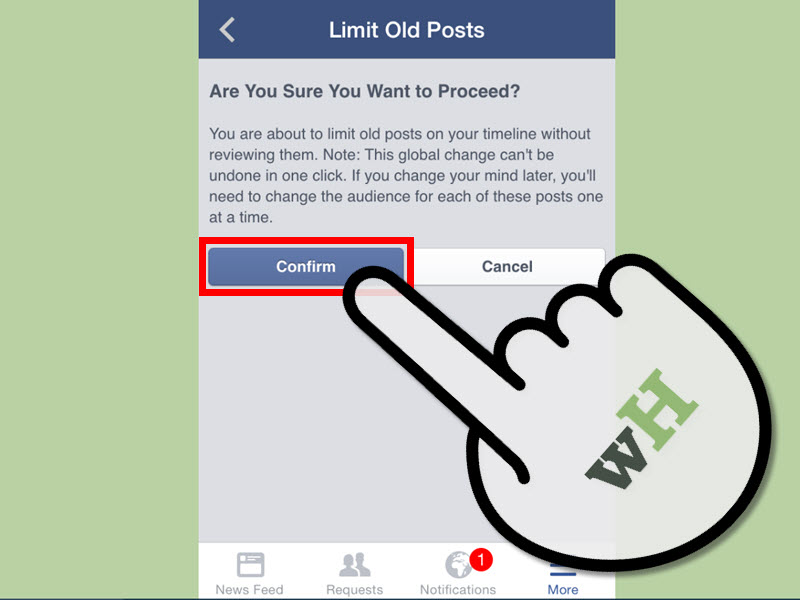
The fastest way to mass change privacy settings for old Facebook posts is Facebook’s built-in “Limit Past Posts” feature. This tool changes older posts that were shared with “Public” or “Friends of Friends” so they become visible to “Friends” only. It is the big red privacy buttonbut fortunately, not literally red, because that would be stressful.
Best For
This method is best if your main goal is to quickly stop strangers from seeing old public posts. It is ideal for people who have used Facebook for many years and want a fast privacy upgrade without reviewing every single post manually.
How to Limit Past Posts on Facebook
The exact menu names may vary slightly depending on whether you use Facebook on desktop, iPhone, or Android, but the general path is similar:
- Open Facebook and go to your profile menu.
- Select Settings & privacy.
- Choose Settings.
- Look for Audience and visibility.
- Select Posts.
- Find Limit who can see past posts or Limit Past Posts.
- Review Facebook’s warning carefully.
- Confirm that you want to limit old posts.
Once confirmed, Facebook will update past posts that were visible beyond your friends list. For example, a public post from 2016 about your beach vacation should become visible to friends only. A “Friends of Friends” post from 2019 should also be narrowed to friends.
Important Limits of “Limit Past Posts”
This tool is powerful, but it does not turn every old post into “Only me.” That is one of the most common misunderstandings. If you want old posts to become completely private, you will need to use Activity Log or edit posts in smaller batches.
Another limitation is that the feature does not apply to every audience type. Posts previously shared with custom audiences may not be changed. Posts where you tagged other people may still be visible to the tagged person and possibly to audiences connected with that tag. Also, this tool only affects posts you shared. If someone else posted a photo of you or tagged you in their own post, they still control the original audience.
The change is also not designed to be reversed in one click. You can later change individual posts back to Public or another audience, but Facebook does not provide a simple “undo all” button. So do not use this feature while half-asleep, emotionally cleaning your profile after seeing one bad memory. Coffee first, privacy second.
Method 2: Use Activity Log and Manage Activity for Bulk Cleanup
If “Limit Past Posts” is the quick privacy sweep, Activity Log is the detailed cleaning kit. Facebook’s Activity Log lets you review your posts, photos, videos, comments, tags, and other activity. The Manage Activity feature can help you filter older posts and move selected content to Archive or Trash in batches.
Best For
This method is best if you want more control than “Friends only.” Use it when you want to hide, archive, or delete groups of old Facebook posts based on year, category, privacy setting, or content type. It is especially useful if you want to make some posts private, remove outdated posts from your profile, or delete content that no longer fits your life.
How to Use Activity Log to Manage Old Posts
To access Activity Log:
- Open Facebook.
- Go to your profile.
- Click or tap the three-dot menu near your profile controls.
- Select Activity Log.
- Choose a category such as Your posts, Photos and videos, or Posts you’re tagged in.
- Use filters such as date, audience, or content type where available.
- Select multiple items if Facebook offers bulk selection for that category.
- Choose whether to archive, trash, hide, or adjust the content.
Archive is useful when you no longer want a post visible on your profile but do not want to permanently delete it. Archived content is generally visible only to you. Trash is more final: content moved there is typically scheduled for deletion after a limited recovery period. If you are not sure whether you will regret deleting something, archive first. Future-you may appreciate the emotional maturity.
Using Filters to Speed Up the Process
The secret to using Activity Log efficiently is filtering. Instead of scrolling from today back to the invention of the “Like” button, narrow your search. Start with years when you posted publicly the most. For many users, this may be the early Facebook years, when public sharing felt normal and privacy settings were less obvious.
Useful filters include:
- Year: Review older posts from a specific period.
- Audience: Find posts shared publicly or with broader audiences.
- Category: Separate status updates, photos, videos, and tagged activity.
- People: Locate posts involving certain friends or tags.
For example, suppose you are job hunting and want to clean up old public posts from 2014 to 2018. You can filter by those years, review visible posts, archive casual updates, delete irrelevant jokes, and keep meaningful milestones. That gives you more nuance than pressing one button and hoping for the best.
Archive vs. Delete vs. Hide From Profile
These options are similar but not identical. Archive keeps the content but removes it from public or friend-facing view. Delete removes the content after the recovery window. Hide from profile may remove something from your timeline while it remains visible elsewhere, depending on the post type and original audience.
If privacy is your main goal, do not assume “hide from profile” is enough. A hidden post may still exist in another place on Facebook. If you want stronger control, change the audience, archive the item, remove the tag, or delete it.
Method 3: Review Tags, Photos, Albums, and Future Audience Settings
The third way to mass change privacy settings for old Facebook posts is to handle the areas that bulk tools do not fully solve: tagged posts, photos, albums, profile information, and future post defaults. This is the “privacy maintenance” step. It is not as dramatic as a one-click cleanup, but it prevents your old-post problem from returning like a sequel nobody asked for.
Review Posts You’re Tagged In
When someone tags you in a post, you do not automatically control the post’s full audience. You can often remove the tag or hide the post from your profile, but the original poster controls who can see the original content. That means a tagged vacation photo, group event post, or old inside joke may remain visible outside your preferred circle.
To review tagged posts:
- Go to Settings & privacy.
- Select Settings.
- Find Profile and tagging.
- Review who can see posts you are tagged in on your profile.
- Turn on review options for posts and tags before they appear on your profile.
- Use Activity Log to remove tags from older content where needed.
Turning on tag review is one of the smartest privacy habits you can build. It does not stop someone from posting about you, but it helps prevent surprise appearances on your own profile. This is especially useful if you have friends who believe every group dinner requires 87 tagged photos and a caption written like a police report.
Check Old Photos and Albums
Photos often need separate attention because albums can have their own audience settings. A photo inside an album may follow the album’s privacy rules, and some profile or cover photo updates may behave differently from ordinary posts. Go through older albums and check the audience selector for each one.
Start with albums that reveal personal details: vacations, family events, home photos, school memories, workplace gatherings, or children’s milestones. You may decide to keep some albums visible to friends, move others to “Only me,” or delete duplicates and low-quality uploads. Nobody needs four versions of the same sunset unless the sunset is paying rent.
Set Your Future Post Audience
Cleaning old posts is helpful, but your future default audience matters just as much. If your default is still Public, you may accidentally start the whole cycle again. Set future posts to “Friends” or a custom audience unless you intentionally use Facebook for public updates, professional visibility, or creator content.
To change your future post audience:
- Open Settings & privacy.
- Go to Settings.
- Select Audience and visibility.
- Choose Posts.
- Find Who can see your future posts?
- Select your preferred default audience.
A good everyday setting for most personal accounts is “Friends.” If your friend list is large or includes coworkers, distant relatives, old classmates, clients, and one person you met at a conference in 2011, consider using “Friends except…” or custom friend lists for more sensitive posts.
Which Method Should You Use?
If you want the fastest fix, use Limit Past Posts. If you want careful control, use Activity Log. If you want lasting privacy, review tags, photos, albums, and future audience settings. The best approach is usually all three, in that order.
Here is a simple plan:
- Run Limit Past Posts to reduce public visibility quickly.
- Use Activity Log to archive, delete, or review sensitive posts.
- Adjust tag review, album audiences, and future post defaults.
- Use View As or public preview tools, if available, to see what strangers can view.
- Repeat the review every few months, especially after major life changes.
Common Mistakes to Avoid
Assuming “Friends” Means Private
Friends-only is more private than Public, but it is not the same as private. If you have hundreds or thousands of friends, “Friends” may include people you barely know. Review your friend list if privacy is important.
Forgetting About Tagged Content
Limiting your own posts does not fully control posts made by others. Check tagged photos, old event posts, and timeline mentions.
Deleting Too Quickly
Deleting can feel satisfying, but archiving is safer when you are unsure. Some old posts may contain meaningful memories, comments from loved ones, or information you may want later.
Ignoring Future Defaults
If your future post audience remains Public, you are cleaning the floor while wearing muddy boots. Change the default before you continue posting.
Privacy Cleanup Example: A Practical 30-Minute Routine
Here is a realistic workflow for someone who wants better Facebook privacy without spending an entire weekend in settings menus:
- Minutes 1–5: Go to Facebook settings and use Limit Past Posts.
- Minutes 6–10: Change future post audience to Friends or a custom setting.
- Minutes 11–20: Open Activity Log and filter old public posts by year.
- Minutes 21–25: Archive or delete posts that reveal too much personal information.
- Minutes 26–30: Turn on tag review and check who can see tagged posts on your profile.
This routine will not make your Facebook account perfectly private, but it will dramatically reduce casual exposure. For most people, that is the goal: not disappearing into the digital woods, just making sure random strangers cannot browse your personal history like a museum exhibit.
Extra Experience: What It Feels Like to Clean Up Years of Facebook Posts
Mass changing privacy settings for old Facebook posts sounds like a technical task, but it often feels surprisingly personal. You are not just clicking menus; you are walking through old versions of your life. One year may be full of graduation photos. Another may contain job updates, family celebrations, political arguments, memes with fonts that should be illegal, and status updates that begin with “I never post things like this, but…” Spoiler: everyone posted things like that.
The first experience many users have is shock at how much was public. Years ago, people often accepted Facebook’s default settings without thinking too hard. A post about a new apartment, a workplace complaint, a school photo, or a vacation countdown may have been visible to far more people than intended. Running the Limit Past Posts tool can feel like closing the curtains in a house you forgot had giant street-facing windows.
The second experience is relief. Once public posts become friends-only, the profile immediately feels less exposed. It is not perfect privacy, but it removes the easiest access point for strangers. This is especially comforting before applying for jobs, dating online, starting a business, becoming a parent, moving to a new city, or simply deciding that your personal life does not need a public archive.
The third experience is decision fatigue. Activity Log gives more control, but it also asks you to make choices. Should you archive old jokes? Delete old photos? Keep memories visible to friends? Remove tags from posts that are harmless but awkward? A helpful rule is to sort posts into three categories: keep, archive, and remove. Keep posts that still represent you or preserve meaningful memories. Archive posts that are personal but worth saving. Delete posts that are outdated, revealing, duplicated, or no longer useful.
Another lesson is that privacy cleanup works best in batches. Trying to review fifteen years of Facebook history in one sitting is how you end up emotionally trapped in 2013, wondering why everyone used so many hashtags. Instead, review one year at a time or one category at a time. For example, do public status updates today, photos tomorrow, tagged posts next week, and old albums after that. Slow cleanup is still cleanup.
It also helps to review your friend list. Many people limit old posts to “Friends” and then realize their friend list includes former coworkers, people from old group projects, distant acquaintances, and names they do not recognize without profile pictures. Privacy settings and friend-list hygiene work together. If you would not invite someone into your living room, they may not need access to ten years of personal posts.
Finally, the biggest experience-based tip is to treat privacy as maintenance, not a one-time rescue mission. Facebook changes menus, life circumstances change, and your comfort level changes too. Review settings every few months, especially after a major transition. A little routine attention keeps your profile from turning into a public storage unit for every thought, photo, and questionable meme you have ever shared.
Conclusion
Mass changing privacy settings for old Facebook posts is one of the simplest ways to protect your digital footprint. Start with “Limit Past Posts” for a fast privacy upgrade, then use Activity Log and Manage Activity to archive, delete, or review older content in batches. Finish by checking tagged posts, photo albums, and your future post audience so the same problem does not quietly rebuild itself.
You do not need to erase your entire Facebook history to become more private. You just need to decide who deserves access to it. Your memories can stay; the random public audience can leave. Consider it a polite digital bouncer for your timeline.
Note: This article is based on current Facebook privacy controls, Meta help guidance, and widely recommended privacy practices. Menu labels may vary slightly by device, app version, and region.