Your passwords are probably living one of three lives. Some are trapped in your memory, where they compete with grocery lists and song lyrics from 2007. Others are saved in a browser you vaguely trust. The rest may be variations of the same “clever” password with a different number taped onto the end. That system feels convenient until one leaked login gives an attacker a key ring instead of a single key.
Good password management is not about becoming a cybersecurity wizard. It is about choosing a repeatable system that creates unique credentials, makes secure sign-ins easy, and gives you a recovery plan when a device disappears or a company reports a breach. NIST currently recommends using a password manager, enabling multifactor authentication, and making any password you must create at least 15 characters long.
Below are three practical ways to manage your passwords. The first offers the most control, the second is convenient for people who live inside one technology ecosystem, and the third is a limited manual approach for the few secrets that should remain memorable or recoverable offline.
Why Password Management Matters
Password reuse turns one compromised website into a possible attack on your email, shopping accounts, social media, and financial services. Attackers can automate attempts using usernames and passwords exposed elsewhere, a technique called credential stuffing. Even changing CoffeeRiver into CoffeeRiver2 is not much of a disguise; predictable variations are exactly what automated tools expect.
Your email account deserves special attention because it usually receives password-reset links for other services. The real goal is therefore larger than creating a “strong” password: every important account needs a unique credential, secure storage, reliable recovery, and an additional authentication factor whenever possible.
1. Use a Dedicated Password Manager
What a Dedicated Manager Does
A dedicated password manager stores your logins inside an encrypted vault. You unlock that vault with one strong master password, a passkey, biometric verification, or a combination of factors. The manager can generate long random passwords, save them, fill them into websites and apps, and synchronize them across approved devices.
This is the best all-around option for people who use several browsers, mix Windows with iPhone or Android, share household accounts, or manage dozens of work and personal logins. Instead of inventing “unique” passwords with a tired brain at midnight, you let the generator create something like q7V!m2Rz#9Lx4P@c. You do not memorize it. That is the point.
How to Set It Up Safely
- Choose a reputable provider. Look for transparent security documentation, independent audits, encrypted synchronization, support for passkeys, practical recovery options, and a way to export your data.
- Create a long master passphrase. Use several unrelated words, not a quote, lyric, birthday, pet name, or public detail. A fictional example is
Lantern-Fossil-Velvet-River-27. Do not copy it; thousands of readers may have the same brilliant idea. - Enable multifactor authentication. An authenticator app, security key, or passkey is generally preferable to a text message when stronger choices are available. The FTC describes text- or email-delivered codes as the least secure common form of two-factor authentication.
- Import and clean up. After importing passwords from a browser or old vault, verify the transfer and delete any unencrypted CSV export. A plain-text password file is less “backup” and more “gift basket for malware.”
- Run the security report. Replace reused, weak, and exposed passwords, starting with email, banking, cloud storage, shopping, and social media.
Benefits and Tradeoffs
A good manager makes the secure action easier than the insecure one. It can also recognize the correct website before autofilling, which may warn you when a phishing page uses a look-alike address. However, it is not magic armor. Keep devices updated, protect the vault with a strong sign-in method, and never reveal a password or approve an unexpected login request.
Prepare for recovery as carefully as you prepare for daily use. Store recovery codes offline, keep recovery contact details current, and learn what happens if every device is lost. A vault that only you can open is wonderfully private until “only you” is standing beside a phone that just fell into a lake.
2. Use Your Browser or Device’s Built-In Manager and Passkeys
The Convenient Ecosystem Approach
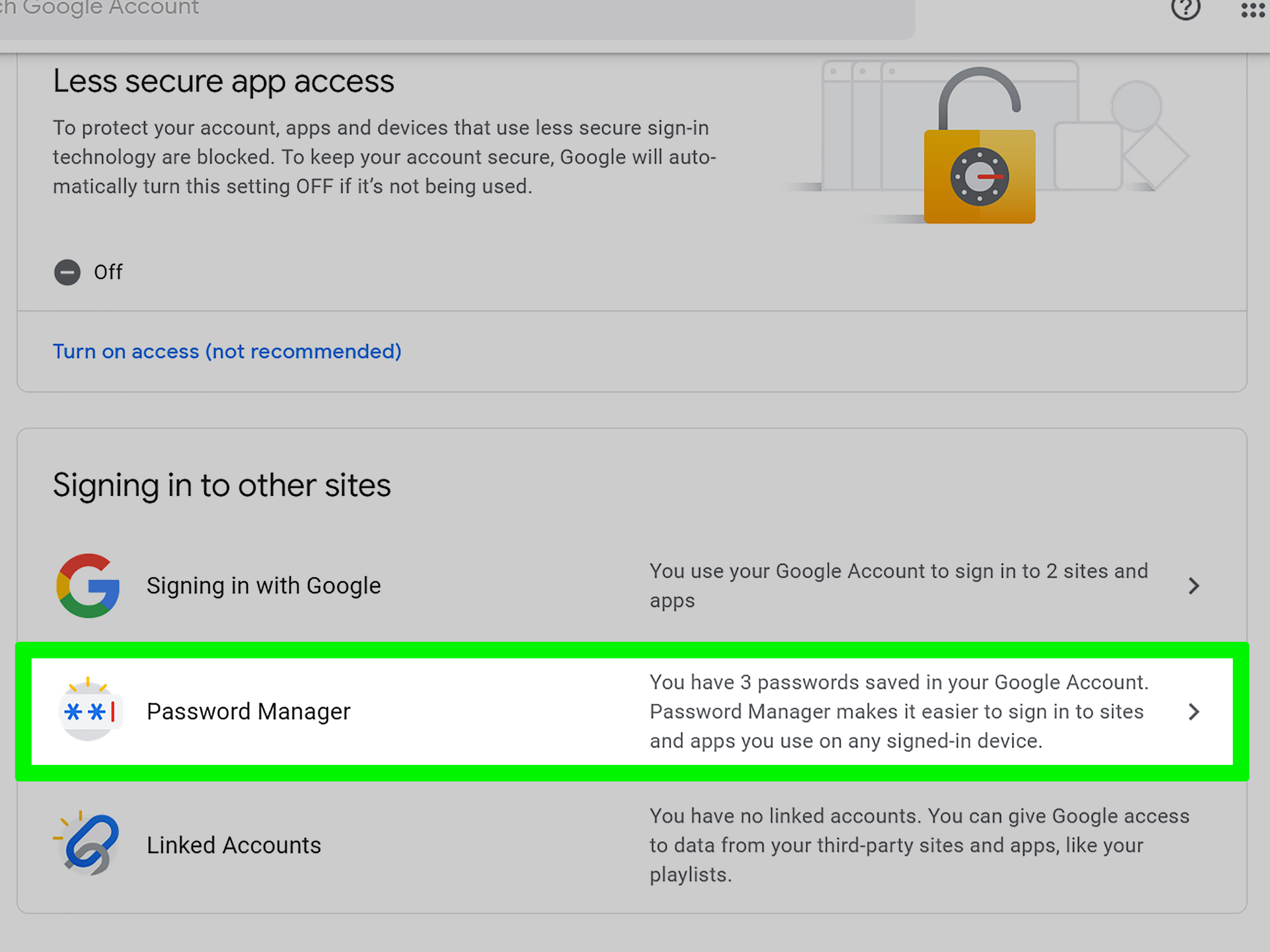
Google, Apple, and Microsoft provide built-in tools that generate, save, synchronize, audit, and autofill passwords and passkeys. Google Password Manager works through Google accounts, Chrome, and Android. Apple’s Passwords app and iCloud Keychain integrate with Apple devices. Microsoft Password Manager stores passwords and passkeys through Edge and compatible Windows settings.
This method is ideal when most of your devices belong to one ecosystem. Setup is simple, autofill is already available, and the service may alert you when a saved password is compromised or reused. For many people, enabling a built-in manager today is safer than spending three weeks comparing vault products while continuing to reuse the same weak login.
Use Passkeys When a Trusted Service Offers Them
A passkey replaces the secret you type with a cryptographic credential stored on your device or in a credential manager. You approve sign-in with a device PIN, fingerprint, or face recognition. Because the credential is tied to the legitimate website or app, it is designed to resist phishing and cannot be reused on another service. The FIDO Alliance describes passkeys as unique, phishing-resistant credentials that can be managed by operating-system, browser, or third-party providers.
Before creating one, confirm that you are on the real site and that your recovery methods are current. Keep the old password stored until you understand whether the service still requires it for recovery. Passkey support is growing, but websites, shared accounts, older devices, and workplaces do not all handle it identically.
Understand the Limits
Built-in managers can become awkward when you constantly switch ecosystems. An Apple-heavy household may find iCloud Keychain wonderfully smooth, while someone rotating among Safari, Firefox, Windows, Linux, and Android may prefer a dedicated cross-platform vault. Work and school accounts may also have administrator restrictions.
Protect the ecosystem account itself with your strongest available sign-in method. If one Google, Apple, or Microsoft account controls password synchronization, email, purchases, and cloud files, it is a digital master key. Enable multifactor authentication, review signed-in devices, remove unknown sessions, and keep recovery codes somewhere other than the phone they are meant to recover.
3. Use a Disciplined Manual System for a Few Critical Secrets
When Manual Management Makes Sense
Managing every password by memory is unrealistic and usually leads to reuse. A limited manual system can still help with the few secrets that unlock everything else: your password-manager vault, primary email, device account, encrypted backup, or emergency kit. The key word is limited. Your brain should not be responsible for 87 logins and the Wi-Fi password at your dentist’s office.
Create Memorable Passphrases, Not Formulas
For a password you must remember, prioritize length and uniqueness. Choose several unrelated words, then add separators or a private structure that does not depend on public information. Avoid quotations, teams, addresses, birthdays, children’s names, or patterns such as Amazon2026! and Netflix2026!. Those formulas create the illusion of variety while preserving the part an attacker needs to guess.
Current NIST guidance favors long passwords, permits spaces, rejects mandatory composition tricks as a primary strategy, and says routine changes should not be forced without evidence of compromise. A long unique passphrase can therefore be better than a shorter jumble that you replace every month and immediately forget.
Build an Offline Recovery Kit
Record recovery codes, key account instructions, and the location of important digital assets. Store the kit in a locked safe, secure document box, or another protected place that a trusted person can access during an emergency. Do not leave it in a drawer labeled “PASSWORDS,” under the keyboard, or in an unencrypted note named all-logins-final-FINAL.txt.
The kit should contain enough information to restore access without becoming a complete map of your online life. Include the vault recovery code, the email address tied to it, instructions for locating a security key, and an emergency contact plan. Review the kit after major account changes and test whether its instructions still make sense.
Respond Correctly to a Breach or Phishing Attempt
If a service reports a breach, change the affected password immediately and replace it anywhere else you reused it. Sign out other sessions, review recovery details, enable multifactor authentication, and watch for unauthorized activity. For suspicious messages, avoid their links and open the official app or type the known website address yourself. The FBI warns that spoofed pages can closely imitate real sites and recommends examining URLs carefully and enabling multifactor authentication.
Which Method Should You Choose?
Choose a dedicated manager for cross-platform flexibility, secure sharing, and advanced auditing. Choose a built-in manager when convenience matters most and your devices mostly belong to one ecosystem. Use the manual approach only for a small number of master passphrases and offline recovery materials.
The strongest practical setup often combines all three: a manager handles unique passwords and passkeys, you memorize one excellent vault passphrase, and a protected offline kit stores recovery information. Add multifactor authentication to email, banking, cloud storage, social media, shopping, and any account that could be used to impersonate you.
Experiences From Actually Managing Passwords
The biggest surprise when people move to a password manager is not how technical it feels, but how quickly it becomes boring. Boring is good. Before the switch, signing up for a website starts a tiny negotiation: “Which password can I reuse without feeling too guilty?” After the switch, the manager creates a random credential, saves it, and fills it later. The decision disappears. Security improves because the user has fewer opportunities to bargain with convenience.
The migration itself can be messy. An imported vault often reveals duplicate accounts, ancient shopping sites, misspelled usernames, and six versions of the same password. One practical approach is to avoid fixing everything in a single heroic weekend. Start with the primary email account because it controls many password resets. Continue with financial services, cloud storage, mobile carrier accounts, social media, shopping sites, and work tools. Let lower-risk accounts wait their turn. A calm migration beats a rushed one that ends with someone locking themselves out of half the internet.
Passkeys can feel odd at first because there is nothing memorable to type. A prompt appears, the device asks for a fingerprint or PIN, and the account opens. The absence of a password may feel suspicious to anyone raised on the idea that security should involve suffering. After several successful sign-ins, however, the convenience becomes obvious. The main learning curve is recovery: users should understand where the passkey is stored, whether it synchronizes, and how to sign in after replacing a device.
Built-in managers offer a similar lesson. People sometimes dismiss them because they are “just in the browser,” yet an actively used built-in manager that generates unique credentials is usually more useful than an advanced standalone vault that remains uninstalled. The friction appears later when someone changes browsers or mixes platforms. That is the point at which exporting to a cross-platform manager may become worthwhile.
Families and small teams discover another issue: password sharing should be designed, not improvised. Sending a streaming-service password through a chat message leaves extra copies in backups, notifications, and desktop history. A shared vault or trusted password group gives access without scattering the secret. It also makes offboarding easier. When a roommate, contractor, or former employee no longer needs access, you can remove the person and rotate the credential instead of searching old conversations like a digital archaeologist.
The manual recovery kit tends to feel unnecessary until the exact day it becomes essential. A broken phone, forgotten vault password, deceased family member, or locked email account can turn a minor inconvenience into a long recovery process. Writing clear instructions while everything works is far easier than reconstructing them during a crisis. The best kit is not enormous. It is current, protected, understandable, and tested.
Finally, password management changes how people react to breach notices. Without a system, a breach creates panic because nobody remembers where the same password was reused. With a manager, the affected login can be found, changed, and audited. That feeling of control is the real payoff. The goal is not perfect security; no tool can promise that. The goal is to prevent one weak or stolen credential from becoming a guided tour through your digital life.
Conclusion
The best way to manage passwords is the one you will use consistently. For most people, that means a dedicated password manager or the secure manager already built into their devices, combined with passkeys and multifactor authentication. Reserve memorization for one or two critical passphrases, and keep recovery information in a protected offline location.
Start with email, replace reused passwords, enable stronger sign-in methods, and work through the rest in manageable batches. You do not need to become the hero of a cyber-thriller. You only need to stop giving every account the same key.
Note: Password, passkey, and recovery features change over time. Review the current security and recovery settings offered by each service before relying on it for critical accounts.