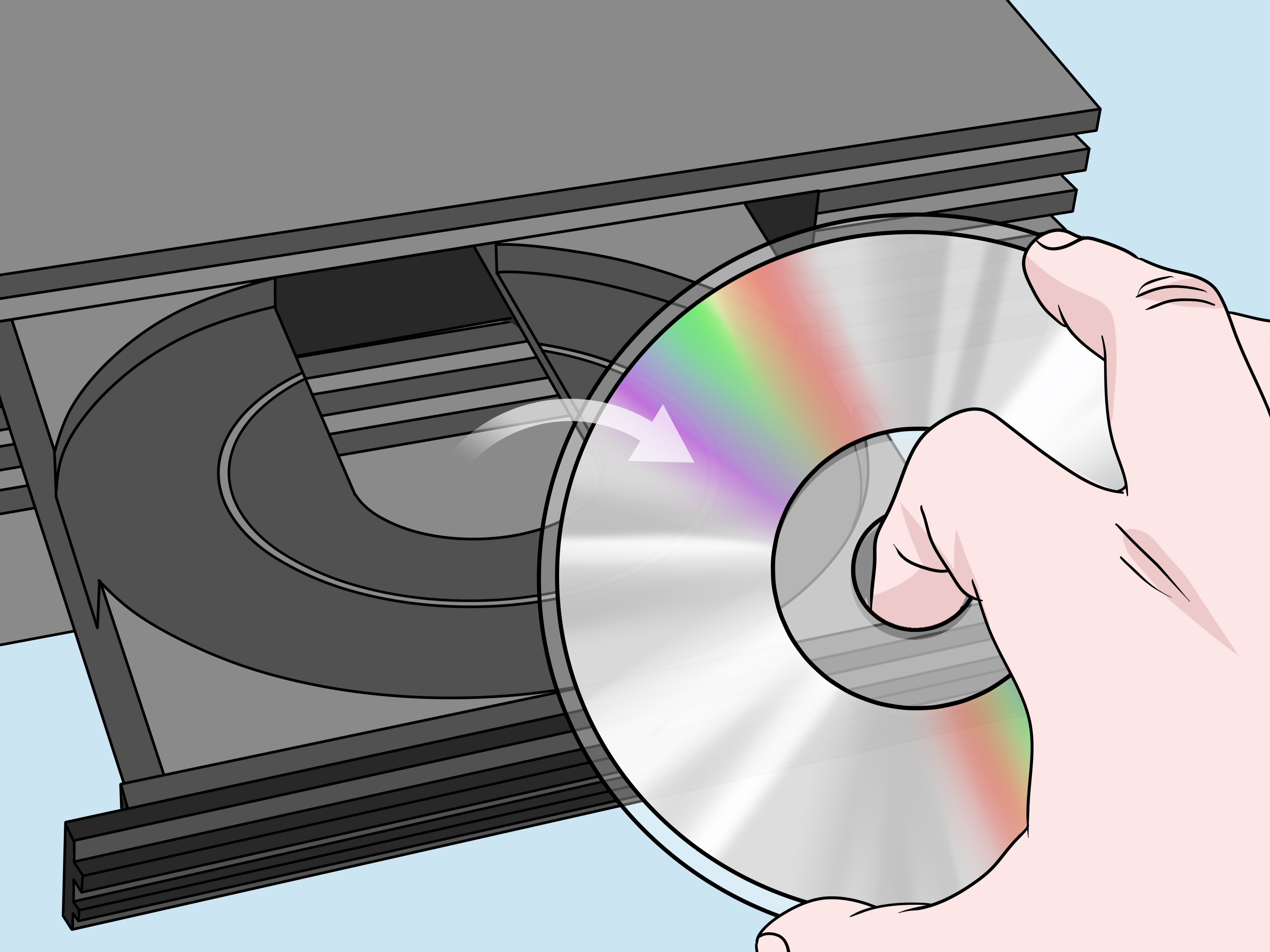
Connecting a PlayStation 2 to the internet sounds like a job involving ancient cables, forgotten passwords, and possibly an archaeological permit. Fortunately, the process is much simpler than it looks. With the correct network hardware, an Ethernet cable, a memory card, and a compatible game, a PS2 can still reach online multiplayer services decades after the console’s original release.
There is one important catch: Sony and most game publishers no longer operate their original PS2 servers. Online play today usually depends on community-hosted replacement servers or a LAN-tunneling service such as XLink Kai. Because each game originally managed online features differently, the exact connection method may vary from one title to another.
This guide explains how to hook up a PS2 online using original hardware, configure its network settings, connect through a modern router, and troubleshoot the errors most likely to appear along the way.
Can You Still Play PS2 Games Online?
Yes, selected PlayStation 2 games can still be played online. However, the PS2 does not use PlayStation Network in the same way as a PS3, PS4, or PS5. There is no system-wide PSN account, universal friends list, or PlayStation Plus subscription requirement.
During the PS2 era, publishers generally operated their own authentication, lobby, and matchmaking systems. Most of those official services have closed. Dedicated preservation communities have since rebuilt portions of the infrastructure for games such as Battlefield 2: Modern Combat, Call of Duty 2: Big Red One, Area 51, Burnout 3: Takedown, and various sports and racing titles.
Availability is game-specific and can change without warning. A game may connect through a simple custom DNS address, require a title-specific patch, work only with a particular regional release, or support LAN tunneling instead of a conventional replacement server.
Research basis: current community server status and PS2 compatibility information.
What You Need to Connect a PS2 to the Internet
Gather the following equipment before beginning:
- A working PlayStation 2 console
- An Ethernet-capable PS2 Network Adaptor for an original “fat” console
- A standard Ethernet cable
- A broadband internet connection and router
- An 8MB PlayStation 2 memory card
- A PS2 game with online or LAN multiplayer support
- A current setup guide for the game’s community server
The memory card is important because most games save the PS2 network configuration to it. Without that file, a game may recognize the network hardware but complain that no connection settings are available.
Check Whether You Have a Fat or Slim PS2
The hardware you need depends on the console model.
Original fat PS2: Most North American fat models require a Network Adaptor attached to the expansion bay on the back of the console. Look for an RJ45 Ethernet socket on the adapter. Some modern products advertised as “PS2 network adapters” are intended only for connecting an internal hard drive and do not include functional networking hardware.
PS2 Slim: Slim consoles have an Ethernet connection built into the rear panel, so no external Network Adaptor is required. The port resembles an oversized telephone jack and is normally labeled “NETWORK.”
The PS2 Slim includes integrated network capability, while original models use an expansion-bay adapter.
How to Hook Up a PS2 Online Step by Step
Step 1: Install the Network Adaptor on a Fat PS2
Skip this step when using a PS2 Slim.
- Turn off the PS2 and unplug its power cable.
- Remove the plastic expansion-bay cover from the rear of the console.
- Align the Network Adaptor with the expansion-bay connections.
- Press the adapter into place gently and evenly.
- Tighten its two mounting screws with a coin or suitable screwdriver.
The screws need to be secure, but this is not a lug-nut competition. Overtightening them can damage the adapter or console housing.
Step 2: Connect the PS2 to Your Router
- Plug one end of an Ethernet cable into the PS2’s network port.
- Plug the other end into an available LAN port on your router.
- Turn on the router and wait until it has a working internet connection.
- Reconnect and power on the PlayStation 2.
A direct wired connection is the easiest and most reliable option. Sony’s documentation specifies support for 10Base-T and 100Base-TX Ethernet networks. Do not connect a telephone line, an ISDN line, or an unknown phone-style cable to the network socket.
Official PS2 networking documentation lists Ethernet, broadband service, a compatible game, and a memory card as basic requirements.
Can a PS2 Connect Through Wi-Fi?
The PS2 does not contain built-in Wi-Fi, but you can use an external wireless bridge, travel router, mesh node, or Wi-Fi extender with an Ethernet output. The bridge joins your wireless network and presents the connection to the PS2 as ordinary wired Ethernet.
This arrangement can work well when the main router is in another room. Nevertheless, use Ethernet from the PS2 all the way to the router whenever possible. Wired networking generally produces lower latency and fewer mysterious disconnectsthe sort that always occur when you are finally winning.
Step 3: Insert a Memory Card
Place a PlayStation 2 memory card in slot 1. Leave enough free space for a network configuration file and any game data the title needs to save.
A PS1 memory card will not substitute for a PS2 memory card. It may fit physically, but it cannot store normal PS2 network configuration data.
Step 4: Open a Network Configuration Utility
Network settings are not normally created from the PS2’s basic Browser screen. You need one of the following:
- The original Network Adaptor Start-Up Disc or Network Access Disc
- An online-compatible game with a built-in network configuration utility
- A suitable homebrew network configuration tool on a responsibly configured console
Many games display an option such as Network Configuration, Edit Network Settings, or Online Setup. Other games expect a configuration file to exist already and cannot create one themselves. In that situation, use a different compatible game or the original setup disc to create the file first.
Step 5: Configure the IP Address
For a typical home router, choose automatic settings whenever possible:
- ISP login required: No
- IP address: Automatic or DHCP
- Subnet mask: Automatic
- Default gateway: Automatic
Your router’s DHCP server should assign the PS2 a local address such as 192.168.1.25. PPPoE usernames and passwords are only required when the console is being connected directly to a compatible modem or when the internet provider specifically requires them. Most people using a router should not enter ISP login credentials.
Step 6: Enter the Correct DNS Settings
DNS is the setting that frequently redirects an old PS2 game away from its discontinued destination and toward a community replacement service.
For normal LAN play or XLink Kai, automatic DNS may be sufficient. For direct community-server play, select manual DNS and enter the address specified by the project supporting your game.
For example, PS2Online.com listed the following general community DNS configuration when this article was researched:
- Primary DNS: 45.7.228.197
- Secondary DNS: 8.8.8.8
Do not assume that one DNS address supports every game forever. Server operators may move services, introduce game-specific addresses, or take systems offline for maintenance. Verify the current address and regional compatibility before saving your configuration.
Current DNS example confirmed against PS2Online and OpenSpy guidance at research time.
Step 7: Save and Test the Connection
Name the configuration something recognizable, such as “Home Router” or “Community DNS,” and save it to the memory card. The PS2 may allow several network profiles, which is useful when different games need different DNS servers.
Run the connection test. A successful test confirms that the PS2 has communicated with your router and, depending on the utility, reached the internet. It does not necessarily prove that the selected game server is operational.
Step 8: Start the Game and Select Online Play
Load the compatible game and choose its online multiplayer option. Select the network configuration you just created. You may then be asked to create a nickname, accept an old-fashioned terms screen, or sign in to a game-specific account.
Avoid entering a password that you currently use for email, banking, social media, or another important service. Community servers are enthusiast-run systems, not modern Sony account infrastructure. Use a unique password whenever registration is required.
Method One: Connect Through a Community Replacement Server
A replacement server recreates some or all of a game’s discontinued online services. In the easiest cases, the only change required is a custom DNS address. The game sends a request intended for its former publisher, and the community DNS redirects that request to the replacement system.
Other games are more complicated. They may depend on the discontinued Dynamic Network Authentication System, commonly called DNAS, or use proprietary matchmaking components. Those titles may need a game-specific compatibility patch or replacement authentication service.
Check the exact disc region and serial number before applying any game-specific instructions. An NTSC-U release sold in the United States may use different executable data from PAL or Japanese editions. A patch intended for one version may not work with another.
Method Two: Play PS2 Games Through XLink Kai
XLink Kai is an alternative for PS2 games that support local-area-network multiplayer. It tunnels LAN traffic through the internet, making distant consoles behave as though they are connected to the same home network.
You will need:
- A LAN-compatible PS2 game
- A Windows, macOS, Linux, or supported small computer running XLink Kai
- An XLink Kai account
- A wired Ethernet path between the PS2 and the computer or router
Connect both the computer and PS2 to the router with Ethernet cables, install the XLink Kai engine, and follow its PlayStation 2 detection procedure. Once the console is detected, enter the appropriate game arena in XLink Kai and open the game’s LAN multiplayer menu.
XLink Kai cannot magically add LAN support to a title that never had it. It works by carrying existing system-link traffic over the internet, not by rebuilding conventional matchmaking servers.
Team XLink recommends a fully wired PS2 setup for the lowest latency and most reliable LAN tunneling.
Common PS2 Online Problems and Fixes
The PS2 Says No Network Configuration Was Found
The game probably lacks a built-in setup utility. Create a network configuration with the original Network Adaptor disc or another game that includes the utility, then restart the affected title.
The Connection Test Fails Immediately
Check the Ethernet cable and router port. Try the same cable with another device, or move the cable to a different LAN port. On a fat PS2, reseat the Network Adaptor after turning off and unplugging the console.
Also confirm that your adapter genuinely includes Ethernet hardware. An HDD-only adapter cannot connect to the internet, regardless of how encouraging its product title sounded.
You Receive a DNS Error
Re-enter the DNS address carefully. PS2 input screens separate each number group, making it easy to place a digit in the wrong box. Confirm that the community DNS is still online and that your router is not forcing its own filtered DNS service.
If automatic IP settings work but manual DNS does not, the problem is likely the DNS address or server rather than the Ethernet connection.
You Receive a DNAS Authentication Error
The original DNAS infrastructure is no longer operating normally. Check the current compatibility instructions for that exact title and region. Some community servers supply replacement authentication, while others require a legitimate game-specific patch. A universal fix does not exist.
The Game Connects but the Lobby Is Empty
Congratulations: your network may be working perfectly. PS2 communities are enthusiastic but relatively small, so players often schedule matches through forums, Discord groups, or community event calendars. Peak activity may occur only during organized game nights.
You Can Join but Cannot Host a Match
Begin by enabling UPnP on the router if it is available and considered appropriate for your network. When a community guide specifies ports, reserve a local IP address for the PS2 and forward only those required ports.
Avoid placing the PS2 in the router’s DMZ as your first troubleshooting step. A DMZ exposes all ports for that device. Targeted port forwarding is usually the more controlled approach.
Router manufacturers recommend combining port forwarding with a fixed or reserved local IP address.
A Realistic First-Time PS2 Online Setup Experience
A common first-time setup begins with an encouraging discovery: the Ethernet cable fits. This is followed approximately four seconds later by the less encouraging discovery that the game cannot find any network settings.
The missing configuration file is one of the most confusing parts of bringing a PS2 online. Modern consoles keep networking options in a system menu, so it feels natural to search the PS2 Browser for an internet settings icon. There is no such convenient icon on most models. Instead, the settings are created by a startup disc or a compatible game and then stored on a memory card.
Once the correct utility is running, the easiest approach is to accept automatic IP, subnet, and gateway settings. On a standard router, the console often receives an address immediately. Seeing a successful connection test on hardware from the early 2000s is unexpectedly satisfying. The little black box has joined a modern fiber network without demanding a firmware update, a mobile application, or permission to send twelve kinds of analytics.
The next obstacle is usually DNS. Typing an address with a DualShock 2 is not difficult, but the segmented number fields can be mildly treacherous. One incorrect digit produces a vague error that makes the router, cable, server, and possibly the alignment of the planets look suspicious. Checking every number before saving saves a remarkable amount of time.
After the game finally reaches a replacement lobby, the first reaction may be that something is wrong because nobody else is there. In reality, many PS2 communities organize sessions instead of leaving populated public rooms open around the clock. Joining a scheduled event is much more effective than repeatedly entering an empty lobby at random.
The quality of an actual match depends heavily on wiring and distance. A PS2 connected directly to a router generally behaves better than one routed through several wireless repeaters. Community servers do not eliminate latency, and LAN tunneling can become temperamental when one participant has unstable Wi-Fi. When everyone uses a wired connection, though, the experience can be impressively smooth.
There is also something charming about the simplicity of PS2 multiplayer. There are no battle passes, daily login rewards, or giant operating-system downloads waiting at the title screen. You select a profile, find a room, and play. The graphics may be old, but the competition becomes modern the moment another human starts winning.
The most useful lesson is to troubleshoot the setup in layers. First confirm that the router sees the PS2. Next verify that the network test passes. Then check the DNS service, game compatibility, disc region, and server status. Changing five settings at once usually creates a puzzle that even the world’s most patient network engineer would rather avoid.
Once a working configuration is saved, back up or protect that memory card. Repeating the setup is not catastrophic, but preserving a known-good profile makes switching games and diagnosing future problems much easier. You may also create separate profiles for automatic DNS, a general community server, and any game that uses a special address.
Ultimately, hooking up a PS2 online is less like activating a modern console and more like restoring a classic car. It requires a few special parts, some community knowledge, and a willingness to investigate strange noises. When the first match begins, however, all that tinkering feels worthwhile.
Conclusion
To hook up a PS2 online, connect an Ethernet-capable console or Network Adaptor to your router, create a network configuration on a PS2 memory card, and enter the settings required by the game’s current community service. Automatic IP settings are best for most home networks, while direct replacement servers commonly require a custom DNS address.
Remember that PS2 online support is maintained game by game. Always check the latest compatibility list, use instructions for your exact regional release, and schedule matches with active communities. With a little preparation, the PlayStation 2 can once again do what it did best: turn an ordinary evening into several hours of extremely serious arguments about a very old racing game.
Note: Community DNS addresses, supported games, player populations, and server requirements can change. Verify current service status before changing network settings, and use original software or legally created personal backups where applicable.