You click a website expecting to check an order, read an article, or grab a file, and instead you get the digital equivalent of a bouncer crossing their arms: Access Denied on This Server. Not exactly the warmest welcome.
This error usually shows up when a website, server, or security firewall understands your request but refuses to let you in. Sometimes the problem is on your side. Sometimes the site has mistaken you for a robot, a threat, or an especially suspicious human who refreshes too aggressively. Either way, the result is the same: no page, no progress, no patience.
The good news is that this issue is often fixable. In many cases, you can solve it with a few browser, network, or device tweaks. In others, the website owner needs to lift the velvet rope. This guide walks through 12 practical ways to fix the “Access Denied on This Server” error, explains why it happens, and shows you how to figure out whether the problem is yours, the site’s, or a weird little team effort.
What “Access Denied on This Server” Actually Means
At its core, this message means the site received your request but chose not to allow it. That often overlaps with a 403 Forbidden error, and on some sites you may also see a firewall-specific message such as Error 1020. Translation: the server is saying, “I know you knocked. I’m still not opening the door.”
Why would a site do that? A few common reasons include:
- Your browser has stale cookies or corrupted cached files.
- Your IP address is being blocked by the site’s firewall.
- A VPN, proxy, privacy extension, or ad blocker is interfering.
- The website does not like your region, network, or request pattern.
- Your login session is broken or expired.
- Your browser settings or permissions are preventing the site from working normally.
The trick is not to panic and start clicking random buttons like you are trying to launch a spaceship. Work through the fixes below in order, and you can usually narrow the cause pretty quickly.
12 Ways to Fix the “Access Denied on This Server” Error
1. Refresh the page and sign in again
Start with the obvious move because, occasionally, the obvious move wins. Refresh the page once. Then, if the site uses an account, sign out and sign back in. A broken or expired session can trigger access problems, especially on banking sites, shopping portals, work dashboards, and subscription platforms.
If you were logged in on multiple tabs, close the extra tabs and try again with a fresh sign-in. Session confusion happens more often than most people realize. Websites are powerful, but they can still get moody when too many old tokens, cookies, and tabs are floating around.
2. Clear the site’s cache and cookies
This is one of the most reliable fixes. Cookies store login states and preferences, while cache stores page files for faster loading. When those files go stale or become corrupted, the site may interpret your request incorrectly and block access.
Instead of clearing everything right away, try removing data for the affected site first. That is cleaner and saves you from logging out of half the internet. If that does not work, clear broader browsing data for cached files and cookies, reopen the browser, and try again.
This step is especially helpful if the error appeared after the site updated, after you changed passwords, or after a page kept redirecting before it failed.
3. Open the site in Incognito or Private mode
An Incognito or Private window is the fastest way to test whether your normal browser profile is the problem. These modes usually run with a cleaner session, fewer stored cookies, and fewer active customizations.
If the website opens normally in a private window, that is a giant clue. It usually means the issue is tied to cached data, cookies, saved permissions, or an extension in your regular browser profile. In other words, the website may not hate you personally. It may just hate the pile of old browser junk attached to you.
4. Disable browser extensions, especially ad blockers and privacy tools
Extensions are useful right up until they decide to “help” by breaking something important. Ad blockers, script blockers, anti-tracking tools, security extensions, and VPN browser add-ons can interfere with how a website loads or authenticates your request.
Temporarily disable extensions and test the site again. If the page starts working, re-enable the tools one at a time until you find the troublemaker. That annoying little detective exercise is often worth it because the real fix may be as simple as whitelisting the site or changing one extension setting.
If you use Firefox, its Troubleshoot Mode can help confirm whether an add-on is behind the issue. In Chrome or Edge, manually turning extensions off usually does the job.
5. Turn off your VPN, proxy, or filtered network
Websites sometimes block entire IP ranges associated with VPNs, shared proxies, corporate gateways, or privacy services. If the site sees traffic coming from a suspicious or overused address, it may deny access even if you have done absolutely nothing wrong.
Turn off your VPN, disconnect from your proxy, or switch from a managed work or school network to a standard home or mobile connection. Then reload the site. If it suddenly works, the issue is probably IP reputation, geoblocking, or a strict firewall rule on the site.
This fix is very common with ticketing sites, travel portals, streaming services, shopping checkouts, and anything that is highly sensitive to fraud prevention.
6. Check the site’s permissions and cookie settings
Some websites need permissions to function properly. If you previously blocked cookies, pop-ups, scripts, location access, or certain site data, the site may fail in a way that looks like an access denial rather than a friendly explanation.
Open your browser’s site settings for the affected domain and review what is blocked. Make sure the site is allowed to store data if it requires sign-in. If you use strict privacy settings, temporarily loosen them for that specific site and test again.
This is also a good time to confirm that third-party cookie restrictions are not breaking a login flow. While blocking them can improve privacy, some older or poorly designed sites still act like it is 2013 and fall apart without them.
7. Try a different browser or update the one you have
If the site fails in Chrome, try Firefox, Edge, or Safari. If it fails in one browser but works in another, your problem is probably browser-specific, not network-wide. That narrows the diagnosis fast.
You should also update your browser if you have been ignoring update prompts like they are gym reminders. Outdated browsers can have compatibility problems, unsupported security behavior, or broken saved settings that affect site access.
A browser switch is not always the permanent fix, but it is a smart test. It helps answer the big question: is the site broken for you, or is your current setup the issue?
8. Flush your DNS cache
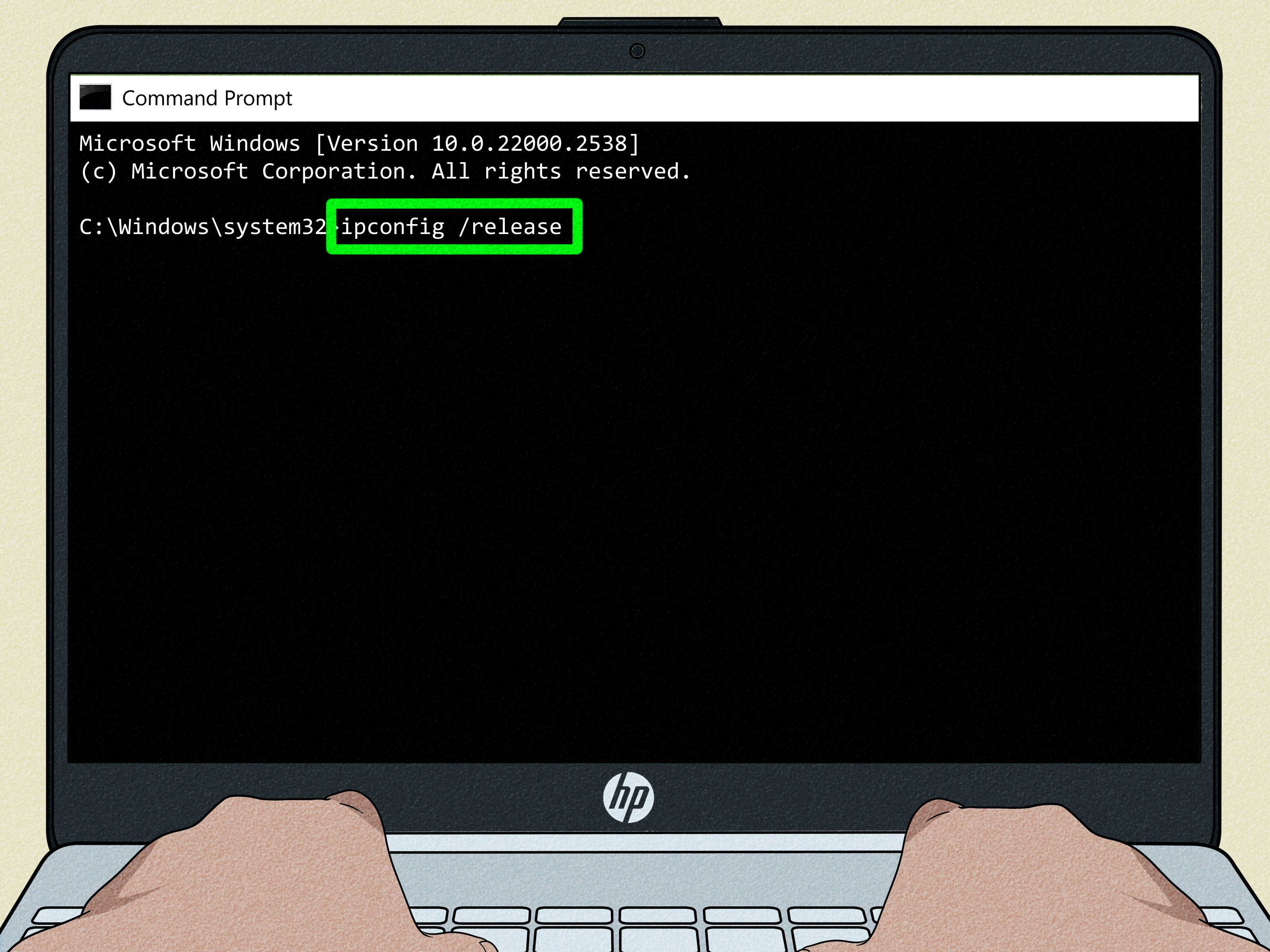
Sometimes your device hangs onto outdated DNS information, which can send you toward the wrong server or keep using bad lookup data. On Windows, you can open Command Prompt and run ipconfig /flushdns. Then restart your browser and try again.
If that sounds technical, do not worry. You are not rewriting the internet. You are simply clearing saved address lookups so your computer can request fresh ones. It is a small step, but it can solve stubborn access problems after network changes, domain updates, or weird redirect loops.
9. Restart your router or switch networks
Your current network may be the problem, not your browser. Restart your router, reconnect to Wi-Fi, or switch to another network entirely. Using your phone’s hotspot for a quick test is a great way to isolate the issue.
If the website loads on a different network, the site may be blocking your original IP address, your ISP may be routing traffic oddly, or your network may be using a proxy or filter you forgot about. This is one of the fastest ways to separate a device problem from a connection problem.
Think of it as changing doors instead of jiggling the same locked handle for twenty minutes.
10. Check your device’s date and time
An incorrect date or time can cause secure connections, certificates, and authentication processes to behave badly. The result is not always a clean SSL warning. Sometimes a site simply refuses the request and throws a vague access message.
Make sure your computer or phone is set to update the time automatically. Then restart the browser and revisit the site. It sounds too simple to matter, which is exactly why people skip it. And yet this tiny setting causes a surprising number of giant headaches.
11. Slow down and wait if you have been hammering the site
Rapid refreshes, repeated login attempts, scraping behavior, and aggressive clicking can trigger rate limits or firewall rules. Some sites interpret that pattern as bot traffic and temporarily block you. Congratulations: you may have accidentally behaved like a robot while trying to prove you are not one.
If you have been retrying over and over, stop for a while. Wait 10 to 30 minutes, then test again. If the error disappears later, the site may have temporarily flagged your activity or IP address. This happens a lot on event sites, shopping drops, travel booking pages, and login-heavy systems.
12. Contact the website’s support team or owner
If nothing works, the problem may be entirely on the site’s side. A firewall rule, region block, account permission setting, CDN configuration, or server policy may be denying legitimate visitors. At that point, you are unlikely to fix it from your browser alone.
When you contact support, include useful details:
- The exact error message
- The page URL
- The time the error happened
- Your browser and device
- Whether it happens on multiple networks or browsers
- Any visible error code, such as 403 or 1020
The more specific you are, the faster they can check logs or adjust a rule. “It broke” is technically true, but not exactly elite-level troubleshooting.
How to Tell Whether the Problem Is on Your Side or the Website’s
Here is a simple rule of thumb:
- If the site works in another browser, private window, or after clearing cookies: the problem is likely local to your browser profile.
- If the site works on another network: your IP address, VPN, proxy, or current connection is likely being blocked.
- If the site fails everywhere on all devices: the problem is probably on the website’s side.
- If only one page fails but the rest of the site works: the issue may be tied to permissions, session state, or a specific firewall rule.
This kind of testing saves time. It also prevents the classic mistake of spending an hour clearing settings when the site itself is misconfigured and having a dramatic little crisis behind the scenes.
Common Situations Where “Access Denied” Appears
The error can show up almost anywhere, but a few situations are especially common:
- Logging into financial or healthcare portals
- Checking out on e-commerce websites
- Accessing company dashboards from a VPN
- Opening articles or databases from school or office networks
- Booking flights, hotels, or event tickets
- Visiting sites protected by aggressive CDN or WAF rules
In these environments, strong security is good. Nobody wants a website with the digital security of a cardboard door. But strong security can occasionally catch normal users in the net, especially when cookies, extensions, VPNs, or IP reputation get involved.
Real-World Experiences With the Error
One of the most frustrating things about the “Access Denied on This Server” message is that it rarely appears at a convenient moment. It never pops up when you are casually browsing photos of patio furniture on a lazy Sunday. No, it appears when you are trying to do something urgent, boring, or financially important.
A common example is the work-from-home scenario. Someone logs into a company tool from home, still connected to a corporate VPN, with three security extensions installed, six stale tabs open, and a browser session that has been alive since prehistoric times. The site throws an access denied message, and suddenly it feels like the entire payroll system has declared personal war. In reality, the server may simply dislike the VPN exit point or the broken login session. Once the user disconnects the VPN, clears the site cookies, and signs in again, the page often behaves like nothing ever happened. Classic website behavior: dramatic entrance, quiet apology.
Another frequent situation involves online shopping or ticket sales. You open a product page, refresh too many times because inventory keeps changing, click back and forth between devices, then get blocked right when it is time to check out. It feels unfair because it is unfair. Many retail and ticketing platforms run automated defenses that treat repeated requests as suspicious traffic. A normal human being trying to buy one concert ticket can look oddly robotic if they refresh like a caffeinated hummingbird. In those cases, waiting a bit or switching networks can do more than twenty furious reloads ever will.
Students and office workers also run into this problem on managed networks. A campus Wi-Fi system, library firewall, or company proxy may filter requests in ways users never see. A site can work perfectly at home but fail instantly on a school or office connection. That is why testing a phone hotspot is so useful. It is not glamorous, but it is one of the cleanest troubleshooting moves available. If the site loads on mobile data, the mystery gets much smaller very quickly.
Then there is the browser extension trap. Plenty of people install privacy tools, ad blockers, cookie cleaners, anti-tracking extensions, and script managers with the best intentions. Then one day a website refuses to load, and the culprit turns out to be one tiny extension that decided the login script looked suspicious. The user blames the website, the website blames the browser, and the browser is just sitting there like an innocent toaster. Disable the extension, reload the page, and suddenly the internet works again.
Travelers get hit too. Hotel Wi-Fi, airport networks, and public hotspots are famous for weird routing, shared IP addresses, captive portals, and security flags. If you are trying to check bank activity, make a travel booking, or open a government portal from public Wi-Fi, an access denial is not unusual. Sometimes the fastest fix is simply to stop trusting the lobby internet and use your phone connection instead.
The larger lesson is simple: this error feels mysterious, but it usually follows patterns. If you test one variable at a time, the cause becomes much easier to spot. Most people do not need advanced server knowledge to fix it. They just need a calm process, a little patience, and the willingness to accept that sometimes the page is wrong, not them.
Conclusion
The “Access Denied on This Server” error is annoying, but it is rarely unbeatable. In many cases, the fix is something simple: clear cookies, try a private window, disable an extension, turn off a VPN, flush DNS, or switch networks. When those steps work, great. When they do not, that usually tells you something valuable too: the website itself may be blocking your request through a firewall or permission rule.
The smartest approach is to troubleshoot in layers. Start with the browser, then test the network, then check the device, and finally assume the site may need to step in. That keeps you from wasting time and gives you a better chance of solving the problem without turning a minor access issue into a full-scale technology grudge match.
And the next time a website tells you access is denied, remember: it may not be personal. It is just the internet being overly protective, slightly dramatic, and occasionally in desperate need of a cookie reset.