Changing the audio output on Windows should be simple. You plug in headphones, connect a Bluetooth speaker, or attach a monitor through HDMI, and Windows politely sends sound to the correct place. That is the dream. In real life, Windows sometimes behaves like a confused DJ at a wedding: the music is playing, but nobody knows which speaker it chose.
The good news is that learning how to change audio output on Windows is easy once you know where to look. Whether you are using Windows 11 or Windows 10, you can switch from laptop speakers to headphones, from HDMI audio to external speakers, or from a Bluetooth headset to a USB audio interface in just a few clicks.
This guide covers 2 simple ways to change audio output on Windows: the fast method from the taskbar and the more reliable method through Windows Sound Settings. You will also learn how to set a default sound device, fix missing devices, route sound for individual apps, and avoid the classic “Why is my meeting audio coming from my monitor?” problem. Spoiler: your monitor may not even have speakers. Windows does not always check for vibes.
What Does “Audio Output” Mean on Windows?
An audio output device is the hardware Windows uses to play sound. Common examples include built-in laptop speakers, wired headphones, Bluetooth earbuds, USB speakers, HDMI monitors, docking stations, gaming headsets, soundbars, and external audio interfaces.
When you change the audio output on Windows, you are telling the system where to send sound. This affects music, videos, browser audio, system alerts, game sound, and most apps. However, some apps can use their own audio settings, which means Zoom, Discord, Teams, Spotify, a browser, or a video editor may continue using a different device until you change that app’s sound preference too.
Why Windows Sometimes Picks the Wrong Output Device
Windows often changes output automatically when you connect a new device. That is helpful when you plug in headphones and want sound to switch instantly. It is less helpful when Windows decides your HDMI monitor is now the star of the audio show, even though the monitor has the acoustic personality of a cardboard box.
Common reasons Windows chooses the wrong audio output include:
- A Bluetooth headset reconnects automatically.
- An HDMI or DisplayPort monitor is detected as an audio device.
- A USB headset or docking station becomes the default output.
- An app is set to use a different output device in Volume Mixer.
- The correct device is disabled, muted, disconnected, or missing a driver.
Luckily, you do not need to become a sound engineer. You just need the right menu.
Method 1: Change Audio Output from the Taskbar
The fastest way to switch audio output on Windows is from the taskbar. This is best when you want an instant change, such as moving sound from speakers to headphones before a video call or switching from laptop speakers to a Bluetooth speaker before playing music.
How to Change Audio Output on Windows 11 from Quick Settings
- Look at the bottom-right corner of the taskbar near the clock.
- Click the speaker, network, or battery area to open Quick Settings.
- Find the volume slider.
- Click the small audio output icon or arrow next to the volume slider.
- Select the device you want to use, such as Speakers, Headphones, Bluetooth Speaker, or USB Headset.
The change usually happens immediately. Play a quick sound, video, or song to confirm that audio is coming from the correct place. If your headphones suddenly become useful again, congratulations: you have successfully defeated one of Windows’ most common tiny mysteries.
How to Change Audio Output on Windows 10 from the Taskbar
- Click the speaker icon in the bottom-right corner of the taskbar.
- Click the name of the current audio device above or near the volume slider.
- Choose the output device you want from the list.
On some Windows 10 systems, the list may look slightly different depending on updates, drivers, and manufacturer software. If you do not see your device there, use the Settings method below.
When the Taskbar Method Works Best
This method is ideal for quick switching. Use it when:
- You want to move sound from laptop speakers to headphones.
- You connected a Bluetooth speaker and want to use it right away.
- You are changing between gaming headphones and desktop speakers.
- You need to fix sound before a meeting starts in 12 seconds.
Think of the taskbar method as the “I need sound now” solution. It is quick, clean, and usually enough for everyday use.
Method 2: Change Audio Output in Windows Sound Settings
The second method is more complete. If you want to set your default audio output, check device properties, adjust volume levels, troubleshoot missing devices, or control app-specific audio, use Windows Sound Settings.
How to Change Audio Output in Windows 11 Settings
- Click Start.
- Open Settings.
- Select System.
- Click Sound.
- Under Output, choose where to play sound.
- Select your preferred device, such as speakers, headphones, monitor audio, Bluetooth earbuds, or USB headset.
Once you select the device, Windows usually makes it the active output. In many cases, this also sets it as the default audio device for general playback.
How to Change Audio Output in Windows 10 Settings
- Click Start.
- Open Settings.
- Go to System.
- Select Sound.
- Under Choose your output device, pick the device you want to use.
This path is useful if the taskbar menu does not show all your devices or if you want to confirm that Windows recognizes your speakers, headphones, or headset correctly.
How to Set a Default Audio Output Device
Setting a default output device tells Windows, “Use this one unless I say otherwise.” This is helpful if your PC keeps jumping to HDMI audio, a disconnected headset, or a docking station you barely trust.
On Windows 11, go to Settings > System > Sound, then select your output device. If you see an option such as Set as default sound device, choose it. Some devices may offer separate choices for regular audio and communications audio. For example, you may set your desktop speakers as the default for music and your headset as the default for calls.
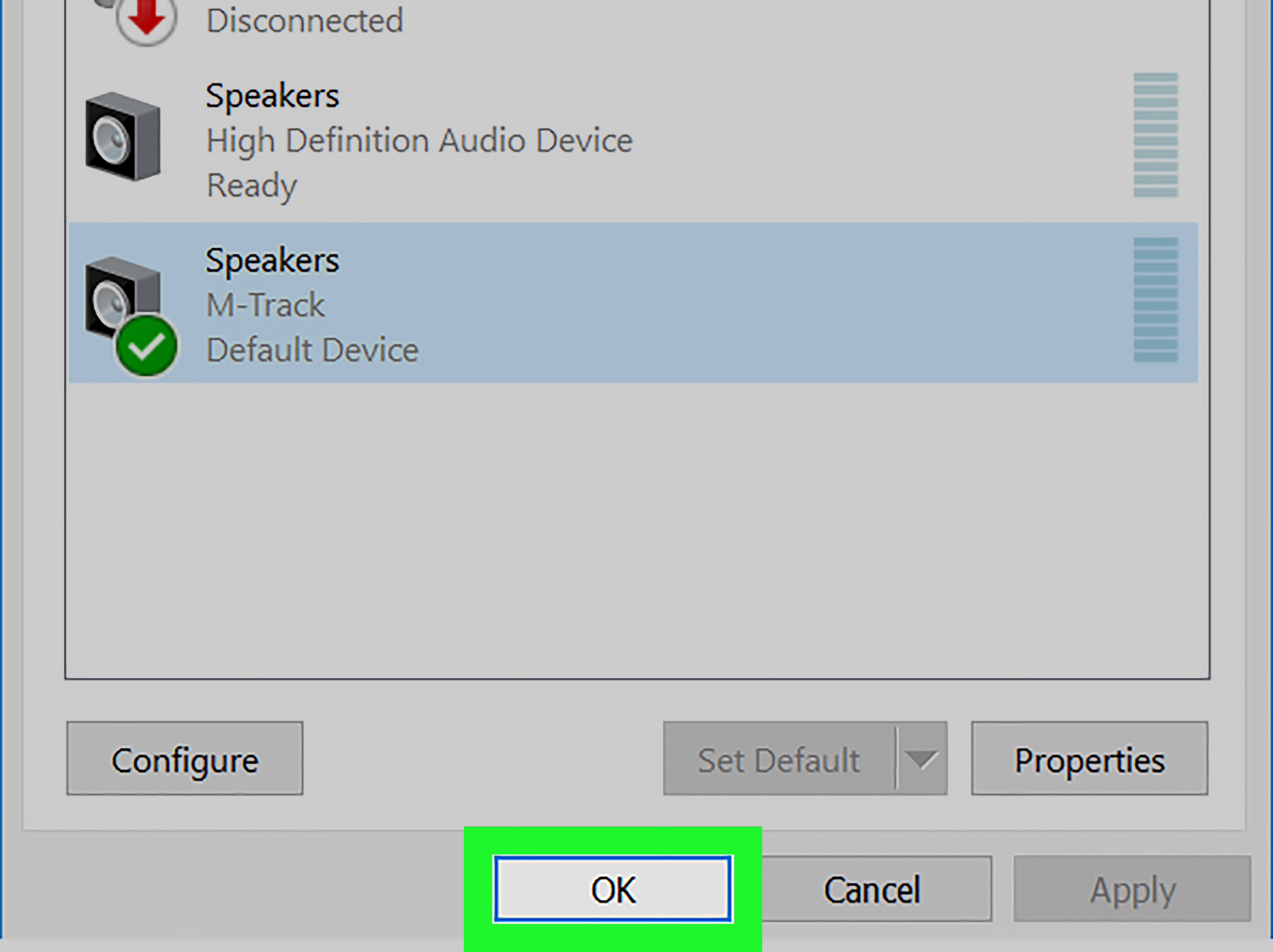
On Windows 10, go to Settings > System > Sound and select the desired output device. You can also use the classic Sound Control Panel by opening Sound settings, choosing related or advanced sound options, selecting the Playback tab, clicking your device, and choosing Set Default.
How to Change Audio Output for One App Only
Sometimes you do not want every sound to use the same device. Maybe you want Spotify on your speakers, Discord in your headset, and system sounds turned down because Windows notification chimes have chosen violence. In that case, use Volume Mixer.
Use Volume Mixer in Windows 11
- Open Settings.
- Go to System > Sound.
- Select Volume mixer.
- Under Apps, find the app you want to adjust.
- Choose the desired Output device for that app.
This is especially useful for video calls, streaming, gaming, recording, and editing. If system audio works but one app is silent, Volume Mixer is one of the first places to check.
Use App Volume and Device Preferences in Windows 10
On Windows 10, open Settings > System > Sound, then look for App volume and device preferences under advanced sound options. From there, you can select different output and input devices for individual apps.
For example, you can send browser audio to speakers while keeping a meeting app on your headset. It feels fancy, but it is really just Windows finally listening to you for once.
Common Audio Output Examples
Here are a few real-life examples of when you may need to change your Windows audio output:
Example 1: Switching from Laptop Speakers to Bluetooth Headphones
You connect your Bluetooth headphones, but sound still comes from the laptop. Open Quick Settings from the taskbar, click the audio output icon, and choose your headphones. If they do not appear, confirm they are paired and connected in Bluetooth settings.
Example 2: HDMI Monitor Steals Your Sound
You plug in a monitor, and suddenly your speakers go quiet. Windows may have selected the monitor as the audio output. Go to Settings > System > Sound and choose your speakers or headset instead. If the monitor has no speakers, this will save you from yelling at a perfectly innocent screen.
Example 3: Zoom or Teams Uses the Wrong Speaker
If only one meeting app has the wrong audio device, open that app’s audio settings first. Then check Windows Volume Mixer. Some communication apps remember their own speaker and microphone choices, even when Windows has a different default.
Example 4: Game Audio Comes from Speakers, Chat Comes from Headset
Many gamers use separate devices for game sound and voice chat. Set the game output in Windows Volume Mixer or inside the game’s audio settings. Then set Discord, Xbox Game Bar, or your chat app to use your headset.
What to Do If Your Audio Output Device Is Missing
If your device does not appear in the audio output list, do not panic. Missing audio devices are common, especially with Bluetooth, USB, HDMI, and driver-related setups.
Check the Physical Connection
For wired headphones or speakers, make sure the cable is fully plugged in. Try a different USB port, audio jack, or cable if possible. If you are using external speakers, confirm they are powered on and the volume knob is not turned down to “library mode.”
Check Bluetooth Pairing
For Bluetooth headphones or speakers, open Bluetooth settings and confirm the device is connected. If it shows as paired but not connected, remove the device and pair it again. Also check whether the headphones are currently connected to a phone, tablet, TV, or another computer.
Enable the Device in Sound Settings
Open Settings > System > Sound and look for advanced sound options or all sound devices. If the device is disabled, enable it. Some Windows versions also let you open More sound settings, choose the Playback tab, right-click inside the device list, and show disabled or disconnected devices.
Update or Reinstall the Audio Driver
If Windows does not detect the audio device, open Device Manager. Expand Sound, video and game controllers, right-click the audio device, and choose Update driver. You can also check your PC manufacturer’s support page for updated audio, Bluetooth, chipset, or docking station drivers.
Restart Windows Audio Services
If sound settings look correct but audio still refuses to cooperate, restart the computer first. If the issue continues, open the Services app and restart Windows Audio and Windows Audio Endpoint Builder. This can fix temporary audio routing problems without making you reinstall half the universe.
Best Practices for Managing Audio Output on Windows
Once you understand how Windows handles sound devices, you can prevent many audio problems before they happen.
Name Your Devices Clearly When Possible
Some audio devices appear with confusing names such as “Digital Audio,” “Headset,” “Speakers,” or “Realtek High Definition Audio.” If your device software allows custom names, use clear labels like “Desk Speakers,” “Gaming Headset,” or “Living Room Bluetooth Speaker.” Future you will be grateful.
Disconnect Devices You Do Not Use
If Windows keeps choosing a device you rarely use, unplug it, disconnect it, or disable it in Sound Settings. HDMI monitors, old Bluetooth headsets, and docking stations are frequent suspects.
Check App Audio Settings Before Blaming Windows
Many apps have built-in audio settings. If YouTube works but Zoom does not, Windows may not be the problem. Check the app’s speaker selection, microphone selection, and volume level.
Keep Drivers Updated
Audio issues can be caused by outdated or incompatible drivers. Keeping Windows, Bluetooth drivers, audio drivers, and manufacturer utilities updated can reduce random switching, missing devices, and crackling sound.
Quick Troubleshooting Checklist
If you changed audio output on Windows but still hear nothing, run through this short checklist:
- Make sure the device is turned on and connected.
- Check the volume level on Windows and on the physical device.
- Confirm the correct output device is selected in the taskbar menu.
- Open Settings > System > Sound and select the correct output.
- Check Volume Mixer for app-specific output settings.
- Make sure the app itself is not muted.
- Try a different port, cable, or Bluetooth reconnection.
- Restart the app, then restart the PC if needed.
- Update audio or Bluetooth drivers through Device Manager or the manufacturer’s website.
Final Thoughts: Changing Audio Output on Windows Is Easy Once You Know the Menus
Learning how to change audio output on Windows saves time, prevents meeting disasters, and makes your PC feel much less mysterious. For quick switching, use the taskbar or Quick Settings menu. For a more reliable setup, use Settings > System > Sound to choose your output device, set defaults, manage app audio, and troubleshoot missing devices.
The two simple ways are easy to remember: use the taskbar when you need speed, and use Sound Settings when you need control. Once you know both, you can move between headphones, speakers, Bluetooth devices, HDMI audio, and USB headsets without clicking through random menus like you are exploring a digital jungle.
Real-World Experience: What Usually Happens When Changing Audio Output on Windows
In everyday use, changing the audio output on Windows is less about memorizing menus and more about understanding how people actually use their computers. A typical workday might begin with laptop speakers for a quick news video, then switch to Bluetooth earbuds for a meeting, then move to external speakers for background music, then jump to a USB headset for a call. That is a lot of audio traffic for one operating system to manage, and sometimes Windows needs a gentle nudge.
One of the most common experiences is the “new device takeover.” You plug in an HDMI monitor or connect a docking station, and suddenly your sound disappears. The computer is not broken. Windows simply detected a new playback device and decided it should become the output. This often happens with monitors, even when the monitor speakers are weak, disabled, or nonexistent. The fix is usually quick: open the taskbar audio selector or Sound Settings and choose the device you actually want.
Bluetooth devices create their own little adventure. A headset may show as paired but not connected, or it may connect for calls but not music. Some Bluetooth headphones also appear as more than one device profile, especially if they support both stereo playback and hands-free communication. If music sounds thin or muffled, Windows may be using the headset’s call mode instead of its stereo mode. In that situation, checking both Windows Sound Settings and the app’s audio settings can make a big difference.
Another frequent experience involves meeting apps. Someone joins a video call and says, “I can hear you, but you sound far away,” or “I cannot hear anything.” The problem may not be the default Windows output at all. Apps like Zoom, Microsoft Teams, Discord, and Google Meet can keep their own speaker and microphone choices. That means Windows may be set to speakers, while the app is still trying to use an unplugged headset from last Tuesday. Always check the app’s audio menu if only one program is misbehaving.
Gamers and creators often deal with more complex routing. A player may want game sound through speakers and voice chat through a headset. A streamer may route browser alerts, microphone monitoring, game audio, and music separately. Windows Volume Mixer helps with basic per-app output, while advanced setups may require dedicated mixer software or an audio interface. For most users, though, Windows’ built-in settings are enough.
The best habit is to test audio before it matters. Before a presentation, class, client call, recording session, or livestream, open Sound Settings and confirm the output device. Play a short audio clip. Check the app you plan to use. It takes less than a minute and can prevent the awkward silence that makes everyone stare at the screen as if the computer is personally considering its life choices.
Once you get comfortable with the two main methods, changing audio output becomes second nature. The taskbar is your fast switch. Sound Settings is your control room. Volume Mixer is your secret weapon when one app gets stubborn. Together, they cover almost every normal Windows audio output problem without requiring technical wizardry, dramatic sighing, or unplugging everything in a panic.