Your Samsung Smart TV can do a lot more than show cable channels and politely judge your streaming habits. It can run Netflix, Hulu, Disney+, YouTube, Prime Video, Max, Apple TV, music apps, fitness apps, game apps, and probably at least three apps you opened once in 2021 and never touched again.
Over time, those unused apps can clutter your home screen, take up storage, slow down navigation, or make your TV feel like it is carrying a tiny backpack full of digital bricks. The good news? Deleting apps from a Samsung Smart TV is usually quick. The slightly annoying news? The exact steps can vary depending on your TV model year, remote, and software version.
This quick guide explains how to delete apps from your Samsung Smart TV, how to remove apps from the home screen, what to do when the Delete button is grayed out, and how to free up storage without accidentally turning your relaxing movie night into a full-blown tech support episode.
Quick Answer: How to Delete Apps From a Samsung Smart TV
On most newer Samsung Smart TVs, press the Home button on your remote, go to Apps, open the Settings gear, select the app you want to remove, choose Delete, and confirm. On some models, you may need to go through Settings > Support > Device Care > Manage Storage instead.
If the app is preinstalled by Samsung or treated as a required system app, you may not be able to delete it. In that case, you can usually remove it from the home screen, move it out of sight, clear its cache, or reset Smart Hub if app problems are more serious.
Before You Delete: What Happens When You Remove an App?
Deleting an app from your Samsung Smart TV removes the app from the TV’s installed app list. In many cases, it also removes related app data stored on the TV. That means you may need to sign back in if you reinstall the app later.
For example, if you delete a streaming app such as Hulu, Disney+, or Prime Video and reinstall it next week, your account itself is not deleted. Your subscription does not disappear into the entertainment void. However, the TV may forget your login session, so keep your username and password handy.
Deleting an App vs. Removing It From the Home Screen
There is an important difference between deleting an app and removing it from your Samsung TV home screen:
- Delete uninstalls the app from the TV.
- Remove only takes the app shortcut off the home screen.
- Move changes where the app appears in your app row.
- Reinstall refreshes an app without permanently removing it from your Samsung account.
If your goal is to free up storage, choose Delete. If your goal is to make the home screen less chaotic, choose Remove or Move. Think of it like cleaning a kitchen: deleting is throwing away the expired mustard, while removing is just pushing it to the back of the fridge and pretending you are organized.
How to Delete Apps on Newer Samsung Smart TVs
Most Samsung Smart TVs released in recent years use a similar app management system. The menu names may look slightly different depending on whether your TV runs a newer Tizen interface, a One UI-style interface, or an older Smart Hub layout.
Method 1: Delete Apps From the Apps Menu
- Press the Home button on your Samsung remote.
- Navigate to Apps.
- Select the Settings gear icon, usually in the upper-right corner.
- Highlight the app you want to delete.
- Select Delete.
- Confirm by selecting Delete again.
After confirmation, the TV should uninstall the app. Depending on your model, you may see a progress bar or a short message saying the app has been removed.
Method 2: Delete Apps Through Device Care
Some Samsung Smart TVs, especially certain 2020 and newer models, let you manage apps through Device Care. This area is helpful because it can show storage usage, app data, and cache information.
- Press Home on the remote.
- Go to Settings.
- Select Support.
- Choose Device Care.
- Select Manage Storage.
- Choose the app you want to remove.
- Select Delete and confirm.
This method is especially useful if your Samsung TV says storage is full or if apps are crashing, freezing, or refusing to update. Device Care can also help you review app size, stored data, and cache, which is the TV equivalent of checking under the couch cushions for missing performance.
How to Delete Apps by Samsung TV Model Year
Samsung has changed its Smart TV menus over the years, so one set of steps may not fit every television. If your TV does not match the instructions above, use the model-year guide below.
Samsung Smart TVs From 2021 and Newer
- Press Home.
- Open Apps or the app row.
- Go to the Settings gear.
- Highlight the app you want to delete.
- Choose Delete.
- Confirm the deletion.
On some 2021, 2022, 2023, 2024, or 2025 Samsung TVs, you may need to open All Settings first or use Device Care if app management appears under storage options.
Samsung Smart TVs From 2020
- Press Home.
- Open Settings.
- Choose Support.
- Select Device Care.
- Wait for the scan to finish.
- Open Manage Storage.
- Select the app and choose Delete.
This storage-based method is common on 2020 Samsung models. It is also a smart route when you are trying to identify which apps are using the most space.
Samsung Smart TVs From 2017 to 2019
- Press the Home button.
- Select Apps.
- Choose the Settings gear in the upper-right corner.
- Go to the Downloaded Apps section.
- Select the app you want to remove.
- Choose Delete and confirm.
These models often separate downloaded apps from default apps, making it easier to see which apps you personally installed.
Samsung Smart TVs From 2015 to 2016
- Press Home.
- Select Apps.
- Open My Apps.
- Select Options.
- Choose Delete.
- Select the app or apps you want to remove.
- Confirm by choosing Delete again.
Older Samsung TVs may place Options at the top or bottom of the screen. If your menu looks different, check your model’s user manual or search your TV model number on Samsung’s support site.
Why Can’t I Delete Some Apps on My Samsung TV?
If the Delete option is grayed out, unavailable, or missing, the app is probably preinstalled, recommended, or required by the TV software. Common examples may include major built-in apps, Samsung services, or default streaming shortcuts that come with the TV.
This is normal. It does not mean your remote is broken, your TV is haunted, or the app has negotiated a lifetime lease inside your living room. It simply means Samsung does not allow that specific app to be uninstalled on your model.
What to Do Instead
If you cannot delete a preinstalled Samsung TV app, try one of these alternatives:
- Remove it from the home screen so it no longer appears in your main app row.
- Move it to the end of the app row so you rarely see it.
- Clear cache or data if the app is taking up space or misbehaving.
- Lock the app if you want to restrict access.
- Reset Smart Hub if multiple apps are broken or missing.
How to Remove an App From the Samsung TV Home Screen
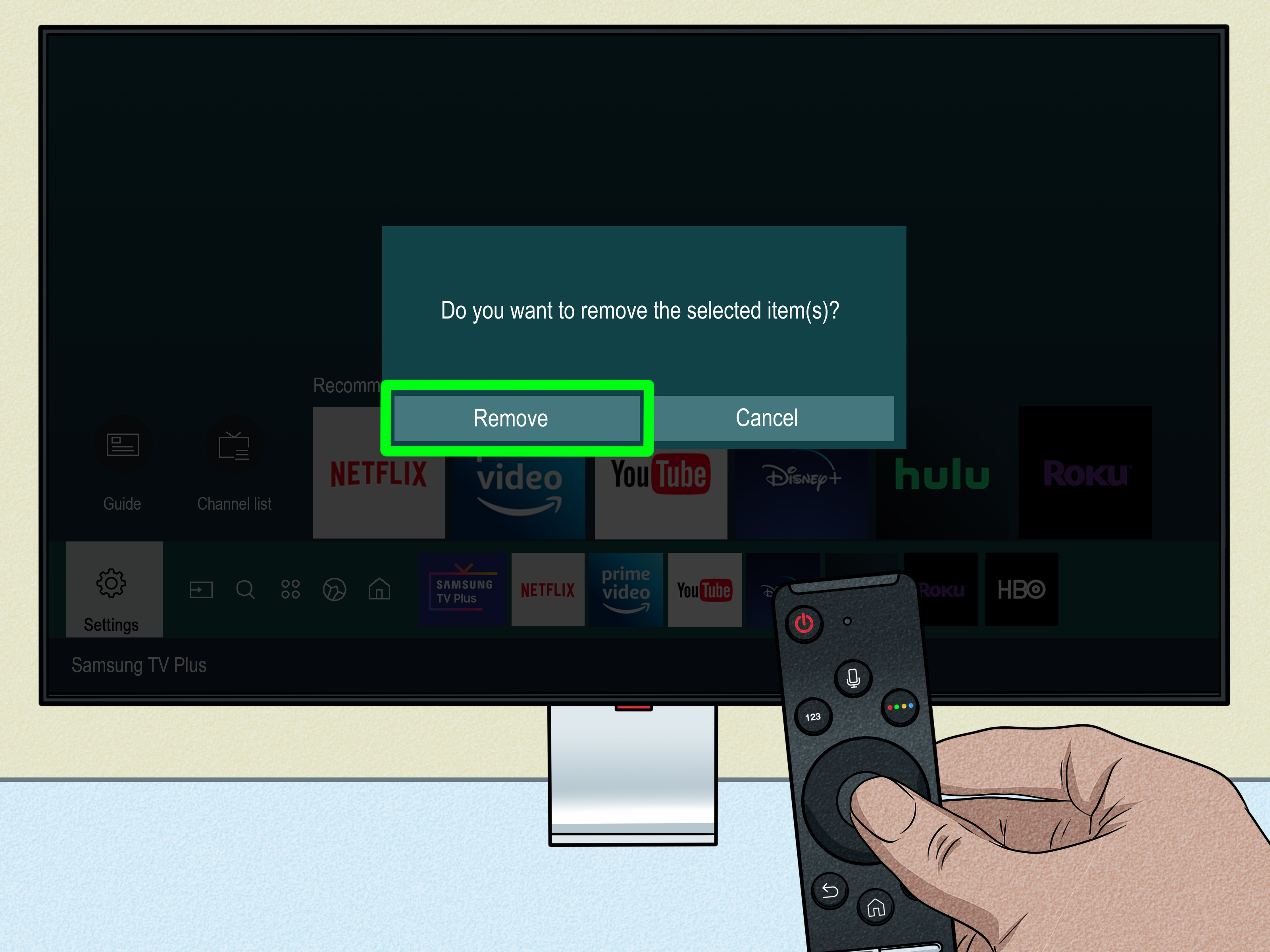
If you simply want a cleaner home screen, removing the app shortcut is often enough. This does not uninstall the app, but it makes your TV feel less cluttered.
- Press Home on the remote.
- Highlight the app on the home screen app row.
- Press the Down button on the remote.
- Select Remove.
- Confirm by selecting Remove again.
The app will disappear from the home screen but remain available in the Apps section. This is ideal for apps you use occasionally but do not want staring at you every time you turn on the TV.
How to Reinstall Apps on a Samsung Smart TV
Sometimes deleting an app is not about cleaning up. It is about fixing something that refuses to work. If an app freezes, crashes, loads slowly, or gets stuck on a spinning circle of doom, reinstalling it can help.
- Press Home.
- Go to Apps.
- Select the Search icon.
- Type the name of the app.
- Select the app from the results.
- Choose Install.
- Open the app and sign in again if required.
If the app still does not work after reinstalling, try updating the TV software, cold booting the TV, checking your internet connection, or resetting Smart Hub as a last resort.
How to Free Up Storage Without Deleting Everything
Deleting unused apps is the fastest way to free up storage, but it is not your only option. Samsung TVs with Device Care may also let you clear app cache or app data.
Clear App Cache
Cache is temporary data that helps apps load faster. Over time, it can pile up like laundry on a chair. Clearing cache may improve performance without deleting the app or signing you out.
Clear App Data
Clearing app data is more aggressive. It may remove saved settings, login sessions, and app preferences. Use this if an app keeps crashing or behaving strangely, but make sure you know your login details first.
Run Device Care
Device Care can scan your Samsung Smart TV, close unused background processes, clear temporary memory, and help identify storage problems. It is a useful maintenance tool when your TV feels slow or apps start acting dramatic.
What to Try If the Delete Button Is Missing
If you are trying to delete an app and the option is not there, do not panic. Try these fixes:
- Restart the TV by holding the Power button on the remote until it turns off and back on.
- Update the TV software through Settings > Support > Software Update > Update Now.
- Check whether the app is preinstalled, because default apps may not be removable.
- Try Device Care if the Apps menu does not show deletion options.
- Reset Smart Hub if app management is broken across multiple apps.
A cold boot is more than simply turning the TV off. When you press the power button once, many TVs enter standby mode. A cold boot fully restarts the system, which can clear minor glitches. You can usually do this by holding the remote’s Power button for about five seconds or unplugging the TV for around 30 seconds before plugging it back in.
When Should You Reset Smart Hub?
Resetting Smart Hub is helpful when several apps are missing, frozen, refusing to install, or stuck in a weird state that normal deletion does not fix. However, it is not the first step you should try.
A Smart Hub reset may sign you out of your Samsung account and streaming apps. It can also remove apps that were not preinstalled. Before you do it, gather your login information for Netflix, Hulu, Disney+, Prime Video, Max, Apple TV, YouTube, and any other services you use.
Depending on your model, the path may be something like Settings > Support > Self Diagnosis > Reset Smart Hub or Settings > Support > Device Care > Self Diagnosis > Reset Smart Hub. The default PIN is often 0000 unless you changed it.
Best Apps to Delete First
Not sure where to begin? Start with apps you have not opened in months. These often include old fitness apps, duplicate streaming apps, trial services, games nobody plays, or apps installed during a “let’s see what this does” moment.
Also look for apps that duplicate features. If you use a separate streaming stick, game console, or cable box for most services, you may not need every streaming app installed directly on the Samsung TV. Removing duplicates can make the TV interface simpler and faster to navigate.
Tips for Keeping Your Samsung TV Apps Organized
- Keep your most-used apps near the beginning of the home screen row.
- Remove shortcuts for apps you rarely open.
- Delete apps after canceling a subscription.
- Update your TV software regularly.
- Restart the TV occasionally instead of leaving it in standby forever.
- Use Device Care when storage warnings appear.
A tidy Smart TV is not just prettier. It is easier to use, especially for families, guests, kids, or anyone who does not want to scroll through a parade of forgotten apps just to watch one episode of a favorite show.
Common Mistakes to Avoid
Deleting the Wrong App
Before confirming deletion, make sure you selected the right app. App icons can look similar, especially when you are standing across the room holding the remote like a tiny magic wand.
Forgetting Login Details
Deleting and reinstalling an app may sign you out. Save yourself from the classic couch crisis: “What email did we use for this account?”
Confusing Remove With Delete
If you removed an app from the home screen but it still appears in the Apps section, that is expected. You removed the shortcut, not the app itself.
Resetting Smart Hub Too Early
Reset Smart Hub only after simpler fixes fail. It works, but it is like using a leaf blower to clean a coffee table. Effective? Maybe. Overkill? Often.
Personal Experience: What It Feels Like to Clean Up a Samsung Smart TV
Deleting apps from a Samsung Smart TV sounds like one of those tiny household tasks that should take thirty seconds. In real life, it often starts with confidence, then briefly turns into a remote-control scavenger hunt. You press Home, see a row of apps, and suddenly remember every streaming trial you ever signed up for. There is the fitness app from your “new year, new me” era. There is a movie app you downloaded for one exclusive film. There is a game nobody admits installing. Your TV has quietly become a museum of abandoned intentions.
The first useful lesson is that Samsung’s menus are logical once you know where to look, but they are not always obvious at first glance. The Apps section is the natural starting point, and the little Settings gear is usually where the magic happens. Once you find the app list, deleting downloaded apps is straightforward. Select the app, choose Delete, confirm, and enjoy that tiny burst of digital housekeeping satisfaction.
The second lesson is that not every app will cooperate. Some built-in apps cannot be deleted, even if you have never used them and would personally trade them for one extra inch of storage. At first, this can feel frustrating. But after using a few Samsung TVs, the workaround becomes second nature: remove the app from the home screen or move it far to the end of the row. It is not a perfect goodbye, but it is a decent “please stop standing in front of Netflix.”
Another experience worth mentioning is how much better the TV can feel after clearing clutter. Deleting one app may not transform your Samsung Smart TV into a rocket ship, but cleaning up several unused apps, removing shortcuts, and running Device Care can make navigation feel less crowded. The home screen becomes easier to scan. Family members stop asking where the main streaming app went. Even the remote seems less intimidating when the app row is not stuffed like an overpacked suitcase.
Reinstalling apps is also a useful trick. If an app freezes, crashes, or refuses to load past its logo screen, deleting and reinstalling it can solve the problem faster than digging through endless settings. The key is to remember your login information first. Nothing ruins a cozy TV night faster than discovering you need a password that was last typed on a phone you replaced two years ago.
The biggest takeaway is simple: treat your Samsung Smart TV like any other smart device. Apps need occasional maintenance. Software updates matter. Cache can build up. Old downloads can get in the way. Once every few months, spend five minutes reviewing your apps. Delete what you do not use, move your favorites to the front, and clear storage when needed. It is not glamorous, but neither is searching for a show while your TV lags like it is buffering its own thoughts.
In the end, learning how to delete apps from your Samsung Smart TV is less about being technical and more about knowing where Samsung hides the broom closet. Once you find the Apps menu, Settings gear, Device Care tools, and Smart Hub reset option, you have everything you need to keep your TV cleaner, faster, and easier to enjoy.
Conclusion
Deleting apps from a Samsung Smart TV is usually simple: open the Apps menu, go to Settings, select the app, choose Delete, and confirm. If your model uses Device Care, manage apps through the storage menu instead. If an app cannot be deleted, it is probably preinstalled or required by the TV software, but you can still remove it from the home screen, move it out of the way, or clear its cache.
For app problems, try a cold boot, software update, reinstall, or Smart Hub reset in that order. With a little maintenance, your Samsung TV can feel cleaner, faster, and far less cluttered. Your remote may still disappear between the couch cushions, but at least your app row will finally make sense.
Note: Menu names and paths may vary by Samsung Smart TV model, region, and software version. If your screen looks different, use your TV’s model number to check the official Samsung support manual for exact instructions.