Netflix error code NW-2-4 has impeccable timing. It usually appears right when you have snacks ready, blankets arranged, and exactly zero patience left for technical drama. The good news is that this error normally does not mean your Netflix account is broken, your subscription expired, or your TV has decided to quit show business.
NW-2-4 is usually a network connection problem. Your streaming device can see your Wi-Fi network or router, but it cannot properly reach Netflix. In other words, the device has found the road but cannot get through traffic.
This guide explains how to fix Netflix error code NW-2-4 on smart TVs, Roku devices, Fire TV sticks, Apple TV, PlayStation consoles, Xbox consoles, Chromecast devices, and other streaming players. The goal is simple: get Netflix talking to the internet again without randomly resetting every electronic object in your living room.
What Does Netflix Error Code NW-2-4 Mean?
Netflix error code NW-2-4 means that a network issue is stopping your device from reaching Netflix. Your device may appear connected to Wi-Fi, but that does not always mean it has a working internet connection.
A Wi-Fi symbol only tells you that the device can communicate with your router. It does not guarantee that your router can reach your internet service provider, that DNS is working correctly, or that the network allows streaming services.
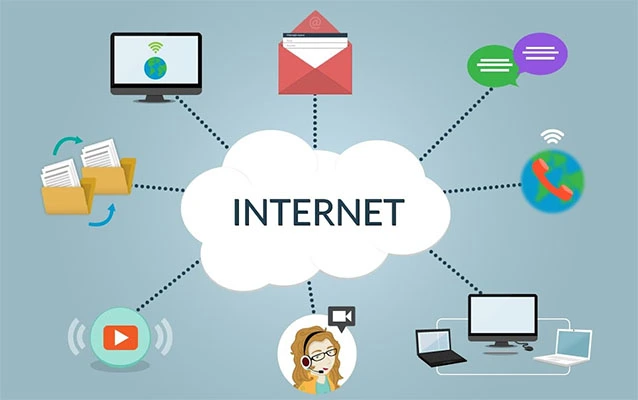
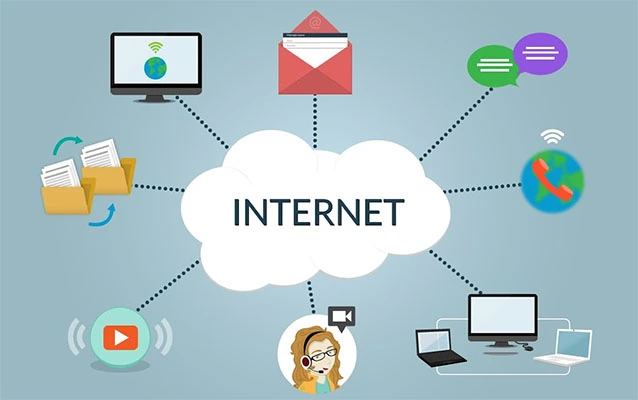
Think of your connection as a three-part trip:
- Your TV, console, or streaming stick connects to your router.
- Your router connects to your internet service provider.
- Your device connects to Netflix servers.
Netflix NW-2-4 can appear when any part of that path fails. Common causes include weak Wi-Fi, a router glitch, internet outages, DNS problems, public Wi-Fi restrictions, VPNs, proxies, router filters, or a device connected to the wrong network.
The Fastest Way to Fix Netflix Error NW-2-4
Before changing advanced settings, try this simple troubleshooting sequence. It solves a surprising number of Netflix network errors without deleting apps, accounts, or carefully curated watchlists.
1. Check Whether Your Internet Is Working
Use a phone, tablet, or computer connected to the same Wi-Fi network as the device showing the error. Open a browser and visit a few websites. Then try Netflix on that device.
If websites and other apps do not work, the issue is probably your modem, router, or internet provider. If the internet works everywhere except the streaming device, focus on that device’s network settings.
2. Restart the Streaming Device
Turn off your smart TV, Roku, Fire TV, game console, or streaming player. If possible, unplug it from power for at least 15 seconds before turning it back on.
Do not rely only on the remote control’s power button. Many televisions and streaming devices go into standby mode instead of shutting down completely. Standby is useful for convenience, but not always for clearing a stubborn network problem.
3. Restart Your Modem and Router Properly
This step sounds almost too basic, which is exactly why people skip it. Yet restarting your home network can refresh a stalled connection, clear temporary routing issues, and renew the connection between your internet provider and your devices.
- Turn off the streaming device.
- Unplug your modem and router from power.
- Wait about 30 seconds.
- Plug in the modem first and wait for it to reconnect.
- Plug in the router and wait for its lights to stabilize.
- Turn the streaming device back on and open Netflix.
Give the network a few minutes to recover. Routers are not dramatic, but they do enjoy taking their time after a restart.
4. Run the Device’s Network Test
Most streaming devices have a built-in connection test. Look in the device settings under options such as Network, Internet, Connection Status, or Network Test.
The test can reveal whether the device is connected to Wi-Fi, whether it can reach the internet, and whether the issue is limited to Netflix. If Wi-Fi works but internet access fails, the Netflix app is probably innocent.
Check Your Wi-Fi Signal and Internet Speed
Netflix needs more than a Wi-Fi connection; it needs a stable one. A connection that loads social media or email may still struggle with streaming, especially when several people are gaming, downloading files, video chatting, or uploading cloud backups.
Netflix recommends a stable connection of roughly 3 Mbps for 720p HD, 5 Mbps for 1080p Full HD, and 15 Mbps for 4K streaming. However, stability matters just as much as speed. A connection that repeatedly drops from fast to painfully slow can interrupt streaming even when the speed test looks impressive at first.
Improve Weak Wi-Fi
Move the streaming device closer to the router when possible. Thick walls, metal furniture, microwaves, fish tanks, and routers hidden inside cabinets can weaken the signal.
A streaming stick placed behind a large television may also receive a weaker signal. It is basically living in a tiny radio cave.
If your router has both 2.4 GHz and 5 GHz Wi-Fi bands, try switching to the other network. The 5 GHz band is usually faster at close range, while 2.4 GHz often reaches farther through walls and floors.
Try Ethernet Instead of Wi-Fi
If your smart TV, Roku, Apple TV, game console, or streaming box supports Ethernet, connect it directly to the router with a wired cable. Ethernet is usually more stable than Wi-Fi because it avoids interference from walls, neighboring networks, and household electronics.
A wired connection is especially useful for 4K streaming, large homes, crowded apartment buildings, and movie nights when everyone suddenly decides to use the internet at the same time.
Check for Public Wi-Fi Restrictions
Netflix error NW-2-4 can happen on hotel Wi-Fi, school networks, office networks, dormitories, cafés, and public hotspots. These networks may allow ordinary web browsing while restricting streaming platforms or high-bandwidth video traffic.
Some public networks also require you to accept terms through a browser-based sign-in page before the connection fully works. A phone or laptop may load that page automatically, while a streaming device may not.
Ask the network administrator, hotel front desk, school IT department, or property manager whether Netflix and streaming services are allowed. Do not attempt to bypass network restrictions. Public networks often have policies, bandwidth limits, and security controls that cannot be fixed from the Netflix app.
Restore Default Network Settings
If other apps work but Netflix continues to show NW-2-4, review any unusual network settings. Netflix connection problems can sometimes be caused by VPNs, proxies, custom DNS settings, router filters, parental controls, or network-level ad blockers.
Disable VPN or Proxy Services
Disconnect any VPN or proxy that may be active on the device, router, or home network. VPNs can be useful for privacy in some situations, but they may also interfere with streaming connections, location checks, or DNS requests.
After disabling the VPN or proxy, restart the device and try Netflix again.
Set DNS Back to Automatic
DNS works like an address book for the internet. It helps your device find Netflix and other online services. If your router or streaming device uses custom DNS settings, a configuration error or unavailable DNS service can lead to Netflix NW-2-4.
Set DNS back to Automatic first, then restart the router and streaming device. If the error disappears, the custom DNS configuration may need to be reviewed.
Avoid changing multiple advanced settings at once. Change one item, restart the network, and test Netflix. Otherwise, you may fix the problem without ever learning what caused it.
How to Fix NW-2-4 on Popular Streaming Devices
Roku
On Roku, go to Settings > Network > Check Connection. The device will test both the wireless connection and internet access.
If Roku can connect to Wi-Fi but cannot reach the internet, confirm that it is connected to the correct network, restart the router, and try the other Wi-Fi band. If your Roku model supports Ethernet, test a wired connection to determine whether Wi-Fi is the problem.
Amazon Fire TV and Fire Stick
On Fire TV, open Settings > Network and select your Wi-Fi network to view connection details. Restart the Fire TV device, forget the Wi-Fi network if needed, then reconnect using the correct password.
Move the Fire TV Stick closer to the router if possible. A short HDMI extender can sometimes improve wireless reception by moving the stick away from the back of the television.
Samsung Smart TV
On Samsung Smart TVs, open Settings > Connection > Network, or look for General > Network on older models. Run the Network Status test before resetting anything.
If the TV has saved incorrect or outdated Wi-Fi details, use Reset Network, then reconnect to the correct Wi-Fi network. You can also test Ethernet if your television has a LAN port.
Apple TV
On Apple TV, go to Settings > Network and confirm that Wi-Fi or Ethernet is active. If Apple TV reports no internet connection, restart the device and router, reduce interference, or use Ethernet on compatible models.
A factory reset should be a last resort. It is much easier to restart the network than to rebuild your entire Apple TV setup from scratch.
PlayStation and Xbox
On PlayStation, run a network test from Settings > Network > Connection Status. On Xbox, use the network test available in the console’s network settings.
After the internet connection is working, check for Netflix app updates and system software updates. Reinstall Netflix only after restarting the console and confirming that the network test passes.
Chromecast and Google TV
Confirm that your Chromecast or Google TV device is connected to the intended Wi-Fi network. Homes with both 2.4 GHz and 5 GHz networks can create confusion, especially when the names are nearly identical.
Restart the router and streaming device. Also check whether you are using a guest network, extender, or public Wi-Fi system with device isolation, which can interfere with streaming setup and device communication.
When NW-2-4 Appears on Every Device
If Netflix error NW-2-4 appears on several devices connected to the same network, do not reinstall Netflix on every screen in the house. The shared network is the likely cause.
Check whether websites load on phones and computers, inspect your modem and router lights, and see whether your internet provider reports an outage. Restart the network once, wait for it to reconnect, and test again.
Contact your internet service provider if multiple devices cannot reach the internet, speeds remain unusually slow, or the connection repeatedly drops. Tell support whether the issue affects Wi-Fi, Ethernet, or both. Mention when it started and whether it happens all day or mostly in the evening.
What Not to Do When Netflix Shows NW-2-4
Do not factory-reset your smart TV, streaming stick, router, or game console as your first move. A factory reset can erase saved Wi-Fi networks, app logins, preferences, device settings, and the remote-control configuration you forgot existed.
Do not assume your Netflix account is the problem. NW-2-4 is generally a network error, so changing your password, updating payment details, or logging out of every device is unlikely to fix it.
Also avoid installing random “network booster” apps, unofficial VPN tools, or unfamiliar DNS profiles while troubleshooting. Adding more variables to a connection problem is like trying to fix a flat tire by changing the radio station.
How to Prevent Netflix NW-2-4 From Returning
Place your router in an open, central area instead of hiding it behind furniture or inside a cabinet. Keep router firmware, smart TV software, streaming apps, and device software updated through official manufacturer tools.
Use clear names for different Wi-Fi bands, such as Home-2G and Home-5G. This makes it easier to confirm which network your streaming device is using.
If your household often streams in 4K, games online, works remotely, or uses many smart devices, consider Ethernet for fixed devices or a mesh Wi-Fi system for better coverage. Network filters, parental controls, router-level VPNs, and custom DNS services should also be checked whenever streaming problems begin.
Practical Experiences With Netflix Error Code NW-2-4
The following troubleshooting experiences are composite examples based on common network situations. They show why a calm, step-by-step approach works better than repeatedly pressing the Netflix button as though the remote is responsible for the entire internet.
Experience 1: The Wi-Fi Icon That Was Technically Honest
A family’s Roku device showed a strong Wi-Fi signal, yet Netflix displayed NW-2-4 every time they tried to watch a movie. At first, everyone blamed Netflix because the Roku appeared connected.
The connection test told a more useful story. Roku could see the router, but the router could not reach the internet. Phones connected to the same Wi-Fi also loaded websites slowly or not at all.
The fix was a proper modem and router restart. After waiting for the modem to reconnect before turning the router back on, Netflix started working again.
The lesson was simple: a strong Wi-Fi signal is not the same thing as a working internet connection. The device was connected to the house, but the house was temporarily disconnected from the outside world.
Experience 2: The Wrong Network With the Right Password
A smart TV began showing Netflix error NW-2-4 after a homeowner replaced an old router. During setup, the TV connected to a guest network instead of the primary home network.
The guest network had the same password and a nearly identical name, so it looked correct. However, the guest network had restrictions that prevented some streaming traffic from working consistently.
After reconnecting the TV to the main Wi-Fi network, Netflix worked immediately. No app reinstall, account reset, or mysterious ritual involving the HDMI cable was needed.
This is why checking the exact Wi-Fi name matters. Routers love creating names that look like they were designed by twins who share an email address.
Experience 3: The Custom DNS Problem
One household used custom DNS settings for content filtering. Web browsing still worked, but a Fire TV Stick suddenly began displaying NW-2-4.
Instead of deleting Netflix, the owner returned the router DNS settings to Automatic, restarted the router, and opened Netflix again. The streaming service worked normally.
The custom DNS service was not necessarily bad. The issue was likely a configuration change, unavailable server, or router setting that prevented the device from reaching Netflix correctly.
The useful takeaway is to restore default settings first, then add advanced settings back one at a time. That approach helps identify the real cause instead of turning your network into a mystery novel with no ending.
Experience 4: The Hotel Wi-Fi Surprise
A traveler brought an Apple TV to a hotel and connected it to the room’s Wi-Fi. The device showed a connection, but Netflix immediately displayed NW-2-4.
A laptop on the same network opened a browser sign-in page asking the guest to accept hotel internet terms. The Apple TV could not easily complete that step. The hotel also limited some streaming services during busy hours.
The traveler learned that the problem was not Netflix, Apple TV, or the account. It was the hotel network policy and the browser-based sign-in system.
Public Wi-Fi is convenient, but it does not always behave like home internet. Hotels are designed to provide connectivity for many guests, not necessarily to support every streaming device in every room.
Experience 5: The Bandwidth Traffic Jam
A household experienced NW-2-4 only during movie nights. Internet browsing worked, and Netflix was fine during the day. The problem appeared mysterious until they checked what everyone else was doing online.
One person was downloading a game update, another was uploading photo backups, and two people were playing online games. The internet connection was technically working, but available bandwidth had become crowded.
Pausing the biggest downloads, moving the TV to Ethernet, and scheduling backups overnight solved the problem. Netflix did not need a new account or new app; the network simply needed fewer passengers in the same lane.
Experience 6: The Factory Reset That Never Happened
A PlayStation owner was ready to factory-reset the console after Netflix showed NW-2-4. Before taking that drastic step, they ran the console’s network test and found that the internet connection had failed.
They restarted the PlayStation, modem, and router, then waited for the network to reconnect fully. The next network test passed, and Netflix loaded normally.
The factory reset button survived another day untouched. The lesson is worth remembering: start with the least destructive fix. A reset can help in rare cases, but it should be the final chapter, not the opening scene.
Conclusion
Netflix error code NW-2-4 may look confusing, but it usually has a practical explanation: your streaming device cannot properly reach Netflix through the network.
Start with the basics. Test the internet, restart the streaming device, reboot the modem and router, confirm the correct Wi-Fi network, and run the device’s network test. Then investigate weak Wi-Fi, public-network restrictions, VPNs, proxies, custom DNS settings, and router filters.
When several devices have the same problem, focus on your router or internet provider instead of reinstalling Netflix everywhere. Once the network is stable again, you can return to the truly difficult part of streaming: choosing something to watch for 40 minutes before rewatching your comfort show.