Let’s be honest: a messy phone can feel like a junk drawer with a charging cable. You open your Samsung Galaxy to check one message, and suddenly you’re swiping through five screens, dodging random game icons, forgotten shopping apps, and that one weather app you downloaded during a thunderstorm in 2021. The good news? Organizing apps on a Samsung Galaxy is easier than cleaning an actual drawer, and nobody has to find old batteries in the process.
Samsung Galaxy phones run on One UI, Samsung’s version of Android, and it gives you several practical ways to arrange apps so your phone feels faster, cleaner, and more personal. Whether you want a simple Home screen, tidy app folders, an alphabetical Apps screen, or quick access through Edge panels, the goal is the same: less hunting, more tapping.
In this guide, you’ll learn four easy ways to organize apps on a Samsung Galaxy, including step-by-step instructions, smart folder ideas, layout tips, and real-world examples. These methods work for many modern Galaxy phones, including Galaxy S, Galaxy Z, Galaxy A, and Galaxy Note models, though menu names may vary slightly depending on your One UI version and carrier settings.
Why Organizing Apps on a Samsung Galaxy Matters
Your phone is probably one of the most-used tools in your daily life. It handles your messages, banking, photos, work chats, recipes, maps, music, shopping lists, and late-night “do raccoons make good pets?” searches. When your apps are scattered everywhere, your phone becomes slower to usenot because the processor is struggling, but because your thumb is doing a tiny obstacle course.
A well-organized Samsung Galaxy setup can help you:
- Find frequently used apps faster
- Reduce Home screen clutter
- Separate work, entertainment, finance, and personal apps
- Make your phone easier to use with one hand
- Keep distracting apps out of sight
- Create a cleaner, more attractive phone layout
The trick is not to organize your phone like a museum exhibit. You want it practical, not precious. If your Home screen looks beautiful but you need six swipes to open Gmail, that’s not organizationthat’s interior design with consequences.
1. Create App Folders for a Cleaner Home Screen
The easiest way to organize apps on a Samsung Galaxy is by creating folders. Folders let you group similar apps together, which keeps your Home screen neat while still giving you quick access to what you use most.
How to Create a Folder on Samsung Galaxy
Here’s the basic method:
- Go to your Home screen or Apps screen.
- Touch and hold an app icon.
- Drag it on top of another related app.
- Release your finger to create a folder.
- Tap the folder name area and type a clear name.
- Tap the color option if you want to customize the folder color.
- Use the plus button or “Add apps” option to include more apps.
For example, drag Instagram onto TikTok and name the folder “Social.” Add Facebook, Threads, Pinterest, Snapchat, or any other social app you actually use. If you haven’t opened one of them since the last Olympics, maybe it does not deserve premium folder real estate.
Best Folder Names for Samsung Galaxy Apps
Folder names should be short, obvious, and useful. Avoid mysterious labels like “Stuff,” “Things,” or “Random 2.” Future you will not appreciate the puzzle.
Try these folder ideas:
- Social: Instagram, Facebook, TikTok, Snapchat, X, Threads
- Money: banking apps, PayPal, Venmo, budgeting apps, investment apps
- Work: Gmail, Outlook, Slack, Teams, Drive, Docs, Zoom
- Travel: Maps, Uber, Lyft, airline apps, hotel apps, translation apps
- Shopping: Amazon, Walmart, Target, eBay, grocery apps
- Health: Samsung Health, fitness trackers, meditation apps, pharmacy apps
- Entertainment: Netflix, YouTube, Spotify, Hulu, Disney+, games
- Tools: Calculator, Voice Recorder, SmartThings, Files, Notes
For best results, keep each folder focused. A folder with four to nine apps is usually easy to scan. A folder with 37 apps is just an app drawer wearing a tiny hat.
Where to Place Folders on the Home Screen
Put your most-used folders near the bottom half of the screen, especially if you use a large Galaxy phone like a Galaxy S Ultra or Galaxy Z Fold. This makes them easier to reach with your thumb. Less-used folders can go on a second Home screen page.
A simple setup might look like this:
- Bottom row: Phone, Messages, Chrome, Camera
- Middle area: Work, Social, Money, Travel folders
- Top area: Calendar widget or weather widget
This layout keeps essentials close while giving your Home screen breathing room. Remember, blank space is not wasted space. It is where your eyes take a tiny vacation.
2. Sort and Customize the Apps Screen
Your Samsung Galaxy has two main places for apps: the Home screen and the Apps screen. The Home screen is your personal dashboard. The Apps screen, also called the app drawer, is where all installed apps live. If your Home screen is the kitchen counter, the Apps screen is the pantry. You do not need every can of soup on the counter.
How to Access the Apps Screen
On most Samsung Galaxy phones, swipe up from the Home screen to open the Apps screen. From there, you can browse all installed apps, search for an app, create folders, or sort apps.
How to Sort Apps Alphabetically
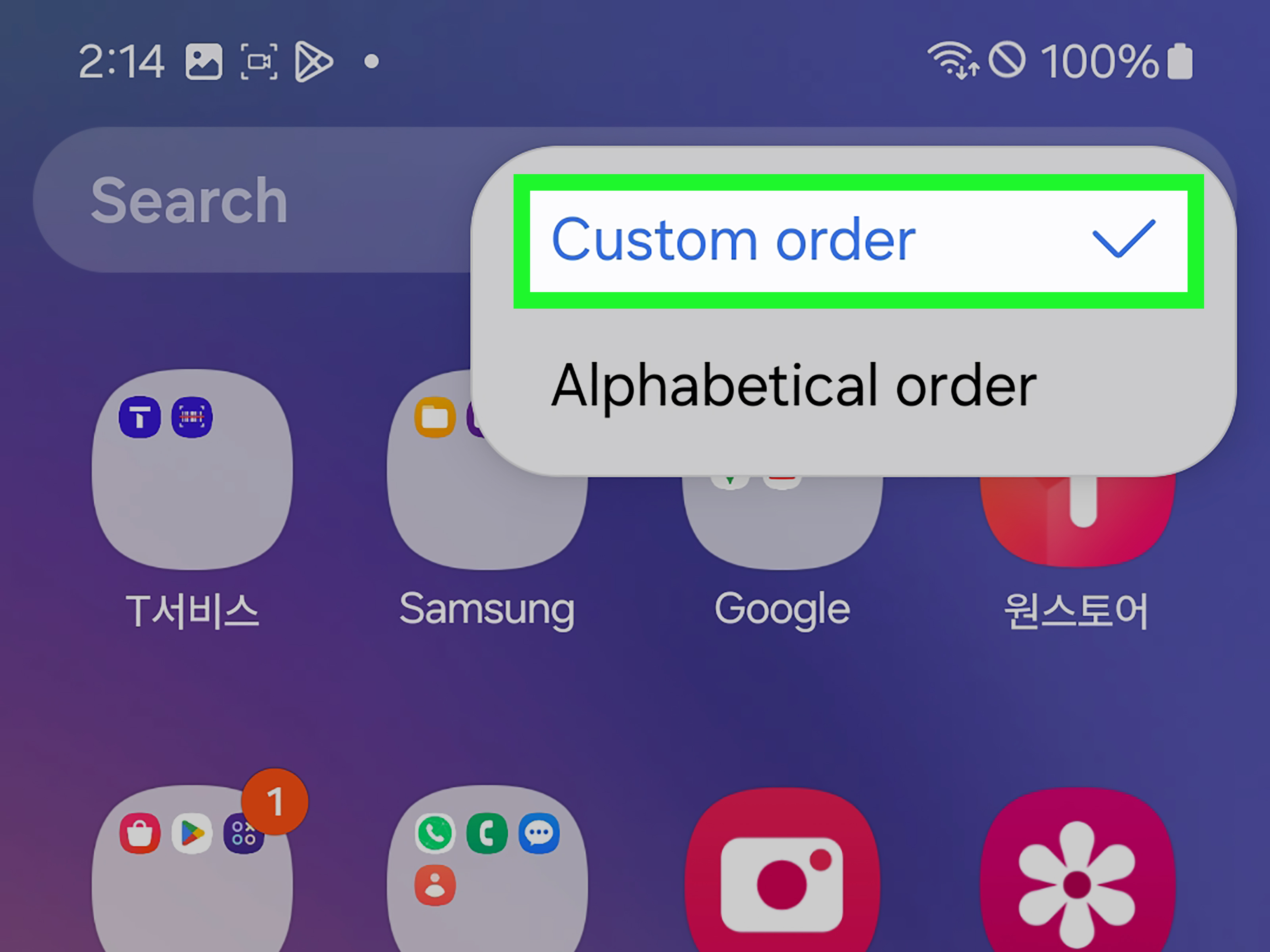
If you prefer order over chaos, alphabetical sorting is your friend. Depending on your One UI version, you can usually open the Apps screen, tap the three-dot menu, and choose a sorting option such as alphabetical order. On newer One UI versions, alphabetical sorting may use a vertical app list, while custom sorting may keep apps arranged across pages.
Alphabetical sorting works well if you install many apps and do not want to manually organize every icon. It is especially useful for people who think, “I know the app starts with M,” more often than “I placed it somewhere on page four next to the taco coupon app.”
When to Use Custom Order Instead
Custom order is better when you want full control. You can place your most-used apps on the first Apps screen page, group similar apps near one another, and keep rarely used apps toward the end. This takes more effort upfront but can feel more natural after a few days.
Use custom order if:
- You remember apps visually by icon location
- You prefer themed pages, such as work apps on page one and entertainment apps on page two
- You want your app drawer to match your Home screen system
- You dislike scrolling through a long alphabetical list
Adjust the Home Screen and Apps Screen Grid
Samsung also lets you adjust the grid layout, which changes how many apps fit on each screen. A larger grid, such as 5×6, fits more icons. A smaller grid, such as 4×5, gives each icon more space and may be easier to read.
To change the grid:
- Touch and hold an empty area on the Home screen.
- Tap Settings.
- Choose Home screen grid, Apps screen grid, or Folder grid.
- Select the layout you prefer.
- Tap Done or Save.
If your phone feels cluttered, try a smaller grid. If you want fewer pages, try a larger grid. There is no perfect settingonly the one that makes your thumb stop filing complaints.
3. Use Edge Panels for Your Favorite Apps
Edge panels are one of Samsung’s most useful features for app organization. Instead of placing every important app on your Home screen, you can tuck favorites into a slide-out panel on the side of the display. It is like having a secret drawer, but for apps instead of emergency chocolate.
What Are Edge Panels?
Edge panels are shortcut panels that you open by swiping from the small handle on the side of the screen. The Apps Edge panel can hold frequently used apps, app pairs, tools, contacts, and other shortcuts depending on your settings and device model.
How to Turn On Edge Panels
To enable Edge panels:
- Open Settings.
- Tap Display.
- Tap Edge panels.
- Turn Edge panels on.
- Choose the panels you want to use, such as Apps.
How to Add Apps to the Apps Edge Panel
Once Edge panels are enabled:
- Swipe from the Edge panel handle to open the panel.
- Tap the settings or edit icon.
- Select the Apps panel.
- Add your favorite apps.
- Move your most-used apps toward the top for faster access.
This is perfect for apps you open constantly but do not necessarily want on your main Home screen. Good candidates include Calculator, Calendar, Notes, Camera, Spotify, Maps, Gmail, or your favorite messaging app.
Use App Pairs for Multitasking
On many Galaxy devices, especially larger phones and foldables, you can create app pairs. An app pair opens two apps together in split-screen mode. For example, you might pair YouTube with Samsung Notes, Google Maps with Messages, or Calendar with Gmail.
This is especially helpful for students, remote workers, travelers, and anyone who has ever tried to copy information from one app to another while muttering, “There has to be a better way.” On a Samsung Galaxy, there often is.
4. Hide, Remove, or Limit Apps You Do Not Need
Sometimes organizing apps is not about arranging themit is about admitting they need to leave the party. Your Samsung Galaxy may include preinstalled apps, duplicate tools, old games, shopping apps, or utilities you no longer use. If you do not want to uninstall them, you can hide some apps from the Home and Apps screens.
How to Remove Apps from the Home Screen
Removing an app from the Home screen does not uninstall it. It simply clears the shortcut from your main layout.
- Touch and hold the app icon on the Home screen.
- Tap Remove.
- The app will remain installed and available in the Apps screen.
This is ideal for apps you use occasionally but do not need staring at you every day like a tiny square-shaped obligation.
How to Hide Apps on Samsung Galaxy
To hide apps:
- Touch and hold an empty area on the Home screen.
- Tap Settings.
- Choose Hide apps on Home and Apps screens or a similar option.
- Select the apps you want to hide.
- Tap Done.
Hidden apps are not deleted. They are simply removed from normal view. This can be useful for apps you rarely use, carrier apps you cannot remove, or private apps you do not want sitting openly in the app drawer.
Use Secure Folder for Private Apps
If privacy is the goal, Samsung Secure Folder is stronger than simply hiding an app. Secure Folder creates a protected space on your Galaxy phone where you can store apps, files, photos, and other information behind authentication. It is useful for banking apps, private documents, work tools, or anything you want separated from the main phone environment.
To set it up, go to Settings, search for Secure Folder, sign in with your Samsung account if required, and choose a lock method. Once created, you can add apps into Secure Folder and manage them separately.
Bonus Tips for a Better Samsung Galaxy App Layout
Keep One Main Home Screen
Try using one primary Home screen for daily essentials. Add a second screen only for widgets or less urgent folders. If you have six Home screen pages, you probably do not have organizationyou have a digital neighborhood.
Use the Dock Wisely
The dock is the bottom row that stays visible as you move between Home screen pages. Put your true essentials there. For many users, that means Phone, Messages, Camera, and Browser. Others may prefer Gmail, Spotify, or Maps. The dock should match your life, not someone else’s “perfect setup” video.
Search Instead of Swiping Forever
If you cannot find an app quickly, swipe up to the Apps screen and use the search bar. Search is not cheating. It is your phone quietly saying, “Please stop swiping in circles.”
Delete Apps You Forgot Existed
Every month or two, review your apps. If you have not used an app in months and it is not important, uninstall it. Fewer apps mean fewer updates, fewer notifications, and less clutter. Your phone may even feel a little lighter emotionally, if not physically.
Turn Off Home Screen Auto-Add for New Apps
If new apps keep appearing on your Home screen, check your Home screen settings and app store settings. Depending on your device and launcher setup, you may be able to prevent newly installed apps from automatically creating Home screen icons. This keeps your layout from turning into a souvenir shop after every download.
Example Samsung Galaxy App Organization Setup
If you want a simple layout, try this structure:
Main Home Screen
- Dock: Phone, Messages, Chrome, Camera
- Top: Weather or Calendar widget
- Middle: Work folder, Social folder, Money folder, Travel folder
- Bottom: Samsung Notes, Maps, Gallery, Spotify
Second Home Screen
- Large calendar widget
- Fitness widget
- Smart home controls
- Entertainment folder
Apps Screen
- Sort alphabetically if you like speed and simplicity
- Use custom order if you prefer visual placement
- Hide apps you do not need to see
- Keep rarely used apps off the Home screen
This setup works because it separates “daily use” from “available when needed.” That is the golden rule of app organization. Your Home screen should not be a complete inventory of your phone. It should be a launchpad.
Common Mistakes to Avoid When Organizing Samsung Apps
Creating Too Many Folders
Folders are helpful until you create so many that you need a folder for your folders. Keep the system simple. If a folder has only one app, it probably does not need to exist.
Using Vague Folder Names
“Important” sounds useful until you forget whether it contains your bank app, your insurance app, or a PDF scanner you used once for jury duty. Use specific names like “Money,” “Work,” “Travel,” or “Health.”
Putting Distracting Apps on the Main Screen
If TikTok, YouTube, Reddit, or mobile games are eating your time, do not place them front and center. Move them into a folder, place that folder on a second page, or hide them from the Home screen. Friction is not always bad. Sometimes one extra swipe saves 45 minutes.
Ignoring Widgets
Widgets can reduce app opening. A calendar widget, weather widget, notes widget, or music widget may show what you need without launching the full app. Just do not cover every screen with widgets unless you enjoy living inside a dashboard.
Personal Experience: What Actually Works When Organizing Galaxy Apps
After testing different Samsung Galaxy app layouts, the biggest lesson is simple: the best system is the one you can maintain when you are tired, busy, or holding coffee in one hand. Fancy layouts look great in screenshots, but daily use exposes the truth quickly. If an app organization method requires too much remembering, it will fall apart by next Tuesday.
The most practical approach is to start with your behavior, not your wallpaper. Open your phone and notice which apps you tap every day. For many people, that list is surprisingly short: messages, camera, email, browser, maps, music, banking, calendar, and maybe one or two social apps. Those deserve the easiest access. Everything else can move into folders, the Apps screen, or Edge panels.
One layout that works well is the “clean Home screen plus powerful Edge panel” method. Keep the Home screen calm with only essential folders and one useful widget. Then place quick tools in the Apps Edge panel: Calculator, Notes, Calendar, Camera, Maps, Gmail, and Spotify. This keeps the phone looking uncluttered while still giving you fast access from almost anywhere. It feels like having a tidy desk with a very organized drawer on the side.
Folders also work best when they match real-life categories. A “Work” folder should include work communication and productivity apps, not random utilities. A “Money” folder should include banking, payment, budgeting, and shopping-related finance tools. A “Travel” folder should include maps, rideshare, airlines, hotels, translation, and parking apps. When folders follow real situations, your brain finds apps faster.
Another helpful experience is keeping entertainment apps slightly less accessible. Not hidden forever, not banished to the digital basementjust not sitting on the main screen waving at you. Moving streaming apps and games into an “Entertainment” folder on the second screen can make a real difference. You can still relax when you want, but your phone stops inviting you to “just check one thing” every five minutes.
The Apps screen is best treated as storage, not decoration. If you use alphabetical sorting, commit to it. Do not fight it by manually searching through pages. If you prefer custom order, put high-use apps first and leave low-use apps farther back. Mixing both habits usually creates confusion.
Finally, review your apps once a month. Uninstall what you no longer use. Remove duplicate apps. Hide carrier apps or preinstalled tools that clutter the view. Your Samsung Galaxy does not need to become a minimalist art project, but it should feel like a tool you controlnot a crowded elevator full of icons.
Conclusion
Organizing apps on a Samsung Galaxy does not require a full weekend, a spreadsheet, or a personality change. Start with four easy moves: create useful folders, sort or customize the Apps screen, use Edge panels for favorites, and hide or remove apps you do not need. Once your Home screen is cleaner and your favorite apps are easier to reach, your phone feels fastereven if the hardware did not change at all.
The best Samsung Galaxy app layout is personal. A student, a small business owner, a parent, a traveler, and a mobile gamer will all need different setups. The winning system is the one that helps you open the right app quickly, avoid visual clutter, and spend less time swiping through icon soup. Give your phone 15 minutes of attention today, and your future thumb will thank you.