Airplane Mode on Windows 10 is supposed to be simple. You turn it on when you need every wireless signal to take a nap, and you turn it off when you want Wi-Fi back. Easy. Civilized. Almost suspiciously civilized.
Then one day your laptop decides it is spiritually committed to aviation. The Wi-Fi disappears, Bluetooth vanishes, and the Airplane Mode toggle either turns itself back on, grays out, or acts like it works while secretly laughing at you. If that sounds familiar, welcome aboard.
Here is the important truth: Windows 10 does not include one magic button that says, “Remove Airplane Mode forever.” What you can do is permanently stop it from being triggered by bad hotkeys, glitchy drivers, broken radio controls, or stubborn OEM utilities. That is the real fix, and in most cases, it works better than chasing the toggle around the screen like it owes you money.
In this guide, you will learn the seven most effective steps to permanently disable the problem of Airplane Mode on Windows 10, not just temporarily switch it off for five minutes before it comes back like an uninvited relative.
Why Airplane Mode Gets Stuck on Windows 10
Before jumping into the fix, it helps to know what usually causes the issue. On Windows 10, Airplane Mode can be controlled by several layers at once: the system toggle in Settings, the Action Center tile, the wireless adapter driver, the BIOS or UEFI firmware, a physical wireless switch, or a manufacturer hotkey utility. If any one of those layers is out of sync, the result can be annoying.
Common causes include:
- A laptop hotkey being triggered accidentally
- A physical wireless switch being stuck in the wrong position
- A faulty or outdated Wi-Fi or Bluetooth driver
- A buggy “Airplane Mode Switch Collection” device or similar OEM control driver
- BIOS settings that prioritize hotkeys or radio switches
- Windows network services failing to start correctly
- Corrupted network settings after an update
Now let’s fix it properly.
Step 1: Confirm It Is Really Airplane Mode and Not Just Wi-Fi Being Off
This sounds obvious, but Windows 10 loves making network problems wear the same costume. A disabled adapter, broken driver, or hidden Wi-Fi card can look a lot like Airplane Mode.
What to check first
- Click Start and open Settings.
- Go to Network & Internet.
- Select Airplane mode from the left menu.
- Make sure the main Airplane Mode switch is set to Off.
- Then open the Action Center and verify the Airplane Mode tile is not highlighted.
If the toggle is off but Wi-Fi and Bluetooth still refuse to wake up, you are probably dealing with a driver or hardware-control problem rather than Airplane Mode itself. That matters because flipping the same switch twenty times will not fix a driver that has already emotionally checked out.
Example: If your laptop shows no Wi-Fi networks and the Airplane Mode toggle is unavailable, the wireless adapter may be disabled in Device Manager or blocked by a manufacturer hotkey.
Step 2: Disable the Hotkey or Physical Wireless Switch Triggering It
This is the sneaky one. Many Windows 10 laptops have an Airplane Mode shortcut tied to a function key. On some Dell systems it may be Fn + PrtScr or Fn + F2. On some Lenovo models, the airplane symbol may be tied to F8, F7, or a Lenovo wireless shortcut. ASUS laptops often depend on the ASUS Keyboard Hotkeys utility. HP systems may rely on Action Keys Mode in BIOS.
Translation: your computer might be entering Airplane Mode because a key combo keeps firing, not because Windows is haunted.
How to stop accidental hotkey activation
- Inspect the top row of keys for an airplane, radio tower, or wireless icon.
- Press the matching key combo once to see whether it toggles the mode off.
- If it keeps happening accidentally, look for an Fn Lock option or disable Action Keys in BIOS if your model supports that.
- Update or reinstall your manufacturer’s hotkey software if the keys behave incorrectly.
If your laptop has a physical wireless switch on the side or front edge, make sure it is in the On position. Some older Windows 10 laptops will keep Airplane Mode grayed out until that hardware switch is enabled.
Pro tip: If the issue started after a keyboard mash during gaming, spreadsheet warfare, or a toddler-led performance test, this step is more likely to solve it than you think.
Step 3: Disable the Airplane Mode Control Device in Device Manager
Some Windows 10 systems, especially certain Dell-based models, include a control device called Airplane Mode Switch Collection under Human Interface Devices. When that device glitches, it can keep forcing the system back into Airplane Mode like an overenthusiastic flight attendant.
How to disable it
- Right-click the Start button.
- Select Device Manager.
- Expand Human Interface Devices.
- Look for Airplane Mode Switch Collection.
- Right-click it and choose Disable device.
If you are nervous, you can try Disable, then Enable, then restart the PC before disabling it permanently. On some machines, this is enough to break the loop and return control to Windows. On others, permanently disabling that device stops the hotkey or hardware radio control from re-enabling Airplane Mode in the future.
If you do not see this device, do not panic. Not every Windows 10 PC has it. Skip ahead to the next step.
Step 4: Reinstall or Update Your Wireless and Bluetooth Drivers
If Airplane Mode refuses to stay off, corrupted drivers are one of the most common causes. Windows may think the wireless adapter is missing, disabled, or incompatible after an update. That can make Airplane Mode look like the problem when the driver is the real culprit hiding behind the curtain.
How to update the driver
- Open Device Manager.
- Expand Network adapters.
- Right-click your wireless adapter and choose Update driver.
- Select Search automatically for drivers.
How to reinstall the driver
- In Device Manager, right-click the wireless adapter.
- Select Uninstall device.
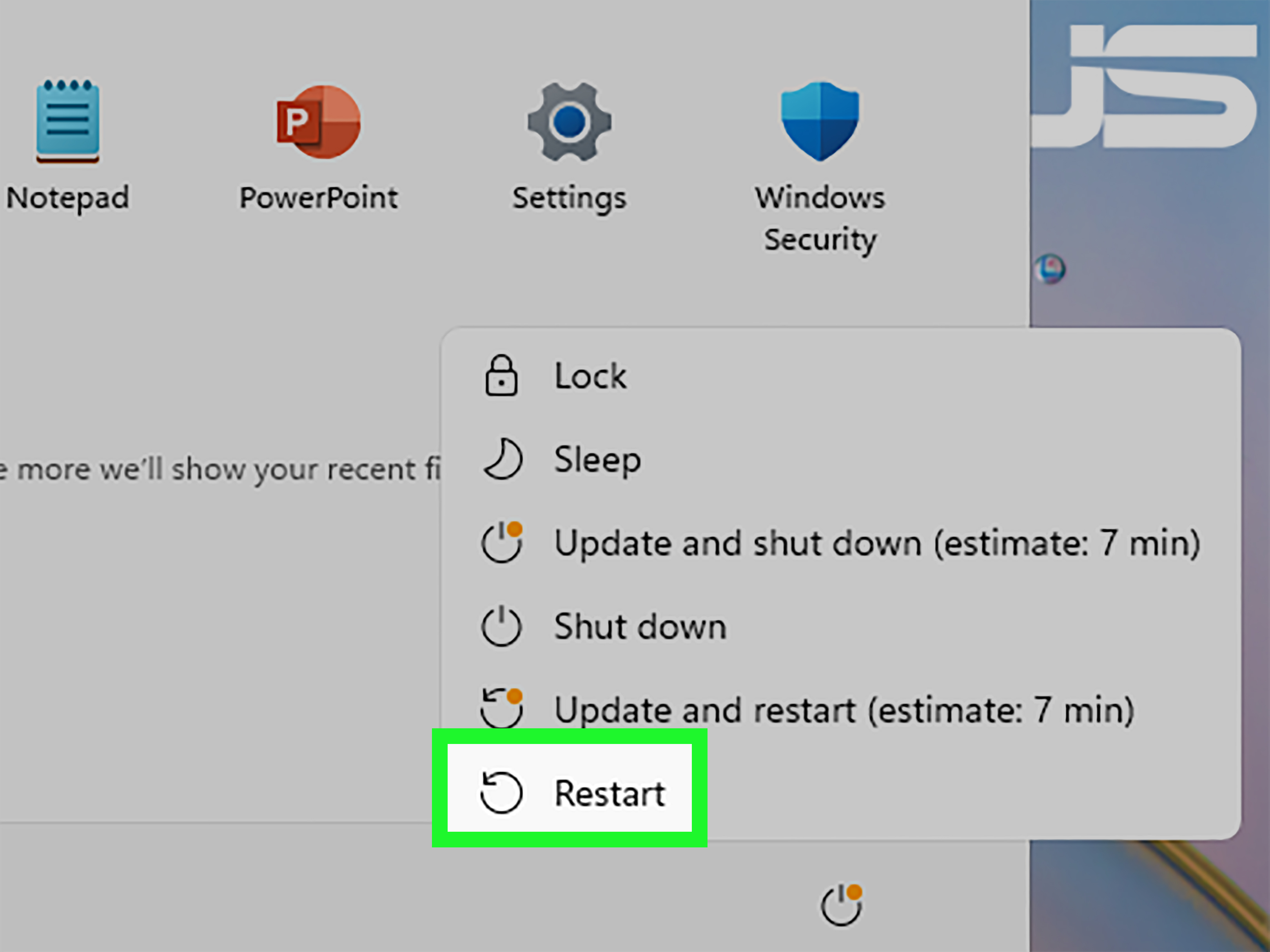
- Restart your computer.
- Windows should reinstall the adapter automatically.
If Windows does not reinstall it correctly, download the latest Wi-Fi and Bluetooth drivers from your laptop manufacturer’s support page. That matters because OEM drivers often include the exact radio-control logic Windows expects for that hardware.
Example: A generic driver may get your wireless card running, but the OEM package may be the only version that correctly handles radio toggles, power management, and airplane-mode hotkeys.
Step 5: Restart Radio Management Services and Use Windows Troubleshooting
Windows 10 relies on background services to manage wireless radios. If those services get stuck, Airplane Mode can become grayed out or behave like it is off while still blocking wireless connections behind the scenes. That is peak Windows behavior: technically wrong, emotionally consistent.
Restart the service
- Press Windows + R.
- Type services.msc and press Enter.
- Look for Radio Management Service if it appears on your build or device.
- Right-click it and choose Restart.
- Set the startup type to Automatic if it is disabled by mistake.
Now run the built-in troubleshooter:
- Open Settings.
- Go to Network & Internet > Status.
- Click Network troubleshooter.
- Follow the prompts.
This is not always glamorous, but it can detect disabled adapters, broken radio states, and network configuration issues faster than most humans clicking around in mild frustration.
Step 6: Reset the Network Stack and Install Pending Windows Updates
If the problem began after a Windows update, driver conflict, or network crash, resetting the network stack can clear out bad configuration data. It is the software equivalent of telling your networking components to go outside, take a walk, and come back with better attitudes.
Do a network reset
- Open Settings.
- Go to Network & Internet > Status.
- Scroll down and choose Network reset.
- Click Reset now.
- Restart the PC.
Run reset commands if needed
Open Command Prompt as Administrator and run these commands one by one:
After that, open Settings > Update & Security > Windows Update and install any pending updates, including optional driver updates if your system offers them.
This step is especially useful when Airplane Mode started acting weird after a system update, sleep-wake cycle, or driver mismatch.
Step 7: Change BIOS or Manufacturer Utility Settings for a Permanent Fix
If you want the closest thing to “permanently disable Airplane Mode” on Windows 10, this is the step that matters most. The goal here is to stop the hardware or firmware trigger that keeps feeding Airplane Mode back into Windows.
What to look for in BIOS or OEM tools
- Action Keys Mode on HP systems
- Wireless Radio Control settings
- Hotkey behavior on ASUS or Lenovo laptops
- Manufacturer utilities such as Dell airplane-mode driver packages, Lenovo wireless settings, or ASUS Keyboard Hotkeys
How to do it safely
- Restart the computer and enter BIOS or UEFI using the correct key for your model, often F2, F10, Esc, or Delete.
- Look for keyboard, function key, or wireless settings.
- Disable or change any option that makes the airplane-mode hotkey overly aggressive.
- Save and exit.
- Back in Windows 10, remove or update the OEM hotkey software if needed.
If the issue is deep enough that it survives Windows restarts, this BIOS-and-utility approach is often what finally stops the problem from returning. In other words, this is where the “permanent” part usually happens.
What Permanently Disabling Airplane Mode Really Looks Like
Let’s keep it honest. You usually do not “remove” Airplane Mode from Windows 10 the way you remove an app. Instead, a permanent fix means creating a stable setup where:
- the hotkey no longer triggers it by accident,
- the hardware switch no longer overrides Windows,
- the Airplane Mode control driver is disabled or fixed,
- the wireless adapter driver is healthy, and
- the BIOS and OEM utility settings stop fighting the operating system.
Once those pieces are corrected, Airplane Mode usually stops showing up as a recurring problem. At that point, it becomes what it was always supposed to be: a feature you use deliberately, not a gremlin squatting in your laptop.
Common Mistakes to Avoid
- Do not delete random drivers just because the internet told you to. That is how small problems become Saturday projects.
- Do not assume the Wi-Fi card is dead right away. A bad hotkey driver can mimic hardware failure.
- Do not skip OEM drivers. Generic drivers sometimes miss radio-control functions.
- Do not change too many BIOS settings at once. Tweak one item, save, test, and repeat if necessary.
- Do not ignore Bluetooth. If both Wi-Fi and Bluetooth are failing together, Airplane Mode or radio control is more likely involved.
Final Thoughts
If your Windows 10 laptop keeps getting stuck in Airplane Mode, the solution is rarely just “turn it off again.” The lasting fix is to remove the trigger behind it. Start with the easy stuff like the toggle, hotkey, and physical switch. Then move into Device Manager, drivers, services, and BIOS settings. In most cases, one of those seven steps will finally convince your computer that it is a laptop, not an airport gate.
And once you fix it, maybe celebrate by connecting to Wi-Fi like the free-range digital citizen you were always meant to be.
Extra: Real-World Experiences With the Windows 10 Airplane Mode Problem
In real-world Windows 10 troubleshooting, the Airplane Mode issue tends to show up in a few very recognizable patterns. The first is the accidental hotkey disaster. Someone is typing quickly, gaming, cleaning the keyboard, or trying to take a screenshot, and suddenly the laptop drops off the network. A lot of people waste time rebooting the router, calling the internet provider, or blaming Windows updates before realizing the machine has a dedicated radio key. On certain laptops, that one key combo can knock out Wi-Fi, Bluetooth, and sometimes leave the user convinced the entire network card died overnight.
The second common experience is the “toggle lies to me” problem. Airplane Mode appears off in Settings, but Wi-Fi still will not turn on. Or the opposite happens: the Airplane Mode button is off for three glorious seconds and then snaps back on like it has a personal agenda. In many of those cases, the system is not dealing with a simple user-setting problem at all. It is dealing with a conflict between Windows, a hardware-control driver, and an OEM utility. That is why people often describe the issue as feeling random. It is not random. It is layered.
Another familiar story happens after a Windows update or fresh install. The machine boots normally, Ethernet works, but Wi-Fi disappears and the only visible clue is an Airplane Mode control acting strangely. This often points to a missing manufacturer driver, especially on laptops where radio control depends on custom firmware tools. Users who install only generic Windows drivers sometimes get a partially working system: the adapter exists, but the hotkey behavior, power management, or wireless toggle logic is broken. It is one of those classic “everything is installed, yet nothing works” Windows moments.
Then there is the office-laptop version of the problem. A computer wakes from sleep, resumes from a dock, or comes back from a battery-saving state and suddenly acts like wireless is forbidden by international treaty. In those cases, power management settings and radio services are often involved. The laptop is not truly stuck because of Airplane Mode alone; it is stuck because the wireless hardware did not reinitialize correctly when Windows resumed control. That is why disabling power-saving options, restarting services, or reinstalling the adapter sometimes feels weirdly effective.
One of the most frustrating real-life experiences is when the user assumes the hardware is broken and spends money before trying a proper driver or BIOS fix. That happens more often than it should. Plenty of “dead Wi-Fi card” stories turn into “oh, it was the Airplane Mode Switch Collection device” or “the BIOS hotkey setting was wrong” once someone checks the right places. The good news is that this problem is often fixable without replacing the laptop, replacing the router, or dramatically staring out the window while wondering whether life offline might be simpler.
The biggest lesson from all these experiences is simple: when Windows 10 Airplane Mode gets weird, treat it like a control-chain issue, not just a button issue. Once you understand that, the fix becomes a lot less mysterious and a lot more permanent.