Note: This guide is written for Linux desktop users and Steam Deck-style Linux setups who want a practical, no-drama way to play The Witness using Steam Play, Proton, Wine-based launchers, or a GOG/Epic library manager.
Introduction: Yes, You Can Play The Witness on Linux
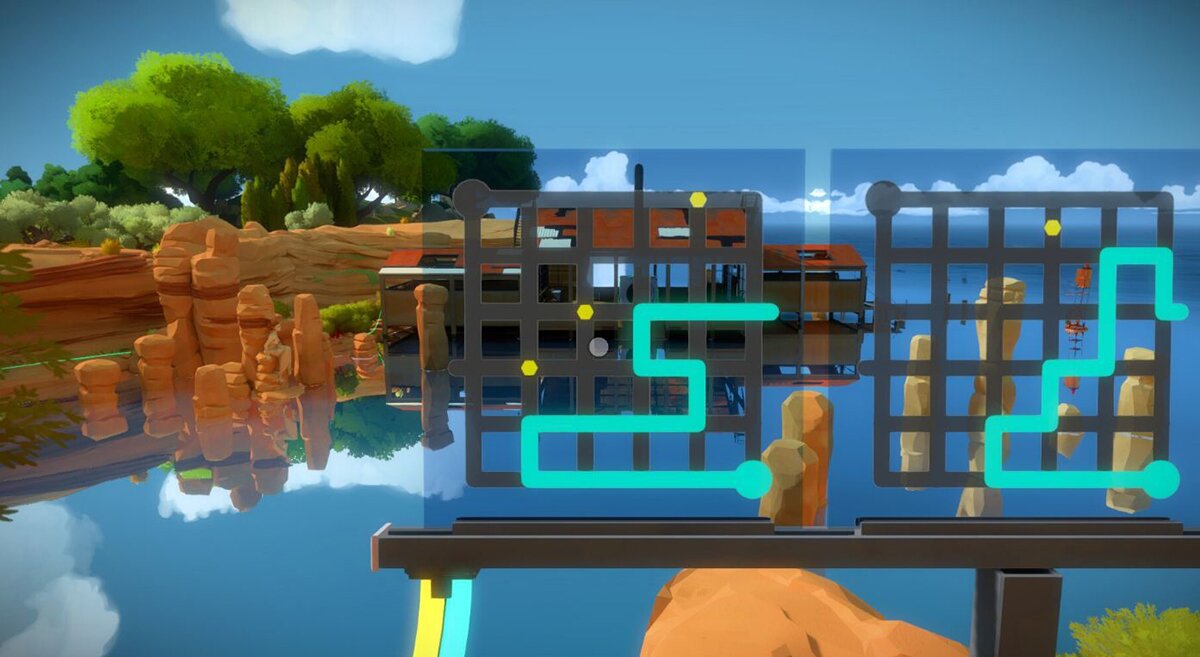
The Witness is one of those games that quietly walks into your life, hands you a line puzzle, smiles politely, and then rearranges your brain furniture. Developed by Thekla, Inc., this first-person puzzle adventure drops you onto a colorful island filled with hundreds of logic puzzles, environmental clues, strange structures, hidden patterns, and just enough silence to make you question whether your monitor is judging you.
If you are a Linux gamer, the good news is simple: you can play The Witness on Linux. The slightly more technical news is that the game does not need a native Linux version to be enjoyable. In most modern setups, the best method is to run the Windows version through Steam Play with Proton. If you own the game on GOG or Epic Games Store, you can also use tools such as Heroic Games Launcher, Lutris, Wine, or Proton-GE to get it running smoothly.
This guide explains how to install, configure, launch, and optimize The Witness on Linux. Whether you are using Ubuntu, Linux Mint, Fedora, Arch, Manjaro, Pop!_OS, Debian, Bazzite, Nobara, or SteamOS, the process is easier than solving the monastery puzzles without taking a suspiciously long walk outside first.
Can The Witness Run on Linux?
Yes, The Witness can run on Linux through compatibility tools. On Steam, the game is primarily listed for Windows and macOS, but Linux players commonly run it through Proton, Valve’s compatibility layer that allows many Windows games to run on Linux. Proton combines technologies such as Wine, DXVK, and Vulkan translation to make Windows games behave as if they packed a tiny suitcase and moved into your Linux system willingly.
The game is a good candidate for Linux because it is a single-player puzzle game without invasive anti-cheat, multiplayer services, or always-online launchers. Those are often the things that make Linux gaming complicated. The Witness mostly needs graphics compatibility, stable input, and a clean installation path. In other words, Linux does not have to fight a dragon here; it just has to open the door politely.
Best Ways to Play The Witness on Linux
The easiest route is Steam with Proton. If you own the Steam version, this is the method most Linux users should try first. For GOG or Epic versions, Heroic Games Launcher is usually the most convenient option because it supports GOG, Epic, and Amazon Games libraries on Linux. Lutris is another strong option, especially for users who like custom Wine runners and detailed configuration controls.
Recommended Linux Requirements Before You Start
The Witness is not a brand-new hardware crusher, but it still benefits from a reasonably modern graphics stack. The official Windows requirements are modest by today’s standards, with the game needing around 5 GB of storage and supporting older graphics hardware. On Linux, the most important requirement is not raw horsepower; it is having working Vulkan support.
Basic Checklist
- A 64-bit Linux distribution
- Steam installed, or Heroic/Lutris for non-Steam copies
- Updated GPU drivers
- Vulkan support installed and working
- At least 5 GB of free storage
- A keyboard and mouse, controller, or Steam Deck controls
If your Linux system already runs modern Steam games through Proton, you are probably ready. If Proton games usually fail to launch, fix your driver and Vulkan setup first. Proton is like a tour guide; Vulkan is the bridge. Without the bridge, everyone is just standing around pointing at the river.
Step 1: Install Steam on Linux
If you own The Witness on Steam, start by installing the Steam client. The exact command depends on your Linux distribution.
Ubuntu, Linux Mint, and Debian-Based Systems
Some users prefer Valve’s official Debian package for Steam, especially on Ubuntu-based systems. Others install Steam from their distribution’s software center. Either method can work, but avoid unusual repackaged versions if they cause controller, library-folder, or Proton problems.
Fedora
On Fedora, Steam is commonly installed through RPM Fusion or Flatpak. If you already use RPM Fusion, you can install the native package. If not, Flatpak is a simple option.
Arch, Manjaro, and EndeavourOS
Arch-based systems often provide very current Mesa, kernel, and driver packages, which can be excellent for Linux gaming. The trade-off is that you should keep your system updated and avoid mixing too many experimental packages unless you enjoy debugging more than playing games.
Step 2: Enable Proton in Steam
After Steam is installed, log in and enable Steam Play. This tells Steam that Windows games are allowed to run through Proton on Linux.
How to Enable Steam Play
- Open Steam.
- Click Steam in the top-left corner.
- Go to Settings.
- Open the Compatibility section.
- Enable Steam Play for supported titles.
- Enable Steam Play for all other titles if the option is available.
- Select a Proton version, such as the latest stable Proton or Proton Experimental.
- Restart Steam if prompted.
For The Witness, start with the default Proton version recommended by Steam. If the game does not launch, try Proton Experimental. If that still fails, try Proton-GE, a community Proton build that sometimes includes extra fixes before they reach standard Proton releases.
Step 3: Install The Witness on Linux Through Steam
Once Proton is enabled, installing the game is wonderfully ordinary. That is the dream in Linux gaming: boring installation, exciting gameplay.
Steam Installation Steps
- Open your Steam Library.
- Search for The Witness.
- Click Install.
- Choose your installation drive.
- Wait for the download to finish.
- Click Play.
The first launch may take longer than usual because Proton needs to create a compatibility prefix. Think of the prefix as a tiny Windows-like environment where the game keeps its settings and dependencies. Do not panic if Steam says “Launching” for a moment. Proton is setting the table before dinner.
Step 4: Force a Proton Version If Needed
If The Witness does not start, or if it launches and immediately closes, force a specific Proton version.
How to Force Proton for The Witness
- Right-click The Witness in your Steam Library.
- Select Properties.
- Open Compatibility.
- Check Force the use of a specific Steam Play compatibility tool.
- Select a Proton version.
- Close the window and launch the game again.
Try the latest stable Proton first. If that fails, try Proton Experimental. If you are comfortable installing community tools, Proton-GE is also worth testing. Do not switch through ten versions in a panic. Change one thing at a time, test it, and keep notes. Your future self will appreciate not having to solve a second puzzle game called “What Did I Change Yesterday?”
Step 5: Playing the GOG or Epic Version on Linux
If you own The Witness outside Steam, use Heroic Games Launcher or Lutris. Both tools are popular in the Linux gaming community and can manage Wine or Proton-based game launches.
Option A: Use Heroic Games Launcher
Heroic Games Launcher is a user-friendly launcher for Epic Games Store, GOG, and Amazon Games libraries. It works on Linux and Steam Deck, and it includes tools for selecting Wine or Proton versions per game.
- Install Heroic Games Launcher from Flathub or your distribution’s package manager.
- Log in to your GOG or Epic account.
- Find The Witness in your library.
- Install the game.
- Open the game settings.
- Select a Wine, Proton, or Proton-GE runner.
- Launch the game.
Option B: Use Lutris
Lutris is excellent for users who want more control. It supports custom runners, scripts, Wine versions, environment variables, and per-game settings. For The Witness, Lutris can be useful if your copy comes from GOG or if Heroic does not behave well on your system.
Install Lutris, search for The Witness, choose the installer that matches your store version, and follow the prompts. If the game fails to launch, switch Wine versions or use a recent Proton-GE runner.
Best Settings for The Witness on Linux
The Witness is visually clean, colorful, and surprisingly atmospheric. It is not a twitch shooter, so you do not need ultra-low latency or 240 FPS to enjoy it. A stable frame rate and comfortable controls matter more.
Graphics Settings to Try
- Resolution: Use your monitor’s native resolution if performance is stable.
- Fullscreen: Try fullscreen first; use borderless or windowed mode if alt-tabbing causes problems.
- Texture quality: Medium or high should work well on most modern systems.
- Anti-aliasing: Lower it if you see stutter on older integrated graphics.
- VSync: Enable it if you notice screen tearing.
On a Steam Deck or handheld Linux PC, consider limiting the frame rate to 40 or 60 FPS to save battery. The Witness is not the sort of game where one extra frame changes destiny. Your real enemy is not input lag; it is a puzzle panel that looked obvious until it absolutely was not.
Controller, Keyboard, and Steam Deck Tips
The Witness works well with keyboard and mouse because many puzzles involve drawing precise lines. A controller is also comfortable for exploration, especially on a couch or handheld device. On Steam Deck, the touchscreen and trackpads can be very useful for puzzle panels.
Recommended Input Setup
- Use mouse input for accurate puzzle drawing on desktop.
- Use a controller for relaxed movement and exploration.
- On Steam Deck, map the right trackpad as a mouse for puzzle panels.
- Use the touchscreen when it feels faster than thumbstick aiming.
- Lower mouse sensitivity if line drawing feels too twitchy.
If you play on Steam Deck, test both the default controller layout and community layouts. A small control tweak can make the game feel much smoother. This is especially true when you are solving panels that demand precision, patience, and a level of calm usually found only in meditation apps and cats sitting in sunbeams.
Common Problems and Fixes
Linux gaming has improved dramatically, but the occasional issue can still appear. Here are the most common problems when running The Witness on Linux and how to fix them.
The Game Will Not Launch
First, update your GPU drivers. Then force a different Proton version in Steam. If you use an older NVIDIA card or an old distribution release, Vulkan support may be the issue. For AMD and Intel graphics, make sure Mesa and Vulkan packages are installed. For NVIDIA, use the proprietary driver from your distribution’s recommended driver tool.
Black Screen on Startup
Try launching the game in windowed mode, switching Proton versions, or deleting the Proton prefix so Steam can rebuild it. To reset the prefix, you can remove the game’s compatibility data folder, but be careful and back up saves if needed.
Low FPS or Stuttering
Lower resolution, reduce anti-aliasing, and close background applications. On laptops, make sure the game is using the dedicated GPU rather than integrated graphics. If you use a hybrid NVIDIA laptop, tools such as PRIME render offload may be necessary.
Steam Cloud or Save Issues
Steam Cloud is supported by the Steam version, but if saves do not appear, allow Steam to finish syncing before launching. For non-Steam versions, check Heroic or Lutris save paths and back up your saves manually before experimenting with runners.
Game Opens on the Wrong Monitor
Switch to windowed mode, move the window, then return to fullscreen. If you use multiple monitors with different refresh rates, test the game on one display first. Linux desktops are powerful, but multi-monitor gaming can still occasionally act like it has discovered modern art.
How to Improve Performance on Linux
For the smoothest experience, keep your system updated. This matters more on Linux than many new users expect because graphics drivers, Mesa, Vulkan, Proton, and kernel updates can directly affect game compatibility.
Performance Tips
- Use a recent Proton version.
- Update Mesa on AMD and Intel systems.
- Install the recommended proprietary NVIDIA driver for NVIDIA GPUs.
- Enable GameMode if your distribution supports it.
- Run the game from an SSD if possible.
- Avoid heavy background recording while testing performance.
You can also use MangoHud to monitor FPS, frame pacing, GPU load, and CPU usage. However, for The Witness, do not obsess over numbers. If the game feels smooth and puzzle input is accurate, you are already winning. Save the spreadsheet energy for games where the GPU sounds like it is preparing for takeoff.
Is The Witness Good on Steam Deck?
Yes, The Witness is a strong fit for Steam Deck and similar Linux handhelds. The game’s slow, thoughtful pace works beautifully in portable sessions. You can solve a few panels, wander into a new area, get humbled by a symbol you thought you understood, and suspend the device before your tea gets cold.
The only real challenge is input. Some players prefer the touchscreen for puzzle panels, while others prefer the right trackpad as a mouse. The analog stick works, but line puzzles can feel more precise with pointer-style input. If a puzzle requires careful tracing, use the input method that feels most natural rather than forcing yourself to wrestle the default layout.
Steam Deck Settings
- Try 1280×800 or 1280×720 resolution.
- Use a 40 FPS or 60 FPS cap depending on battery goals.
- Map right trackpad to mouse.
- Use touchscreen for panel interaction when convenient.
- Lower brightness slightly to extend battery life in longer sessions.
Beginner Tips for Playing The Witness
Once the game is running, the next challenge is not Linux. It is the island. The Witness does not explain itself in the usual way. There are no pop-up tutorials saying, “Hello brave gamer, here is what this symbol means.” Instead, the game teaches through pattern, repetition, placement, and increasingly smug-looking panels.
Do Not Force Every Puzzle Immediately
If a puzzle makes no sense, leave it. That is not failure; that is the game design. Many areas teach rules that help you solve puzzles elsewhere. Walking away is often the smartest move. Think of it as strategic retreat, not puzzle cowardice.
Take Notes
A small notebook or notes app can help. Draw symbols, write down what you think they mean, and record strange environmental patterns. Some puzzles rely on observation as much as logic.
Look Around the Environment
Not every clue is on the panel. The island itself is part of the puzzle language. Shadows, trees, colors, reflections, audio cues, architecture, and pathways may all matter. If you only stare at panels, you may miss the game’s quiet little “aha” moments hiding in plain sight.
Why The Witness Works So Well on Linux
The Witness is a great Linux game not because it was designed specifically for Linux, but because its structure avoids many common compatibility headaches. It is single-player. It does not depend on competitive anti-cheat. It does not require constant server matchmaking. It has modest storage needs. It is old enough to run on a wide range of hardware but polished enough to still look beautiful.
For Linux gamers, that combination is ideal. The game rewards quiet focus, and Linux rewards patient setup. Put them together and you get an experience that feels oddly harmonious. Configure Proton, launch the game, step onto the island, and suddenly your operating system fades into the background. That is exactly what good compatibility should do.
Extra Experience: What It Feels Like to Play The Witness on Linux
Playing The Witness on Linux feels a bit like building a custom reading nook and then discovering the book inside is written in riddles. The setup process can be pleasantly simple if you use Steam and Proton. Install Steam, enable compatibility, download the game, press Play, and you are there. For a Linux user who remembers the old days of manually chasing DLL files like escaped hamsters, this is borderline luxurious.
The first thing you notice in-game is how calm everything feels. The island is bright, clean, and almost suspiciously peaceful. There are no enemies, no inventory clutter, no quest log shouting at you, and no character yelling, “Over here!” every twelve seconds. On Linux, especially on a quiet desktop environment, that calmness becomes even stronger. You launch the game from KDE, GNOME, Cinnamon, or SteamOS, and within a few seconds you are standing in a place that seems designed to lower your blood pressure right before it raises your intellectual blood pressure.
Keyboard and mouse remain the best desktop input method for many players. Drawing lines with a mouse feels natural, and camera movement is easy to control. On a Linux laptop, the experience depends heavily on the touchpad. A good touchpad can work fine, but an external mouse makes the game more comfortable. Some puzzles require clean line movement, and fighting a wobbly touchpad while solving logic puzzles is a great way to invent new vocabulary your family should not hear.
On Steam Deck, the experience is different but charming. The island looks excellent on the smaller screen, and the ability to suspend the game is perfect for short sessions. You can solve two or three puzzles during a break, put the device to sleep, and come back later without losing your mental thread. The right trackpad is especially useful because it gives you mouse-like precision without needing to touch the screen every time. The touchscreen is also handy, but some players may prefer the trackpad because it keeps the screen clean and avoids blocking the puzzle with a thumb.
One of the best parts of playing The Witness on Linux is how little the operating system matters once everything works. That is the real victory. Linux gaming sometimes gets discussed as if the setup is the game, but here the technology disappears quickly. Proton handles the compatibility, Steam handles installation and updates, and you get to focus on the island’s visual language. After a while, you are no longer thinking about Wine prefixes, Mesa versions, or launch options. You are thinking, “Wait, did that tree branch just teach me something?” And yes, it probably did.
The game also pairs well with the Linux mindset. Linux users tend to be comfortable experimenting, observing systems, testing assumptions, and learning through small failures. The Witness is built around exactly that rhythm. You try a solution, it fails, you reconsider the rule, you notice something nearby, and then the answer clicks. The loop feels familiar: diagnose, adjust, test, repeat. It is basically troubleshooting, but with prettier flowers and fewer forum posts.
Performance is generally not the star of the story because the game is not demanding by modern standards. Still, when configured correctly, it can feel smooth and responsive. If there is stutter, it usually points to driver issues, shader compilation, or an awkward Proton configuration. Once those are settled, the game runs quietly in the background of your attention, which is exactly where performance should be for a puzzle game. Nobody wants to lose a chain of reasoning because the frame pacing decided to do interpretive dance.
The best advice from experience is to treat both the Linux setup and the game itself with patience. Do not change five settings at once. Do not brute-force every puzzle. Do not assume a failed launch means the game is impossible to run. Try one Proton version, update drivers, check Vulkan, and test again. Inside the game, apply the same discipline. Observe, experiment, walk away, return later. The Witness rewards calm curiosity, and Linux rewards methodical tinkering. Together, they make a surprisingly satisfying pair.
Conclusion
Learning how to play The Witness on Linux is much easier than many players expect. The Steam version works best through Steam Play and Proton, while GOG and Epic owners can use Heroic Games Launcher or Lutris. The key is to keep your graphics drivers updated, make sure Vulkan support is working, choose a reliable Proton or Wine runner, and adjust input settings for your preferred device.
Once the game launches, the technical side fades away, leaving you with one of the most elegant puzzle games ever made. Linux gives you the platform; Proton opens the door; The Witness invites you onto the island and quietly dares you to understand it. Bring patience, curiosity, and maybe a notebook. Your brain is about to get a very scenic workout.