Google Pay is one of those payment tools that sounds simple until Google changes the furniture around and everyone starts asking, “Wait, do I use Google Pay or Google Wallet now?” Good news: the answer is not as dramatic as it looks. Google Pay still helps you check out online, pay in apps, use saved cards in Chrome and Android, and tap to pay in stores through Google Wallet. The “send money” part, however, depends heavily on where you live, because the old U.S. Google Pay app no longer supports peer-to-peer payments.
This guide explains how Google Pay works today, how to set it up, how to pay online, what happened to sending money in the United States, and how to use it safely without turning your phone into a tiny, glowing money cannon.
What Is Google Pay?
Google Pay is Google’s payment technology for faster checkout online, in apps, and across Google services. It lets you use payment methods saved to your Google Account instead of typing your card number, expiration date, billing address, and shipping address every time you buy socks, software, takeout, or that one gadget you absolutely “needed” at midnight.
In practice, Google Pay appears in a few common places. You may see a Buy with Google Pay button at checkout. You may use Chrome autofill to enter saved payment information. You may pay for Google products, subscriptions, or services with payment methods stored in your Google payments profile. On Android, you may use Google Wallet to tap and pay in stores where contactless payments are accepted.
Google Pay vs. Google Wallet: The Simple Difference
Think of Google Pay as the payment service and Google Wallet as the digital wallet app that stores payment cards, transit passes, tickets, loyalty cards, and other wallet-style items. Google Pay is what you use when checking out online or in an app. Google Wallet is where Android users commonly manage cards for contactless tap-to-pay.
The branding can feel like a game of financial musical chairs, but the practical rule is easy: use Google Pay when paying online, and use Google Wallet when managing cards or tapping your phone at a store terminal.
How to Set Up Google Pay
Before you can pay online with Google Pay, you need at least one payment method connected to your Google Account or Google Wallet. The setup process is designed to be quick, but it is worth taking a minute to do it correctly.
Step 1: Add a Payment Method
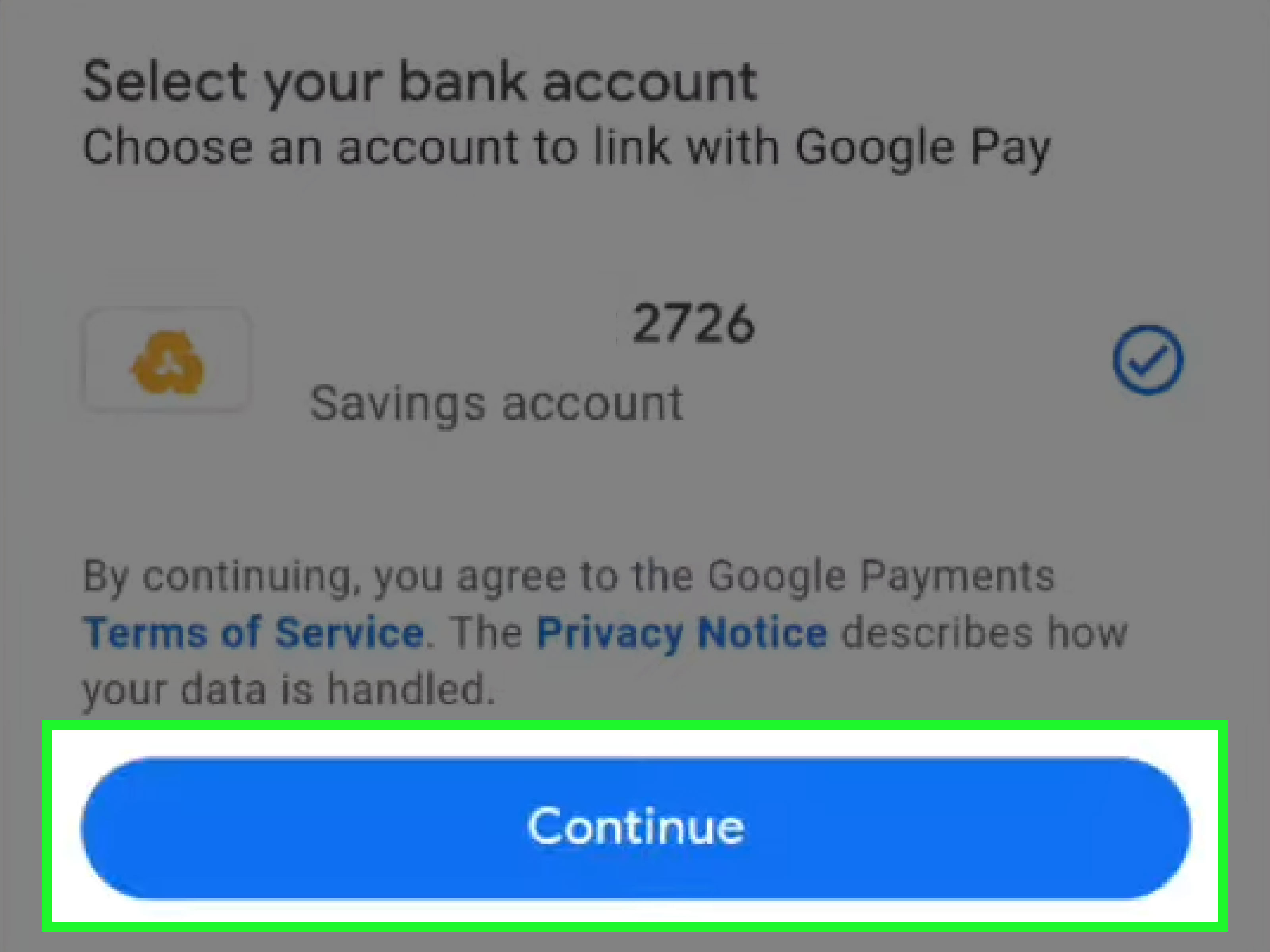
Start by adding a debit card, credit card, or other supported payment method to your Google Account or Google Wallet. On Android, open the Google Wallet app, tap the option to add a card, and follow the prompts. On desktop, you can manage saved payment methods through the Google Wallet website or your Google payments profile.
Google may ask you to verify the card. Verification can happen through your bank, a one-time code, a temporary authorization, or another method chosen by the card issuer. This step may feel mildly annoying, but it is the digital equivalent of checking the door lock before leaving the house. Annoying? Sometimes. Useful? Absolutely.
Step 2: Choose Your Default Card
If you add more than one card, choose a default payment method. This matters most for contactless payments. If your grocery card, travel card, and “emergency pizza” card are all saved, Google Wallet needs to know which one should pay first when you tap your phone at checkout.
Step 3: Turn On Security Features
For Android tap-to-pay, you generally need a screen lock, such as a PIN, pattern, password, fingerprint, or face unlock. You also need NFC turned on for contactless payments. This combination helps prevent someone from picking up your phone and immediately using it like a magic wand at the coffee shop.
Step 4: Review Privacy Settings
Google Wallet and Google Pay include privacy settings that control how payment and Wallet activity can be used for personalization. Before you start using the service regularly, review these settings. A payment app should be convenient, but convenience does not mean you have to treat your data like confetti at a parade.
How to Pay Online with Google Pay
Paying online with Google Pay is the feature most people will use the most. It is built for speed, especially on websites and apps that support the Google Pay button.
Step 1: Look for the Google Pay Button
At checkout, look for a button that says Google Pay, Buy with Google Pay, or shows the Google Pay logo. This usually appears near other payment options such as credit cards, PayPal, Apple Pay, or buy now, pay later services.
Step 2: Select Google Pay
Click or tap the Google Pay button. A checkout window may appear showing your saved payment methods and shipping information. Instead of typing your card details by hand, you can choose from the cards already saved to your Google Account.
Step 3: Choose Your Payment Method and Shipping Address
If you have multiple cards saved, choose the one you want to use. For example, you might use a rewards credit card for online shopping, a debit card for budgeting, or a business card for work purchases. Make sure your shipping address is correct. Google Pay is fast, but it cannot save you from accidentally sending a birthday gift to your old apartment. Technology has limits.
Step 4: Confirm the Purchase
Review the order total, shipping address, and payment method, then confirm the payment. Depending on your device and settings, you may need to verify your identity with a screen lock, fingerprint, face unlock, password, or bank confirmation.
Why Google Pay Is Useful for Online Shopping
Google Pay speeds up checkout, reduces typing errors, and may add a layer of security by limiting how much card information you share directly with merchants. When virtual card numbers are available for eligible cards, Google can use a substitute card number for online purchases. That means the merchant does not receive your actual card number, which is a very polite way of saying, “You may process my payment, but you may not see the family jewels.”
How to Pay in Apps with Google Pay
Google Pay also works inside many Android apps and mobile websites. The process is similar to online checkout. When an app supports Google Pay, you can choose it at checkout, select a saved card, confirm your details, and complete the purchase.
This is especially useful for food delivery, rideshare, subscription apps, shopping apps, travel bookings, and ticket purchases. Instead of entering your card information into every new app, Google Pay lets you check out using payment details already saved to your account.
Example: Ordering Food
Imagine you are ordering dinner through a delivery app. You add tacos, chips, and a drink because balance matters. At checkout, you choose Google Pay, confirm your card, check the delivery address, and place the order. The process may take only a few taps. The tacos still take 35 minutes, but at least the payment does not.
Example: Booking Event Tickets
When buying concert or movie tickets, Google Pay can help you move faster through checkout. That speed matters when tickets are disappearing faster than free snacks in an office kitchen. After purchase, eligible tickets may also be stored in Google Wallet, making it easier to access them at the venue.
How to Use Google Wallet for Tap-to-Pay
For in-store payments on Android, Google Wallet is the main app to know. Once you add a supported card, turn on NFC, set up a screen lock, and make Google Wallet your default NFC payment app, you can tap your phone at contactless terminals.
Where Tap-to-Pay Works
You can use Google Wallet wherever you see the contactless symbol or the Google Pay symbol at checkout. This includes many grocery stores, pharmacies, restaurants, gas stations, transit systems, vending machines, and retail stores. Availability depends on the merchant, your country, your device, and your card issuer.
How to Tap and Pay
- Unlock your Android phone.
- Hold the back of the phone near the contactless payment reader.
- Wait for the check mark or confirmation.
- If prompted, verify with your screen lock.
You usually do not need to open the Wallet app before paying, although opening it can help if you want to choose a different card. If the payment does not work, hold the phone closer to the reader, try a different angle, make sure NFC is on, or ask whether the store accepts contactless payments.
Can You Send Money with Google Pay?
This is where the answer becomes location-specific. In the United States, the old standalone Google Pay app no longer supports peer-to-peer money transfers. As of June 4, 2024, U.S. users can no longer send, request, or receive money from other people through the U.S. version of the Google Pay app.
That means if you are in the U.S. and you want to split rent, repay a friend for brunch, or send money to your cousin who mysteriously “forgot” his wallet again, Google Pay is no longer the app for that job. You will likely need another payment method, such as a bank transfer, Zelle through a participating bank, PayPal, Venmo, Cash App, or another service available to you.
What Happened to Google Pay Balance?
If you previously had money in a Google Pay balance, Google allows users to transfer eligible remaining funds out to a linked bank account through the Google Wallet website. Google’s help guidance says bank transfers from Google Pay balance may take 1 to 5 business days. The virtual Google Pay Balance Card was removed as a payment method on June 22, 2026, but Google says the money in the balance remains accessible for transfer.
Does Google Pay Still Send Money in Other Countries?
Google Pay features vary by country. In some markets, Google Pay has supported person-to-person transfers, bill payments, QR payments, or bank-based payment systems. The important point is not to assume every Google Pay feature exists everywhere. Always check the feature availability for your country, your device, and your payment method.
Practical U.S. Recommendation
For U.S. users, treat Google Pay as an online and in-app checkout tool, and treat Google Wallet as your Android tap-to-pay wallet. For person-to-person money transfers, use a dedicated payment service or your bank’s supported transfer tools. That may not be as tidy as one app doing everything, but it is better than trying to send money through a feature that packed its bags in 2024.
Is Google Pay Safe?
Google Pay includes several safety features, including encryption, authentication, fraud monitoring, and virtual card technology for eligible cards. When you use Google Pay online or Google Wallet in stores, your actual card number may be protected through tokenization or virtual card numbers, depending on the payment type and card eligibility.
Security Benefits
One benefit of digital payments is that you do not have to hand your physical card to a cashier, type your card into every website, or store card details with every merchant. Google Pay can reduce friction while also reducing some exposure of sensitive payment information.
Risks to Watch For
No payment app is scam-proof. Fraudsters love fast payments because fast payments leave less time for second thoughts. Be cautious if someone pressures you to pay immediately, asks for a verification code, claims to be from your bank, sends a suspicious link, or tells you to “act now” to avoid a penalty. Real security teams do not usually communicate like game show hosts.
Smart Safety Habits
- Use a strong screen lock on your phone.
- Do not share verification codes with anyone.
- Review saved payment methods regularly.
- Remove old cards you no longer use.
- Check bank statements for suspicious activity.
- Transfer payment app balances to an insured bank account when appropriate.
- Be skeptical of urgent payment requests, especially from strangers.
Consumer agencies have warned that money stored in payment apps may not have the same federal deposit insurance protections as money held in an insured bank or credit union account. In plain English: payment apps are useful tools, not replacement mattresses stuffed with cash. Keep balances low unless you understand the protections and risks.
Common Google Pay Problems and Fixes
Google Pay Does Not Appear at Checkout
If you do not see Google Pay, the merchant may not support it, your browser may not be compatible, or your saved payment method may not be eligible. Try using Chrome, signing in to your Google Account, or checking whether your payment method is properly saved.
Your Card Needs Verification
Some cards require verification before use. Follow the instructions from Google and your card issuer. If the verification fails, contact your bank. Sometimes the card issuer is the bouncer at the payment nightclub, and Google is just standing there with a clipboard.
Tap-to-Pay Is Not Working
Make sure NFC is turned on, Google Wallet is set as the default payment app, your phone has a screen lock, and your card is ready for contactless payments. Also check whether the store accepts contactless payments. If everything looks correct and the payment is still declined, contact your bank.
You Need a Refund
For merchant purchases, refund policies usually depend on the merchant. Contact the store or website where you made the purchase. For Google product charges, review your Google purchase history and Google payments profile to identify the transaction.
You See an Unknown Charge
Check whether the charge is from a Google service, subscription, app purchase, YouTube purchase, Google Ads account, or family member with access to a shared payment method. If you still do not recognize it, contact your card issuer and follow Google’s support process for payment issues.
Google Pay Best Practices for Everyday Use
Google Pay is at its best when you use it intentionally. Save only the cards you actually use. Choose a default card that matches your spending goals. Turn on purchase notifications where available. Review transaction history, but remember that your bank statement is still the official record for card purchases.
Use the Right Card for the Right Purchase
If you have a rewards credit card, you may want to use it for online shopping. If you are controlling spending, a debit card may be better. If you run a business, keep personal and business purchases separate. Google Pay makes paying easier; it does not automatically make accounting easier. Your future self with a spreadsheet will thank you.
Do Not Save Payment Methods on Shared Devices
If you use a shared computer, public device, or borrowed phone, avoid saving payment information. Paying fast is nice. Accidentally leaving your card available to the next person is not nice. That is not convenience; that is financial karaoke with strangers.
Review Subscriptions
Saved payment methods can make subscriptions easy to start and easy to forget. Check recurring payments connected to your Google Account and cancel services you no longer use. A forgotten $4.99 subscription is not dramatic, but twelve forgotten $4.99 subscriptions become a tiny monthly parade of regret.
Experience-Based Tips for Using Google Pay Smoothly
After using digital wallets for everyday purchases, one lesson becomes obvious: the best payment setup is the one that disappears into the background without creating mystery later. Google Pay is convenient, but the real trick is organizing it so future you does not have to become a detective.
First, keep your cards simple. Many users add every card they own, then stare at checkout like they are choosing a character in a video game. A cleaner setup is better. Add your main personal card, your backup card, and maybe a business card if you need one. Remove expired cards and old payment methods. This reduces accidental payments and makes checkout faster.
Second, use purchase notifications. A small notification after a tap-to-pay transaction is useful because it confirms that the payment went through and reminds you which card was charged. This is especially helpful at busy stores, transit gates, or restaurants where you may be moving quickly. If something looks wrong, you can investigate immediately instead of discovering it three weeks later while reviewing your bank statement with the emotional energy of a tax auditor.
Third, test tap-to-pay before relying on it completely. If you are going to a concert, airport, train station, or event where speed matters, make sure your phone, NFC, default card, and screen lock are working before you are standing in line with people behind you silently judging your technology. Carry a physical backup card, too. Digital wallets are excellent, but batteries are mortal.
Fourth, separate online checkout from money transfers in your mind. For U.S. users, Google Pay is no longer the tool for sending money to friends. That matters because many older articles and outdated app screenshots still mention peer-to-peer payments. The current practical workflow is: Google Pay for online checkout, Google Wallet for Android tap-to-pay, and another trusted service or bank tool for person-to-person transfers.
Fifth, be careful with buy now, pay later options. Google Pay may show flexible payment choices through eligible providers. These can be useful for planned purchases, but they can also make spending feel lighter than it really is. If you use pay-later options, track due dates and total cost. A purchase split into four payments is still one purchase, not a magic discount wearing sunglasses.
Sixth, do not ignore privacy settings. Payment data is sensitive because it shows habits, locations, merchants, and routines. Review how Wallet and payments information may be used for personalization. Turn off settings you do not want. Convenience should be a choice, not a trapdoor.
Finally, keep a simple rule: if a payment request feels urgent, emotional, secretive, or strange, pause. Scammers create pressure because pressure makes people skip verification. Whether you are using Google Pay, a bank app, or another payment service, slow down before money leaves your account. A ten-second pause can be the cheapest security tool you own.
Conclusion: Should You Use Google Pay?
Google Pay remains a strong option for fast online checkout, in-app payments, Chrome autofill, and purchases across Google services. For Android users, Google Wallet makes tap-to-pay convenient at stores and transit systems that accept contactless payments. The experience is fast, polished, and secure enough for everyday use when paired with smart habits.
The biggest thing to remember is that Google Pay is not the same person-to-person money app it once was in the United States. If your goal is to send money to friends or family in the U.S., you should use another current transfer method. If your goal is to pay online without typing your card number for the 900th time, Google Pay is still very much alive and useful.
Use it with a screen lock, keep your saved cards organized, review privacy settings, watch for scams, and treat payment app balances carefully. Do that, and Google Pay can be exactly what a payment tool should be: quick, boring, and reliable. In finance, “boring and reliable” is not an insult. It is the dream.