Adding one month to a date in Microsoft Excel sounds like the kind of task that should take two seconds. Then Excel looks at January 31, February’s tiny calendar, leap years, cell formatting, and regional date settings, and suddenly your spreadsheet is acting like it has opinions. Good news: Excel has a clean, reliable way to handle this, and it is not “just add 30 days.” Please do not let your invoices, project timelines, membership renewals, or budget forecasts live in 30-day chaos.
The easiest way to add one month to dates in Microsoft Excel is to use the EDATE function. It adds a specific number of whole months to a valid date and returns the matching date in the target month. For most everyday spreadsheets, the formula is beautifully simple:
If cell A2 contains 1/15/2026, the formula returns 2/15/2026. If A2 contains 1/31/2026, Excel returns the last valid day of the next month: 2/28/2026. That small detail is exactly why EDATE is better than adding a fixed number of days.
Why Adding One Month in Excel Is Trickier Than It Looks
A month is not always 30 days. Some months have 31 days. February has 28 days, except when it has 29. Your spreadsheet does not care about your feelings, your deadline, or your coffee level. It only cares about valid dates.
That is why formulas like this can create problems:
This adds 30 days, not one calendar month. For some dates, it may look correct. For others, it may quietly produce the wrong billing cycle, renewal date, or follow-up deadline. For example, adding 30 days to January 31 gives you a date in March, not the end of February. That is fine if you want 30 days later. It is not fine if you want next month.
When your real goal is “same day next month,” “one billing cycle later,” or “one month after the start date,” use EDATE. It understands calendar months in a way that plain addition does not.
The Best Formula to Add One Month to a Date in Excel
The standard formula is:
To add one month, replace start_date with the cell containing your date and use 1 for the number of months.
Here is what that means:
| Start Date | Formula | Result |
|---|---|---|
| 1/10/2026 | =EDATE(A2,1) |
2/10/2026 |
| 1/31/2026 | =EDATE(A2,1) |
2/28/2026 |
| 2/29/2024 | =EDATE(A2,1) |
3/29/2024 |
| 12/15/2026 | =EDATE(A2,1) |
1/15/2027 |
Notice the December example. Excel correctly moves into the next year. No extra formula gymnastics required. No “if December, then panic” logic. Excel handles it.
Step-by-Step: How to Add One Month to Dates in Excel
Step 1: Enter Your Starting Date
Type your original date into a cell, such as A2. For example:
Make sure Excel recognizes it as a real date, not plain text. A quick test: change the cell format to General. If the date turns into a number, Excel understands it as a date. If it stays exactly the same as text, the cell may need cleaning.
Step 2: Enter the EDATE Formula
In the next cell, type:
Press Enter. Excel will return the date one month after the date in A2.
Step 3: Format the Result as a Date
Sometimes Excel returns a number such as 46068 instead of a nice readable date. Do not throw your laptop into the nearest decorative plant. Excel stores dates as serial numbers behind the scenes. You simply need to format the result cell as a date.
To fix it, select the result cell, press Ctrl + 1, choose Date, select your preferred format, and click OK.
How to Add One Month to an Entire Column of Dates
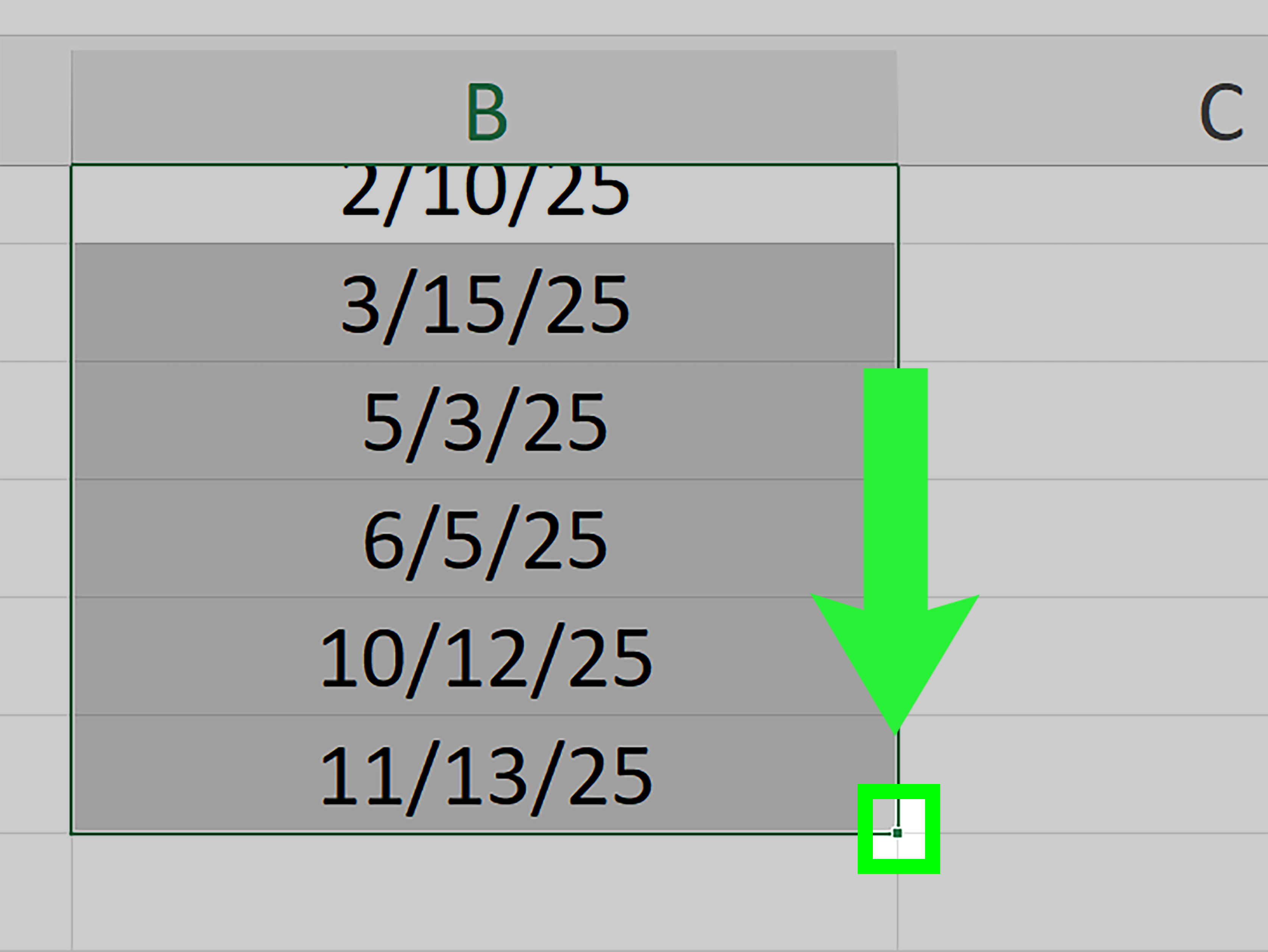
If you have a list of dates in column A and want the next-month dates in column B, use this formula in B2:
Then drag the fill handle down the column. Excel will adjust the formula row by row:
This is useful for payment schedules, subscription renewals, appointment reminders, HR review dates, warranty periods, and monthly reporting cycles. Basically, anywhere dates multiply faster than unread emails.
How to Add One Month from Today’s Date
If you want a date one month from today, use EDATE with the TODAY function:
This formula updates automatically whenever the workbook recalculates. That makes it useful for dashboards, rolling deadlines, reminders, and “check back next month” reports.
For example, if today is June 3, 2026, the formula returns July 3, 2026. Tomorrow, it will update based on the new current date.
How to Subtract One Month Instead
Need the previous month? Use a negative number:
If A2 contains 6/15/2026, the formula returns 5/15/2026. Negative months are helpful for looking back at prior billing periods, previous reporting dates, or comparison windows.
How to Add Several Months to a Date
EDATE is not limited to one month. Change the second argument to the number of months you want to add:
This adds three months. To add one year, use 12 months:
To add two years:
You can also reference another cell for the number of months. If A2 contains the start date and B2 contains the number of months, use:
This setup is especially useful when different rows require different renewal periods, such as 1-month, 3-month, 6-month, or 12-month contracts.
What Happens at the End of the Month?
This is where EDATE earns its paycheck. When the same day does not exist in the next month, EDATE returns the last valid day of that month.
For example:
The result is:
In a leap year:
The result is:
This behavior is ideal for many financial and administrative workflows because Excel avoids invalid dates. There is no February 31, despite what your overworked project calendar may be trying to manifest.
When to Use EOMONTH Instead of EDATE
Use EDATE when you want the same day of the next month. Use EOMONTH when you want the last day of a month.
For example, if A2 contains 1/15/2026 and you want the last day of the next month, use:
The result is:
That is different from EDATE:
which would return:
For due dates, renewals, and anniversaries, EDATE is usually the better choice. For accounting periods, month-end reports, and closing dates, EOMONTH may be more appropriate.
EDATE vs. DATE Formula: Which One Should You Use?
You may also see formulas like this:
This can add one month, but it behaves differently when the target month does not have the same day number. For example, if A2 is January 31, the formula attempts to create February 31. Since that date does not exist, Excel rolls the result forward into March.
That may be useful in special cases, but it is not usually what people mean when they ask how to add one month to dates in Microsoft Excel. For a clean, calendar-aware monthly shift, EDATE is easier and safer.
How to Keep Blank Cells Blank
If your date column has empty cells, a plain EDATE formula may return unexpected results. To avoid that, wrap the formula in IF:
This formula says: if A2 is blank, show blank; otherwise, add one month. It keeps your spreadsheet tidy and prevents random-looking dates from appearing where nothing should be calculated.
How to Build a Monthly Date Schedule
To create a recurring monthly schedule, enter your first date in A2. Then in A3, use:
Drag the formula down. Each row will add one month to the previous row.
Example:
| Row | Date |
|---|---|
| A2 | 1/31/2026 |
| A3 | 2/28/2026 |
| A4 | 3/28/2026 |
| A5 | 4/28/2026 |
One important note: if the first date is the 31st and February adjusts to the 28th, later formulas based on the previous row may continue from the 28th. If you want every month to stay at month-end, use EOMONTH instead:
This keeps the schedule anchored to the end of each month.
Common Problems and Easy Fixes
Problem 1: The Formula Returns a Number
Fix: Format the result cell as a date. Press Ctrl + 1, choose Date, and select a format.
Problem 2: Excel Shows #VALUE!
This usually means the start date is not a valid Excel date. Check whether the date is stored as text. You may need to re-enter it, use Text to Columns, or convert it with DATEVALUE.
Problem 3: The Result Looks Wrong
Check whether you really need one calendar month or a fixed number of days. Use EDATE for calendar months. Use simple addition for days:
Both are valid. They simply answer different questions.
Problem 4: Regional Date Settings Cause Confusion
Dates like 03/04/2026 can mean March 4 or April 3 depending on regional settings. To avoid confusion, use unambiguous dates or build dates with the DATE function:
This clearly means March 4, 2026, plus one month.
Best Practices for Adding Months to Dates in Excel
Use EDATE when you need true monthly movement. Do not add 30 days unless your business rule specifically says “30 days later.” Keep date cells formatted consistently, especially if you share files with people in different regions. If your schedule is based on month-end dates, use EOMONTH instead of EDATE. And when formulas are copied down a column, always test the first few rows before trusting the entire sheet.
For professional spreadsheets, it is also smart to label your columns clearly. Instead of naming a column “New Date,” use “Date Plus One Month” or “Next Billing Date.” Future-you will appreciate it. Future-you already has enough problems.
Real-World Examples
Example 1: Subscription Renewal Date
If a customer starts a monthly subscription on the date in A2, the next renewal date is:
Example 2: Invoice Due Next Month
If an invoice date is in A2 and payment is due one month later:
Example 3: Monthly Follow-Up Reminder
If a client meeting date is in A2 and you want a follow-up one month later:
Example 4: End of Next Month Report Date
If a report should be due at the end of the next month:
Extra Experience Notes: Lessons From Working With Monthly Dates in Excel
In real spreadsheet work, adding one month to a date becomes more important than it first appears. It is not just a formula trick. It affects how people track money, time, work, and responsibility. A small date mistake can push a payment into the wrong month, make a contract look expired too early, or cause a project report to land in the wrong period. That is why experienced Excel users tend to treat date formulas with a little extra respect. Dates look simple, but they are quietly powerful.
One practical lesson is to decide what “one month later” means before building the formula. In a billing system, one month later usually means the same calendar day next month, which makes EDATE the right choice. In accounting, however, the important date may be the end of the month, which points toward EOMONTH. In project management, a team may define one month as 30 days for internal tracking. That is a different rule entirely. The formula should match the business meaning, not just the wording.
Another useful habit is to test edge cases. Do not only test your formula with easy dates like May 10 or August 15. Those dates behave politely. Test January 31, February 28, February 29, March 30, and December 31. These dates reveal whether your formula is truly doing what you expect. If your spreadsheet survives February, it is probably ready for civilization.
It is also worth keeping original dates separate from calculated dates. For example, column A can contain the original start date, while column B contains the formula that adds one month. Avoid overwriting the original values unless you are completely sure you will never need them again. This makes auditing easier and prevents the classic spreadsheet mystery: “Where did this number come from, and why is everyone looking at me?”
For recurring schedules, pay attention to whether each new date should be based on the previous calculated date or the original date. If you use =EDATE(A2,1) in the next row and keep building from the previous row, a date adjusted at the end of February can influence later months. That may be acceptable, or it may not. If you need fixed monthly intervals from the original start date, consider using a month counter in another column and calculating each date from the original date.
Finally, remember that date formatting is not the same as date value. Two cells can look different and still contain the same date. One cell may show “Mar 5, 2026,” while another shows “3/5/26.” Excel may see both as the same serial number. This is helpful once you understand it, but confusing when you do not. When formulas produce unexpected results, check both the formula and the formatting. Many Excel “errors” are simply formatting wearing a fake mustache.
Conclusion
The easiest and most reliable way to add one month to dates in Microsoft Excel is to use the EDATE function. The formula =EDATE(A2,1) adds one calendar month to the date in A2 while handling different month lengths, year changes, and tricky end-of-month situations. For blank cells, use =IF(A2="","",EDATE(A2,1)). For month-end schedules, use EOMONTH instead.
Once you understand the difference between adding days and adding calendar months, Excel date formulas become much less mysterious. EDATE is simple, practical, and built for exactly this job. In other words, it is the spreadsheet equivalent of using a screwdriver instead of a butter knife. Both might turn something, but only one makes you look like you know what you are doing.
Note: This article is based on real Excel date behavior, Microsoft Excel function guidance, and widely accepted spreadsheet best practices. Always test formulas with your own regional date settings and business rules before using them in important workbooks.