Flashing a custom ROM can feel like giving your Android phone a brand-new personality. One minute it is running the manufacturer’s software, the next it is wearing a sleek new interface, fewer preinstalled apps, and possibly newer Android features. Exciting? Absolutely. Risk-free? Not even close.
Before flashing a ROM, your backup plan matters more than the ROM file itself. A failed flash, wrong wipe, locked bootloader mistake, or missing firmware package can turn a fun weekend project into a digital treasure hunt for your photos, contacts, app data, and chat history. The good news is that Google gives Android users several built-in backup tools. The better news is that you can combine those tools with a few old-school habitslike copying files to a computerto make your data much safer.
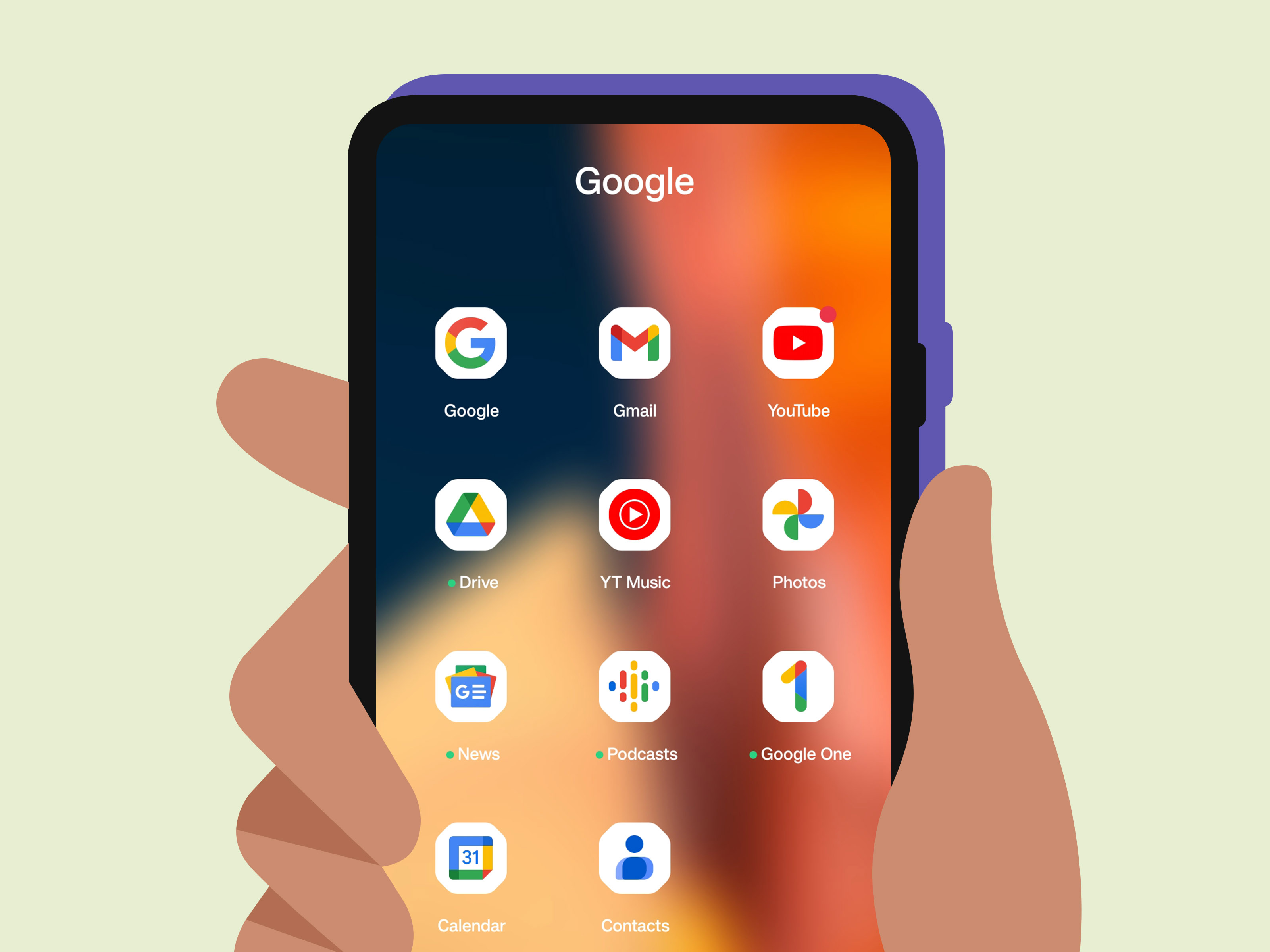
This guide explains how to backup before flashing ROM using Google services, including Google Backup, Google Photos, Google Drive, Google Contacts, and Google One. You will also learn practical tips for WhatsApp, local files, app data, recovery backups, and the small details people usually remember only after something disappears.
Why Backing Up Before Flashing ROM Is Non-Negotiable
Flashing a ROM often requires unlocking the bootloader, installing a custom recovery, wiping partitions, formatting data, or replacing the current operating system. Any one of those steps can erase personal data. In many cases, unlocking the bootloader alone wipes the phone as a security measure. That means your “I’ll backup later” plan may vanish faster than your battery at 2%.
A proper Android backup before flashing ROM protects your photos, videos, contacts, messages, call history, app settings, downloads, documents, authentication apps, and important folders. It also gives you a way to restore your phone if the new ROM does not boot, lacks important features, or simply feels worse than the original software.
The safest approach is layered backup. Do not rely on one method. Google backup is excellent for many everyday items, but it may not preserve every app’s internal data, every downloaded file, or every custom folder. A complete strategy uses cloud backup, manual file backup, app-specific backup, andif you know what you are doinga recovery image backup.
Step 1: Use Google Backup for Core Android Data
Start with the built-in Google backup system. On most Android phones, go to Settings > Google > Backup. Depending on the device, the menu may appear as Settings > System > Backup, Settings > Accounts and backup, or Settings > Google services > Backup.
Turn on Backup by Google One or the equivalent Google backup option. Then tap Back up now if available. Do not assume the backup has already happened just because the switch is enabled. Check the most recent backup time and confirm that your phone is connected to Wi-Fi, charged, and signed in to the correct Google Account.
What Google Backup Commonly Covers
Google’s Android backup system can help restore important device data such as apps, some app data, call history, contacts, SMS messages, device settings, and certain preferences. The exact items vary by Android version, phone brand, region, and app support. Some data can only be restored during initial device setup, so flashing a ROM and skipping setup too quickly can create extra work later.
Important reminder: not every app fully supports cloud restore. Some apps protect or exclude data for security reasons. Banking apps, two-factor authentication tools, games, private notes, and work apps may require separate backup or re-login after flashing.
Step 2: Back Up Photos and Videos with Google Photos
Your camera roll is probably the emotional center of your phone. Screenshots of receipts, vacation videos, pet photos, family memories, and that one blurry concert clip you refuse to delete all live there. Before flashing ROM, open Google Photos and confirm backup is active.
In Google Photos, tap your profile picture, then go to Photos settings > Backup. Make sure backup is turned on and linked to the correct Google Account. Stay on Wi-Fi if you have a large library. Then scroll through the Photos app and confirm that recent images show as backed up rather than waiting to upload.
Check Backup Quality and Storage
Google Photos can back up media to your Google Account, but storage limits matter. A standard Google Account includes free shared storage across Google Photos, Gmail, and Google Drive. If your storage is full, new backups may stop silently or show warnings. That is why checking available storage is part of responsible ROM flashing preparation.
Also review backup folders. By default, Google Photos usually prioritizes the camera folder. Screenshots, WhatsApp images, downloads, edited photos, Telegram media, and other app folders may need to be enabled manually under Backup device folders. This is one of the easiest places to lose files because people assume “Photos backup” means “every image on the phone.” It does not always mean that.
Step 3: Upload Important Files to Google Drive
Google Backup and Google Photos are helpful, but they are not a magic vacuum cleaner for every file on your phone. Before flashing, open a file manager and inspect folders like Downloads, Documents, DCIM, Pictures, Movies, Music, Recordings, and app-specific folders.
For important files, upload them manually to Google Drive. Open the Google Drive app, tap New, choose Upload, and select the files you want to keep. Create a folder named something clear, such as Pre-ROM Backup – April 2026. Future you will appreciate the organization. Future you is usually tired and slightly annoyed.
Examples of Files You Should Manually Save
Manual backup is especially useful for PDFs, school documents, work files, ZIP files, ROM packages, Magisk modules, exported notes, voice recordings, downloaded music, custom wallpapers, e-books, and offline maps. If it would make you say “Wait, where did that go?” after flashing, upload it before flashing.
For very large files, use a computer or external drive. Cloud upload can be slow, and some files may fail if the connection drops. A USB cable copy to a laptop is still one of the most reliable backup methods ever invented. It is not glamorous, but neither is losing your final project because you trusted a sleepy Wi-Fi router.
Step 4: Sync Contacts with Google Contacts
Contacts are easy to overlook because they feel invisible until they vanish. Open the Contacts app and make sure your contacts are saved to your Google Account, not only to the device or SIM card. You can also visit the Google Contacts app settings and check sync status.
On Android, you can usually enable contact sync through Settings > Google > Settings for Google apps > Google Contacts sync. Turn on syncing for device and SIM contacts if needed. After syncing, check from another device or browser that your important contacts appear in your Google Account.
Export a Contact File for Extra Safety
For an extra layer, export your contacts as a .vcf file. Save that file to Google Drive and, ideally, to your computer. This is especially helpful if you have contacts stored across multiple accounts, SIM cards, messaging apps, or local phone storage.
Step 5: Back Up WhatsApp and Other Messaging Apps Separately
Messaging apps deserve special attention. Google Backup may help with SMS and MMS on supported devices, but apps like WhatsApp, Signal, Telegram, Messenger, and Discord each handle data differently.
For WhatsApp on Android, go to WhatsApp > Settings > Chats > Chat backup. Choose the correct Google Account, then tap Back Up. Decide whether to include videos. Including videos makes the backup larger, but excluding them can remove media from restored chats. Also confirm whether your backup is encrypted and whether you know the password or recovery method if you enabled end-to-end encrypted backups.
Telegram is mostly cloud-based, so chats usually return when you sign in again, but downloaded media may not remain on the device. Signal requires its own backup process and passphrase. Some apps do not restore message history at all unless you export it first. The rule is simple: open every app you care about and check its backup settings before wiping anything.
Step 6: Save App Data That Google May Not Restore
Android app backup is useful, but not universal. Developers decide what their apps can back up, and some data is excluded because it is too large, too sensitive, or not designed for cloud restore. That means you should manually handle apps that store important information.
Check note-taking apps, password managers, authenticator apps, budgeting apps, games, launchers, custom keyboards, podcast apps, offline reading apps, and creative tools. Look for options like Export, Backup, Sync, or Save to cloud. If an app offers an export file, save it to Google Drive and a computer.
Do Not Forget Two-Factor Authentication Apps
Authenticator apps are a major trap. If you wipe your phone without transferring codes or saving recovery options, you may lock yourself out of accounts. Before flashing, open your authenticator app and check its transfer or cloud backup feature. Also make sure your important accounts have recovery codes saved somewhere safe, not only as a screenshot on the phone you are about to erase.
Step 7: Make a Local Computer Backup
Cloud backup is convenient, but a local backup is still smart. Connect your Android phone to a computer using a USB cable, choose file transfer mode, and copy important folders. At minimum, consider copying DCIM, Pictures, Movies, Music, Downloads, Documents, Recordings, and any app folder you recognize.
After copying, open a few files on the computer to confirm they actually work. A backup you never tested is not a backup; it is a hopeful rumor. If you have enough space, compress the backup folder into a ZIP file and label it with your phone model, date, and ROM project.
Step 8: Consider a Recovery or Nandroid Backup
If your phone supports a custom recovery such as TWRP, and if you know how to use it safely, a recovery image backup can be valuable. Often called a Nandroid backup, this type of backup can capture major partitions so you can restore the previous system state if something goes wrong.
However, modern Android devices use complex partition layouts, dynamic partitions, encryption, A/B slots, and vendor-specific firmware requirements. A recovery backup is not always simple, and it may not work the same way on every phone. If you create one, copy it off the phone to a computer or external storage. Keeping the backup only on the internal storage is risky because flashing, formatting data, or fixing encryption problems can erase it.
Know the Difference Between Personal Data and System Backup
Google Backup protects personal and app-related data. A Nandroid-style backup protects more of the system state. Manual file backup protects documents and media. These are not identical. The best pre-ROM backup strategy uses all three when possible.
Step 9: Create a Pre-Flash Checklist
Before flashing the ROM, use a checklist. It sounds basic, but checklists prevent expensive mistakes. Pilots use them. Surgeons use them. People flashing ROMs at 1:00 a.m. should definitely use them.
Pre-ROM Backup Checklist
- Google Backup is turned on and recently completed.
- Google Photos backup is complete for camera and selected device folders.
- Important files are uploaded to Google Drive.
- Contacts are synced to Google Contacts and optionally exported as a .vcf file.
- WhatsApp or other chat apps are backed up separately.
- Authenticator apps and recovery codes are secured.
- Downloads, documents, recordings, and custom folders are copied to a computer.
- ROM file, recovery image, firmware, and instructions are saved somewhere accessible.
- Battery is charged, and the USB cable is reliable.
- You know how to return to stock firmware if the ROM fails.
Step 10: Verify the Backup Before You Wipe
Verification is the boring step that saves the day. Open Google Photos on another device or in a browser and confirm your latest photos appear. Check Google Drive for uploaded files. Visit Google Contacts and confirm names and numbers are visible. Open WhatsApp backup settings and confirm the latest backup time. Browse your computer backup folder and open sample files.
Also confirm that you know your Google Account password. After flashing, Android may ask you to sign in again, and factory reset protection can become a problem if you cannot access the account previously used on the device. Update recovery email, recovery phone, and account security before wiping the phone.
Common Backup Mistakes Before Flashing ROM
Mistake 1: Assuming Google Backs Up Everything
Google backup is powerful, but it is not complete. Some apps do not support full restore, some folders are skipped, and some data restores only during setup. Treat Google as the foundation, not the entire house.
Mistake 2: Forgetting Downloads
The Downloads folder often contains tickets, invoices, forms, APK files, school documents, and random “important later” files. It is also one of the most commonly forgotten folders before a wipe.
Mistake 3: Saving Backup Files on the Same Phone
If your backup lives only on internal storage, it can disappear during formatting. Copy backups to Google Drive, a PC, an external SSD, or a microSD card if your device supports one.
Mistake 4: Ignoring App-Specific Backup
Apps like WhatsApp, Signal, password managers, authenticators, games, and notes apps may need their own export or cloud sync. Open each important app and check before flashing.
Mistake 5: Not Testing Restore Access
A backup is only useful if you can access it. Make sure you can sign in to Google, unlock encrypted backups, access Drive files, and recover authentication codes.
Practical Tips for a Cleaner ROM Flashing Experience
First, write down your current ROM version, Android version, build number, baseband version, and device model. Many phones have regional variants, and flashing the wrong build can cause problems. Second, download the ROM and required files before wiping. Third, keep a copy of the installation instructions offline. Once your phone is in recovery mode, you may not have a browser handy.
Fourth, avoid flashing when you are rushed. ROM flashing is not a “five minutes before school or work” activity. Choose a time when you can read carefully, charge the device, and troubleshoot calmly. Fifth, do not skip firmware requirements. Some ROMs require a specific vendor firmware, boot image, recovery version, or Android base.
Finally, keep your first boot expectations realistic. The first boot after flashing may take longer than usual. After setup, let the phone settle, update apps, restore backups, and sync Google services before judging battery life or performance.
After Flashing: How to Restore Your Data
Once the ROM boots, connect to Wi-Fi and sign in to the same Google Account used for backup. During Android setup, choose the available backup from your old device if prompted. Restore apps, settings, contacts, messages, and supported app data. Do not skip the restore screen unless you are sure you do not need it.
After setup, open Google Photos and wait for your media library to appear. Open Google Drive and download files you need locally. Install WhatsApp and restore chat history when prompted. Reinstall apps and check their internal restore options. Import contacts from your .vcf file only if Google Contacts did not already sync correctly.
Give the phone time. Restoring a freshly flashed ROM can take hours depending on internet speed, app count, and storage size. If something looks missing, check the web version of Google Photos, Drive, or Contacts before panicking. Sometimes the data is safe in the cloud but not yet downloaded to the phone.
Extra Experience Notes: Real-World Lessons Before Flashing ROM
After dealing with Android ROM flashing guides, user reports, and plenty of “I thought it was backed up” stories, one lesson becomes obvious: the backup process is not just technical; it is psychological. Most people lose data because they rush, assume, or trust one backup method too much. The phone says backup is on, so they believe everything is safe. Then after flashing, they discover that their photos were backed up but not their Downloads folder, their contacts synced but not their local notes, or their apps reinstalled but did not bring back internal data.
A good habit is to think in categories. Ask yourself: What would hurt if it disappeared? Photos? Contacts? Messages? Documents? Game progress? Banking app access? Authenticator codes? Music projects? Voice recordings? School files? Work files? Once you list the categories, the right backup method becomes clearer. Photos go to Google Photos and a computer. Documents go to Google Drive. Contacts go to Google Contacts and a .vcf export. Chats go through their own app backup. Authentication goes through transfer tools and recovery codes.
Another useful experience tip is to create a “restore folder” in Google Drive before flashing. Put everything you might need immediately after installing the new ROM in that folder: ROM instructions, important APKs, exported settings, contact files, screenshots of settings, Magisk modules if you use them legally and safely, and a text note listing your old apps. After flashing, you only need to open one Drive folder instead of digging through digital spaghetti.
It also helps to take screenshots before wiping. Screenshot your home screen layout, app drawer, quick settings tiles, APN settings if your carrier is unusual, battery optimization exceptions, launcher setup, and any special accessibility settings. These screenshots may feel unnecessary until you are staring at a fresh ROM wondering how your phone used to be arranged. Back up those screenshots to Google Photos or Drive before wiping.
For people flashing ROMs for the first time, the biggest recommendation is simple: do not experiment on your only copy of important data. Copy files to at least two places. Cloud plus computer is a strong combination. If you have a microSD card, that can be a third copy, but do not rely on it alone. Cards fail, folders get missed, and recovery environments can behave unpredictably.
Finally, make peace with the fact that some app sessions will not survive. You may need to log in again, reauthorize devices, reset widgets, reconfigure notification settings, and rebuild small parts of your phone experience. That is normal. The goal of backup before flashing ROM is not to make the process magically perfect. The goal is to protect the data that truly matters and make rebuilding the phone smooth instead of stressful.
Conclusion
Learning how to backup before flashing ROM is the difference between a confident upgrade and a very long evening of regret. Google’s Android backup tools give you a strong starting point, especially for device settings, contacts, messages, supported app data, photos, and videos. But the smartest approach combines Google Backup, Google Photos, Google Drive, Google Contacts, app-specific backups, and a local computer copy.
Before you unlock, wipe, flash, or format anything, verify your backups. Check timestamps, open files, confirm photo uploads, export critical data, and secure your Google Account. A custom ROM can make your phone feel fresh and powerful, but a complete backup is what lets you enjoy the experiment without sweating over missing memories, documents, or login codes.