Amazon is wonderful when you need batteries at midnight, a last-minute birthday gift, or a very specific kitchen gadget that promises to “change your life” and then mostly changes your drawer space. But there is one little side effect of all that browsing: Amazon remembers what you look at. Search for dog stairs once, and suddenly your homepage may start acting as if you are opening a luxury retirement community for dachshunds.
That is where learning how to delete your Amazon search history becomes useful. Technically, Amazon usually stores this activity under Browsing History, because it includes products you viewed after searching, clicking, comparing, or casually investigating. Whether you want to clean up recommendations, hide gift research, protect your privacy on a shared device, or simply stop Amazon from judging your 2 a.m. shopping curiosity, this guide covers the two best ways to clear it.
The good news: you do not need to be a tech wizard. No command lines. No mysterious settings buried under twelve menus. Just a few clicks or taps, a bit of digital housekeeping, and your Amazon account can feel much less nosy.
What Is Amazon Search History?
When people say “Amazon search history,” they usually mean one or more of these things:
- Amazon Browsing History: products you viewed while signed in.
- Recent searches in the Amazon app or website: search suggestions based on previous terms.
- Recommendation data: items Amazon uses to personalize “Recommended for you,” “Inspired by your browsing history,” and similar sections.
- Browser history: Amazon pages saved inside Chrome, Safari, Edge, Firefox, or another browser.
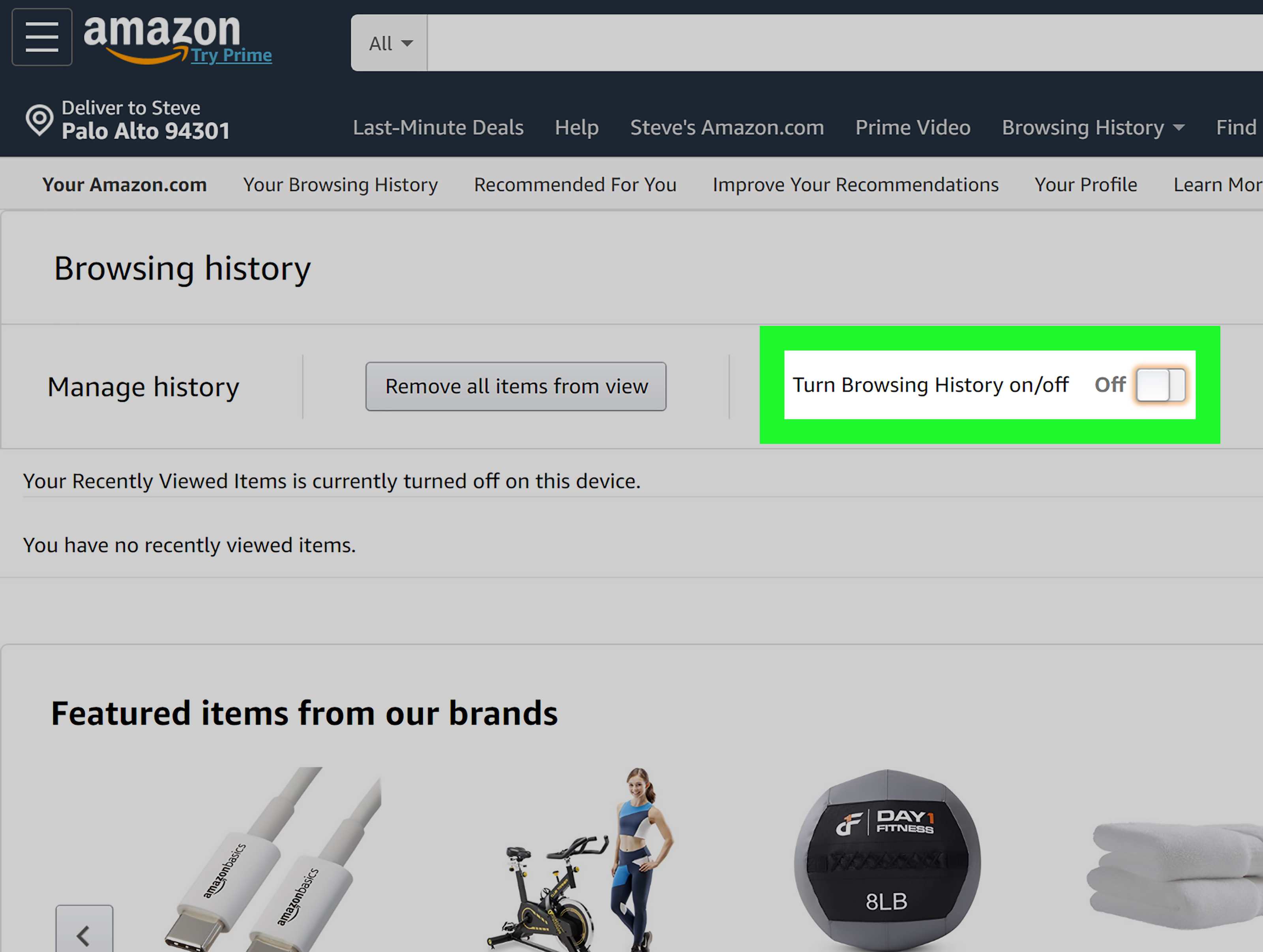
The most important one is Amazon Browsing History. This is the area Amazon lets you edit directly. You can remove individual products, clear all visible items, or turn off browsing history so future product views are not stored in the same way.
Why Delete Your Amazon Search History?
There are plenty of practical reasons to clear Amazon search history. Privacy is the obvious one, especially if you share a computer, tablet, phone, or Amazon account with family members. Nothing ruins a surprise gift faster than a homepage screaming, “Here are more engagement ring boxes you recently viewed!”
Another reason is recommendation quality. Amazon’s algorithm tries to be helpful, but it can be a little dramatic. View one camping toilet for research, and your recommendations may act like you are moving permanently into the woods. Clearing irrelevant browsing history helps reduce strange product suggestions.
It can also be useful for work, shopping research, or content creation. If you compare items for clients, write product reviews, or browse random categories for ideas, your personal Amazon account can become cluttered with products you never intended to buy. Deleting that history brings the account back to reality.
Before You Start: Important Things to Know
Deleting Amazon browsing history is not the same as deleting your entire Amazon account data. It does not erase order history, invoices, payment information, messages with sellers, Prime Video watch history, Alexa history, or browser records stored outside Amazon. Think of it as removing visible shopping activity from Amazon’s browsing history area, not wiping your entire digital existence from the Amazon universe.
Also, Amazon menu names can vary slightly between desktop, mobile web, iPhone, Android, and regional versions of Amazon. You may see labels like Browsing History, Manage history, More settings, Remove from view, or Remove all items from view. The basic logic is the same: open your browsing history, remove items, and turn off history if you want future activity limited.
Best Way #1: Delete Amazon Search History on Desktop
The desktop method is the cleanest option if you want a bigger screen, faster clicking, and fewer “Where did that menu go?” moments. It works through Amazon’s website and is ideal when you want to remove several items at once.
Step 1: Sign In to Your Amazon Account
Open Amazon in your browser and sign in to the account you want to clean. This matters because browsing history is connected to the account. If you share a household device but each person uses a different Amazon login, make sure you are editing the correct profile.
Step 2: Open Your Browsing History
On the Amazon homepage, look near the top right for Account & Lists. Hover over it or click it, depending on your browser and screen size. Look for Browsing History. You may also find it by scrolling near the bottom of the homepage where Amazon sometimes shows recently viewed items.
Once you open the browsing history page, you will see products you recently viewed. This list may include items you clicked after searching, products you compared, and random items you opened because curiosity is powerful and occasionally unwise.
Step 3: Remove Individual Items
To delete one item, find the product and click Remove from view. This is perfect when you only need to erase a few embarrassing, irrelevant, or gift-related searches. For example, if you looked up “giant inflatable dinosaur costume” once for a party, you probably do not need Amazon recommending prehistoric fashion for the next six months.
Step 4: Remove All Items from View
If your browsing history looks like a garage sale had a baby with a search engine, clearing everything may be easier. On the browsing history page, look for the settings icon or Manage history. From there, choose the option to remove all items from view.
This is the fastest way to delete your Amazon browsing history in bulk. It is especially useful after holiday shopping, shared-device browsing, research projects, or any session where you opened too many product pages and now your recommendations need a shower.
Step 5: Turn Browsing History Off
Removing history cleans up past activity, but it does not automatically stop Amazon from saving new viewed products. To prevent new browsing history from building up, open the history settings and switch browsing history off. Depending on the version of Amazon you see, this may appear under Manage history or More settings.
Turning it off is a smart move if you often shop for gifts, share your account, or do not want product views shaping your recommendations. You can usually turn it back on later if you miss the convenience of seeing recently viewed products.
Best Way #2: Delete Amazon Search History on Mobile App
If you do most of your shopping from your phone, the Amazon mobile app is probably where your search history gets messy first. The mobile method is convenient, but menus may differ slightly between iPhone and Android. Still, the core process is simple.
Step 1: Open the Amazon App
Launch the Amazon Shopping app and make sure you are signed in. If you use multiple Amazon accounts, check that you are in the right one before deleting anything.
Step 2: Go to Your Account
Tap the profile or account icon, usually located near the bottom navigation bar. Then tap Your Account. Scroll until you find a section related to personalized content or browsing history. On many versions of the app, Browsing History appears under a personalization area.
Step 3: Remove Products from View
Once you open Browsing History, scroll through the products and tap Remove from view under any item you want to delete. This is useful when you only need to remove a few things, such as surprise gifts, one-time research items, or products that are confusing your recommendations.
Step 4: Clear All Visible Browsing History
To delete everything visible, look for Manage, Manage history, a gear icon, or a similar settings option. Then choose the option to remove all items from view. After this, your browsing history page should look much cleaner.
Step 5: Pause or Turn Off Browsing History
Some versions of Amazon may let you pause browsing history for a short period, while others let you turn browsing history off through settings. If you are shopping for a birthday, anniversary, holiday, or secret “treat yourself” purchase, turning off browsing history before you browse is smarter than deleting clues afterward.
Desktop vs. Mobile: Which Method Is Better?
Desktop is better if you want speed and control. You can see more products at once, remove items faster, and manage settings with fewer taps. Mobile is better if you shop mostly in the app and want to clean history immediately.
For the best results, use both. Clear your Amazon browsing history on desktop, then check the app to make sure your mobile experience looks clean too. If you use multiple devices, remember that browser history and app history are not always the same thing.
How to Delete Amazon Search Suggestions
Search suggestions are slightly different from browsing history. When you tap or click the Amazon search bar, Amazon may show recent searches or suggested terms. Some of these are based on your account activity, while others may be popular searches or device-level suggestions.
Clearing Amazon browsing history can reduce personalized suggestions, but it may not remove every search-bar suggestion immediately. If the app still shows old terms, try signing out and back in, updating the app, or clearing app cache on Android. On iPhone, you may need to delete and reinstall the app if old local data continues appearing.
Do You Also Need to Clear Browser History?
Yes, if privacy on a shared device is your goal. Amazon’s browsing history and your browser’s history are separate. Removing products from Amazon does not automatically erase Amazon pages from Chrome, Safari, Edge, or Firefox.
For Google Chrome
Open Chrome settings, go to Privacy and security, then choose Delete browsing data. Select the time range and include browsing history if you want Amazon pages removed from the browser.
For Safari
On iPhone, open Settings, go to Safari, and choose Clear History and Website Data. On Mac, use Safari settings to manage website data or clear history from the browser menu.
For Microsoft Edge
Open Edge settings, go to Privacy, search, and services, and choose what to clear under browsing data. Select browsing history and the correct time range.
For Firefox
Open the Firefox menu, go to History, and choose Clear Recent History. Select the time range and the types of data you want removed.
How Amazon Recommendations Are Affected
Amazon recommendations are influenced by several signals, including purchases, ratings, viewed products, and items you mark as not interested. Deleting browsing history can help, but it may not instantly reset every recommendation. If you bought a product, rated something, added items to a list, or watched related Prime Video content, Amazon may still use those signals.
To improve recommendations further, visit Amazon’s recommendation settings. You can mark items as not interested, exclude certain purchases from recommendations, or adjust products that Amazon uses to personalize your shopping experience. This is especially helpful when you bought gifts for someone else and Amazon now thinks you personally collect toddler toys, fishing lures, or novelty socks with cats wearing sunglasses.
Extra Privacy Settings Worth Checking
If your goal is broader privacy, browsing history is only one piece of the puzzle. Amazon also offers advertising preferences, data request tools, and recommendation controls.
Advertising Preferences
Amazon’s advertising preferences page lets you manage interest-based ads. You may be able to adjust whether Amazon uses certain information to personalize ads. This will not delete your browsing history by itself, but it can reduce ad personalization.
Request Your Amazon Data
Amazon also provides a way to request a copy of personal information connected to your account. This is useful if you want to understand what types of account data Amazon stores. It is not the same as clearing browsing history, but it gives you more visibility.
Improve Your Recommendations
If the real problem is weird recommendations, use Amazon’s recommendation tools along with browsing-history cleanup. Removing viewed items helps, but marking irrelevant recommendations as “not interested” can teach Amazon more directly.
Common Problems and Fixes
Problem: Removed Items Still Appear
Refresh the page or close and reopen the app. Sometimes a removed item appears temporarily until the page reloads. If it still appears later, make sure you are signed in to the correct Amazon account.
Problem: Recommendations Still Look Weird
Clear browsing history, then review your recommendations settings. Purchases, ratings, wish lists, and saved items can continue influencing what Amazon shows you.
Problem: Search Terms Still Appear in the Browser
Clear your browser history and autofill data. Browser search suggestions may come from your device, not Amazon.
Problem: You Cannot Find Browsing History
Search Amazon’s help section for “Browsing History,” check under Account settings, or try using desktop instead of the app. The desktop version often makes the setting easier to locate.
Smart Examples: When You Should Clear Amazon Search History
Imagine you are shopping for a surprise anniversary gift. You compare watches, perfume, luggage, and a suspiciously expensive espresso machine. If your partner shares the account, those products may appear in recently viewed items or recommendations. Clearing browsing history protects the surprise.
Another example: you research baby products for a friend’s shower. Suddenly, Amazon thinks you are building a nursery. Delete those viewed items and adjust recommendations so your homepage does not turn into a parade of strollers.
Or maybe you are a blogger reviewing products. You open dozens of unrelated items every week. In that case, turning off browsing history before research sessions can prevent recommendation chaos.
Personal Experience: What Actually Works Best
In real-world use, the best approach is not just deleting your Amazon search history once. It is creating a small habit around privacy. The first time I cleaned an Amazon account, the browsing history looked like a museum of abandoned decisions: laptop stands, coffee filters, hiking socks, air purifiers, phone cases, and one extremely dramatic garlic press. None of it was wrong, but together it made the homepage feel less like a store and more like a diary with free shipping.
The easiest win was removing individual items first. This worked well for products that were clearly one-off searches. Gift research, curiosity clicks, and random comparison shopping were easy to delete. The result was immediate: fewer awkward “inspired by your browsing history” sections and a cleaner recently viewed area.
The second useful habit was clearing everything after big shopping seasons. After Black Friday, Prime Day, birthdays, and holiday shopping, Amazon browsing history can become a messy trail of every idea you considered but did not buy. Removing all items from view after those periods keeps the account from carrying old shopping moods into the future.
The third lesson: turn off browsing history before private shopping, not after. If you are buying a gift, researching personal items, or comparing products you do not want shaping recommendations, switch browsing history off first. Deleting afterward is fine, but prevention is cleaner. It is like putting a lid on the blender before making a smoothie; technically, you can clean the ceiling later, but why live like that?
Another practical experience is that browser history matters more than people expect. You can delete Amazon browsing history perfectly, but if you use a shared computer, someone can still open Chrome or Safari history and see Amazon product pages. For true privacy on shared devices, clear both Amazon history and browser history. If you use the Amazon app, also check whether old search terms remain in the search bar.
Recommendations may take time to improve. After deleting browsing history, Amazon may still recommend products related to purchases, lists, ratings, or items you added to cart. That does not mean the cleanup failed. It means Amazon uses multiple signals. For better results, use “Improve Your Recommendations,” remove irrelevant recommendation inputs, and mark items as not interested when available.
The most balanced routine is simple: remove sensitive or irrelevant items right away, clear all browsing history after major shopping sessions, turn browsing history off for private browsing, and clear browser history on shared devices. This gives you privacy without making Amazon completely forget how to be useful.
Conclusion
Learning how to delete your Amazon search history is a small privacy move that can make a big difference. The two best methods are simple: clear Amazon browsing history on desktop or delete it through the mobile app. For deeper cleanup, remove all items from view, turn browsing history off, clear your browser history, and adjust recommendation or ad preferences.
Amazon’s personalization can be helpful, but it should not feel like your shopping cart has become a gossip columnist. With a few quick settings, you can keep your gift ideas secret, reduce awkward recommendations, and make your account feel cleaner, calmer, and less obsessed with that one weird thing you clicked three weeks ago.
Note: Amazon menus and labels may vary slightly by device, app version, country, and account type. If you cannot find a setting, search Amazon Help for “Browsing History” or try managing your account from a desktop browser.