If you have ever thought, “I would love to access my PC remotely, but I would love it even more if I did not have to walk over and press the power button like it is still 2006,” then Wake on LAN is your new best friend. This feature lets you wake a compatible Windows 11 computer by sending a special network signal called a magic packet. It sounds dramatic, and honestly, that helps.
Wake on LAN, often shortened to WoL, is especially useful for home servers, office desktops, media PCs, and anyone who wants remote access without leaving a machine running all day. The catch is that WoL can be a little picky. It usually needs support from your motherboard or laptop firmware, your Ethernet adapter, and Windows 11 itself. Miss one setting and the whole thing acts like it has never heard of electricity.
This guide walks through the full process in plain English, with examples, troubleshooting tips, and real-world lessons that can save you from an afternoon of clicking through menus while muttering at your router.
What Wake on LAN Actually Does
Wake on LAN allows a computer in a low-power state to power up when its network adapter detects a specially formatted packet on the local network. In simple terms, your PC is “asleep,” but the network card is still listening just enough to hear the digital equivalent of its name being shouted across the room.
For most Windows 11 users, WoL works best with a wired Ethernet connection. That is important. If your computer is only on Wi-Fi, standard Wake on LAN often will not work the way people hope. Some devices support related wireless wake features, but those are not as universal, and they tend to vary wildly by hardware vendor. Translation: Ethernet is the reliable grown-up option here.
Before You Start: What You Need
Before changing settings, make sure your PC checks the right boxes:
- A motherboard, desktop, or laptop that supports Wake on LAN
- A wired Ethernet adapter that supports magic packet wake
- Access to BIOS or UEFI settings
- Administrator access in Windows 11
- A second device or app that can send the wake packet
It also helps to understand one very common point of confusion: many Windows systems support Wake on LAN from sleep or hibernate, but not always from a normal shutdown state. Some PCs can wake from a shutdown if the BIOS supports it, while others cannot. So if you test WoL from a full shutdown and nothing happens, that does not automatically mean you configured it wrong. Sometimes it just means your hardware is being stubborn, which is a time-honored PC tradition.
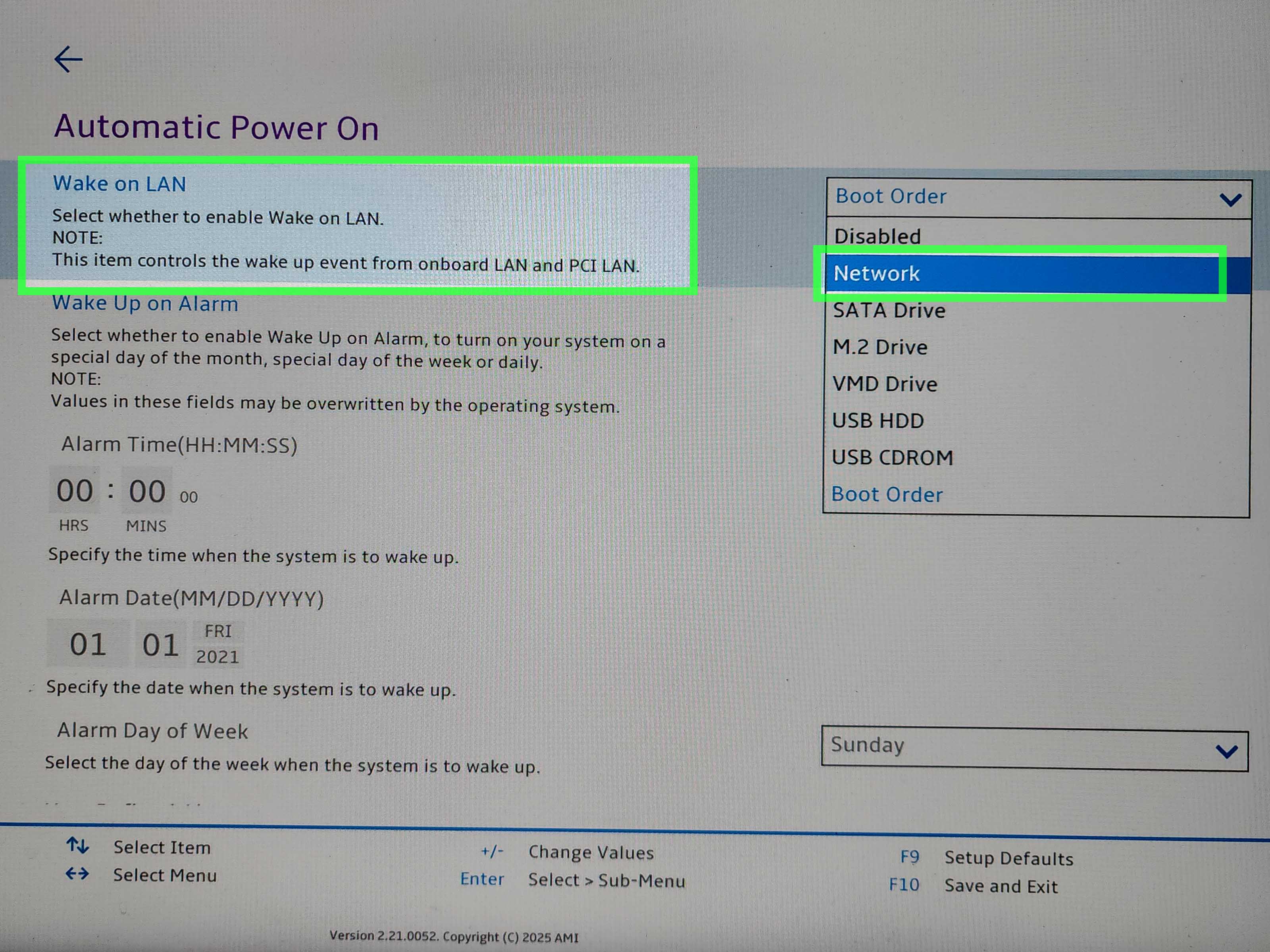
Step 1: Enable Wake on LAN in BIOS or UEFI
The first stop is your PC firmware. If Wake on LAN is disabled there, Windows cannot magically fix it later.
How to enter BIOS or UEFI
- Restart your PC.
- As it boots, press the key your manufacturer uses for firmware access. Common keys include F2, Delete, F10, or Esc.
- Look for a menu such as Power, Advanced, APM Configuration, or System Management.
What setting names to look for
Manufacturers love making the same setting sound like five different things. Search for names such as:
- Wake on LAN
- Power On By PCI-E or PCI/PCIe
- Wake on PME
- Resume by LAN
- Wake from onboard LAN
- Wake on Magic Packet
Enable the matching option, save changes, and exit. On some ASUS boards, for example, the setting may appear as Power On By PCI-E. On Dell systems, it may sit under a dedicated Wake-on-LAN section. On Lenovo or HP machines, the wording can differ depending on whether it is a desktop, workstation, or business laptop.
If you cannot find the setting at all, two things may be true. Either your system does not support WoL, or the option is hidden behind another power-management toggle. In that case, check your device manual or support page before spending an hour clicking random firmware menus like you are exploring a dungeon.
Step 2: Configure the Ethernet Adapter in Windows 11
Once the BIOS side is ready, head into Windows 11 and give your network adapter permission to wake the system.
Open Device Manager
- Right-click the Start button.
- Select Device Manager.
- Expand Network adapters.
- Right-click your wired Ethernet adapter and choose Properties.
Make sure you choose the wired adapter, not Wi-Fi. If the adapter name includes terms like Intel Ethernet, Realtek PCIe, Killer Ethernet, or similar, you are in the right neighborhood.
Enable advanced Wake on LAN settings
Open the Advanced tab and look for these options. The exact names vary by adapter, but common ones include:
- Wake on Magic Packet set this to Enabled
- Wake on Pattern Match usually Enabled
- Shutdown Wake Up set to Enabled if available
- Enable PME set to Enabled if available
- Energy-Efficient Ethernet try setting this to Disabled if WoL is unreliable
You may not see every setting listed above. That is normal. Network drivers expose different controls depending on the adapter model and the driver package installed.
Enable power management options
Next, switch to the Power Management tab and check these boxes:
- Allow this device to wake the computer
- Only allow a magic packet to wake the computer
If you also see Allow the computer to turn off this device to save power, leave it enabled unless your vendor documentation says otherwise. On many supported Intel-based configurations, that setting is part of a normal WoL setup, not a bug.
The “Only allow a magic packet” option is worth using because it reduces surprise wake-ups caused by ordinary network chatter. In other words, your PC will stop popping awake just because the network sneezed.
Step 3: Disable Fast Startup in Windows 11
This is the step many people skip, and it is often why Wake on LAN works beautifully from sleep but refuses to work after shutdown.
Windows Fast Startup blends shutdown and hibernation behavior to help the PC boot faster. Convenient? Yes. Occasionally annoying for Wake on LAN? Also yes.
How to turn off Fast Startup
- Open Control Panel.
- Go to Hardware and Sound.
- Select Power Options.
- Click Choose what the power buttons do.
- Select Change settings that are currently unavailable.
- Uncheck Turn on fast startup (recommended).
- Click Save changes.
If your goal is waking the PC after a shutdown, this step matters a lot. If your goal is waking from sleep or hibernate, it still helps eliminate one common source of confusion.
Step 4: Find Your MAC Address
To send a magic packet, you usually need the MAC address of the target PC’s Ethernet adapter. Think of it as the network card’s mailing address, except less fun and more hexadecimal.
- Press Windows + X and open Terminal or Command Prompt.
- Type ipconfig /all and press Enter.
- Find your wired Ethernet adapter.
- Copy the Physical Address.
It usually looks something like 00-1A-2B-3C-4D-5E. Write it down somewhere safe. Not on your hand unless you are feeling nostalgic.
Step 5: Put the PC to Sleep and Test It
For the first test, use Sleep instead of full shutdown. That gives you the highest chance of success and confirms that your BIOS and adapter settings are working.
Use a Wake on LAN app or tool
From another device on the same network, use any reliable WoL utility that can send a magic packet. Many remote access tools, network scanners, and smartphone apps support this feature. Most will ask for:
- The MAC address
- The local IP address or broadcast address
- A port such as 7 or 9
If everything is configured correctly, the sleeping PC should wake within a few seconds. When it does, enjoy the tiny thrill of controlling hardware from across the room like a budget wizard.
Can Wake on LAN Work Over the Internet?
Yes, but it is more complicated than local-network Wake on LAN. On a home or office LAN, sending the magic packet is usually easy. Over the internet, you may need:
- Router port forwarding
- A public IP address or dynamic DNS hostname
- A router that supports forwarding to the broadcast address or another workable WoL method
- Remote software that supports internet-based wake features
This is where some people decide that using a remote access platform with built-in WoL support is easier than manually wrestling with router settings. That is a perfectly reasonable life choice.
How to Troubleshoot Wake on LAN in Windows 11
If Wake on LAN is not working, run through this checklist before blaming the universe.
1. Test from sleep before testing from shutdown
If WoL works from sleep but not shutdown, your setup is probably mostly correct. The issue is likely related to Fast Startup, firmware behavior, or lack of support for wake from S5.
2. Check whether the Ethernet lights stay on
After putting the PC to sleep or shutting it down, look at the Ethernet port LEDs. If they stay on or blink, the network adapter is still powered and listening. If the port goes fully dark, the NIC may not be armed for wake.
3. Update your network driver
Older or generic Windows drivers sometimes hide important options such as Wake on Magic Packet, Shutdown Wake Up, or Enable PME. Download the latest Ethernet driver from your PC or motherboard manufacturer if settings are missing.
4. Use PowerCfg commands
Windows includes excellent diagnostics for power and wake behavior. Open Terminal as administrator and try these:
- powercfg /a shows available sleep states
- powercfg /devicequery wake_armed lists devices currently allowed to wake the PC
- powercfg /devicequery wake_from_any lists devices that support wake
- powercfg /lastwake reports what woke the system last
- powercfg /waketimers shows scheduled wake timers
If your Ethernet adapter never appears in the wake lists, Windows may not be giving it wake permissions, or the driver may not expose the feature correctly.
5. Watch for Modern Standby limitations
On some Windows 11 systems, especially laptops, the Power Management tab may be missing or partially grayed out because of Modern Standby behavior. That does not always mean WoL is impossible, but it does mean the path to success can be different. Business desktops and workstations tend to be more predictable here than ultrathin laptops.
6. Disable unnecessary wake sources
If your PC wakes randomly, the culprit may not be the network at all. A mouse, keyboard, USB device, or wake timer can also bring the system back to life. Use powercfg /lastwake and trim the extra wake sources so only the network adapter has the honors.
Best Practices for Reliable Wake on LAN
- Use a wired Ethernet connection whenever possible
- Test locally before trying to wake the PC over the internet
- Disable Fast Startup if shutdown wake is important
- Enable “Only allow a magic packet to wake the computer” to prevent random wake events
- Keep BIOS and network drivers updated
- Document your MAC address, adapter name, and BIOS settings for future troubleshooting
Conclusion
Enabling Wake on LAN in Windows 11 is not hard, but it does require a little cooperation between your firmware, your network adapter, and Windows power settings. Once you understand the moving parts, the setup becomes much less mysterious.
The short version is this: enable WoL in BIOS or UEFI, turn on the correct adapter settings in Device Manager, disable Fast Startup, grab the MAC address, and test from sleep first. That sequence solves the majority of Wake on LAN problems before they become a full-blown troubleshooting opera.
When it works, it feels wonderfully efficient. Your PC stays off when you do not need it, wakes when you do, and makes you look far more technologically dramatic than the task really requires. Which, frankly, is one of the better perks of computer tinkering.
Real-World Wake on LAN Experiences and Lessons
In real-world use, Wake on LAN tends to be less about one magic switch and more about small details lining up correctly. A common example is the home office desktop that wakes perfectly from sleep but refuses to wake after shutdown. In many cases, the fix is not exotic at all. The user disables Fast Startup, retests, and suddenly the system behaves more consistently. This is why many people think WoL is “broken” when it is really just colliding with Windows power behavior.
Another very common experience happens with laptops. Someone enables every setting they can find, sends the magic packet, and nothing happens. Then they discover the laptop only supports Wake on LAN while connected to AC power, only through the built-in Ethernet controller, or only from sleep. This is especially common on thin-and-light machines where power-saving design takes priority over classic enterprise features. In plain terms, desktops are often easier, while laptops sometimes behave like they are negotiating a labor contract.
Office environments provide another useful lesson. On managed business PCs, Wake on LAN is often used for after-hours maintenance, patching, remote support, or backups. In these setups, the hardware is usually chosen with WoL in mind, so success rates are much higher. The systems are wired, the BIOS is standardized, the drivers are current, and the network team already knows which switches and routers will pass the traffic correctly. Wake on LAN looks simple in those environments because the hard work happened earlier during planning.
At home, people often run into the opposite situation. The PC may be connected to a consumer router, a mesh node, a USB Ethernet dongle, or a dock. Any one of those can change the outcome. A USB adapter, for example, might work perfectly for regular networking but not support wake features well enough to be useful. That is why many troubleshooting stories end with a very unglamorous conclusion: use the onboard Ethernet port if your system has one.
There is also the “phantom wake” experience, where a computer wakes up randomly even though the user only wanted WoL access. Usually the cause is not a ghost in the motherboard. It is a pattern-match setting, a mouse that is too eager, a scheduled wake timer, or another device with wake privileges. Restricting wake to magic packets only often makes the setup much calmer and more predictable.
One of the most practical lessons from real users is to test in stages. First, get Wake on LAN working from sleep on the same local network. Then test from hibernate. Then test after shutdown if your hardware supports it. Only after that should you attempt internet-based wake using router rules or remote software. People who skip straight to the “wake my PC from another city” stage often end up debugging three problems at once, which is never a good hobby.
So the biggest experience-based takeaway is simple: Wake on LAN is reliable when you build on a reliable foundation. Use supported hardware, keep the Ethernet path straightforward, test locally first, and do not assume every Windows 11 device behaves the same. Once you respect those rules, WoL stops feeling like black magic and starts feeling like a genuinely useful tool.