Note: This guide is written for everyday Windows 10 users who see messages like “can’t play video,” “missing codec,” “unsupported format,” black screen with audio, or error codes such as 0xc00d36c4 and 0xc00d5212.
Why Windows 10 says it can’t play your video
Few computer problems are more annoying than double-clicking a video and being greeted by an error message instead of your vacation clip, class recording, wedding footage, or that one oddly important screen recording named “final_final_REALLY_final.mp4.” The can’t play video error on Windows 10 usually appears when Windows cannot understand the video file, the app is broken, the graphics driver is acting like it needs coffee, or the file itself has a problem.
The good news: most Windows 10 video playback problems are fixable without becoming a certified IT wizard. You do not need to panic, reinstall Windows immediately, or glare at your laptop like it betrayed your family. You need a smart troubleshooting order. Start with the simple stuff, then move toward codecs, drivers, app repair, browser settings, and file conversion.
Common symptoms include a video that will not open, audio playing with no picture, a frozen frame, a black screen, stuttering playback, “this item was encoded in a format that’s not supported,” “missing codec,” or “Windows Media Player cannot play the file.” These errors often happen with MP4, AVI, MOV, MKV, HEVC/H.265, older camera files, iPhone videos, downloaded media, or videos copied from USB drives.
Quick checklist before you try advanced fixes
1. Restart the computer and test the file again
Yes, “restart it” sounds like advice from a sticker on an office printer, but it works more often than people want to admit. Restarting Windows clears temporary glitches, reloads display drivers, closes stuck background processes, and gives your video app a clean start.
2. Try another video file
Before blaming Windows 10, test two or three other videos. If only one file fails, the issue may be the file format, codec, or corruption. If every video fails, the problem is more likely the media player, graphics driver, Windows update, audio/video service, or app configuration.
3. Copy the video to your local drive
If the video is on a USB drive, SD card, phone, external hard drive, cloud folder, or network location, copy it to your Desktop or Videos folder and play it from there. Slow storage, unstable cables, or partially synced cloud files can make Windows behave like the video is broken when the real problem is access speed.
Fix 1: Install the missing codec
A codec is the software component that helps your computer decode a video or audio stream. Think of it as a translator. Your video file may be speaking HEVC, MPEG-2, VP9, AV1, or another format, while Windows 10 is standing there with a phrasebook from 2015.
Windows Media Player and the Movies & TV app can play many common formats, but not every codec is included by default. HEVC/H.265 videos, for example, commonly need an additional codec extension. This is especially common with newer iPhones, action cameras, drones, screen recorders, and 4K video files.
How to check for a codec problem
If you see an error like 0xc00d5212, “missing codec,” or “this item was encoded in a format that’s not supported,” codec support should be your first suspect. Also suspect codecs when the audio plays but the video is black, or when the same file works in VLC but not in Windows Media Player.
What to do
- Open the Microsoft Store.
- Search for the codec related to your file, such as HEVC Video Extensions or MPEG-2 Video Extension.
- Install the official extension when available.
- Restart the media player and try the file again.
Avoid random codec packs from suspicious websites. Some are fine, but others arrive carrying digital baggage you definitely did not invite. If a website looks like it was designed during the era of dancing cursor trails, back away slowly.
Fix 2: Open the video with VLC Media Player
One of the fastest ways to diagnose a Windows 10 video playback error is to try the file in VLC Media Player. VLC supports many common formats and codecs without requiring separate codec packs. It can play MP4, MKV, AVI, MOV, WebM, WMV, MPEG, H.264, and many other formats that sometimes confuse the default Windows apps.
If the video works in VLC, your file is probably not completely broken. The issue is likely Windows Media Player, Movies & TV, missing codecs, or default app settings. If the video fails in VLC too, the file may be corrupted, incomplete, encrypted, or encoded in an unusual format.
How to use this as a test
- Install VLC from the official VideoLAN website.
- Right-click the video file.
- Select Open with.
- Choose VLC media player.
If VLC plays the video smoothly, you can either keep using VLC or continue fixing the default Windows player. Honestly, for many users, VLC becomes the “fine, I’ll do it myself” solution of video playback.
Fix 3: Update Windows 10
Windows updates can include bug fixes, media components, security improvements, and driver-related patches. If Windows 10 has not been updated in a while, video playback problems may appear in Microsoft Store apps, browsers, or built-in players.
How to check for updates
- Click Start.
- Open Settings.
- Go to Update & Security.
- Select Windows Update.
- Click Check for updates.
- Install available updates and restart your PC.
One important note: Windows 10 has moved beyond its regular support lifecycle. If you are still using it, keep the system as updated as your edition allows and consider your long-term security plan. A video error is irritating; an unsupported system with old security patches is a much bigger “future you will not enjoy this” situation.
Fix 4: Update the Movies & TV app, Media Player, or Microsoft Store apps
If the error appears only in Movies & TV, Media Player, or another Microsoft Store app, update the app before digging into deeper repairs. App updates can fix playback bugs, format issues, crashing, freezing, and compatibility problems.
Steps to update Microsoft Store apps
- Open Microsoft Store.
- Go to Library.
- Click Get updates or Check for updates.
- Install updates for Movies & TV, Media Player, Photos, and related apps.
- Restart the app and try the video again.
This is especially useful when a video used to play yesterday but suddenly refuses today. Apps can break, updates can fix them, and Windows can occasionally act like a toddler who moved one puzzle piece and now insists the entire puzzle is impossible.
Fix 5: Repair or reset the video app
If your Windows 10 video player opens but crashes, freezes, shows a black screen, or throws an error on every file, repairing or resetting the app may help. Repair keeps app data when possible. Reset is more aggressive and returns the app to a fresh state.
How to repair or reset the app
- Open Settings.
- Go to Apps.
- Select Apps & features.
- Find Movies & TV, Media Player, or the problem app.
- Click Advanced options.
- Choose Repair first, if available.
- If Repair does not work, choose Reset.
After resetting, open the app again and test a normal MP4 file. If it plays, test the original problem file. This helps separate an app issue from a file-specific issue.
Fix 6: Update or reinstall your graphics driver
Video playback depends heavily on the display driver. Outdated, corrupted, or incompatible graphics drivers can cause black screens, green screens, stuttering, browser video failures, frozen playback, and audio-only video. This is common after Windows updates, GPU driver updates, or switching between external monitors.
Update through Device Manager
- Right-click Start.
- Select Device Manager.
- Expand Display adapters.
- Right-click your graphics card.
- Select Update driver.
- Choose Search automatically for drivers.
Use the manufacturer’s driver
For better results, download the driver directly from Intel, NVIDIA, AMD, Dell, HP, Lenovo, ASUS, Acer, or your device manufacturer. Laptop users should often start with the laptop manufacturer because customized drivers may handle power, switching graphics, and display output more reliably.
When to reinstall the driver
If updating does not help, uninstall and reinstall the display driver. In Device Manager, right-click your display adapter, choose Uninstall device, restart the PC, and install the latest recommended driver. If the problem started immediately after a driver update, use Roll Back Driver from the Driver tab if that option is available.
Fix 7: Change Windows 10 video playback settings
Windows 10 includes video playback settings that can affect streaming quality, enhancement processing, and battery behavior. These settings are not magic, but they can help if videos stutter, look strange, or fail when Windows tries to enhance playback.
How to open video playback settings
- Click Start.
- Open Settings.
- Go to Apps.
- Select Video playback.
Try turning off video enhancement options, especially on older PCs or low-power laptops. If you are streaming on battery, disable battery-saving playback restrictions temporarily and test again. Sometimes the computer is not broken; it is just trying so hard to save battery that your video becomes collateral damage.
Fix 8: Fix browser video playback problems
If videos fail only in Chrome, Edge, Firefox, YouTube, Netflix, Facebook, online classes, or streaming websites, the issue may be your browser instead of Windows Media Player.
Try these browser fixes
- Refresh the page and test another video website.
- Update the browser to the latest version.
- Clear cache and cookies.
- Disable extensions, especially ad blockers, privacy blockers, download managers, and video tools.
- Try Incognito or Private mode.
- Turn hardware acceleration off, restart the browser, and test again.
- Make sure protected content or DRM playback is allowed for streaming services.
Hardware acceleration deserves special attention. It lets the browser use your GPU for smoother playback, but if the graphics driver is buggy, the result can be a black video box, flickering, or audio with no image. Turning it off is a useful test. If disabling hardware acceleration fixes the problem, update or reinstall the graphics driver later so you can turn acceleration back on if needed.
Fix 9: Install the Media Feature Pack on Windows 10 N editions
Some Windows 10 editions, especially Windows 10 N, do not include certain media technologies by default. That can cause missing playback components, app problems, and video errors. If your PC runs Windows 10 N, installing the Media Feature Pack may solve the issue.
How to check your edition
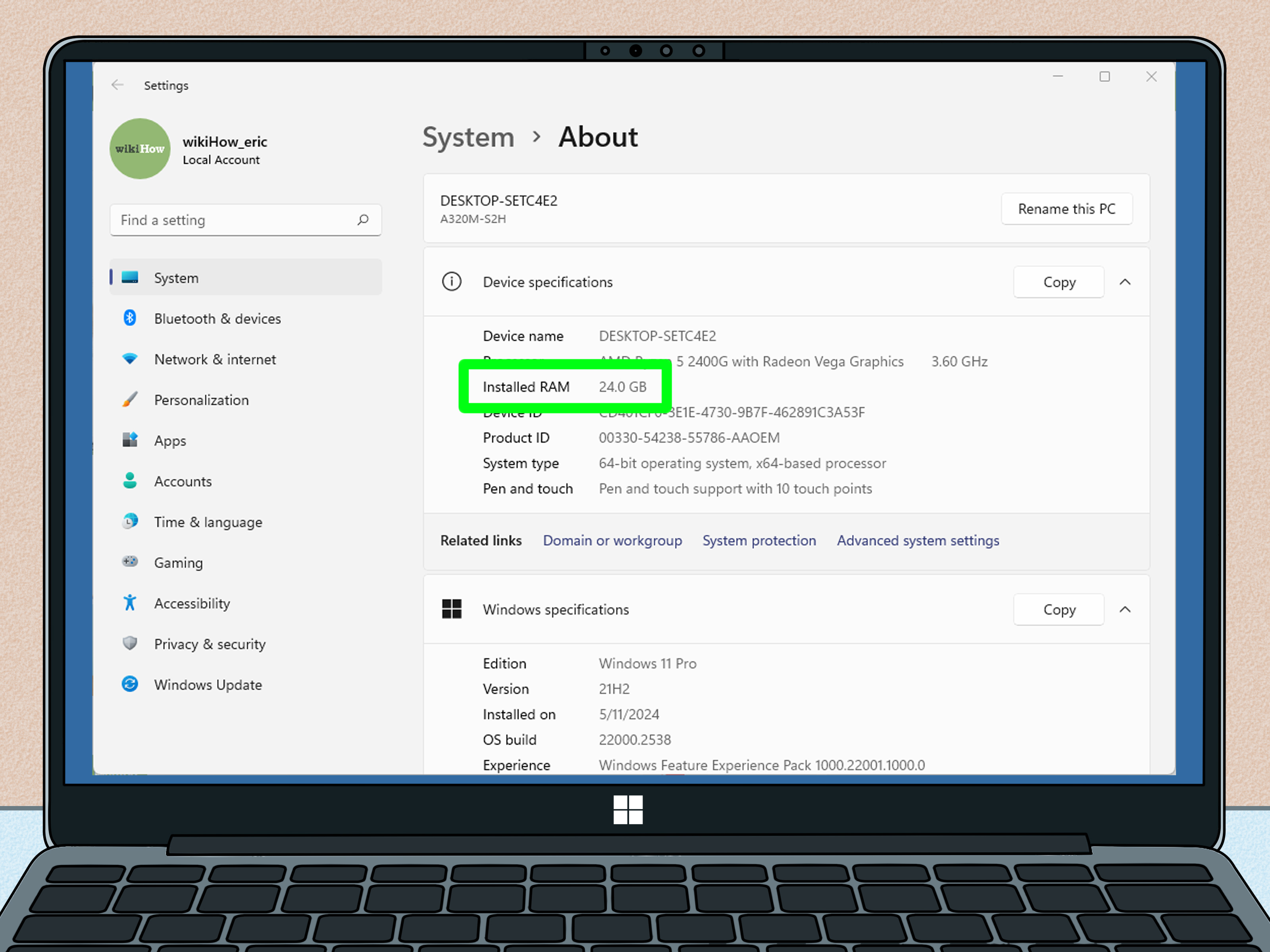
- Press Windows + I.
- Go to System.
- Select About.
- Look under Windows specifications.
If you see Windows 10 N, go to Settings > Apps > Apps & features > Optional features > Add a feature, then look for Media Feature Pack. Install it, restart, and test your video again.
Fix 10: Convert the video to a Windows-friendly format
If the file uses an unusual codec, converting it may be easier than fighting Windows for three hours while muttering at the screen. A safe target format for broad compatibility is usually MP4 with H.264 video and AAC audio. This combination works well with Windows apps, browsers, phones, TVs, and most editing tools.
When conversion makes sense
- The video plays in VLC but not in Windows Media Player.
- The file is HEVC/H.265 and your PC struggles with it.
- The video came from an old camera, DVR, capture card, or editing program.
- You need to share the file with people who use different devices.
- You see unsupported format or missing codec errors repeatedly.
HandBrake is a popular open-source video transcoder that can convert many files into modern formats. Choose an MP4 preset, use H.264 for video, AAC for audio, and save a new copy. Do not overwrite the original file until you confirm the converted version works.
Fix 11: Check whether the video file is corrupted
If no media player can open the file, or playback stops at the same timestamp every time, the file may be damaged. This can happen when a download is interrupted, a USB drive is removed too early, a screen recording crashes, or a phone transfer fails halfway through.
Signs of a corrupted video file
- The file size is unusually small.
- The video has no duration or shows 0 seconds.
- Every player fails, including VLC.
- The video freezes at one exact point every time.
- The file was copied from damaged storage.
Try downloading or transferring the file again. If it came from a phone, use a cable transfer instead of a messaging app, because some apps compress or alter videos. If the file is valuable, make a backup copy before using repair software. Never experiment on the only copy of an important video; that is how “small tech problem” becomes “family group chat emergency.”
Fix 12: Change the default video player
If Windows keeps opening videos in the wrong app, change the default video player. This is helpful when Windows Media Player fails but VLC or another trusted player works.
How to change the default player
- Open Settings.
- Go to Apps.
- Select Default apps.
- Choose a default video player, or set defaults by file type.
- For example, assign .mp4, .mkv, .avi, or .mov files to your preferred player.
This does not repair a broken codec, but it saves time if one player handles your video library better than another.
Fix 13: Run Windows troubleshooters and system repair tools
Windows includes troubleshooting and repair tools that can help when the issue is system-wide. If multiple apps are broken, Microsoft Store will not open, videos fail everywhere, or Windows feels unstable, use these tools.
Run the Windows Media Player troubleshooter
Search Windows settings for troubleshooters and look for media-related troubleshooting options. Run the available troubleshooter, apply recommended fixes, and restart the computer.
Reset the Microsoft Store cache
If Microsoft Store apps are not updating or opening correctly, press Windows + R, type wsreset.exe, and press Enter. This clears the Store cache and can fix app update problems.
Run System File Checker
If Windows system files may be corrupted, open Command Prompt as administrator and run:
Let the scan finish completely. If Windows finds and repairs corrupted files, restart your PC and test video playback again.
Common error codes and what they usually mean
0xc00d36c4
This error often points to an unsupported format, damaged file, or playback app problem. Try VLC, update the app, install required codecs, convert the video, or re-copy the file from the original source.
0xc00d5212
This usually means a missing codec or unsupported encoding format. Install the needed codec, use VLC, or convert the file to MP4 with H.264 video and AAC audio.
Black screen with audio
This often involves graphics drivers, hardware acceleration, video output settings, or a codec that decodes audio but not video. Update the display driver, test in VLC, disable browser hardware acceleration, or install the proper codec.
Video stutters or freezes
Stuttering may come from slow storage, weak hardware, high-resolution HEVC video, browser problems, outdated drivers, or power-saving settings. Copy the file locally, close background apps, update drivers, and test a lower-resolution version.
My practical experience fixing Windows 10 video playback errors
In real-world troubleshooting, the biggest mistake people make is jumping straight to the most dramatic fix. They uninstall three apps, install two codec packs, reset half of Windows, and then discover the video was still downloading. The smarter approach is boring but effective: test, narrow, fix.
The first thing I usually check is whether the problem affects one file or all files. This single question saves a lot of time. If one video fails but others play, I focus on the file: codec, container, corruption, transfer problem, or unusual encoding. If every video fails, I look at the player, Windows updates, graphics driver, browser settings, or system files.
A common case involves iPhone videos copied to a Windows 10 laptop. The user sees a missing codec error or audio-only playback. Many newer phone videos use HEVC, which is efficient but not always supported out of the box on Windows 10. The clean fix is to install the correct HEVC extension, use a player that supports the file, or export future phone videos in a more compatible format. For sharing, MP4 with H.264 is still the safe “everybody at the party understands it” format.
Another frequent case is browser video failure. Someone says, “YouTube works, but my class website does not,” or “Netflix works in Edge but not in Chrome.” That usually points away from Windows Media Player and toward browser-specific issues. Extensions are often guilty. Ad blockers, download helpers, script blockers, privacy tools, and old browser add-ons can interfere with video players. Testing in private mode or disabling extensions quickly reveals whether an extension is causing trouble.
Hardware acceleration is also a sneaky troublemaker. It is designed to improve performance, but when a graphics driver is unstable, it can create black screens, flickering, or frozen playback. Turning hardware acceleration off in the browser is a good test, not always a permanent solution. If it fixes the issue, the next move should be updating or reinstalling the display driver from the manufacturer.
For local video files, VLC is one of the best diagnostic tools. If VLC plays the file, the file is probably usable. That does not mean Windows is “bad”; it simply means the default player lacks the codec or flexibility needed for that file. In many offices and home setups, installing VLC and setting it as the default video player solves 80 percent of daily playback frustration.
When nothing works, I check the file source. Was it downloaded fully? Was it copied from a damaged USB drive? Did the camera battery die during recording? Does the file size look too small? A corrupted video can waste hours because every fix feels close but never works. Re-copying the file from the original device often solves the mystery faster than any advanced repair step.
The most reliable long-term setup is simple: keep Windows updated, keep graphics drivers current, avoid shady codec packs, use VLC for stubborn formats, convert unusual files to MP4/H.264 when sharing, and keep backup copies of important videos. Video playback should not feel like negotiating with a tiny digital dragon. With the right troubleshooting order, Windows 10 usually gets back to playing videos without too much drama.
Conclusion
The can’t play video error on Windows 10 can look intimidating, but it usually comes down to a missing codec, outdated app, graphics driver issue, browser conflict, unsupported file format, or corrupted video. Start with simple tests: restart the PC, try another file, copy the video locally, and open it with VLC. Then move on to codec installation, Windows updates, Microsoft Store app updates, app repair, driver updates, browser fixes, Media Feature Pack installation, and file conversion.
The golden rule is this: do not guess wildly. Test one thing at a time. If the video works in another player, fix the player or codec. If it fails everywhere, inspect the file. If online videos fail, troubleshoot the browser. Follow that path and you will solve the issue faster, with fewer headaches and far less dramatic sighing at your monitor.