There are few iPhone messages more annoying than “SIM Locked,” “Invalid SIM,” or “SIM Not Supported.” One minute you are trying to make a call, check a map, or prove to a coffee shop app that you deserve a free muffin. The next minute, your iPhone is acting like your SIM card just tried to sneak into a private club without shoes.
The good news: unlocking a SIM card on an iPhone is usually simple once you know what kind of lock you are dealing with. The not-so-good news: people use the phrase “unlock a SIM card” to mean several different things. You might need to enter a SIM PIN. You might need a PUK code from your carrier. You might be trying to carrier-unlock an iPhone so it can work with another wireless provider. Or you might simply be facing a no-service error that looks scarier than it really is.
This guide breaks it all down in plain American English. No tech wizard hat required. By the end, you will know how to unlock a SIM card on an iPhone, how to tell whether your iPhone is carrier locked, when to call your carrier, what not to type repeatedly, and how to avoid turning a small SIM problem into a tiny plastic tragedy.
First, Know Which “SIM Lock” You Are Dealing With
Before you start tapping around your iPhone like you are defusing a movie bomb, pause for a moment. “SIM locked” can mean different things depending on the message you see.
1. SIM PIN Lock
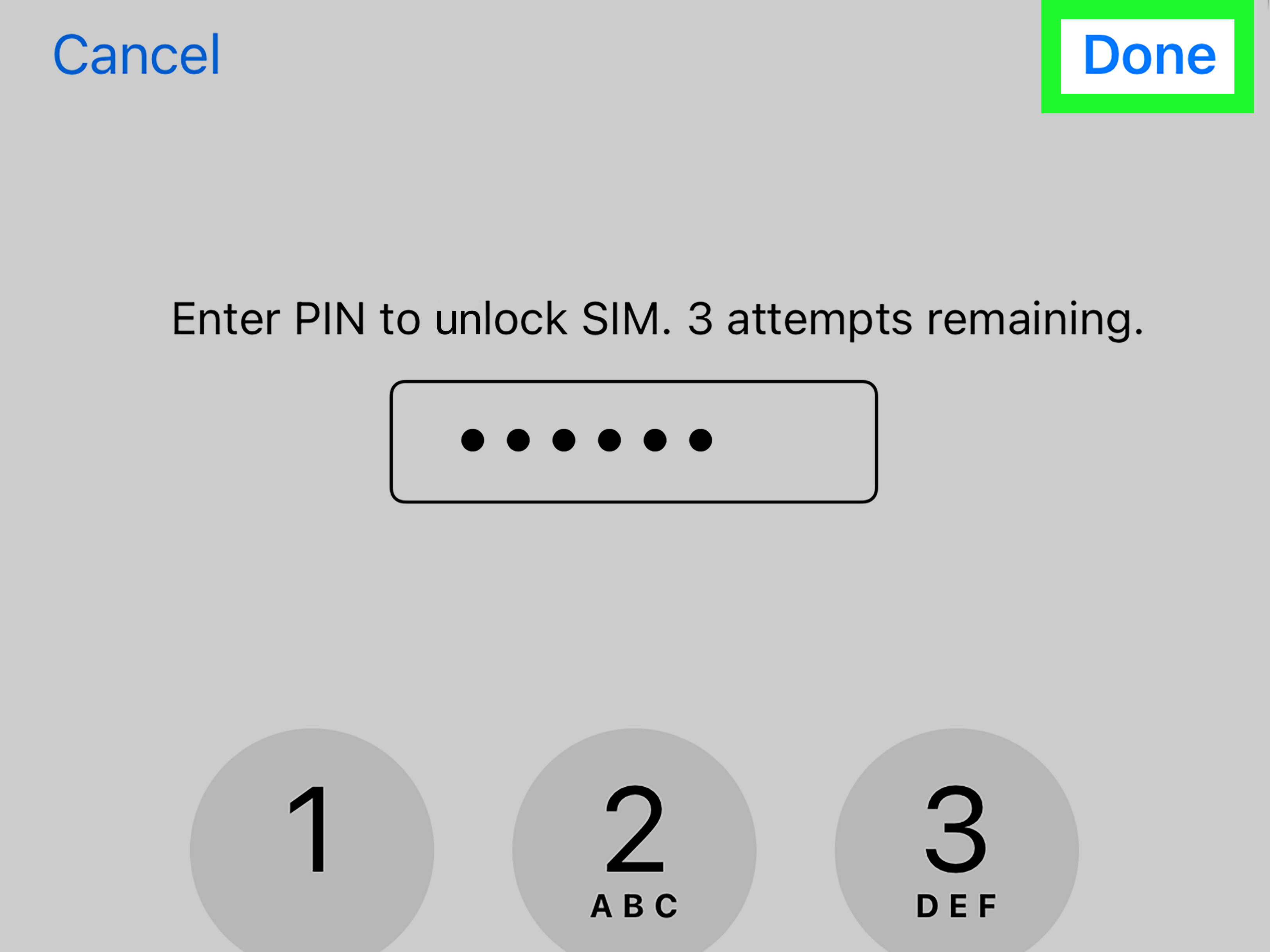
A SIM PIN is a security code placed on your SIM card or eSIM. When it is enabled, your iPhone asks for the SIM PIN after restarting, changing SIMs, or sometimes after toggling cellular service. This protects your phone number from being used in another device if your SIM is removed.
If your iPhone says “SIM Locked” and asks for a PIN, this is usually a SIM PIN issue. You need the correct PIN, not your iPhone passcode, not your Apple ID password, and definitely not your dog’s birthday unless your carrier has a very strange default setting.
2. PUK Lock
If you enter the wrong SIM PIN too many times, your SIM may become PUK locked. PUK stands for Personal Unlocking Key. It is an emergency unlock code controlled by your wireless carrier. Only your carrier can reliably provide the correct PUK code.
This is the point where guessing becomes dangerous. Entering the wrong PUK too many times can permanently disable the SIM card or eSIM profile. In other words, stop. Put the phone down. Breathe. Call your carrier.
3. Carrier Lock
A carrier-locked iPhone is restricted to one wireless provider. For example, if an iPhone was purchased through a carrier installment plan, it may not accept another carrier’s SIM until it is unlocked by the original carrier.
This is different from a SIM PIN. A SIM PIN protects the SIM card. A carrier lock restricts the iPhone itself from using other networks.
4. Activation Lock or iPhone Passcode Lock
These are not SIM locks. Activation Lock is tied to Find My iPhone and Apple ID. A passcode lock protects the iPhone screen. If your issue involves a forgotten Apple ID, Face ID, passcode, or “iPhone Unavailable,” this guide is not the fix. That is a separate security process.
How to Unlock a SIM Card on an iPhone Using the SIM PIN
If your iPhone asks for a SIM PIN, the easiest option is to enter the correct PIN when prompted. If you know it, great. Type it carefully and tap OK. Your iPhone should reconnect to the mobile network.
If you do not know the SIM PIN, do not guess. Many carriers use default SIM PINs, but those defaults vary. Some common default PINs may be simple numbers, but relying on a random internet guess is a great way to meet your new enemy: the PUK screen.
Steps to Enter a SIM PIN on iPhone
- Restart your iPhone or wait for the SIM PIN prompt to appear.
- Enter the correct SIM PIN.
- Tap OK.
- Wait for your iPhone to reconnect to your carrier network.
If the code works, you are back in business. If it fails, stop after one or two attempts. Your carrier can confirm the right next step.
How to Turn Off SIM PIN on an iPhone
If you find SIM PIN prompts annoying, you can turn off the feature. This is useful if you do not need SIM-level security or if you frequently restart your iPhone and do not want one more password to remember.
Steps to Disable SIM PIN
- Open the Settings app.
- Tap Cellular.
- Tap your SIM or cellular plan if your iPhone uses dual SIM or eSIM.
- Tap SIM PIN.
- Turn off SIM PIN.
- Enter the current SIM PIN to confirm.
Once SIM PIN is turned off, your iPhone should no longer ask for that code when the SIM activates. However, remember that disabling SIM PIN removes one layer of protection. If someone removes your physical SIM and puts it in another phone, the SIM may be easier to use unless your carrier has other safeguards.
How to Unlock an iPhone SIM with a PUK Code
If your iPhone asks for a PUK code, this means the SIM PIN was entered incorrectly too many times. The fix is not to search your kitchen drawer for the original SIM packaging, although sometimes the PUK may be printed on carrier materials. The safest fix is to contact your wireless carrier.
Where to Get a PUK Code
You can usually get your PUK code in one of these ways:
- Sign in to your carrier account online.
- Use your carrier’s mobile app.
- Call customer support.
- Visit a carrier store with identification.
- Check original SIM card documents, if available.
After you receive the PUK code, enter it exactly as provided. Your carrier may then ask you to create a new SIM PIN. Write it down somewhere secure. Do not store it in a note titled “SUPER SECRET SIM PIN,” because that is basically putting a neon sign over it.
Important PUK Warning
Do not guess a PUK code. Repeated wrong entries can permanently lock the SIM card. If that happens, you will need a replacement SIM or new eSIM from your carrier. For physical SIM users, that may mean waiting for a new card or visiting a store. For eSIM users, the carrier may need to issue a fresh eSIM activation.
How to Check If Your iPhone Is Carrier Locked
If your goal is to use another carrier’s SIM card, you need to check whether the iPhone itself is carrier locked. Apple makes this easy.
Steps to Check Carrier Lock Status
- Open Settings.
- Tap General.
- Tap About.
- Scroll to Carrier Lock.
If you see No SIM restrictions, your iPhone is unlocked and should be able to work with compatible carriers. If you see SIM locked or another lock message, the iPhone is likely tied to a carrier.
You can also test with another active SIM or eSIM from a different carrier. If the iPhone connects, it is unlocked. If it shows “SIM Not Supported” or “Invalid SIM,” it may still be carrier locked.
How to Carrier Unlock an iPhone
Only the carrier can unlock an iPhone from its network. Apple does not unlock carrier-locked iPhones for customers. The carrier must approve the unlock and process it through the system.
Common Carrier Unlock Requirements
Unlock rules vary by provider, but most U.S. carriers look for similar conditions:
- The iPhone must be paid off.
- The account should be in good standing.
- The device must not be reported lost, stolen, or involved in fraud.
- The iPhone may need to be active for a required period.
- Prepaid phones may require a longer service period before unlocking.
For example, some carriers automatically unlock eligible phones after a certain number of days. Others require you to submit an unlock request. Some prepaid providers require several months of paid service before a device becomes eligible. The exact policy depends on where the iPhone was purchased and which carrier locked it.
Steps to Request a Carrier Unlock
- Find your iPhone’s IMEI by going to Settings > General > About.
- Contact the carrier that originally sold or locked the iPhone.
- Ask for a device unlock or network unlock.
- Provide your IMEI and account details if requested.
- Wait for the carrier to confirm that the unlock is complete.
- Restart your iPhone and check Settings > General > About > Carrier Lock.
After approval, you may not need to enter any unlock code on the iPhone. Many iPhone carrier unlocks happen remotely. Once processed, your iPhone should show “No SIM restrictions.”
What to Do If Your iPhone Says “Invalid SIM” or “No SIM”
Not every SIM error means your iPhone is locked. Sometimes the SIM card is dirty, damaged, inactive, poorly seated, or having a bad day. Yes, tiny chips also seem to enjoy drama.
Try These Quick Fixes
- Restart your iPhone.
- Remove and reinsert the physical SIM card.
- Check for a carrier settings update by going to Settings > General > About.
- Update iOS if an update is available.
- Try the SIM in another compatible phone.
- Try another SIM in your iPhone.
- Contact your carrier if you use eSIM and the plan will not activate.
If your iPhone has no physical SIM tray, such as some newer U.S. iPhone models, you are working with eSIM only. In that case, your carrier may need to resend, refresh, or replace the eSIM profile.
How to Unlock an eSIM on an iPhone
An eSIM works like a digital SIM card. It can also be protected by a SIM PIN, and it can also be affected by carrier lock rules. If your eSIM is locked because of a SIM PIN, use the SIM PIN or PUK process through your carrier. If your iPhone is carrier locked, request a carrier unlock from the provider that locked the device.
Steps for eSIM Issues
- Go to Settings > Cellular.
- Select the affected eSIM plan.
- Check whether the line is turned on.
- If prompted for a SIM PIN, enter the correct PIN or contact your carrier.
- If the eSIM will not activate, ask your carrier to reissue the eSIM.
- If another carrier’s eSIM will not work, check the iPhone’s Carrier Lock status.
Travel eSIMs are a common reason people discover carrier locks. You may buy a travel eSIM for a trip, scan the QR code, feel very international for six seconds, and then see an error because your iPhone is still locked to your home carrier. Always check “No SIM restrictions” before buying a travel eSIM.
Can You Unlock a SIM Card Without the Carrier?
Sometimes, yes. If you already know the SIM PIN, you can unlock the SIM directly on your iPhone. If you know the current SIM PIN, you can turn SIM PIN off in Settings. But if the SIM is PUK locked or the iPhone is carrier locked, you need the carrier.
Be cautious with third-party unlocking services that promise instant miracles. Some may be unreliable, overpriced, or risky. A legitimate iPhone carrier unlock should come through the original carrier or an authorized process. If a website says it can unlock any iPhone in three minutes while also flashing twelve pop-ups and a cartoon rocket, consider that your warning sign.
Common Mistakes to Avoid
Typing Random PINs
This is the biggest mistake. SIM PIN attempts are limited. Guessing can push your SIM into PUK lock, and wrong PUK attempts can disable the SIM permanently.
Confusing iPhone Passcode with SIM PIN
Your iPhone passcode unlocks the screen. Your SIM PIN unlocks cellular service. Your Apple ID password unlocks account-related features. They are not interchangeable, even if your brain wants them to be at 7 a.m.
Canceling Service Before Unlocking
If you plan to switch carriers, request the unlock before closing your account. Former customers can often still request unlocks, but it may be easier while your account is active and in good standing.
Buying a Used iPhone Without Checking Carrier Lock
Before buying a used iPhone, check Carrier Lock in Settings if possible. Also ask the seller which carrier sold the device, whether it is paid off, and whether it shows “No SIM restrictions.” A cheap iPhone that cannot use your carrier is not a bargain. It is a shiny paperweight with excellent cameras.
How Long Does It Take to Unlock an iPhone SIM or Carrier Lock?
A SIM PIN unlock is immediate if you enter the correct PIN. A PUK unlock is also usually immediate once you have the right code. A carrier unlock can take longer. Some carriers process eligible iPhone unlocks automatically. Others may take a few hours or a few business days.
If your carrier says the iPhone is unlocked but it still shows locked, restart the device. Then check Settings > General > About. You can also insert another carrier’s SIM or activate another eSIM to test. If the message does not change, contact the carrier again and ask them to confirm the unlock status for your IMEI.
Easy Options Based on Your Situation
If Your iPhone Asks for a SIM PIN
Enter the correct SIM PIN. If you do not know it, contact your carrier before making multiple guesses.
If Your iPhone Asks for a PUK Code
Stop guessing and get the PUK from your carrier account, app, support line, or store.
If You Want to Use Another Carrier
Check Carrier Lock status. If it does not say “No SIM restrictions,” request a carrier unlock from the original provider.
If You Are Traveling Internationally
Check that your iPhone is unlocked before buying a local SIM or travel eSIM. Confirm that the phone supports the destination carrier’s network bands and eSIM requirements.
If You Bought a Used iPhone
Ask the seller for proof that the phone is unlocked. Check the IMEI, Carrier Lock status, and whether the device is still tied to payments or an account.
Real-Life Experience: What Unlocking a SIM Card on an iPhone Usually Feels Like
In real life, SIM unlocking rarely feels like a clean, perfect tech tutorial. It usually starts with mild confusion and one sentence: “Wait, why does my iPhone suddenly hate my SIM card?”
One common experience happens after restarting an iPhone. The phone turns on normally, Wi-Fi works, apps open, and everything looks fine. Then you notice there are no bars. You tap around and see a SIM PIN prompt. At first, many people enter their iPhone passcode. That does not work. Then they try an old banking PIN. Also no. Then they try 1234 because, honestly, technology has trained us badly. This is where trouble begins. A couple of wrong attempts can quickly turn a simple SIM PIN request into a PUK code situation.
The best lesson from that experience is simple: slow down. A locked SIM is not an emergency unless you make it one. If the iPhone asks for a SIM PIN and you are not completely sure of the code, contact the carrier. It may feel annoying to call support, but it is much less annoying than replacing a disabled SIM.
Another familiar experience happens during travel. Someone buys an international eSIM before a trip, feeling very prepared and slightly smug. They land, open Settings, add the eSIM, and expect instant data. Instead, the iPhone refuses to connect. After some frantic airport Wi-Fi research, they discover the phone is carrier locked. The travel eSIM was fine. The iPhone was the problem. The lesson: always check Settings > General > About > Carrier Lock before traveling. If it does not say “No SIM restrictions,” handle the unlock before the trip, not while standing next to baggage claim with 3% battery.
Used iPhones create another classic scenario. A buyer finds a good deal online, meets the seller, checks the screen, camera, speakers, and battery health, and walks away happy. Then they put in their SIM card and get “SIM Not Supported.” That is the moment the bargain loses its sparkle. A carrier-locked phone may still work perfectly, but not with the buyer’s carrier. Before buying a used iPhone, checking Carrier Lock is just as important as checking for cracks or battery health.
There is also the eSIM-only experience. With newer iPhones in the United States, many users do not have a physical SIM tray. That makes some people feel trapped when cellular activation fails. But the process is still manageable. Instead of swapping a card, the carrier can reissue the eSIM, refresh the line, or provide a new activation QR code. The important thing is to contact the carrier that controls the mobile plan. Deleting and re-adding eSIMs repeatedly without guidance can make the situation more confusing.
For most users, the smoothest unlock experience comes from preparing before making a switch. Pay off the device, confirm account status, request the unlock, wait for confirmation, restart the iPhone, and check for “No SIM restrictions.” It is not glamorous, but neither is arguing with a phone at midnight while it refuses to make calls.
The biggest practical takeaway is this: identify the exact lock first. If it is a SIM PIN, you need the PIN. If it is a PUK lock, you need the carrier’s PUK code. If it is a carrier lock, you need the original carrier to unlock the iPhone. Once you know which problem you are solving, the process becomes much easier. Your iPhone is not being mysterious; it is just being very literal in the least charming way possible.
Conclusion
Unlocking a SIM card on an iPhone is easy when you understand the difference between a SIM PIN, a PUK code, and a carrier lock. If your iPhone asks for a SIM PIN, enter the correct code or contact your carrier. If it asks for a PUK code, do not guess; get the code directly from your wireless provider. If you want to use your iPhone with another carrier, check the Carrier Lock status and request an unlock from the original carrier if needed.
The safest path is always the calm one: check the message, identify the lock, avoid random PIN attempts, and use official carrier support when required. That way, your iPhone gets back to calls, texts, data, maps, travel eSIMs, and all the tiny conveniences that make modern life less chaotic.
Note: Carrier unlock policies, eligibility windows, and eSIM procedures can change. Always confirm the latest requirements with your wireless carrier before switching networks, traveling internationally, or buying a used iPhone.