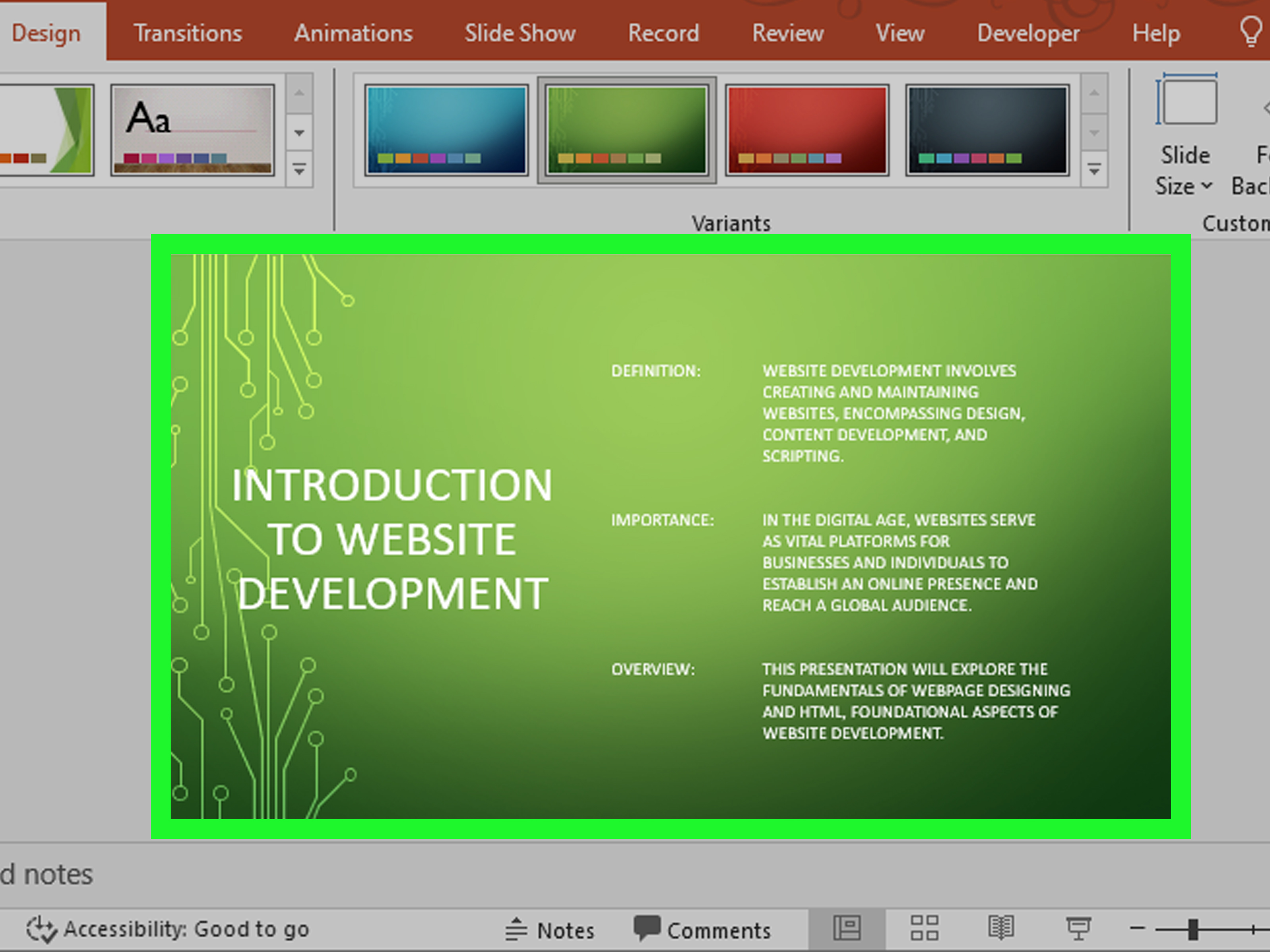
Making a presentation used to mean opening PowerPoint, staring at a blank slide, questioning every life decision that led to this moment, and then choosing the same blue template everyone has used since 2014. Today, ChatGPT can help you move from “I have a messy idea” to “I have a structured presentation draft” much faster. It can outline your message, turn research into slide titles, write speaker notes, suggest visuals, simplify technical content, and even help polish an existing deck.
But here is the important part: ChatGPT is not a magic PowerPoint fairy that always knows your audience, your brand, your deadline, and your boss’s mysterious hatred of bullet points. It works best when you give it clear context, specific instructions, and a final human review. Think of it as a fast creative partner: excellent at structure, brainstorming, rewriting, summarizing, and drafting; less excellent at reading your mind or knowing that “make it pop” secretly means “use our approved brand template and do not scare the legal team.”
This guide explains how to use ChatGPT to make a PowerPoint or Google Slides presentation from scratch, from notes, from a document, or from an existing deck. You will also learn how to prompt it properly, how to avoid boring AI slides, and how to turn a rough draft into something people might actually enjoy watching.
Why Use ChatGPT for PowerPoint or Google Slides?
ChatGPT is useful for presentations because slide creation is not one task. It is a bundle of smaller tasks wearing a trench coat: research, outlining, storytelling, copywriting, formatting, audience analysis, visual planning, and editing. Most people get stuck because they try to design slides before they know what the story is. ChatGPT can help separate those steps.
For example, instead of opening PowerPoint and writing random bullets, you can ask ChatGPT to create a 10-slide outline for a sales pitch, classroom lesson, product demo, training session, investor deck, webinar, or internal report. Then you can ask it to rewrite each slide in a clearer tone, add speaker notes, suggest charts, create a strong closing, or reduce text for a more visual presentation.
The biggest benefit is speed. A presentation that once took three hours to structure can often be outlined in minutes. The second benefit is clarity. ChatGPT can identify what belongs on the slide, what belongs in speaker notes, and what should be deleted before it causes audience members to develop an urgent interest in checking email.
What ChatGPT Can Actually Do for Presentations
ChatGPT can support nearly every stage of the slide-making process. Depending on your plan, workspace, and tools, you may be able to upload files, review PowerPoint decks, generate slide content, or use ChatGPT directly inside PowerPoint through available integrations. Even without direct slide editing, you can still use ChatGPT to create a detailed slide-by-slide script that can be copied into PowerPoint, Google Slides, Canva, Gamma, or another presentation platform.
ChatGPT can create a slide outline
The outline is the backbone of a good deck. Ask ChatGPT for slide titles, key points, and flow. A strong prompt might be: “Create a 12-slide presentation outline about using AI tools for small business marketing. Audience: local business owners. Tone: practical, friendly, not too technical. Include one case study slide and one final checklist slide.”
ChatGPT can turn documents into slides
If you have a report, article, meeting notes, research brief, or product document, ChatGPT can summarize it into presentation-ready sections. The key is to ask for hierarchy, not just summary. A good presentation needs a beginning, middle, and end. It should not be a document chopped into rectangles.
ChatGPT can write speaker notes
Speaker notes are where you place the explanation, examples, transitions, and extra detail. This is especially useful because slides should not look like a tiny-font essay taped to the screen. Ask ChatGPT to keep the visible slide text short while moving fuller explanations into notes.
ChatGPT can improve existing slides
If you already have a deck, ChatGPT can help identify weak structure, repeated ideas, unclear slide titles, missing evidence, and slides that are trying to do five jobs at once. You can ask: “Review this deck for flow, clarity, and audience engagement. Tell me which slides to combine, cut, or rewrite.”
ChatGPT can suggest visuals
ChatGPT can recommend charts, icons, screenshots, diagrams, timelines, comparison tables, process flows, or before-and-after layouts. It can also help write image prompts if you use AI image tools or design platforms. However, you should always check whether visuals are accurate, licensed properly, and suitable for your brand.
How to Use ChatGPT to Make a PowerPoint Presentation
PowerPoint remains the default presentation tool for many schools, businesses, agencies, and corporate teams. ChatGPT can help you create a PowerPoint in a few different ways: by producing copy-ready slide content, by helping you improve a deck, or by working through PowerPoint-native AI features when available.
Step 1: Define the purpose of the presentation
Before asking ChatGPT to build anything, write one sentence explaining what the presentation must achieve. This sentence keeps the deck focused. For example: “This presentation should convince marketing managers to test ChatGPT for faster content planning.” Or: “This deck should teach high school students how to evaluate online sources.”
Without a goal, ChatGPT may create a deck that is technically organized but emotionally flat. It will have slides. It will have bullets. It may even have a conclusion. But it may not persuade, teach, or move anyone to action. A goal gives the presentation a spine.
Step 2: Give ChatGPT the audience and context
The same topic should be presented differently to beginners, executives, teachers, engineers, customers, investors, or students. Tell ChatGPT who the audience is, what they already know, what they care about, and what tone you want. A beginner audience needs definitions and examples. Executives need strategic takeaways. A technical audience may want process details and data.
Try this prompt:
“Create a PowerPoint outline about remote team productivity. Audience: startup founders. Goal: persuade them to adopt a simple weekly operating system. Tone: clear, modern, slightly witty. Length: 10 slides. Include slide titles, 3 short bullets per slide, speaker notes, and suggested visuals.”
Step 3: Ask for a slide-by-slide structure
A good first output should include slide number, title, key message, visible slide text, speaker notes, and visual suggestion. This structure makes the content easy to copy into PowerPoint. It also prevents the classic AI mistake of creating slides that sound informative but do not build toward a point.
For example, ChatGPT might create a deck with this flow: problem, why it matters, common mistakes, better framework, step-by-step process, example, tools, implementation plan, checklist, final takeaway. That is much better than ten random slides beginning with “Introduction” and ending with “Conclusion,” the two most exhausted words in Presentation Land.
Step 4: Convert the outline into PowerPoint-ready content
Once you like the outline, ask ChatGPT to rewrite it for slides. Use instructions such as: “Make each slide title action-oriented,” “Keep bullets under eight words,” “Move detailed explanations into speaker notes,” or “Use plain English and avoid corporate jargon.”
This is where the deck starts to feel professional. Instead of a slide title like “Benefits,” you get “AI Cuts Drafting Time Without Cutting Strategy.” Instead of a bullet like “Improved operational efficiency through optimized workflows,” you get “Less copy-paste. More actual thinking.” Your audience will silently thank you.
Step 5: Add visuals and layout instructions
ChatGPT cannot always design the final slide exactly the way a professional designer would, but it can give layout directions. Ask for “layout notes” for each slide. For example: “Slide 3: Use a two-column layout with the problem on the left and the solution on the right.” Or: “Slide 6: Use a timeline with four milestones.”
If you use PowerPoint Designer, Copilot, Canva, Gamma, or another AI presentation maker, these layout notes can guide the final design. They also help keep slides visual instead of turning them into bullet farms. Bullet farms are where attention spans go to retire.
Step 6: Build the deck in PowerPoint
After ChatGPT gives you the final slide content, paste it into PowerPoint. Choose a clean template, apply your brand colors if needed, and keep each slide focused on one idea. If you have access to PowerPoint’s AI features, you may be able to generate or refine slides directly inside PowerPoint. You can also ask AI tools to create a presentation from a document, add speaker notes, revise text, or keep the deck aligned with a template.
Always review the final deck manually. Check facts, charts, names, dates, numbers, and any claims that matter. AI can help you move fast, but your reputation is still the one standing next to the projector.
How to Use ChatGPT to Make Google Slides
Google Slides is excellent for collaboration, classroom use, remote teams, and quick sharing. ChatGPT can help create the content, while Google Slides provides the workspace for editing, commenting, presenting, and sharing.
Step 1: Generate the content in ChatGPT
Start with the same process: goal, audience, length, tone, and desired output format. Ask ChatGPT for a slide-by-slide outline with speaker notes and visuals. If you want a Google Slides-friendly format, ask for clean headings and short bullets that are easy to paste.
Prompt example:
“Create a Google Slides presentation about healthy study habits for high school students. Make it 8 slides. Use a friendly tone. Include one practical tip per slide, a short speaker note, and a visual idea. Avoid medical claims and keep it easy to understand.”
Step 2: Create a new Google Slides file
Open Google Slides and create a blank presentation or choose a template. If you already have a PowerPoint file, you can upload it to Google Drive and open it with Google Slides. This is useful when ChatGPT helps you create or revise PowerPoint content, but your team prefers Google’s collaboration features.
Step 3: Paste and format one slide at a time
Do not paste the entire article-like output into one slide unless your goal is to punish everyone in the meeting. Add one idea per slide. Use large text, clear spacing, and simple visuals. For each slide, paste the title, add two or three short bullets, and place the longer explanation in speaker notes.
Step 4: Use comments for collaboration
Google Slides shines when multiple people need to review content. After ChatGPT creates the first draft, invite teammates to comment on accuracy, tone, examples, and missing points. You can then paste reviewer feedback back into ChatGPT and ask it to revise the deck.
For example: “Here are comments from my team. Revise the slide outline to address them, keep the deck under 10 slides, and make the examples more relevant to nonprofit organizations.” This turns scattered feedback into a cleaner second draft.
Best ChatGPT Prompts for PowerPoint and Google Slides
The quality of your presentation depends heavily on the quality of your prompt. A weak prompt produces generic slides. A strong prompt produces a useful draft. The difference is context.
Prompt for a new presentation
“Create a 10-slide presentation about [topic]. Audience: [audience]. Goal: [goal]. Tone: [tone]. Include slide titles, short bullets, speaker notes, and visual suggestions. Make the structure persuasive and easy to follow.”
Prompt for turning a document into slides
“Turn the following content into a 12-slide presentation. Keep only the most important ideas. Use action-oriented slide titles, no more than three bullets per slide, and add speaker notes. Suggest charts or diagrams where helpful.”
Prompt for improving a boring deck
“Review this presentation outline. Identify weak slides, repeated points, unclear transitions, and missing evidence. Then rewrite it to be more engaging for [audience]. Keep the tone professional but lively.”
Prompt for executive presentations
“Rewrite this deck for executives. Start with the recommendation, focus on business impact, reduce background explanation, and add one slide for risks and next steps.”
Prompt for speaker notes
“Write speaker notes for each slide in a conversational style. Keep each note under 120 words. Add smooth transitions between slides and include one practical example where useful.”
How to Make AI Slides Look Less Like AI Slides
AI-generated slides often have the same problem: they are organized but forgettable. They say correct things in a very polite voice, like a hotel elevator explaining innovation. To make your presentation stand out, you need to add specificity, contrast, examples, and a point of view.
Use action titles
Instead of “Market Trends,” write “Customers Are Buying Later, But Spending More.” Instead of “Challenges,” write “The Real Bottleneck Is Not ToolsIt Is Workflow.” Action titles make every slide communicate a message before the audience reads the bullets.
Add real examples
Ask ChatGPT for examples, but replace generic ones with your own. A presentation about customer support becomes stronger when it includes a real ticket category, a real response-time problem, or a realistic before-and-after workflow.
Use fewer bullets
Three short bullets are usually better than eight long ones. If a slide needs eight bullets, it probably wants to become two slides, a handout, or a private diary entry.
Ask for contrast
Great slides often show contrast: old way versus new way, problem versus solution, myth versus reality, cost versus benefit, before versus after. ChatGPT is good at creating these structures when asked directly.
Make the conclusion useful
Do not end with “Thank You” as the only message. Add a final takeaway, checklist, recommendation, call to action, or next step. Your last slide should answer the audience’s silent question: “What am I supposed to do now?”
Common Mistakes to Avoid
The first mistake is asking ChatGPT for “a presentation about marketing” and expecting brilliance. That is like asking a restaurant for “food” and then being surprised when dinner lacks personality. Add audience, purpose, tone, length, examples, and output format.
The second mistake is putting too much text on slides. ChatGPT can write a lot because it is a language model. That does not mean every sentence deserves a slide. Ask it to separate slide text from speaker notes.
The third mistake is skipping fact-checking. If your deck includes statistics, legal claims, financial projections, medical information, product specs, or anything time-sensitive, verify it from reliable sources before presenting.
The fourth mistake is ignoring design. A clear message still needs readable typography, spacing, contrast, and visual hierarchy. Use templates, brand kits, or design tools to polish the final deck.
The fifth mistake is forgetting the audience. A deck for a board meeting should not sound like a beginner tutorial. A classroom deck should not sound like a consulting report. A sales deck should not spend 15 minutes explaining your company history while the buyer quietly ages.
PowerPoint vs. Google Slides: Which Should You Use with ChatGPT?
Use PowerPoint when you need advanced formatting, corporate templates, offline presenting, detailed animations, or compatibility with Microsoft workflows. It is often the better choice for formal business presentations, executive decks, and polished deliverables.
Use Google Slides when collaboration matters most. It is great for teams, classrooms, shared editing, comments, and quick browser-based access. It is also convenient when you want multiple reviewers to improve the deck without sending files back and forth with names like “Final_v7_REALFINAL_thisone.pptx.”
ChatGPT works well with either. The smartest workflow is to use ChatGPT for thinking and drafting, then use PowerPoint or Google Slides for layout, collaboration, and final delivery.
A Practical Workflow: From Idea to Finished Deck
Here is a simple workflow that works for most presentations:
- Write the goal of the presentation in one sentence.
- Tell ChatGPT the audience, tone, length, and desired outcome.
- Ask for a slide-by-slide outline.
- Review the structure and remove weak or repetitive slides.
- Ask ChatGPT to write short slide text and speaker notes.
- Ask for visual and layout suggestions.
- Build the deck in PowerPoint or Google Slides.
- Check facts, improve design, and rehearse out loud.
This workflow keeps ChatGPT in its strongest role: helping you think, organize, and draft quickly. It also keeps you in your strongest role: deciding what is true, persuasive, relevant, and worth showing to real people with real calendars.
Real-World Experiences: What Actually Works When Using ChatGPT for Slides
After working with AI-assisted presentation workflows, one lesson becomes obvious: ChatGPT is most valuable before the first slide is designed. Many people jump straight into PowerPoint or Google Slides because they want to “start making progress.” But designing too early often creates more work. You spend time choosing fonts, moving boxes, and adjusting icons before the message is even clear. That is like decorating a house before deciding whether it needs walls.
The best experience comes from using ChatGPT as a planning room. Start by dumping messy thoughts into the chat: rough notes, meeting summaries, customer pain points, product details, research findings, or even a rambling paragraph about what you think the presentation should say. Then ask ChatGPT to organize the material into a story. A good prompt is: “Find the strongest narrative in these notes and turn it into a slide outline.” This often reveals what the presentation is really about.
Another useful habit is asking ChatGPT for multiple versions. Do not accept the first outline automatically. Ask for three approaches: educational, persuasive, and executive. Or ask for a beginner-friendly version, a data-driven version, and a storytelling version. Comparing versions helps you see which angle fits your audience. Sometimes the best final deck combines parts of all three.
One surprisingly effective technique is to ask ChatGPT to critique its own outline. After it creates the first draft, ask: “What is weak, repetitive, or missing from this presentation?” The answer is often helpful. It may point out that the deck lacks evidence, has too many setup slides, or needs a clearer call to action. This turns ChatGPT from a drafting tool into an editing partner.
For PowerPoint, the strongest workflow is usually outline first, design second. Build your content in ChatGPT, then paste it into a clean PowerPoint template. If your organization has a brand template, use it from the beginning. This prevents the classic problem where the content is finished but every slide looks like it came from a different planet.
For Google Slides, the best experience is collaborative. Use ChatGPT to create the draft, then let teammates comment directly in the deck. Once feedback arrives, paste the comments back into ChatGPT and ask for a revised version. This is much faster than manually interpreting fifteen comments, three of which say “make stronger” with no further explanation.
Another real-world tip: ask for speaker notes early. Many presenters put too much text on slides because they are afraid of forgetting what to say. Speaker notes solve that. Tell ChatGPT: “Keep the slide minimal, but make the speaker notes detailed enough for a five-minute explanation.” The result is cleaner slides and a more confident presenter.
Finally, rehearse the presentation out loud. ChatGPT can create a polished draft, but only rehearsal reveals awkward transitions, overloaded slides, or jokes that seemed funnier when typed at midnight. Ask ChatGPT to create a timed speaking script, then practice it. Cut anything that feels stiff. Add your own examples. Make the presentation sound like a human wrote itbecause at the final stage, one did.
Conclusion
Using ChatGPT to make a PowerPoint or Google Slides presentation is not about replacing your thinking. It is about speeding up the parts that usually slow you down: structuring ideas, summarizing notes, writing slide copy, creating speaker notes, and finding a stronger flow. The best results happen when you give ChatGPT clear instructions, review the output carefully, and use your presentation software for what it does best: visual design, collaboration, formatting, and delivery.
Whether you are building a sales deck, lesson plan, webinar, pitch presentation, training module, or internal report, ChatGPT can help you get from blank slide panic to organized draft faster. Just remember the golden rule of AI presentations: let ChatGPT make the clay, but you still shape the statue.
Note: This article is written as publish-ready HTML body content. Source links and citation markers have been intentionally excluded from the article body to keep it clean for web publishing.