YouTube has a magical talent for making you say, “I’ll watch one quick video,” and then somehow it is 1:17 a.m., you know how medieval castles handled sewage, and your snack bowl is empty. Luckily, YouTube also keeps a private list of videos you have liked, so you can return to the cooking tutorial, guitar lesson, podcast clip, product review, workout routine, or suspiciously soothing raccoon rescue video that earned your thumbs-up.
This guide explains exactly how to view your liked videos on YouTube using desktop, Android, iPhone, and iPad. It also covers why your liked videos may not appear, how to remove videos from the list, how liked videos affect recommendations, and a few practical habits that make the feature much more useful than a digital junk drawer with a play button.
What Are YouTube Liked Videos?
Your Liked videos list is a private YouTube playlist automatically created by your account. When you tap the thumbs-up button under a regular YouTube video, or tap the heart on a YouTube Short where available, YouTube adds that item to your Liked videos playlist. Think of it as YouTube’s version of a “save this for later because future me will definitely be organized” button.
The important detail: your Liked videos playlist is private. Other people cannot browse your complete list of liked videos. You can still like videos, creators can still receive engagement signals, and videos can still display like counts, but your personal collection stays visible only to you.
How to View Your Liked Videos on YouTube Desktop
The desktop method is usually the easiest because the YouTube sidebar gives you a wider view of your navigation options. Use this method on Chrome, Edge, Firefox, Safari, or any modern desktop browser.
Step-by-Step: Desktop Browser
- Open YouTube.com in your browser.
- Sign in to the Google account you use for YouTube.
- Look at the left sidebar and click You. If the sidebar is collapsed, click the three-line menu icon in the top-left corner first.
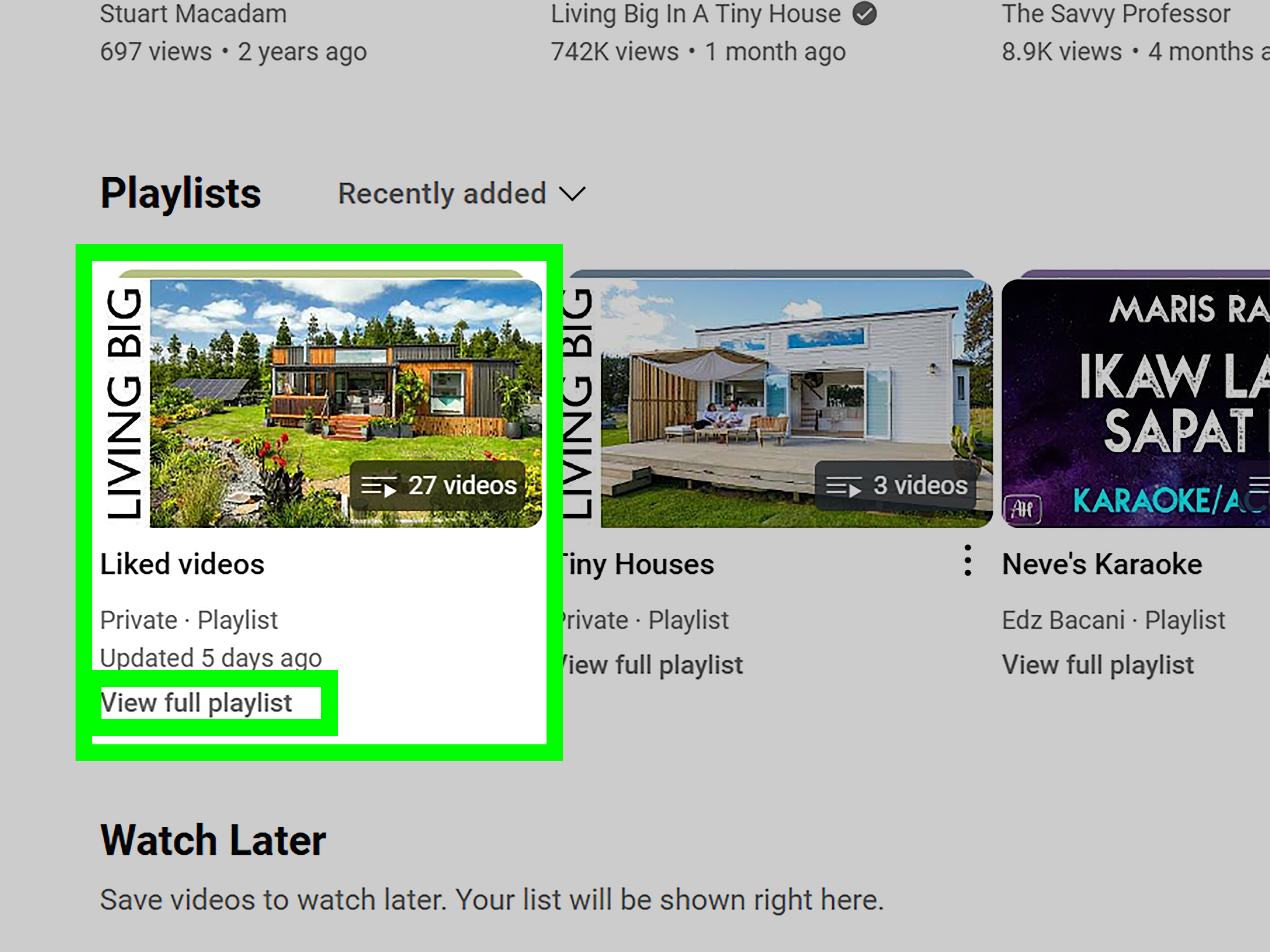
- Scroll until you see the Playlists area.
- Click Liked videos.
- Your liked videos will open as a private playlist. Scroll through it to find the video you want.
On some layouts, you may also see Liked videos directly in the left menu after clicking Show more. YouTube changes its furniture around from time to time, like someone rearranging the living room while you are holding a cup of coffee. If you do not see the playlist instantly, check the You tab first.
Desktop Shortcut Tip
If you often visit your Liked videos list, bookmark it in your browser after opening it. That turns a six-second hunt into a one-click return trip. It is not exactly rocket science, but neither is putting the TV remote in the same place every day, and humanity still struggles with that.
How to View Your Liked Videos in the YouTube Mobile App
The YouTube app on Android, iPhone, and iPad uses the You tab as the main place for account-related activity, including history, playlists, downloads, purchases, and liked videos. The exact screen may vary slightly depending on your app version, device, region, and YouTube experiments.
Step-by-Step: Android
- Open the YouTube app.
- Make sure you are signed in to the correct account.
- Tap You at the bottom of the screen.
- Scroll to the Playlists section.
- Tap Liked videos.
- Browse your liked videos and Shorts from the playlist view.
Step-by-Step: iPhone and iPad
- Open the YouTube app on your iPhone or iPad.
- Tap You in the bottom navigation bar.
- Look under Playlists.
- Tap Liked videos.
- Scroll through the list to replay or manage your liked content.
If you do not see the option, update the YouTube app from the App Store or Google Play, close the app, reopen it, and check again. YouTube frequently tests interface changes, so the label may stay the same while its location moves slightly.
How to Remove a Video From Your Liked Videos List
Sometimes your past likes are not exactly museum-quality. Maybe you liked a video during a phase when you were learning sourdough, indoor gardening, bass fishing, spreadsheet formulas, and “how to cut your own hair” all in the same weekend. No judgment. The playlist can be cleaned up.
Remove a Liked Video on Desktop
- Open Liked videos.
- Find the video you want to remove.
- Click the three-dot menu next to the video.
- Select Remove from Liked videos.
You can also open the video and click the highlighted thumbs-up button again. That removes the like and takes the video out of the playlist.
Remove a Liked Video on Mobile
- Open the YouTube app.
- Go to You > Liked videos.
- Tap the three-dot menu next to the video.
- Choose Remove from Liked videos.
Another option is to open the video and tap the active Like button again. When the like is undone, the video disappears from your liked list.
Why Can’t I See All My Liked Videos?
If your Liked videos playlist looks incomplete, you are not necessarily losing your mind. Several things can affect what appears in the list.
1. You Are Signed Into the Wrong Account
This is the classic culprit. Many people have more than one Google account: personal, work, school, brand channel, or that mysterious old Gmail account created during the era of questionable usernames. Click or tap your profile picture and confirm you are using the account where you originally liked the videos.
2. Some Videos Were Deleted or Made Private
If a creator deletes a video, makes it private, or YouTube removes it, the item may no longer appear normally in your Liked videos playlist. You may see fewer videos than expected because unavailable videos are hidden.
3. The Playlist Has a Display Limit
YouTube playlists can display up to 5,000 videos. If you have liked videos for many years, your Liked videos playlist may not show every single like from the ancient scrolls of your YouTube past. For heavy users, this is a real limitation.
4. The App Is Outdated or Glitching
Update the YouTube app, restart your phone, and try again. If the app still refuses to cooperate, open YouTube in a mobile browser or desktop browser to check whether the playlist appears there.
5. YouTube Is Testing a New Layout
YouTube frequently tests interface changes. One person may see You, another may remember Library, and a third person may wonder why every app now needs to reinvent navigation like it is designing a spaceship dashboard. Start with the You tab and look under playlists.
Can Other People See Your Liked Videos?
No, your complete Liked videos playlist is private. In the past, YouTube allowed more public visibility around liked videos, but the public Liked videos playlist was made private. That means your friends, subscribers, and random internet detectives cannot open your channel and inspect every video you have liked.
However, remember that individual interactions can still be visible in limited ways. For example, a creator may see total engagement numbers, and your public comments remain public unless you delete them. Liking a video is not the same as posting a comment that says, “This changed my life and also my lunch plans.”
Do Liked Videos Affect YouTube Recommendations?
Yes. YouTube uses liked videos as one signal to understand what you may want to watch next. Watch history, search history, subscriptions, “Not interested” feedback, and other account activity can also influence recommendations. If you like one video about restoring old furniture, YouTube may reasonably assume you are ready for sanding, staining, varnishing, and possibly buying a garage full of clamps.
This can be helpful when you want more of a topic. It can be annoying when you liked something only once out of curiosity. If your homepage becomes too obsessed with one subject, remove the like, delete related watch history, or use Not interested and Don’t recommend channel feedback.
Liked Videos vs. Watch Later vs. Regular Playlists
Liked videos, Watch Later, and custom playlists all save videos, but they are designed for different purposes.
Liked Videos
Use Liked videos when you genuinely enjoyed something or want YouTube to understand your taste. It is fast, private, and automatic.
Watch Later
Use Watch Later when you have not watched the video yet but want to return to it. This is perfect for long interviews, tutorials, documentaries, reviews, and “I will totally watch this 48-minute video after dinner” content.
Custom Playlists
Use custom playlists when you want organization. For example, create playlists called Workout Routines, SEO Tutorials, Recipes to Try, Travel Ideas, or Videos That Made Me Laugh Like a Broken Kettle. Custom playlists are better than relying on Liked videos as one giant everything-bucket.
How to Search Within Your Liked Videos
YouTube does not provide a perfect built-in search filter that searches only your liked videos. On desktop, you can open the Liked videos playlist and use your browser’s page search with Ctrl + F on Windows or Command + F on Mac. This only works well for videos already loaded on the page, so it is useful for small lists but clumsy for huge ones.
A better practical system is to move important liked videos into topic-based playlists. If you like a video because it is useful, save it to a custom playlist immediately. Your future self will thank you, probably while drinking coffee and pretending to have always been this organized.
How to Use Google Activity for YouTube History
Google’s My Activity area can help you review and manage activity connected to Google services, including YouTube activity. It is especially useful for controlling watch history, search history, and recommendation signals. Depending on your account settings and current Google interface, YouTube like activity may not always appear as a simple, complete “liked videos” library, so the regular YouTube Liked videos playlist remains the easiest place to start.
Still, My Activity is worth knowing about. It gives you more control over the data that shapes your YouTube experience. If recommendations feel chaotic, reviewing your activity settings can help you clean up the signal.
Common Problems and Quick Fixes
Problem: I Cannot Find the You Tab
On desktop, open the sidebar using the three-line menu in the top-left corner. On mobile, look at the bottom navigation bar. The You tab may have replaced older labels such as Library on many current YouTube layouts.
Problem: Liked Videos Says Private
That is normal. Your Liked videos playlist is private by design. Private does not mean broken; it means only you can view it while signed in.
Problem: A Video I Liked Is Missing
The video may have been deleted, made private, restricted in your region, or removed from YouTube. If the creator changed availability, you may not be able to recover it from the playlist.
Problem: I Liked Too Many Random Videos
Open Liked videos and remove items manually. For future use, reserve likes for videos you truly enjoy and use custom playlists for temporary saving. Your recommendation feed will become less confused, and so will you.
Best Practices for Managing Liked Videos
Use likes intentionally. A like is not only a bookmark; it is also feedback. If you enjoyed a video and want more like it, liking makes sense. If you only need to save something for later, Watch Later or a custom playlist may be better.
Review your Liked videos list once a month. Remove outdated tutorials, duplicate music videos, old news clips, or content you no longer care about. This tiny habit keeps the list useful and helps YouTube understand your current interests.
Create topic playlists for anything important. If you are learning video editing, build a playlist. If you are researching phones, build a playlist. If you are collecting dinner recipes, build a playlist before your Liked videos become a chaotic buffet of pasta, phone reviews, and motivational speeches from people standing in front of rented sports cars.
Real-World Experiences: What Using Liked Videos Actually Feels Like
In everyday use, the Liked videos playlist is most helpful when it becomes a quick memory lane. Many users do not like videos because they want to send a public signal; they like them because they want to find them again. A great tutorial, a funny sketch, a song remix, a repair guide, or a review of a product you are considering can easily disappear into the endless river of recommendations. Liking the video is the fastest way to throw a little digital anchor into that river.
The problem is that people often treat the Like button as a universal save button. That works for a while, but after months or years, the list can become messy. You may open Liked videos looking for a Photoshop tutorial and end up scrolling past old comedy clips, workout advice, phone comparisons, cat videos, and one oddly specific video about cleaning washing machine filters. The list is still useful, but it starts acting less like a library and more like a drawer full of cables: you know something valuable is in there, but finding it requires patience and maybe emotional support.
A better experience comes from using likes and playlists together. Like videos that truly reflect your taste. Save practical videos into custom playlists. For example, if you are learning guitar, do not only like every lesson. Create a playlist called “Guitar Practice” and save the best lessons there. If you are comparing laptops, create “Laptop Research.” If you are planning a trip, create “Travel Ideas.” This turns YouTube from a distraction machine into a useful research tool that occasionally still ambushes you with raccoons.
On mobile, the Liked videos list is especially convenient when you remember a video while away from your desk. Maybe you are at a store and need to rewatch a product review. Maybe you are cooking and need that recipe video you liked last week. Maybe someone asks, “What was that video you mentioned?” and you want to find it before the conversation moves on and everyone starts talking about weather apps. The You tab makes that possible in just a few taps.
On desktop, Liked videos is better for cleaning and organizing. The larger screen makes it easier to scan titles, remove old likes, and move important videos into better playlists. A simple monthly cleanup can improve both your saved content and your recommendations. Remove videos that no longer represent your interests. Keep the ones that matter. Your YouTube homepage will often feel more relevant when your likes are not sending mixed signals from five different hobbies you abandoned after three enthusiastic evenings.
The biggest lesson is this: Liked videos is a useful feature, but it is not a complete organization system. It is a quick-access trail of things you appreciated. Use it as a starting point, then build playlists when something deserves to be saved properly. That small habit can save hours of future scrolling and prevent the classic “I know I liked it, but where is it?” spiral.
Conclusion
Viewing your liked videos on YouTube is simple once you know where YouTube hides the button this season. On desktop, go to You in the sidebar and open Liked videos. On Android, iPhone, or iPad, tap You in the mobile app, scroll to playlists, and select Liked videos. From there, you can replay old favorites, remove videos you no longer want, and use your list as a private record of content you enjoyed.
For the best experience, do not let Liked videos become your only saving system. Use Watch Later for videos you plan to watch soon, custom playlists for topics you want organized, and likes for videos that genuinely match your interests. YouTube will feel less chaotic, your recommendations may improve, and your future self will spend less time scrolling through a playlist that looks like your entire personality had a garage sale.
Note: YouTube updates its interface often. If a label or button appears in a slightly different place, start from the You tab, check the Playlists section, and confirm that you are signed in to the correct Google account.