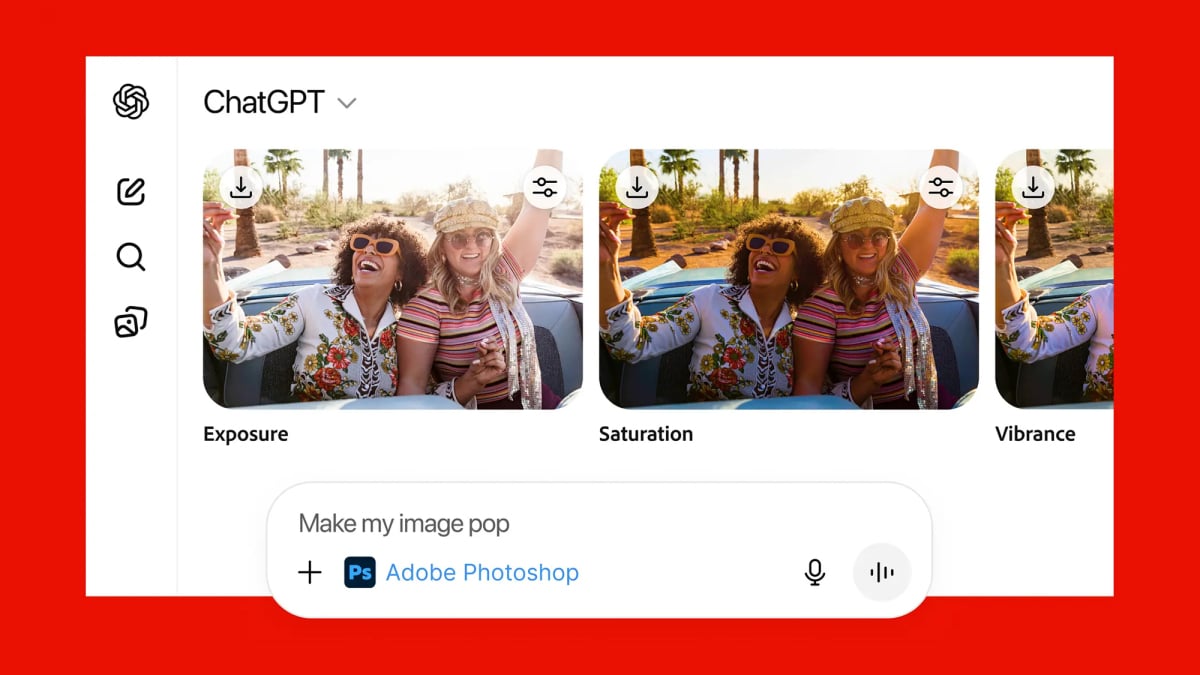
I opened ChatGPT expecting a clever chatbot with a paintbrush. What I got felt more like a patient junior designer who never sighs, never says “that’s not how layers work,” and somehow understands what I mean when I type, “Make this look less like a sad office flyer and more like a boutique coffee brand.”
To be clear, I did not literally install Adobe Photoshop inside ChatGPT. What I tested was Photoshop-style editing using ChatGPT’s image generation and editing tools: uploading images, asking for changes in plain English, generating variations, adjusting backgrounds, fixing compositions, creating mockups, and doing the kind of visual tinkering that used to require selections, masks, brushes, clone tools, and a motivational playlist.
The surprise? It worked better than expected. Not perfectly. Not professionally enough to replace a trained designer on a serious commercial campaign. But for fast creative drafts, social graphics, blog visuals, product mockups, mood boards, and “can this idea work?” experiments, ChatGPT has become shockingly useful. It is not Photoshop’s assassin. It is more like Photoshop’s chatty cousin who shows up with snacks and says, “What if we tried three versions?”
What “Photoshop in ChatGPT” Actually Means
When people say they are using Photoshop in ChatGPT, they usually mean they are using ChatGPT as a conversational image editor. Instead of manually selecting an object, feathering the edges, masking the background, adjusting the light, and then wondering why the shadow looks like it came from another planet, you describe the edit you want.
For example, you might upload a product photo and type: “Remove the clutter from the background, place the bottle on a clean marble counter, keep the label readable, and make the lighting feel warm and natural.” ChatGPT then attempts to generate or edit the image according to that instruction.
This is different from traditional Photoshop because the workflow is language-first. You do not need to know where every tool lives. You do not need to remember keyboard shortcuts. You do not need to fight a selection outline that refuses to respect hair, glass, smoke, or anything else with an attitude. You just explain the goal.
That does not mean control disappears. It means control shifts. Instead of controlling every pixel manually, you control the direction, constraints, style, and revision process. The better your instructions, the better your results.
My First Test: Removing Background Distractions
The first job I tried was simple: remove background clutter from a casual desk photo. There was a coffee cup, a charging cable, a random notebook, and one mysterious object that may have been a snack wrapper or modern art. In old-school Photoshop, I would reach for the clone stamp, content-aware fill, healing brush, and maybe a deep breath.
In ChatGPT, I described the cleanup: “Remove the messy objects in the background, keep the desk natural, and do not change the main laptop.” The result was not flawless, but it was surprisingly coherent. The desktop texture stayed believable. The laptop remained mostly intact. The edited space did not scream “AI was here wearing muddy boots.”
The biggest win was speed. For web publishing, thumbnails, blog graphics, and quick presentation visuals, the edit was more than good enough. If I were preparing an image for a luxury brand campaign, I would still take it into Photoshop for final polish. But for everyday content creation, ChatGPT passed the “would I actually use this?” test.
My Second Test: Expanding an Image for a Blog Header
Next, I tried something editors constantly need: turning the wrong image size into the right image size. A square image looks great on Instagram, but then your website hero banner demands a wide rectangle. Suddenly, everyone is cropping foreheads, cutting off furniture, or stretching pixels like pizza dough.
I asked ChatGPT to expand the image horizontally while preserving the original style. This kind of task is similar to generative expand features in modern creative tools. The result looked natural at first glance. The background extended smoothly, the lighting stayed consistent, and the extra space gave me room for a headline.
Was every detail perfect? No. Some background objects had that slightly dreamy “AI guessed this during a foggy lunch break” quality. But the overall composition worked. For blog headers, Pinterest graphics, YouTube thumbnails, and newsletter banners, this was a major time-saver.
My Third Test: Adding Objects Without Making a Visual Disaster
Adding objects is where AI image editing can either feel magical or deeply suspicious. I tested a lifestyle image and asked ChatGPT to add a small vase of flowers on a table. The instruction was specific: “Add a small ceramic vase with white flowers on the right side of the table. Match the lighting and keep it realistic.”
The first result was good, but the vase looked slightly too perfect, like it had never paid taxes or experienced gravity. So I revised the prompt: “Make the vase more casual and handmade, with a slight uneven shape. Reduce the glossy look.” The second version was much better.
This revealed one of the most important rules of using ChatGPT for image editing: the first output is not the final output. It is the opening negotiation. You revise, clarify, correct, and nudge. Think of it less like pressing a magic button and more like art-directing an assistant who is very talented but occasionally overconfident.
Where ChatGPT Image Editing Feels Better Than Expected
It Understands Intent, Not Just Commands
The biggest advantage is that ChatGPT can interpret creative intent. You can say, “Make this look more premium,” and then explain what premium means: cleaner background, softer lighting, less visual clutter, elegant spacing, and muted colors. Traditional software gives you tools. ChatGPT can help translate a vague creative feeling into visual changes.
It Is Great for Non-Designers
Most people do not want to become Photoshop experts. They want a better profile image, a cleaner product photo, a blog banner, a menu graphic, a mockup, or a social post that does not look like it was assembled during a power outage. ChatGPT lowers the entry barrier because plain English becomes the interface.
It Makes Experimentation Cheap
One of the best parts of using ChatGPT for Photoshop-style work is how easy it is to test ideas. Want the same product on a beach, in a studio, on a kitchen counter, and in a holiday gift scene? Ask for variations. Want a brighter, moodier, more editorial, or more playful version? Keep refining. The creative process becomes less precious and more playful.
It Helps With Prompt-to-Visual Workflows
For content creators, marketers, bloggers, and small business owners, this matters. You can move from idea to draft visual in minutes. A blog post about home organization can get a clean storage-bin hero image. A recipe article can get a warm kitchen-style illustration. A product concept can become a mockup before anyone opens a design file.
Where Photoshop Still Wins
Now for the reality check. Photoshop is still the better tool for precision. If you need exact layer control, advanced masking, color correction, print-ready files, professional retouching, batch workflows, typography control, smart objects, brand templates, and pixel-level edits, Photoshop remains the grown-up in the room.
ChatGPT is impressive, but it can still misunderstand details. It may alter parts of an image you wanted untouched. It may slightly change faces, hands, logos, product labels, or textures. It may create text that looks good from far away but questionable up close. It may also produce beautiful results that are not technically accurate.
That is why I would not treat ChatGPT as a full Photoshop replacement. I would treat it as a fast concept generator, AI editing assistant, creative brainstorming partner, and rough-draft machine. For final professional production, Photoshop and Firefly-powered tools still offer deeper control.
The Best Use Cases I Found
Blog and Website Graphics
For web publishers, ChatGPT image editing is extremely useful. You can create featured images, adjust aspect ratios, clean up backgrounds, generate concept visuals, and test multiple styles. This is especially helpful when a stock photo is close but not quite right.
Social Media Content
Instagram posts, Facebook graphics, Pinterest pins, and LinkedIn visuals all benefit from fast iteration. ChatGPT can help create polished drafts quickly, especially when the goal is not fine-art perfection but clear, attractive communication.
Product Mockups
Small brands can use ChatGPT to imagine packaging, backgrounds, seasonal campaigns, and lifestyle scenes. A candle can appear on a cozy nightstand. A coffee bag can sit on a rustic counter. A skincare bottle can move from bathroom shelf to spa-like marble surface without requiring a full photo shoot.
Creative Direction
Even when the final image needs Photoshop, ChatGPT helps define the direction. You can create rough visuals to show a designer, client, editor, or team. That alone can save hours of vague discussion. “Make it warmer but still modern” is easier to understand when there are three visual examples on the screen.
Tips for Getting Better Results
The quality of the output depends heavily on the quality of the prompt. A weak prompt says, “Make this better.” A strong prompt says, “Remove the background clutter, keep the subject unchanged, use soft natural light, create a clean editorial look, and leave space on the left for headline text.”
Be specific about what should change and what should stay the same. If the product label matters, say so. If the person’s face must remain untouched, say so. If you need a specific aspect ratio, mention it. If the image is for a website banner, explain where text will go.
It also helps to revise in small steps. Do not ask for ten complicated changes at once unless you enjoy surprises. Start with background cleanup, then adjust lighting, then change the composition, then add text or styling. The more controlled the process, the better the result.
What Surprised Me Most
The most surprising part was not that ChatGPT could edit images. The surprise was how natural the workflow felt. I did not have to switch mental modes from writer to designer to software technician. I could stay in the same creative conversation.
That matters because many content creators work across formats now. A blogger is also a thumbnail maker. A marketer is also a social media designer. A small business owner is also the photographer, copywriter, product stylist, and emergency IT department. ChatGPT fits into that messy reality because it works like a creative assistant rather than a traditional tool panel.
It also made me more willing to experiment. In Photoshop, I sometimes avoid trying five versions because every version takes effort. In ChatGPT, asking for variations feels easy. Some are bad. Some are weird. Some look like they were designed by a robot who just discovered beige. But one or two usually point in a useful direction.
Should Designers Be Worried?
Designers should pay attention, but panic is not necessary. AI image editing changes the workflow, but it does not eliminate taste, judgment, brand understanding, composition skills, or the ability to know when an image looks “almost right but somehow cursed.”
In fact, skilled designers may get more value from ChatGPT than beginners because they know how to direct it. They can spot errors faster, write sharper prompts, combine AI drafts with professional editing tools, and turn rough generations into polished work.
The people most likely to benefit are creators who need lots of decent visuals quickly and professionals who know how to use AI as a starting point rather than an endpoint. The danger is not that everyone will become a designer overnight. The danger is that everyone will think they became a designer overnight. There is a difference, and it usually shows up in the spacing.
My Honest Verdict
Trying Photoshop-style editing in ChatGPT was better than I expected because it solved real problems quickly. It removed distractions, expanded images, generated useful variations, helped with visual brainstorming, and made editing feel conversational instead of technical.
It is not perfect. It can be inconsistent. It can change details without permission. It still needs human judgment. But as a creative assistant, it is genuinely useful. For fast web graphics, mockups, idea testing, and everyday image cleanup, ChatGPT has earned a place in my workflow.
Photoshop is still the studio. ChatGPT is the sketchpad, assistant, idea machine, and occasionally the intern who accidentally creates something brilliant while trying to fix a coffee stain. Used together, they make visual creation faster, easier, and a lot more fun.
Extra Experience Notes: What It Felt Like to Actually Use ChatGPT as a Photoshop Assistant
After spending more time with ChatGPT’s image tools, I realized the biggest change was psychological. Traditional editing software can make a simple idea feel like a technical project. ChatGPT makes the same idea feel like a conversation. That sounds small until you are trying to create five graphics before lunch and your brain is running on coffee, deadlines, and one questionable granola bar.
One of my favorite experiments was creating a blog hero image from a plain product photo. The original image was usable but boring: flat lighting, dull background, and the general emotional energy of a passport photo. I asked ChatGPT to turn it into a warm lifestyle image suitable for a modern home blog. The first attempt looked too polished, almost like a catalog photo from a universe where nobody owns dust. So I asked for softer shadows, a more natural background, and a less perfect tabletop. The next version felt much more believable.
That back-and-forth was the part that won me over. I did not need to know the exact technical path. I only needed to know what was wrong and how to describe it. “Too glossy,” “more natural,” “less corporate,” “keep the product the same,” and “make the lighting warmer” became practical editing commands. It felt less like operating software and more like directing a creative teammate.
I also tested ChatGPT for thumbnail concepts. This is where it shines. A thumbnail does not always need microscopic perfection. It needs a clear subject, strong contrast, readable space, and an idea that catches attention quickly. ChatGPT helped generate several directions fast: clean tech style, cozy desk style, bold magazine style, and minimalist product style. Some versions were too dramatic, as if the laptop were about to announce a superhero movie. But the range was useful, and it helped me decide what visual direction made the most sense.
The tool struggled more when I demanded exact control. When I asked it to preserve every part of an image while changing only one tiny object, the results were mixed. Sometimes it obeyed. Sometimes it quietly redecorated the scene like an enthusiastic roommate. This is where Photoshop still matters. If a client says, “Change only the blue button to green and do not touch anything else,” I would not rely only on ChatGPT. I would use a controlled editor with layers and masks.
Text inside images was another mixed area. It has improved a lot compared with older AI tools, but I still prefer adding final text manually in Photoshop, Canva, Illustrator, or another design tool. AI can help visualize where the headline should go, but for brand work, exact typography matters. A beautiful image with slightly wrong text is like wearing a tuxedo with flip-flops. Memorable, yes. Ideal, no.
The best workflow I found was simple: use ChatGPT for ideation, rough edits, background changes, expansions, and visual drafts; use Photoshop or another professional editor for final precision. That combination feels powerful because each tool does what it does best. ChatGPT gives speed and imagination. Photoshop gives control and polish.
So yes, I tried Photoshop in ChatGPT, and it went better than I expected. Not because it replaced every editing tool, but because it made the creative process faster and less intimidating. It turned “I need an image” into “Let’s try a few directions.” For creators, marketers, bloggers, and small business owners, that shift is huge. It means more experiments, fewer blank screens, and a lot less time pretending we remember where that one Photoshop tool is hiding.
Conclusion
ChatGPT is not a perfect Photoshop replacement, and honestly, it does not need to be. Its real strength is making image editing more accessible, conversational, and flexible. For quick cleanups, mockups, background changes, blog visuals, social graphics, and creative brainstorming, it performs far better than many people might expect.
The smartest approach is not choosing ChatGPT or Photoshop. It is using both wisely. Let ChatGPT help you move fast, explore ideas, and create strong first drafts. Let Photoshop handle the final precision, brand details, and professional finishing work. Together, they make a surprisingly good creative team: one talks, one polishes, and you get to look like you planned it all along.